



 More Products
 Compare


More Products


Back






Back






我的荣耀 开启荣耀之旅
打开
App 内打开



 Disagree Terms
 Log out




 [Back to the basics 101] #9: Digital Balance
![]()

0

0

0
Follow
Following



Share


Favorite
Comment

Like
 The link Copied
Add to Favorites
Create
Confirm
Comments (
0 )


Comment…
Add to Favorites
Create
Confirm


Copyright © Honor Device Co., Ltd. 2020-2026. All rights reserved.
 粤公网安备44030002002883号 粤ICP备20047157号
- Posts
- photo
- video

Wazzup guys
Happy new year and I hope you are all doing well!
It's 2021 but the pandemic isn't over (yet) and I know that most of us feels unproductive since we're just using our phone all day. So that's why I want to share with you this great feature called Digital Balance which will help you lessen your phone screen time and be more energetic.

Digital Balance monitors the time you spend on your phone and it shows the usage duration of each individual app. So if you think you are wasting too much time on your device, this feature allows you to set usage limits for apps, as well as a daily on-screen time limit.
So how to use this feature?
1. Go to Settings then tap on Digital Balance.
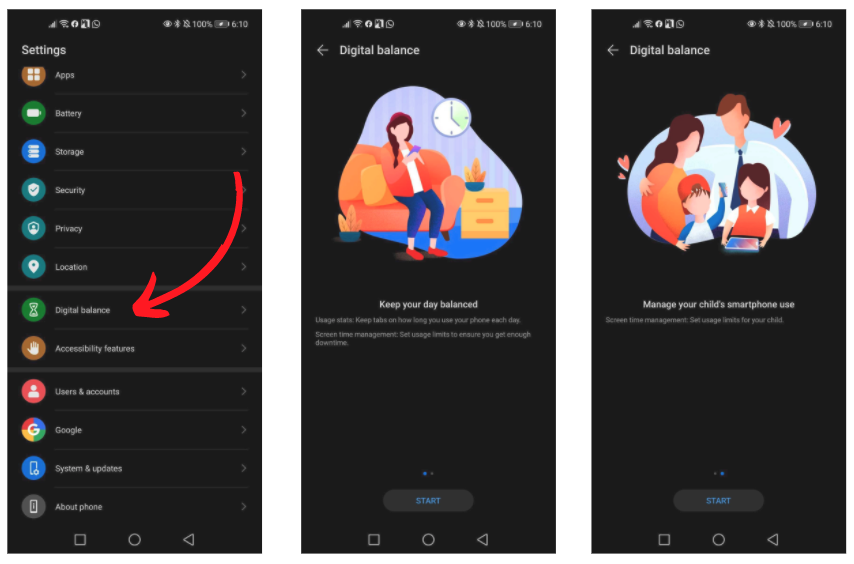
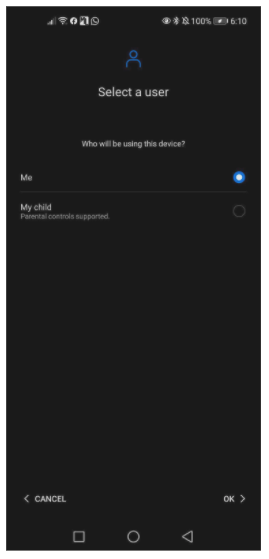
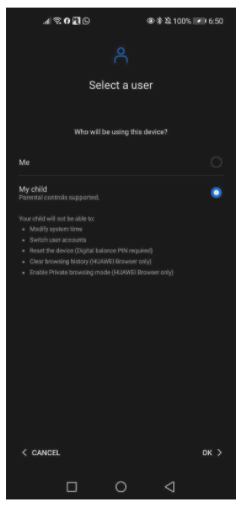
2. Once you click on Start, it will ask you who will be using the device since it also includes parental controls for monitoring your child's phone usage. Once decided, you can click on OK.
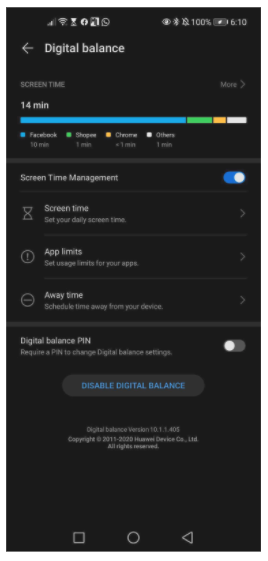
3. You should be able to see the Digital Balance dashboard which shows your Screen time and Screen time management options.
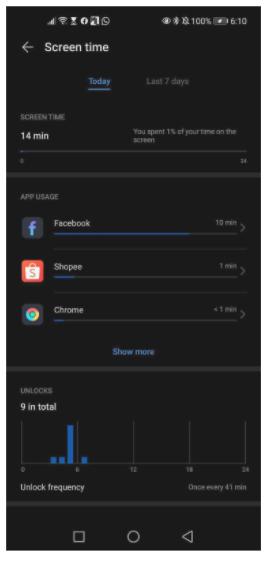
Clicking on More > beside Screen time shows the time you've spent on your screen for today or for the last 7 days. It also shows your App usage and number of unlocks.
Now, let's check the Screen time management options.
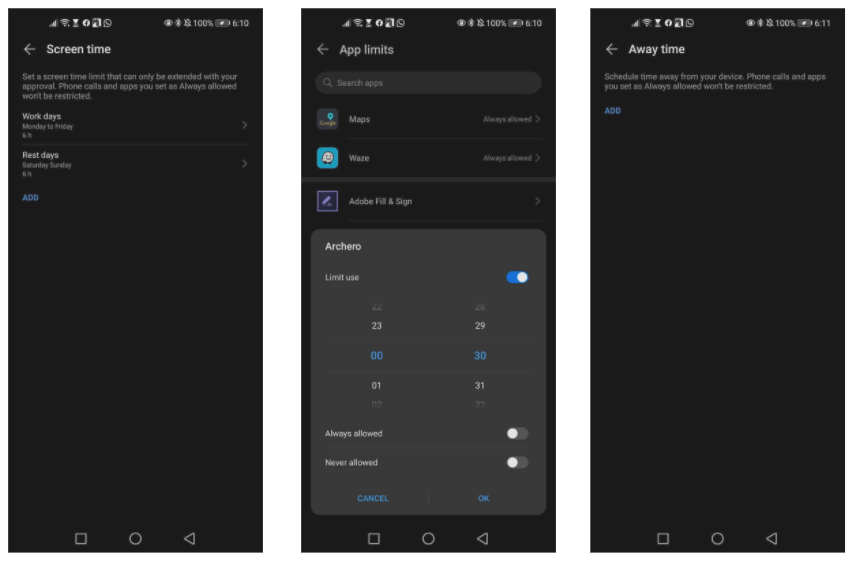
Screen time - allows you to set the Usage hours, meaning the amount of on-screen time you define for each day. You can select different rules for the working days and for the weekend. After the limit is reached, it can be extended only with your approval.
App limits - allows you to set usage limits for each individual app. After the time limit is reached, you won't be able to use the app anymore. Some apps can be set to either Always allowed or Never allowed.
Away time - allows you to schedule your away time from your device. You can still receive phone calls and use the apps that you set as Always allowed.
How to set it up on your Child's device?
It's easy! You just need to select My Child from the 2nd step as mentioned above.
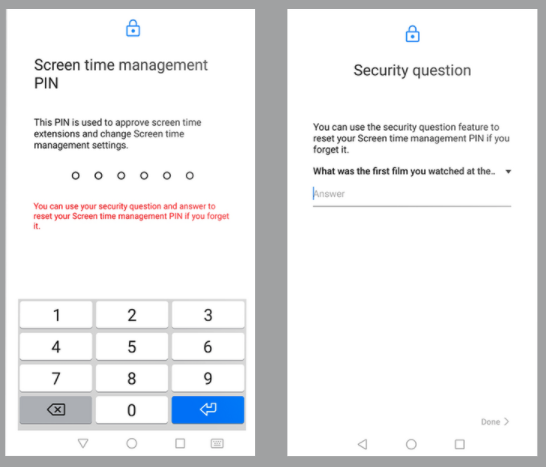
Clicking on OK will prompt you to create a 6-digit PIN and a secret question so that your child can't modify the settings you set.
Time is your best asset and I hope this article helps you invest your time on other hobbies. Hope this helps! Let me know if you have any questions.
Stay safe!
Report