



 More Products
 Compare

More Products


Back



我的荣耀 开启荣耀之旅
打开
App 内打开



 Disagree Terms
 Log out




 [Back to the basics 101] #14: Screen pinning
![]()

0

0

0
Follow
Following



Share


Favorite
Comment

Like
 The link Copied
Add to Favorites
Create
Confirm
Comments (
0 )


Comment…
Add to Favorites
Create
Confirm


Copyright © Honor Device Co., Ltd. 2020-2026. All rights reserved.
 粤公网安备44030002002883号 粤ICP备20047157号
- Posts
- photo
- video

Wazzup guys!
Are you also getting annoyed when you're using a certain app and you accidentally closed it? Haha! Worry no more since I'm gonna show you how you can use Screen Pinning to prevent that from happening again!
What is Screeen Pinning?
Screen Pinning is a feature that allows you to pin the app on the screen to prevent from being closed accidentally. Other features on the screen are disabled including the access to notification bar, but you can still take some screenshots and adjust the audio volume.
How to enable it?
Screen Pinning feature is disabled as a default. To enable it, please refer the instructions below:
1. Go to Settings > Security > More settings.
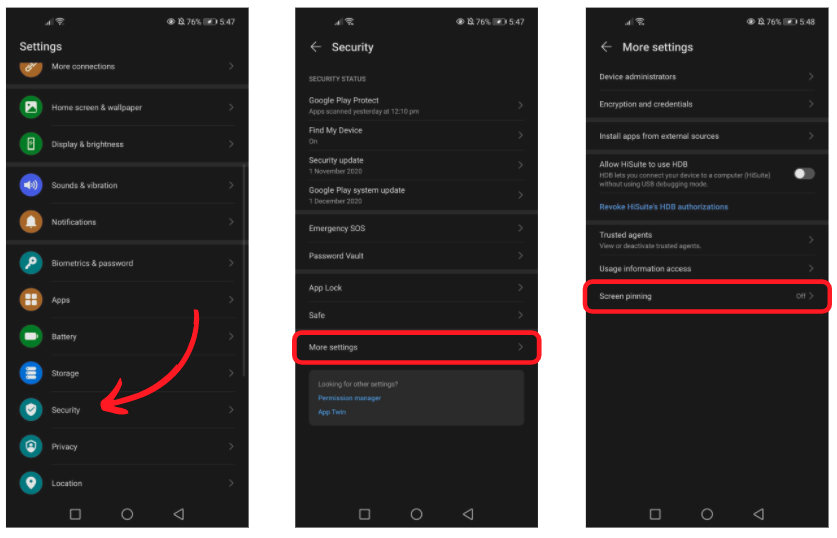
2. Then select Screen Pinning and enable it by toggling the radio button.
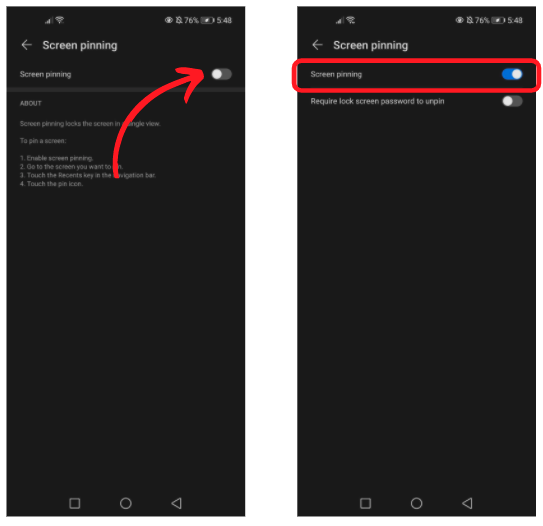
And that's it! There's an optional settings that requires lock screen password to unpin the app that is currently pinned, so you may want to enable this for additional security.
How to pin and unpin the screen?
Once the Screen Pinning is enabled from the settings, click the Pin icon below the app to pin.
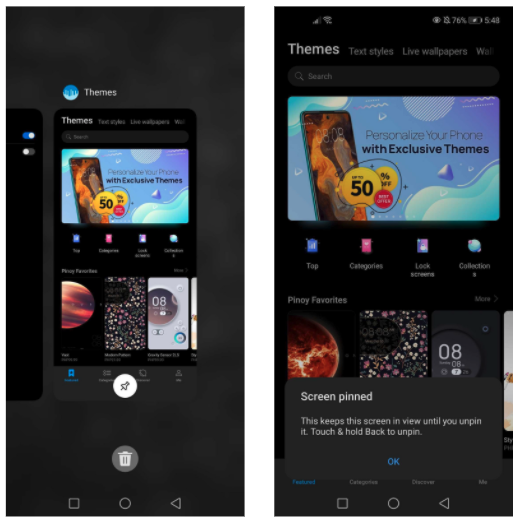
*You will get a notification that the screen is pinned upon clicking on the Pin icon*
If you tap on any of the navigation keys, you will get a pop-up message below the screen that notifies you that the screen is pinned.
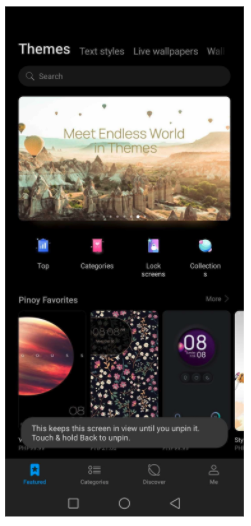
To unpin the app, you just need to tap and hold the back button from your navigation settings, or you may need to enter your lock screen password first (fingerprint or face unlock also works. Thanks @Manoj for pointing it out! ) if you enable the Require lock screen password to unpin on the Screen pinning settings. Once done, you should get a message stating that the app is unpinned.
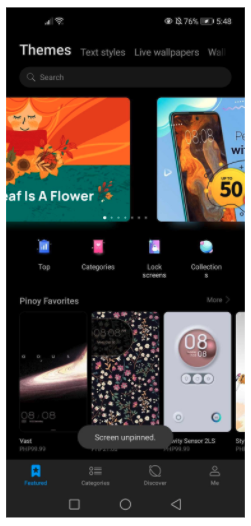
And that's it! I would say that this feature also comes in handy if you have a kid and they want to play games on your phone or someone wants to borrow your phone to call or text someone. You can just pin the app they would like to use to prevent them from accessing other apps or your personal files.
Hope this helps! Let me know if you have any questions.
Stay safe
Report