

 More Products
 Compare
Shop













我的荣耀 开启荣耀之旅
How to Make My Laptop Touch Screen: AirBar & Other Solutions
Table of Contents
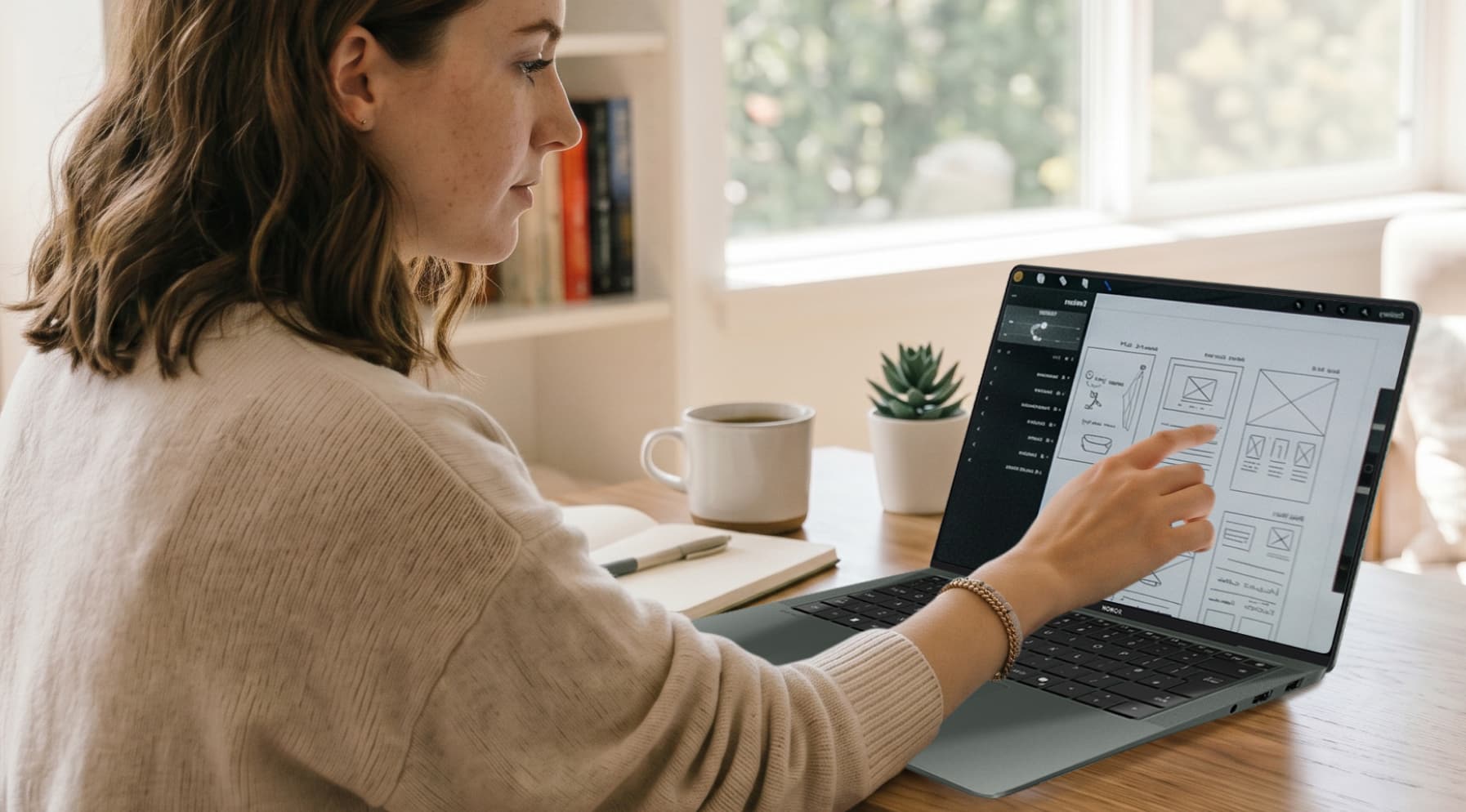
Wish you could tap, swipe, scroll, or even sketch right on your laptop screen? You’re not the only one. Touch controls make everyday tasks feel quicker and more intuitive, so it’s no surprise many people look up “How to make my laptop touch screen?”
The good news is that you do have options, even if your laptop wasn’t built for touch. Some are simple add-ons, like AirBar. Others take a bit more setup. This guide walks you through what actually works and how to get everything running smoothly.
Is It Possible to Make a Laptop Display a Touchscreen Display?
Technically, you can’t magically turn any laptop into a touch screen by changing a hidden setting or installing an app. A true touchscreen display requires a built-in touch layer (called a digitiser) that detects finger or stylus input. If your screen doesn’t have that hardware, it won’t respond to touch no matter what software you try.
But that doesn’t mean the answer to “Can you make a laptop touch screen?” is a flat no. What you can do is add a touch-capable layer on top of or beside your existing screen. The setup won’t behave quite like a factory-made touchscreen, but it can still feel responsive enough for everyday tapping, scrolling, and simple drawing.
How to Make Your Laptop Touch Screen?
So, when you ask how to turn laptop into touchscreen, you actually have five practical routes, each with its own trade-offs. Once you know what each option involves, it becomes easier to pick the one that fits your budget, comfort level, and setup.
Here’s a clear look at what you can do to convert laptop to touchscreen and how each method works:
1. Use an external or portable touchscreen monitor
The simplest option to make laptop touch screen is to plug in a touchscreen monitor or a portable USB-C touchscreen. These usually need:
● USB-C, HDMI, or DisplayPort for video
● USB for touch data, if it’s not sent through USB-C
Windows then treats the monitor like a normal second screen — only this one accepts touch. You don’t alter your laptop at all, and setup tends to be straightforward.
How to set it up:
1. Connect the monitor: Plug the video cable into your laptop and the touchscreen monitor. If the monitor uses a separate USB cable for touch, connect that too. Turn on the monitor and your laptop. Windows should detect the new screen automatically and install basic drivers.
2. Set up the display in Windows: On Windows, open Settings > System > Display. Under Multiple displays, choose whether to Extend (extra workspace) or Duplicate (mirror) your screen. Drag the monitor icons so they match how your screens sit on your desk. If you want to tap directly on the touchscreen for everything, you can make it your main display in the same menu.
3. Calibrate touch (if needed): If taps don’t line up with what you see, open the Control Panel (search for “Control Panel” in the Start menu). Go to Hardware and Sound > Tablet PC Settings. Select Calibrate the screen for pen or touch input. Choose the correct display, then follow the on-screen crosshair prompts. This tells Windows which screen should respond to touch and improves accuracy.
Pros:
● No modification to your laptop
● Usually plug-and-play on Windows
● Large, responsive touch panels are easy to find
● Works well for drawing, annotating, or multitasking
● Can double as a travel monitor
Cons:
● Adds another device to carry
● Takes up desk space
● Doesn’t make the laptop’s own screen touch-enabled
2. Add a touchscreen overlay or frame
A touchscreen overlay adds a touch-sensitive layer on top of your laptop’s existing display. It sits directly over the screen and connects via USB, letting Windows register taps much like a built-in touch panel. Overlays come in two main types:
● Projected capacitive (similar to phone screens, using a grid of electrodes in glass or film)
● Infrared (IR) frames that use a grid of light beams around the edge to detect where your finger breaks the beam.
Although overlays are more common on desktop monitors and kiosks, there are laptop-friendly sizes available.
How to set it up:
1. Measure your screen: Note your laptop’s visible diagonal screen size in inches (13.3”, 14”, or 15.6”) and aspect ratio (for example, 16:9). Overlays must match this exactly to work properly.
2. Place the overlay or frame: Shut down your laptop, clean the display, then position the overlay so it lines up with the active screen area. Most attach using clips, brackets, or light adhesive strips.
3. Connect via USB: Plug the overlay’s USB cable into your laptop. Windows should recognise it as a touch device. Some models include optional calibration software — install it if recommended.
4. Calibrate the touch layer: If touches feel slightly misaligned, open Control Panel > Hardware and Sound > Tablet PC Settings and run Calibrate for touch.
Pros:
● Lets you use your laptop’s existing screen
● Simple USB connection
● Works with most screen sizes and aspect ratios
● Supports common touch gestures
Cons:
● Adds thickness to the display
● May increase glare or reduce clarity slightly
● Must match your screen size precisely
3. Attach an infrared sensor bar under the screen (AirBar)
Infrared sensor bars (for example, devices like AirBar) mount along the bottom edge of your screen. They project a thin “light field” across the display; when your finger or stylus interrupts the light, the bar calculates the touch position and sends it to Windows over USB.
When you ask how to make any laptop touch screen, this is one of the most well-known solutions. It doesn’t change the display itself; it simply adds a touch-sensitive layer in front of it.
How to set it up:
1. Position the bar: Power off your laptop. Line up the bar along the bottom bezel of your screen. Attach it with the supplied magnets or clips so it sits straight and doesn’t cover the display area.
2. Connect the USB cable: Plug the bar into a USB port. Windows should recognise it automatically as an input device.
3. Calibrate touch: Open Control Panel > Hardware and Sound > Tablet PC Settings. If Windows lists a touch-enabled display, select it and choose Calibrate. Follow the instructions, then test basic gestures like tap, drag, and scroll.
Pros:
● No adhesive or permanent attachment
● Leaves the actual screen surface uncovered
● Simple setup: place the bar, plug in USB, calibrate
● Lightweight and easy to remove or store
Cons:
● Accuracy depends on alignment
● Can be less precise at the edges
● Not ideal for fast drawing or detailed handwriting
● Requires space along the bottom edge of the screen
● Touch can fail if the bar shifts or gets bumped
4. Replace the entire screen through a technician
In some models, it’s technically possible to replace the original non-touch display with a compatible touchscreen assembly (panel + digitiser + correct cable). This usually needs:
● A laptop model that also ships in a touch version
● The right replacement parts and cables
● A technician who can disassemble and reassemble the lid safely
This route to convert laptop screen to touch screen is closer to an official upgrade than an add-on, but it’s specific to the exact model and isn’t a casual DIY project.
Pros:
● Most “native” result
● Uses a real touchscreen assembly designed for the laptop model
● Better accuracy and responsiveness than overlays or IR bars
● Keeps your laptop’s footprint and portability unchanged
Cons:
● Only possible if your exact model has a touch version
● Requires correct parts, cables, and technical skill
● Professional installation adds cost
● Warranty or repair risks if done improperly
5. Use an Android tablet as a touch-enabled second screen
If you’re wondering, “Can you add touchscreen to a laptop?” you can also turn an Android tablet into a second, touch-capable display for your Windows laptop. This doesn’t make your laptop’s built-in screen a touchscreen, but it does give you a touch surface that controls Windows in real time.
How to set it up:
1. Install the Windows app: Download the companion app or driver on your laptop, like spacedesk. This lets Windows extend or mirror its display to the tablet.
2. Install the viewer app on the tablet: Get the matching app from Google Play and open it.
3. Connect both devices: Use either Wi-Fi (same network) or a USB cable. USB tends to offer lower lag and smoother performance.
4. Link and configure the display: Open the apps on both devices, connect them, then go to Settings > System > Display in Windows. Choose Extend or Duplicate, and arrange the screens to match your workspace.
Pros:
● No physical modification to your laptop
● Makes use of a device you may already own
● Portable and flexible
● Good for light drawing, note-taking, or tool panels
Cons:
● Does not make the laptop’s built-in display touch-enabled
● Touch response depends on Wi-Fi or USB stability
● Possible latency compared to hardware add-ons
When Upgrading to a New Touchscreen Laptop Makes More Sense
If your current non-touch laptop has seen better days, there’s a point where bolting on extra gear stops making sense. A portable touchscreen monitor or an AirBar can be handy, but they don’t fix slow performance, weak battery life, or a tired display.
Sometimes the most realistic answer to “How can you make your laptop touch screen?” is to upgrade to laptops built around touch from day one.
One excellent model to look at is the HONOR MagicBook Art 14 2025. It’s a slim 14.6” Windows laptop with a crisp 3.1K OLED Eye Comfort touchscreen (3120×2080, 3:2) that supports precise 10-point touch and delivers vivid colour, deep contrast, and up to 1600 nits peak brightness.
Inside, it runs on the latest Intel® Core™ Ultra 7 Series 2 processors, paired with 32 GB of RAM and a fast SSD, so it’s snappy enough for multitasking, creative work, and everyday productivity.
Despite the power, it stays ultra-portable at just over 1 kg and about 1 cm thick, with a sturdy magnesium-alloy chassis, a comfortable keyboard, a smooth touchpad, and a practical range of ports. It also includes a detachable, reversible magnetic camera that rotates 180° or pops off entirely when you want privacy, giving you more control during calls and presentations.
Once you have a touchscreen laptop, you can switch touch input on or off whenever you like. This is handy if you use an external monitor or if you often brush the screen by accident.
You can do this through Device Manager in Windows.
To turn the touchscreen off:
1. Right-click the Start button and open Device Manager.
2. Expand Human Interface Devices.
3. Find HID-compliant touch screen.
4. Right-click it and choose Disable device.
5. Confirm if Windows asks.
Touch input will stop, but your keyboard, mouse, and touchpad will still work.
To turn the touchscreen on again:
1. Open Device Manager.
2. Go back to Human Interface Devices.
3. Right-click HID-compliant touch screen.
4. Select Enable device.
If you see more than one entry, enable the others too until touch works again.
Conclusion
In the end, there’s no single right way on “How to make my laptop touch screen?” It depends on your needs, your budget, and the state of your current device. Add-on tools can work well for simple tapping or scrolling, while a purpose-built touchscreen laptop gives you a smoother, long-term experience. Whether you try an external touchscreen, an AirBar, an overlay, or upgrade to a new machine, you now have a clear view of what each option offers and how to choose the setup that fits your everyday work.
FAQs
Can I turn my laptop into a touchscreen?
Yes, in a limited way. You normally can’t convert the built-in screen itself to true touch without serious hardware changes, but you can use add-on devices. These include infrared bars (like an AirBar) and overlay frames that sit in front of or just below the screen and plug in via USB, effectively letting you tap and swipe on the display without opening the laptop or replacing the panel.
Can I enable touch screen on my laptop?
You can only enable touch in software if your laptop actually has touchscreen hardware built in. On Windows, you can check by opening Device Manager and expanding Human Interface Devices. If you see “HID-compliant touch screen”, right-click it and choose Enable. If your laptop was sold as a non-touch model, there’s no hidden setting that will magically add touch. You’d need extra hardware, such as an external touch overlay or an AirBar.
Can I add a touch screen to my laptop?
Yes, but usually by adding extra hardware rather than modifying the original screen. You can buy external touchscreen monitors, AirBar, or clip-on overlays that connect via USB/HDMI and give you tap and gesture support while keeping your existing laptop intact. This is generally cheaper, easier, and safer than attempting an internal touchscreen conversion.
Can I replace a laptop non touchscreen display with touchscreen display?
In most cases, simply swapping a non-touch panel for a touch one isn’t practical. Touch versions of a laptop usually use different screens, bezels, cables, hinges and sometimes even different motherboard connectors, so it’s rarely a drop-in upgrade. Even when it’s technically possible, parts and labour can cost more than the benefit you gain, so an external touch solution, like an AirBar, is usually the better bet.
Will adding a touch screen void my laptop warranty?
Using an external touchscreen monitor, AirBar, or clip-on overlay frame usually won’t affect your laptop warranty. However, once you open the laptop to replace the screen or install internal touch components, things change. Most manufacturers state that unauthorised repairs or hardware modifications can void the warranty, or at least limit support for any issues linked to that work.
Source: HONOR Club
Products Recommend
Latest Blogs
Subscribe For Updates - Special Offers And More.
I agree to receive the latest offers and information on HONOR products through email or IM (e.g. WhatsApp) provided below and advertisement on third-party platforms. I understand that I can unsubscribe anytime according to Chapter 6 of HONOR Platform Privacy Statement .
Consumer hotline

Tax ID/VAT Registration No. 311123479500003
Commercial Registration No. 1010754462
E-Commerce Authentication No. 0000093589