

 More Products
 Compare













我的荣耀 开启荣耀之旅
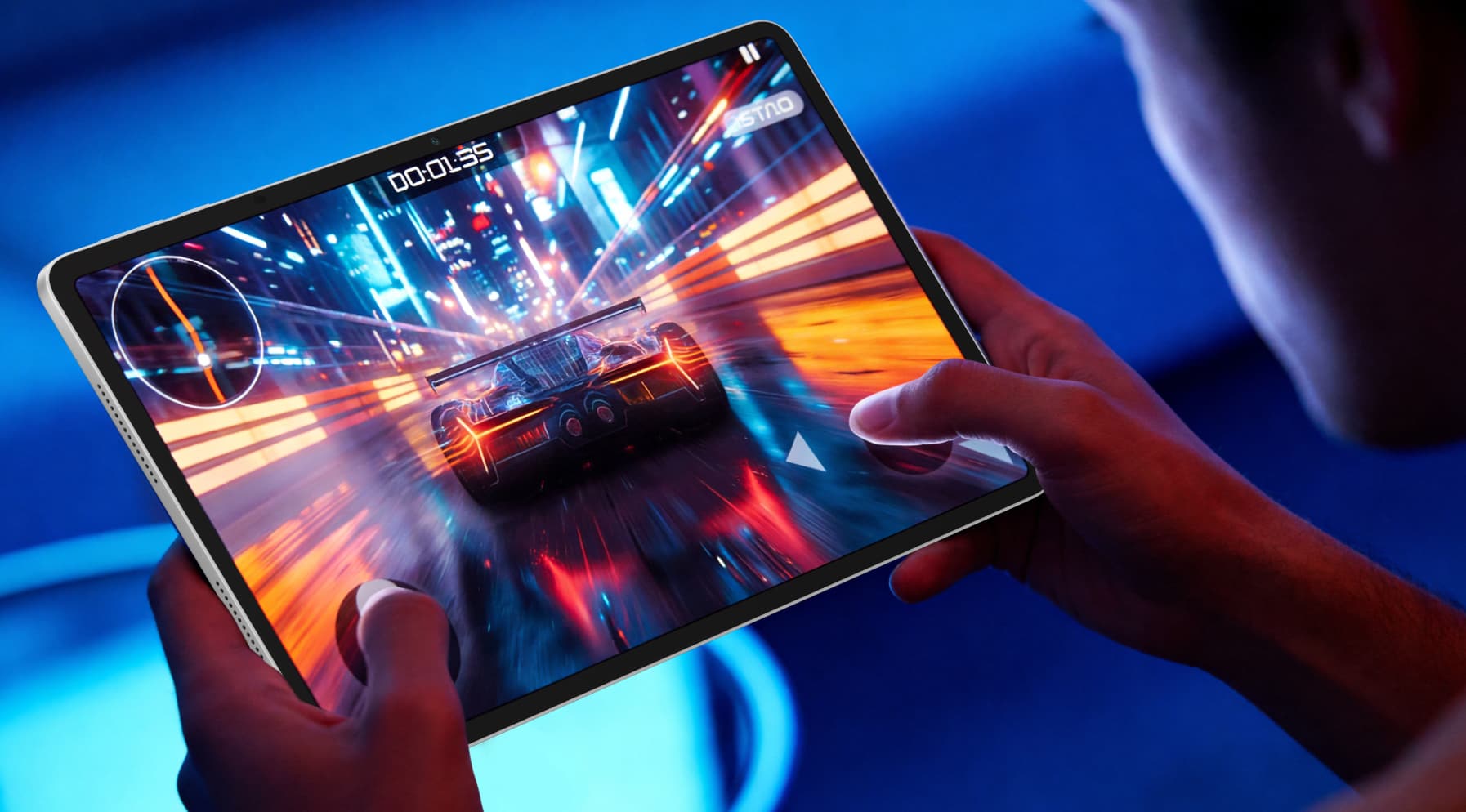
Can You Play Steam Games on Android Tablet? Yes, Here’s How
Table of Contents
You’re not the only one who’s wondered, can you play Steam games on Android tablet? Lots of players want a way to dip into their PC library without sitting at a desk. The good news is that you can do it, and it’s easier than you might think. In this guide, you’ll see how the setup works, what you need, and which games feel good to stream on a tablet.
Can You Play Steam Games on an Android Tablet?
The short answer to “Can you play Steam games on a tablet running on Android system?” is yes. But you don’t install them like normal Android apps. You either stream them from somewhere else or run them through a Windows-style compatibility layer.
In practice, you’ve got three main routes to play Steam games on an Android tablet:
1. Stream from a PC
This is the most common option. Your gaming PC does the heavy lifting; your tablet just shows the video and sends your inputs back.
Steam Link (official Valve option)
● The official Steam Link app is free on Google Play and works on most phones, tablets and Android TVs running Android 5.0 or newer.
● You connect the app to a PC on your home network that’s running Steam, then stream your existing library to your tablet.
This is usually the easiest “it just works” answer for most people.
Other PC-to-Android streaming apps
If you’re wondering
● Moonlight + Sunshine: Sunshine runs on your gaming PC and handles the video encoding. Moonlight on your Android tablet picks up the stream. The setup works with AMD, Intel and NVIDIA GPUs, and you can stream your full desktop, not just a single game window.
● Razer PC Remote Play: This uses the same underlying tech as Moonlight, but bundles it into Razer’s own apps and interface. It streams games from your PC to Android devices and ties in nicely with Razer controllers like the Kishi.
These options can give you very low latency and more tweakable settings, but setup is a bit more technical than Steam Link.
2. Stream from the cloud (no gaming PC needed)
But can you play PC games on a tablet without a PC? Well, yes, you can stream from cloud servers instead.
The most Steam-friendly option right now is NVIDIA GeForce NOW:
● It’s a cloud gaming service that runs PC games on NVIDIA servers and streams them to devices, including Android phones and tablets.
● The Android app supports devices with Android 5.0+, at least ~2 GB RAM, and modern graphics.
● You can link your Steam account and play many supported games you already own.
Here your tablet talks directly to NVIDIA’s data centres instead of your home PC.
3. Run some Steam games directly on Android (advanced / experimental)
Apps like GameHub and GameNative don’t just stream games from a PC or the cloud. They try to run Windows Steam games directly on your Android device using an emulation layer.
● GameHub (Windows emulator from GameSir): GameHub is a Windows emulator and launcher that lets Windows PC games run on Android, with support for PC emulators, cloud gaming and game streaming in one app. Recent updates added deep Steam integration and Windows emulation improvements.
● GameNative (open-source Steam client for Android): GameNative is a free, open-source project that lets you log into Steam, install certain games, and run them directly on Android, with Steam login and cloud saves.
These apps are clever, but they come with big caveats:
● They need very powerful Android hardware for smooth play.
● Compatibility is limited; not every Steam game will run well, or at all.
So, should you use them?
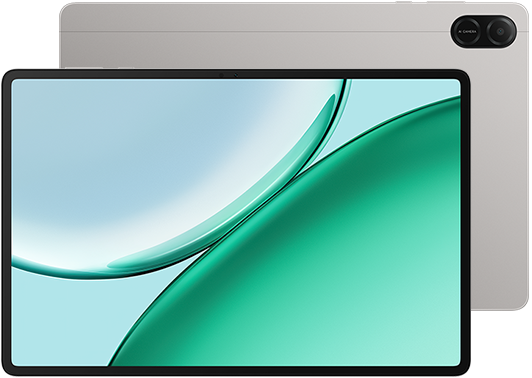
If you’ve got one of the recent, high-end Android tablets for gaming, these emulator-style apps can be a fun extra way to play PC games on tablet without streaming. A device like the HONOR MagicPad3 is a good example of the kind of hardware that can handle this approach.
It uses a premium Snapdragon 8 Gen 3 chipset with 16 GB of RAM and 512 GB of storage, which gives you enough power to run demanding games and emulators smoothly. The large 13.3” 3.2K display with a 165Hz refresh rate helps everything look crisp and responsive, while the 13-layer Ice Cooling system keeps performance steady during longer sessions.
How to Play Steam Games on an Android Tablet
Now, let’s walk through the main methods on how to play Steam games on a tablet step by step. Start with the ones that match your setup and comfort level.
Method 1: Stream from your PC with Steam Link (best starting point)
What you need
On your PC:
● A host Windows PC that already runs your Steam games.
● Steam installed and logged in.
● A decent home network (ideally the PC on wired Ethernet).
On your Android tablet:
● Android 5.0 or newer.
● The Steam Link app from Google Play (free).
● A good Wi-Fi connection, ideally 5 GHz.
● A Bluetooth or USB controller (strongly recommended for most PC games).
Step-by-step
1. Set up your PC: Turn on your PC and launch Steam. Make sure the games you want are installed and updated. In Steam, open Settings → Remote Play and ensure it’s enabled (usually on by default).
2. Connect your tablet: Join the same home network as your PC. If your router has both 2.4 GHz and 5 GHz, pick 5 GHz for better speed and lower latency.
3. Install and open Steam Link: Grab the Steam Link app from Google Play and open it. Accept the permissions so it can see the network and controllers.
4. Pair a controller (recommended): Put your controller in Bluetooth pairing mode. Pair it in your Android Bluetooth settings. Steam Link detects standard gamepads and the Steam Controller, so it should just show up as ready to use.
5. Pair Steam Link with your PC: In Steam Link, tap Get Started and let it scan for PCs. Choose your PC; a PIN appears on your tablet. Steam on your PC asks for that PIN – enter it to finish pairing.
6. Run the network test and tweak quality: Steam Link runs a quick test and suggests a quality setting. You can manually pick a lower-latency mode if you prefer smoother input over visuals.
7. Start playing: Tap Start Playing in Steam Link. Steam switches to Big Picture mode on your PC, mirrored on your tablet. Browse your library, launch a game, and play using your controller or on-screen controls.
Steam Link is ideal if you already have a gaming PC and mainly plan to play around the house.
But once you’ve done the first pairing, you’re not limited to your home Wi-Fi. You can connect from anywhere with a stable internet connection, even over mobile data. Just remember that your PC back home needs to stay on, connected to the internet, and running Steam for this to work.
Method 2: Stream from your PC with Moonlight / Sunshine or Razer PC Remote Play
This is for you if you like more control and have a solid network.
Moonlight + Sunshine (more tweakable)
What it is: Moonlight is an Android client that streams from a PC using NVIDIA’s GameStream protocol or Sunshine, an open-source host that works with many GPUs.
Basic setup flow:
1. On your PC: Install Sunshine (for AMD/Intel/NVIDIA) or enable GameStream via GeForce Experience (NVIDIA only). Add Steam (or specific games) as launchable apps inside Sunshine.
2. On your tablet: Install Moonlight Game Streaming from Google Play. Connect to the same network as your PC.
3. Pair and tune: Open Moonlight, tap your PC, and enter the PIN that appears. In Moonlight settings, choose resolution (e.g. 1080p), frame rate (up to 60 FPS or more on some devices), and bitrate to match your Wi-Fi. Launch Steam from Moonlight’s app list and start your game.
Moonlight/Sunshine shines when you want low latency and the ability to fine-tune every detail.
Razer PC Remote Play (friendlier for Razer users)
Razer’s PC Remote Play wraps similar tech in its own apps, tied into Razer Cortex on PC and the Razer Nexus app on mobile. It’s built for streaming platforms like Steam to Android and iOS and is tuned for Razer controllers such as the Kishi series.
Setup is broadly similar: install the PC app, install the mobile app, sign in, pair your devices, then launch games from Steam through Razer’s interface.
Method 3: Use GeForce NOW cloud gaming (no gaming PC needed)
If your broadband is good but your hardware isn’t, cloud gaming can work well. Here’s how to play PC games on Android tablet by streaming from the cloud:
Requirements
● An Android tablet with Android 5.0+, at least 2 GB RAM, and modern graphics support.
● A stable internet connection: Around 25 Mbps for 1080p/60 FPS and latency under about 80 ms to the data centre.
● A GeForce NOW account (free or paid) and a compatible controller.
Steps
1. Create or log into a GeForce NOW account: Sign up via the GeForce NOW site.
2. Install the GeForce NOW Android app: Download it from Google Play to your tablet and sign in.
3. Link Steam: In settings, link your Steam account so the service can see which supported games you already own.
4. Test your connection: Run the built-in network test and, if possible, sit near your router on 5 GHz Wi-Fi.
5. Connect your controller: Pair a Bluetooth or USB controller; NVIDIA recommends a physical gamepad over the virtual on-screen one for serious play.
6. Pick and play a game: Search for a supported title from your Steam library and launch it. GeForce NOW spins up a cloud PC and streams the game to your tablet.
Cloud gaming is best when you have reliable, fast internet and want PC-quality games without a gaming rig.
Method 4: Try emulation apps like GameHub or GameNative
These tools are powerful but still evolving. Think of them as “bonus routes” rather than the standard answer. You’ll want a recent, powerful Android tablet.
Here’s how to how to play computer games on tablet using these emulators:
1. Install the app: Download GameHub from the Play Store, or GameNative from its official site/GitHub.
2. Sign in to Steam: Log in with your own Steam account.
3. Install a supported game: Use the built-in interface to install a game that’s known to work reasonably well. Start with lighter 2D or indie titles rather than huge AAA releases.
4. Tweak and test: Adjust graphics presets, resolution, and frame rate to match your device. Be ready for trial and error. Performance and compatibility can change between updates.
Best Steam Games to Play Right Now
Now you know how to play PC games on an Android tablet, the next question is simple: what should you actually play?
Here are some simple, reliable picks:
Easygoing games for relaxed sessions
● Stardew Valley: A cosy farming and life sim that works brilliantly with a controller. Slow-paced and perfect for streaming on any connection.
● Dave the Diver: Dive, fish, and run a sushi bar. It’s colourful, funny, and very playable on a tablet thanks to its simple controls.
● Balatro: A clever, fast-paced card game that runs smoothly even on low bandwidth. Ideal for short sessions.
Action and roguelikes that feel great on a controller
● Hades 2: Fast, stylish combat that’s designed around gamepad play. Works well on both home streaming and cloud.
● Vampire Survivors: Pure chaos, zero fuss. You mostly just move your character, so small amounts of lag don’t matter much.
● Cult of the Lamb: A mix of cute village management and simple dungeon runs. Fun, easy to control, and great for short bursts.
Big adventures for longer sessions
● Baldur’s Gate 3: One of the most popular RPGs on Steam right now. Full controller support and slower-paced combat make it ideal for streaming.
● Elden Ring: Huge, challenging, and designed for controllers. Best played on a solid Wi-Fi connection for smooth combat.
● Palworld: A blend of crafting, creatures, and co-op chaos. Works nicely on a controller and streams well.
● Monster Hunter: World: Still one of the best co-op action games on Steam. Responsive and comfortable with a gamepad.
Conclusion
So, can you play Steam games on Android tablet? Yes, and you have several good ways to do it. Whether you stream from your PC with Steam Link or Moonlight, use cloud gaming, or experiment with emulator-style apps, you can enjoy a wide range of Steam titles on a tablet. The right method depends on your hardware, your connection, and how much setup you’re willing to do. Start with what’s easiest, try a few games, and you’ll quickly find the approach that feels best for how you like to play.
FAQs
Can Steam games be played on a tablet?
Yes, you can play Steam games on a tablet, but not by installing them directly. Instead, you stream them from a gaming PC or a cloud service. Apps like Steam Link, Moonlight, and GeForce NOW let your tablet act as a remote screen while the game runs elsewhere. This means you still enjoy your Steam library, but you rely on either your home PC or a cloud server to handle the heavy lifting.
How do I play PC games on my Android tablet?
The easiest way is to stream them. Install Steam Link or Moonlight on your Android tablet, connect to your gaming PC, and start playing. You can also use cloud platforms such as GeForce NOW, which run the games on remote servers instead of your own hardware. In all cases, your tablet displays the game and sends your inputs back, so a stable internet connection and a controller make the experience much smoother.
Is there a Steam emulator for Android?
There isn’t an official Steam emulator, but there are experimental apps that try to run some Windows games directly on Android. Tools like GameHub or GameNative act as compatibility layers that let certain Steam titles run without a PC. They’re still early-stage, and performance varies depending on your device’s power, so they’re best for tinkerers. Most players still rely on streaming or cloud gaming for a more stable, consistent way to play Steam games on Android.
What devices can run Steam?
Steam officially runs on Windows, macOS, and Linux PCs, plus Valve’s own Steam Deck. Many other devices, including Android tablets, phones, and smart TVs, can access Steam games through streaming apps, but they aren’t running Steam natively. Instead, the game runs on a PC or cloud server in the background.
Is Steam for PC only?
Steam is mainly designed for PCs, but it isn’t limited to them. It also runs natively on Steam Deck, which uses a Linux-based operating system built for handheld play. While you can’t install Steam itself on Android phones, tablets, or TVs, you can still play Steam games on those devices through streaming. So, while the full Steam client is PC-focused, its ecosystem extends well beyond traditional computers thanks to Remote Play and cloud gaming.
Source: HONOR Club
Products Recommend
Latest Blogs


SUBSCRIPTION
I agree to receive the latest offers and information on HONOR products through email or IM (e.g. WhatsApp) provided below and advertisement on third-party platforms. I understand that I can unsubscribe anytime according to Chapter 5 of HONOR Platform Privacy Statement.
CONTACT
