
 More Products
 Compare













我的荣耀 开启荣耀之旅
Bluetooth Not Working on Phone? Easy Fixes to Get You Reconnected
Table of Contents
Bluetooth not working on phone can throw off your whole day. Maybe your earbuds won’t connect, or your car keeps saying “pairing failed.” Most of the time, the cause is simple — a small glitch, a corrupted pairing, or a device that’s still trying to hold on to an earlier connection. In this guide, you’ll see the common reasons why your phone Bluetooth is not connecting and the straightforward steps you can take to get it working again.
Common Reasons Why Bluetooth Stops Working on Your Phone
Even a reliable phone can drop a Bluetooth connection without warning. Most issues come from small, fixable glitches rather than anything serious. If you found your phone Bluetooth not working, here are the most common reasons:
● Bluetooth is turned off or stuck
● Low battery on either device
● Outdated software or a recent system glitch
● Your phone or accessory is too far away
● Interference from Wi-Fi or other Bluetooth devices
● Physical obstacles or signal blockage
● Corrupted Bluetooth cache or pairing history
● The accessory is already connected to something else
● Hardware issues with your phone or the accessory
How to Fix Bluetooth on an Android Phone
Now that you understand the possible causes, here’s how to fix phone Bluetooth problems step-by-step. We’ll move from simple checks to deeper fixes.
1. Start with the quick checks
These quick checks often fix Android phone Bluetooth not working issues in a couple of minutes.
Toggle Bluetooth off and on
● Swipe down from the top of your screen to open Quick Settings.
● Tap the Bluetooth icon to turn it off, wait 5–10 seconds, then tap it on again.
If you prefer using the Settings app:
● Open Settings > Bluetooth (or Connections / Connected devices > Bluetooth, depending on your phone model).
● Turn Bluetooth off, wait a few seconds, then turn it back on.
This small toggle forces your phone to restart the Bluetooth radio and begin a fresh scan for nearby devices.
Confirm the other device is ready to pair
Your phone can only connect to something that’s discoverable.
● Turn your headphones, speaker, car kit, or other accessory on.
● Put it into pairing mode. Usually this means holding a specific button (often the power or Bluetooth button) for a few seconds until a light flashes or you hear a tone.
● Keep the accessory close to your phone while you do this.
Now, on your phone:
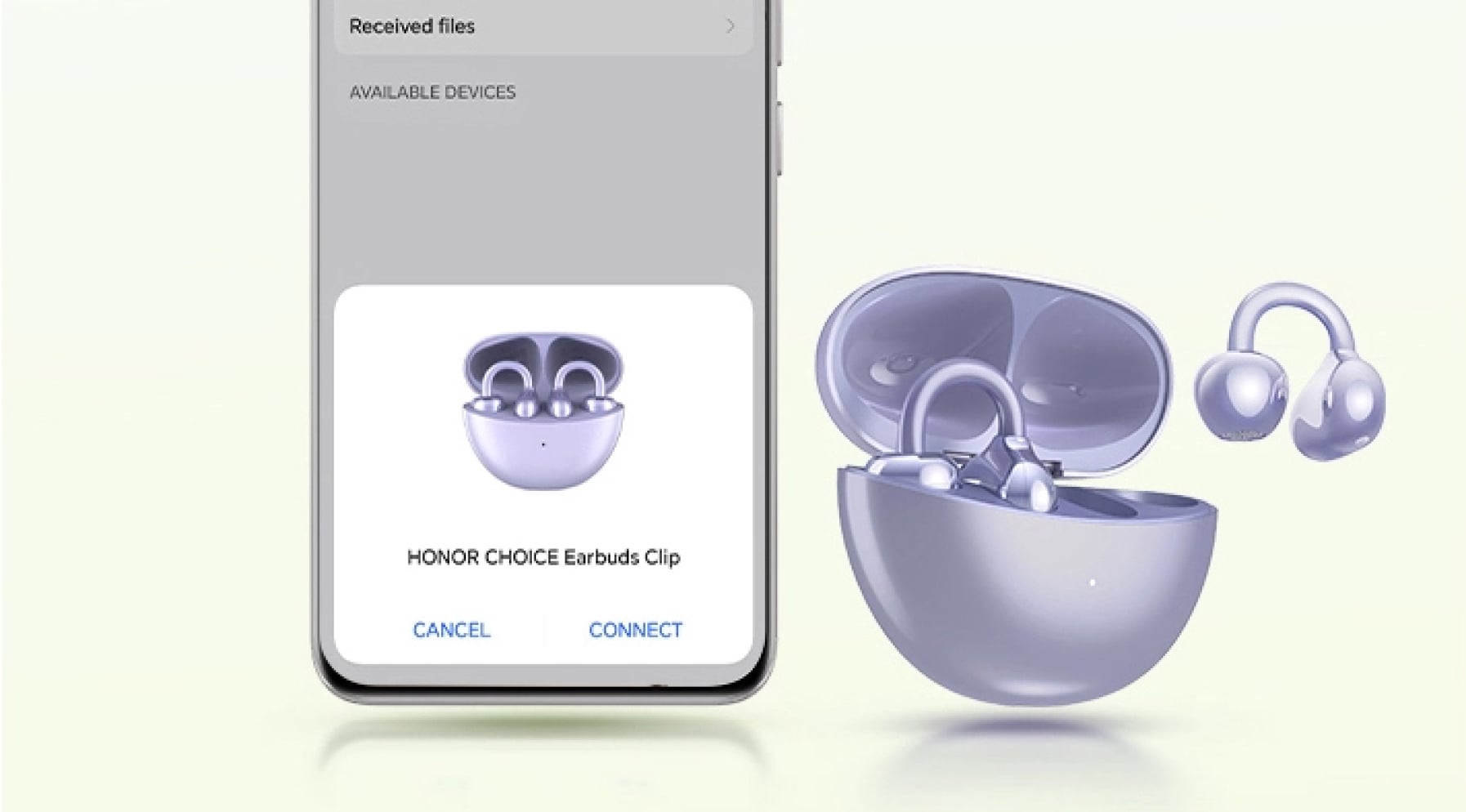
● Go to Settings > Bluetooth > Available devices (wording can vary).
● Wait a few seconds and see if your accessory appears in the list.
● If you see it, tap the name and follow any on-screen prompts.
Restart your phone and accessory
A restart clears out temporary glitches that can cause your phone not picking up Bluetooth device:
● On your phone: Press and hold the power button. Tap Restart (or Power off, wait a few seconds, then turn it back on).
● On your accessory: Turn it off, wait a few seconds, then turn it on again. If it has a reset or restart button, you can use that instead, following the manual.
After both devices have restarted, try pairing again.
Keep both devices charged
Check the battery on your phone and on the accessory. If either is low, charge it for a while and then test again.
Low power can push Bluetooth into power-saving modes or cause unstable radio behaviour, which shows up as drop-outs or Bluetooth device not connecting to phone.
2. Check distance and interference
Even if everything looks fine in Settings, the basic conditions around your devices matter a lot.
Stay within realistic Bluetooth range
Most Bluetooth phones and everyday accessories (earbuds, speakers, watches) use Class 2 Bluetooth, which in practice gives you about 10 metres or 33 feet of range under good conditions.
In real life, you usually get less than that:
● Walls, doors, and furniture reduce the range.
● Metal surfaces and appliances weaken the signal.
● Carrying your smartphone deep in a bag or back pocket can also cut the connection.
As a simple rule:
If you’re more than one room away, or there are thick walls between you and the accessory, move closer and try again.
Newer Bluetooth versions (Bluetooth 5.3/5.4) can reach longer distances on paper, but those headline figures assume clear line of sight and no interference, which you rarely have indoors.
Reduce wireless “noise”
Bluetooth and many Wi-Fi networks share the 2.4 GHz band, so they can get in each other’s way.
You can:
● Move away from Wi-Fi routers, smart home hubs, and microwave ovens if they’re very close.
● Turn off Bluetooth on devices you’re not using (for example, an old tablet nearby).
● If you can change your router settings, use 5 GHz Wi-Fi for your main network so it competes less with Bluetooth.
If it works when you move to a quieter spot, interference was likely part of the problem Bluetooth not connecting to phone.
3. Remove the device and pair it again
If Bluetooth worked before and now refuses to connect, the saved pairing might be corrupted.
1. Open Settings > Bluetooth.
2. Look under Connected, Paired, or Saved devices.
3. Tap the device you’re trying to fix and choose Forget, Remove, or similar.
4. Put the accessory back into pairing mode.
5. On your phone, tap Available devices or Pair new device, choose it from the list, and confirm any pairing code.
If the accessory asks for a PIN and you’re not sure what it is, 0000 or 1234 are common defaults.
When you’re asking, “Why is Bluetooth not connecting to phone?”, a re-pair like this often clears up the issue in one go.
4. Check whether the accessory is already connected to something else
Many Bluetooth accessories can only stay connected to one device at a time. So, if you’re wondering, “Why is my Bluetooth speaker not connecting to my phone?”, it might be because it’s still connected to someone else’s phone.
● Turn off Bluetooth on the other device: If you suspect the accessory is connected to another phone, tablet, or laptop, switch Bluetooth off on that other device. Wait a few seconds, then try connecting from your Android again.
● Actively disconnect from the old device: On the other device, go into its Bluetooth settings. Find the accessory in the paired/connected list. Tap it and choose Disconnect or Forget.
● Power-cycle the accessory: Turn the accessory off, wait 5–10 seconds, then turn it on again. Some devices automatically drop old connections after a restart and become discoverable.
● Reset the accessory: Many headphones, speakers and similar devices have a factory reset or Bluetooth reset (often a long press of one or two buttons). Reset it following the manual, then pair it again with your Android as if it were new.
5. Clear the Bluetooth cache
Android stores Bluetooth data (past connections, preferences, and so on) in a cache. Over time, that data can become outdated and cause phone not pairing with Bluetooth or random disconnects.
On many Android versions, you can clear it like this:
1. Open Settings > Apps (or Apps & notifications).
2. Tap See all apps.
3. Open the menu (often three dots) and enable Show system apps.
4. Scroll down and tap Bluetooth.
5. Tap Storage & cache (or Storage).
6. Tap Clear cache.
7. Restart your phone.
You’re only clearing the Bluetooth system app’s cache, not wiping your phone.
6. Reset network settings (Wi-Fi, mobile & Bluetooth)
If clearing the cache doesn’t help, your broader network settings might be causing the issue.
Resetting network settings will:
● Remove saved Wi-Fi networks and passwords.
● Clear all paired Bluetooth devices.
● Reset mobile data settings back to their defaults.
It won’t delete your photos, apps, or messages.
Here’s how to reset Bluetooth on Android phone:
1. Go to Settings > System (or System & updates).
2. Tap Reset options (or Reset).
3. Choose Reset Wi-Fi, mobile & Bluetooth (or Reset network settings).
4. Confirm and enter your PIN or pattern if asked.
Afterwards, pair your Bluetooth devices again and test.
7. Update Android
Out-of-date system software can contain Bluetooth bugs that later updates fix.
To check for updates:
1. Open Settings > System > System update.
2. Download and install any available update.
3. Restart your phone if it doesn’t restart automatically, then try Bluetooth again.
Keeping Android up to date also improves security and compatibility with newer Bluetooth accessories.
8. Look for app conflicts (try Safe mode)
Some apps can interfere with Bluetooth, especially:
● Aggressive battery-saver apps
● “Cleaner” or optimiser tools
● Apps that modify system behaviour
A quick way to test this is Safe mode, which disables third-party apps temporarily:
1. Press and hold the power button until the power menu appears.
2. Touch and hold the Power off or Restart option until a “Reboot to safe mode” prompt appears.
3. Tap OK to restart into Safe mode.
4. Try using Bluetooth as normal.
If Bluetooth works in Safe mode but fails again after a normal restart, there’s probably a conflicting app. Uninstall recent or suspicious apps one by one and retest Bluetooth after each removal.
9. When to suspect a hardware problem
If you’ve tried everything above and still have Bluetooth issues, the hardware might be at fault. Signs include:
● Bluetooth won’t turn on, or the toggle turns itself off.
● No nearby devices ever appear, even in different locations with different accessories.
● Problems started right after a drop, knock, or liquid damage.
At that point, it’s sensible to contact a trusted repair service or the device maker’s support team. They can run hardware checks and confirm whether a repair is worthwhile .
Conclusion
The cause of Bluetooth not working on phone is usually something small, from a confused pairing and low battery to software glitches or a bit of signal interference. Working through the steps in this guide helps you rule out each factor and fix the problem with clear, simple checks. Most issues resolve long before you reach the advanced fixes, but even if they don’t, you now know what to try next and when it’s time to seek a repair.
FAQs
Why is Bluetooth not working on my phone?
Bluetooth may not work if it’s turned off, stuck, there’s a software glitch, the other device isn’t in pairing mode, or you’re out of range. Interference from Wi-Fi routers or other Bluetooth gadgets can also block the connection.
To fix, toggle Bluetooth off and on, and restart both your phone and the accessory. Then check your paired devices list, remove the accessory and other unused connections, and try pairing again. If problems continue, clearing the Bluetooth cache or resetting network settings can often fix glitches.
How do I reset my Bluetooth on my phone?
The quickest way to reset Bluetooth is to toggle it off and back on, then restart your phone. If you want a deeper reset, open Settings > System > Reset options and choose Reset Wi-Fi, mobile & Bluetooth (wording may vary slightly by device). This clears all saved Bluetooth connections and resets the network settings to default.
Why did Bluetooth suddenly stop working?
Bluetooth can suddenly stop working because of a temporary software glitch, a recent system update, interference from other devices, too many saved pairings, or low power or battery-saving modes on either device. Try restarting your phone and accessory, turning Bluetooth off and on, forgetting and re-pairing the connection, and disabling any power-saving features. If it started after an update, resetting network settings and checking for further fixes or patches can also help.
How to clear Bluetooth cache?
To clear the Bluetooth cache on Android, open Settings > Apps (or Apps & notifications) and tap See all apps. Open the menu, choose Show system apps, then find and select Bluetooth. Go to Storage & cache and tap Clear cache. Restart your phone once you’re done. This removes old connection data that may be causing pairing issues, but it won’t delete any of your personal files or settings.
How to update Bluetooth in Android?
Android doesn’t let you update Bluetooth on its own. Bluetooth updates come through regular system updates, which often include fixes for connectivity, stability, and compatibility with newer accessories. To check for updates, open Settings > System > System update and install anything available. After updating, restart your phone and test your Bluetooth connection again.
Source: HONOR Club
Products Recommend

Latest Blogs


SUBSCRIPTION
I agree to receive the latest offers and information on HONOR products through email or IM (e.g. WhatsApp) provided below and advertisement on third-party platforms. I understand that I can unsubscribe anytime according to Chapter 5 of HONOR Platform Privacy Statement.
CONTACT
