



 More Products
 Compare



















我的荣耀 开启荣耀之旅



 Disagree Terms
 Log out




[Tutorial] HONOR Band 6 Change and Customize Watch Faces


 Last reply :
The Honor Band 6 to be launched outside of China provides 100+ different styles of exquisite watch faces to meet the ever-changing styles. In this thread, let’s take a look at how to change the watch face of Honor Band 6 and how to customize the watch face.
The Honor Band 6 has a large 1.47-inch full-color screen, leading the screen upgrade of the smart band industry. The large screen not only makes the operating experience smoother and more comfortable, thanks to the open dial ecology, but more and more third party designers are also inspired to participate in watch face design, providing you with more and more abundant watch face choices.
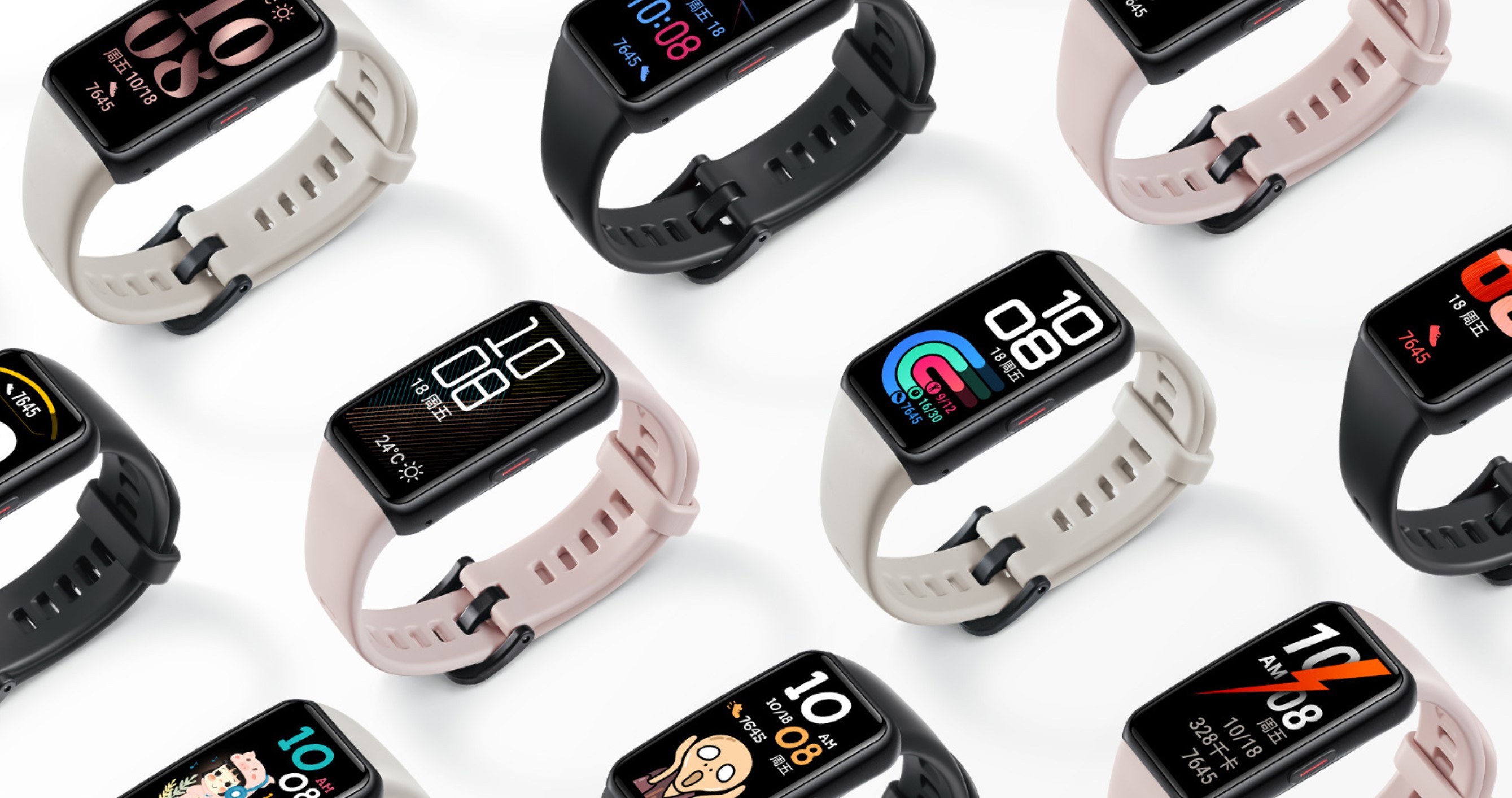
An image of HONOR Band 6 with various watch faces
How to change the watch face on the HONOR Band 6?
Option one: Change watch face on the screen
Similar to the former smartwatches and smart bands from HONOR, HONOR Band 6 supports changing watch face directly from its screen.
Long press on the screen of the HONOR Band 6, until you feel the vibration. Then you can select the watch face that you like the most.
Option two: change watch face from the HUAWEI health app
When the HONOR Band 6 and your phone is connected, open the Huawei health app, then access the HONOR Band 6 from the paired device list.
Find "watch face" on that page and hit that. Then on the “recommended” tab, a variety of watch faces in different style will be displayed. Click “INSTALL” to get a new watch face. The “Mine” tab will display all the watch faces installed on the HONOR Band 6.
When you change watch from the screen of the HONOR Band 6, only those installed watch faces are available.
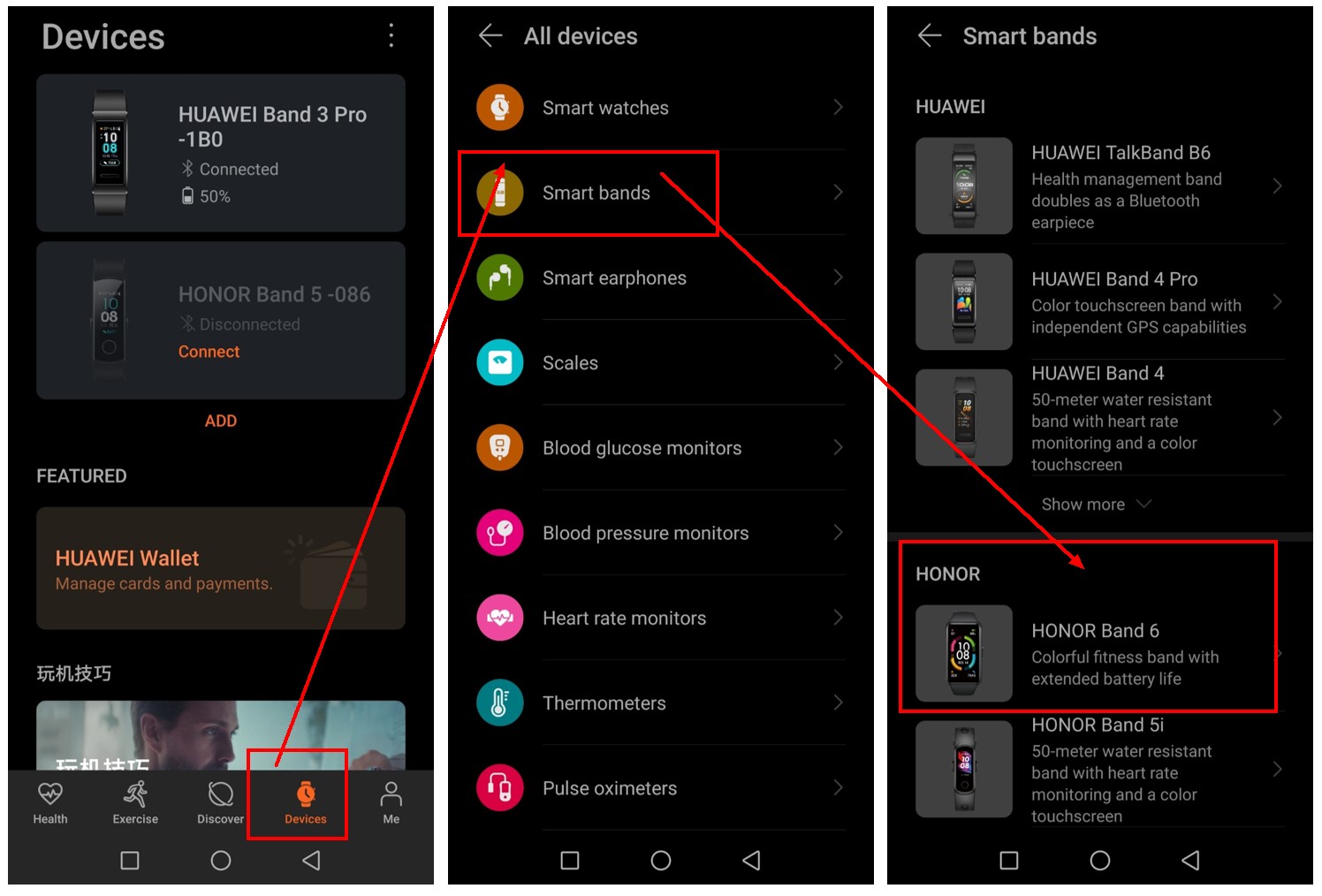
An image which indicates how to add a new HONOR Band 6 to your phone
How to customize watch face on the HONOR Band 6?
Step one:
Open the HUAWEI health app then go to “Me” and hit the HONOR Band 6 in the paired device list.
Step two:
Click “watch face” on that page and go to the “Mine” tab. That is a page displaying all the watch faces that you have installed on the HONOR Band 6.
Find and touch “Gallery” on that page. Then you will be able to upload the images stored on your phone and select the style and layout that you like. When it’s finished, click “save” and the new watch face will be displayed on the HONOR Band 6.
How to delete a watch face on the HONOR Band 6?
Open the Huawei health app on the phone and go to “Devices”. In the paired device list, click HONOR Band 6. Then touch “more” beside “watch face”. Go to the “Mine” tab and all the watch faces installed will be displayed here. Click “Edit” then on the top right corner of every watch face, you will see a little X mark. Touch that to delete a watch face.
Or before going to the editing process, you can touch a watch face to open that. Then on the top right corner there is a little dustbin icon. Click that to delete a watch face.
How to use One-Touch Watch face Sharing (NFC)?
Step one:
Pair and connect the HONOR Band 6 with the phone correctly, tap the side key of the band to activate the screen. Then swipe the screen up and down, select Settings> One Touch to enter the One Touch interface, click Activate, the interface will display activating. after the activation is successful, it will show activated.
Step two:
Turn on the NFC switch of the phone, take a picture with the camera, preview or enter the phone gallery to select the single or multiple pictures you want to transfer, and use the NFC area on the back of the phone to stick to the dial of the HONOR Band 6, the dial interface will prompt smart cropping and image transferring.
The pictures selected for transmission will be displayed on the screen of the HONOR Band 6 in turn.
Step three:
Open the device details page of the HONOR Band 6 in the Huawei Sports Health App, then find “watch face”, click More> Mine, click the “Gallery”. All the successfully transferred pictures will be displayed here. You then could change the style and layout as you want.
Is one touch watch face sharing available on HONOR Band 6 EU version?
The one-touch watch face sharing function only supports Huawei/Honor mobile phones with NFC function and EMUI10.0 and above/Magic UI 3.0 and above China version.
The following series of mobile phones need to be upgraded to a specific version and above to support this function: Mate30 series, please upgrade to EMUI 10.0.0.132 and above; P30 series, please upgrade to EMUI-untitleddaily10.0.0.166 and above; Mate20 series, please upgrade to EMUI 10.0.0.166 and above.
The above is everything about HONOR Band 6 watch face. Share your opinion if anything could be added or not clear. Have a great day!
More articles you may have interest in:
HONOR Band 6 Frequently Asked Questions Answered


- Posts
- Following
- Followers
- Energy
-

jennifer lawrence
-
+ Follow

-
- 13 Posts
- 0 Following
- 15 Followers
- 408 Energy



- Posts
- photo
- video

The Honor Band 6 to be launched outside of China provides 100+ different styles of exquisite watch faces to meet the ever-changing styles. In this thread, let’s take a look at how to change the watch face of Honor Band 6 and how to customize the watch face.
The Honor Band 6 has a large 1.47-inch full-color screen, leading the screen upgrade of the smart band industry. The large screen not only makes the operating experience smoother and more comfortable, thanks to the open dial ecology, but more and more third party designers are also inspired to participate in watch face design, providing you with more and more abundant watch face choices.
An image of HONOR Band 6 with various watch faces
How to change the watch face on the HONOR Band 6?
Option one: Change watch face on the screen
Similar to the former smartwatches and smart bands from HONOR, HONOR Band 6 supports changing watch face directly from its screen.
Long press on the screen of the HONOR Band 6, until you feel the vibration. Then you can select the watch face that you like the most.
Option two: change watch face from the HUAWEI health app
When the HONOR Band 6 and your phone is connected, open the Huawei health app, then access the HONOR Band 6 from the paired device list.
Find "watch face" on that page and hit that. Then on the “recommended” tab, a variety of watch faces in different style will be displayed. Click “INSTALL” to get a new watch face. The “Mine” tab will display all the watch faces installed on the HONOR Band 6.
When you change watch from the screen of the HONOR Band 6, only those installed watch faces are available.
An image which indicates how to add a new HONOR Band 6 to your phone
How to customize watch face on the HONOR Band 6?
Step one:
Open the HUAWEI health app then go to “Me” and hit the HONOR Band 6 in the paired device list.
Step two:
Click “watch face” on that page and go to the “Mine” tab. That is a page displaying all the watch faces that you have installed on the HONOR Band 6.
Find and touch “Gallery” on that page. Then you will be able to upload the images stored on your phone and select the style and layout that you like. When it’s finished, click “save” and the new watch face will be displayed on the HONOR Band 6.
How to delete a watch face on the HONOR Band 6?
Open the Huawei health app on the phone and go to “Devices”. In the paired device list, click HONOR Band 6. Then touch “more” beside “watch face”. Go to the “Mine” tab and all the watch faces installed will be displayed here. Click “Edit” then on the top right corner of every watch face, you will see a little X mark. Touch that to delete a watch face.
Or before going to the editing process, you can touch a watch face to open that. Then on the top right corner there is a little dustbin icon. Click that to delete a watch face.
How to use One-Touch Watch face Sharing (NFC)?
Step one:
Pair and connect the HONOR Band 6 with the phone correctly, tap the side key of the band to activate the screen. Then swipe the screen up and down, select Settings> One Touch to enter the One Touch interface, click Activate, the interface will display activating. after the activation is successful, it will show activated.
Step two:
Turn on the NFC switch of the phone, take a picture with the camera, preview or enter the phone gallery to select the single or multiple pictures you want to transfer, and use the NFC area on the back of the phone to stick to the dial of the HONOR Band 6, the dial interface will prompt smart cropping and image transferring.
The pictures selected for transmission will be displayed on the screen of the HONOR Band 6 in turn.
Step three:
Open the device details page of the HONOR Band 6 in the Huawei Sports Health App, then find “watch face”, click More> Mine, click the “Gallery”. All the successfully transferred pictures will be displayed here. You then could change the style and layout as you want.
Is one touch watch face sharing available on HONOR Band 6 EU version?
The one-touch watch face sharing function only supports Huawei/Honor mobile phones with NFC function and EMUI10.0 and above/Magic UI 3.0 and above China version.
The following series of mobile phones need to be upgraded to a specific version and above to support this function: Mate30 series, please upgrade to EMUI 10.0.0.132 and above; P30 series, please upgrade to EMUI-untitleddaily10.0.0.166 and above; Mate20 series, please upgrade to EMUI 10.0.0.166 and above.
The above is everything about HONOR Band 6 watch face. Share your opinion if anything could be added or not clear. Have a great day!
More articles you may have interest in:
HONOR Band 6 Frequently Asked Questions Answered
HONOR Band 6 User Guide
HONOR Band 6 In-depth Review
How to Pair HONOR Band 6 with a Smartphone
HONOR Band 6 workout modes
HONOR Band 6 Notifications
HONOR Band 6 Health Monitoring