



 More Products
 Compare




















我的荣耀 开启荣耀之旅



 Disagree Terms
 Log out




[Tips & Tricks]EMUI 10 - How to Enable and Use New "Gesture Navigation" on the HONOR 9A +Others


 Last reply :
Hey Guys and Girls!
Today, I'd like to share with you a quick "Tips & Tricks" how to... on setting up gestures on your brand new HONOR 9A! (This works on any HONOR Device running EMUI 10/Magic 3).
EMUI 10.0/Magic 3 is the latest software version for HONOR devices built on top of Android 10 and comes with a couple of new changes/improvements to the user interface and enhanced user experience.

In Magic 3/EMUI 10, The list of gestures has now been been moved and updated, so I'm going to show you how to change your HONOR 9A's system navigation settings in this super easy, quick "Tips & Tricks" Guide!
How to Enable Gestures!
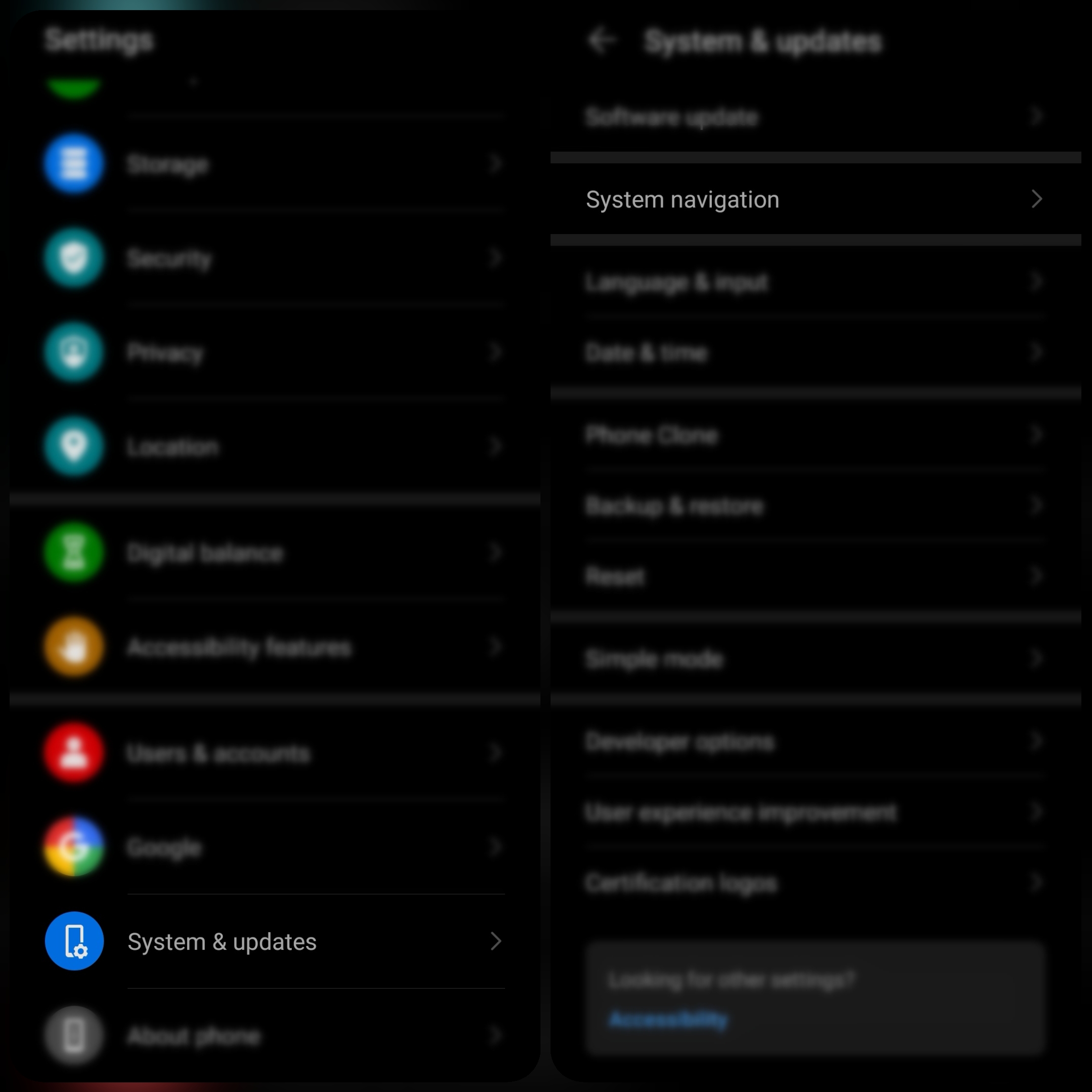
1. Go to Settings
2. System and updates
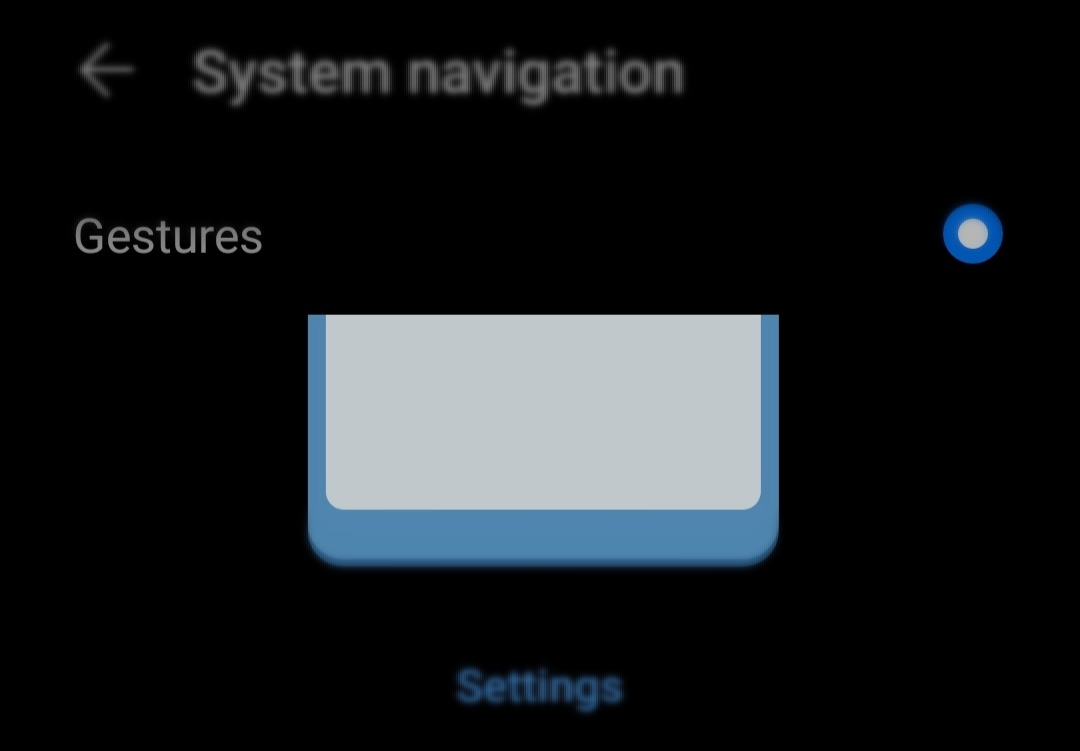
3. System Navigation... Select Gestures!
Actions!
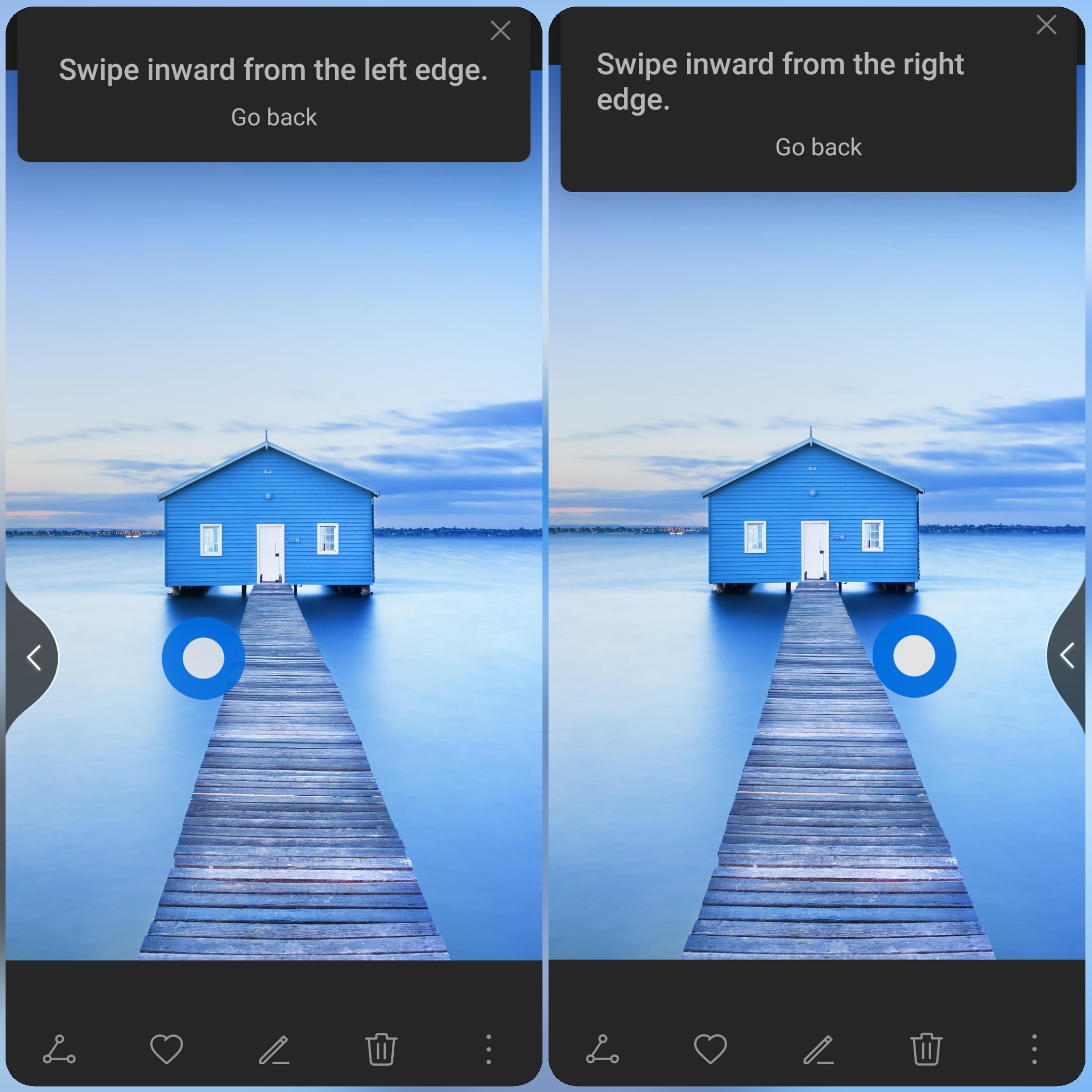
1. Back Action...
Swipe from the left or right edges to return to the previous screen.
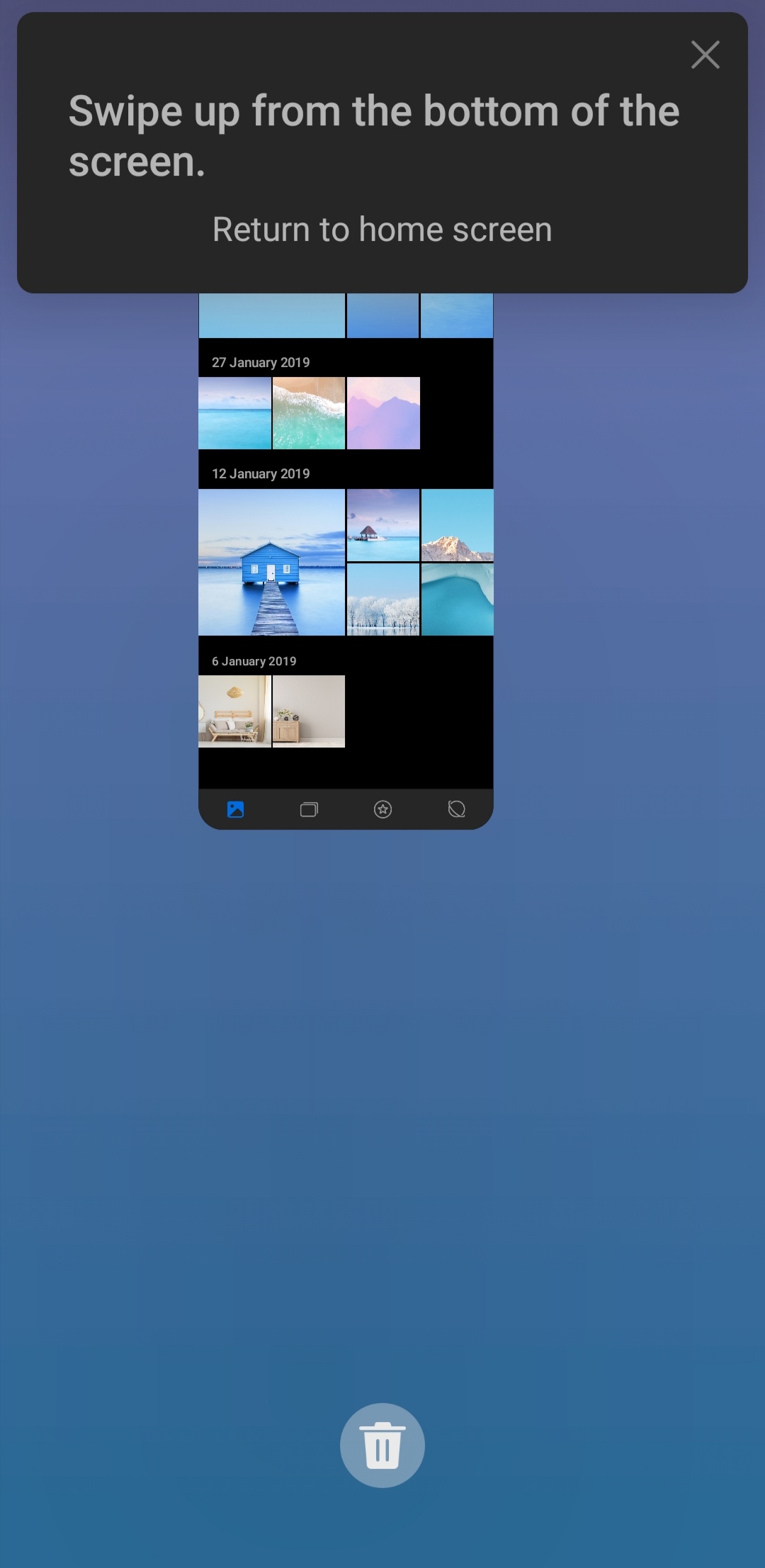
2. Back to your home screen...
Swipe up from the bottom of your phone.
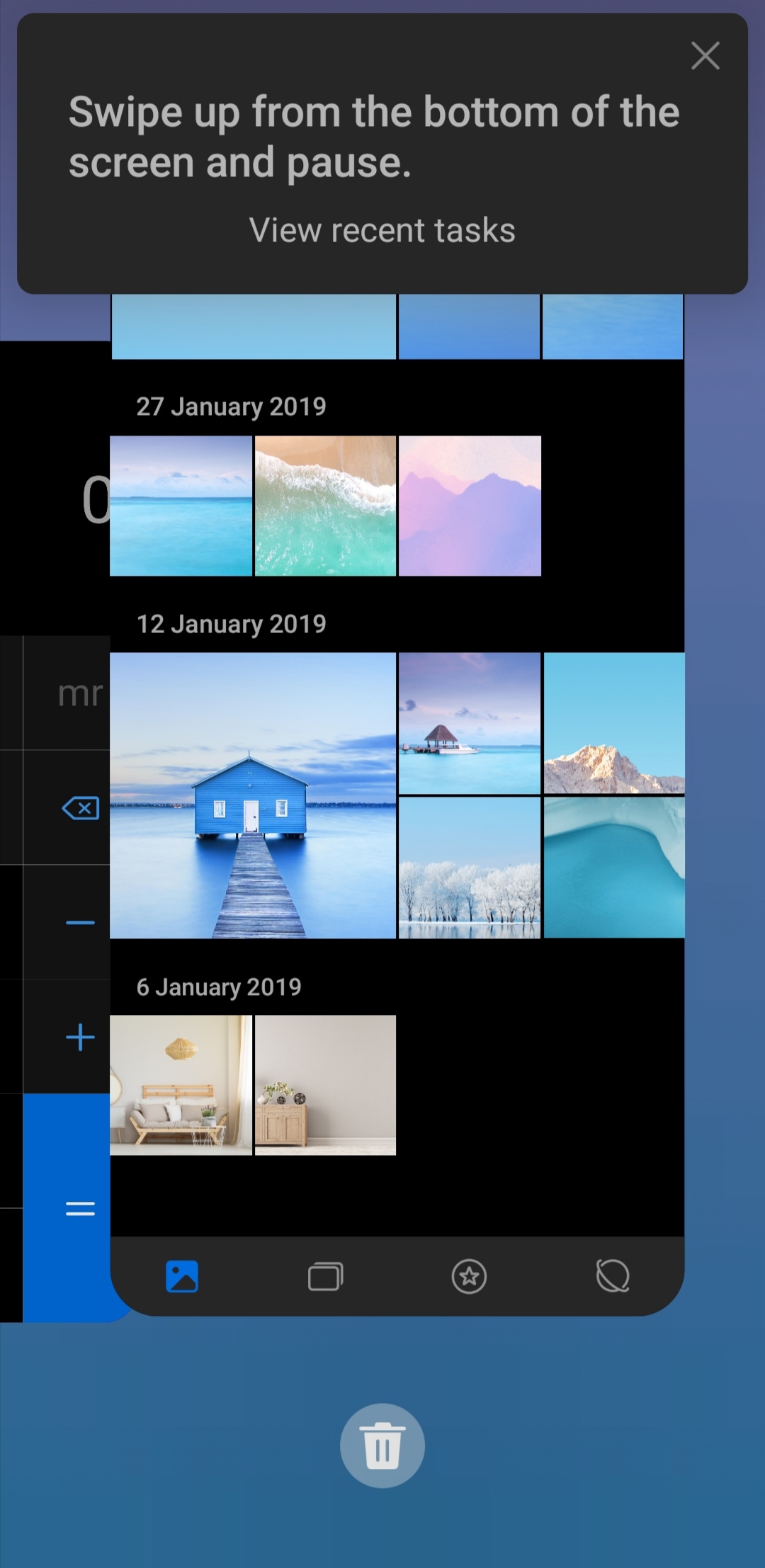
3. View Recent Tasks...
Swipe up from the bottom of the screen but pause to view all the apps that are currently running.
4. Closing apps...
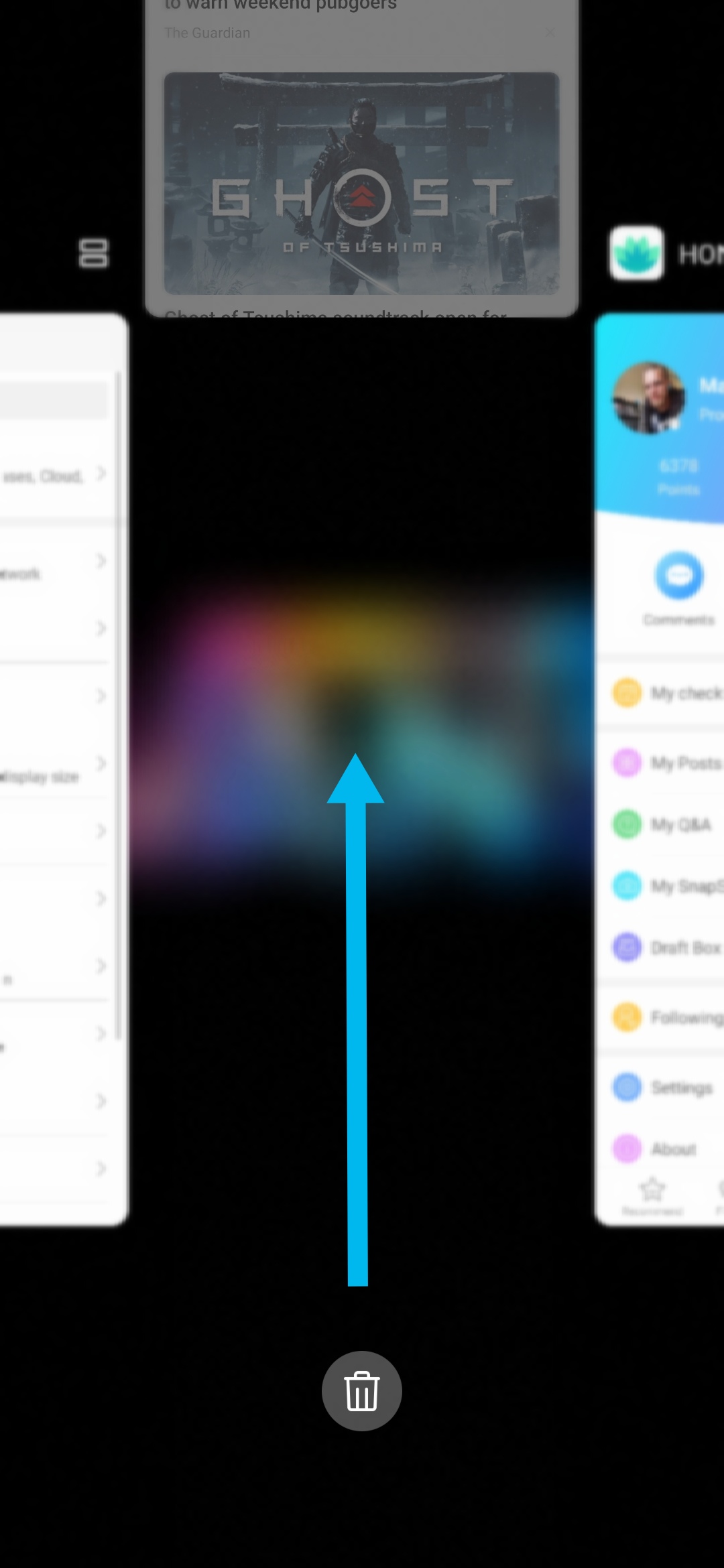
Single App: Whilst viewing recent tasks, swipe up on an app preview to close the app.
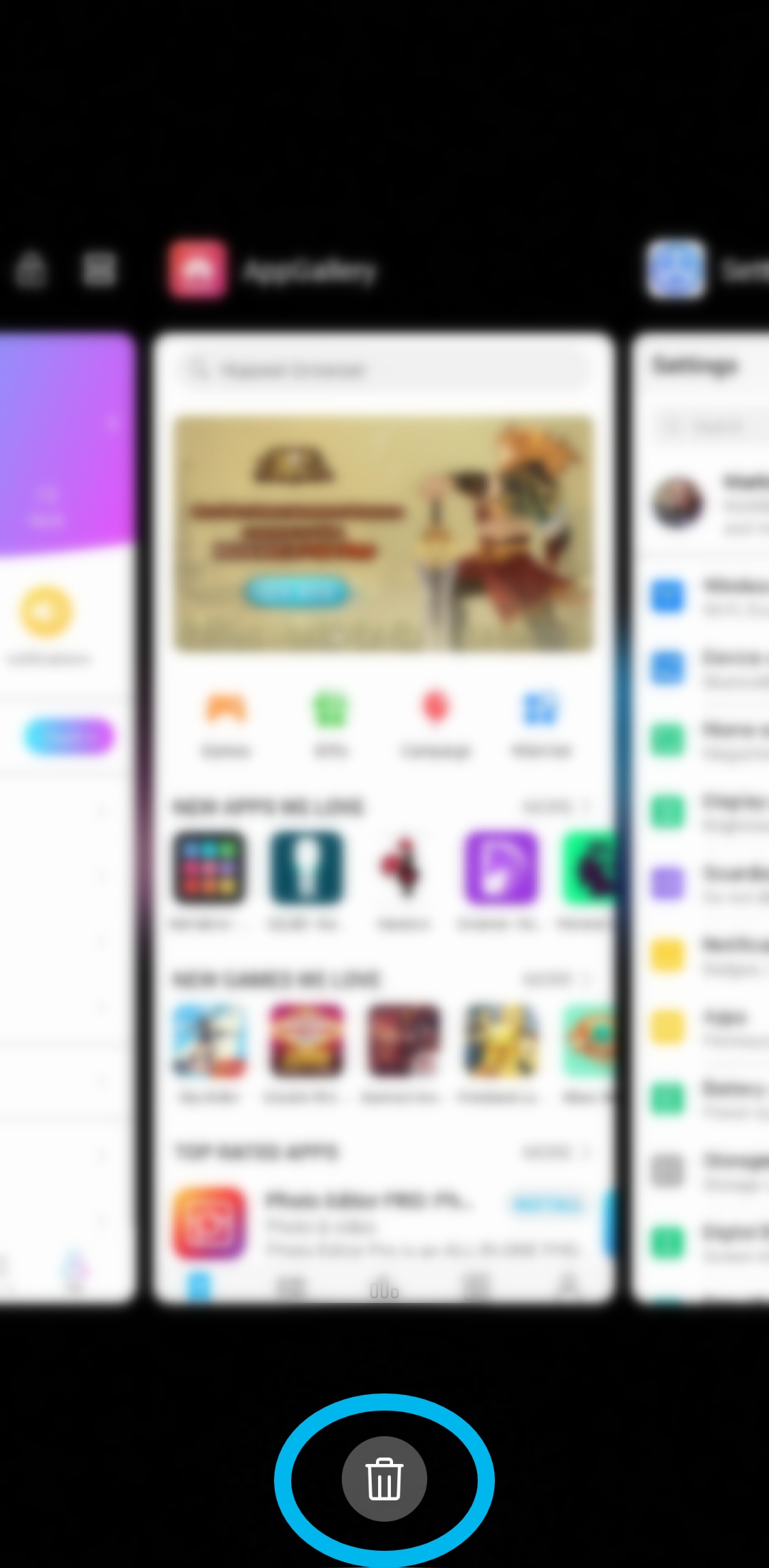
All Apps: Whilst viewing recent tasks, Hit the trash can icon below the apps.
5. Access in-app menus, In applicable third-party apps, swipe inward from the left or right edge near the top of the screen!
Check out this quick video I put together to show you just how simple it is to set up and use the Gesture navigation, Freeing up extra space at the bootom of you phones screen...
What's your favourite Gesture to use? Do you prefer the old skool icon button style?
Let me know in the comments!
Thanks for taking the time to have a look at my article! I hope you've learned something new about your phones navigation settings!
I'll See you in the next one!!
Marbles666!


- Posts
- Following
- Followers
- Energy
-

Marbles666
-
+ Follow

-
- 68 Posts
- 199 Following
- 396 Followers
- 18331 Energy











- Posts
- photo
- video

Hey Guys and Girls!
Today, I'd like to share with you a quick "Tips & Tricks" how to... on setting up gestures on your brand new HONOR 9A! (This works on any HONOR Device running EMUI 10/Magic 3).
EMUI 10.0/Magic 3 is the latest software version for HONOR devices built on top of Android 10 and comes with a couple of new changes/improvements to the user interface and enhanced user experience.
In Magic 3/EMUI 10, The list of gestures has now been been moved and updated, so I'm going to show you how to change your HONOR 9A's system navigation settings in this super easy, quick "Tips & Tricks" Guide!
How to Enable Gestures!
1. Go to Settings
2. System and updates
3. System Navigation... Select Gestures!
Actions!
1. Back Action...
Swipe from the left or right edges to return to the previous screen.
2. Back to your home screen...
Swipe up from the bottom of your phone.
3. View Recent Tasks...
Swipe up from the bottom of the screen but pause to view all the apps that are currently running.
4. Closing apps...
Single App: Whilst viewing recent tasks, swipe up on an app preview to close the app.
All Apps: Whilst viewing recent tasks, Hit the trash can icon below the apps.
5. Access in-app menus, In applicable third-party apps, swipe inward from the left or right edge near the top of the screen!
Check out this quick video I put together to show you just how simple it is to set up and use the Gesture navigation, Freeing up extra space at the bootom of you phones screen...
What's your favourite Gesture to use? Do you prefer the old skool icon button style?
Let me know in the comments!
Thanks for taking the time to have a look at my article! I hope you've learned something new about your phones navigation settings!
I'll See you in the next one!!
Marbles666!