



 More Products
 Compare




















我的荣耀 开启荣耀之旅



 Disagree Terms
 Log out




HONOR 9A most useful tips and tricks


 Last reply :
If you are looking for useful tips and tricks of the HONOR 9A, then you definitely don’t want to miss this article.
Launched on 2020, April 29, the HONOR 9A features a 159.1 x 74.1 x 9 mm display, dual SIM card slots, 5000mAh non-removable Li-Po big battery, and four cameras which consist of three main cameras including 13 MP, f/1.8 wide camera, 5 MP, f/2.2 ultrawide camera and 2 MP, f/2.4 depth camera and 8 MP, f/2.0 selfie camera.
It weighs 185g only and the memory of the HONOR 9A is 3GB RAM + 64GB ROM. Three colors are available for the HONOR 9A, Black, Blue and Green.
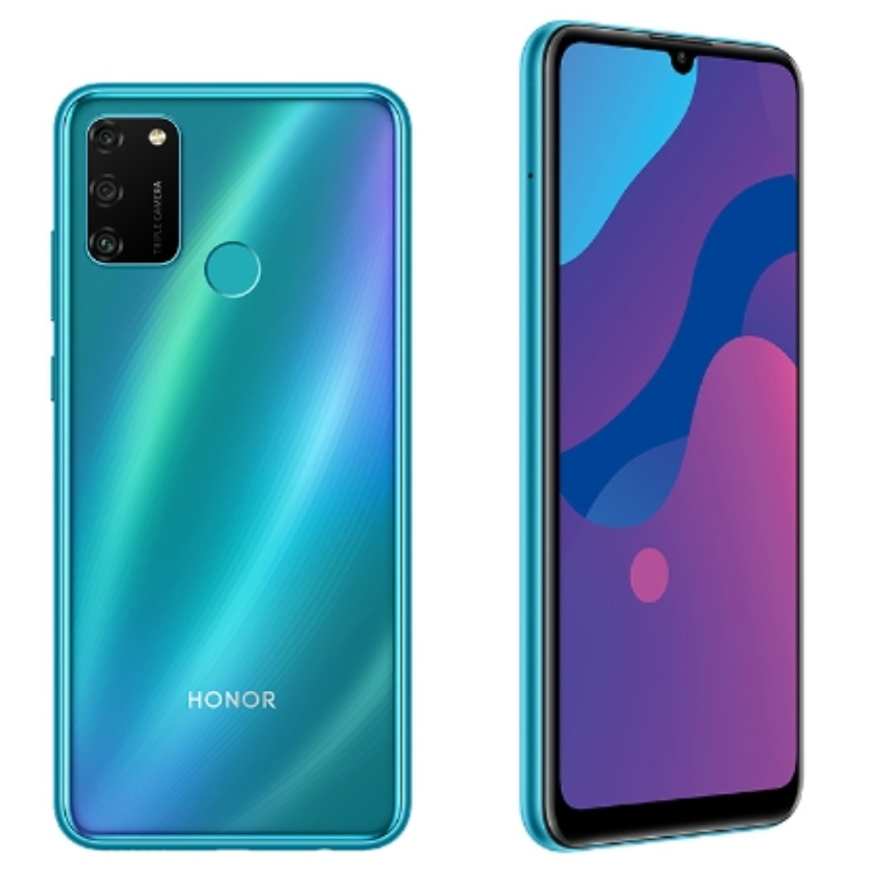
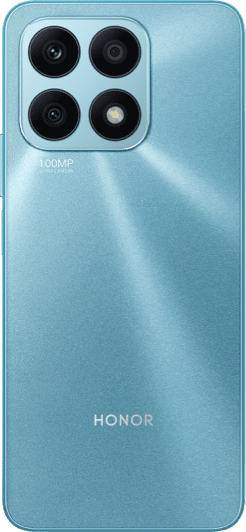
An image of the HONOR 9A in Phantom Blue
To know more about the HONOR 9A, refer to this video:
Some useful tips and tricks for the HONOR 9A:
1. How to enable Dark mode of the HONOR 9A
It is known already that Dark Mode does bring a lot of benefits including avoiding digital eye strain, saving battery. But if you are still installing some extension or searching for dark theme to get dark mode on the HONOR 9A, then it’s time to take setup dark mode on your HONOR 9A.
Step one, Swipe down the screen to get the search bar.
Step two, Type in keywords “Dark Mode”. Then enable “Dark Mode”.
Step three, After that, you can open several other apps and will find out all the apps are now in “Dark mode”. It’s too good to be true, right? But it is true that HONOR 9A support Dark Mode.
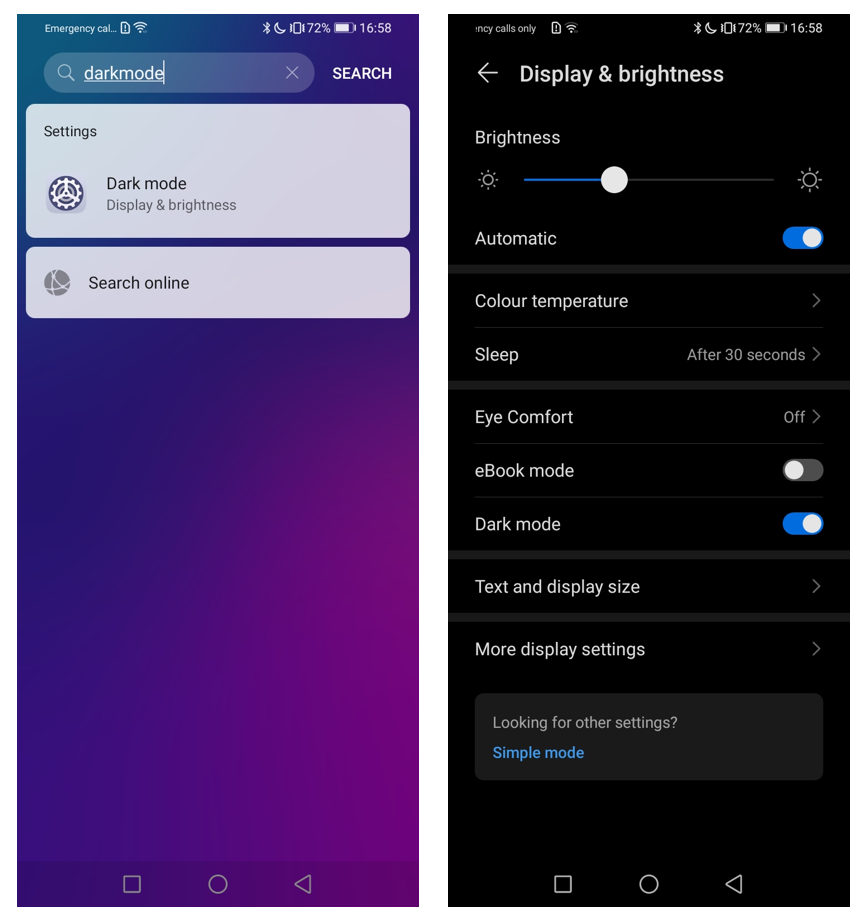
This image shows you how to access Dark Mode on the HONOR 9A
2. How to use Intelligent photo collage on the HONOR 9A?
Honestly the intelligent photo collage function on the HONOR 9A is definitely not as professional as some of the photo editing apps. However, the advantage is, it’s very convenient and you don’t have to download a photo editing app, or drags those photos to that app.
Step one, Just open photo gallery on your HONOR 9A. Then select the photos you want and click “create” at the bottom left.
Step two, On the next screen, you are able to enable or disable frame, and select layout you want. You can also press one photo then spin or horizontal flip it.
Step three: Save it and you can find that new photo in photo gallery of your HONOR 9A.
3. How to set up a Video ringtone on the HONOR 9A?
Yes, video ringtone is supported by the HONOR 9A. To set up a video ringtone, means exactly like what you get from this sentence.
Step one, Swipe down the screen to get the search bar. Then type in keywords “Ringtone” and open that. On the next page, press “phone Ringtone”. You will see “SIM 1” and “SIM 2” and this means you can set up different video ringtones for different SIM card.
Step two: Press “Video ringtones” then you will be able to select the videos stored in your HONOR 9A. Press “Apply” after you select the video you want. Then it’s all done.
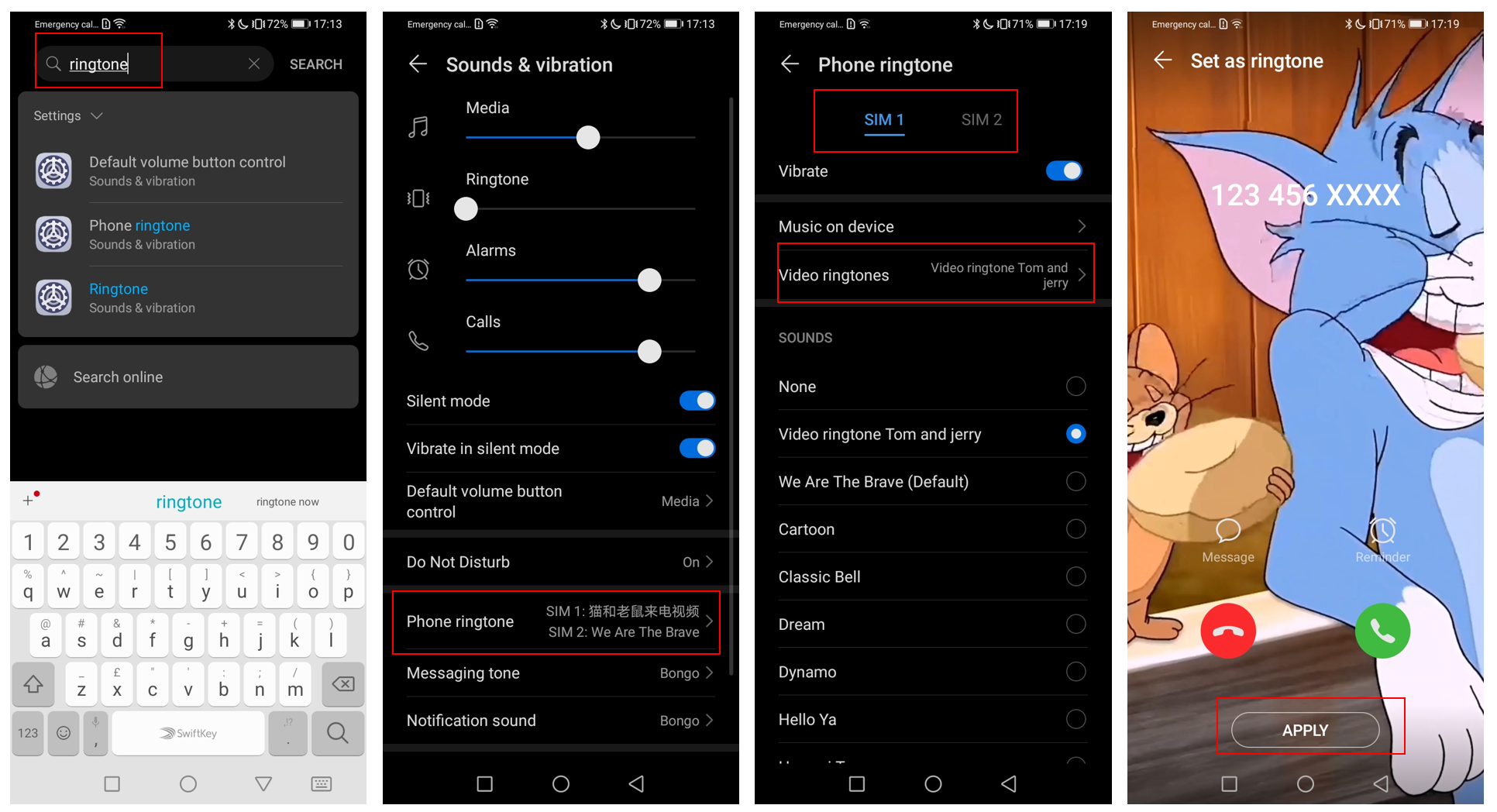
This image shows you how to set up a video ringtone on the HONOR 9A
4. How to enable NFC on the HONOR 9A?
There are several options to enable NFC on the HONOR 9A.
Option one, swipe down the screen to get the search bar and type in “NFC”. Then enable NFC.
Option two, swipe down the screen from the upper edge of the screen then enable “NFC”. In case you could not find “NFC” from there, press the “edit” icon then you could drag the “NFC” icon to make it shown in the panel.
5. How to change the navigation method of the HONOR 9A?
Wipe down the screen to get search bar then type in “navigation” and click that to select “Gestures” or “Three-key-navigation”.
Whichever navigation you select, there is a short Animation to help you understand the specific navigation better.
6. How to enable Three-finger screenshot on the HONOR 9A?
Swipe down the screen to get search bar then type in “shortcuts” instead of “screenshot”. Open shortcuts and gestures then press take screenshot from next screen. From there you can select knuckle screenshot or three-finger screenshot.
7. How to enable mute ringtone by untitleddailyuntitleddailyuntitleddaily the HONOR 9A?
Type in “shortcuts” in the search bar after you swipe down the screen, then type in “shortcuts” instead of “screenshot”. Open shortcuts and gestures then press mute ringtone and enable that.
Some other useful tips:
8. Swipe down the screen to get the search bar on the HONOR 9A
Then from there, you could search for an app or a feature
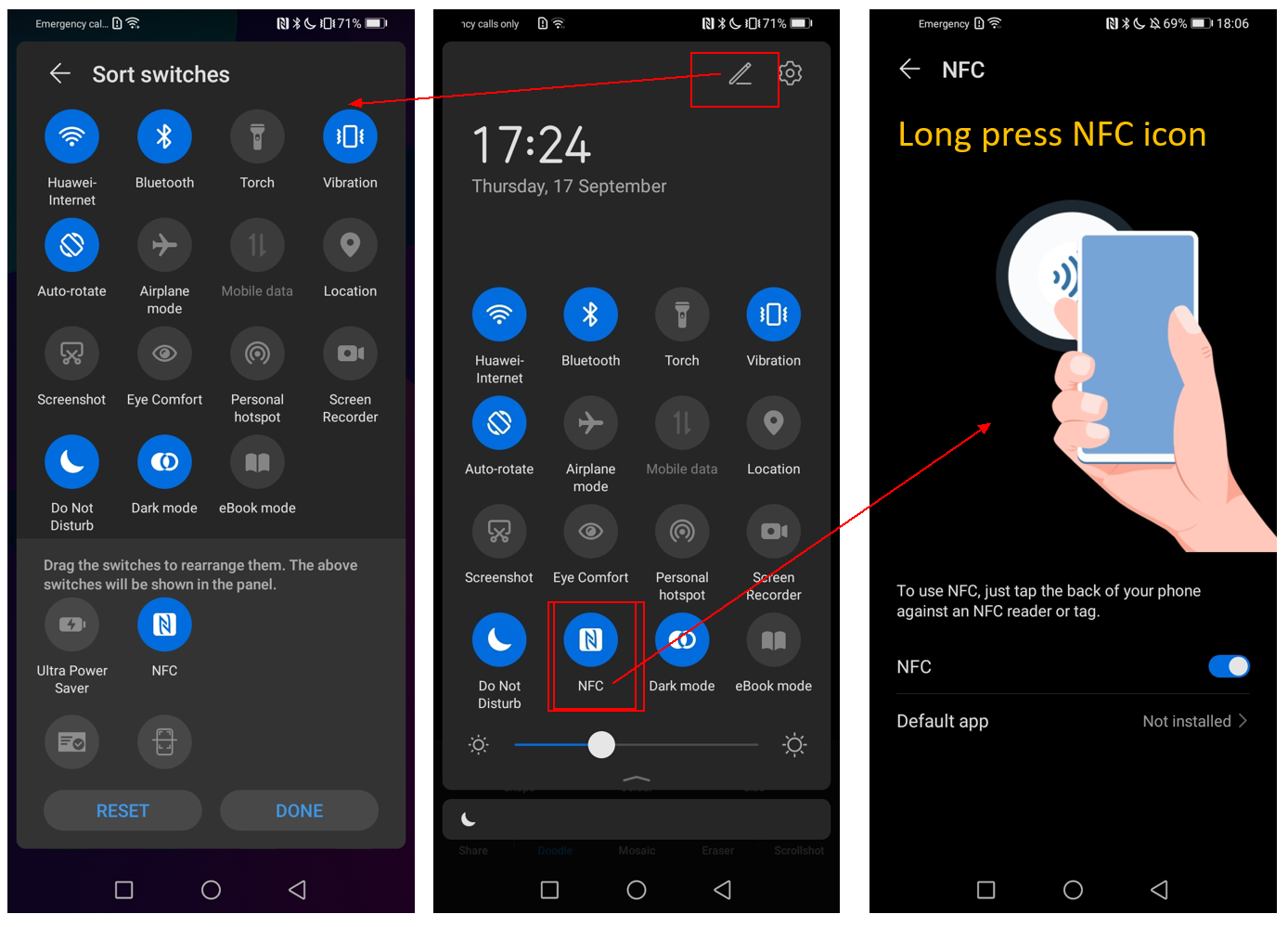
An image to show the frequently used feature panel of the HONOR 9A
9. Swipe down the screen from the upper edge to access frequently used feature access panel
Press a specific icon to enable/disable a feature or switch to a different model, for example, to sound or vibration or silent mode.
Long press a specific icon to access the detailed setting screen for features. For example, long-press the Bluetooth icon then from the next screen you could select to which the Bluetooth signal you want to connect your HONOR 9A.
Do you find more tips and tricks to help us fully take advantage of the HONOR 9A? Share with us in the comment section!
How to install Apps on the HONOR 9A
HONOR 9A everything you need to know
HONOR 9A NFC all you need to know
How to install google play on HONOR 9A?
HONOR 9A review-A budget phone under £130
HONOR 9A Split screen explained
HONOR 9A Screen record explained


- Posts
- Following
- Followers
- Energy
-

Jennyin
-
+ Follow

-
- 5 Posts
- 1 Following
- 42 Followers
- 627 Energy



- Posts
- photo
- video

If you are looking for useful tips and tricks of the HONOR 9A, then you definitely don’t want to miss this article.

Launched on 2020, April 29, the HONOR 9A features a 159.1 x 74.1 x 9 mm display, dual SIM card slots, 5000mAh non-removable Li-Po big battery, and four cameras which consist of three main cameras including 13 MP, f/1.8 wide camera, 5 MP, f/2.2 ultrawide camera and 2 MP, f/2.4 depth camera and 8 MP, f/2.0 selfie camera.
It weighs 185g only and the memory of the HONOR 9A is 3GB RAM + 64GB ROM. Three colors are available for the HONOR 9A, Black, Blue and Green.
An image of the HONOR 9A in Phantom Blue
To know more about the HONOR 9A, refer to this video:
Some useful tips and tricks for the HONOR 9A:
1. How to enable Dark mode of the HONOR 9A
It is known already that Dark Mode does bring a lot of benefits including avoiding digital eye strain, saving battery. But if you are still installing some extension or searching for dark theme to get dark mode on the HONOR 9A, then it’s time to take setup dark mode on your HONOR 9A.
Step one, Swipe down the screen to get the search bar.
Step two, Type in keywords “Dark Mode”. Then enable “Dark Mode”.
Step three, After that, you can open several other apps and will find out all the apps are now in “Dark mode”. It’s too good to be true, right? But it is true that HONOR 9A support Dark Mode.

This image shows you how to access Dark Mode on the HONOR 9A
2. How to use Intelligent photo collage on the HONOR 9A?
Honestly the intelligent photo collage function on the HONOR 9A is definitely not as professional as some of the photo editing apps. However, the advantage is, it’s very convenient and you don’t have to download a photo editing app, or drags those photos to that app.
Step one, Just open photo gallery on your HONOR 9A. Then select the photos you want and click “create” at the bottom left.
Step two, On the next screen, you are able to enable or disable frame, and select layout you want. You can also press one photo then spin or horizontal flip it.

Step three: Save it and you can find that new photo in photo gallery of your HONOR 9A.
3. How to set up a Video ringtone on the HONOR 9A?
Yes, video ringtone is supported by the HONOR 9A. To set up a video ringtone, means exactly like what you get from this sentence.
Step one, Swipe down the screen to get the search bar. Then type in keywords “Ringtone” and open that. On the next page, press “phone Ringtone”. You will see “SIM 1” and “SIM 2” and this means you can set up different video ringtones for different SIM card.
Step two: Press “Video ringtones” then you will be able to select the videos stored in your HONOR 9A. Press “Apply” after you select the video you want. Then it’s all done.
This image shows you how to set up a video ringtone on the HONOR 9A
4. How to enable NFC on the HONOR 9A?

There are several options to enable NFC on the HONOR 9A.
Option one, swipe down the screen to get the search bar and type in “NFC”. Then enable NFC.
Option two, swipe down the screen from the upper edge of the screen then enable “NFC”. In case you could not find “NFC” from there, press the “edit” icon then you could drag the “NFC” icon to make it shown in the panel.
5. How to change the navigation method of the HONOR 9A?
Wipe down the screen to get search bar then type in “navigation” and click that to select “Gestures” or “Three-key-navigation”.
Whichever navigation you select, there is a short Animation to help you understand the specific navigation better.
6. How to enable Three-finger screenshot on the HONOR 9A?
Swipe down the screen to get search bar then type in “shortcuts” instead of “screenshot”. Open shortcuts and gestures then press take screenshot from next screen. From there you can select knuckle screenshot or three-finger screenshot.
7. How to enable mute ringtone by untitleddailyuntitleddailyuntitleddaily the HONOR 9A?
Type in “shortcuts” in the search bar after you swipe down the screen, then type in “shortcuts” instead of “screenshot”. Open shortcuts and gestures then press mute ringtone and enable that.
Some other useful tips:
8. Swipe down the screen to get the search bar on the HONOR 9A
Then from there, you could search for an app or a feature
An image to show the frequently used feature panel of the HONOR 9A
9. Swipe down the screen from the upper edge to access frequently used feature access panel
Press a specific icon to enable/disable a feature or switch to a different model, for example, to sound or vibration or silent mode.
Long press a specific icon to access the detailed setting screen for features. For example, long-press the Bluetooth icon then from the next screen you could select to which the Bluetooth signal you want to connect your HONOR 9A.
Do you find more tips and tricks to help us fully take advantage of the HONOR 9A? Share with us in the comment section!
HONOR 9A FAQs
How to install Apps on the HONOR 9A
HONOR 9A everything you need to know
HONOR 9A NFC all you need to know
How to install google play on HONOR 9A?
HONOR 9A review-A budget phone under £130
HONOR 9A Split screen explained
HONOR 9A Screen record explained
HONOR 9A How to take screenshot and scroll shot
HONOR 9A how to enable dark mode?