



 More Products
 Compare






































我的荣耀 开启荣耀之旅



 Disagree Terms
 Log out




[Geek Lab] Why is your laptop overheating? Find the money-saving tips here!


 Last reply :
Hey guys,
Welcome to the Geek Lab channel! Let's talk about the common issue on the laptop today!
Why is your laptop overheating?
Laptops are obviously limited in size and have a smaller available area to spread the additional heat. When a computer is running, it's internal electronic components generate heat, and heat production is ramped up during, in particular, charging or intensive tasks. Desktops are bulkier, with a larger surface area to assist in heat removal, and therefore house more effective heat-dispersing components, when compared with laptops. Compact laptops are inherently restricted in their heat dissipation performance, even when equipped with a low-power processor.
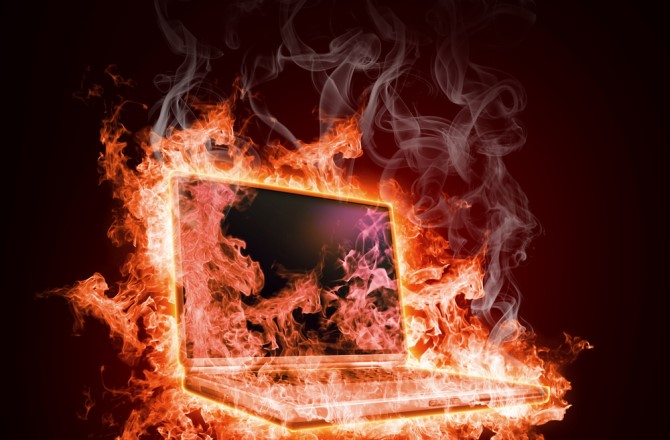
Image Credit: Sergey Nivens via Shutterstock.com
Thus, a powerful cooling system is indispensable for a high-performing and durable laptop.
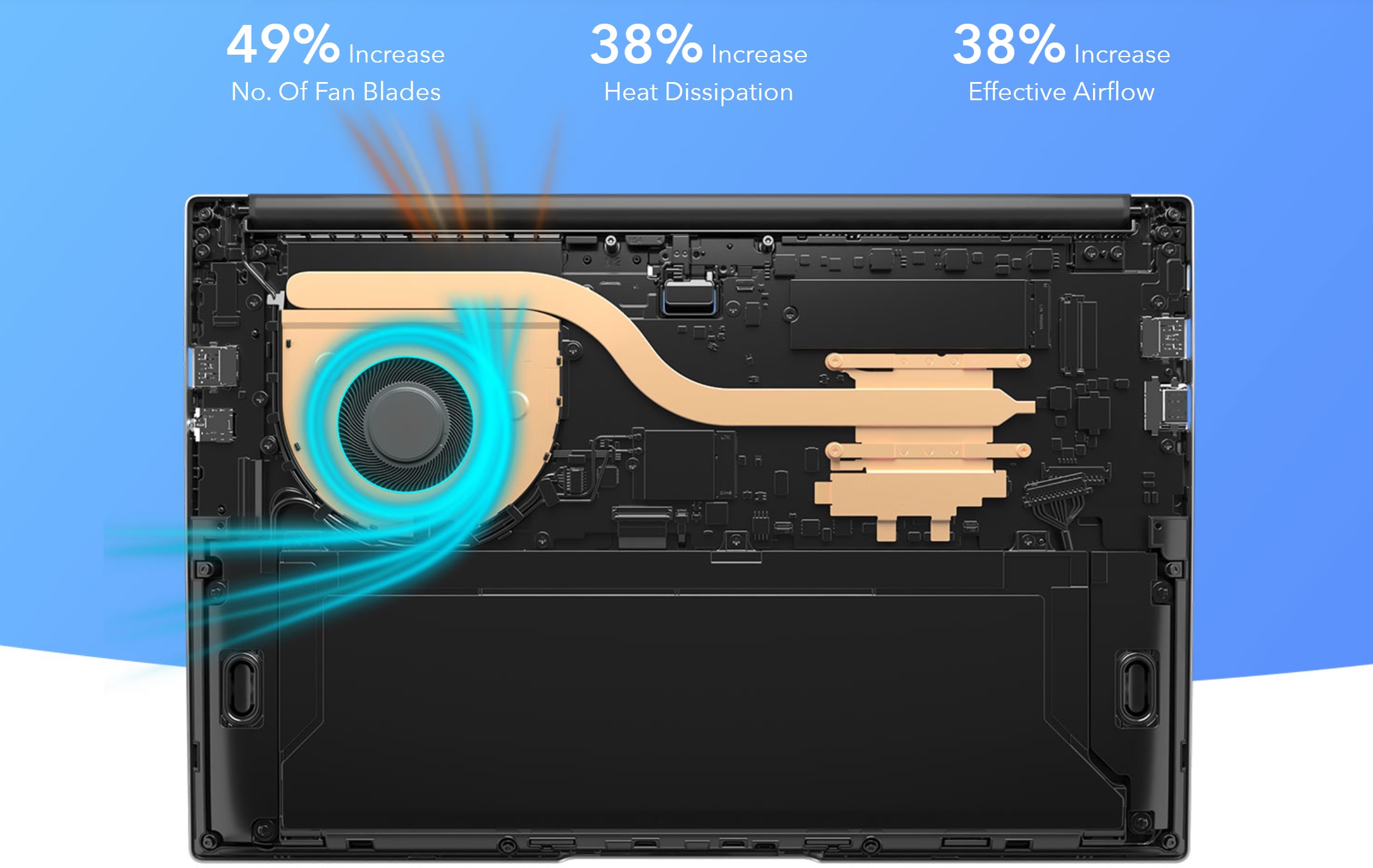
An effective cooling system leverages the available internal space and places the inlet and outlet at the exact optimal positions. Honor MagicBook 14 offers a prime example of this principle, with its innovative, uber-efficient fan setup – additional blades facilitate increased airflow, and a new blade design reduces noise to a minimum level while speeding up thermal radiation.
Of course, as the user, you can't do anything to improve a laptop's cooling system. But how you treat your laptop can play a role in influencing whether or not it will overheat.
Here's how…
1. Avoid using your laptop in extremely hot weather
The optimal working temperature of a laptop ranges from 0°C to 35°, and this rules out extreme environments, in particular, brutally hot weather.
2. Avoid placing your laptop directly on the bed, on a pillow, or worse yet, on your stomach! (Gotcha!)
Always place your laptop on a hard horizontal surface, ideally with an object to prop up the laptop so that it's not directly on the tabletop. Soft objects, like pillows, quilts, blankets or body parts, should not be used as this prop!
untitleddailyHere's a money-saving tip: Find four identical bottle caps (from coke bottles, water bottles, etc.), glue them to the table so that they are firmly fixed to the location of your laptop's four corners, and voilà, you've got a free keep-it-cool holder!
3. Keep the fan outlet clean
Check regularly to see whether the outlet has accumulated any dust, lint, etc., and clean it gently with soft cloth when necessary.
4. Regularly update the BIOS
This is dependent on support from the manufacturer, though, and isn't something you can do on your own. I know that Honor, for example, offers regular BIOS updates for its users.
Any other tips or tricks you've picked up for keeping your laptop cool? Please let us know by commenting below!


- Posts
- Following
- Followers
- Energy
-

ColarHill
-
+ Follow

-
- 66 Posts
- 25 Following
- 205 Followers
- 4073 Energy



- Posts
- photo
- video

Hey guys,
Welcome to the Geek Lab channel! Let's talk about the common issue on the laptop today!
Why is your laptop overheating?
Laptops are obviously limited in size and have a smaller available area to spread the additional heat. When a computer is running, it's internal electronic components generate heat, and heat production is ramped up during, in particular, charging or intensive tasks. Desktops are bulkier, with a larger surface area to assist in heat removal, and therefore house more effective heat-dispersing components, when compared with laptops. Compact laptops are inherently restricted in their heat dissipation performance, even when equipped with a low-power processor.
Image Credit: Sergey Nivens via Shutterstock.com
Thus, a powerful cooling system is indispensable for a high-performing and durable laptop.
An effective cooling system leverages the available internal space and places the inlet and outlet at the exact optimal positions. Honor MagicBook 14 offers a prime example of this principle, with its innovative, uber-efficient fan setup – additional blades facilitate increased airflow, and a new blade design reduces noise to a minimum level while speeding up thermal radiation.
Of course, as the user, you can't do anything to improve a laptop's cooling system. But how you treat your laptop can play a role in influencing whether or not it will overheat.
Here's how…
1. Avoid using your laptop in extremely hot weather
The optimal working temperature of a laptop ranges from 0°C to 35°, and this rules out extreme environments, in particular, brutally hot weather.
2. Avoid placing your laptop directly on the bed, on a pillow, or worse yet, on your stomach! (Gotcha!)
Always place your laptop on a hard horizontal surface, ideally with an object to prop up the laptop so that it's not directly on the tabletop. Soft objects, like pillows, quilts, blankets or body parts, should not be used as this prop!
untitleddailyHere's a money-saving tip: Find four identical bottle caps (from coke bottles, water bottles, etc.), glue them to the table so that they are firmly fixed to the location of your laptop's four corners, and voilà, you've got a free keep-it-cool holder!
3. Keep the fan outlet clean
Check regularly to see whether the outlet has accumulated any dust, lint, etc., and clean it gently with soft cloth when necessary.
4. Regularly update the BIOS
This is dependent on support from the manufacturer, though, and isn't something you can do on your own. I know that Honor, for example, offers regular BIOS updates for its users.
Any other tips or tricks you've picked up for keeping your laptop cool? Please let us know by commenting below!