

 More Products
 Compare









我的荣耀 开启荣耀之旅



 Disagree Terms
 Log out




[TUTORIAL] Rollback Honor 8 Pro from EMUI 8.0 TO EMUI 5.1


 Last reply :
Honorians,
Do you uncomfortable with EMUI 8.0 which still like EMUI 5.0 most which feel its stable than 8.0?? Here's the tutorial for it,Lets gi Thru it :
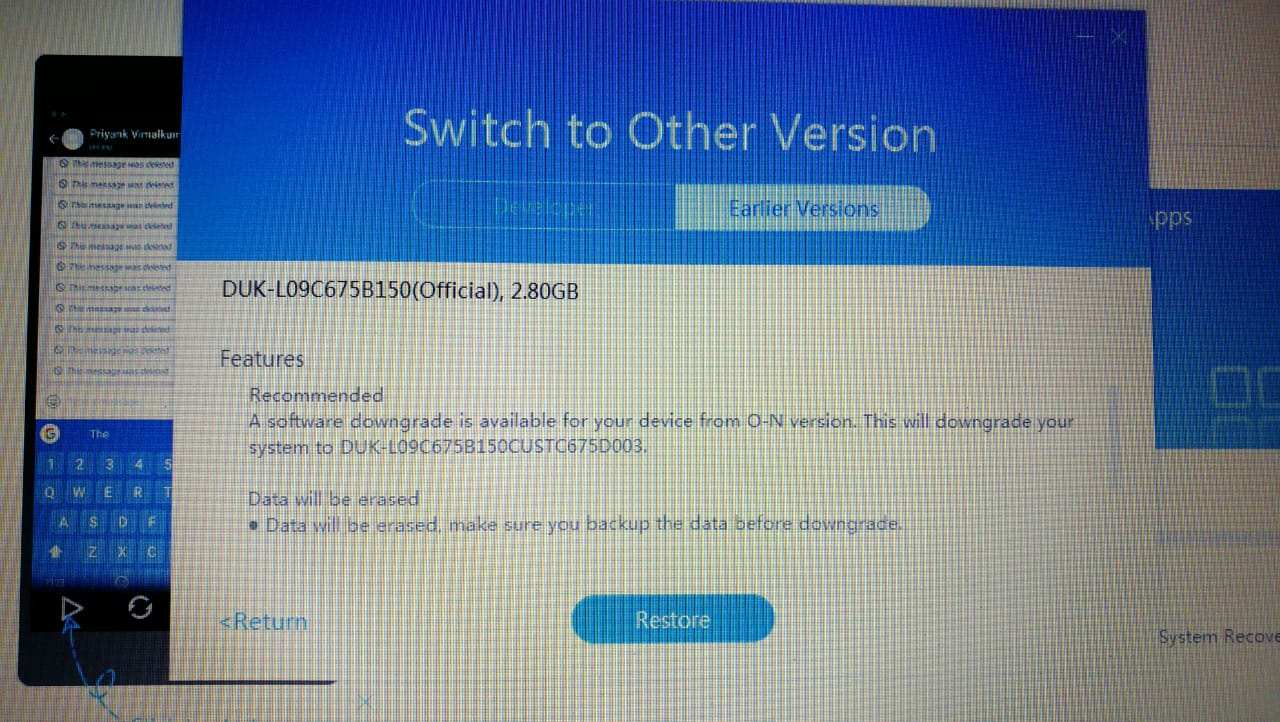
EMUI 8.0 + Android 8.0 Rollback to EMUI 5.X + Android 7.0
OPERATION INSTRUCTION
Android 8.0 + EMUI 8.0 can now be rolled back to the official version of Android 7.0 + EMUI 5.0/EMUI 5.1 using HiSuite, without downloading any intermediate packages. To ensure that the rollback succeeds, read the instructions carefully and perform the steps as instructed.
1. The following are precautions for rollback.
★ Rolling back to an earlier version will erase all data on your device. Use an microSD card, computer, or Cloud storage to back up all important data before rolling back your phone, and make sure all backed up content is complete and effective.
★ Use a computer running the Windows operating system to visit http://consumer.huawei.com/minisite/HiSuite_en/index.html and download the latest version of HiSuite. If HiSuite is installed on your computer, click the version number in the lower left corner of the page to check if it is the latest version. If not, please update it.
★ Before rolling back the phone, make sure your phone has not been upgraded using non-official updates. Otherwise, the rollback may fail and unknown issues may be introduced. If you have used non-official packages to upgrade your phone, it is recommended that you go to an after-sales service centre to roll back your phone.
★ Before rolling back your phone, make sure that your phone system has not been unlocked or rooted. If the system has been unlocked or rooted, it is recommended that you go to an after-sales service centre to roll back your phone.
★ Before the rollback, disable the phone-finding function (Find My Phone) and restore the phone to factory settings to make sure there is enough storage space.
★ Make sure the battery level is more than 50%.
2. The following describes the rollback procedure.
*This section takes Mate9 rollback figures as a reference. For other models, the actual rollback figures prevail.
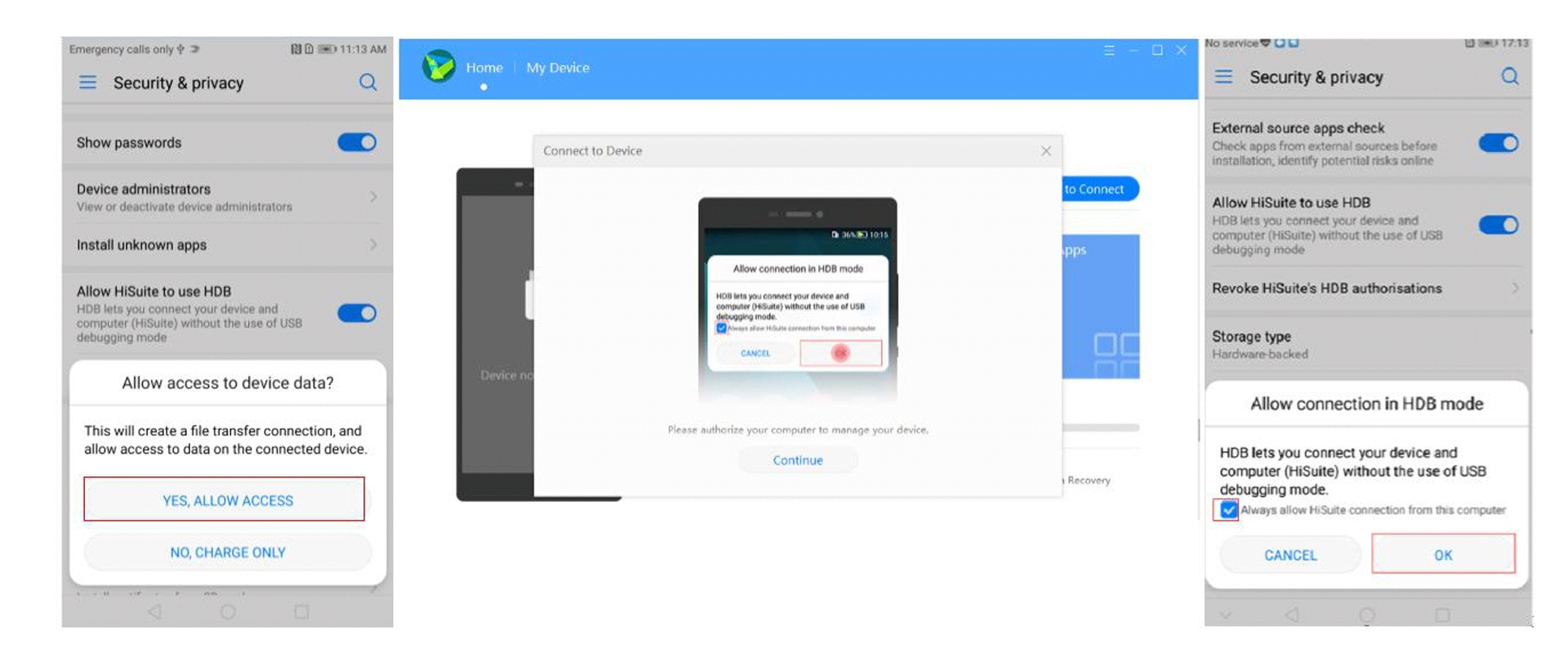
Step 1 :- Turn on the phone's HDB switch. Touch Settings, search for HDB in the search bar and enable Allow HiSuite to use HDB. If you want to revoke the authorisation, touch Revoke HiSuite's HDB authorisations.

Step 2 :- Connect your phone to a computer using a USB cable. Touch YES, ALLOW ACCESS, and then touch OK on the phone to allow the computer to access your phone.
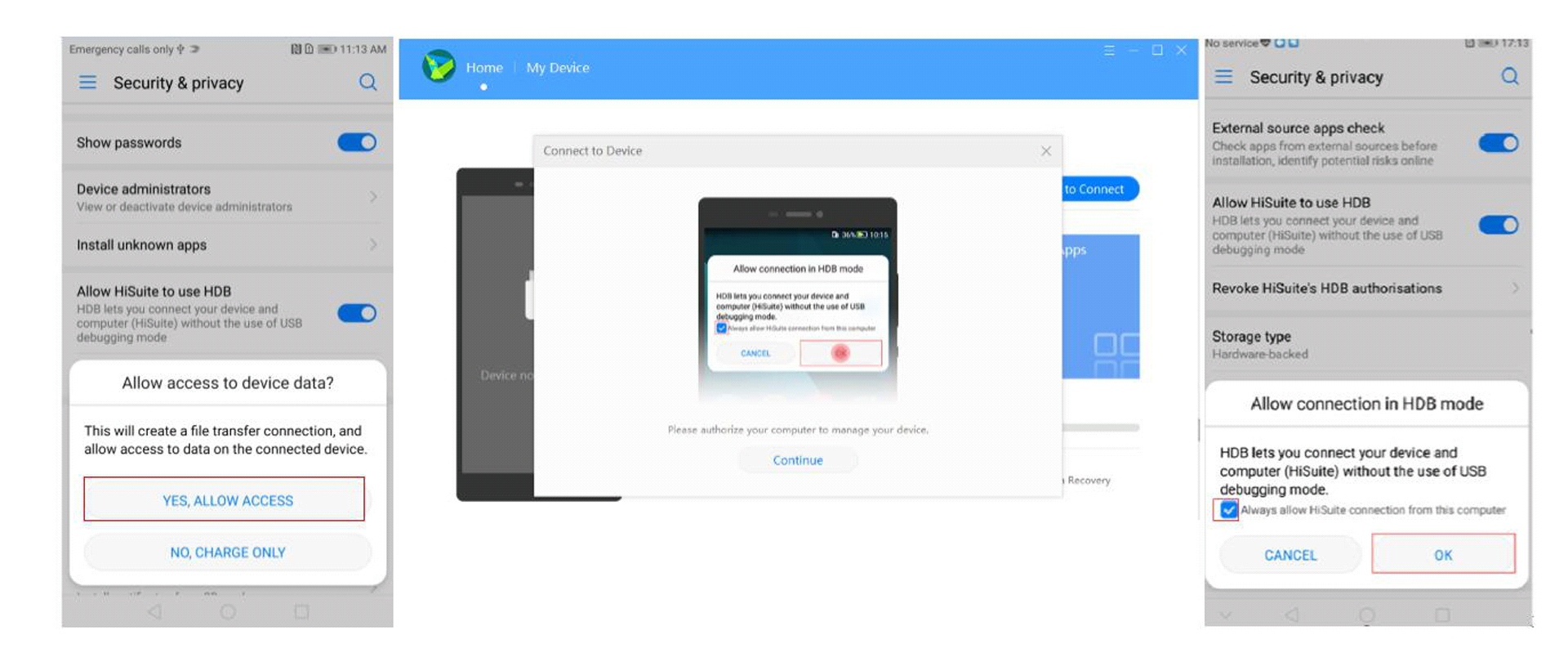
Step 3 :- Click OK to install HiSuite on your phone (If your phone has installed HiSuite, skip this step).
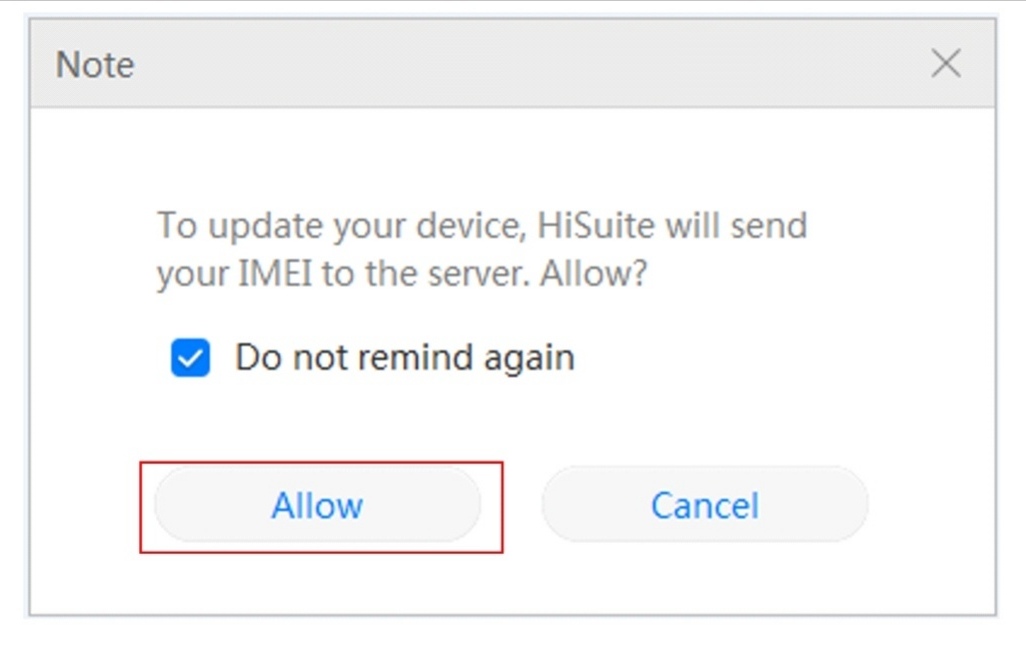
Click Allow on the pop-up dialogue box, as shown in the following figure. Touch to accept Huawei's agreement on your phone.
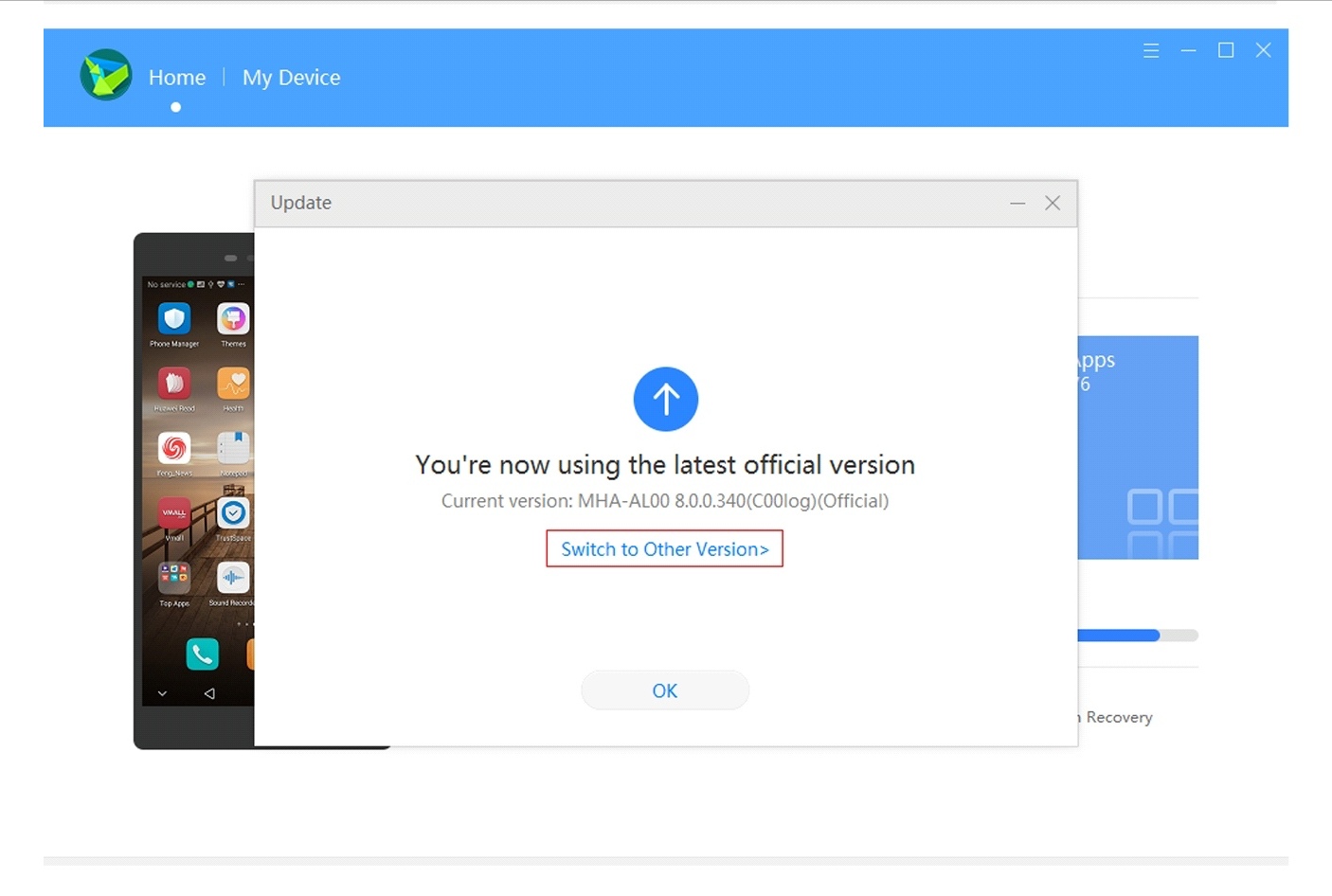
Step 4 :- Click Update, then click Switch to Other Version on the pop-up dialogue box. (This button is shown only when the current system can be rolled back).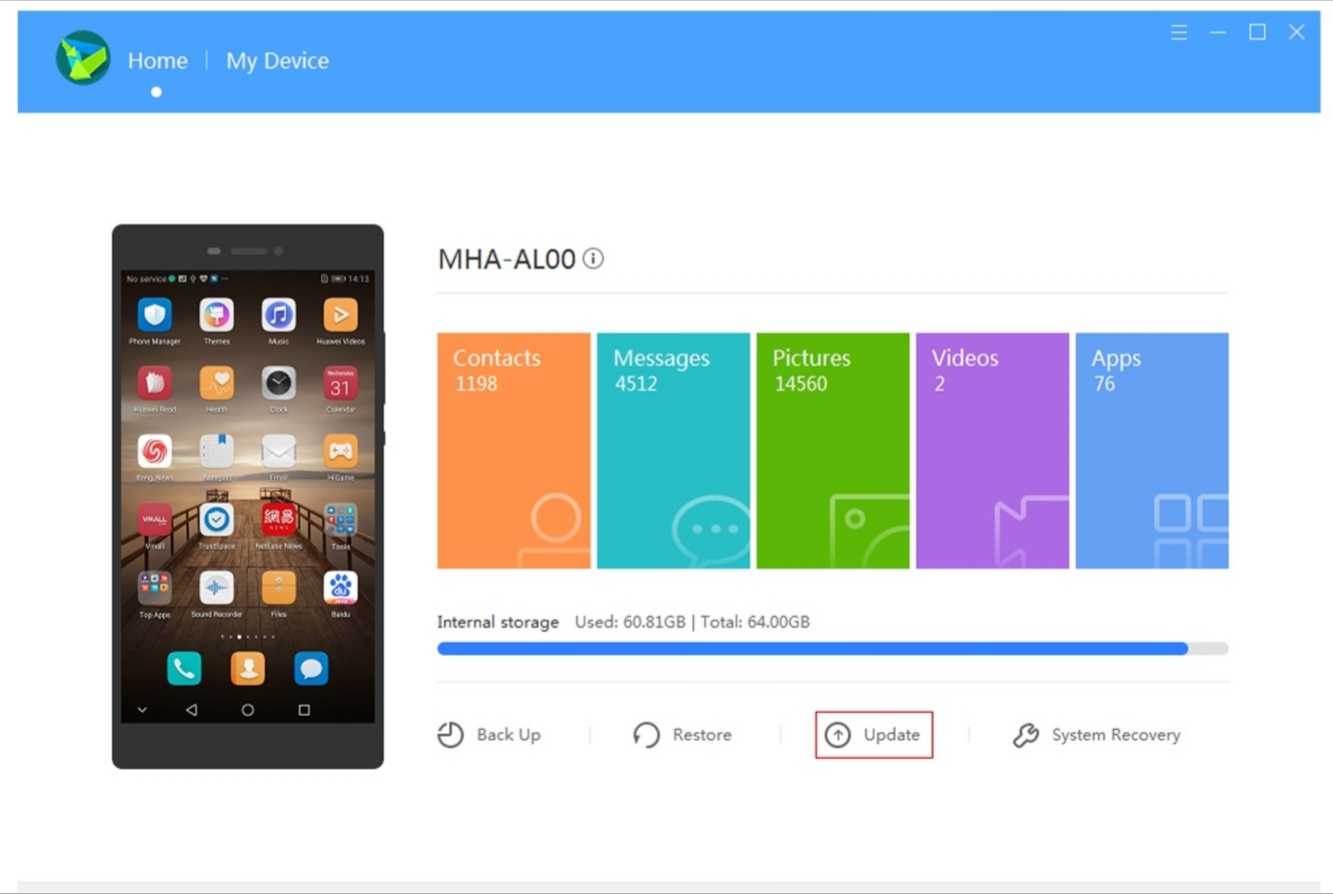
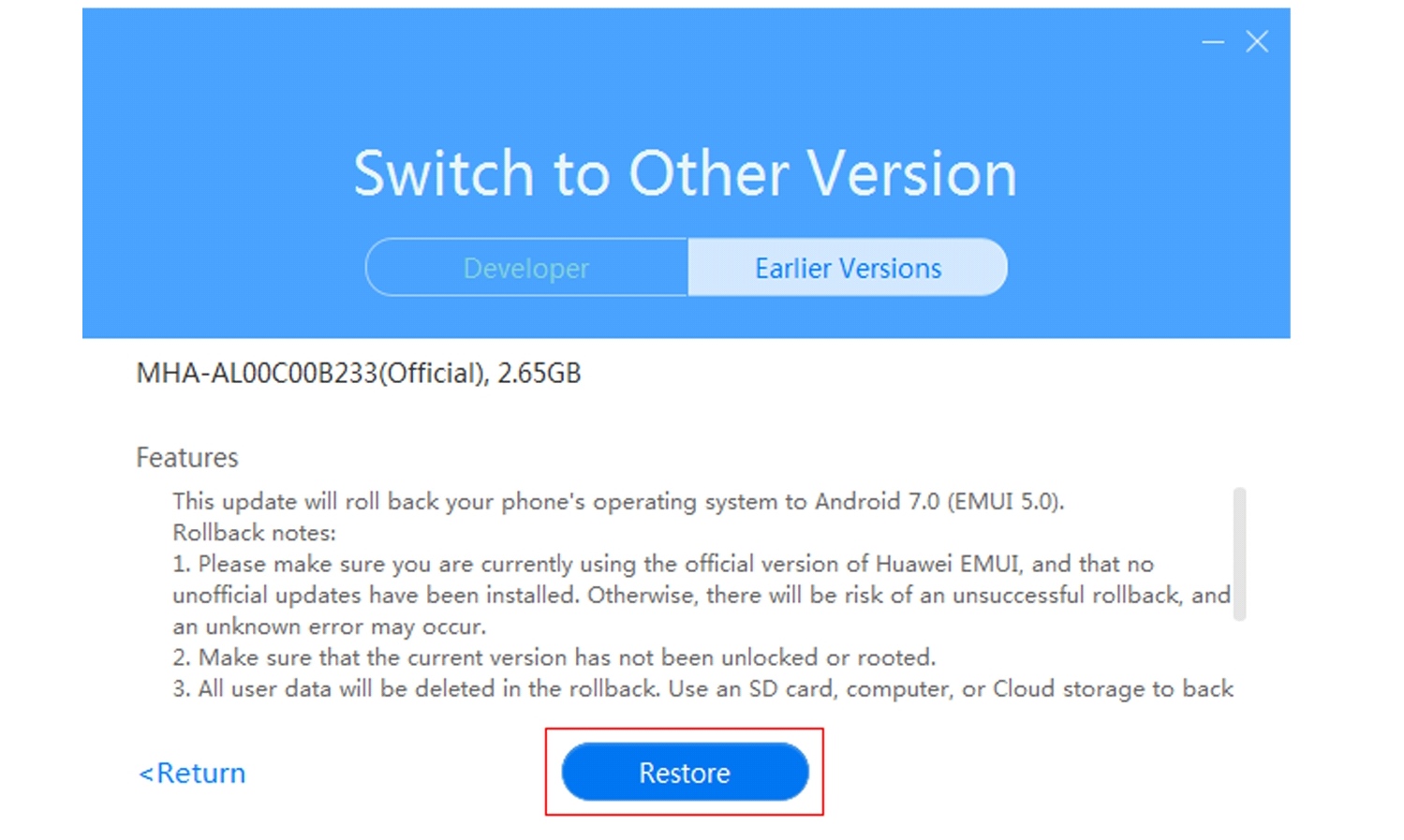
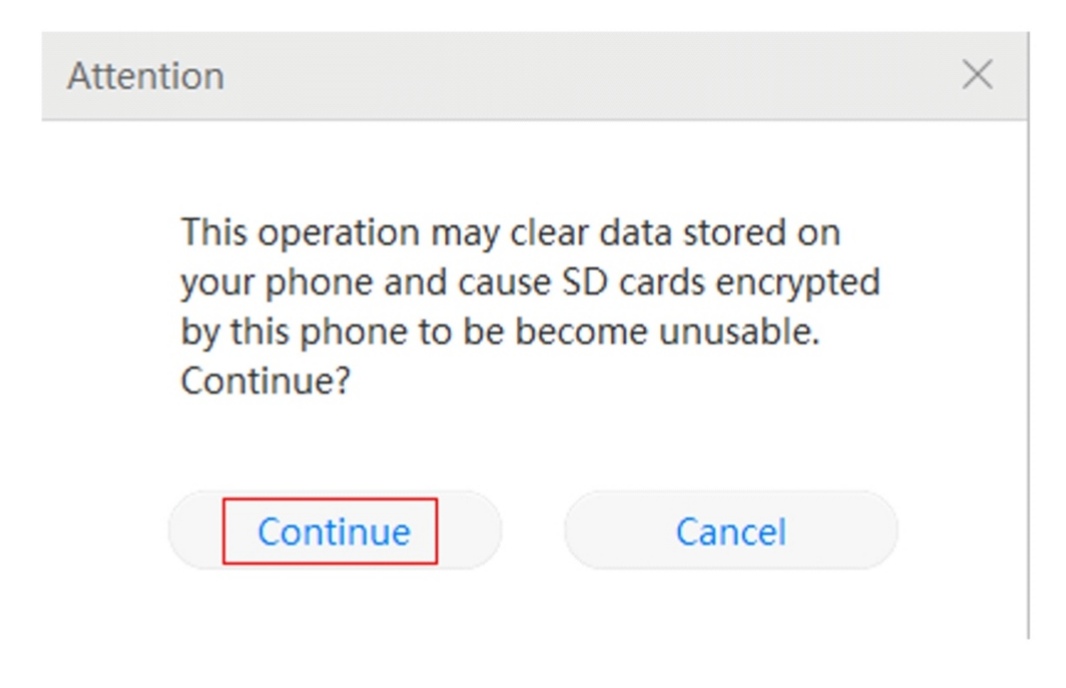
Step 5 :- In the pop-up dialogue box, you can check the roll-back package information, including the version number (EMUI) version and BXXX), version log, and others. Click Restore, and the message "This may erase data on your device. Continue?" will be displayed. Make sure you have backed up your phone data, and click Continue.
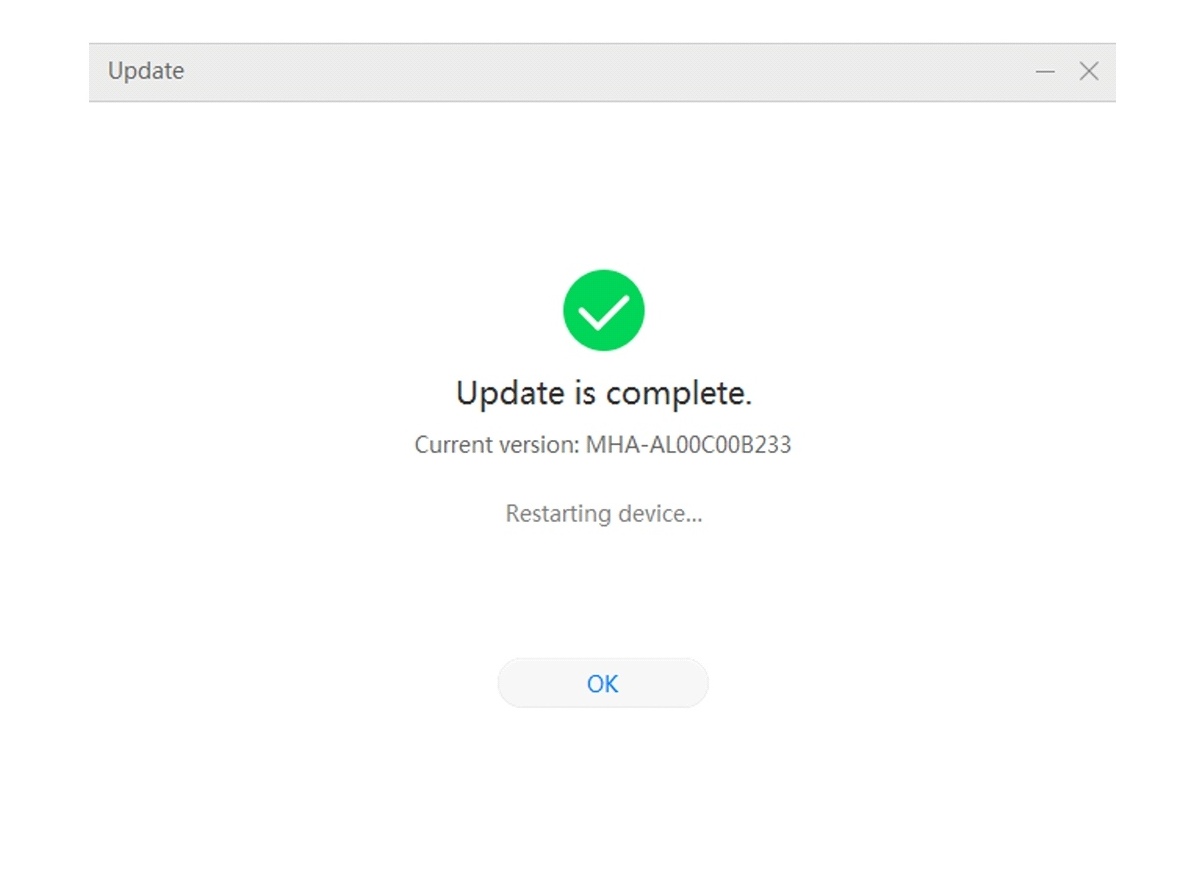
★When the progress bar is filled, the rollback is complete.★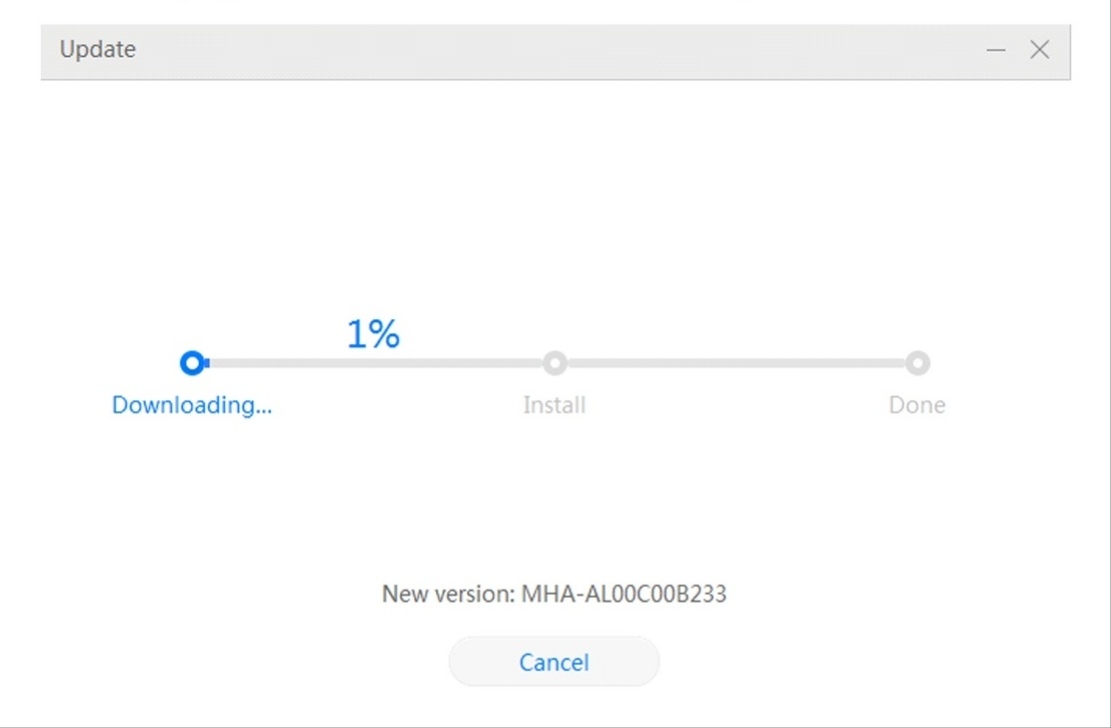
Source : Ayushsar25


- Posts
- Following
- Followers
- Energy
-

 PeaceHunter
Community Team
PeaceHunter
Community Team
-
+ Follow

-
- 494 Posts
- 180 Following
- 2951 Followers
- 108693 Energy


SUBSCRIPTION
I agree to receive the latest offers and information on HONOR products through email or IM (e.g. WhatsApp) provided below and advertisement on third-party platforms. I understand that I can unsubscribe anytime according to Chapter 5 of HONOR Platform Privacy Statement.
CONTACT

- Posts
- photo
- video

Honorians,
Do you uncomfortable with EMUI 8.0 which still like EMUI 5.0 most which feel its stable than 8.0?? Here's the tutorial for it,Lets gi Thru it :
EMUI 8.0 + Android 8.0 Rollback to EMUI 5.X + Android 7.0
OPERATION INSTRUCTION
Android 8.0 + EMUI 8.0 can now be rolled back to the official version of Android 7.0 + EMUI 5.0/EMUI 5.1 using HiSuite, without downloading any intermediate packages. To ensure that the rollback succeeds, read the instructions carefully and perform the steps as instructed.
1. The following are precautions for rollback.
★ Rolling back to an earlier version will erase all data on your device. Use an microSD card, computer, or Cloud storage to back up all important data before rolling back your phone, and make sure all backed up content is complete and effective.
★ Use a computer running the Windows operating system to visit http://consumer.huawei.com/minisite/HiSuite_en/index.html and download the latest version of HiSuite. If HiSuite is installed on your computer, click the version number in the lower left corner of the page to check if it is the latest version. If not, please update it.
★ Before rolling back the phone, make sure your phone has not been upgraded using non-official updates. Otherwise, the rollback may fail and unknown issues may be introduced. If you have used non-official packages to upgrade your phone, it is recommended that you go to an after-sales service centre to roll back your phone.
★ Before rolling back your phone, make sure that your phone system has not been unlocked or rooted. If the system has been unlocked or rooted, it is recommended that you go to an after-sales service centre to roll back your phone.
★ Before the rollback, disable the phone-finding function (Find My Phone) and restore the phone to factory settings to make sure there is enough storage space.
★ Make sure the battery level is more than 50%.
2. The following describes the rollback procedure.
*This section takes Mate9 rollback figures as a reference. For other models, the actual rollback figures prevail.
Step 1 :- Turn on the phone's HDB switch. Touch Settings, search for HDB in the search bar and enable Allow HiSuite to use HDB. If you want to revoke the authorisation, touch Revoke HiSuite's HDB authorisations.
Step 2 :- Connect your phone to a computer using a USB cable. Touch YES, ALLOW ACCESS, and then touch OK on the phone to allow the computer to access your phone.
Step 3 :- Click OK to install HiSuite on your phone (If your phone has installed HiSuite, skip this step).
Click Allow on the pop-up dialogue box, as shown in the following figure. Touch to accept Huawei's agreement on your phone.
Step 4 :- Click Update, then click Switch to Other Version on the pop-up dialogue box. (This button is shown only when the current system can be rolled back).
Step 5 :- In the pop-up dialogue box, you can check the roll-back package information, including the version number (EMUI) version and BXXX), version log, and others. Click Restore, and the message "This may erase data on your device. Continue?" will be displayed. Make sure you have backed up your phone data, and click Continue.
★When the progress bar is filled, the rollback is complete.★
Source : Ayushsar25