

 More Products
 Compare









我的荣耀 开启荣耀之旅



 Disagree Terms
 Log out




Tutorial KODI: Free Streaming US TVs (HBO, DISCOVERY and MORE)


 Last reply :

Hi HONORian.
Previously, we have learned how to set up KODI for Malaysia TV. Do you still remember? You can read it here. In this tutorial, I will be guiding you guys to set up KODI for US TV streaming. There is a lot of channels for you to enjoy - Movies (HBO, Cinemax, Hallmark), Kids(Disney, Nickelodeon), Documentary(Animal Planet, Discovery, Nat Geo), and many more! Wait, wait, you don't know what KODI is?
"Kodi spawned from the love of media. It is an entertainment hub that brings all your digital media together into a beautiful and user friendly package. It is 100% free and open source, very customisable and runs on a wide variety of devices. It is supported by a dedicated team of volunteers and a huge community."
AND
"It allows users to play and view most videos, music, podcasts, and other digital media files from local and network storage media and the internet."
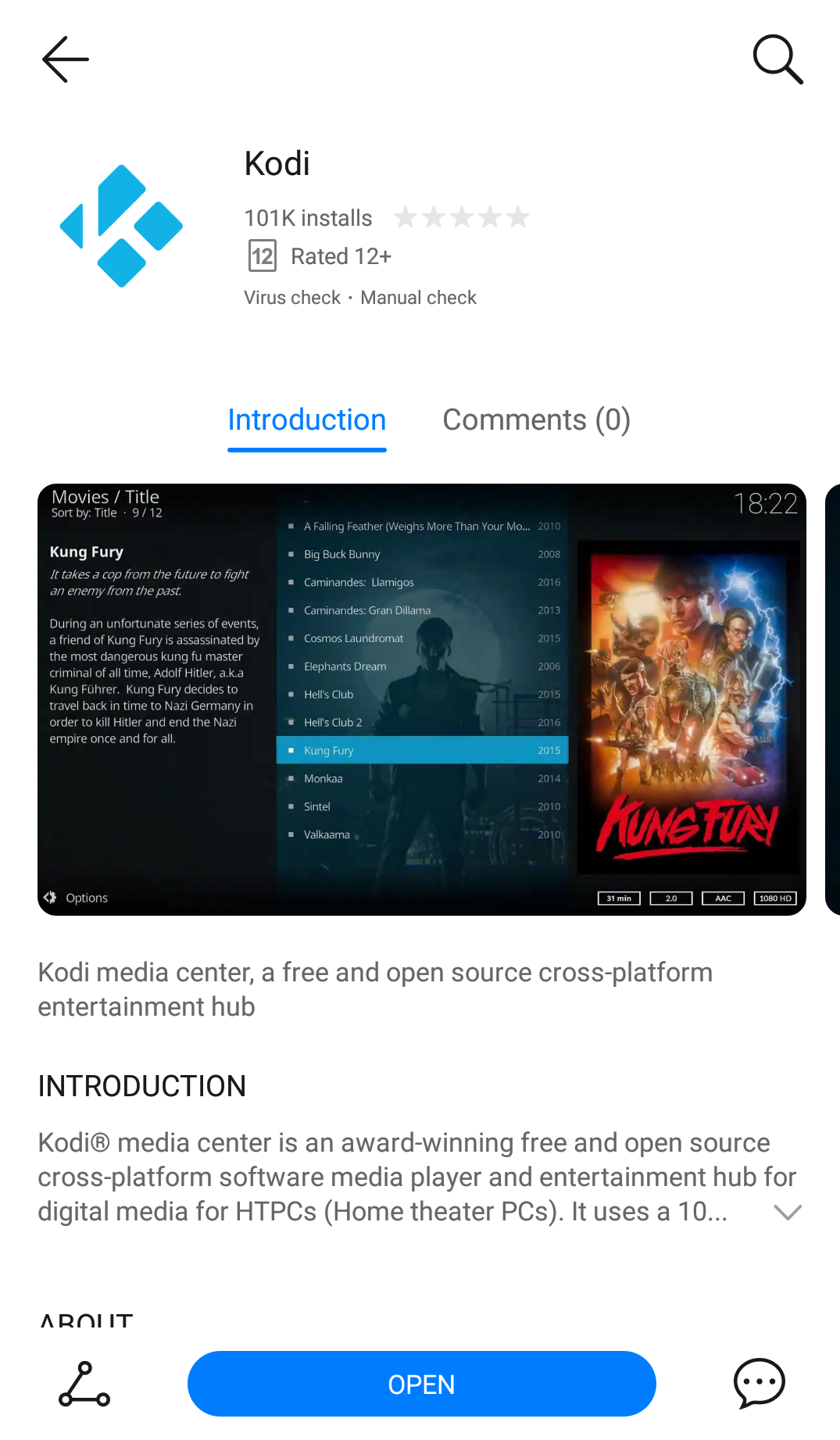
Got it? By the way, KODI is in AppGallery. Go get it now!
Urghh, let's cut all the talk, and get started with the tutorial!
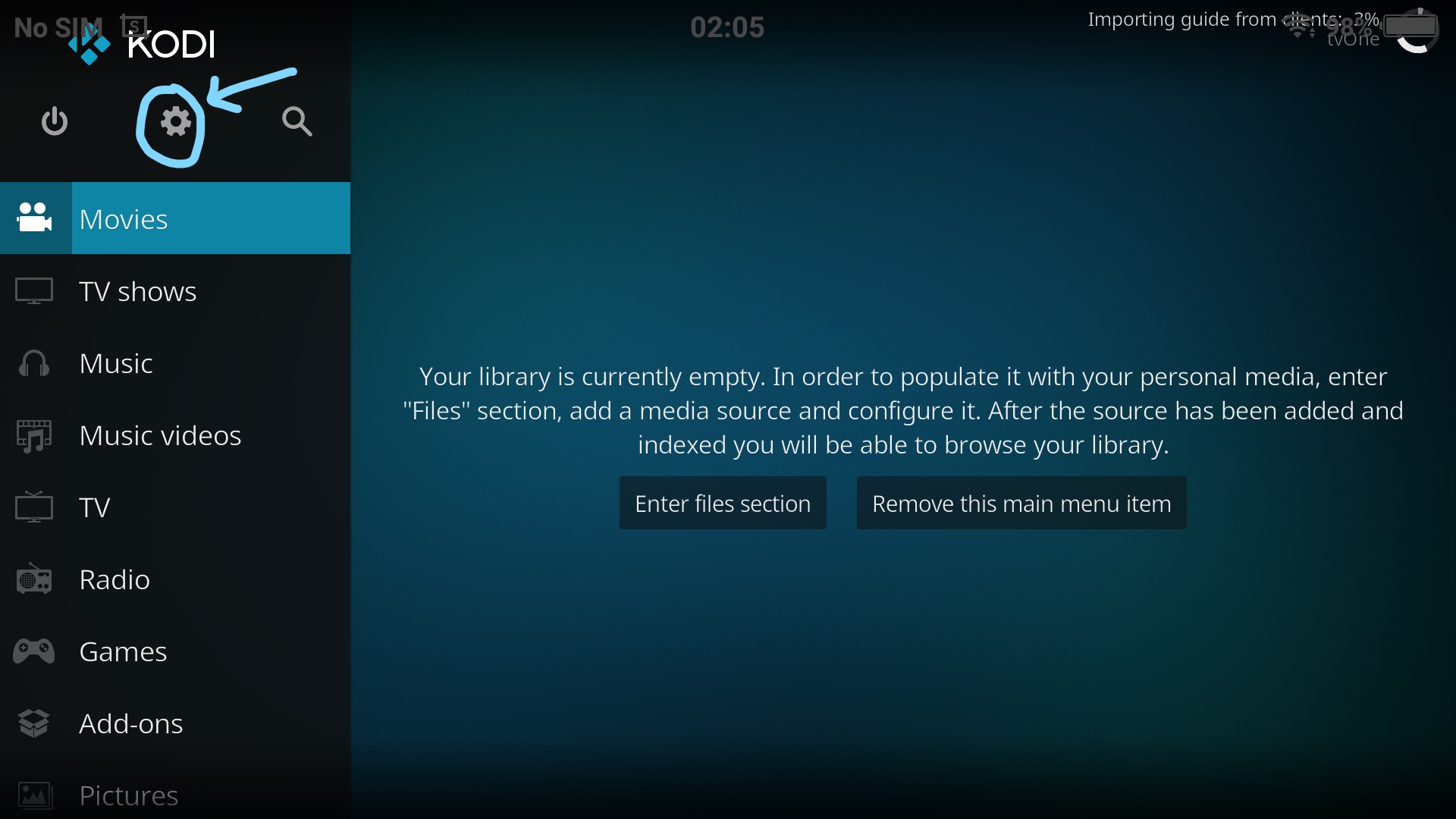
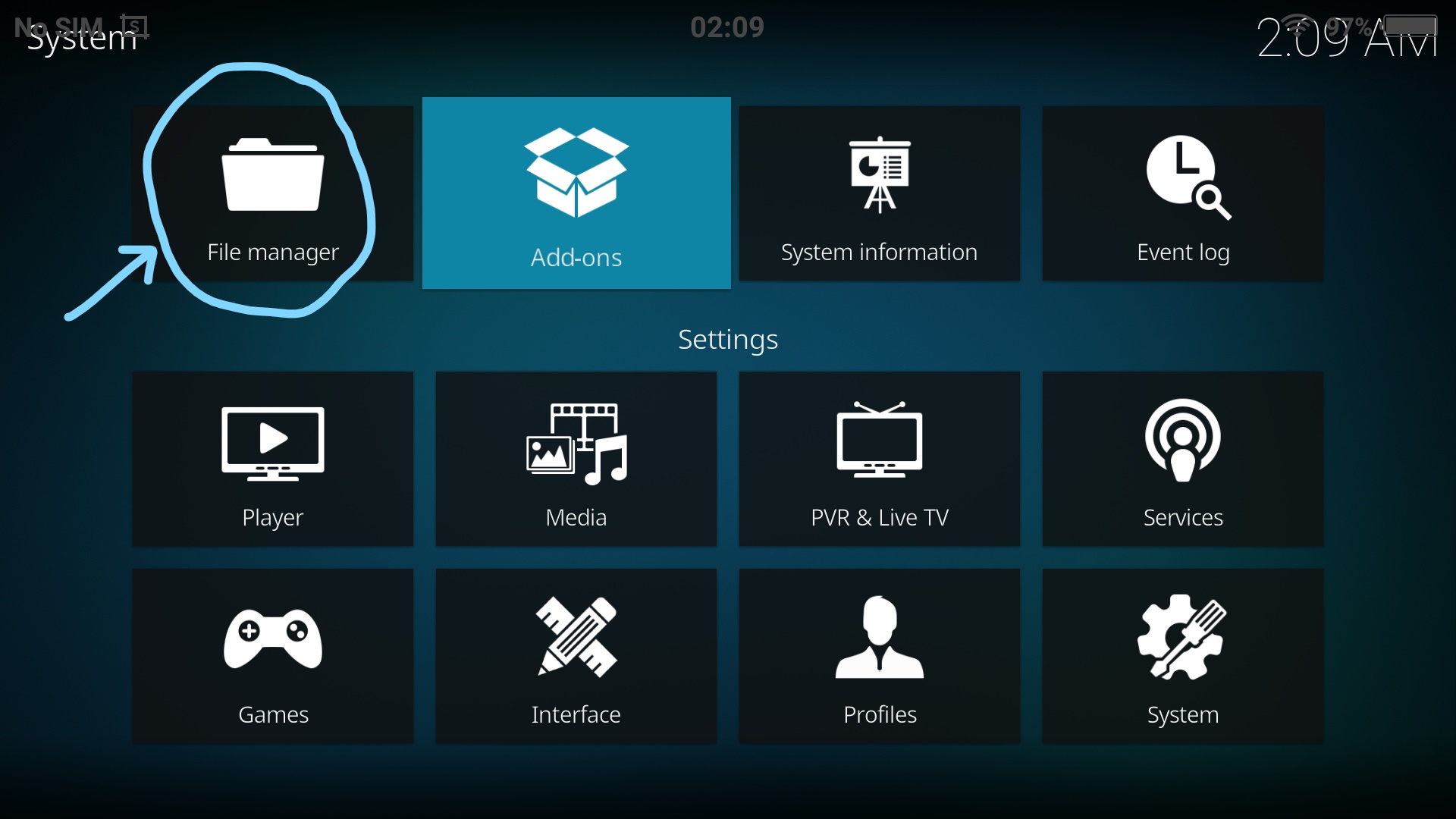
1. Launch Kodi and click the System icon, then click File manager > Add source > .
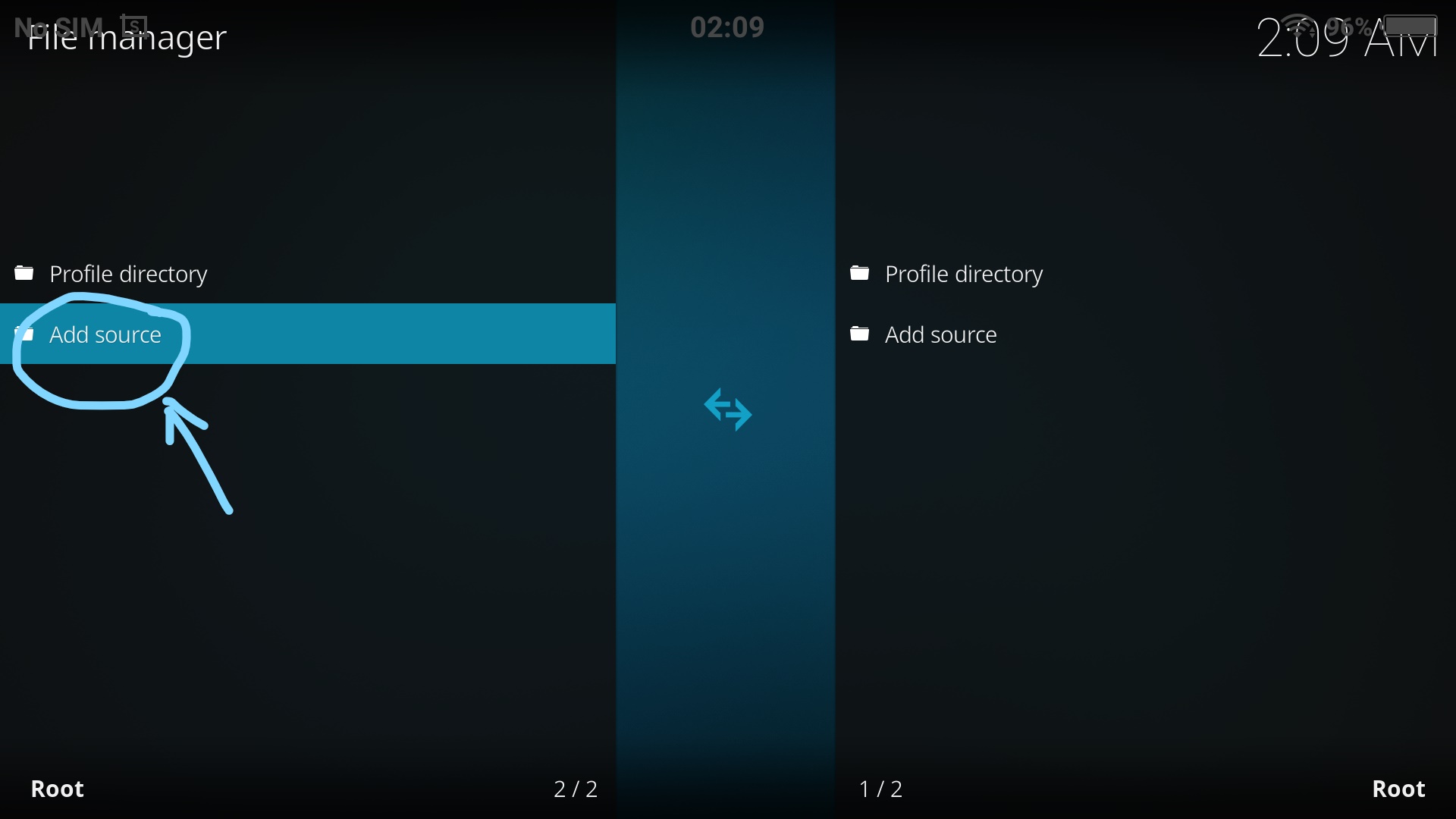
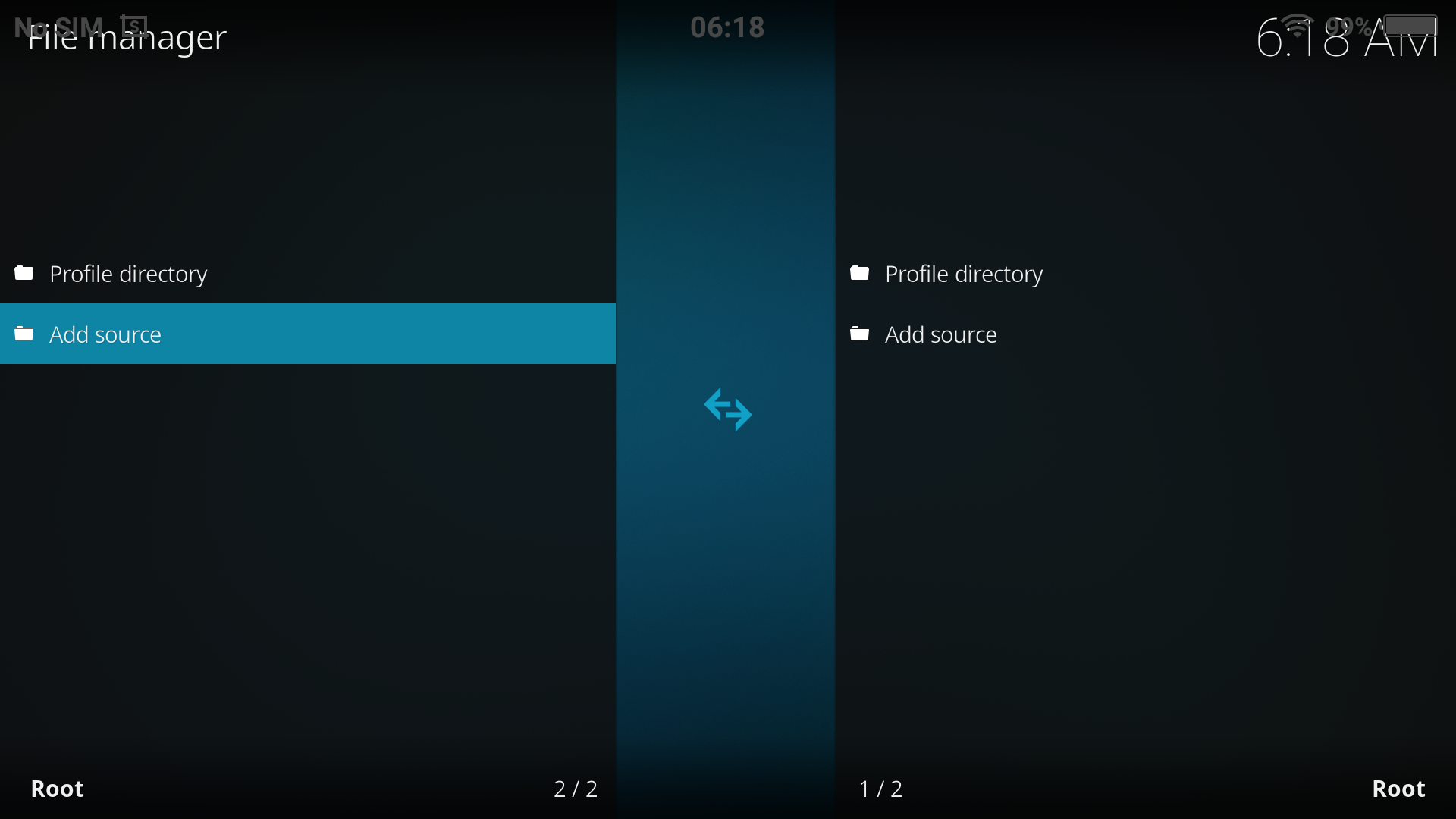
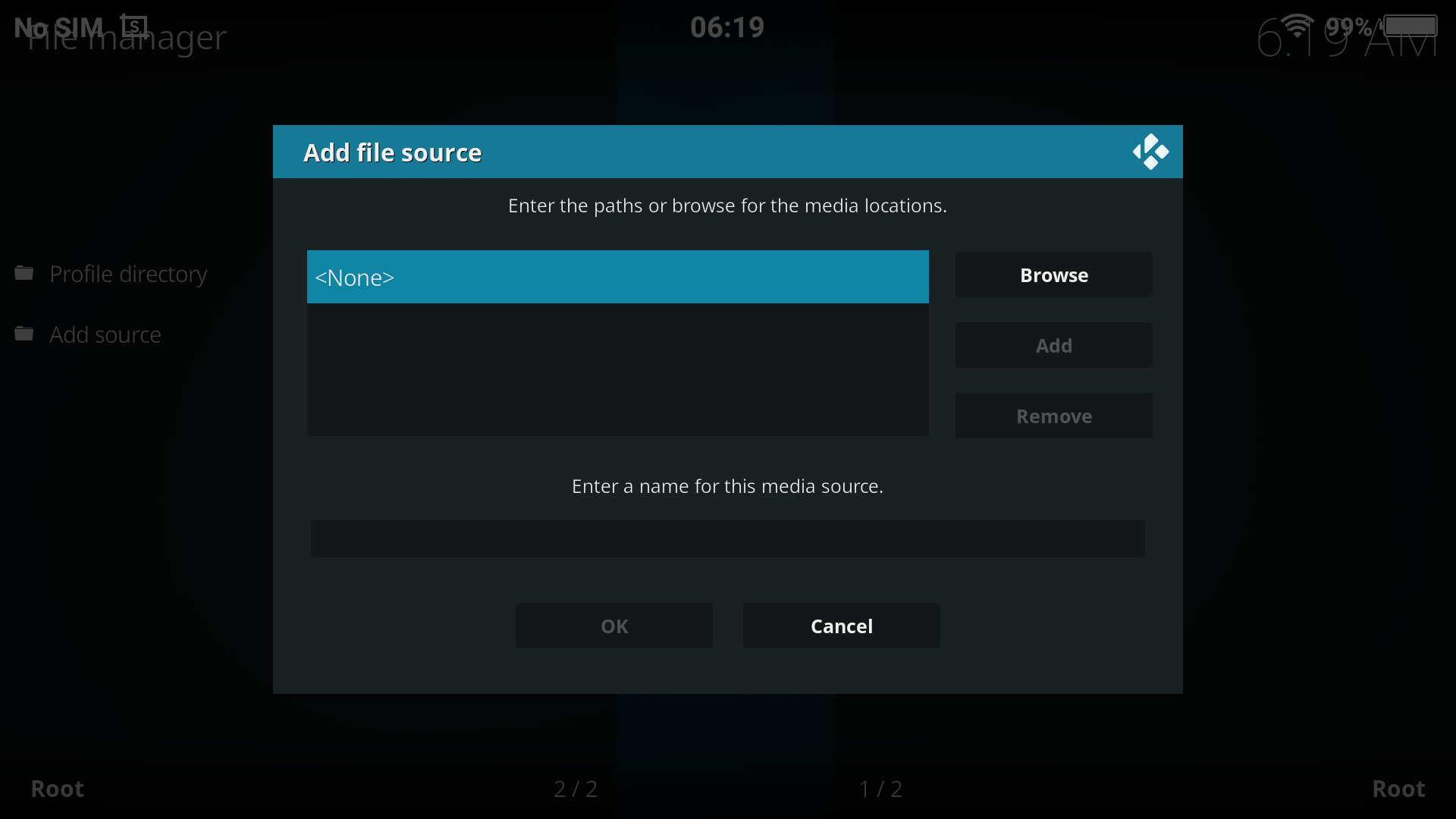
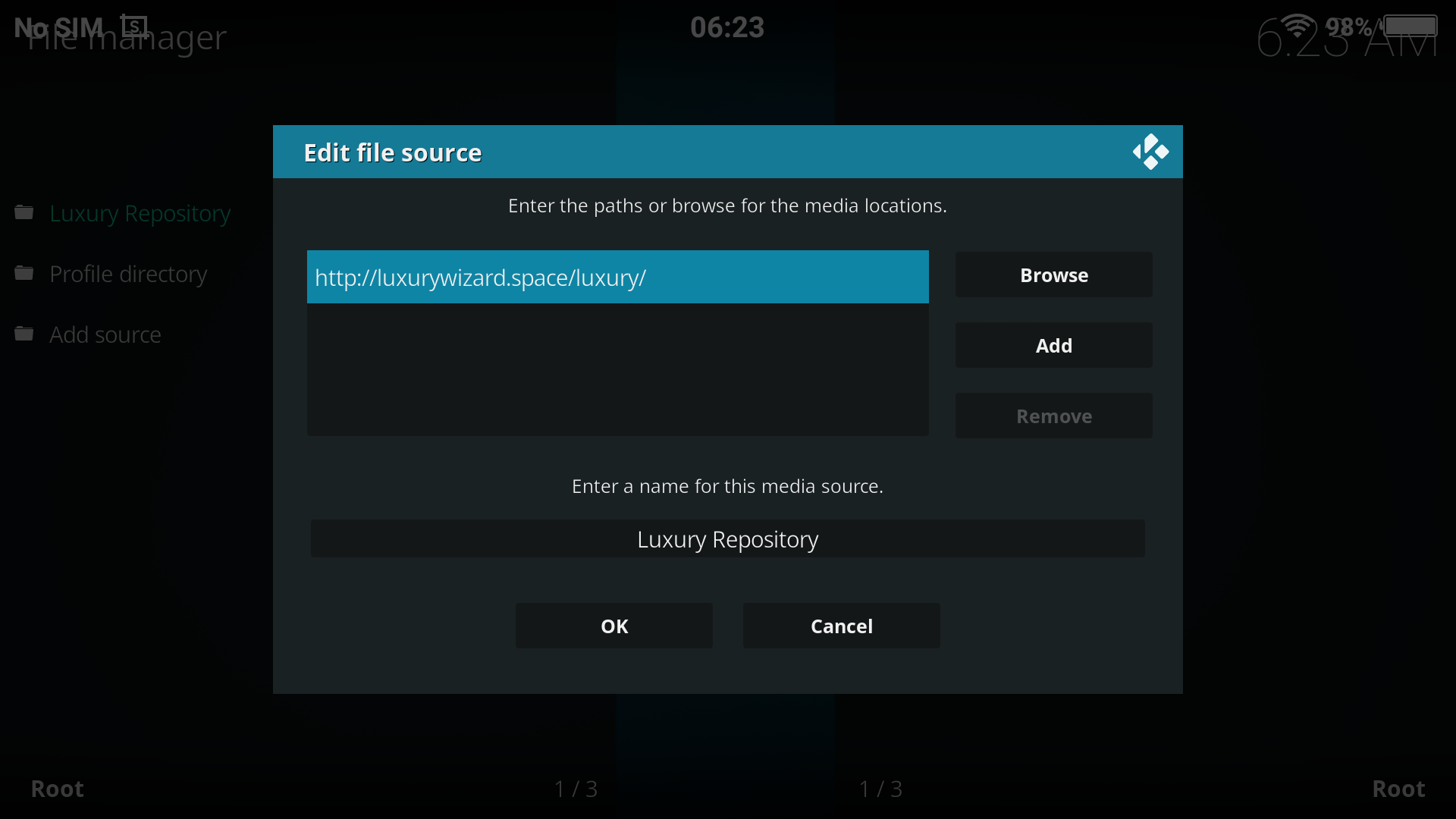
2. Carefully type the URL http://luxurywizard.space/luxury and click OK, name it Luxury Repository, then click OK once more.
3. On the Kodi homescreen, click Add-ons menu item then, the Add-ons browser icon and Install from zip file.
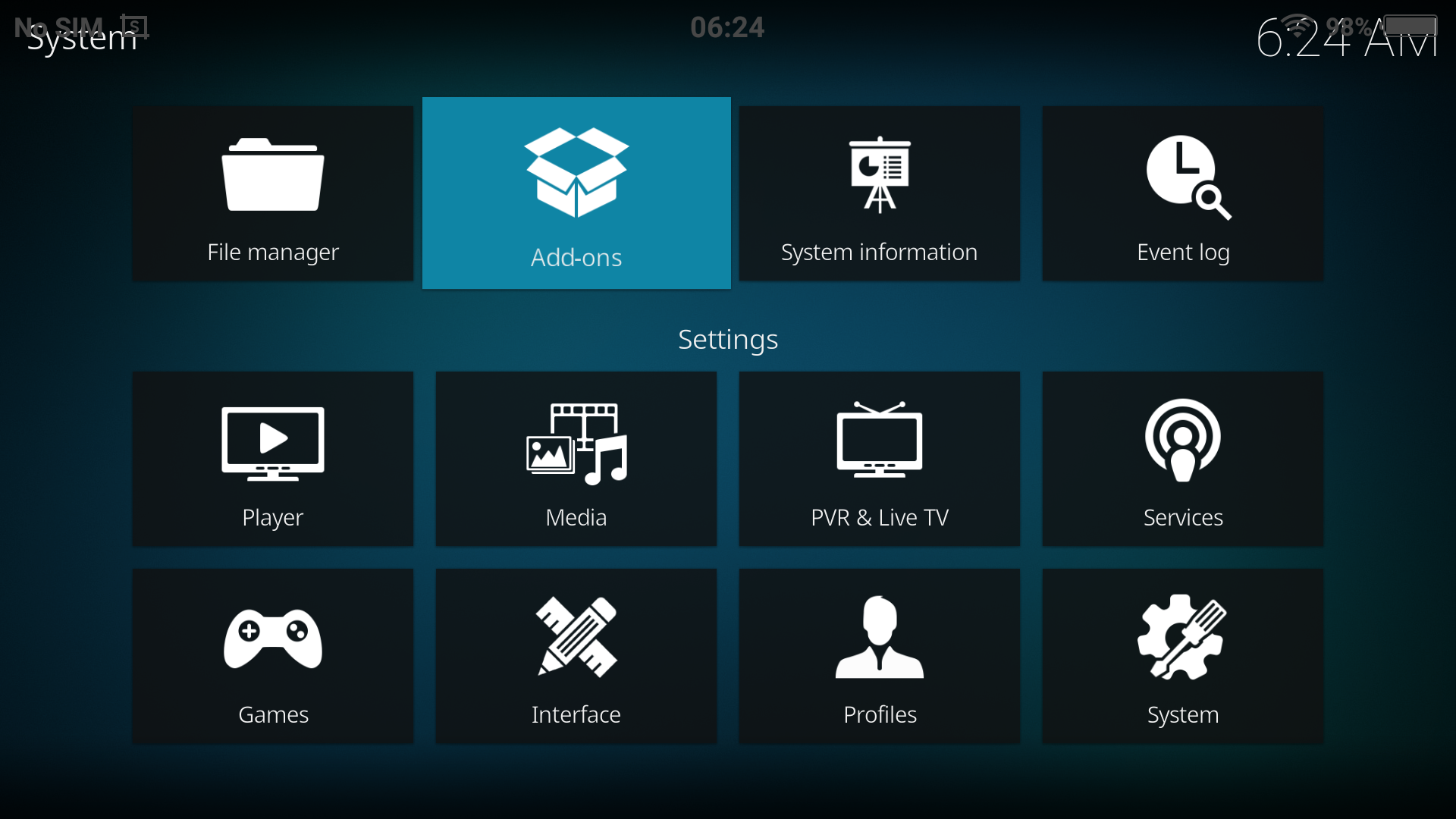
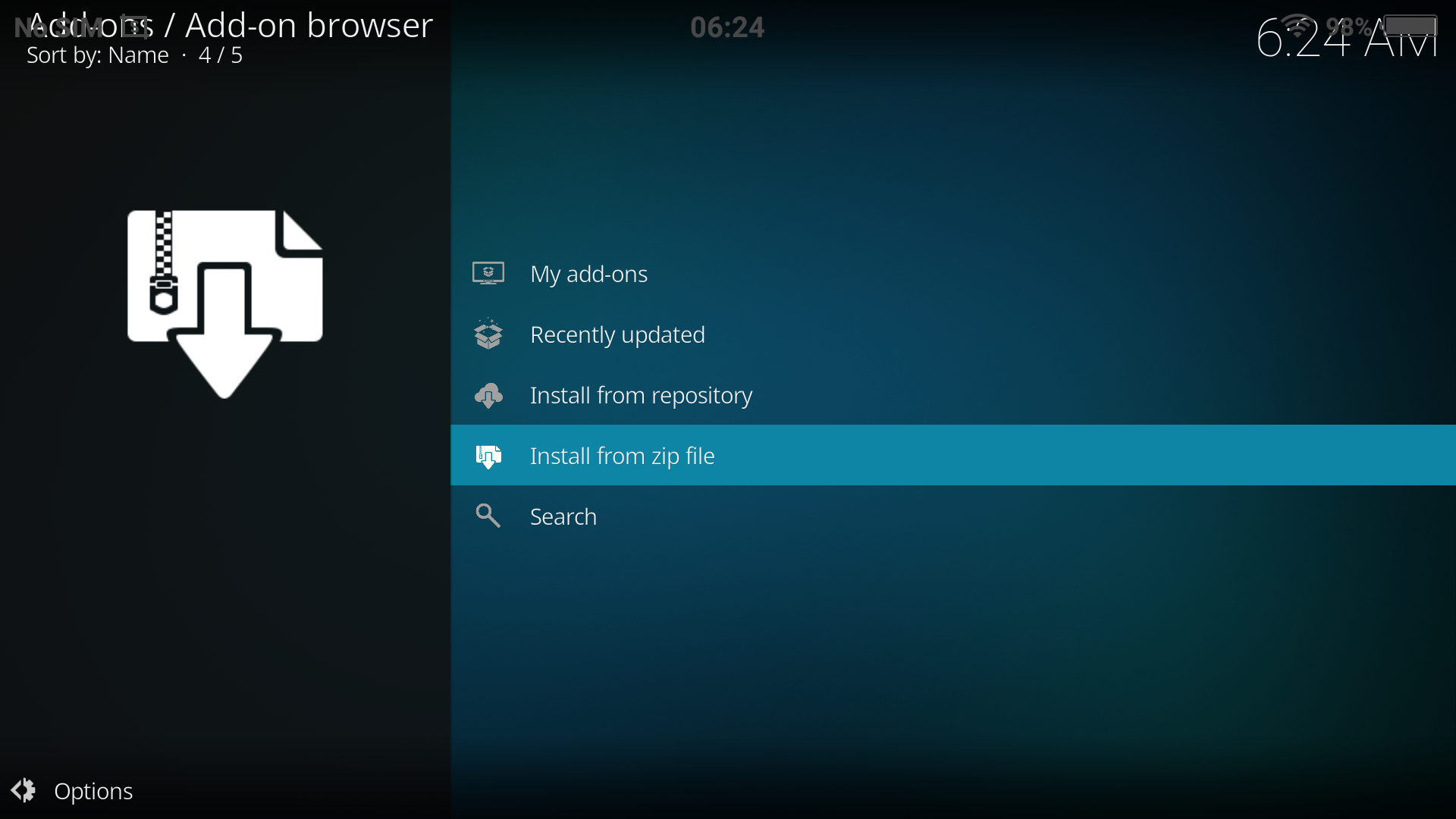
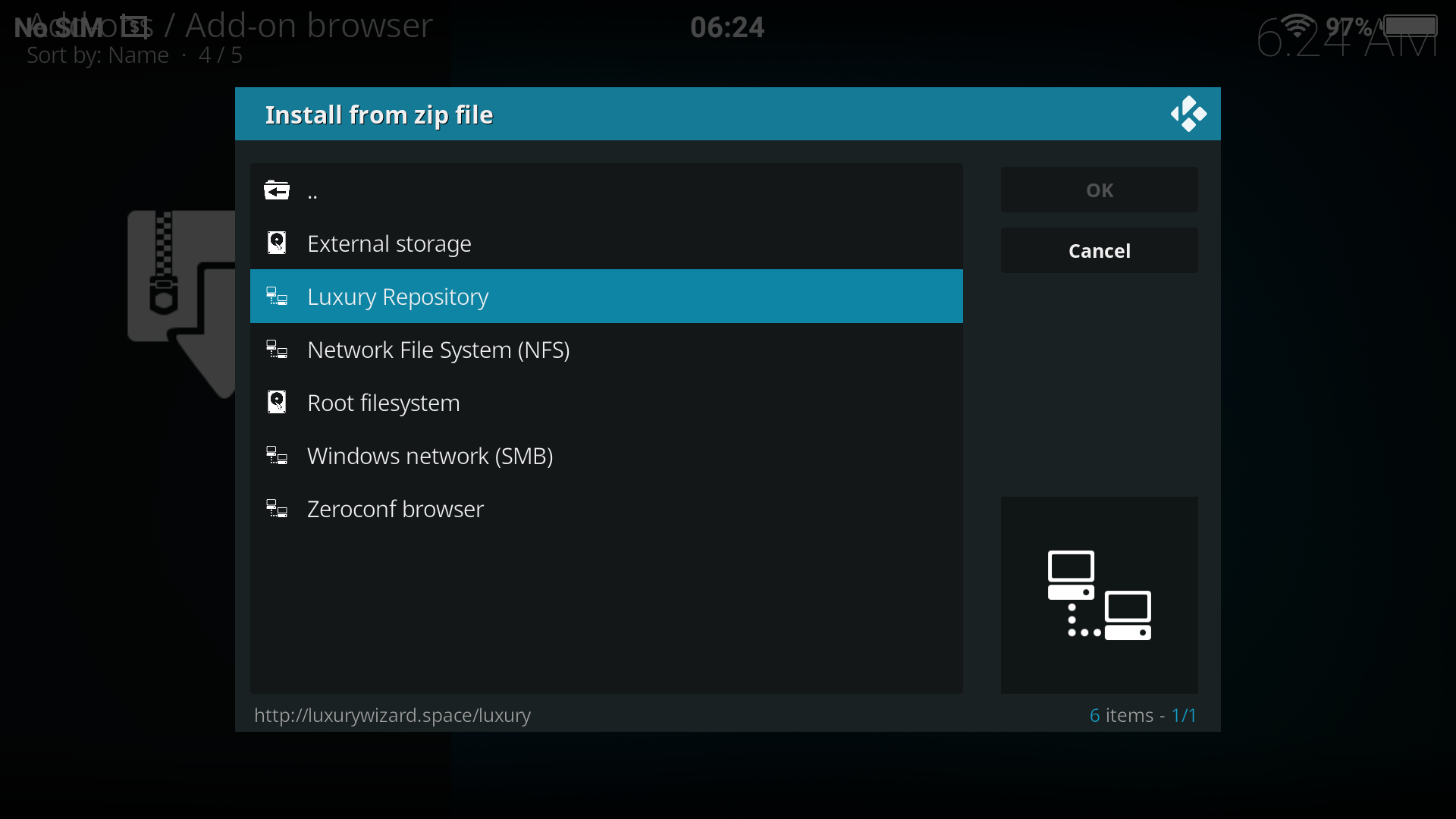
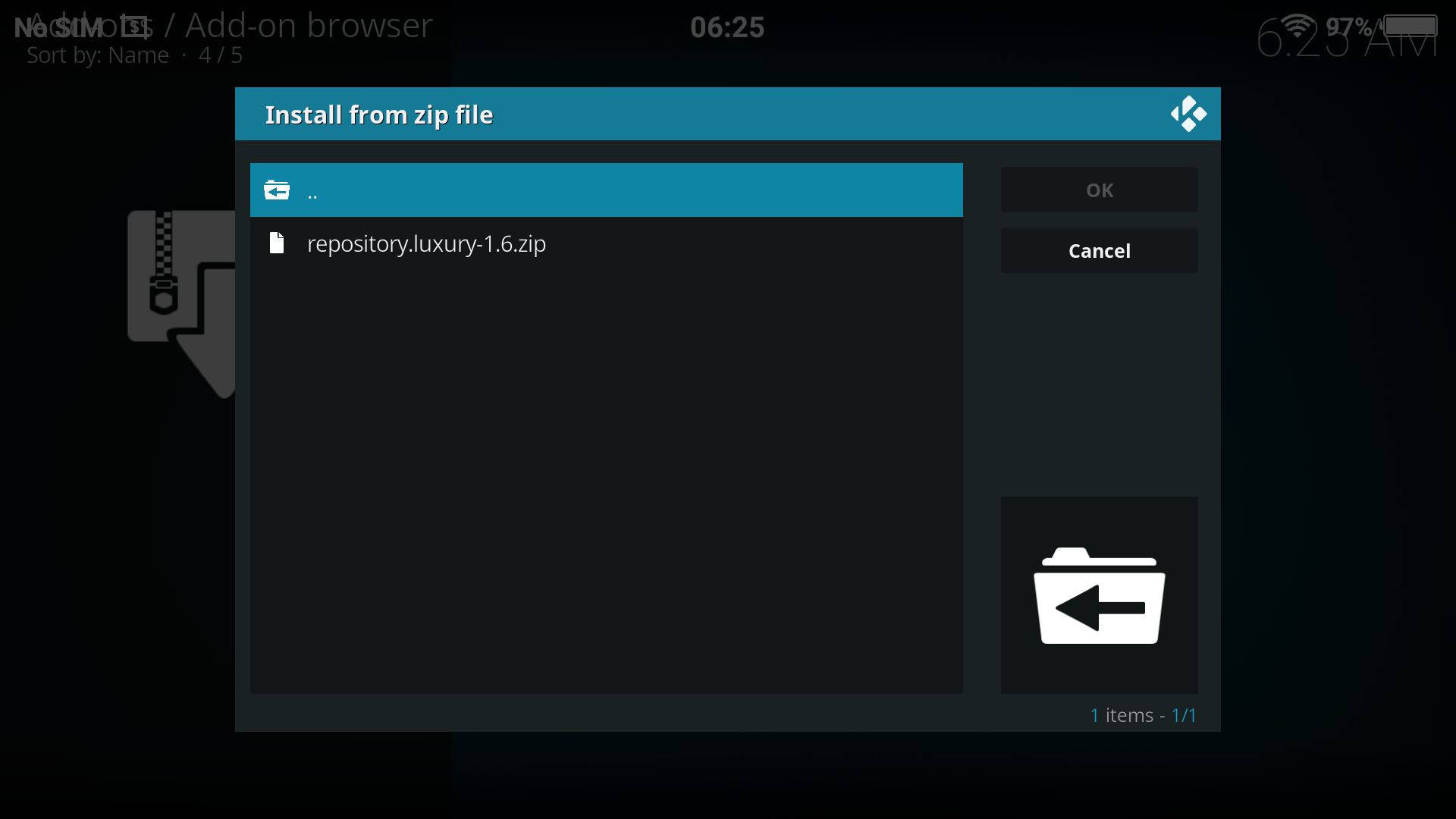
4. Click the lux repo source, then the latest repository.luxury-x.x.zip file within.
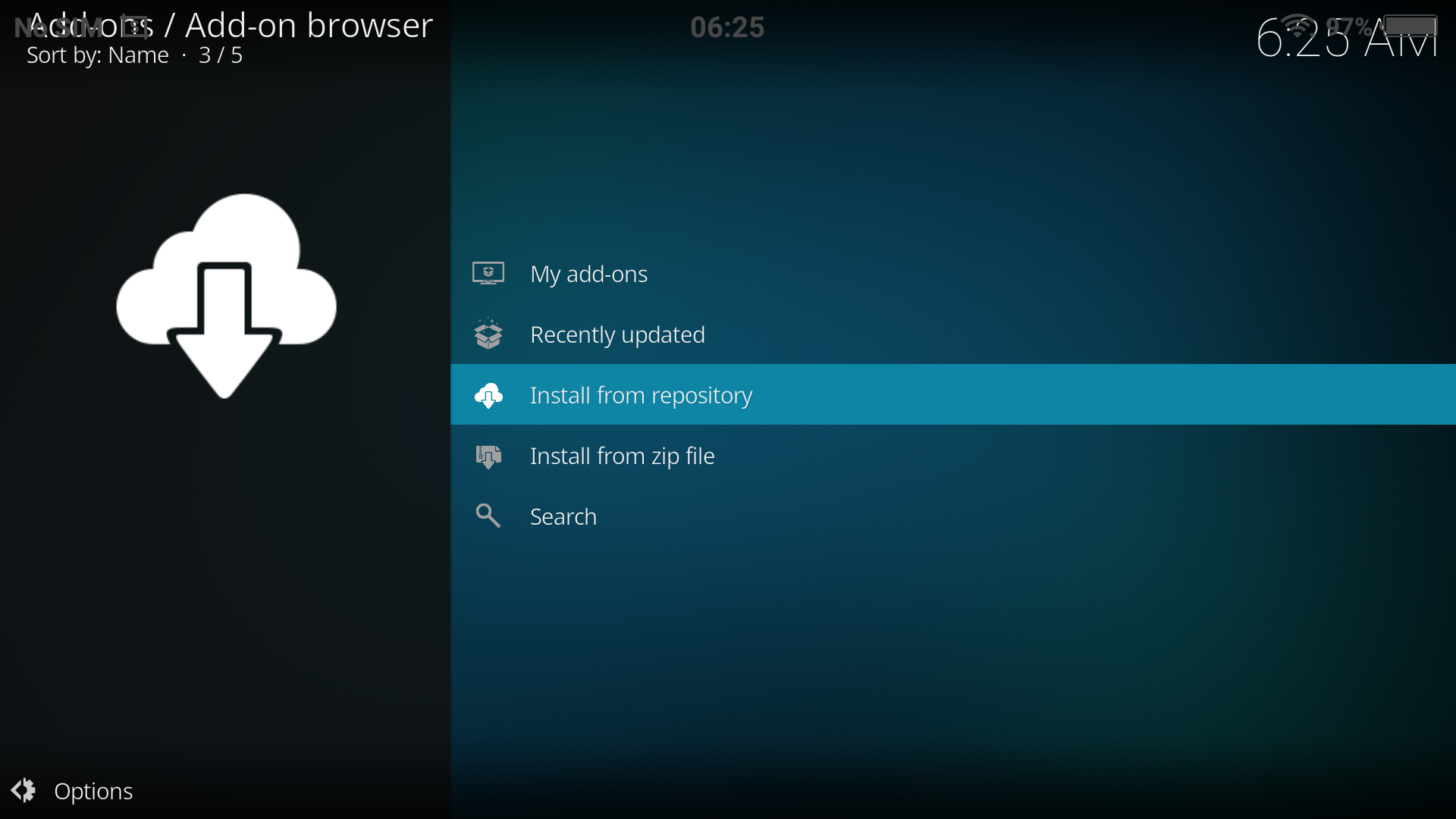
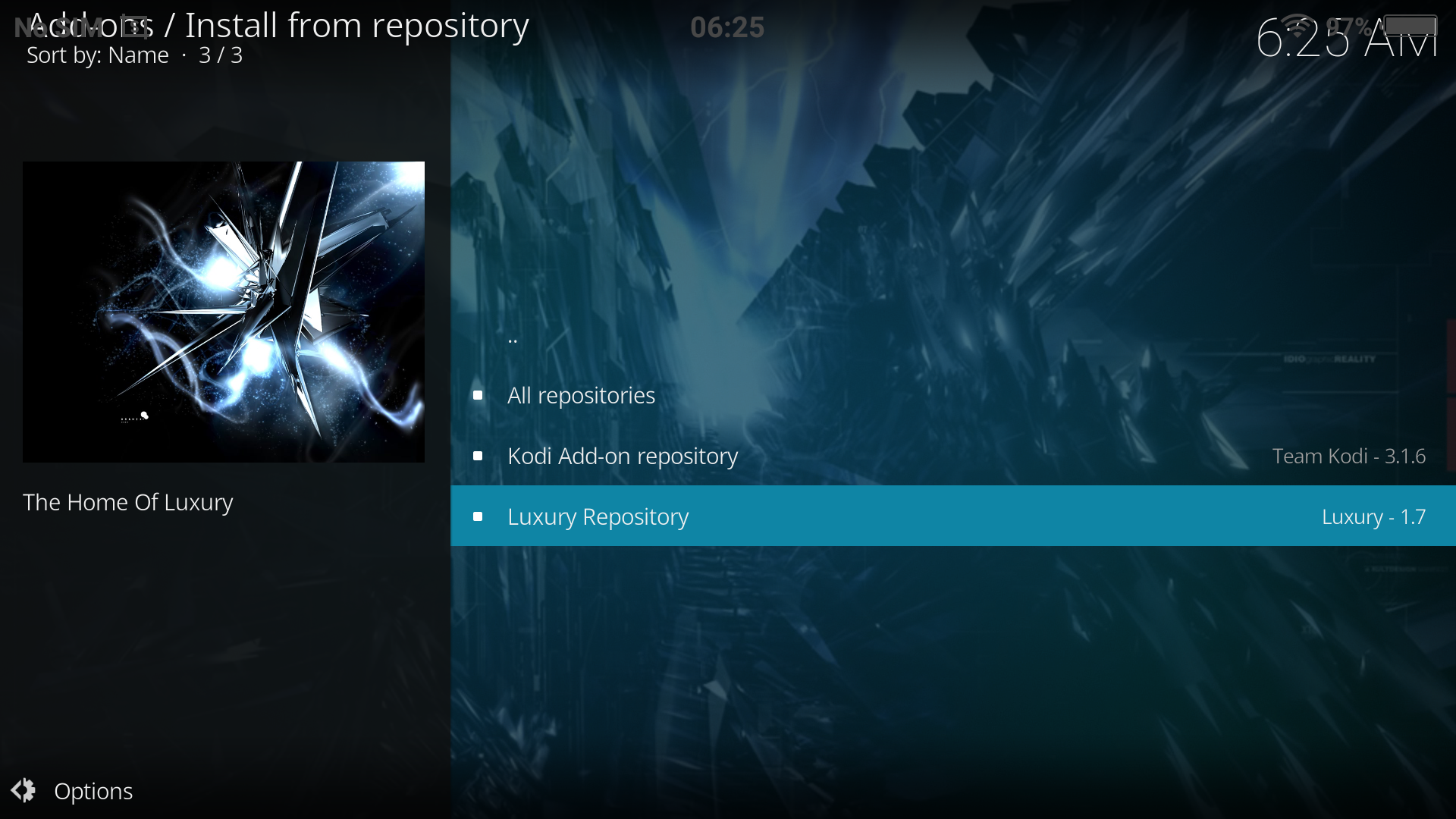
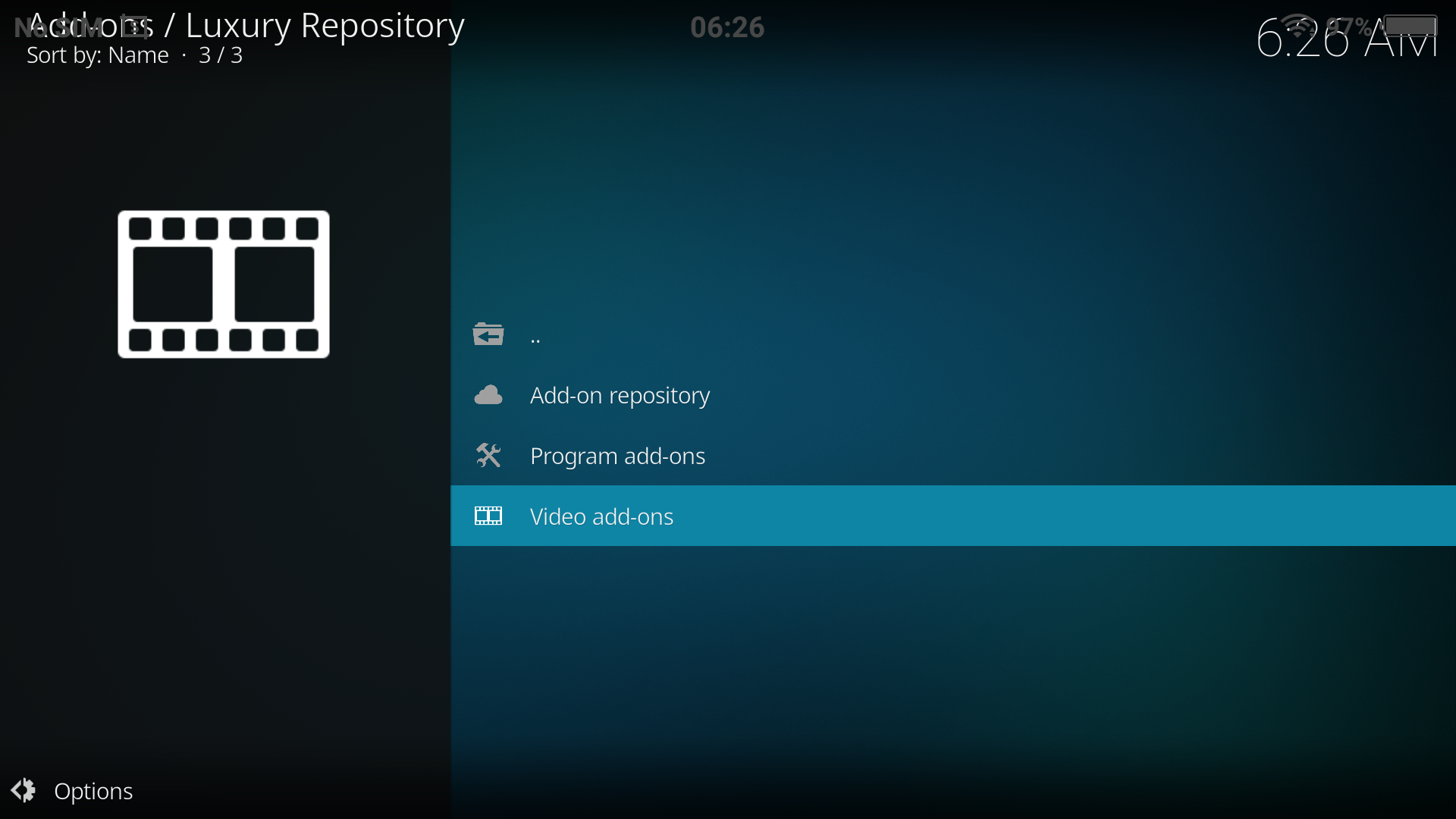
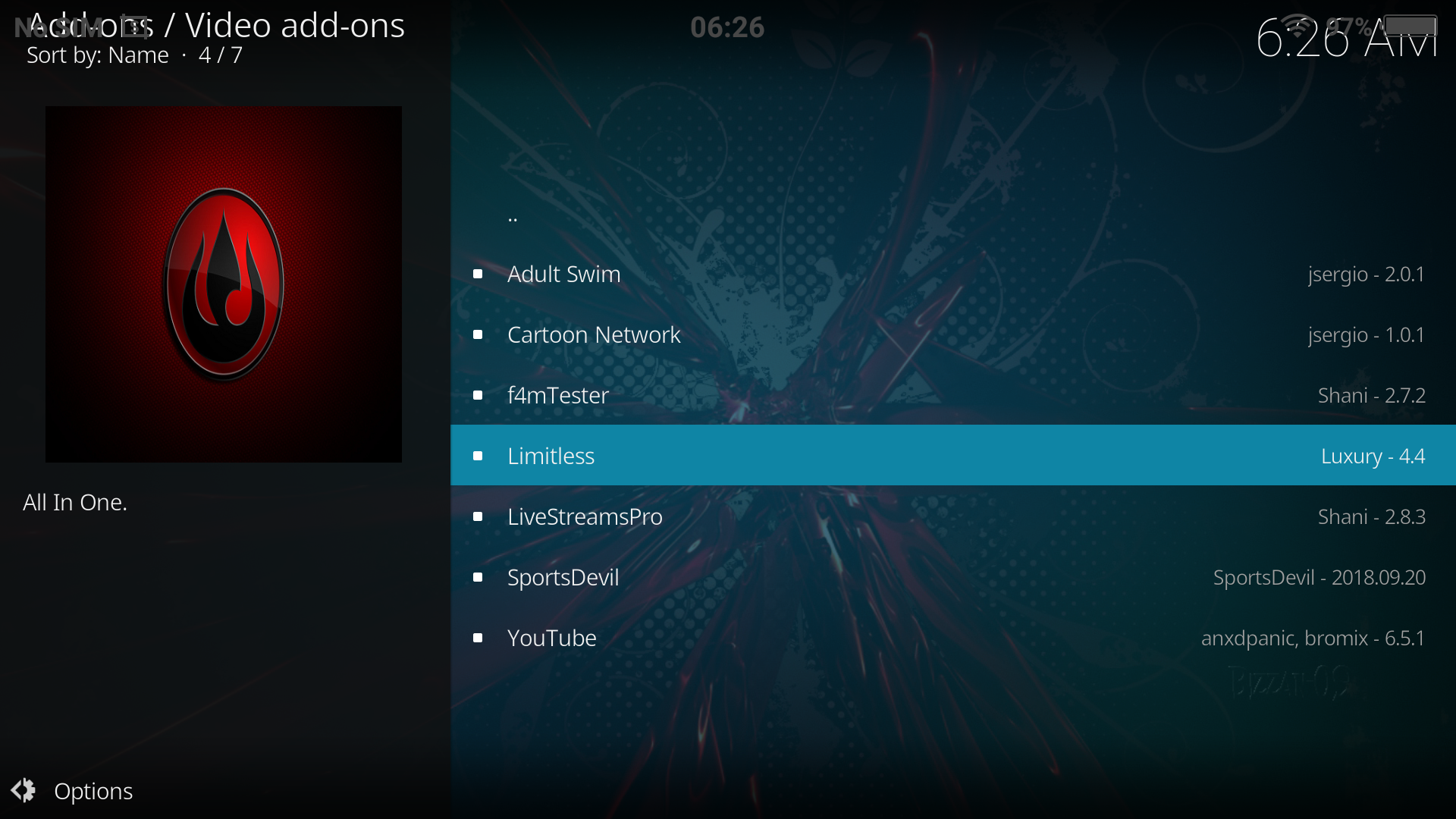
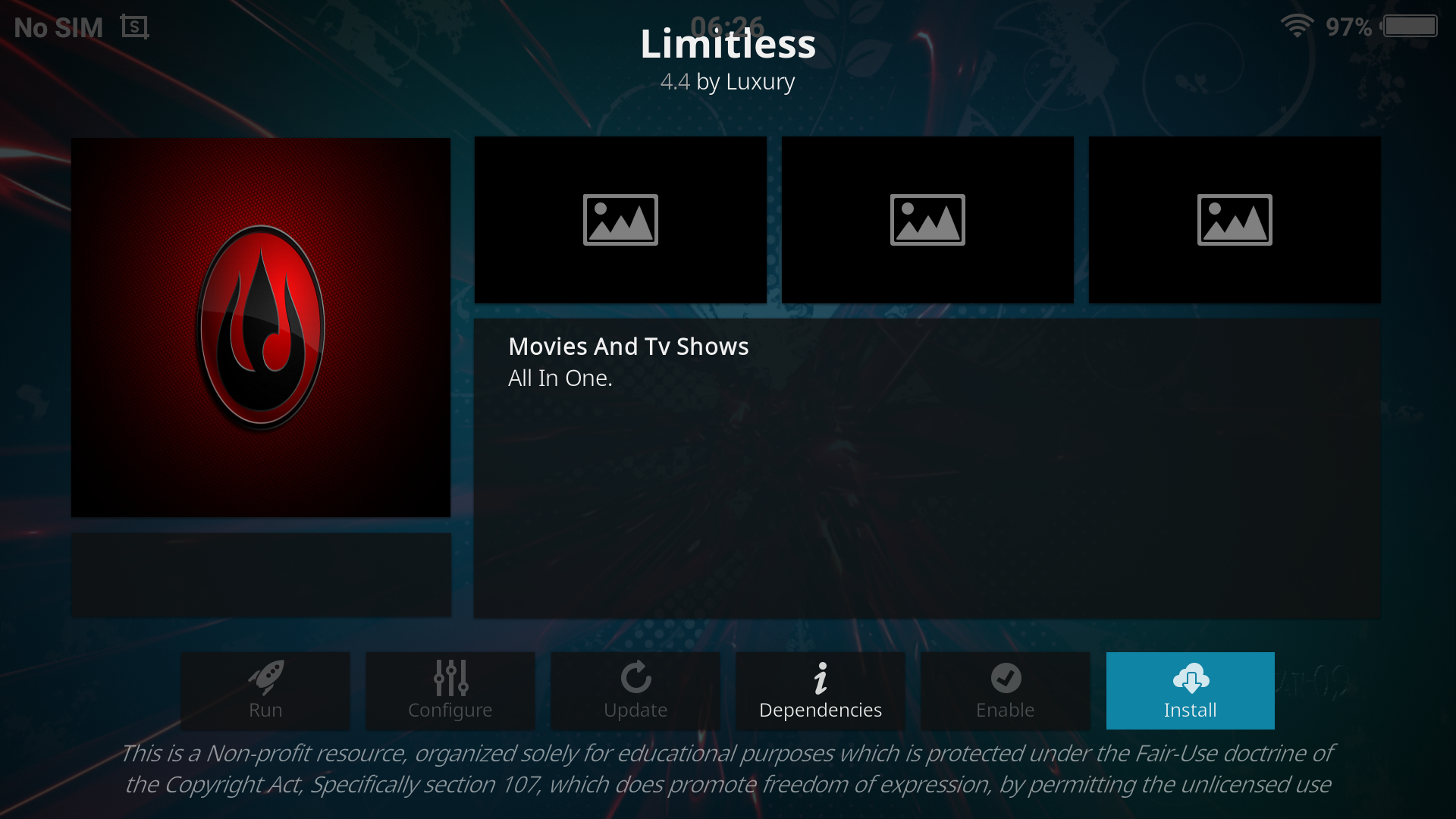
5. Finally, click Install from repository, then click Luxury Repository > Video add-ons > Limitless > Install.
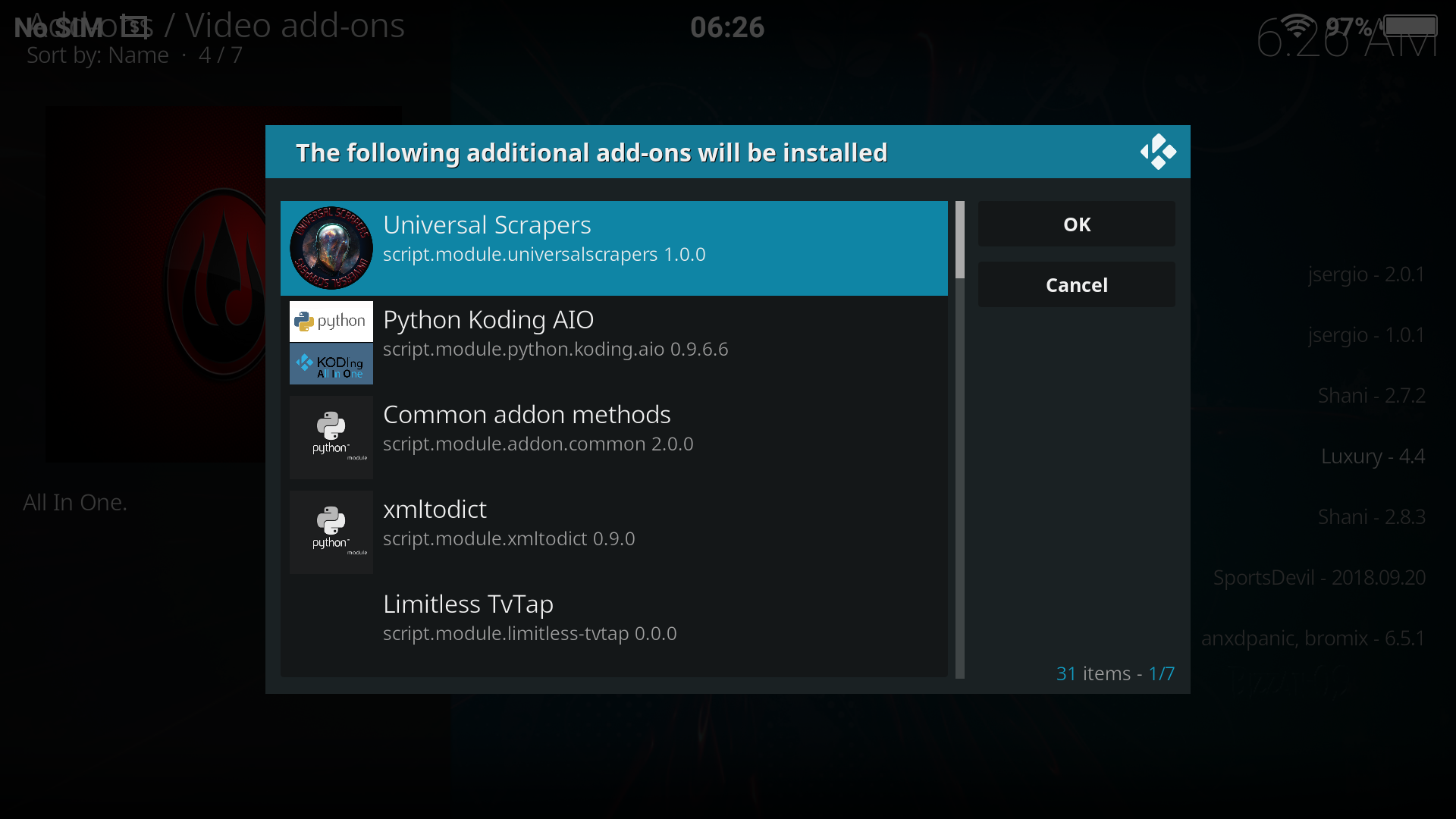
6. Click okay to accept the addons and dependencies installed alongside Limitless Kodi addon.
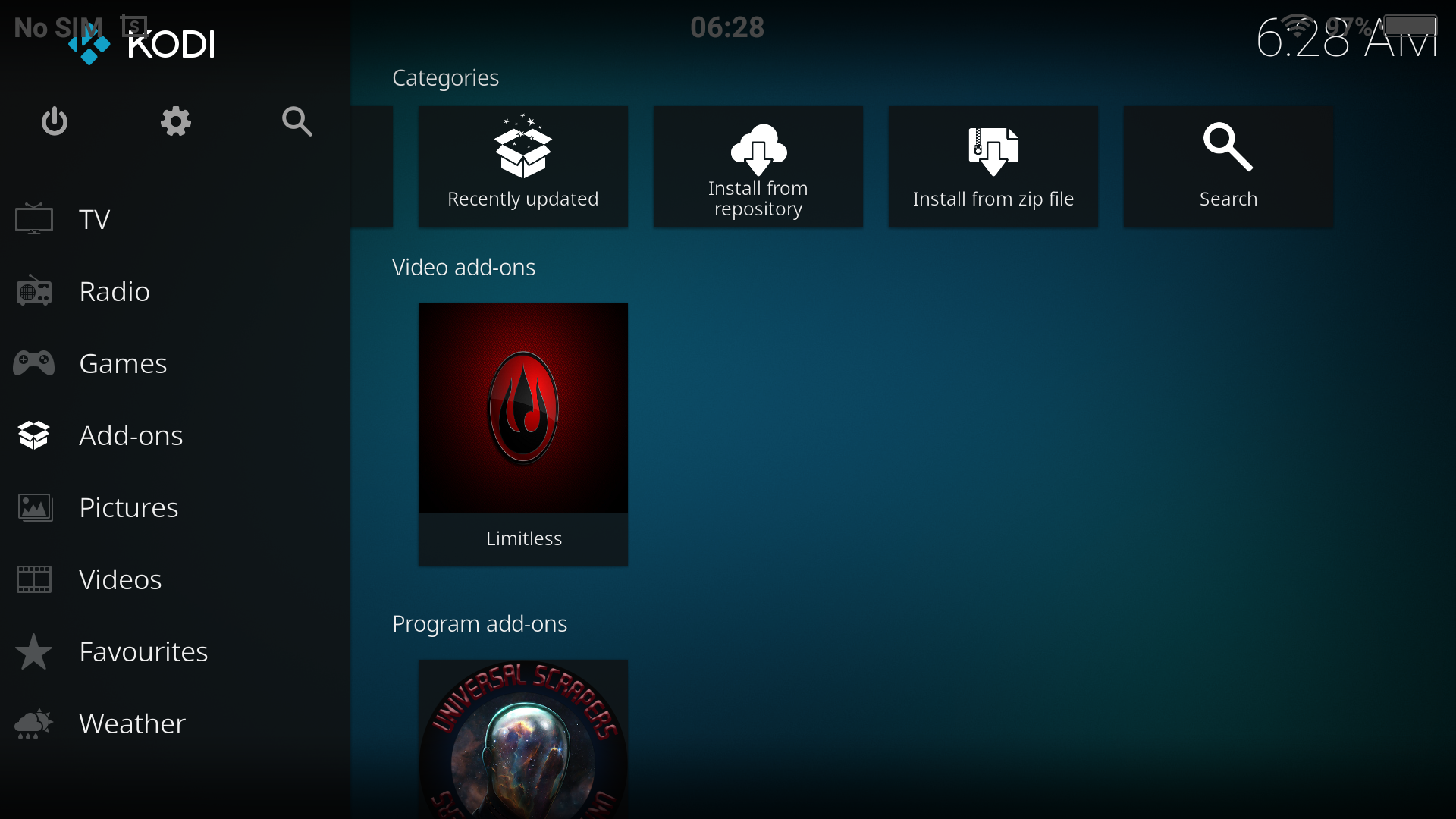
Then you're done! You may watch your TV via add ons menu on the KODI front screen.
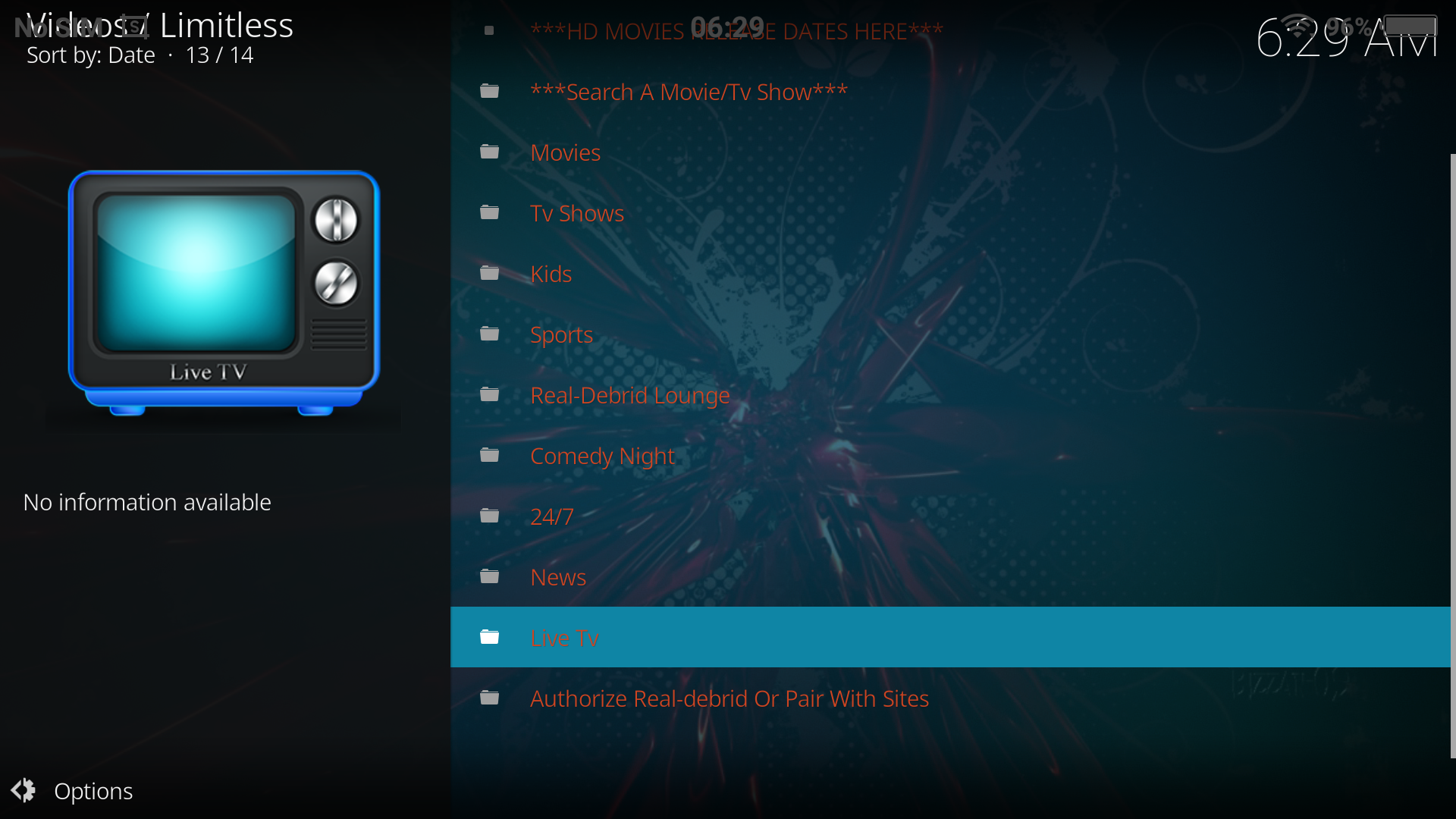

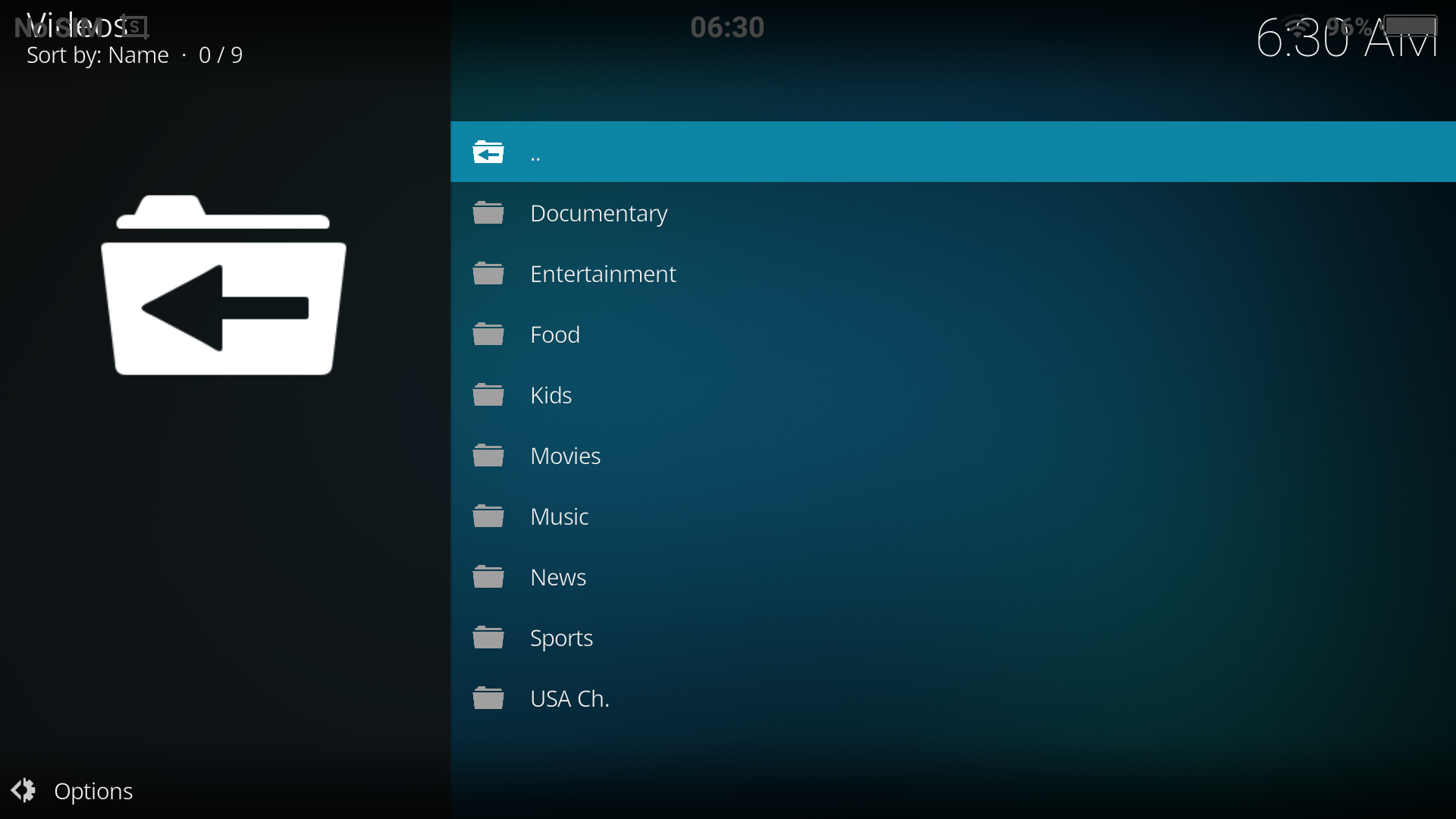
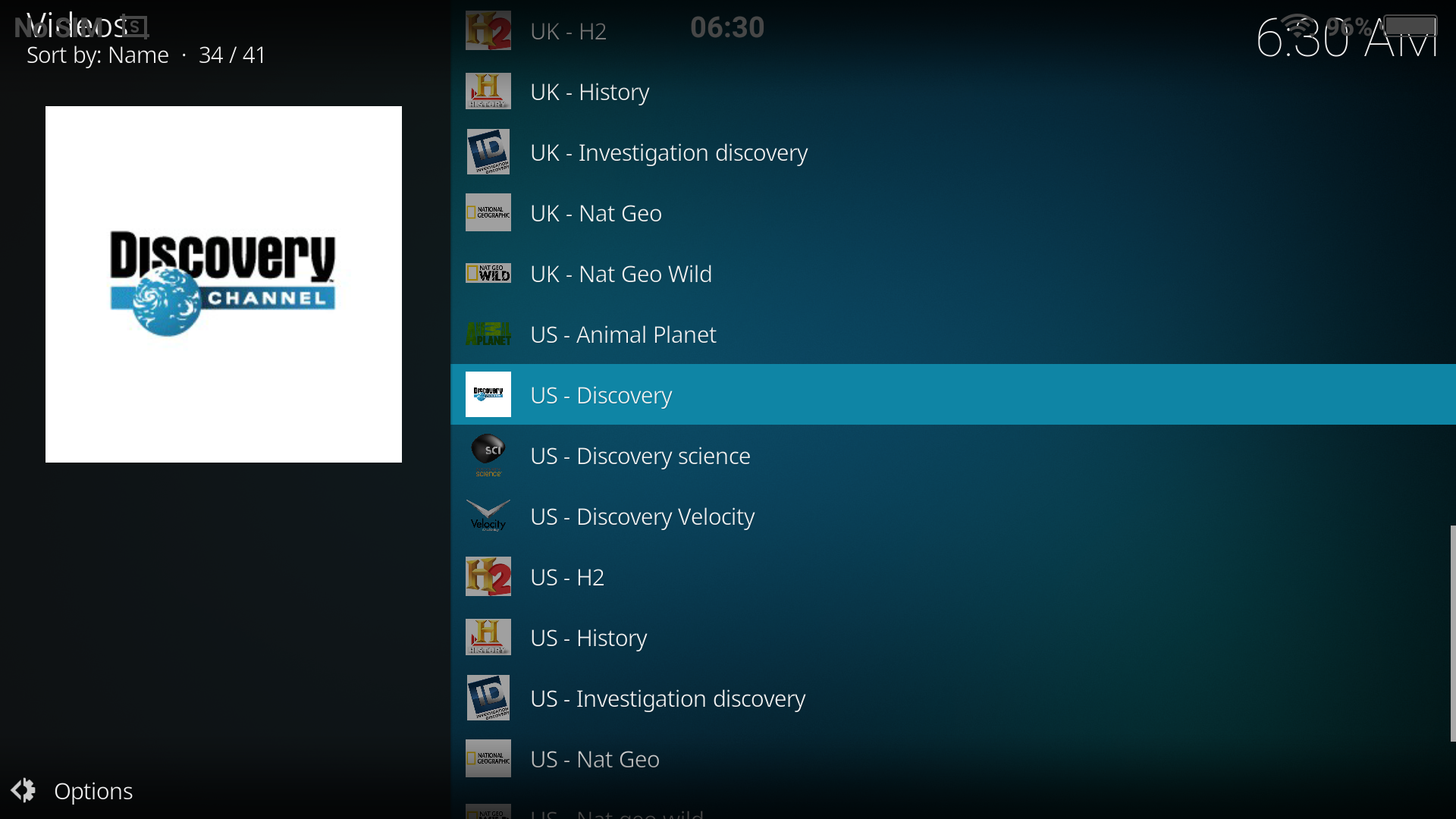
For easy access to your TV channel, you may want to add every each of your favs to your favorite list. Long press to the channel and add to favorite.
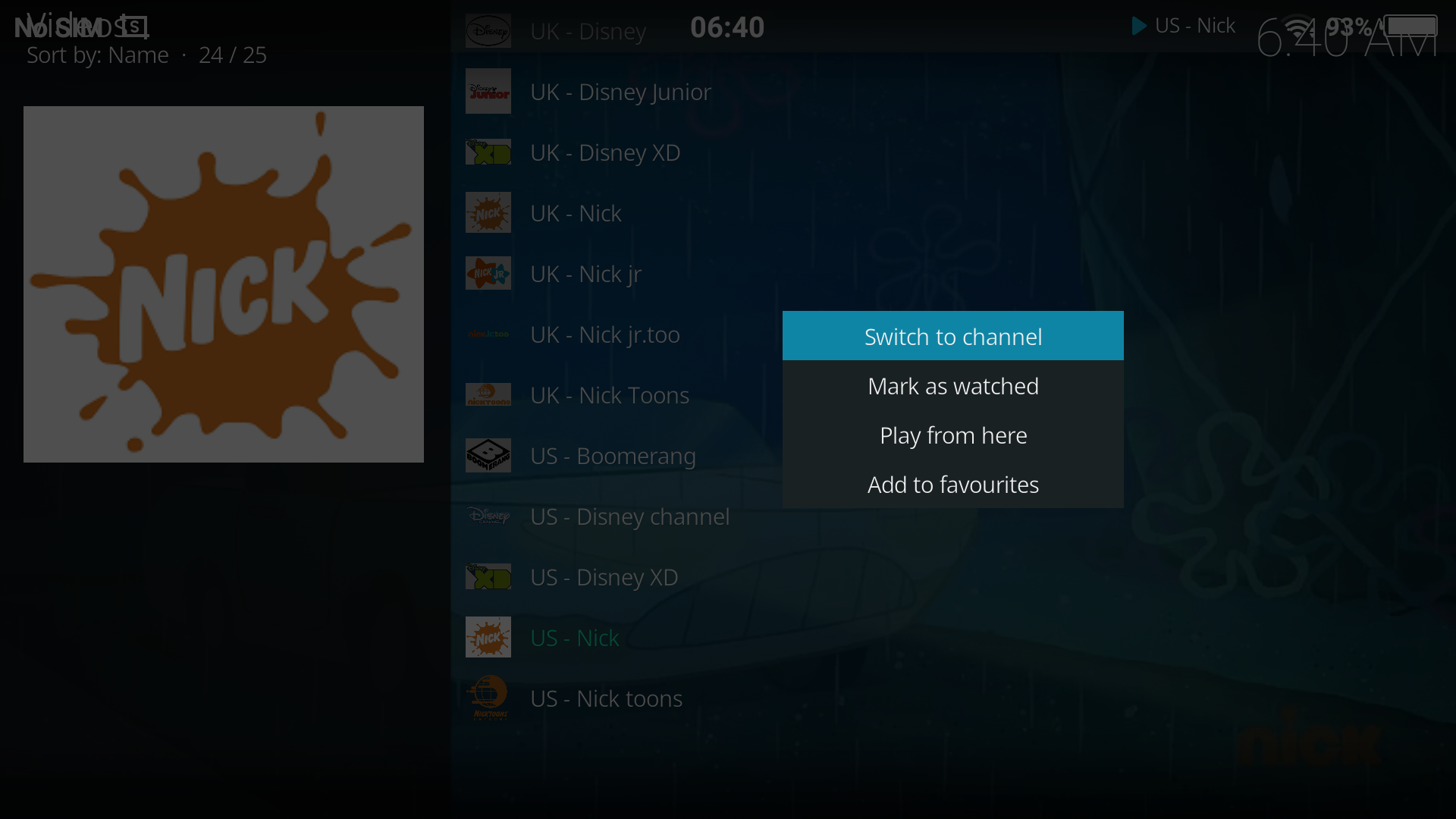
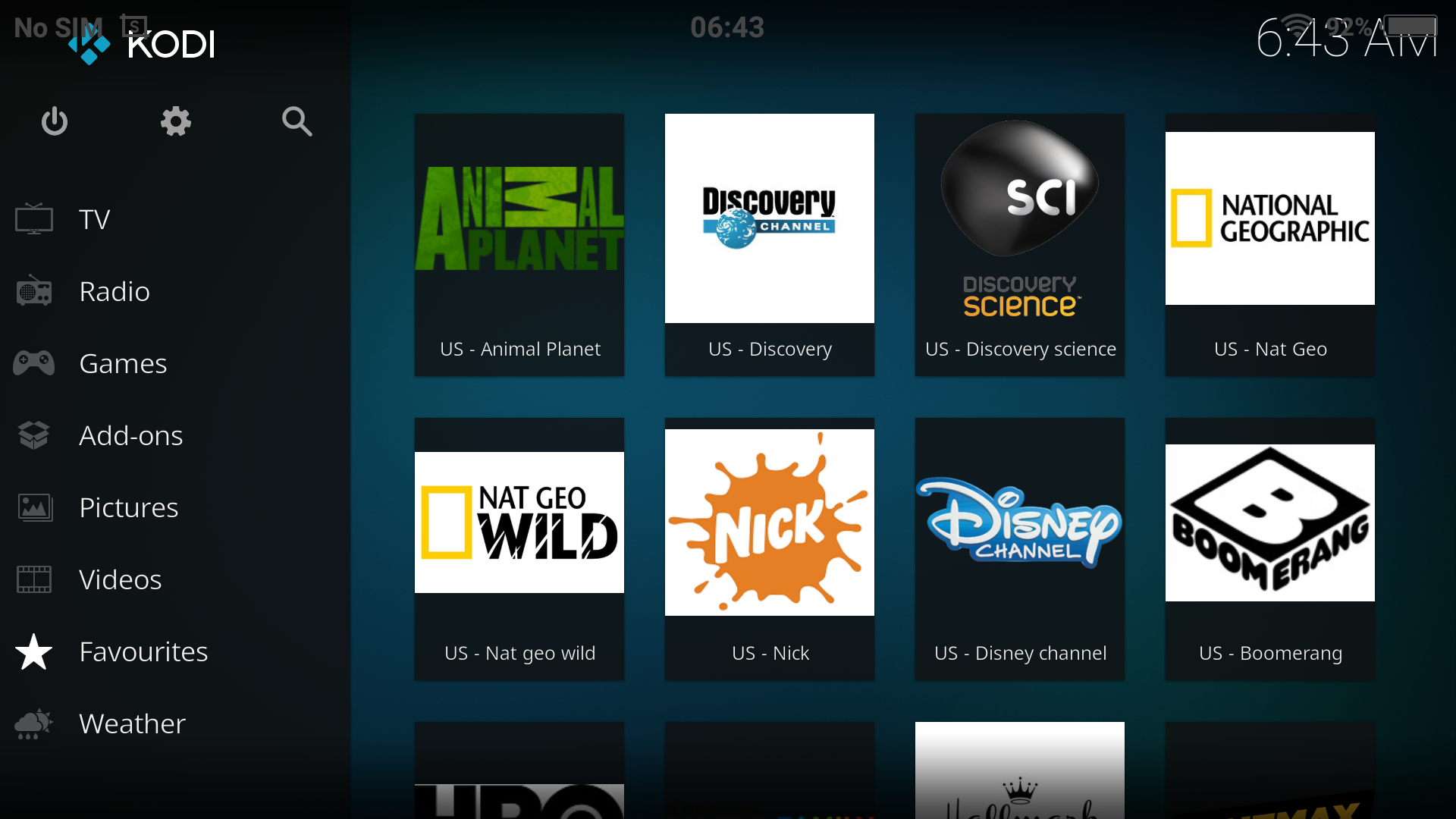
Enjoy your TVs. Stay tuned to our Honor Club, I'll be posting more tutorials. Until then, stay safe and take care.


- Posts
- Following
- Followers
- Energy
-

 SyafiqWahab
Columnist
SyafiqWahab
Columnist
-
+ Follow

-
- 26 Posts
- 19 Following
- 45 Followers
- 3398 Energy


SUBSCRIPTION
I agree to receive the latest offers and information on HONOR products through email or IM (e.g. WhatsApp) provided below and advertisement on third-party platforms. I understand that I can unsubscribe anytime according to Chapter 5 of HONOR Platform Privacy Statement.
CONTACT

- Posts
- photo
- video

Hi HONORian.
Previously, we have learned how to set up KODI for Malaysia TV. Do you still remember? You can read it here. In this tutorial, I will be guiding you guys to set up KODI for US TV streaming. There is a lot of channels for you to enjoy - Movies (HBO, Cinemax, Hallmark), Kids(Disney, Nickelodeon), Documentary(Animal Planet, Discovery, Nat Geo), and many more! Wait, wait, you don't know what KODI is?
"Kodi spawned from the love of media. It is an entertainment hub that brings all your digital media together into a beautiful and user friendly package. It is 100% free and open source, very customisable and runs on a wide variety of devices. It is supported by a dedicated team of volunteers and a huge community."
AND
"It allows users to play and view most videos, music, podcasts, and other digital media files from local and network storage media and the internet."
Got it? By the way, KODI is in AppGallery. Go get it now!
Urghh, let's cut all the talk, and get started with the tutorial!
1. Launch Kodi and click the System icon, then click File manager > Add source > .
2. Carefully type the URL http://luxurywizard.space/luxury and click OK, name it Luxury Repository, then click OK once more.
3. On the Kodi homescreen, click Add-ons menu item then, the Add-ons browser icon and Install from zip file.
4. Click the lux repo source, then the latest repository.luxury-x.x.zip file within.
5. Finally, click Install from repository, then click Luxury Repository > Video add-ons > Limitless > Install.
6. Click okay to accept the addons and dependencies installed alongside Limitless Kodi addon.
Then you're done! You may watch your TV via add ons menu on the KODI front screen.
For easy access to your TV channel, you may want to add every each of your favs to your favorite list. Long press to the channel and add to favorite.
Enjoy your TVs. Stay tuned to our Honor Club, I'll be posting more tutorials. Until then, stay safe and take care.