

 More Products
 Compare













我的荣耀 开启荣耀之旅



 Disagree Terms
 Log out




[Tips & Tricks] Security Tips


 Last reply :
Set Fingerprint Unlock
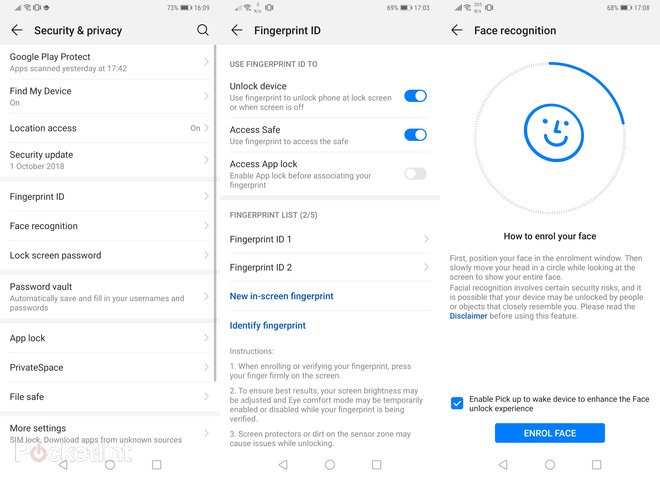
One of the first phones to offer a fingerprint scanner under the screen (and no physical one on the front/rear), multiple fingerprints can be registered: swipe down from the top of the home screen > hit the settings cog icon > Security & privacy > Fingerprint ID. If you've set a PIN/pattern this will be required, then registration is possible. Multiple fingerprints can be added by selecting New in-screen fingerprint.
Lock Apps with Fingerprint ID
Swipe down from the top of the home screen > hit the settings cog icon > Security & privacy > App lock. This will present a list of all installed apps. Any can be selected to 'locked' which will require a verified fingerprint to open said app.
Register Face Recognition
Swipe down from the top of the home screen > hit the settings cog icon > Security & privacy > Face recognition. Follow the process and you'll be up and running in under a minute. On the Mate 20 Pro this will wake the device upon pick up and can unlock the phone by verified face – even in the dark.
Hide Sensitive Files
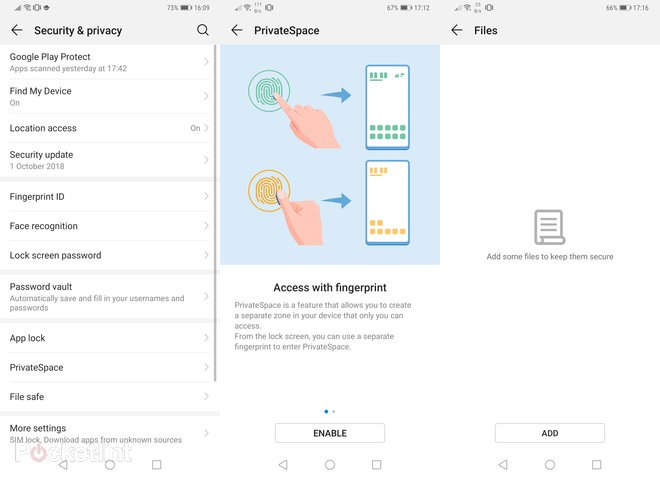
It's possible to create a hidden gallery called File Safe. Swipe down from the top of the home screen > hit the settings cog icon > Security & privacy > File safe. Follow the PIN/fingerprint association to setup the folder. From within it's possible to add files – once added, said files are not visible anywhere else on the device and only accessible from within the safe.
Secure Second Login
If you want a secure second login space, setup as a different user, this is possible using PrivateSpace. Swipe down from the top of the home screen > hit the settings cog icon > Security & privacy > PrivateSpace. Follow the PIN/fingerprint association to setup this space. Once successful the individual PIN/fingerprint will take you to the relevant space. The accounts are totally separate – email, Google Play, and so forth won't be accessible from the same account across both, they're individually setup. Useful for personal and business account use.
App Twin
If you want to run two WhatsApp/Facebook/Messenger/WeChat accounts then, unlike other dual SIM phones, EMUI 9 allows it for supported apps. Swipe down from the top of the home screen > hit the settings cog icon > Apps > App Twin. Only supported apps – and only those you have installed – will show in this list.


- Posts
- Following
- Followers
- Energy
-

Leon Jia Yee
-
+ Follow

-
- 200 Posts
- 15 Following
- 264 Followers
- 15570 Energy


SUBSCRIPTION
I agree to receive the latest offers and information on HONOR products through email or IM (e.g. WhatsApp) provided below and advertisement on third-party platforms. I understand that I can unsubscribe anytime according to Chapter 5 of HONOR Platform Privacy Statement.
CONTACT

- Posts
- photo
- video

Set Fingerprint Unlock
One of the first phones to offer a fingerprint scanner under the screen (and no physical one on the front/rear), multiple fingerprints can be registered: swipe down from the top of the home screen > hit the settings cog icon > Security & privacy > Fingerprint ID. If you've set a PIN/pattern this will be required, then registration is possible. Multiple fingerprints can be added by selecting New in-screen fingerprint.
Lock Apps with Fingerprint ID
Swipe down from the top of the home screen > hit the settings cog icon > Security & privacy > App lock. This will present a list of all installed apps. Any can be selected to 'locked' which will require a verified fingerprint to open said app.
Register Face Recognition
Swipe down from the top of the home screen > hit the settings cog icon > Security & privacy > Face recognition. Follow the process and you'll be up and running in under a minute. On the Mate 20 Pro this will wake the device upon pick up and can unlock the phone by verified face – even in the dark.
Hide Sensitive Files
It's possible to create a hidden gallery called File Safe. Swipe down from the top of the home screen > hit the settings cog icon > Security & privacy > File safe. Follow the PIN/fingerprint association to setup the folder. From within it's possible to add files – once added, said files are not visible anywhere else on the device and only accessible from within the safe.
Secure Second Login
If you want a secure second login space, setup as a different user, this is possible using PrivateSpace. Swipe down from the top of the home screen > hit the settings cog icon > Security & privacy > PrivateSpace. Follow the PIN/fingerprint association to setup this space. Once successful the individual PIN/fingerprint will take you to the relevant space. The accounts are totally separate – email, Google Play, and so forth won't be accessible from the same account across both, they're individually setup. Useful for personal and business account use.
App Twin
If you want to run two WhatsApp/Facebook/Messenger/WeChat accounts then, unlike other dual SIM phones, EMUI 9 allows it for supported apps. Swipe down from the top of the home screen > hit the settings cog icon > Apps > App Twin. Only supported apps – and only those you have installed – will show in this list.