

 More Products
 Compare









我的荣耀 开启荣耀之旅


 Disagree Terms
 Log out




[TIPS] HONOR 8X Tips: Simple Mode


 Last reply :
Most of the time we install a lot of apps on our smartphone, and sometimes this will lead to the home screen look cluttered with app icons and small text. This is not good for phone users especially elderly people because they will have difficulties to find the correct apps when some icons have similar colors and design.
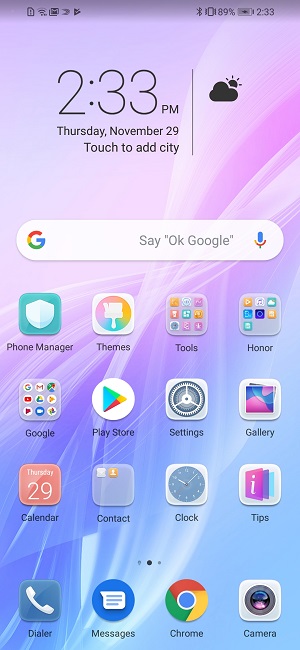
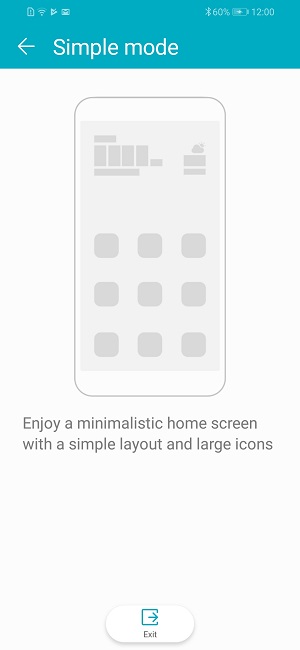
On Honor 8X, there is a display mode which is called Simple Mode, and as the name suggests, it will turn the display mode to be simple. Under Simple Mode, the phone will display larger icons and fonts on the home screen, adopting a more concise layout that allows you to navigate more. I find it
How to turn on Simple Mode:
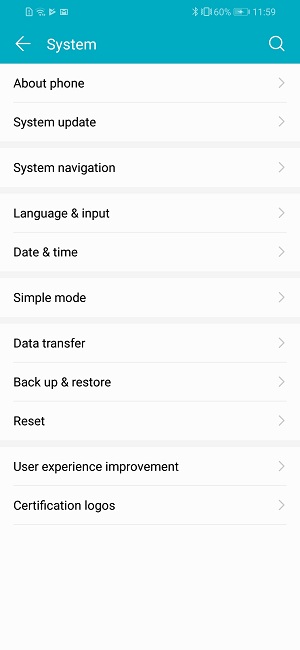
1. Open Settings, go to System > Simple mode, and touch Apply.
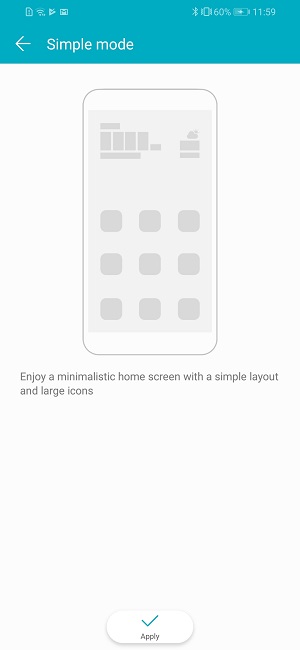
2. This will automatically go back to the home screen, and you can see all the icons much clearer.
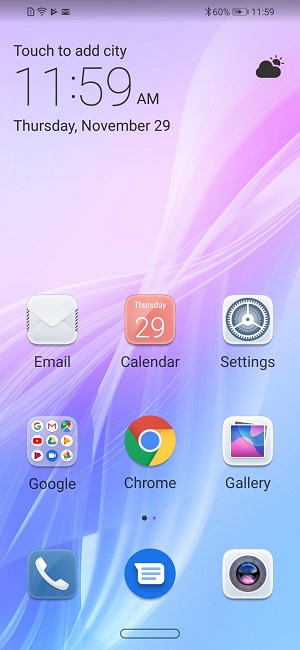
3. Under Simple mode you can also edit home screen icons: Touch and hold any of the icons to enter home screen editing mode, then you can add or remove app icons accordingly.
How to exit Simple Mode:
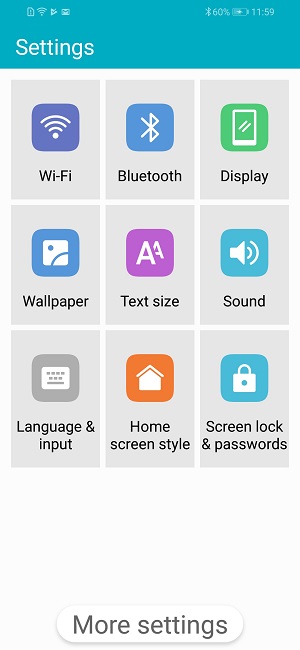
1. To exit Simple mode, touch Settings > More settings > System > Simple Mode > Exit
Hope you find the above useful!


- Posts
- Following
- Followers
- Energy
-

Honorfans16477
-
+ Follow

-
- 33 Posts
- 0 Following
- 0 Followers
- 182 Energy


SUBSCRIPTION
I agree to receive the latest offers and information on HONOR products through email or IM (e.g. WhatsApp) provided below and advertisement on third-party platforms. I understand that I can unsubscribe anytime according to Chapter 5 of HONOR Platform Privacy Statement.
CONTACT

- Posts
- photo
- video

Most of the time we install a lot of apps on our smartphone, and sometimes this will lead to the home screen look cluttered with app icons and small text. This is not good for phone users especially elderly people because they will have difficulties to find the correct apps when some icons have similar colors and design.
On Honor 8X, there is a display mode which is called Simple Mode, and as the name suggests, it will turn the display mode to be simple. Under Simple Mode, the phone will display larger icons and fonts on the home screen, adopting a more concise layout that allows you to navigate more. I find it
How to turn on Simple Mode:
1. Open Settings, go to System > Simple mode, and touch Apply.
2. This will automatically go back to the home screen, and you can see all the icons much clearer.
3. Under Simple mode you can also edit home screen icons: Touch and hold any of the icons to enter home screen editing mode, then you can add or remove app icons accordingly.
How to exit Simple Mode:
1. To exit Simple mode, touch Settings > More settings > System > Simple Mode > Exit
Hope you find the above useful!