

 More Products
 Compare









我的荣耀 开启荣耀之旅


 Disagree Terms
 Log out




[Tips] Honor 8X: How to Record Phone Screen


 Last reply :
The screen recording feature comes in handy when you are making tutorial videos or if you want to record your gaming exploits to share with your friends using your phone.
Screen recording will end if you make or answer a call.
If you are using the recording feature on your HONOR 8X at the same time, then you can select either System or None from Sound source.
If you have selected Microphone from Sound source, then your phone will pick up all sounds and actions, including that which is produced by you touching the screen. It is recommended that you only record your screen in a quiet environment with no ambient noise.
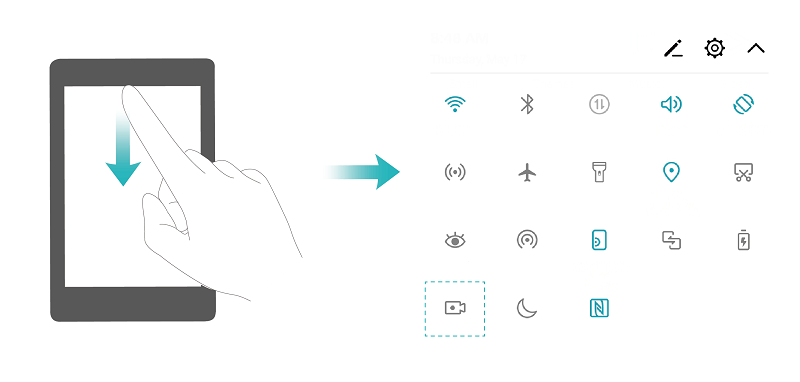
Use shortcut to start recording: Swipe down from the status bar to open the notification panel, then touch  to start recording the screen. Select Microphone, System, or None from Sound source based on your needs. To end the recording, touch
  in the upper left corner of the screen.
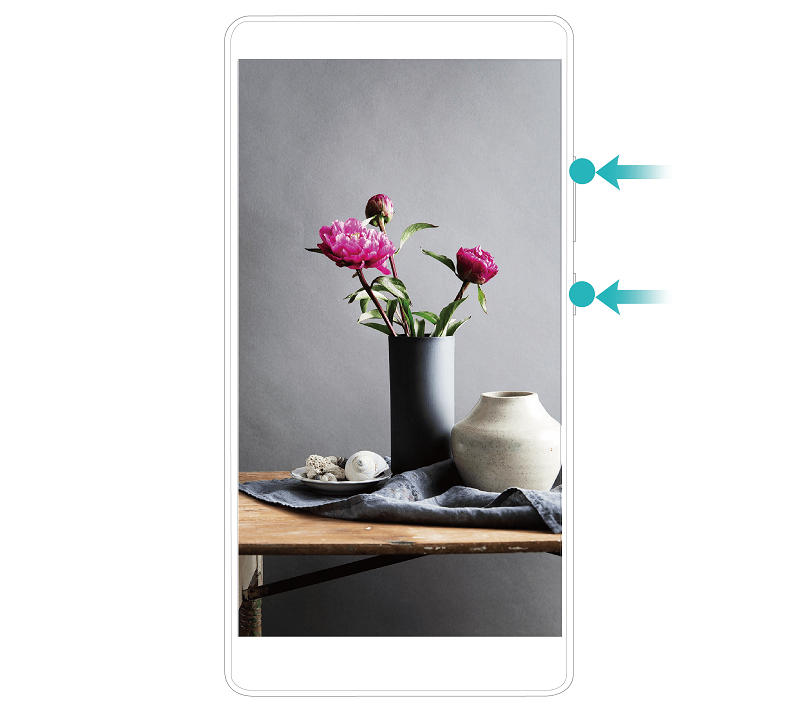
Use key combination to start recording: Simultaneously press and hold the Power button and the Volume up button to begin recording. Select Microphone, System, or None from Sound source based on your needs. To end the recording, simultaneously press and hold the Power button and the Volume up button again.
You can view your screen recordings in Gallery.


- Posts
- Following
- Followers
- Energy
-

Honorfans16477
-
+ Follow

-
- 33 Posts
- 0 Following
- 0 Followers
- 182 Energy


SUBSCRIPTION
I agree to receive the latest offers and information on HONOR products through email or IM (e.g. WhatsApp) provided below and advertisement on third-party platforms. I understand that I can unsubscribe anytime according to Chapter 5 of HONOR Platform Privacy Statement.
CONTACT

- Posts
- photo
- video

The screen recording feature comes in handy when you are making tutorial videos or if you want to record your gaming exploits to share with your friends using your phone.
Screen recording will end if you make or answer a call.
If you are using the recording feature on your HONOR 8X at the same time, then you can select either System or None from Sound source.
If you have selected Microphone from Sound source, then your phone will pick up all sounds and actions, including that which is produced by you touching the screen. It is recommended that you only record your screen in a quiet environment with no ambient noise.
Use shortcut to start recording: Swipe down from the status bar to open the notification panel, then touch to start recording the screen. Select Microphone, System, or None from Sound source based on your needs. To end the recording, touch
  in the upper left corner of the screen.
Use key combination to start recording: Simultaneously press and hold the Power button and the Volume up button to begin recording. Select Microphone, System, or None from Sound source based on your needs. To end the recording, simultaneously press and hold the Power button and the Volume up button again.
You can view your screen recordings in Gallery.