

 More Products
 Compare









我的荣耀 开启荣耀之旅


 Disagree Terms
 Log out




How to Install Google Play and Other Google Apps on the HONOR 9X Pro – Latest Tutorial of April!


 Last reply :
Hey guys I’m going to show the latest way of GMS installation on HONOR 9X PRO. You can watch the tutorial video directly from here:
https://www.youtube.com/watch?v=xL4ft2Xdc7g&feature=youtu.be
Or you can read this article for more detailed explanation. I hope this can help you!
Get prepared:
Reset the phone, download the installation package to your USB-C flash drive from here:
http://www.mediafire.com/file/pfyl8zat2nuvodb/G_Killer.zip/file
Step 1: Install Google Service Helper
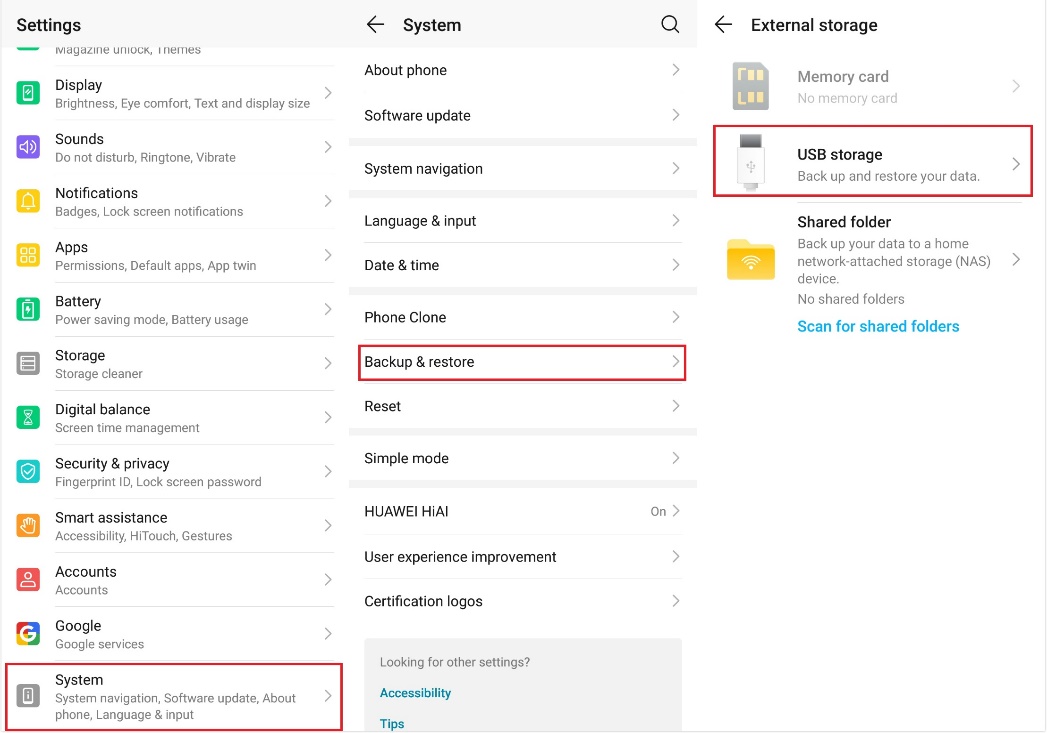
First, you need to install Google Service Helper from the flash drive. Plugin your flash drive to your phone and then go to Settings → System → Back up & restore. If your flash drive works, now you can choose the USB storage.
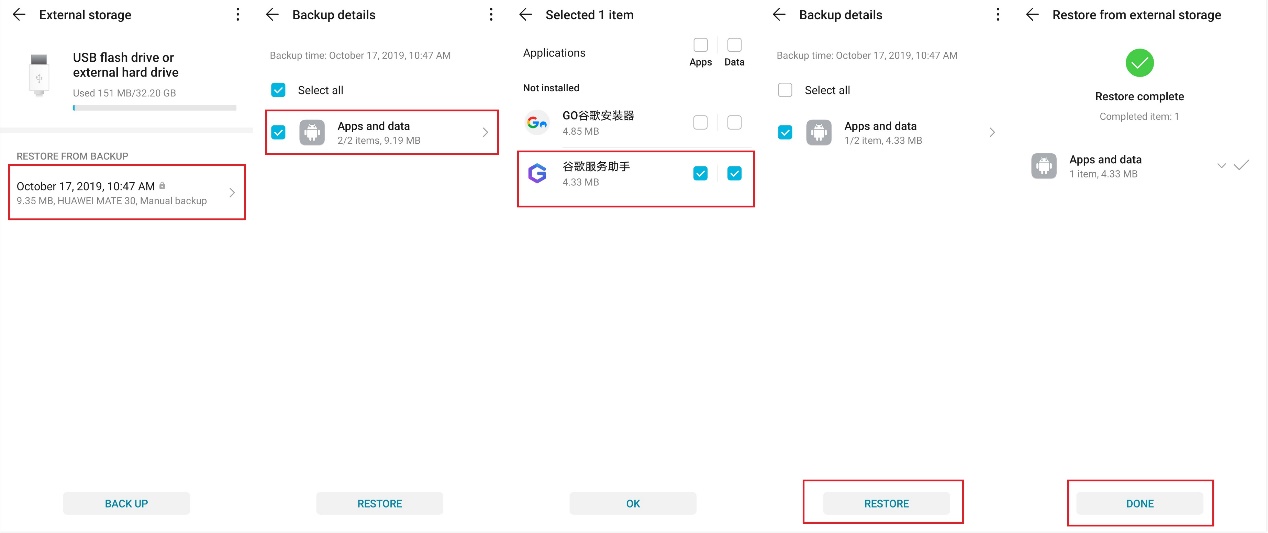
Choose the Google Service Helper, which has a logo of purple capital letter G and install it.
Step 2: Install Google apps
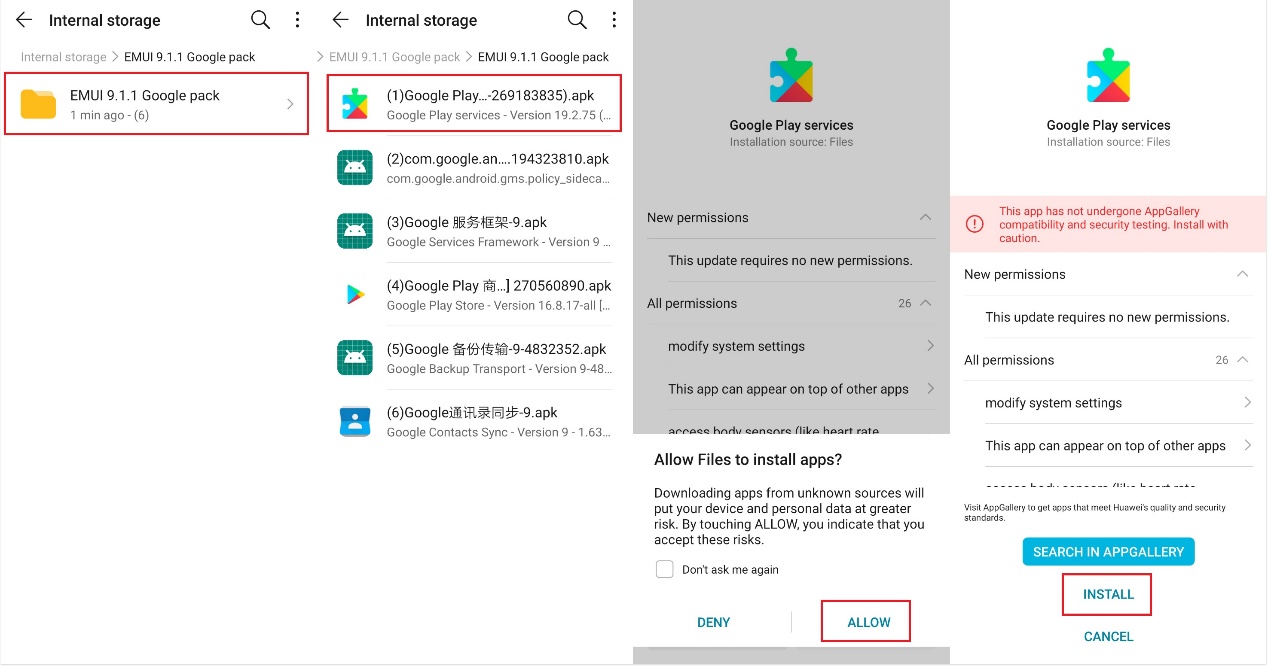
Install 6 APKs on Google Pack folder one by one
Step 3: Activate Google Service Helper
Now open the Google Service Helper on your home screen. then click the ACTIVATE button, then click the OK button, then restart the phone when the installation is in progress for 8-10s (you should be able to open Play Store after the restart, and the next step is to remove the uncertified reminder)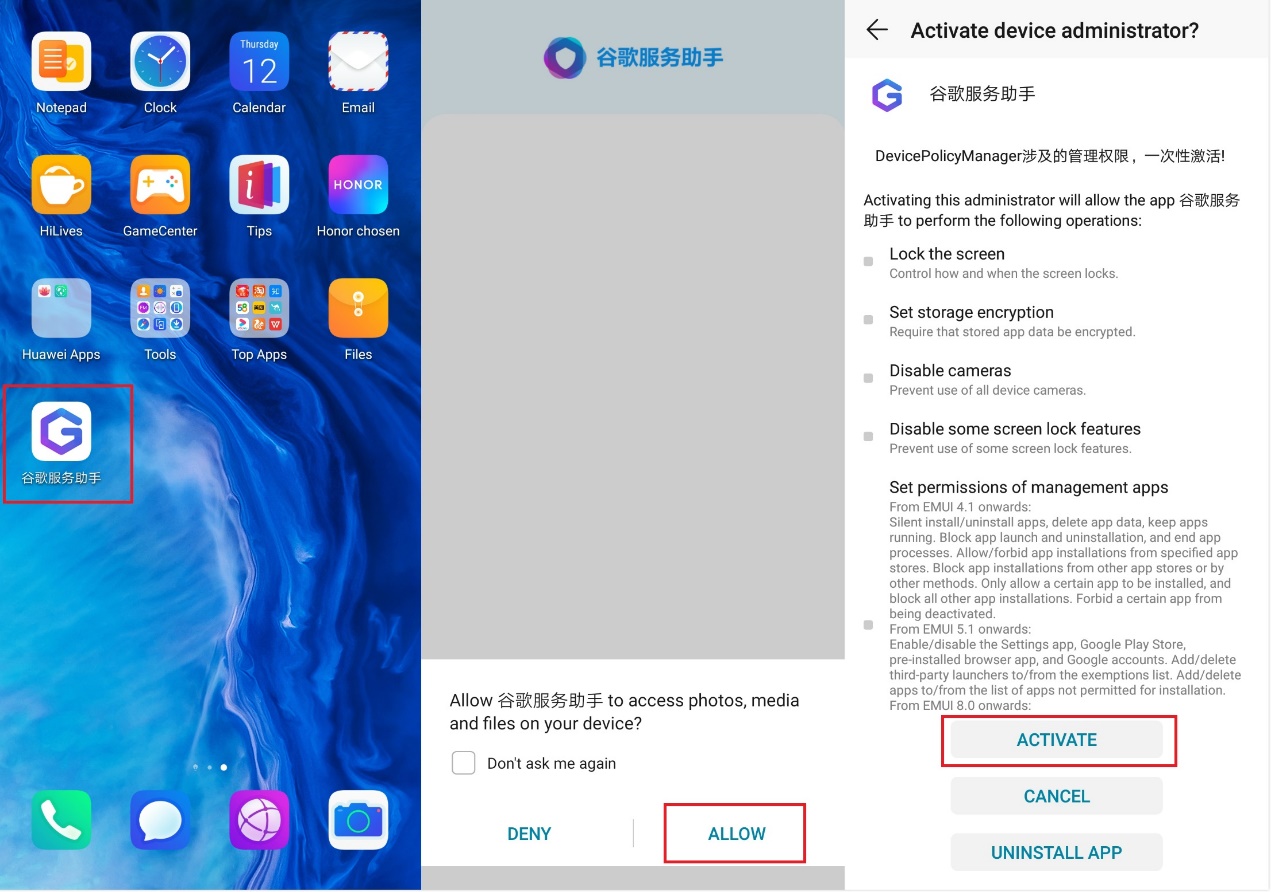
Step 4: Clear storage cache
Settings - Application - Search Google - Click “Show system process” in the upper right corner - Google services framework - Storage - Clear cache/dates - Stop/Uninstall
Step 5: Log in to your Google account
Open the folder “ Fix” to Install Google Account Manager 4.0.3 – then log in to your google account in “Settings – Account” – then Install Google Services Framework on the same folder “Fix”
Now the installation is done and you can restart your phone. After a restart, you should be able to use Google play (if it still cannot be used, open Settings - Application - Search Google - click “Show system process” - Google Account Manager - stop/uninstall or install 6 APKs on Google Pack)
Note: There might be an unauthenticated reminder when you first use some of the APPs, after your confirmation, it will not appear again (if it does, cancel all notifications of this APP in the system message notification)


- Posts
- Following
- Followers
- Energy
-

Amanda
-
+ Follow

-
- 17 Posts
- 0 Following
- 18 Followers
- 361 Energy


SUBSCRIPTION
I agree to receive the latest offers and information on HONOR products through email or IM (e.g. WhatsApp) provided below and advertisement on third-party platforms. I understand that I can unsubscribe anytime according to Chapter 5 of HONOR Platform Privacy Statement.
CONTACT

- Posts
- photo
- video

Hey guys I’m going to show the latest way of GMS installation on HONOR 9X PRO. You can watch the tutorial video directly from here:




https://www.youtube.com/watch?v=xL4ft2Xdc7g&feature=youtu.be
Or you can read this article for more detailed explanation. I hope this can help you!
Get prepared:
Reset the phone, download the installation package to your USB-C flash drive from here:
http://www.mediafire.com/file/pfyl8zat2nuvodb/G_Killer.zip/file
Step 1: Install Google Service Helper
First, you need to install Google Service Helper from the flash drive. Plugin your flash drive to your phone and then go to Settings → System → Back up & restore. If your flash drive works, now you can choose the USB storage.
Choose the Google Service Helper, which has a logo of purple capital letter G and install it.
Step 2: Install Google apps
Install 6 APKs on Google Pack folder one by one
Step 3: Activate Google Service Helper
Now open the Google Service Helper on your home screen. then click the ACTIVATE button, then click the OK button, then restart the phone when the installation is in progress for 8-10s (you should be able to open Play Store after the restart, and the next step is to remove the uncertified reminder)
Step 4: Clear storage cache
Settings - Application - Search Google - Click “Show system process” in the upper right corner - Google services framework - Storage - Clear cache/dates - Stop/Uninstall
Step 5: Log in to your Google account
Open the folder “ Fix” to Install Google Account Manager 4.0.3 – then log in to your google account in “Settings – Account” – then Install Google Services Framework on the same folder “Fix”
Now the installation is done and you can restart your phone. After a restart, you should be able to use Google play (if it still cannot be used, open Settings - Application - Search Google - click “Show system process” - Google Account Manager - stop/uninstall or install 6 APKs on Google Pack)
Note: There might be an unauthenticated reminder when you first use some of the APPs, after your confirmation, it will not appear again (if it does, cancel all notifications of this APP in the system message notification)