

 More Products
 Compare









我的荣耀 开启荣耀之旅



 Disagree Terms
 Log out




How to Install Google Play and Other Google Apps on the HONOR 9X Pro


 Last reply :
Recently I bought an HONOR 9X Pro from China since it really has attractive features and price. It has triple-camera, including a 48MP main camera, and the powerful 7nm 810 chipset.
Though this HONOR 9X Pro is a Chinese version model, the setting up process is generally the same. However, when I search for GMS install tutorial on the Internet, I didn’t find a detailed one, and that’s why I am writing this tutorial. I am going to show the GMS installation step by step, and I hope this can help you!
Step 1: Download GMS installation package
I found a clear tutorial here:
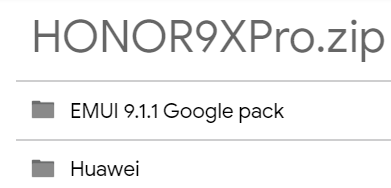
And I also downloaded the installation package from the link below the video: https://drive.google.com/open?id=1V2WWnp8h0jDeIuTn4cxD_IaRO2JPyZPG. After downloading the package, you need to copy the two files on the package to a USB-C flash drive.
Step 2: Install Google Service Helper
Next step, you need to install Google Service Helper from the flash drive. Plugin your flash drive to your phone and then go to Settings → System → Back up & restore. If your flash drive works, now you can choose the USB storage.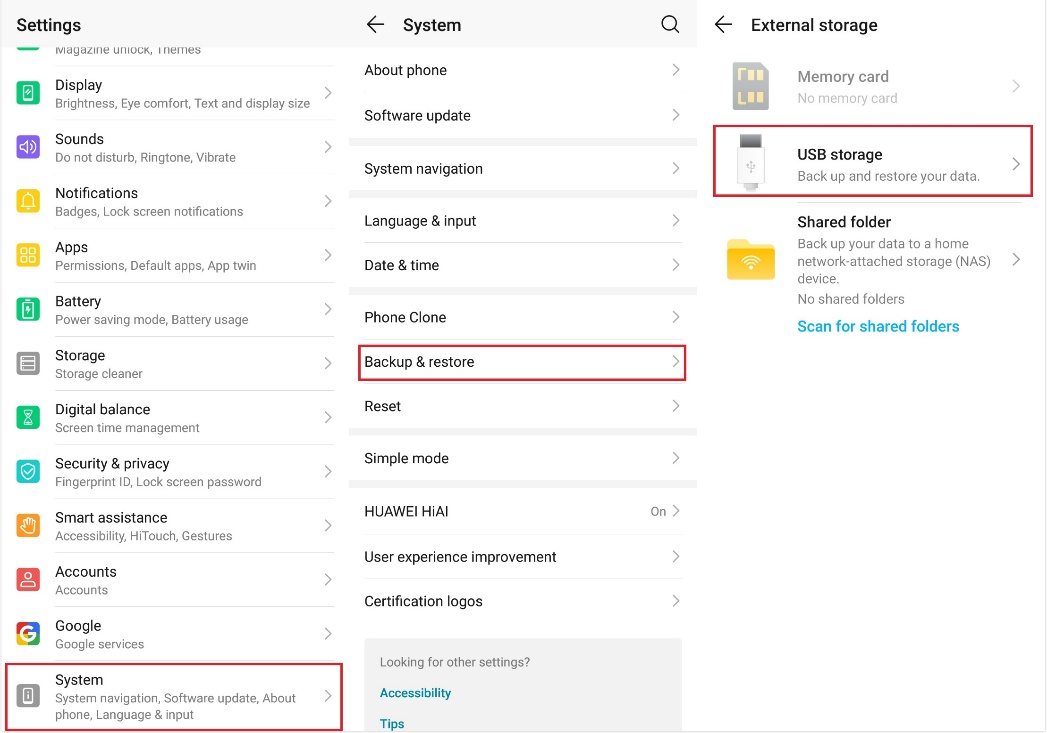
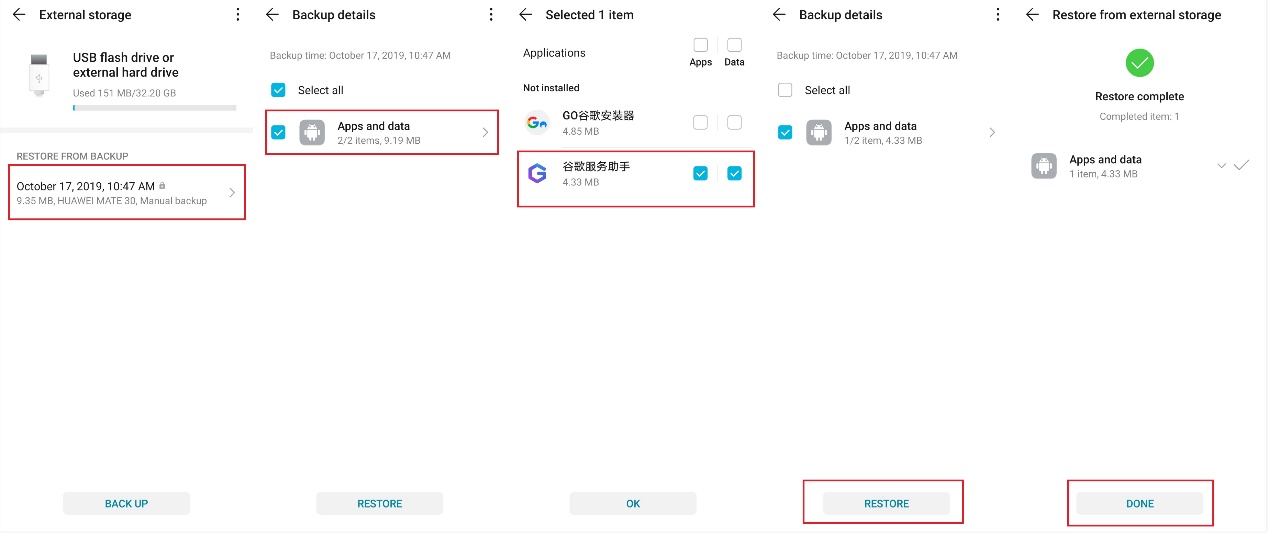
Choose the Google Service Helper, which has a logo of purple capital letter G and install it.
Step 3: Activate Google Service Helper
Now you can see the Google Service Helper on your home screen. After opening the app, first, you need to allow it to access photos, media, and files on your phone, then click the ACTIVATE button.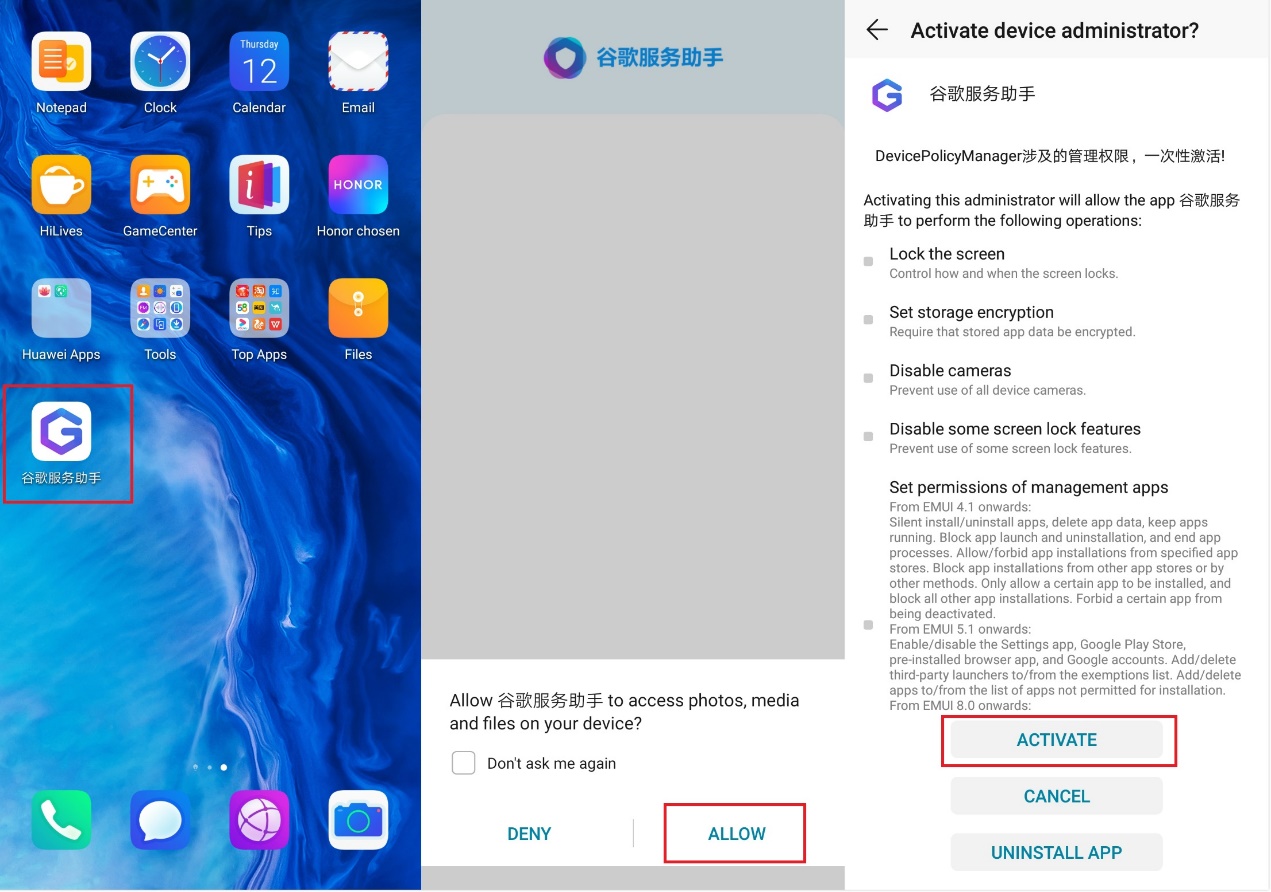
Step 4: Copy Google apps pack
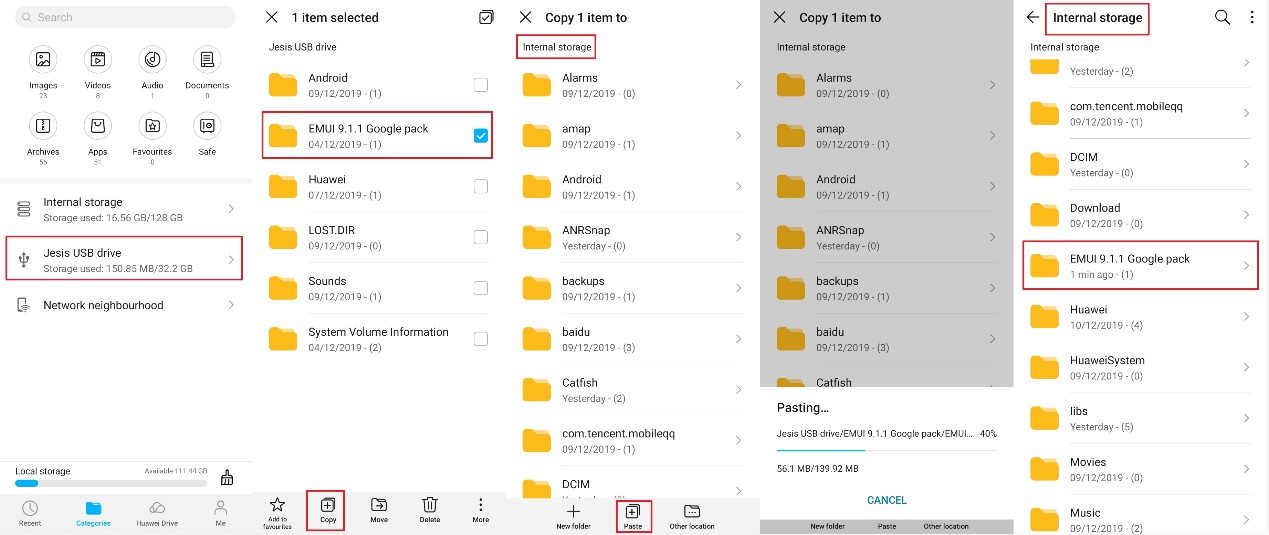
To install Google apps, we first need to have the related APK files. Open the Files app, find a folder called “EMUI 9.1.1 Google pack”, which was downloaded from the Google Drive on Step 1. Copy the folder and paste it on the internal storage of your device.
Step 5: Install Google apps
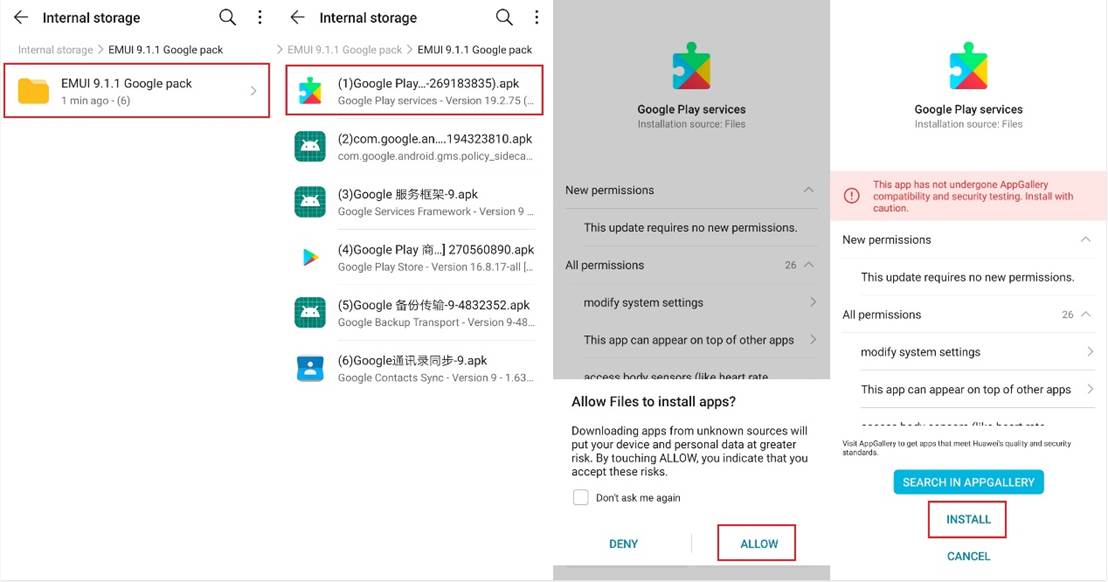
With the Google Service Helper activated and all Google apps ready, now we can install them. Take the Google Play services app as an example: After opening it on the Files app, you need to allow Files to install apps first. Then click INSTALL, and wait, just like you install all other apps before. All other five apps have the same process, except that you don’t need to give Files access again and again.
That’s the whole process of installing the GMS and Google apps! It is quite easy, actually, and you can do it within ten minutes. Now I can use all apps perfectly, and when it comes to using Google apps, I find no difference between using the HONOR 9X Pro and other phones.


- Posts
- Following
- Followers
- Energy
-

Lyone
-
+ Follow

-
- 13 Posts
- 0 Following
- 10 Followers
- 176 Energy


SUBSCRIPTION
I agree to receive the latest offers and information on HONOR products through email or IM (e.g. WhatsApp) provided below and advertisement on third-party platforms. I understand that I can unsubscribe anytime according to Chapter 5 of HONOR Platform Privacy Statement.
CONTACT

- Posts
- photo
- video

Recently I bought an HONOR 9X Pro from China since it really has attractive features and price. It has triple-camera, including a 48MP main camera, and the powerful 7nm 810 chipset.
Though this HONOR 9X Pro is a Chinese version model, the setting up process is generally the same. However, when I search for GMS install tutorial on the Internet, I didn’t find a detailed one, and that’s why I am writing this tutorial. I am going to show the GMS installation step by step, and I hope this can help you!
Step 1: Download GMS installation package
I found a clear tutorial here:
And I also downloaded the installation package from the link below the video: https://drive.google.com/open?id=1V2WWnp8h0jDeIuTn4cxD_IaRO2JPyZPG. After downloading the package, you need to copy the two files on the package to a USB-C flash drive.
Step 2: Install Google Service Helper




Next step, you need to install Google Service Helper from the flash drive. Plugin your flash drive to your phone and then go to Settings → System → Back up & restore. If your flash drive works, now you can choose the USB storage.
Choose the Google Service Helper, which has a logo of purple capital letter G and install it.
Step 3: Activate Google Service Helper
Now you can see the Google Service Helper on your home screen. After opening the app, first, you need to allow it to access photos, media, and files on your phone, then click the ACTIVATE button.
Step 4: Copy Google apps pack
To install Google apps, we first need to have the related APK files. Open the Files app, find a folder called “EMUI 9.1.1 Google pack”, which was downloaded from the Google Drive on Step 1. Copy the folder and paste it on the internal storage of your device.
Step 5: Install Google apps
With the Google Service Helper activated and all Google apps ready, now we can install them. Take the Google Play services app as an example: After opening it on the Files app, you need to allow Files to install apps first. Then click INSTALL, and wait, just like you install all other apps before. All other five apps have the same process, except that you don’t need to give Files access again and again.
That’s the whole process of installing the GMS and Google apps! It is quite easy, actually, and you can do it within ten minutes. Now I can use all apps perfectly, and when it comes to using Google apps, I find no difference between using the HONOR 9X Pro and other phones.