

 More Products
 Compare









我的荣耀 开启荣耀之旅



 Disagree Terms
 Log out




Honor Play Player Edition Game Pad Setup (ipega-PG9087)


 Last reply :
This is a long post with step by step details (in case someone really didn't use game pad before) if you feel this post is too much word you can just follow the pictures step.
The Honor Play Player Edition has been launched few days ago and one of the attractive selling point other than the special design is the free gift. But a few users found that the setup and settings of the game pad is a bit complicated. Yes, because it's quite advance game pad which support Android, IOS even desktop, so the setup and settings is a bit messy.
So here I will use the Honor Play to setup and try on the PUBG.
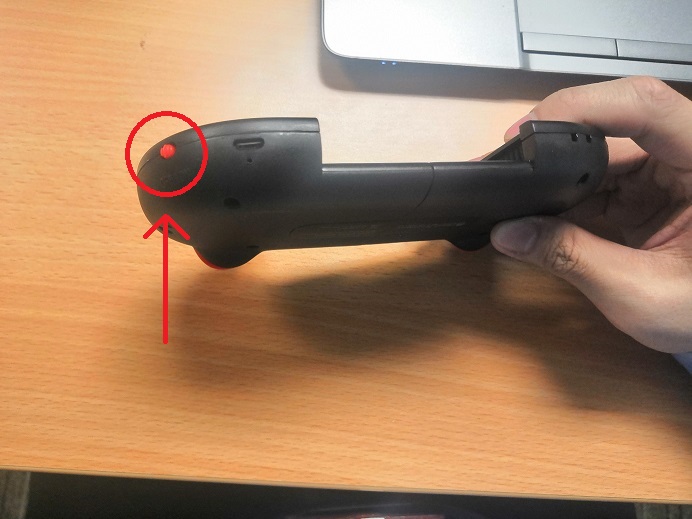
1) Switch on the game pad on/off switch.
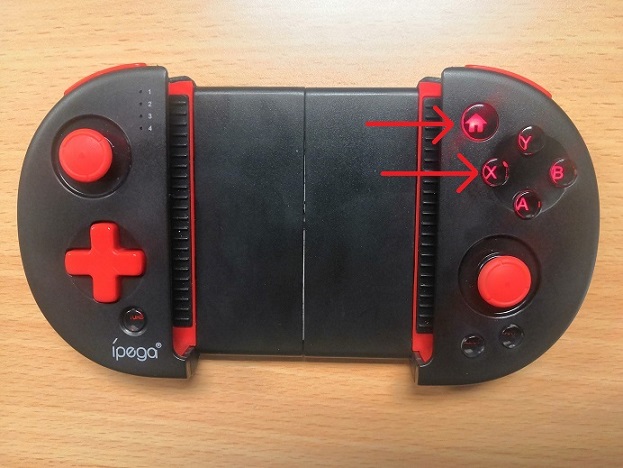
2) Hold the "Home" button and "X" button for 2 seconds (this is only for Android)
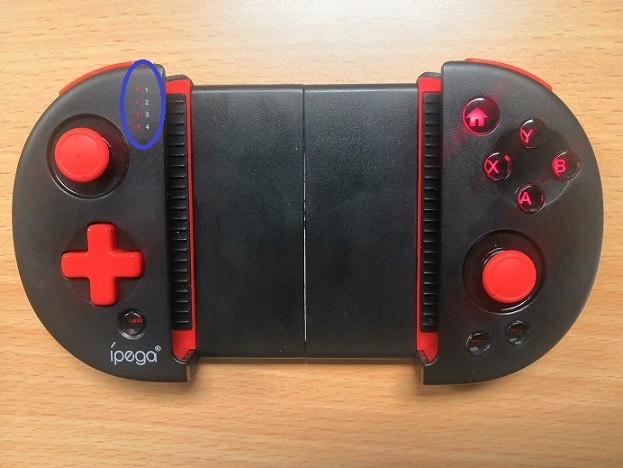
3) You will see the 4 LED blinking if it is switch on
4) Turn on your phone Bluetooth and pair with it (default name : PG-9087)
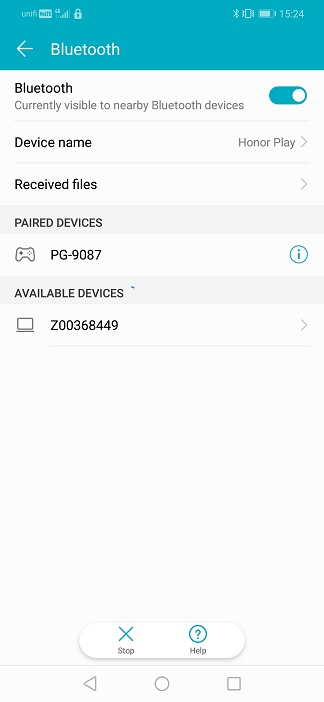
5) You will see the LED light only left the first after you successfully pair it
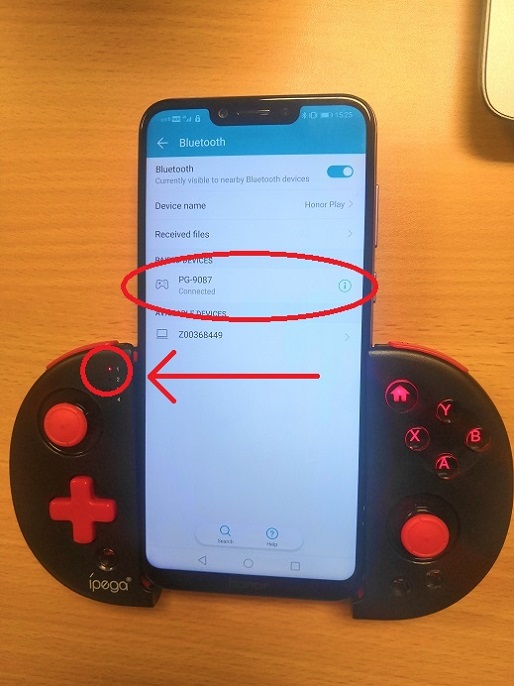
6) Then you need to download the game pad app as shown below
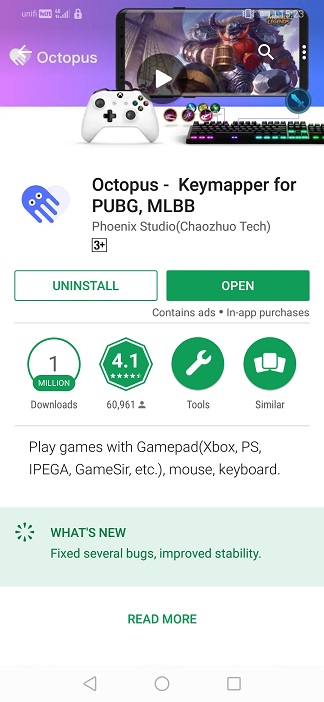
7) Then open it, add your game in the app (you need to add and run your game in this app to use the game pad)
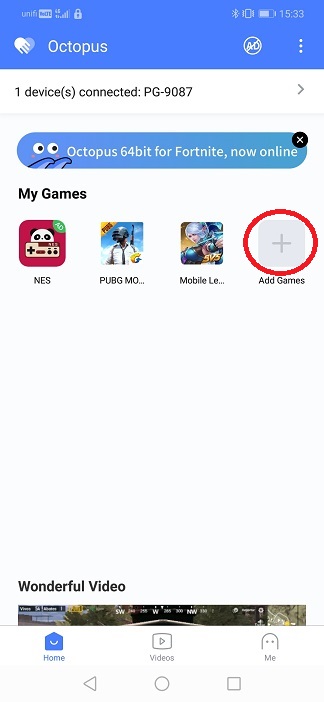
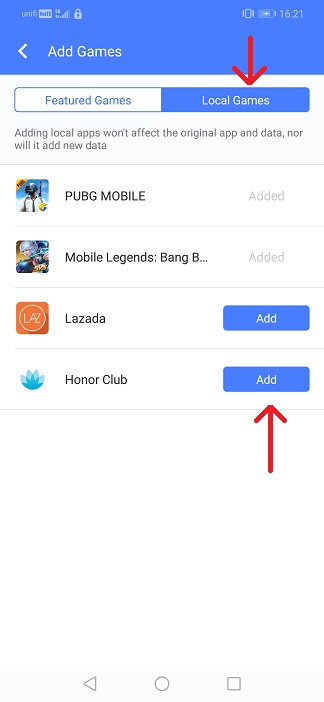
8) You will see a lot of button in your game, then click the octopus to set or change the key position
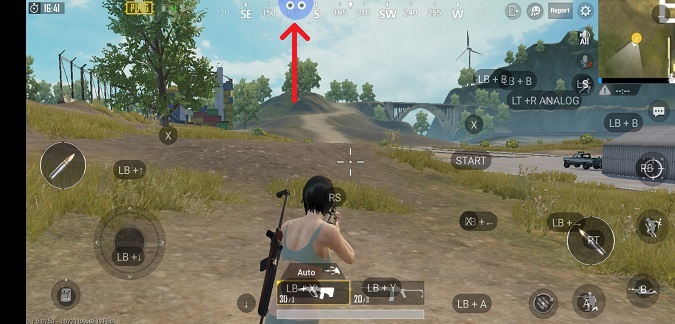
9) In case you only use it in some simple games which do not use a lot of key, you can click the small "x" button to delete the key you dont want
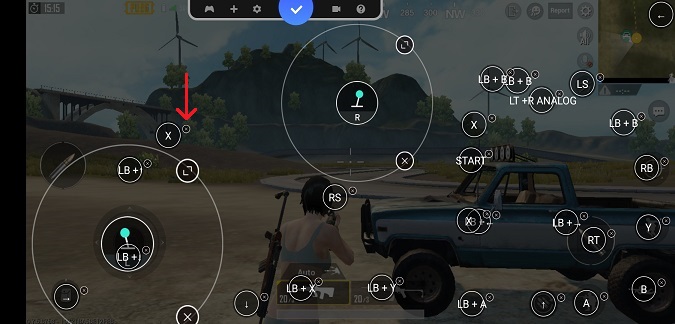
10) Go to the octopus app after you have done the key settings, to close the keymapping
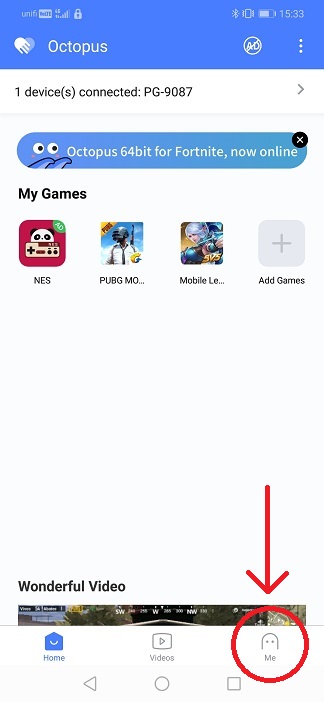
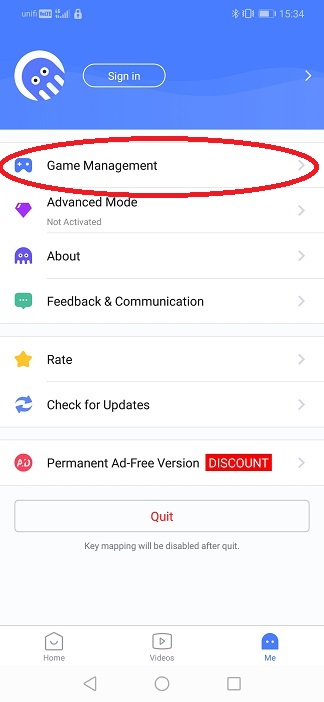
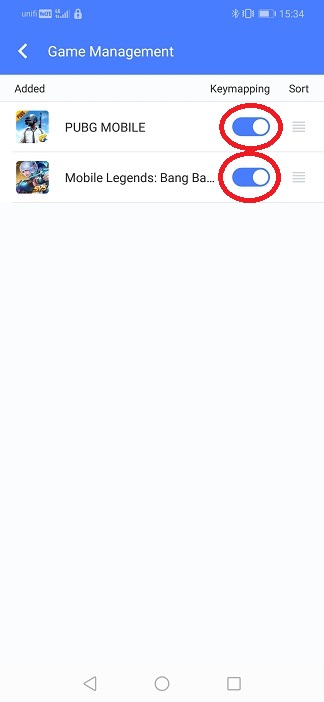
Now you can enjoy the game with your advance gamepad :)
Remark:
1) you need to add the game in the octopus app and open the game in the octopus app
2) The 4 keys is not label correctly, e.g. L1 is show as LB (refer the picture below)
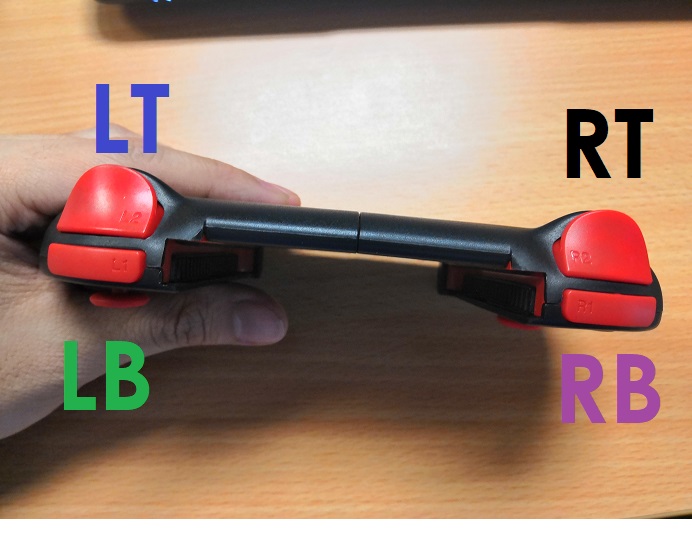
Congratulation, you have wasted 5 minutes to read this stupid long post. XD


- Posts
- Following
- Followers
- Energy
-

tester818
-
+ Follow

-
- 2 Posts
- 0 Following
- 22 Followers
- 268 Energy


SUBSCRIPTION
I agree to receive the latest offers and information on HONOR products through email or IM (e.g. WhatsApp) provided below and advertisement on third-party platforms. I understand that I can unsubscribe anytime according to Chapter 5 of HONOR Platform Privacy Statement.
CONTACT

- Posts
- photo
- video

This is a long post with step by step details (in case someone really didn't use game pad before) if you feel this post is too much word you can just follow the pictures step.
The Honor Play Player Edition has been launched few days ago and one of the attractive selling point other than the special design is the free gift. But a few users found that the setup and settings of the game pad is a bit complicated. Yes, because it's quite advance game pad which support Android, IOS even desktop, so the setup and settings is a bit messy.
So here I will use the Honor Play to setup and try on the PUBG.
1) Switch on the game pad on/off switch.
2) Hold the "Home" button and "X" button for 2 seconds (this is only for Android)
3) You will see the 4 LED blinking if it is switch on
4) Turn on your phone Bluetooth and pair with it (default name : PG-9087)
5) You will see the LED light only left the first after you successfully pair it
6) Then you need to download the game pad app as shown below
7) Then open it, add your game in the app (you need to add and run your game in this app to use the game pad)
8) You will see a lot of button in your game, then click the octopus to set or change the key position
9) In case you only use it in some simple games which do not use a lot of key, you can click the small "x" button to delete the key you dont want
10) Go to the octopus app after you have done the key settings, to close the keymapping
Now you can enjoy the game with your advance gamepad :)
Remark:
1) you need to add the game in the octopus app and open the game in the octopus app
2) The 4 keys is not label correctly, e.g. L1 is show as LB (refer the picture below)
Congratulation, you have wasted 5 minutes to read this stupid long post. XD