

 More Products
 Compare









我的荣耀 开启荣耀之旅


 Disagree Terms
 Log out




HONOR 9X Pro GMS Install VIA PC


 Last reply :
In this article I’m going to show you how to get GMS in HONOR 9X Pro via PC. It will be a little different from the USB-C flash drive method, but another good option too.
Get Ready: 1. Download GMS installation package
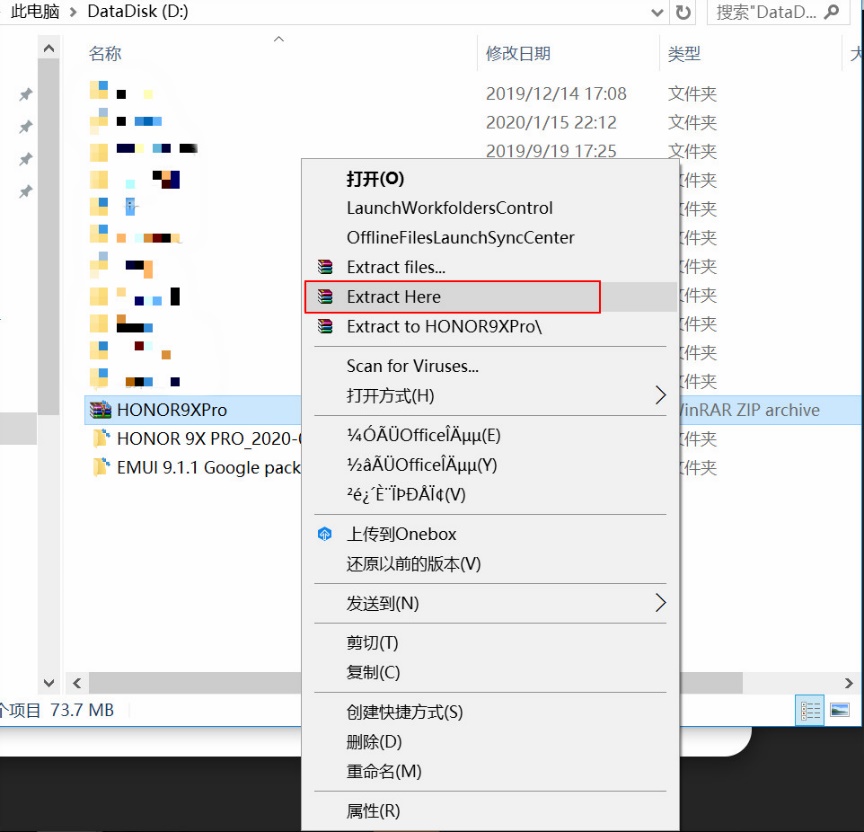
Downloaded the installation package from the link: https://drive.google.com/open?id=1V2WWnp8h0jDeIuTn4cxD_IaRO2JPyZPG. And then extract the package in the same file in your PC..
Get Ready: 2. Download Hisuite
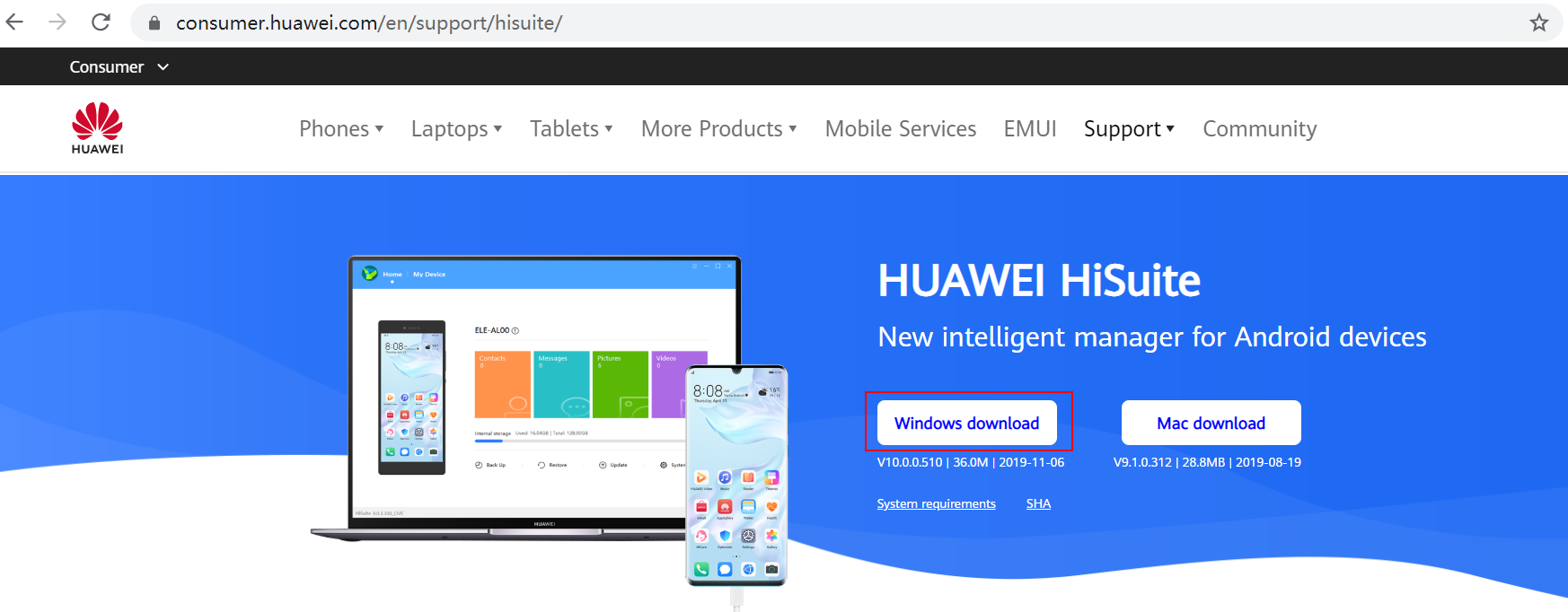
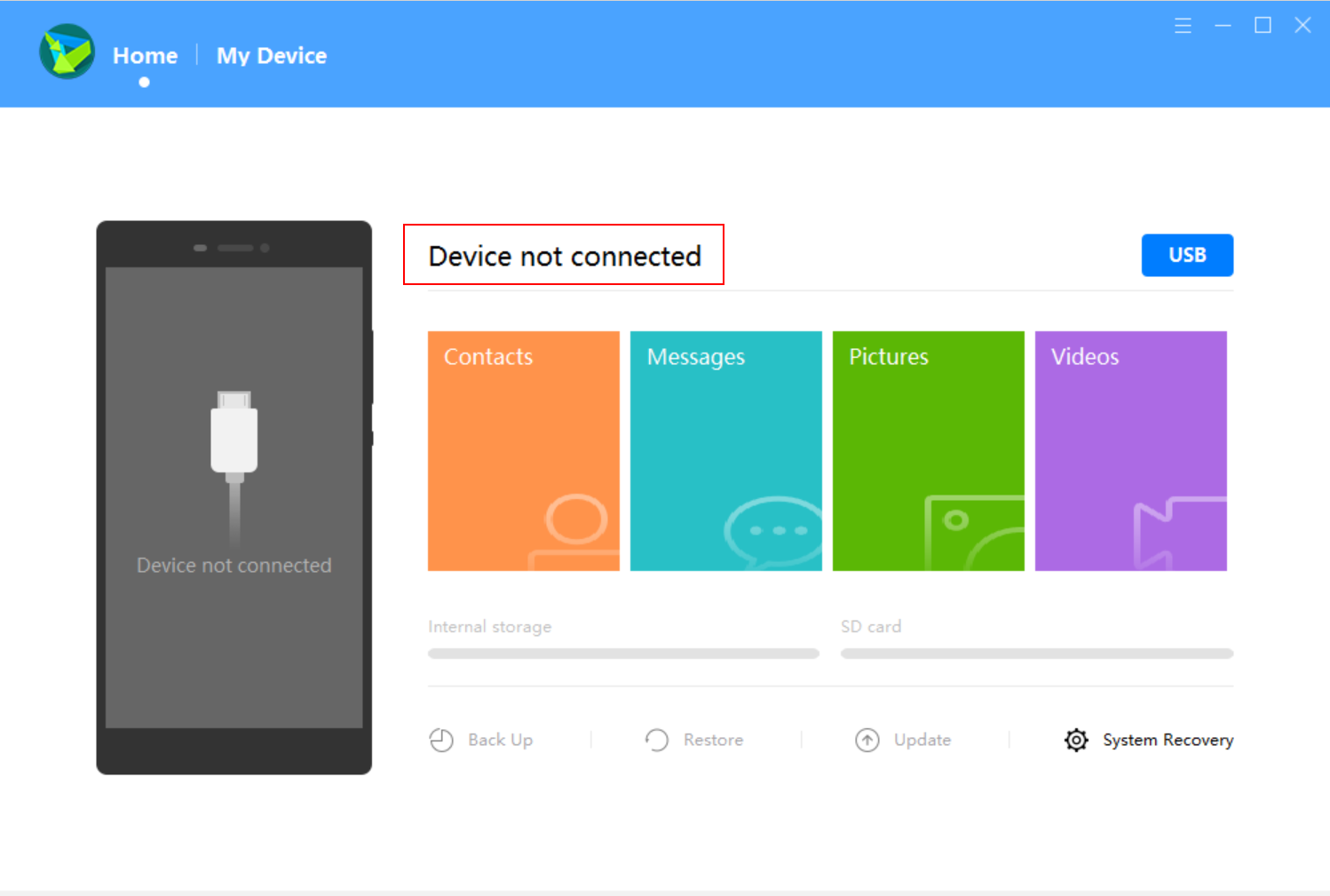
Download Hisuite from the official website: https://consumer.huawei.com/en/support/hisuite/. When you first open it shows “Device not connected”
Now let’s start the installation of GMS.
Step 1: Connect your PC with HONOR 9X Pro.
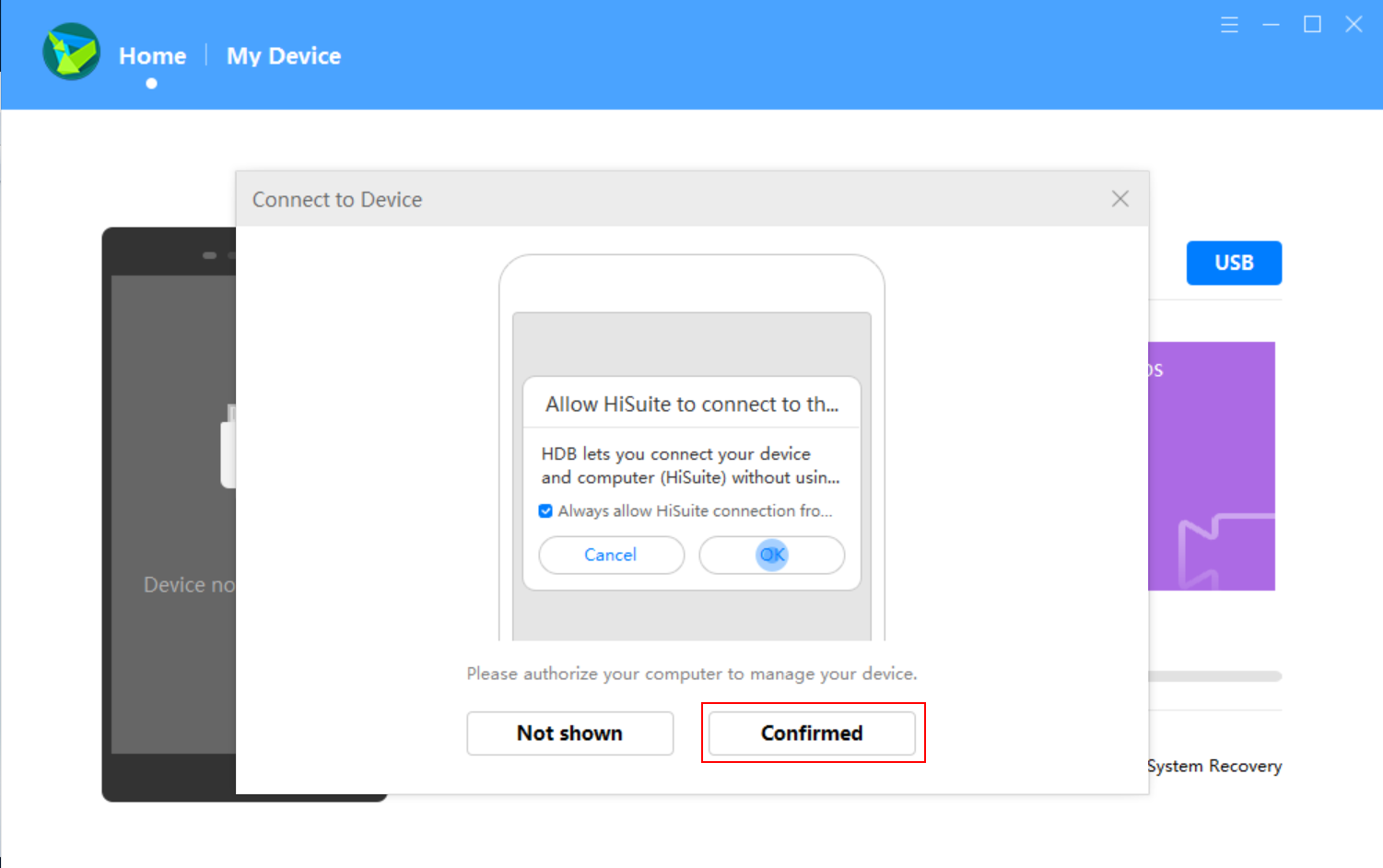
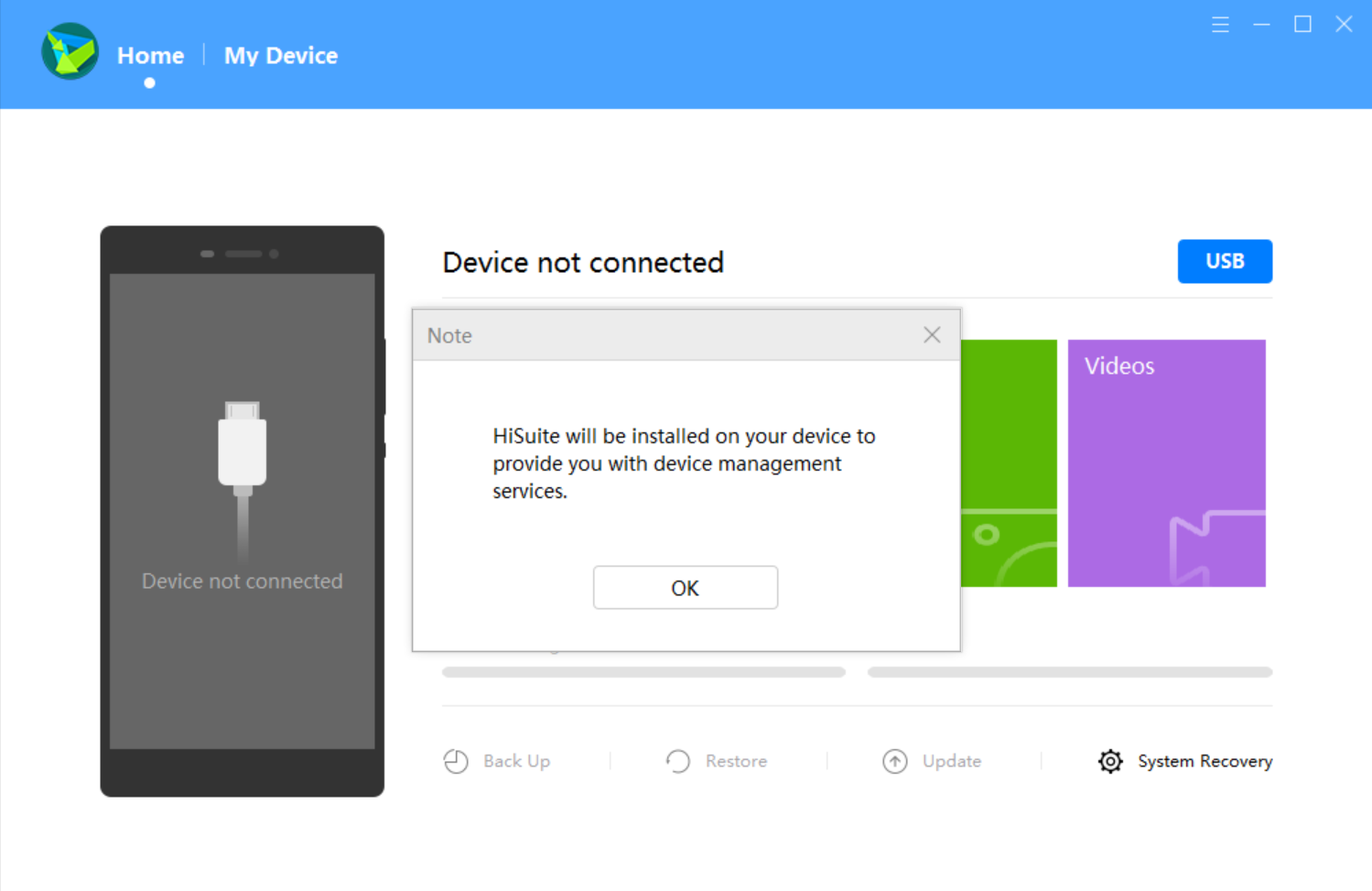
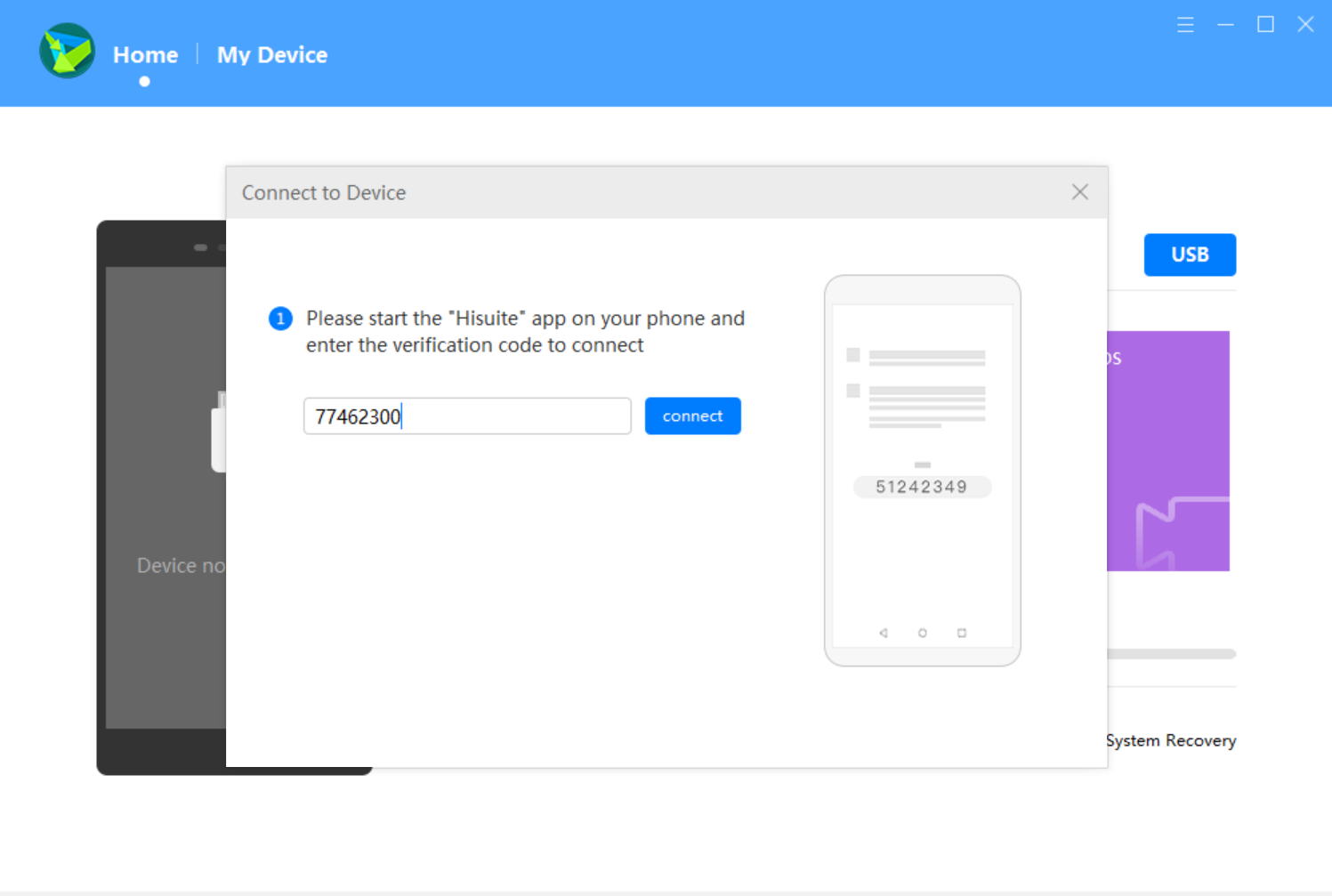
Connect your PC and HONOR 9X Pro with a cable and select file transfer mode for your phone. Hisuite on PC side will automatically prompt the installation of Hisuite in your phone, just follow the guide and give the permission and you’ll have Hisuite in your phone soon. Then your phone will show a code to connect your PC, input the code and your phone will be connected to the PC.
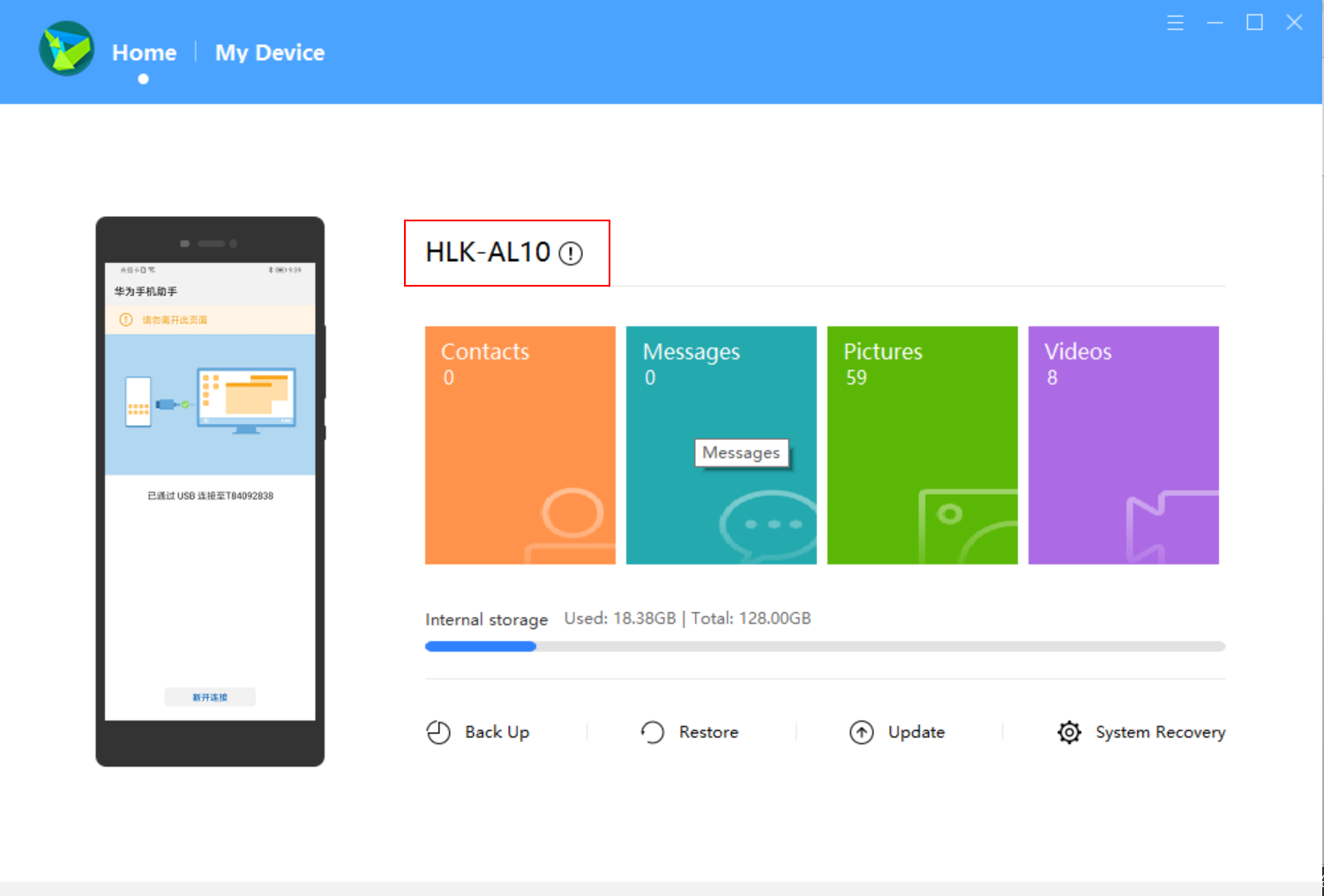
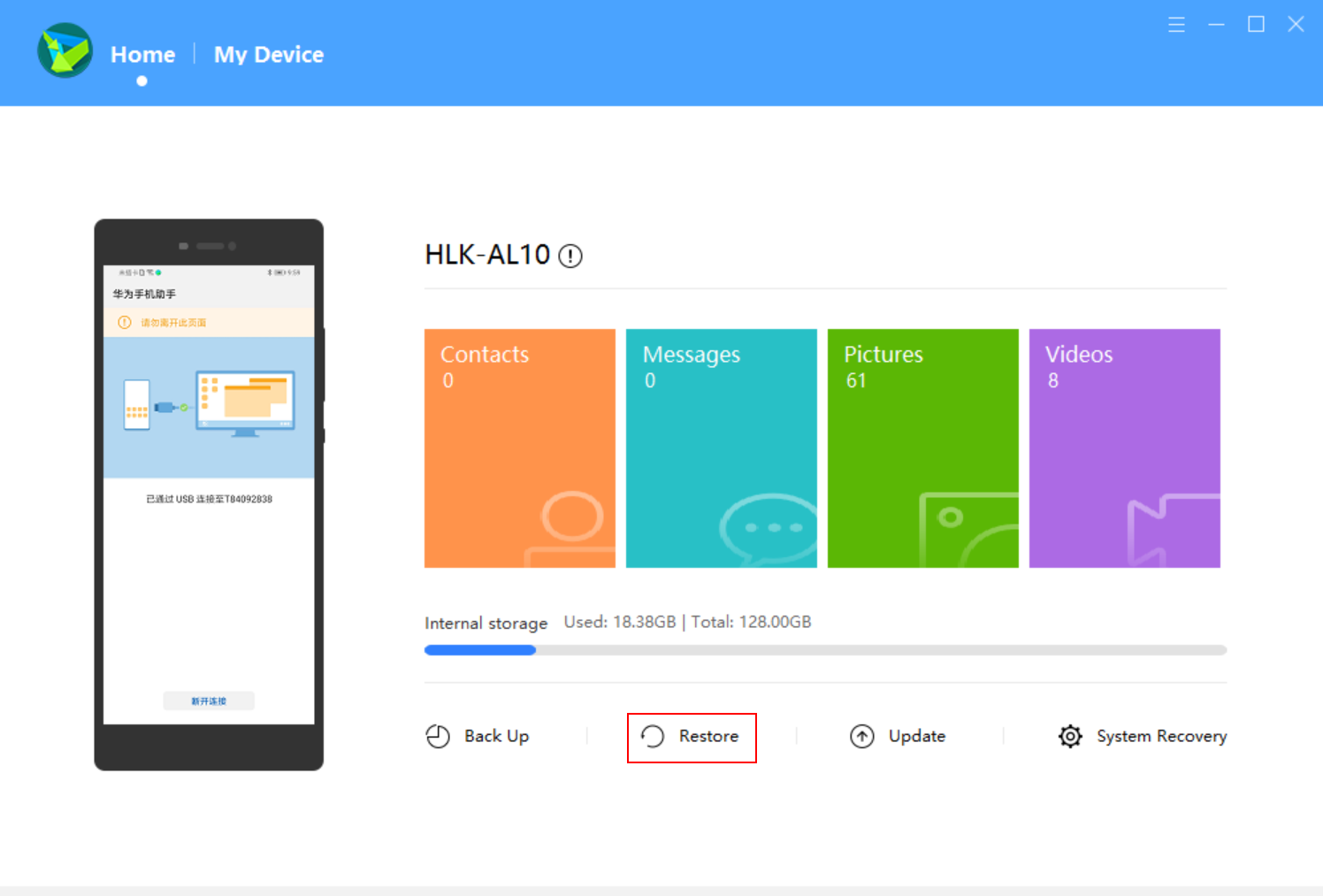
When your phone is connected Hisuite will show the phone model, like above “HLK-AL10” is HONOR 9X Pro.
Step 2: Install Google Service Helper
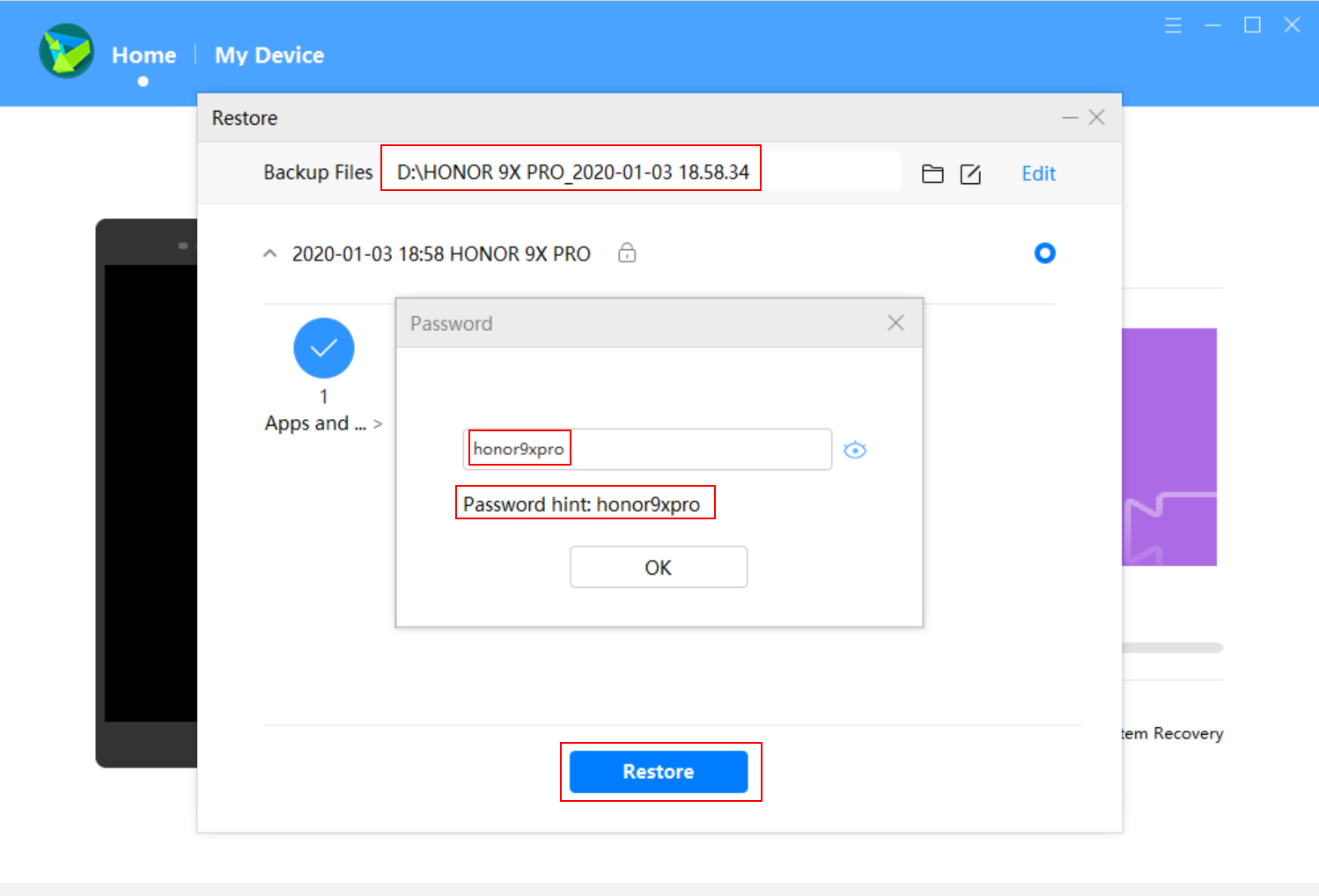
Next step, you need to install Google Service Helper in your phone by Hisuite. Click “Restore” and find the folder “HONOR 9X PRO_2020-01-03 18.58.34”, enter the provided password and the restore will be done.
Step 3: Activate Google Service Helper
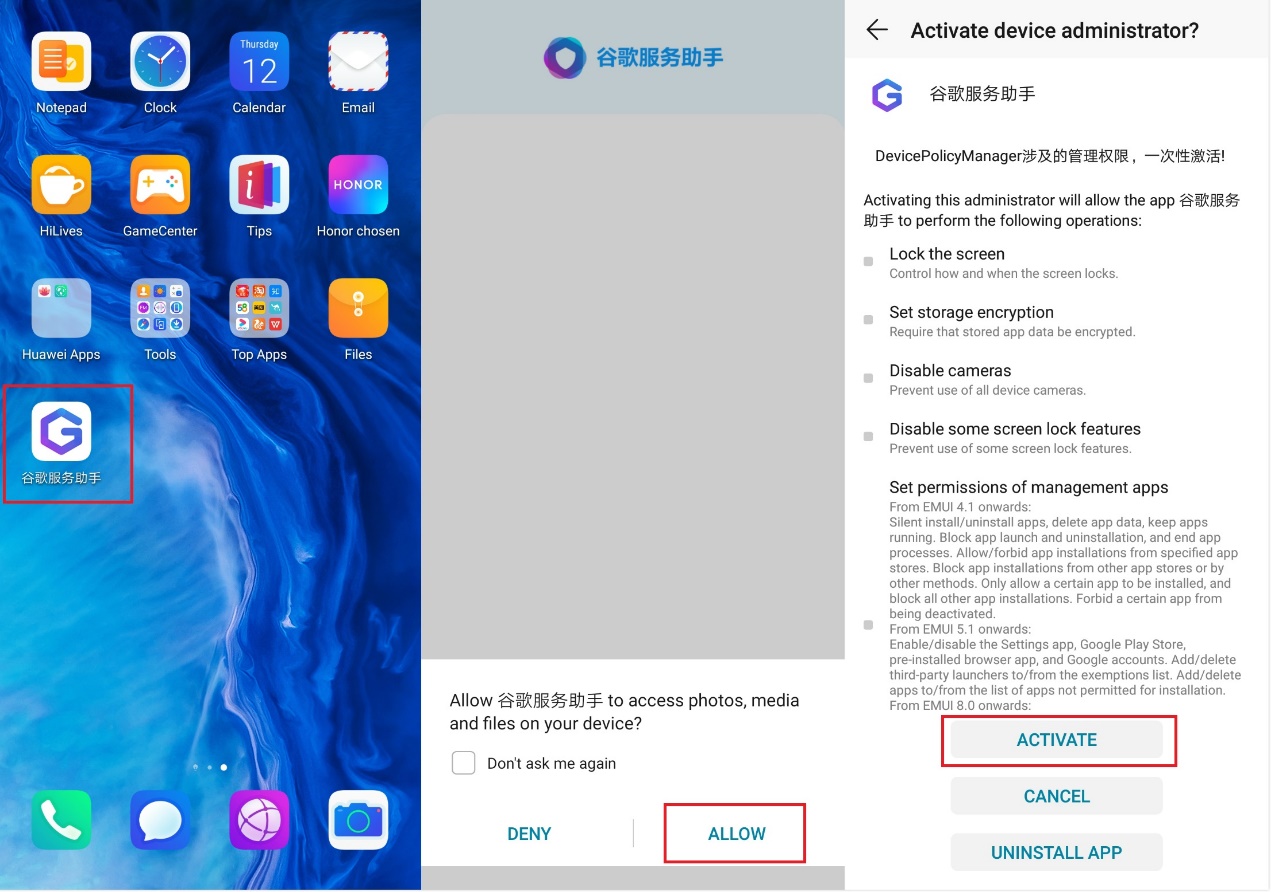
Now you can see the Google Service Helper on your home screen. After opening the app, first, you need to allow it to access photos, media, and files on your phone, then click the ACTIVATE button.
Step 4: Copy Google apps pack
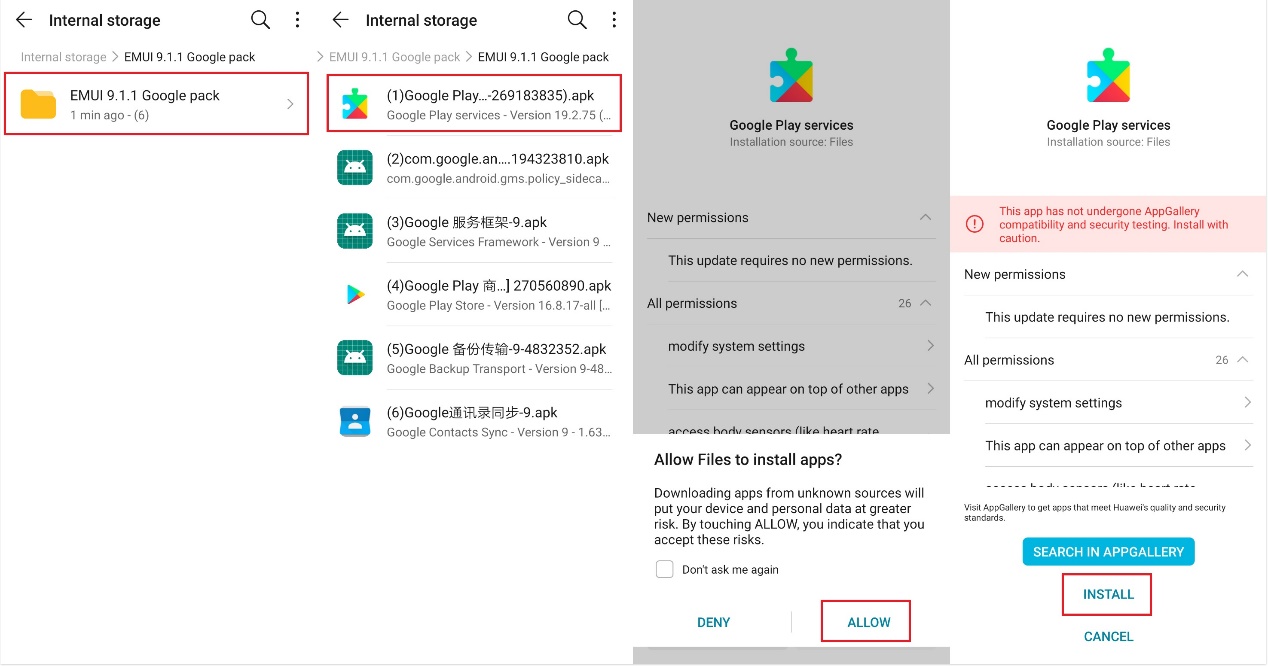
Now copy another folder “EMUI 9.1.1 Google pack” in your PC and paste in the internal storage of your phone. Then you need to find the folder in your phone internal storage and install the 6 files in the folder one by one.
Step 5: Install Google apps
With the Google Service Helper activated and all Google apps ready, now we can install them. Take the Google Play services app as an example: After opening it on the Files app, you need to allow Files to install apps first. Then click INSTALL, and wait, just like you install all other apps before. All other five apps have the same process, except that you don’t need to give Files access again and again.
 That’s the whole process of installing the GMS and Google apps in your phone with a little help of your PC! It’s easy too and I hope it helps.


- Posts
- Following
- Followers
- Energy
-

Amanda
-
+ Follow

-
- 17 Posts
- 0 Following
- 18 Followers
- 361 Energy


SUBSCRIPTION
I agree to receive the latest offers and information on HONOR products through email or IM (e.g. WhatsApp) provided below and advertisement on third-party platforms. I understand that I can unsubscribe anytime according to Chapter 5 of HONOR Platform Privacy Statement.
CONTACT

- Posts
- photo
- video

In this article I’m going to show you how to get GMS in HONOR 9X Pro via PC. It will be a little different from the USB-C flash drive method, but another good option too.



Get Ready: 1. Download GMS installation package
Downloaded the installation package from the link: https://drive.google.com/open?id=1V2WWnp8h0jDeIuTn4cxD_IaRO2JPyZPG. And then extract the package in the same file in your PC..
Get Ready: 2. Download Hisuite
Download Hisuite from the official website: https://consumer.huawei.com/en/support/hisuite/. When you first open it shows “Device not connected”
Now let’s start the installation of GMS.
Step 1: Connect your PC with HONOR 9X Pro.
Connect your PC and HONOR 9X Pro with a cable and select file transfer mode for your phone. Hisuite on PC side will automatically prompt the installation of Hisuite in your phone, just follow the guide and give the permission and you’ll have Hisuite in your phone soon. Then your phone will show a code to connect your PC, input the code and your phone will be connected to the PC.
When your phone is connected Hisuite will show the phone model, like above “HLK-AL10” is HONOR 9X Pro.
Step 2: Install Google Service Helper
Next step, you need to install Google Service Helper in your phone by Hisuite. Click “Restore” and find the folder “HONOR 9X PRO_2020-01-03 18.58.34”, enter the provided password and the restore will be done.
Step 3: Activate Google Service Helper
Now you can see the Google Service Helper on your home screen. After opening the app, first, you need to allow it to access photos, media, and files on your phone, then click the ACTIVATE button.
Step 4: Copy Google apps pack
Now copy another folder “EMUI 9.1.1 Google pack” in your PC and paste in the internal storage of your phone. Then you need to find the folder in your phone internal storage and install the 6 files in the folder one by one.
Step 5: Install Google apps
With the Google Service Helper activated and all Google apps ready, now we can install them. Take the Google Play services app as an example: After opening it on the Files app, you need to allow Files to install apps first. Then click INSTALL, and wait, just like you install all other apps before. All other five apps have the same process, except that you don’t need to give Files access again and again.