
 More Products
 Compare














我的荣耀 开启荣耀之旅

How to use Screen Video Recorder on HONOR 8X
Do you know the screen video recorder? Sometimes you need to record your screen to make tutorial videos to share with your friends, or just to record some bugs of your APPs on your phones to tell the developers so that they can repair or upgrade them and you can use the APPs better. The screen video recorder can help you to do these well. Do you want to learn how to use screen video recorder on HONOR 8X?
Then, this article will tell you how to do it. We will show you the details on HONOR 8X. There are two methods. Now let us take a look.
1. With shortcut:
This is the most common method. Just swipe down from the status bar to open the notification panel, then touch Screen recorder to start recording the screen. Select Microphone, System, or None from Sound source based on your needs. To stop the recording, touch STOP in the upper left corner of the screen.

2. With key combination:
This method can help you get the screen video recorder up and running quickly. Simultaneously press and hold the Power button and the Volume up button to begin recording. Select Microphone, System, or None from Sound source based on your needs. To end the recording, simultaneously press and hold the Power button and the Volume up button again.
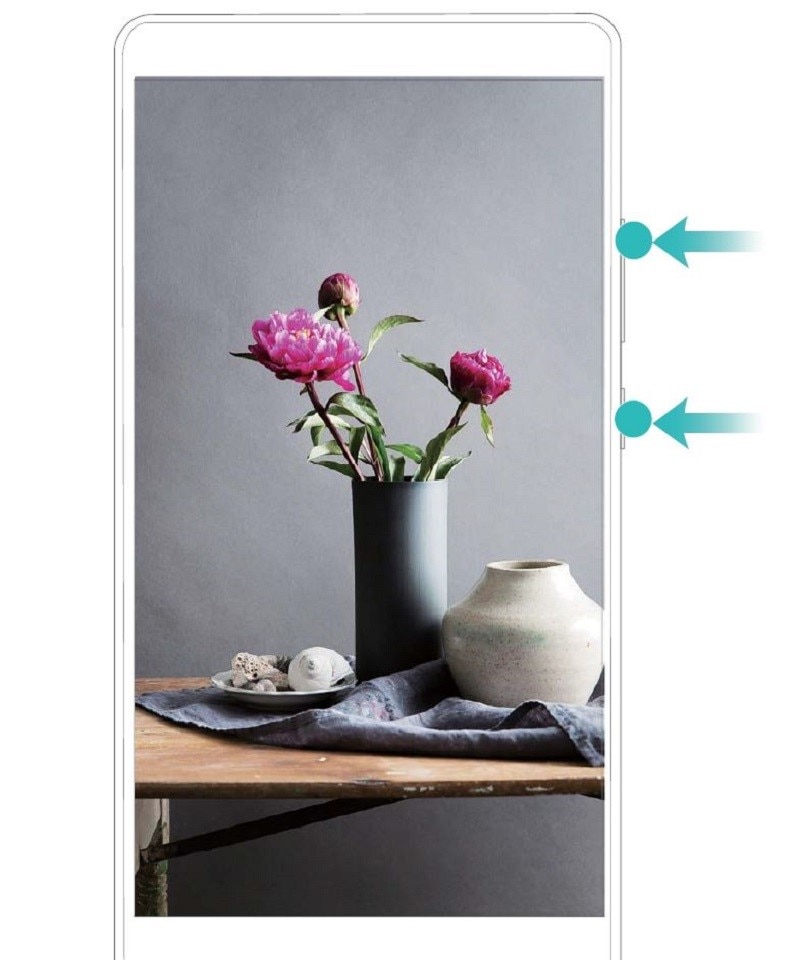
The recorded videos will be saved in Gallery by default, so you can view your screen recordings in Gallery.
Please note the following points while you are using the screen video recorder:
1. Screen recording will end if you make or answer a call.
2. If you are using the recording feature on your Phone at the same time, then you can select either System or None from Sound source.
3. If you have selected Microphone from Sound source, then your Phone will pick up all sounds and actions, including that which is produced by you touching the screen. It is recommended that you only record your screen in a quiet environment with no ambient noise.
Learning how to use screen video recorder will be helpful for you to use the better. Do you want to try this function on your phone? Give it a try!
Products Recommend

Latest Blogs


SUBSCRIPTION
I agree to receive the latest offers and information on HONOR products through email or IM (e.g. WhatsApp) provided below and advertisement on third-party platforms. I understand that I can unsubscribe anytime according to Chapter 5 of HONOR Platform Privacy Statement.
CONTACT
