



 More Products
 Compare














我的荣耀 开启荣耀之旅



 Disagree Terms
 Log out




[Weekly FAQ Vol.16] Why my phone’s touchscreen is unresponsive?


 Last reply :
If the touchscreen of your phone is unresponsive or insensitive, this might be caused by external interferences such as static electricity affecting, you can restart your phone and try again.
If the problem persists after restarting the phone, you can follow the tips below to troubleshoot:
1. If there are water stains or dirt on the screen
Clean the screen and try again later. Water stains or dirt may cause the screen to be unresponsive.
2. If the problem occurs after a third-party screen protector is attached
The third-party screen protector may be too thick.
- It is recommended to use a thinner screen protector or go to an authorized Huawei Customer Service Center to purchase a standard screen protector.
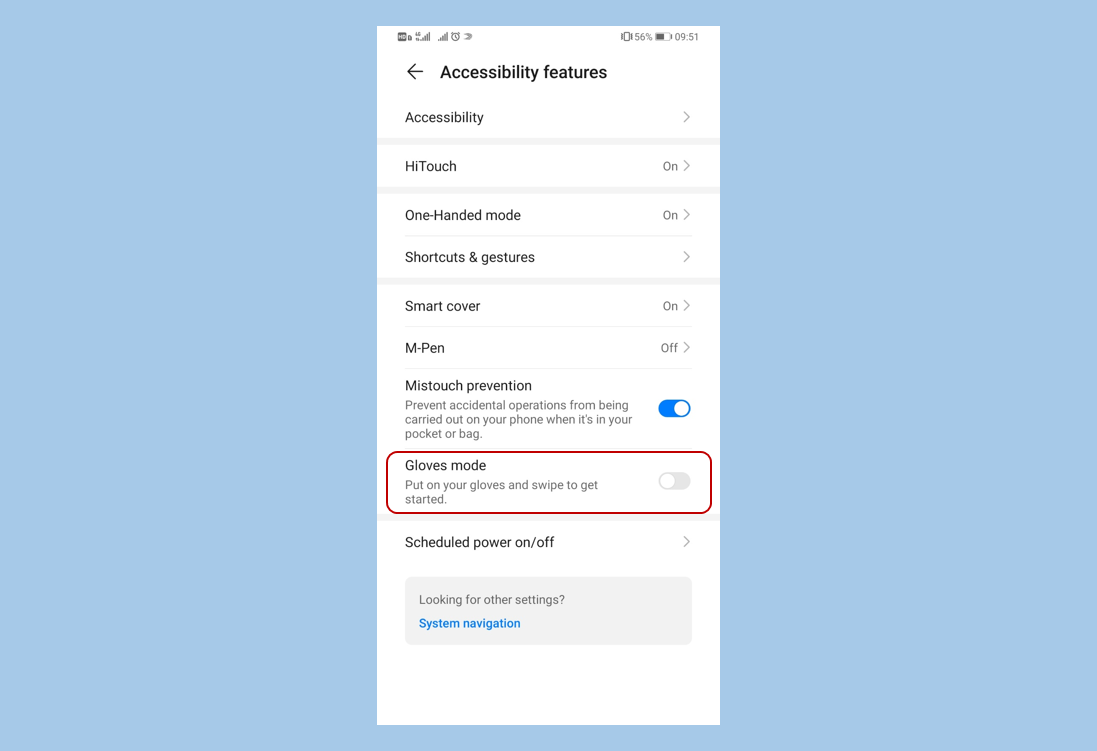
3. If Gloves mode is enabled
The touchscreen may become extra sensitive. When you touch it without glove, the screen may not respond properly.
- It is recommended that you open Settings, search for Gloves mode, and disable it. (Gloves mode is only supported by some models.)
4. If this problem only occurs during charging
Use a standard charger and data cable try again. If the problem persists, back up your data, and take your phone, standard charger, data cable, and proof of purchase to an authorized Huawei Customer Service for assistance.
5. If there is a strong electromagnetic field nearby, such as from a microwave oven, an induction cooker, or a power station
Move away from the electromagnetic field and try again.
6. If the ambient temperature is lower than –20°C or higher than 50°C
An extreme ambient temperature may affect the screen performance. In this case, do not use you phone until move to the normal ambient temperature.
If the problem still not solved according to the above steps, it is recommended to test as follows:
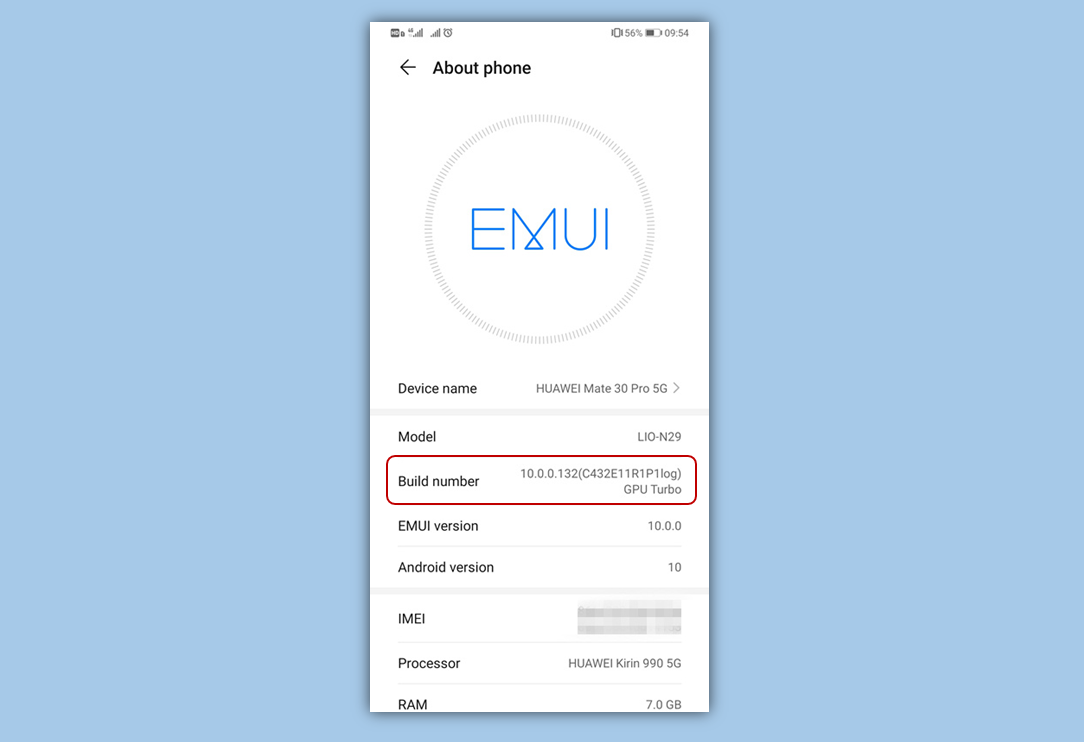
1. Search for Build number in Settings, and click the Build number seven times consecutively until "You are now a developer!" is displayed
2. Search for Pointer location in settings and enable it. Touch the screen to check touch lines.
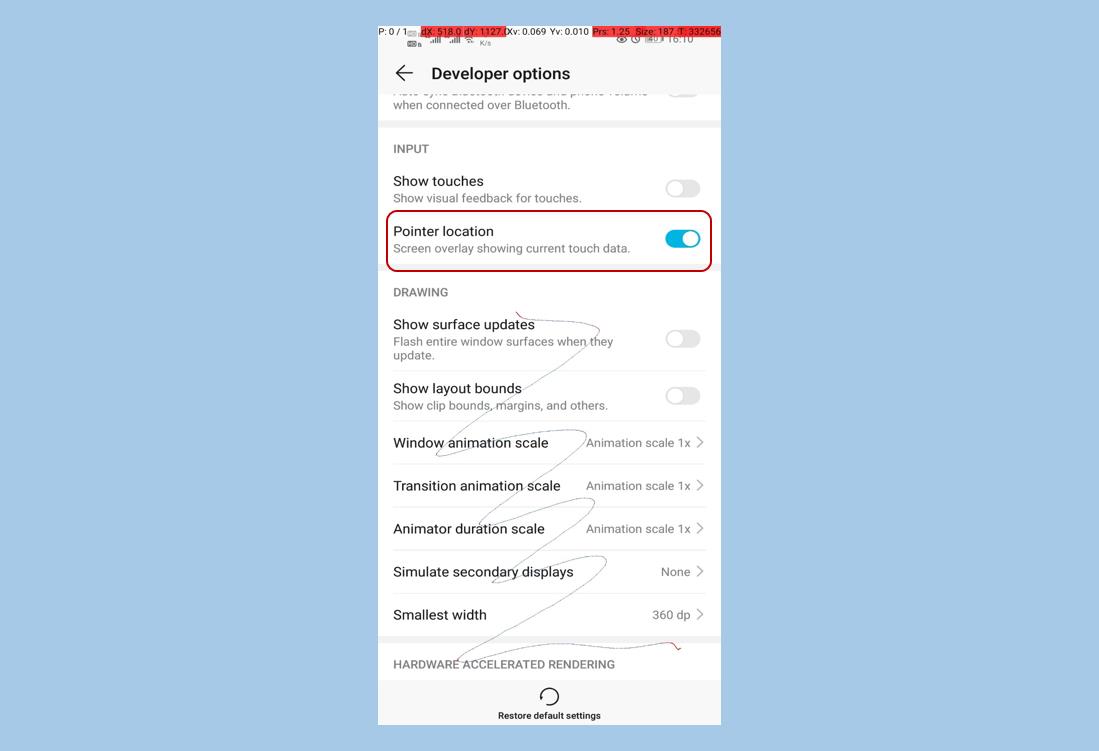
If the touch line is continuous and it follows your finger touch point closely, your phone is normal. The problem may be caused by the system, network, or app freezing. Restart your phone and try again. If the problem persists and only occurs when using a certain third-party app, re-install the app or update the app to the latest version.
If the touch lines is not continuous, nor it cannot follow your finger touch point closely, it may be a touchscreen hardware problem. Back up your data and take your device and proof of purchase to an authorized Huawei Customer Service Center for assistance.


- Posts
- Following
- Followers
- Energy
-

Yummy_Engineer
-
+ Follow

-
- 22 Posts
- 0 Following
- 36 Followers
- 752 Energy



- Posts
- photo
- video

If the touchscreen of your phone is unresponsive or insensitive, this might be caused by external interferences such as static electricity affecting, you can restart your phone and try again.
If the problem persists after restarting the phone, you can follow the tips below to troubleshoot:
1. If there are water stains or dirt on the screen
Clean the screen and try again later. Water stains or dirt may cause the screen to be unresponsive.
2. If the problem occurs after a third-party screen protector is attached
The third-party screen protector may be too thick.
3. If Gloves mode is enabled
The touchscreen may become extra sensitive. When you touch it without glove, the screen may not respond properly.
4. If this problem only occurs during charging
Use a standard charger and data cable try again. If the problem persists, back up your data, and take your phone, standard charger, data cable, and proof of purchase to an authorized Huawei Customer Service for assistance.
5. If there is a strong electromagnetic field nearby, such as from a microwave oven, an induction cooker, or a power station
Move away from the electromagnetic field and try again.
6. If the ambient temperature is lower than –20°C or higher than 50°C
An extreme ambient temperature may affect the screen performance. In this case, do not use you phone until move to the normal ambient temperature.
If the problem still not solved according to the above steps, it is recommended to test as follows:
1. Search for Build number in Settings, and click the Build number seven times consecutively until "You are now a developer!" is displayed
2. Search for Pointer location in settings and enable it. Touch the screen to check touch lines.
If the touch line is continuous and it follows your finger touch point closely, your phone is normal. The problem may be caused by the system, network, or app freezing. Restart your phone and try again. If the problem persists and only occurs when using a certain third-party app, re-install the app or update the app to the latest version.
If the touch lines is not continuous, nor it cannot follow your finger touch point closely, it may be a touchscreen hardware problem. Back up your data and take your device and proof of purchase to an authorized Huawei Customer Service Center for assistance.