



 More Products
 Compare














我的荣耀 开启荣耀之旅



 Disagree Terms
 Log out




User Guidelines: All you need to know about the latest HONOR MagicBook 14/15 2021!


 Last reply :
Dear HONOR fans,
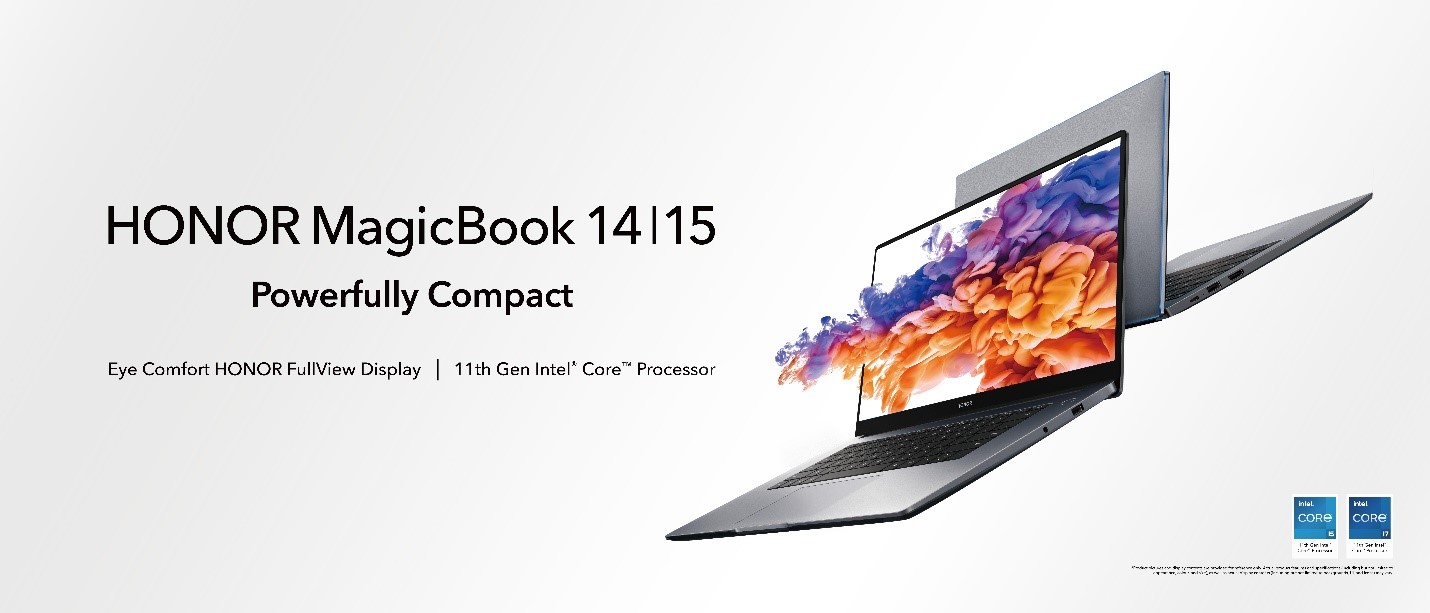
Welcome to the official User Guidelines for the latest HONOR MagicBook 14/15!
They say good things come in small packages, and that’s certainly true for the Powerfully Compact HONOR MagicBook. With our new generation of stunning laptops, we’re taking it up a notch, bringing you even more power and performance, in the same streamlined, stylish package. Read on to find out all about how the 11th Gen Intel® Core Processor, improved FullView Display, Wifi 6 compatibility and a host of expanded features can bring you an unparalleled experience for work and play.
Work Light, Work Smart
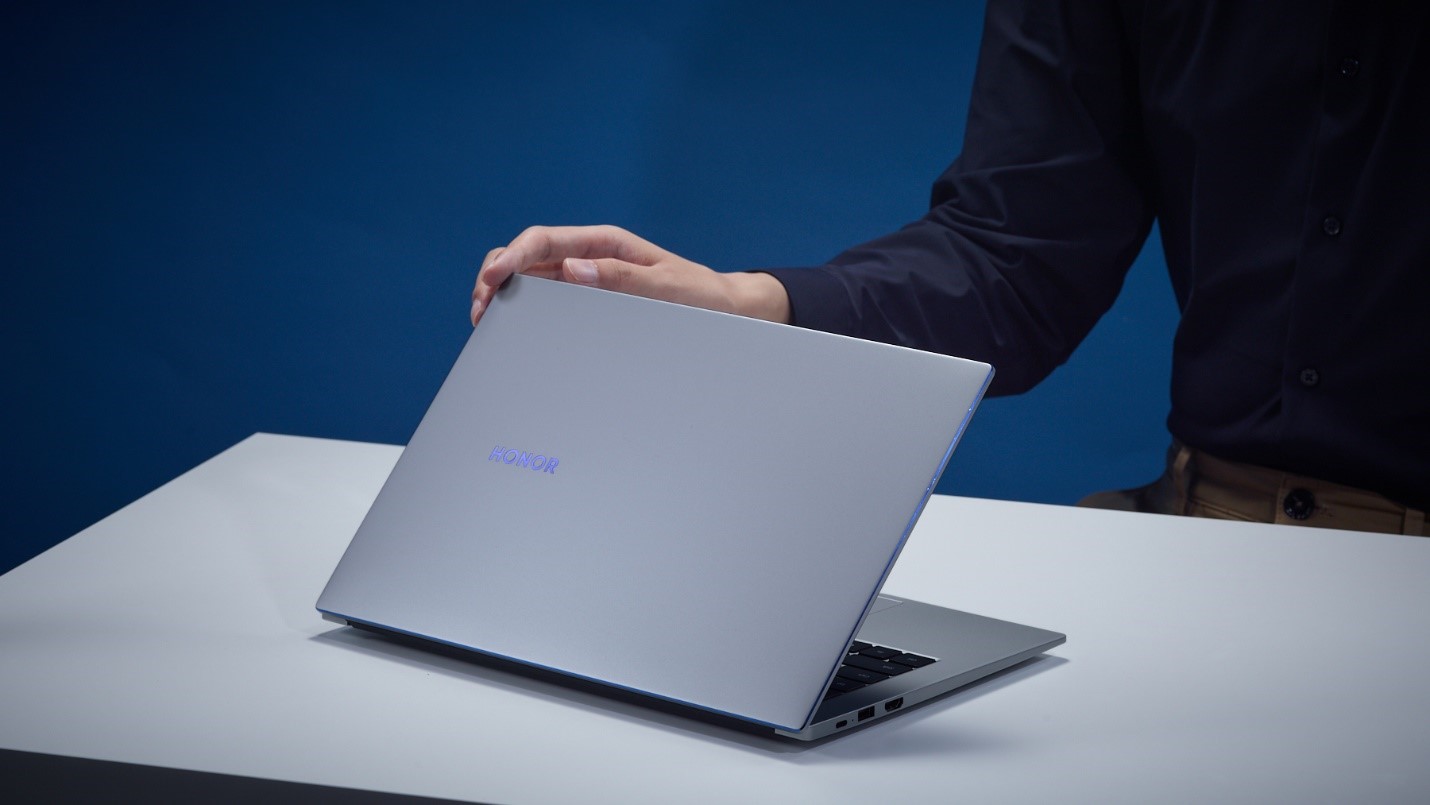
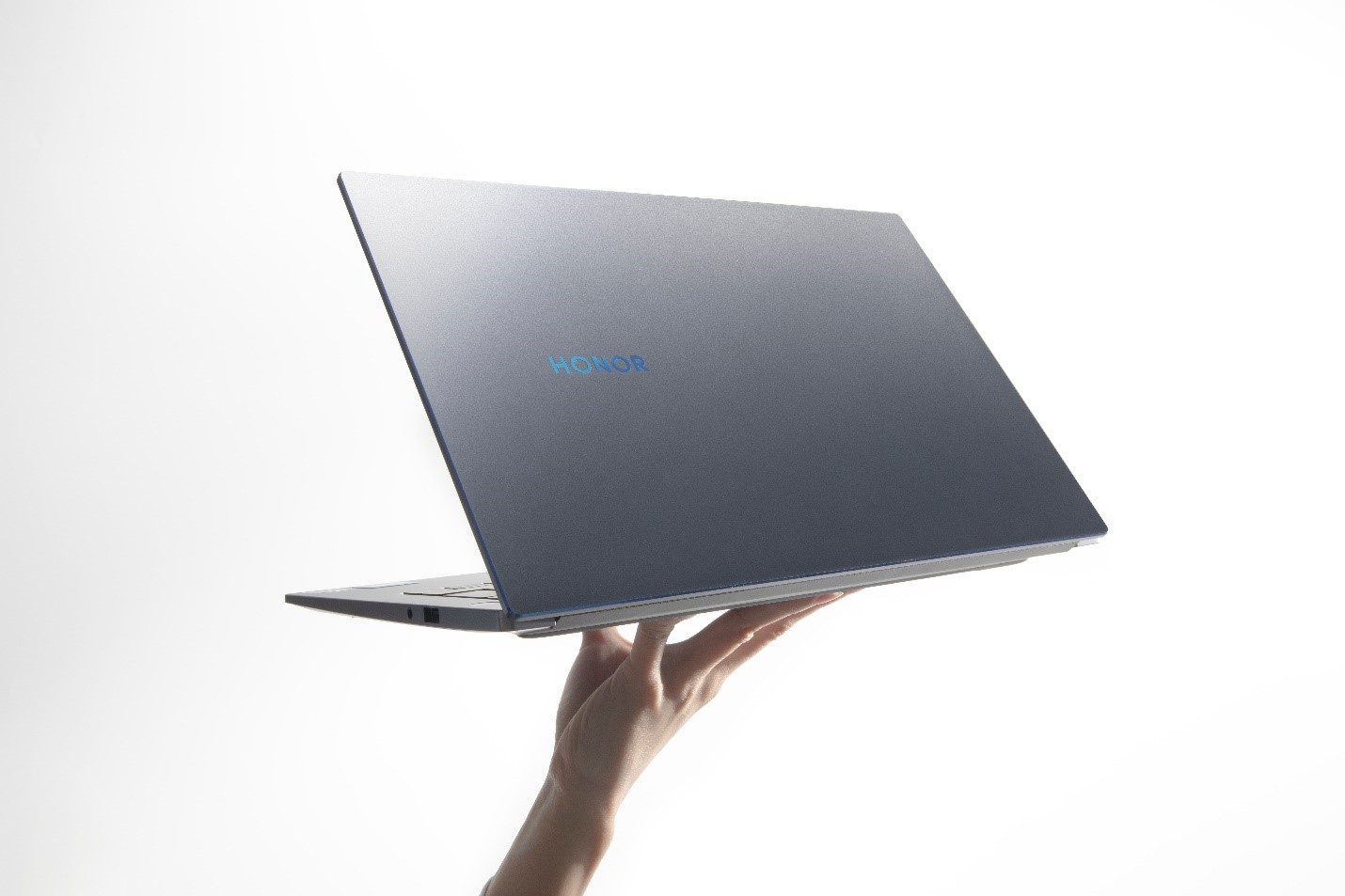
How we work, and where we work, has changed. The compact, light and thin aluminum chassis design of the HONOR MagicBook 14 makes it the ideal modern working companion, whether you’re working remote or on-the-go. Weighing just 1.38 kg, with thin 15.9 mm bezels and an 84% screen-to-body ratio, the HONOR MagicBook’s sleek silhouette is compact, slim, and stylish, so you can experience outstanding portability and performance, and future-proof yourself for whatever the working world has to throw at you.
Vivid display, easy on the eyes
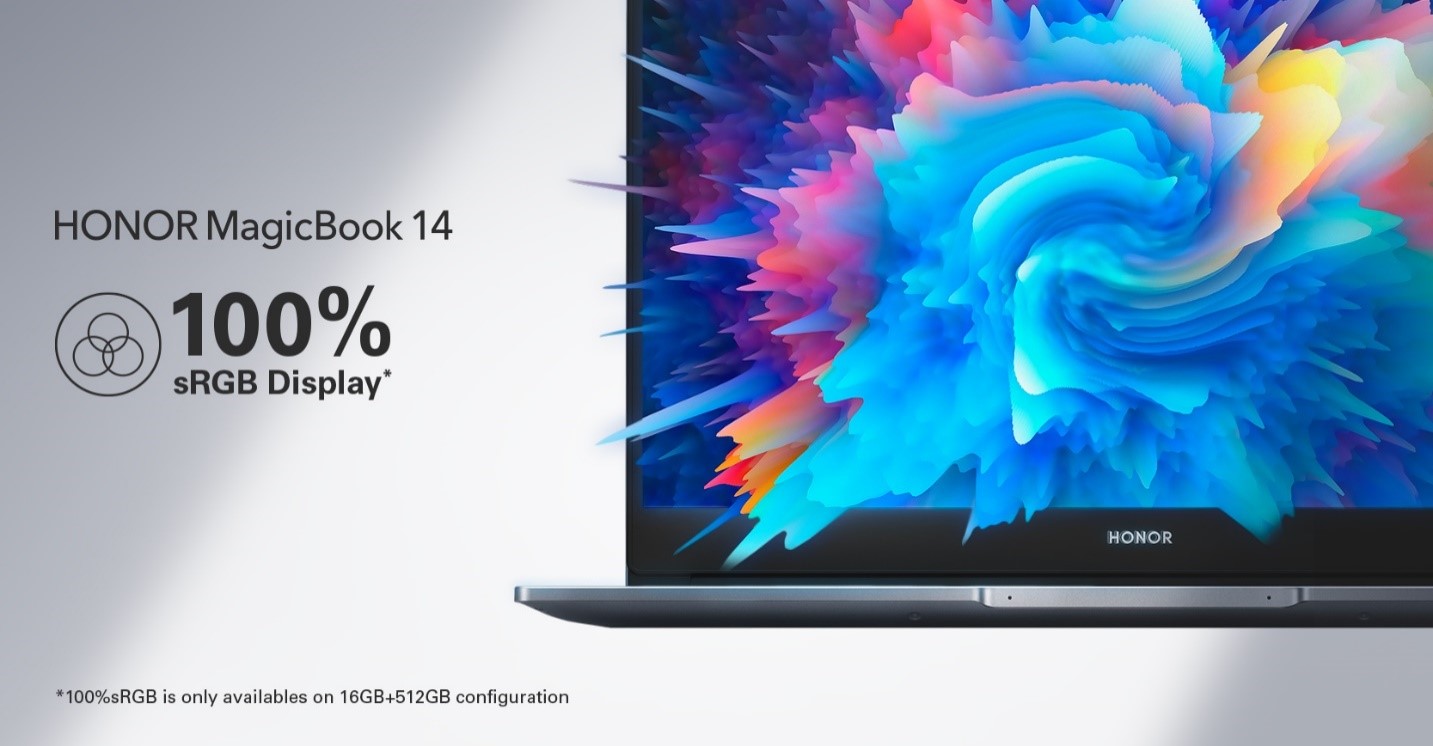
Between work and entertainment these days, screen time can take its toll. The HONOR MagicBook’s crystal clear visuals with added comfort features, give you the best of both worlds. The 14-inch stunning HONOR FullView Display offers a 100% sRGB color gamut at 300 nits for richer colors and true-to-life imagery.
With a TÜV Rheinland Low Blue Light Certification, TÜV Rheinland Flicker-free Certification and DC dimming technology, harmful blue light can be reduced by 50%. What’s more, HONOR’s Eye Comfort mode allows three different colour tones: Default, Warm and Cool, which means minimum eye fatigue and maximum enjoyment at any time of the day.
Powerful Performance, Cool under Pressure
Discover cutting-edge power of the 11th Gen Intel® Core™ i7-1165G7 Intel® processor, delivering unparalleled mobile performance, outstanding graphic visuals and excellent power efficiency. Overall performance has increased by 21%, compared to the previous gen, with CPU frequency up to 4.7 GHz, perfect for users who enjoy faster speed for demanding tasks, including graphic design, video editing and gaming. With 512 GB of storage and 16 GB of DDR4 dual-channel RAM, the HONOR MagicBook 14 also delivers a 50% improved transmission rate compared to single-channel mode, enabling you to process heavy duty tasks with greater ease and efficiency.
This is possible thanks to the HONOR MagicBook’s advanced cooling system, housing a supersized cooling fan and dual heat pipes to further enhance its efficiency, with up to 38% higher air intake. This enables efficient heat dissipation and reduces noise even while using graphic design software, intense gaming, or long periods of music playing.
Play Hard
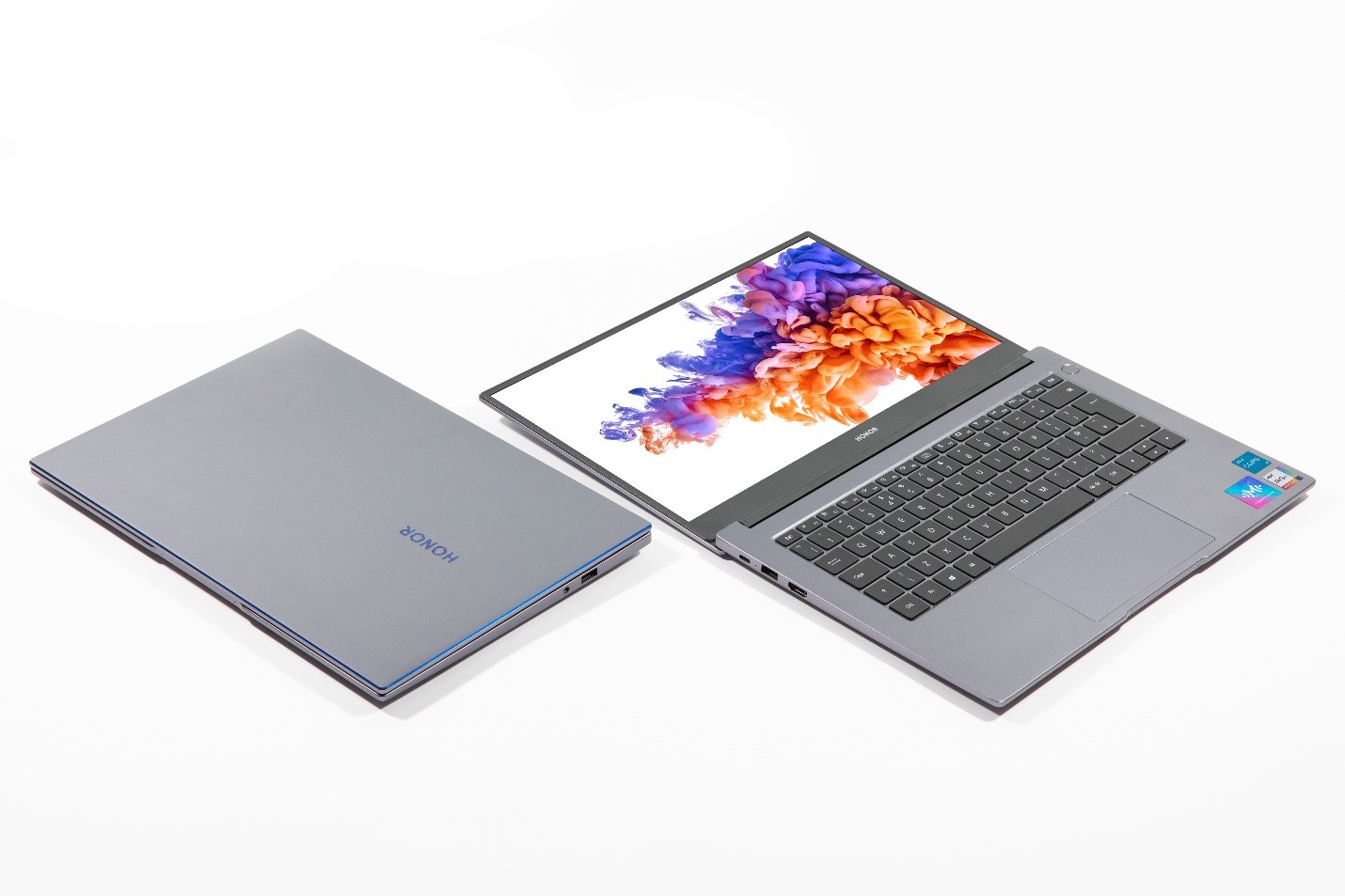
On top of the latest processor, the HONOR MagicBook 14 comes equipped with Intel® Iris® Xe Graphics, supporting richer gaming experiences and greater speed for processing multimedia files, including photos, videos, and different editing software. Virtual surround sound brings this experience to life. Hear every note and immerse yourself in enhanced sound quality that you can lose yourself in for hours. If you’re doing some heavy-duty gaming or work, such as editing large-sized files and playing 4K videos, you can opt for Performance Mode (Fn+P) to help handle heavy duty tasks smoothly and process data at an ultra-fast speed.
Wifi Wizardry
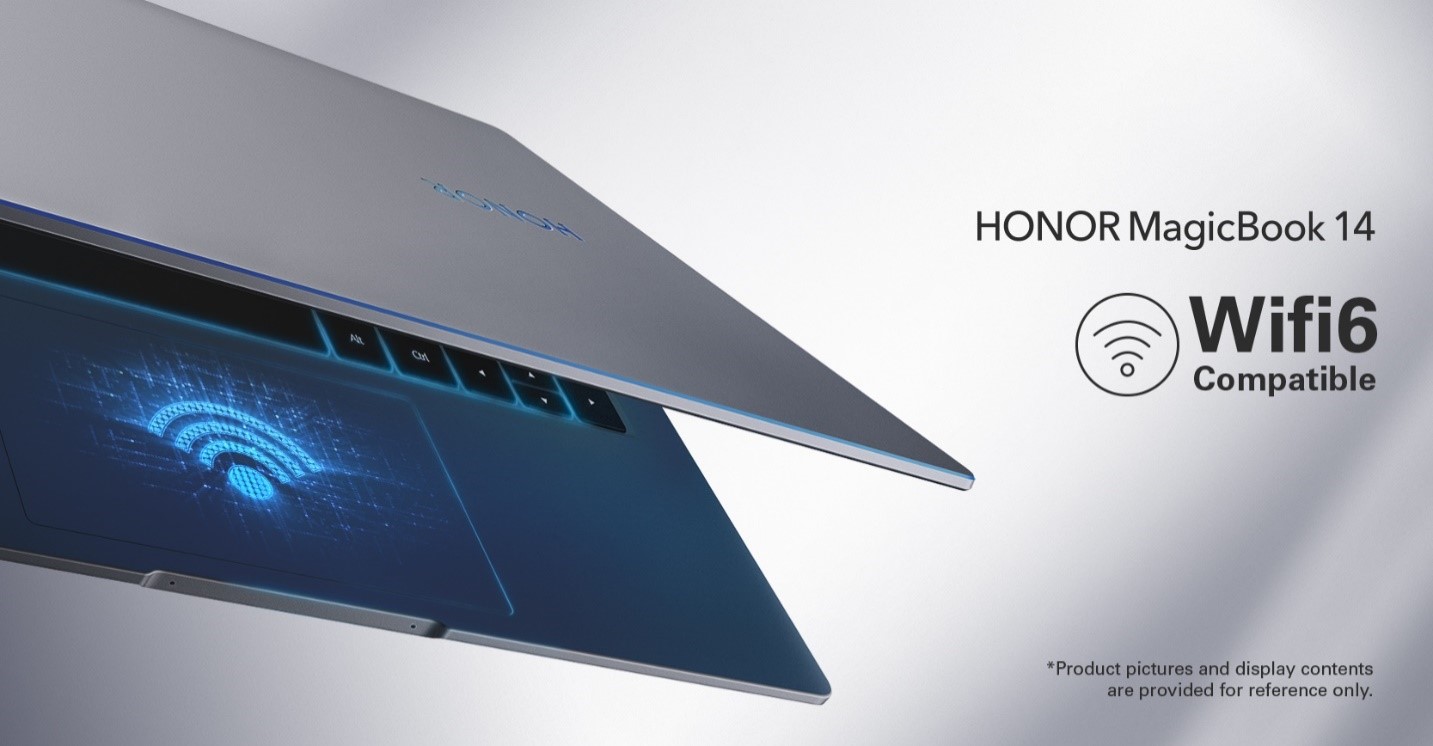
Thanks to the built-in 2 x 2 MIMO dual-antenna, the HONOR MagicBook 14 can achieve a connection speed of 2400 Mbps with Wi-Fi 6 enabled, which is 2.7 times faster than the connection speed of Wi-Fi 5. You can enjoy a high-speed and seamless Internet connection while watching *, playing computer games and entertaining yourself online.
With Wi-Fi 6 enabled, the file transmission speed from an HONOR MagicBook 14 to a smartphone can be increased by 60%. You can easily transfer a photo from your smartphone to the HONOR MagicBook 14 for photo editing at an ultra-fast speed under the Wi-Fi 6 network.
Brilliant Battery
The HONOR MagicBook makes low-battery anxiety a thing of the past. The massive 56 Wh battery can support 1080P of local video playback for up to 10.5 hours on a single full charge, so you can enjoy uninterrupted *, music, and online conference calls with your friends all-day-long. Charging won’t slow you down either. Weighing at just 200 g, the 65 W Fast Charger can power the device up from 0 to 44% within 30 mins and supports reverse charging even when it is shut down.
After the descriptions about the new HONOR MagicBook 14/15 2021, let’s explore a little bit more about some instructions.
Step 1: Connecting to a network
1 Click in the lower right corner of your desktop to open the Wi-Fi network connection
screen.
2 Select the name of the Wi-Fi network you want to connect to and follow the onscreen
instructions to establish a connection. Some Wi-Fi networks may require a network
security key or password to establish a connection.
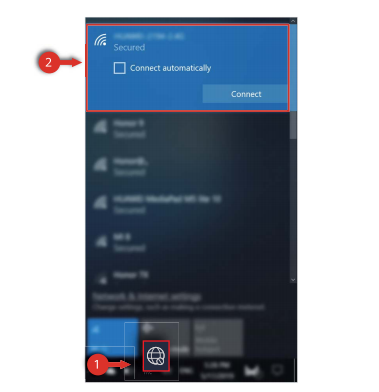
Notice: If the computer is connected to network for the first time, a dialog box will be displayed.
Click OK and configure the settings as required.
Step 2: Activating Windows
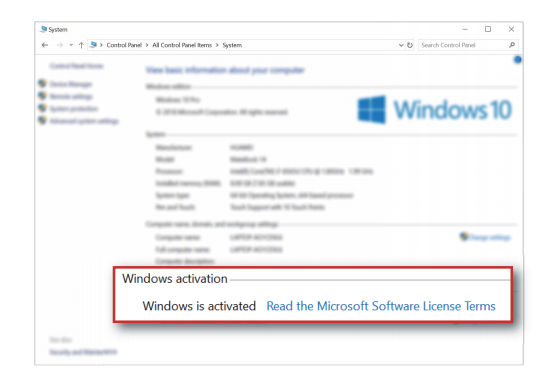
Windows automatically activates upon the initial network connection. You can also check
whether Windows is activated from the Control Panel.
If Windows activation fails, restart your computer and reconnect to the network; if the issue
persists, connect to a different network or wait a moment and try again.
• If Windows is not activated, some features on your computer may be restricted.
• Activating Windows may affect the return of the product. For more information, please
refer to the product's warranty policy.
Step 3: Activating Office
• If your computer is pre-installed with Office Home and Student Edition, it is recommended that you complete Office activation within 6 months after activation of the Windows system. After activation, you can use Office software permanently.
• If your computer is not pre-installed with Office Home and Student Edition, you can purchase legitimate version Office software separately as needed.
After the Windows system is connected to the Internet, right-click the blank space on the desktop to create a new Word, Excel or PPT document, open the new document, and complete Office activation according to the instructions.
Step 4: Enrolling a fingerprint
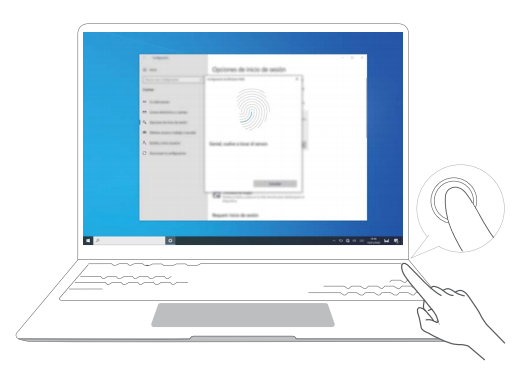
Your computer utilizes a fingerprint-sensing power button. After enrolling a finªrÝr²nìȀ you
can press the Power button to quickly and securely power on and unlock your computer,
without the need to enter a password.
If you have skipped the fingerprint enrollment process during the initial setup phase, go to

In Windows Hello, set your login password and PIN code, and then
follow the onscreen instructions to enroll your fingerprints
Notice;
• Ensure that your finger are clean and free of substances. Otherwise, it will affect the
quality of the finger enrollment.
• Each user can enroll up to 10 fingerprints per account
Step 5: Updating the drivers
Driver updates can improve the stability and performance of your computer software and
hardware.
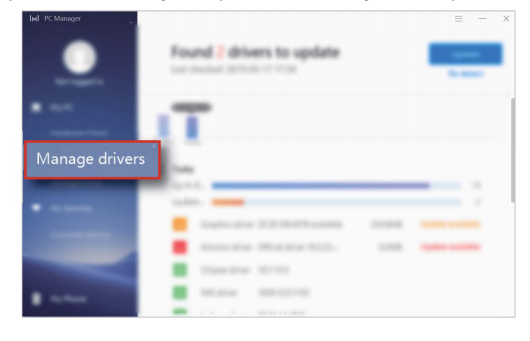
Open PC Manager and click Manager drivers. If a new driver update is available, follow the
onscreen instructions to complete the update.
For a better user experience, it is recommended that you check and update your drivers
regularly to improve the stability and performance of your computer.
And there are many highlighted features on our new HONOR MagicBook 14/15 Intel 11
HONOR Magic-link
With HONOR Magic-link, you can quickly transfer images, videos, and documents, as well as
share clipboards and documents between your computer and phone, all without the need of
a data cable.
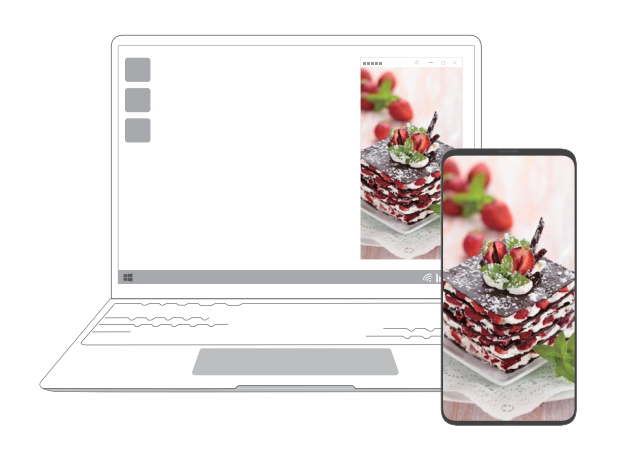
• Multi-Screen Collaboration: Once your phone is connected to the laptop, the phone
screen will automatically pop up on the laptop. Easily maneuver around your phone with a
larger screen!
• Magic-link File Sharing: Transfers images, videos, and documents between your phone and
computer at high speeds.
• Magic-link Screen Recording: Shake your phone and tap to record your PC screen
automatically for 60s. The recording will be saved to your phone for quick sharing.
Currently, Magic-link Screen Recording feature is only available on computers with the
Intel chip.
• Magic-link Clipboard Sharing: Allows you to copy content from your phone and paste it
on your computer, and vice versa.
Eye Comfort mode
When reading for prolonged periods, enable Eye Comfort mode on your computer to reduce
blue light output and prevent eye strain and fatigue.
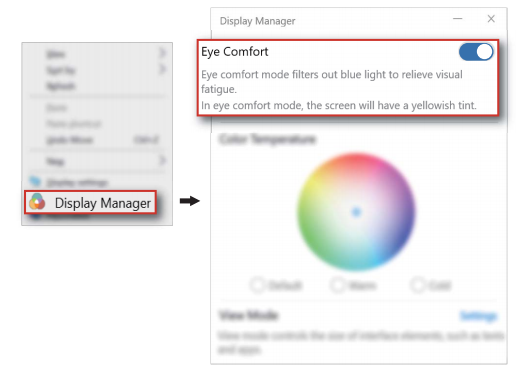
Right-click any blank area on the desktop and select Display Manager. Enable Eye Comfort.
Eye Comfort mode reduces the amount of blue light emitted from the screen, which may
give the screen a slightly yellow hue.
F10 system reset/factory reset
If your computer system encounters a serious problem as a result of a virus, malware, etc.,
the built-in F10 system reset/factory reset feature can quickly restore your computer to its
initial or factory state.
Notice: Before restoring the factory settings, back up all files on the drive C.
1 Connect your computer to the charger. Press and hold F10 when powering on your
computer to access the restore screen.
2 Follow the onscreen instructions to restore your computer to the factory settings.
So, as you can see, with the new HONOR MagicBook, we’ve truly taken things to the next level.
Work smart, play hard and connect faster than ever before.
We can’t wait for you to experience it and put the features to the test.


- Posts
- Following
- Followers
- Energy
-

 Matt HONOR
Community Team
Matt HONOR
Community Team
-
+ Follow

-
- 565 Posts
- 67 Following
- 2490 Followers
- 50508 Energy



- Posts
- photo
- video

Dear HONOR fans,
Welcome to the official User Guidelines for the latest HONOR MagicBook 14/15!
They say good things come in small packages, and that’s certainly true for the Powerfully Compact HONOR MagicBook. With our new generation of stunning laptops, we’re taking it up a notch, bringing you even more power and performance, in the same streamlined, stylish package. Read on to find out all about how the 11th Gen Intel® Core Processor, improved FullView Display, Wifi 6 compatibility and a host of expanded features can bring you an unparalleled experience for work and play.
Work Light, Work Smart
How we work, and where we work, has changed. The compact, light and thin aluminum chassis design of the HONOR MagicBook 14 makes it the ideal modern working companion, whether you’re working remote or on-the-go. Weighing just 1.38 kg, with thin 15.9 mm bezels and an 84% screen-to-body ratio, the HONOR MagicBook’s sleek silhouette is compact, slim, and stylish, so you can experience outstanding portability and performance, and future-proof yourself for whatever the working world has to throw at you.
Vivid display, easy on the eyes
Between work and entertainment these days, screen time can take its toll. The HONOR MagicBook’s crystal clear visuals with added comfort features, give you the best of both worlds. The 14-inch stunning HONOR FullView Display offers a 100% sRGB color gamut at 300 nits for richer colors and true-to-life imagery.
With a TÜV Rheinland Low Blue Light Certification, TÜV Rheinland Flicker-free Certification and DC dimming technology, harmful blue light can be reduced by 50%. What’s more, HONOR’s Eye Comfort mode allows three different colour tones: Default, Warm and Cool, which means minimum eye fatigue and maximum enjoyment at any time of the day.
Powerful Performance, Cool under Pressure
Discover cutting-edge power of the 11th Gen Intel® Core™ i7-1165G7 Intel® processor, delivering unparalleled mobile performance, outstanding graphic visuals and excellent power efficiency. Overall performance has increased by 21%, compared to the previous gen, with CPU frequency up to 4.7 GHz, perfect for users who enjoy faster speed for demanding tasks, including graphic design, video editing and gaming. With 512 GB of storage and 16 GB of DDR4 dual-channel RAM, the HONOR MagicBook 14 also delivers a 50% improved transmission rate compared to single-channel mode, enabling you to process heavy duty tasks with greater ease and efficiency.
This is possible thanks to the HONOR MagicBook’s advanced cooling system, housing a supersized cooling fan and dual heat pipes to further enhance its efficiency, with up to 38% higher air intake. This enables efficient heat dissipation and reduces noise even while using graphic design software, intense gaming, or long periods of music playing.
Play Hard
On top of the latest processor, the HONOR MagicBook 14 comes equipped with Intel® Iris® Xe Graphics, supporting richer gaming experiences and greater speed for processing multimedia files, including photos, videos, and different editing software. Virtual surround sound brings this experience to life. Hear every note and immerse yourself in enhanced sound quality that you can lose yourself in for hours. If you’re doing some heavy-duty gaming or work, such as editing large-sized files and playing 4K videos, you can opt for Performance Mode (Fn+P) to help handle heavy duty tasks smoothly and process data at an ultra-fast speed.
Wifi Wizardry
Thanks to the built-in 2 x 2 MIMO dual-antenna, the HONOR MagicBook 14 can achieve a connection speed of 2400 Mbps with Wi-Fi 6 enabled, which is 2.7 times faster than the connection speed of Wi-Fi 5. You can enjoy a high-speed and seamless Internet connection while watching *, playing computer games and entertaining yourself online.
With Wi-Fi 6 enabled, the file transmission speed from an HONOR MagicBook 14 to a smartphone can be increased by 60%. You can easily transfer a photo from your smartphone to the HONOR MagicBook 14 for photo editing at an ultra-fast speed under the Wi-Fi 6 network.
Brilliant Battery
The HONOR MagicBook makes low-battery anxiety a thing of the past. The massive 56 Wh battery can support 1080P of local video playback for up to 10.5 hours on a single full charge, so you can enjoy uninterrupted *, music, and online conference calls with your friends all-day-long. Charging won’t slow you down either. Weighing at just 200 g, the 65 W Fast Charger can power the device up from 0 to 44% within 30 mins and supports reverse charging even when it is shut down.
After the descriptions about the new HONOR MagicBook 14/15 2021, let’s explore a little bit more about some instructions.
Step 1: Connecting to a network
1 Click in the lower right corner of your desktop to open the Wi-Fi network connection
screen.
2 Select the name of the Wi-Fi network you want to connect to and follow the onscreen
instructions to establish a connection. Some Wi-Fi networks may require a network
security key or password to establish a connection.
Notice: If the computer is connected to network for the first time, a dialog box will be displayed.
Click OK and configure the settings as required.
Step 2: Activating Windows
Windows automatically activates upon the initial network connection. You can also check
whether Windows is activated from the Control Panel.
If Windows activation fails, restart your computer and reconnect to the network; if the issue
persists, connect to a different network or wait a moment and try again.
• If Windows is not activated, some features on your computer may be restricted.
• Activating Windows may affect the return of the product. For more information, please
refer to the product's warranty policy.
Step 3: Activating Office
• If your computer is pre-installed with Office Home and Student Edition, it is recommended that you complete Office activation within 6 months after activation of the Windows system. After activation, you can use Office software permanently.
• If your computer is not pre-installed with Office Home and Student Edition, you can purchase legitimate version Office software separately as needed.
After the Windows system is connected to the Internet, right-click the blank space on the desktop to create a new Word, Excel or PPT document, open the new document, and complete Office activation according to the instructions.
Step 4: Enrolling a fingerprint
Your computer utilizes a fingerprint-sensing power button. After enrolling a finªrÝr²nìȀ you
can press the Power button to quickly and securely power on and unlock your computer,
without the need to enter a password.
If you have skipped the fingerprint enrollment process during the initial setup phase, go to
In Windows Hello, set your login password and PIN code, and then
follow the onscreen instructions to enroll your fingerprints
Notice;
• Ensure that your finger are clean and free of substances. Otherwise, it will affect the
quality of the finger enrollment.
• Each user can enroll up to 10 fingerprints per account
Step 5: Updating the drivers
Driver updates can improve the stability and performance of your computer software and
hardware.
Open PC Manager and click Manager drivers. If a new driver update is available, follow the
onscreen instructions to complete the update.
For a better user experience, it is recommended that you check and update your drivers
regularly to improve the stability and performance of your computer.
And there are many highlighted features on our new HONOR MagicBook 14/15 Intel 11
HONOR Magic-link
With HONOR Magic-link, you can quickly transfer images, videos, and documents, as well as
share clipboards and documents between your computer and phone, all without the need of
a data cable.
• Multi-Screen Collaboration: Once your phone is connected to the laptop, the phone
screen will automatically pop up on the laptop. Easily maneuver around your phone with a
larger screen!
• Magic-link File Sharing: Transfers images, videos, and documents between your phone and
computer at high speeds.
• Magic-link Screen Recording: Shake your phone and tap to record your PC screen
automatically for 60s. The recording will be saved to your phone for quick sharing.
Currently, Magic-link Screen Recording feature is only available on computers with the
Intel chip.
• Magic-link Clipboard Sharing: Allows you to copy content from your phone and paste it
on your computer, and vice versa.
Eye Comfort mode
When reading for prolonged periods, enable Eye Comfort mode on your computer to reduce
blue light output and prevent eye strain and fatigue.
Right-click any blank area on the desktop and select Display Manager. Enable Eye Comfort.
Eye Comfort mode reduces the amount of blue light emitted from the screen, which may
give the screen a slightly yellow hue.
F10 system reset/factory reset
If your computer system encounters a serious problem as a result of a virus, malware, etc.,
the built-in F10 system reset/factory reset feature can quickly restore your computer to its
initial or factory state.
Notice: Before restoring the factory settings, back up all files on the drive C.
1 Connect your computer to the charger. Press and hold F10 when powering on your
computer to access the restore screen.
2 Follow the onscreen instructions to restore your computer to the factory settings.
So, as you can see, with the new HONOR MagicBook, we’ve truly taken things to the next level.
Work smart, play hard and connect faster than ever before.
We can’t wait for you to experience it and put the features to the test.