



 More Products
 Compare














我的荣耀 开启荣耀之旅



 Disagree Terms
 Log out




[Tutorials] How to Create a Video Lock Screen


 Last reply :
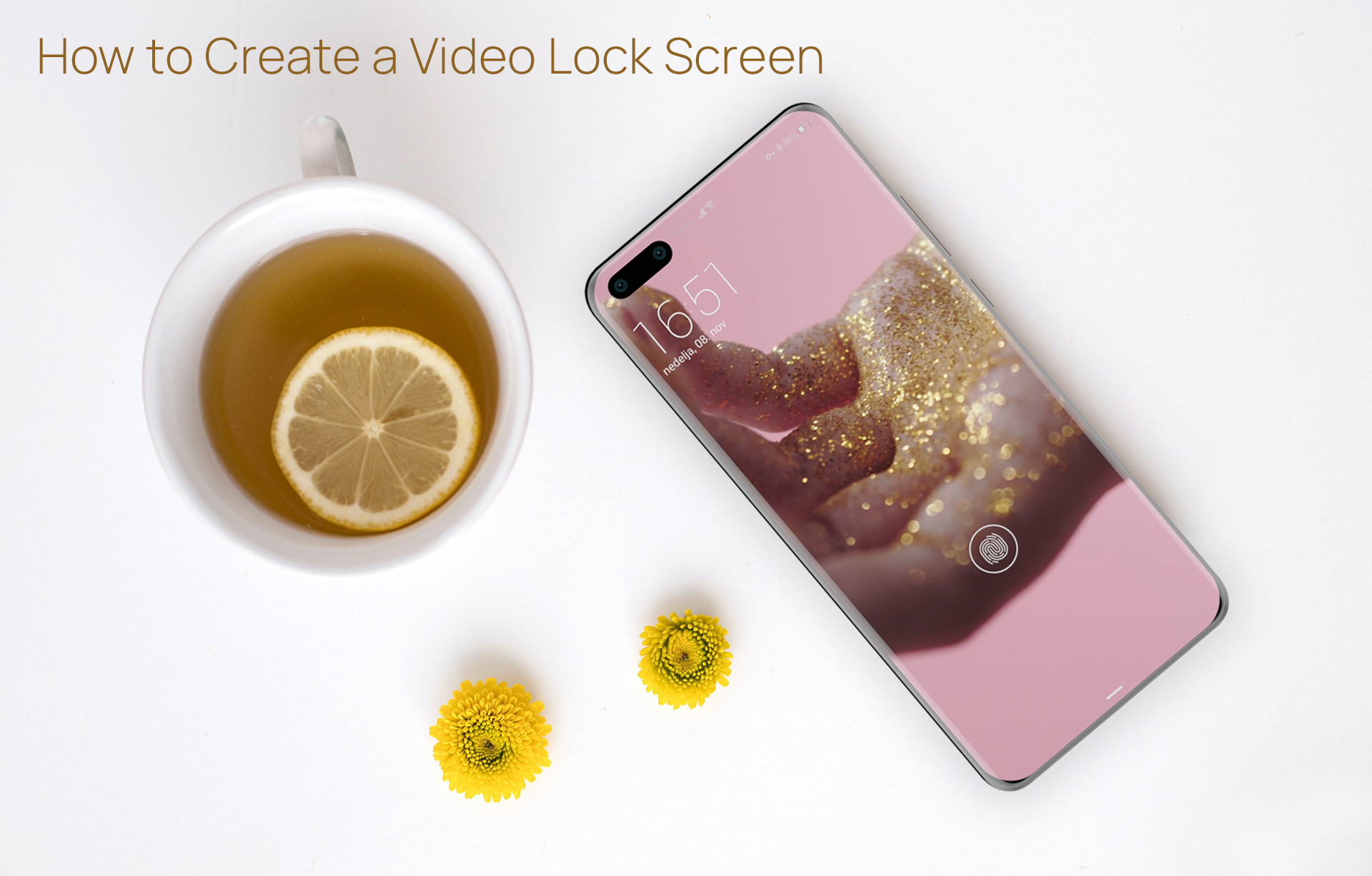
Do you like the lock screen in the image above? I think it looks great, and best of all, it's not a static display but a video clip about 20 seconds long that you can place on your phone's lock screen. How can you do that? Quite simply, you just need to follow the steps below, and at the end of the article there is a link from which you can download the finished video lock screen.
I know it's a bit more advanced than the usual tips & tricks and tutorial posts, but it is really worth it!
Here's what we're going to need:
1. The video clip that we will use for the lock screen
You can download the video needed to prepare the lock screen from the following link:
Download: https://bit.ly/Hand_Full_Of_Gold_Glitters
Of course, you can also use a video that you recorded with your phone or another clip that you downloaded from the Internet, all that matters is that it is a mp4 file in vertical format 1080x1920, with a maximum of 30 FPS, no larger than 20 MB and no longer than 60 seconds.
2. HUAWEI Theme Studio
This tool for creating themes is a free to download application!
You can download the HUAWEI Theme Studio here: https://developer.huawei.com/consumer/en/huawei-theme-studio/
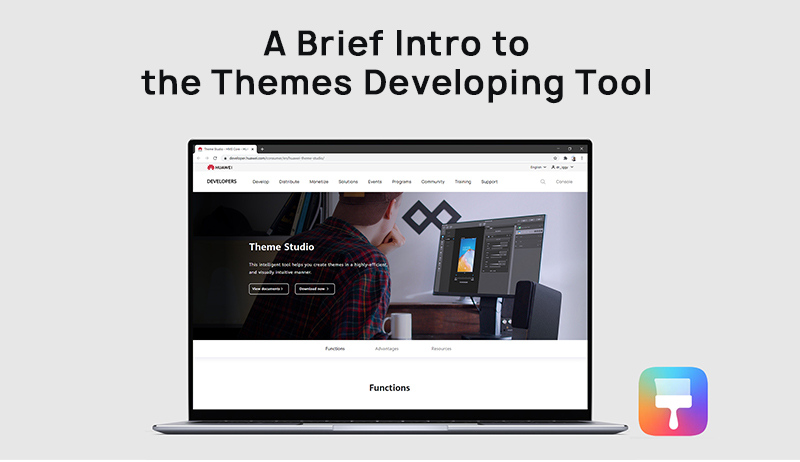
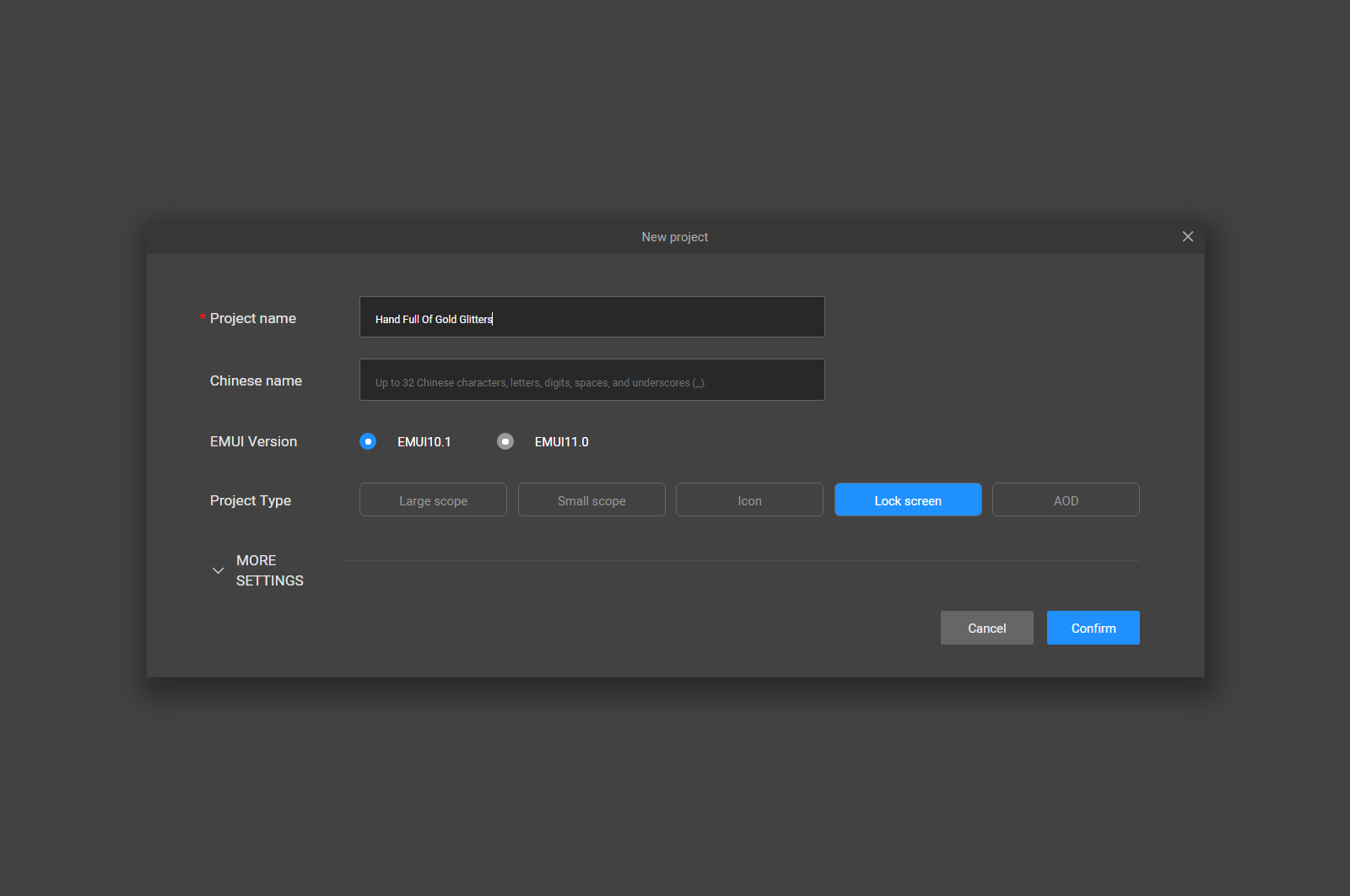
Now that we have everything we need, after installing HUAWEI Theme Studio, run it and open a new project. Enter the project name, select EMUI 10.1 version and Lock screen as the project type.
Next to the navigation bar on the left, where the Unlock option is active, select Video as the lock screen type and confirm your selection by clicking the check mark on the right.
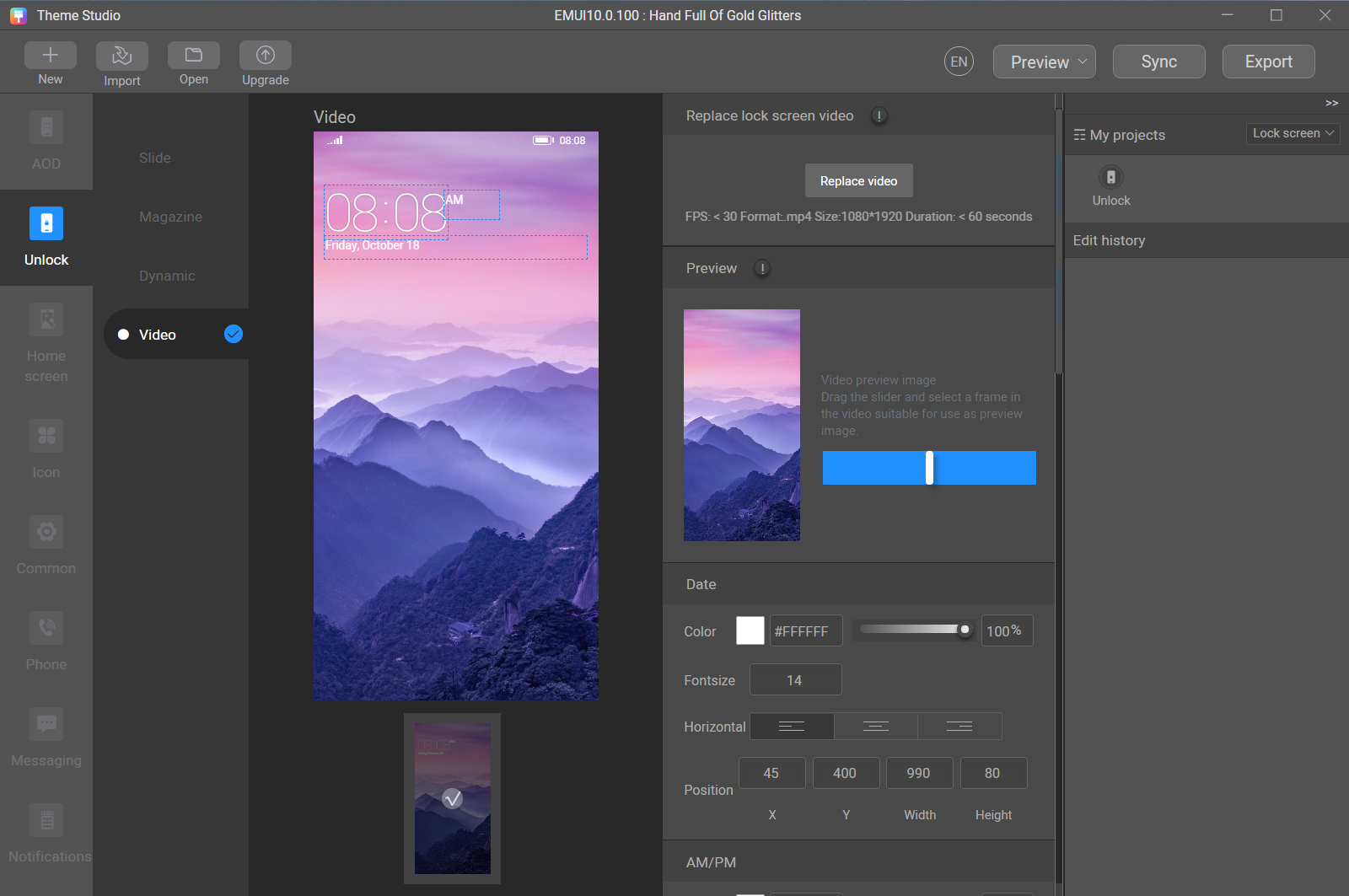
You will notice that the Mountains video, which we have known since the time of Mate 10 Pro, is loaded as the default. To upload your video, click Replace video in the Editing area, and select the video you previously downloaded, after which the preview of the video you added will appear in the Preview and Editing areas.
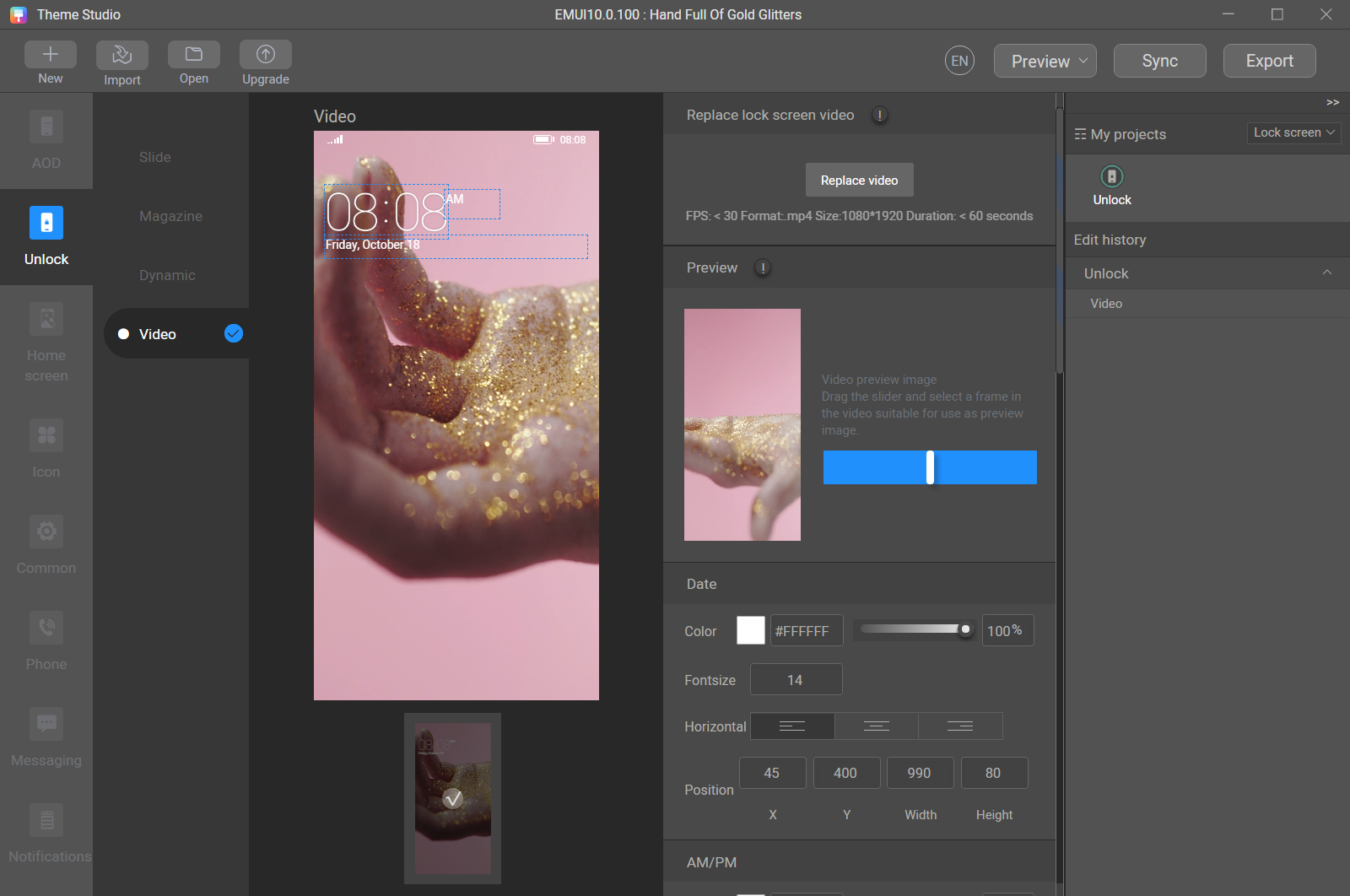
Now use the slider on the blue bar to select the frame you want to use as a preview of your video Lock screen. You'll notice that in addition to the video, you can also customize the look of the different Date elements: color, transparency, font size, horizontal alignment, and position. You can also change the appearance of numbers and dot symbols for Time by replacing the default images of each individual element with your own png files in the specified sizes, and you can adjust the position of Time as well as the spacing between elements. This time, we will leave everything as default, and by clicking on Preview►Screenshot from the Menu bar we will generate previews of the completed video Lock screen.
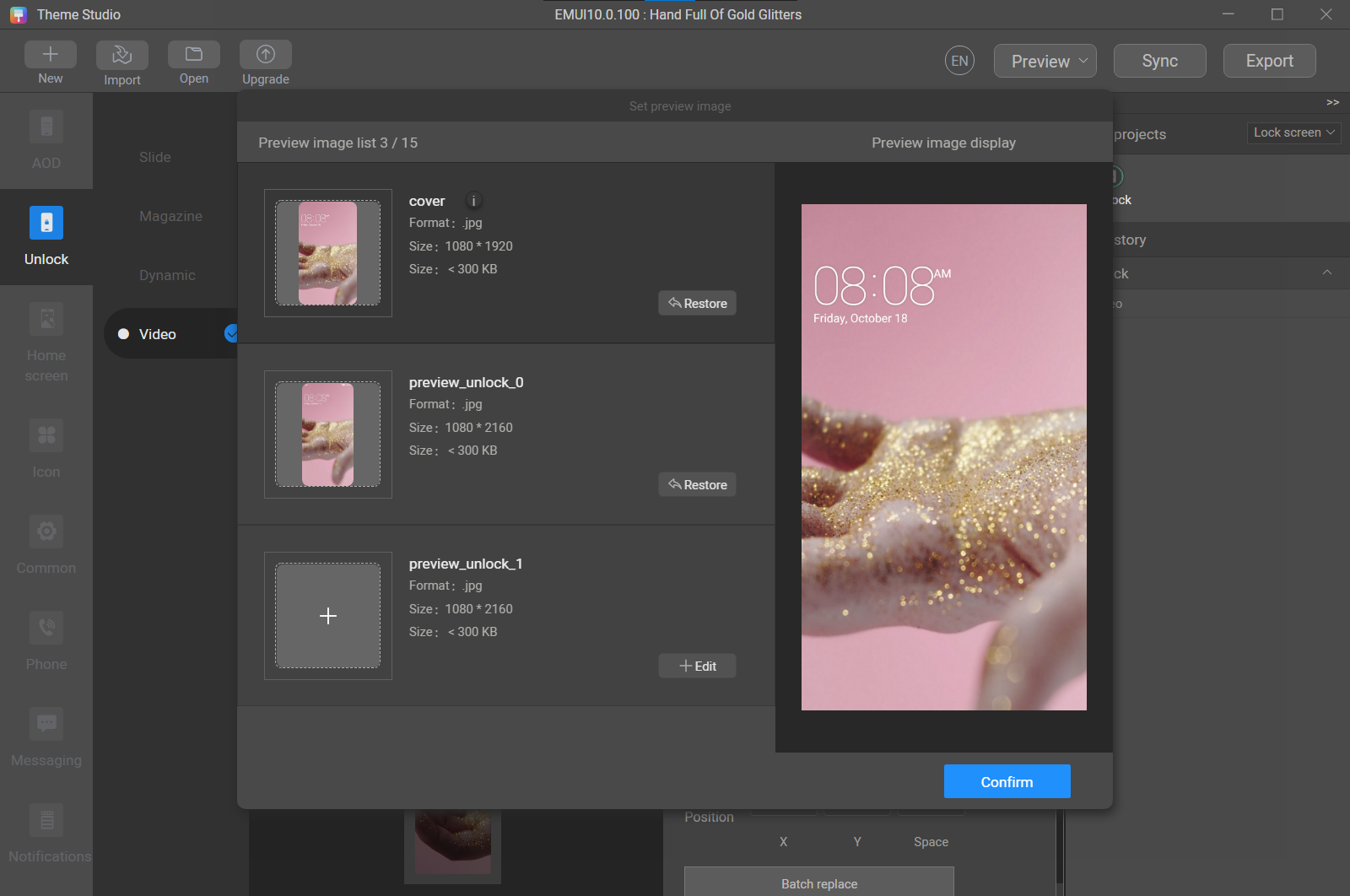
We're almost done. From the Menu bar, click Export (ignore the information that /preview/preview_unlock_1.jpg is missing) and save the finished hwt file in your PC's storage.
And now, a little trick on how to apply video Lock screen to your phone. First you need to download any free Lock screen from the Themes app on your phone - Themes►Lock screens►Free (I chose Simple mirror 1 EN), and apply it. After that, transfer the video Lock screen hwt file you previously created in Theme Editor from your computer to the Huawei►Themes►HWUnlocks folder in the internal memory of your phone. When you open that folder from the Files app on your phone, you will notice that it contains two files: your video Lock screen file, and a file with a strange string of numbers an letters in the name - it's a free Lock screen that you downloaded . First copy the strange file name, then delete that hwt file and rename your video Lock screen hwt file with the copied file name.
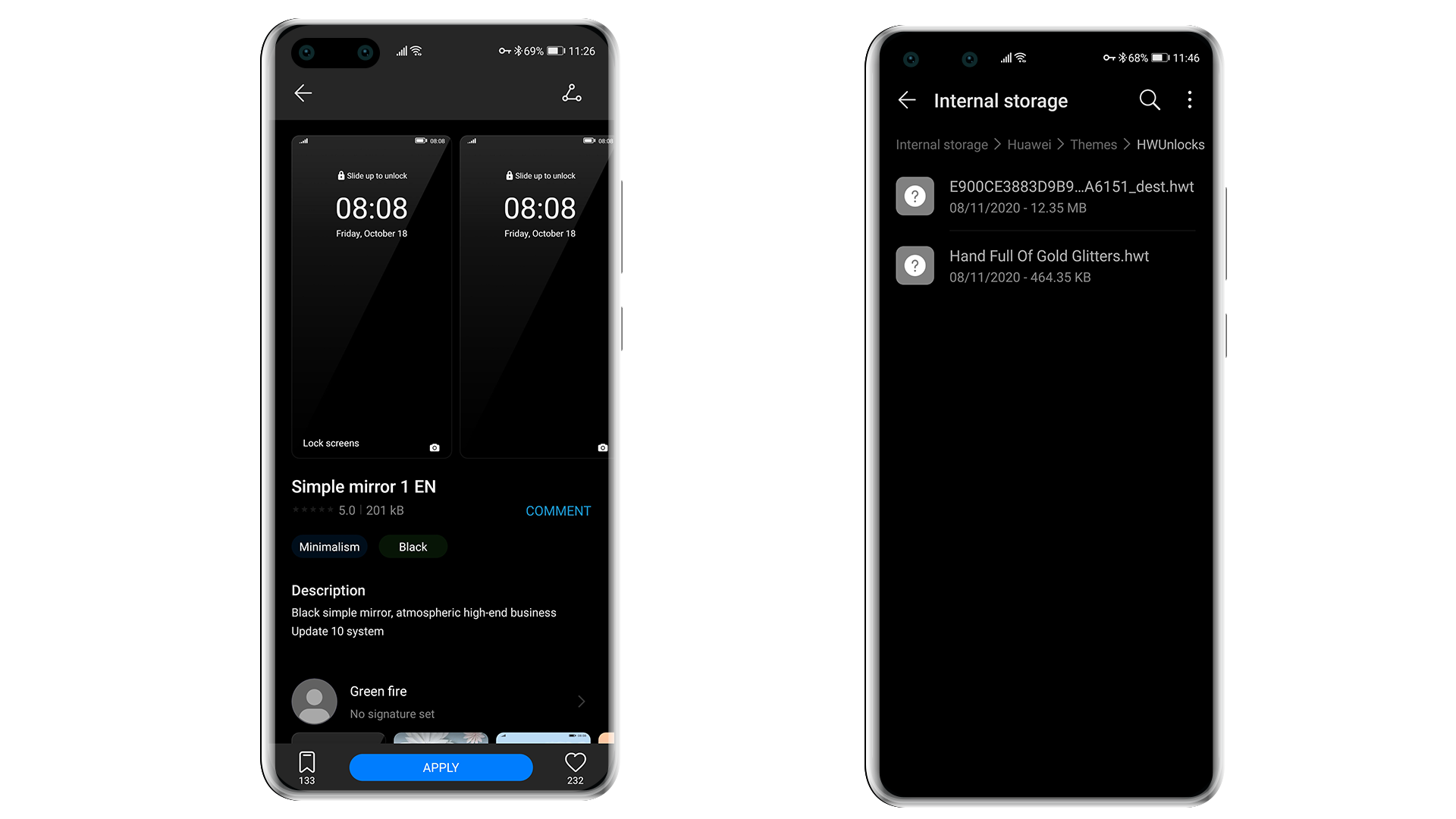
Finally in Themes app on your phone go to Me►Themes►Lock screens, select the free Lock screen that you downloaded and tap Apply again (a preview of the downloaded free Lock screen is shown, but we will actually apply our own video Lock screen). So, how cool is that!
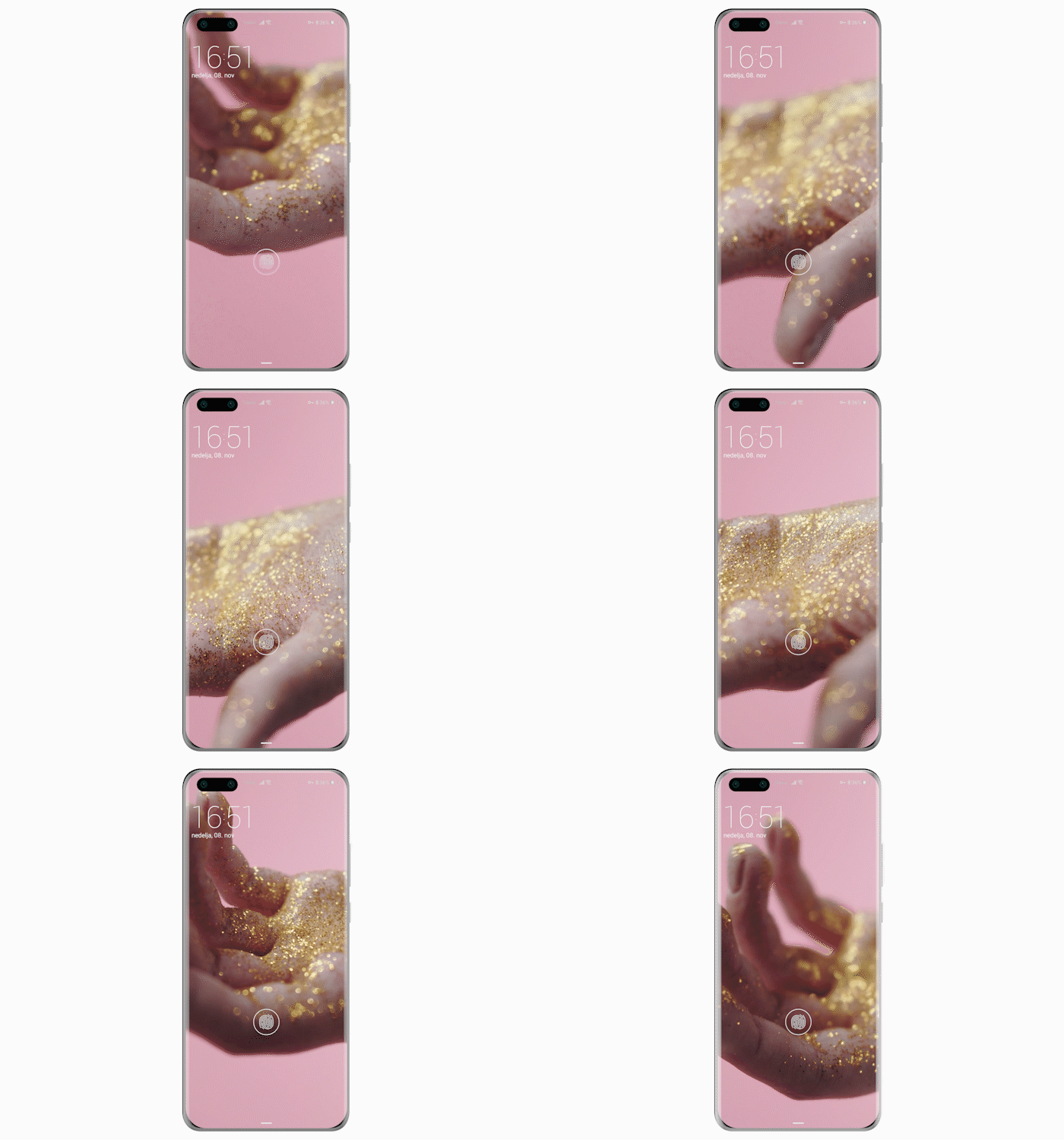
Here is a ready-made video Lock Screen that you can download and apply to your phone according to the above procedure:
Download: https://bit.ly/Hand_Full_Of_Gold_Glitters_HWT
If this tutorial was useful to you, please give it a like :)
Original Creator: dr_iggy


- Posts
- Following
- Followers
- Energy
-

Revolt
-
+ Follow

-
- 131 Posts
- 23 Following
- 252 Followers
- 8524 Energy






- Posts
- photo
- video

Do you like the lock screen in the image above? I think it looks great, and best of all, it's not a static display but a video clip about 20 seconds long that you can place on your phone's lock screen. How can you do that? Quite simply, you just need to follow the steps below, and at the end of the article there is a link from which you can download the finished video lock screen.
I know it's a bit more advanced than the usual tips & tricks and tutorial posts, but it is really worth it!
Here's what we're going to need:
1. The video clip that we will use for the lock screen
You can download the video needed to prepare the lock screen from the following link:
Download: https://bit.ly/Hand_Full_Of_Gold_Glitters
Of course, you can also use a video that you recorded with your phone or another clip that you downloaded from the Internet, all that matters is that it is a mp4 file in vertical format 1080x1920, with a maximum of 30 FPS, no larger than 20 MB and no longer than 60 seconds.
2. HUAWEI Theme Studio
This tool for creating themes is a free to download application!
You can download the HUAWEI Theme Studio here: https://developer.huawei.com/consumer/en/huawei-theme-studio/
Now that we have everything we need, after installing HUAWEI Theme Studio, run it and open a new project. Enter the project name, select EMUI 10.1 version and Lock screen as the project type.
Next to the navigation bar on the left, where the Unlock option is active, select Video as the lock screen type and confirm your selection by clicking the check mark on the right.
You will notice that the Mountains video, which we have known since the time of Mate 10 Pro, is loaded as the default. To upload your video, click Replace video in the Editing area, and select the video you previously downloaded, after which the preview of the video you added will appear in the Preview and Editing areas.
Now use the slider on the blue bar to select the frame you want to use as a preview of your video Lock screen. You'll notice that in addition to the video, you can also customize the look of the different Date elements: color, transparency, font size, horizontal alignment, and position. You can also change the appearance of numbers and dot symbols for Time by replacing the default images of each individual element with your own png files in the specified sizes, and you can adjust the position of Time as well as the spacing between elements. This time, we will leave everything as default, and by clicking on Preview►Screenshot from the Menu bar we will generate previews of the completed video Lock screen.
We're almost done. From the Menu bar, click Export (ignore the information that /preview/preview_unlock_1.jpg is missing) and save the finished hwt file in your PC's storage.
And now, a little trick on how to apply video Lock screen to your phone. First you need to download any free Lock screen from the Themes app on your phone - Themes►Lock screens►Free (I chose Simple mirror 1 EN), and apply it. After that, transfer the video Lock screen hwt file you previously created in Theme Editor from your computer to the Huawei►Themes►HWUnlocks folder in the internal memory of your phone. When you open that folder from the Files app on your phone, you will notice that it contains two files: your video Lock screen file, and a file with a strange string of numbers an letters in the name - it's a free Lock screen that you downloaded . First copy the strange file name, then delete that hwt file and rename your video Lock screen hwt file with the copied file name.
Finally in Themes app on your phone go to Me►Themes►Lock screens, select the free Lock screen that you downloaded and tap Apply again (a preview of the downloaded free Lock screen is shown, but we will actually apply our own video Lock screen). So, how cool is that!
Here is a ready-made video Lock Screen that you can download and apply to your phone according to the above procedure:
Download: https://bit.ly/Hand_Full_Of_Gold_Glitters_HWT
If this tutorial was useful to you, please give it a like :)
Original Creator: dr_iggy
Source: https://consumer.huawei.com/en/community/details/%5BTutorial%5D-How-to-Create-a-Video-Lock-Screen/topicId_138962/