



 More Products
 Compare














我的荣耀 开启荣耀之旅



 Disagree Terms
 Log out




[Tutorial] Ultimate guide to enable Dark Mode in Google Apps


 Last reply :
Hello Guys,
Dark Mode is the in-demand feature for smartphone users. It puts fewer strain eyes by just inverting the colors. Moreover, it even saves battery life on your AMOLED packed phone, improves readability, and looks beautiful.
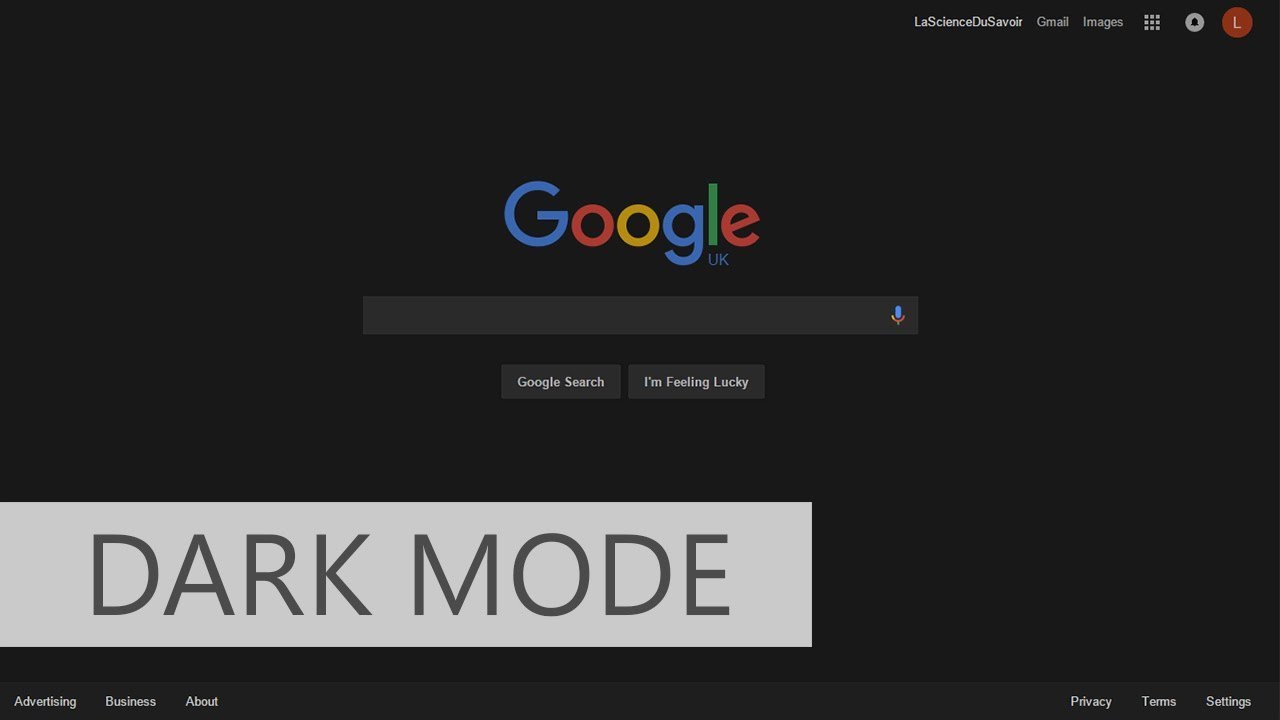
At the Google IO 2019, the search giant announced system-wide dark mode availability in the Android Q. Since then, the company is facilitating its services with the dark mode. Google Chrome, Calendar, Photos, News, Discover, and Keep are some products and services which have received the Dark Mode capability. Half-baked Dark Mode on the Android 9.0 Pie will become fully furnished in the newer Android version.
In today’s write-up, we will guide you to turn on Dark Mode in Google Apps following the easiest way. Most of the apps have native Dark Mode support. Meanwhile, some need little tweaks. We’ve compiled a list of all the Google services that offer a dark mode with instructions. So let’s start without wasting any additional time.
Enable Dark Mode On Google Apps
Gmail:
The most widely used service of Google in every part of the world. The mailing service is providing service to users since its launch in 2004. The dark mode for Gmail was in line since a long time, but still, it hasn’t made it to the Android App. Unfortunately, Gmail or Google Mail Dark Mode is limited to the Web version only.
Steps to enable Dark Mode in Gmail:
1. Open Gmail Web Interface
2. Now, hit the Settings Icon and Open “Themes” Menu.
3. Select “Dark” Theme and press “Save” on the pop-up console.
4. Enjoy the Dark Mode on Gmail
However, the dark Mode on Gmail for Android is in the pipeline and is currently available for the beta version. Interested users can download the Gmail V2019.06.09 for the Dark Mode. It is not stable and fluctuates automatically as per the beta users.
Google Chrome
The world’s most used browser also carries support for Dark Mode. Earlier the Dark Mode was used to be present in the beta, but now it is rolled out on the stable build for some Operating Sytems.
Android:
Google Chrome for Android also carries Dark Mode support in Beta builds. To enable the dark mode support, users need to toggle some settings. Follow the steps below to enable it:
1. Open chrome://flags/#enable-android-night-mode in Chrome for Android.
2. Select the dropdown menu below ‘Android Chrome UI dark mode‘ and enable it.
3. Relaunch the browser and go to the Settings page.
4. Toggle the ‘Dark Mode‘ option and enjoy it.
Google Photos
It is Google’s free service to store unlimited photos and is being used by various Android users. It also carries some inbuilt AI features which can turn your simple photos into a full, lively video or can beautify with some filters automatically. It is a favorite choice among users who preserve their photos. Google has officially rolled out the Dark Mode support for the Photos app. Users can easily enable the Dark Mode in photos on Android Q by enabling system-wide dark mode.
Note: On the Android Q, users need to enable the system-wide dark mode (Night Mode) by heading to the Developer Options.
Google News
Google’s News app is a catalog of news curated by Google-approved publishers. Users can customize their preferences over the news topics and publishers. They can easily follow interests and publishers for news. Being a kind of newsreader app, Google has fully rolled out the dark mode for News App. Users can easily enjoy the new feature by following the instructions below:
1. Open the Google News App.
2. Tap your round profile icon on the top-left side.
3. Select “Settings” from the slide-up menu.
4. Browse the “Dark theme” option under the General listing.
5. After tapping, select “Always,” “Automatically (at night & Battery Saver),” “Battery Save only,” or “Never” option.
6. The app will automatically update itself with the select preference.
Google Calendar
Google Calendar is an essential app to save important dates and add tasks. It recently received dark mode for Android Nougat+ devices. The primary dark grey colored UI of the Google Calendar is impressive. The Dark mode on Google Calendar can be enabled by following the instructions below:
1. Update your Google Calendar App.
2. Now, open the app and tap the “Menu” icon on the top-right corner.
3. Select Settings>General>and tap Theme option.
4. Choose theme style between “Light,” “Dark” or “Set by Battery Saver.“
5. The app will refresh with the selected option
Google Keep
Are you an avid user of note-keeping apps? Then the Google Keep might fit comfortably in your smartphone. It also carries a Dark theme scheme similar to the other Google Apps. To enable the Google Keep dark mode to follow below:
1. Update Google Keep from the Play Store
2. Open the app, and now enter settings.
3. Tap ‘enable dark mode‘ to toggle the setting.
Google Maps
It is the world’s best maps service available on the digital platform. Google Maps already offers Dark Mode while navigating from one place to another. However, the full-fledged Dark Mode for Maps is not yet available. Users can easily enable Google Maps Dark mode:
1. Open the Google Maps and tap menu icon on the top-right corner.
2. Now, head over to the Settings>Navigation settings>Map display.
3. Select the Color Scheme options between Automatic, Day, and Night.
4. Choose “Night” option to darken the Navigation window dark even during day time.
Android Messages
The default messaging app for devices based on vanilla Android or Android One Platform. It is the central console where users get simple text messages. The Dark mode on Android Messages is available from August 2018. It can be enabled easily:
1. Tap the hamburger icon on the top-left corner of the Android Messages UI.
2. Now, tap ‘enable dark mode‘ in the menu.
3. The UI will refresh into the dark mode.
YouTube
How anyone can forget about YouTube – the world’s largest online video * service. It is the house to most of the videos on the internet. Users spend a significant amount of time watching YouTube videos. To prevent excessive battery drain and save users’ eyes from strain, YouTube enabled Dark Mode on every OS platform. YouTube Dark Mode is available for Windows, Web, Android and iOS operating systems.
Web:
1. Browse to YouTube.com in the browser.
2. Click the Profile Icon, and select the Dark Theme option.
3. Now, turn the Dark theme option on by toggling it.
Android:
1. Update the YouTube Android app.
2. Launch the App, and tap Profile Icon in the top-right corner.
3. Select Settings>General>Dark Theme and toggle it.
4. The app will refresh to dark mode.
Google Contacts:
The full-fledged dark mode for Google Contacts recently rolled out via version 3.2 update. It carries a fully-furnished dark style with the entire interface from the list to contact details turned dark. Follow the instructions below to enable dark mode on Google Contacts:
1. Update the app for Dark Mode.
2. Launch the app and tap the hamburger menu icon on the top-left corner.
3. Now tap ‘Turn dark theme on‘ option.
The option will freeze if the device is using system-wide dark mode.
Google Discover Feed
It is the home for personalized information to most of the Android users. The discover feed brings the information optimized from your activities and actions. It will give you customized news stories, weather, and other information. Google recently added a proper dark theme to the Discover feed. Unfortunately, the inbuilt dark theme is only seen if system-wide Dark Mode is enabled. There’s no manual option or way to turn the Google Discover Feed Dark.
Google Drive
The greate productivity tool for users has also come up with native Dark Mode capability. The users running Android Q can easily avail of this facility by enabling system-wide dark mode. Otherwise, users have to wait for the App update to switch Light and Dark Mode on the Google Drive app manually.
Google Fit
The dark grey mode for Google Fit was recently made available with v2.16. The Google Fit Dark Mode can be manually applied through the app’s settings. Enable the new way:
1. Update and open Google Fit App.
2. Tap the Profile icon in the bottom right corner.
3. Now, Select the Settings icon from the top-right corner and then tap Display settings.
4. Select Dark Mode from the pop-up menu and enjoy it.
Site: gizmochina
Source: https://www.gizmochina.com
I hope you have successfully enabled Dark Theme on Google Apps using my guide.
Thank you all...


- Posts
- Following
- Followers
- Energy
-

JackGrim
-
+ Follow

-
- 84 Posts
- 6 Following
- 209 Followers
- 9988 Energy







- Posts
- photo
- video

Hello Guys,
Dark Mode is the in-demand feature for smartphone users. It puts fewer strain eyes by just inverting the colors. Moreover, it even saves battery life on your AMOLED packed phone, improves readability, and looks beautiful.
At the Google IO 2019, the search giant announced system-wide dark mode availability in the Android Q. Since then, the company is facilitating its services with the dark mode. Google Chrome, Calendar, Photos, News, Discover, and Keep are some products and services which have received the Dark Mode capability. Half-baked Dark Mode on the Android 9.0 Pie will become fully furnished in the newer Android version.
In today’s write-up, we will guide you to turn on Dark Mode in Google Apps following the easiest way. Most of the apps have native Dark Mode support. Meanwhile, some need little tweaks. We’ve compiled a list of all the Google services that offer a dark mode with instructions. So let’s start without wasting any additional time.
Enable Dark Mode On Google Apps
Gmail:
The most widely used service of Google in every part of the world. The mailing service is providing service to users since its launch in 2004. The dark mode for Gmail was in line since a long time, but still, it hasn’t made it to the Android App. Unfortunately, Gmail or Google Mail Dark Mode is limited to the Web version only.
Steps to enable Dark Mode in Gmail:
1. Open Gmail Web Interface
2. Now, hit the Settings Icon and Open “Themes” Menu.
3. Select “Dark” Theme and press “Save” on the pop-up console.
4. Enjoy the Dark Mode on Gmail
However, the dark Mode on Gmail for Android is in the pipeline and is currently available for the beta version. Interested users can download the Gmail V2019.06.09 for the Dark Mode. It is not stable and fluctuates automatically as per the beta users.
Google Chrome
The world’s most used browser also carries support for Dark Mode. Earlier the Dark Mode was used to be present in the beta, but now it is rolled out on the stable build for some Operating Sytems.
Android:
Google Chrome for Android also carries Dark Mode support in Beta builds. To enable the dark mode support, users need to toggle some settings. Follow the steps below to enable it:
1. Open chrome://flags/#enable-android-night-mode in Chrome for Android.
2. Select the dropdown menu below ‘Android Chrome UI dark mode‘ and enable it.
3. Relaunch the browser and go to the Settings page.
4. Toggle the ‘Dark Mode‘ option and enjoy it.
Google Photos
It is Google’s free service to store unlimited photos and is being used by various Android users. It also carries some inbuilt AI features which can turn your simple photos into a full, lively video or can beautify with some filters automatically. It is a favorite choice among users who preserve their photos. Google has officially rolled out the Dark Mode support for the Photos app. Users can easily enable the Dark Mode in photos on Android Q by enabling system-wide dark mode.
Note: On the Android Q, users need to enable the system-wide dark mode (Night Mode) by heading to the Developer Options.
Google News
Google’s News app is a catalog of news curated by Google-approved publishers. Users can customize their preferences over the news topics and publishers. They can easily follow interests and publishers for news. Being a kind of newsreader app, Google has fully rolled out the dark mode for News App. Users can easily enjoy the new feature by following the instructions below:
1. Open the Google News App.
2. Tap your round profile icon on the top-left side.
3. Select “Settings” from the slide-up menu.
4. Browse the “Dark theme” option under the General listing.
5. After tapping, select “Always,” “Automatically (at night & Battery Saver),” “Battery Save only,” or “Never” option.
6. The app will automatically update itself with the select preference.
Google Calendar
Google Calendar is an essential app to save important dates and add tasks. It recently received dark mode for Android Nougat+ devices. The primary dark grey colored UI of the Google Calendar is impressive. The Dark mode on Google Calendar can be enabled by following the instructions below:
1. Update your Google Calendar App.
2. Now, open the app and tap the “Menu” icon on the top-right corner.
3. Select Settings>General>and tap Theme option.
4. Choose theme style between “Light,” “Dark” or “Set by Battery Saver.“
5. The app will refresh with the selected option
Google Keep
Are you an avid user of note-keeping apps? Then the Google Keep might fit comfortably in your smartphone. It also carries a Dark theme scheme similar to the other Google Apps. To enable the Google Keep dark mode to follow below:
1. Update Google Keep from the Play Store
2. Open the app, and now enter settings.
3. Tap ‘enable dark mode‘ to toggle the setting.
Google Maps
It is the world’s best maps service available on the digital platform. Google Maps already offers Dark Mode while navigating from one place to another. However, the full-fledged Dark Mode for Maps is not yet available. Users can easily enable Google Maps Dark mode:
1. Open the Google Maps and tap menu icon on the top-right corner.
2. Now, head over to the Settings>Navigation settings>Map display.
3. Select the Color Scheme options between Automatic, Day, and Night.
4. Choose “Night” option to darken the Navigation window dark even during day time.
Android Messages
The default messaging app for devices based on vanilla Android or Android One Platform. It is the central console where users get simple text messages. The Dark mode on Android Messages is available from August 2018. It can be enabled easily:
1. Tap the hamburger icon on the top-left corner of the Android Messages UI.
2. Now, tap ‘enable dark mode‘ in the menu.
3. The UI will refresh into the dark mode.
YouTube
How anyone can forget about YouTube – the world’s largest online video * service. It is the house to most of the videos on the internet. Users spend a significant amount of time watching YouTube videos. To prevent excessive battery drain and save users’ eyes from strain, YouTube enabled Dark Mode on every OS platform. YouTube Dark Mode is available for Windows, Web, Android and iOS operating systems.
Web:
1. Browse to YouTube.com in the browser.
2. Click the Profile Icon, and select the Dark Theme option.
3. Now, turn the Dark theme option on by toggling it.
Android:
1. Update the YouTube Android app.
2. Launch the App, and tap Profile Icon in the top-right corner.
3. Select Settings>General>Dark Theme and toggle it.
4. The app will refresh to dark mode.
Google Contacts:
The full-fledged dark mode for Google Contacts recently rolled out via version 3.2 update. It carries a fully-furnished dark style with the entire interface from the list to contact details turned dark. Follow the instructions below to enable dark mode on Google Contacts:
1. Update the app for Dark Mode.
2. Launch the app and tap the hamburger menu icon on the top-left corner.
3. Now tap ‘Turn dark theme on‘ option.
The option will freeze if the device is using system-wide dark mode.
Google Discover Feed
It is the home for personalized information to most of the Android users. The discover feed brings the information optimized from your activities and actions. It will give you customized news stories, weather, and other information. Google recently added a proper dark theme to the Discover feed. Unfortunately, the inbuilt dark theme is only seen if system-wide Dark Mode is enabled. There’s no manual option or way to turn the Google Discover Feed Dark.
Google Drive
The greate productivity tool for users has also come up with native Dark Mode capability. The users running Android Q can easily avail of this facility by enabling system-wide dark mode. Otherwise, users have to wait for the App update to switch Light and Dark Mode on the Google Drive app manually.
Google Fit
The dark grey mode for Google Fit was recently made available with v2.16. The Google Fit Dark Mode can be manually applied through the app’s settings. Enable the new way:
1. Update and open Google Fit App.
2. Tap the Profile icon in the bottom right corner.
3. Now, Select the Settings icon from the top-right corner and then tap Display settings.
4. Select Dark Mode from the pop-up menu and enjoy it.
Site: gizmochina
Source: https://www.gizmochina.com
I hope you have successfully enabled Dark Theme on Google Apps using my guide.
Thank you all...