



 More Products
 Compare


ABOUT HONOR
Events
















我的荣耀 开启荣耀之旅



 Disagree Terms
 Log out




[Tutorial] How to take moving pictures?


 Last reply :
Hi guys,
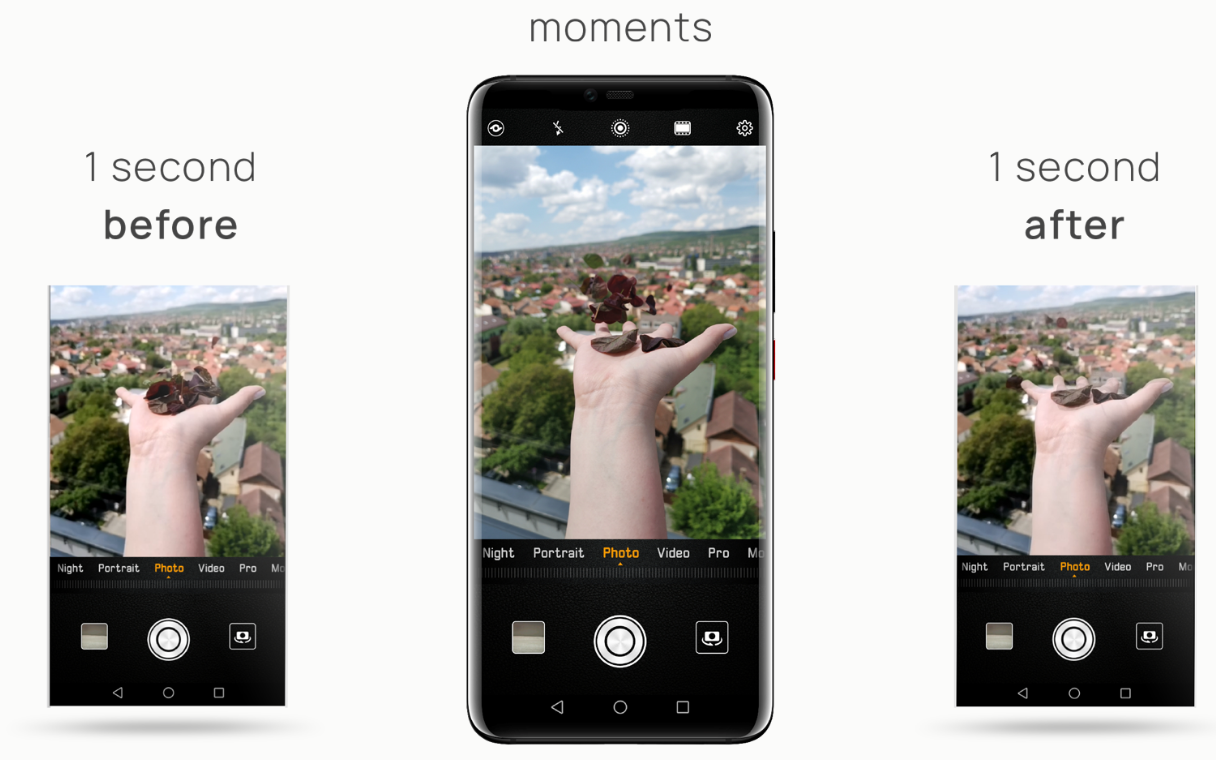
whether you want to add movement to a still shot or turn several stills into a single moving image, movement can be a great way to put your pictures into a context or to add humor to them. Today I would like to share a tutorial with all of you showing how to take moving pictures?
In order for you to have a great result, please follow these steps:
Step 1:
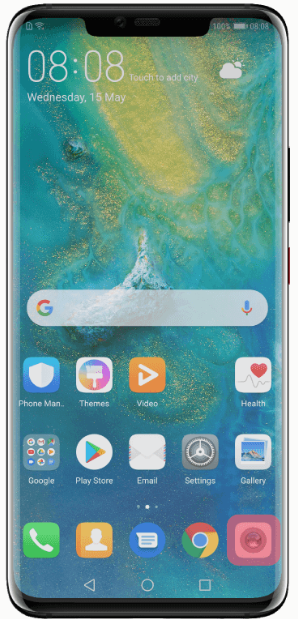
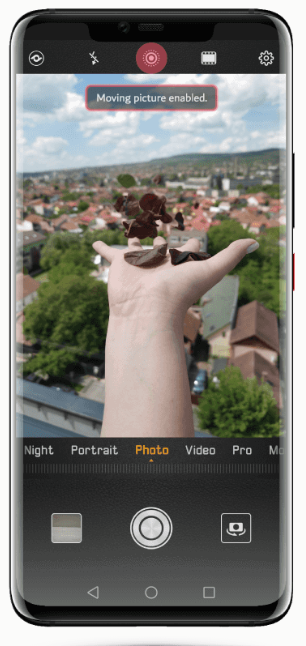
Open the Camera App of your phone and point it towards the moving object you want to shoot (You can’t capture dynamic effects if the objects are static).
Then tap on the small circle icon on the top of the screen. It will become orange/blue and a message will let you know that moving pictures are enabled.
Tips: if you want to take moving pictures using the front camera, switch to it and select the Photo mode.
Then tap on the small circle icon on the top of the screen. It will become orange/blue and a message will let you know that moving pictures are enabled.
Step 2:
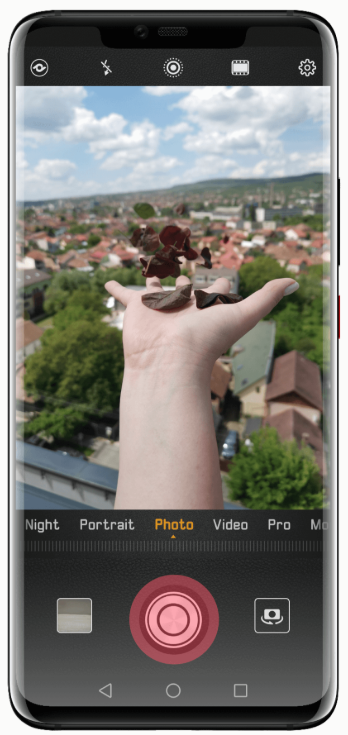
Taking moving pictures: hold the phone as steady as possible for a couple of seconds and tap on the shutter icon to take a moving picture.
Tips: For capturing a moving picture you can tap on the shutter button only once.
You don’t have to tap it at the beginning and the end of the recording, as if shooting a video.
Step 3:
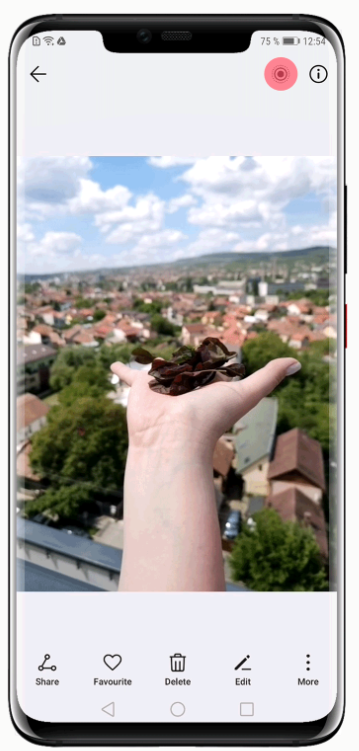
Viewing moving pictures: the moving pictures will be saved in JPG format. Go to Gallery, tap Albums and then Tap Camera.
Select the image and tap the small circle icon on the top to view the dynamic effect. The moving picture automatically stops after a complete playback.
Tips: You can also press and hold on the picture to rewatch its dynamic effect.
Well, I hope this helps to create some amazing moving pictures. If you guys have any other questions, please comment on the section below.
Thanks!


- Posts
- Following
- Followers
- Energy
-

GeekyMarshmallow
-
+ Follow

-
- 114 Posts
- 445 Following
- 650 Followers
- 10733 Energy



- Posts
- photo
- video

Hi guys,
whether you want to add movement to a still shot or turn several stills into a single moving image, movement can be a great way to put your pictures into a context or to add humor to them. Today I would like to share a tutorial with all of you showing how to take moving pictures?
In order for you to have a great result, please follow these steps:
Step 1:
Open the Camera App of your phone and point it towards the moving object you want to shoot (You can’t capture dynamic effects if the objects are static).
Then tap on the small circle icon on the top of the screen. It will become orange/blue and a message will let you know that moving pictures are enabled.
Tips: if you want to take moving pictures using the front camera, switch to it and select the Photo mode.
Then tap on the small circle icon on the top of the screen. It will become orange/blue and a message will let you know that moving pictures are enabled.
Step 2:
Taking moving pictures: hold the phone as steady as possible for a couple of seconds and tap on the shutter icon to take a moving picture.
Tips: For capturing a moving picture you can tap on the shutter button only once.
You don’t have to tap it at the beginning and the end of the recording, as if shooting a video.
Step 3:
Viewing moving pictures: the moving pictures will be saved in JPG format. Go to Gallery, tap Albums and then Tap Camera.
Select the image and tap the small circle icon on the top to view the dynamic effect. The moving picture automatically stops after a complete playback.
Tips: You can also press and hold on the picture to rewatch its dynamic effect.
Well, I hope this helps to create some amazing moving pictures. If you guys have any other questions, please comment on the section below.
Thanks!