



 More Products
 Compare














我的荣耀 开启荣耀之旅



 Disagree Terms
 Log out




[Tutorial] How to take long exposure photos on your smartphone


 Last reply :
Long exposures on your smartphone: The method
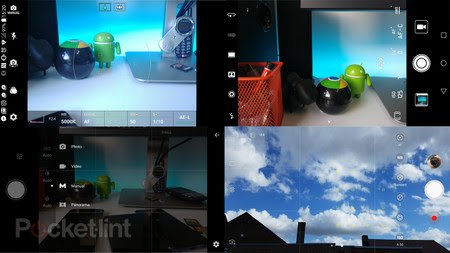
1. Find your manual mode
A lot of modern Android smartphones now have manual controls built into their camera apps. Head to your default camera app, look through the camera modes and see if there's one named "manual" or "pro".
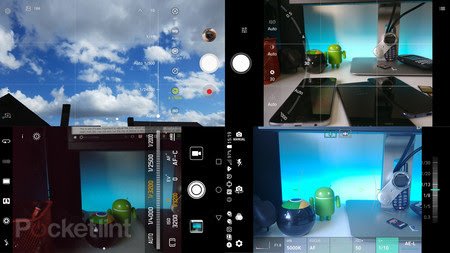
2. Locate shutter speed
Once manual mode is activated, you'll see a number of options. The most important to take note of are the ISO and Shutter Speed settings. Shutter Speed is normally indicated using a shutter icon (circle formed of interlocking segments), or an "S".
Once you tap on the shutter speed icon you'll get a list of speeds, ranging from fractions of seconds as fast as 1/3200 of a second, all the way up to 30 seconds. Needless to say, the longer the exposure you choose, the more time the sensor is exposed to light.
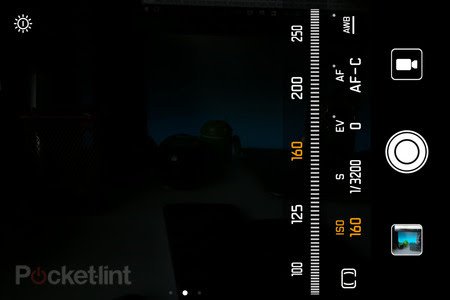
3. Adjust ISO
This is why it's also important to adjust the ISO, which defines how sensitive the sensor is to light - it's a hangover from the days of film. With a really high ISO, you not only run the risk of over-exposing/having too much light and ending up with a bright white image, with no detail, but also you will increase how much noise appears. For any long exposure, it's good to take the ISO relatively low. For most of ours with the G6 we selected one of the two lowest options: 50 or 100.
4. No manual mode? There's an app for that
If you don't have a manual mode because you have a lower-end Android, there are third party apps available.
Eg: Manual Camera App
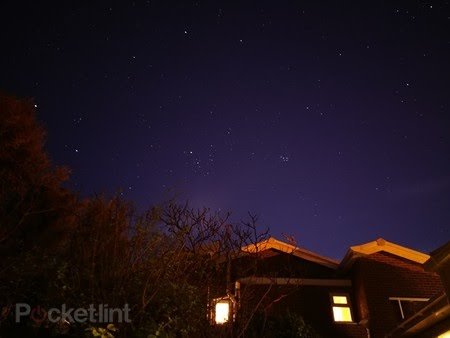
Long exposures: Starry Nights
Taking your tripod, pointing it up to a clear night sky and taking a picture without a long exposure normally means a grainy, noisy picture showing no discernible stars. Set the shutter speed to 20 or 30 seconds, tune down the ISO to its lowest settings and then be amazed as it uncovers stars you can't even see with your eyes.

Long exposures: Ghosts
The technique for creating ghostly images (ie. semi transparent people) is the same as taking any other long exposure shot. The only difference being that you have to ask your subject to stand still for a few seconds, then get them to move away really quickly out of shot. If your subject is a child, that latter part can be a challenge.
With the photo above we set up a five second exposure, and got the subject to move away after three seconds. With a slightly slower moving child, as you can see, it creates ghostly, whispie trails which kinda add to the effect.
Long exposures: Light painting and light trails
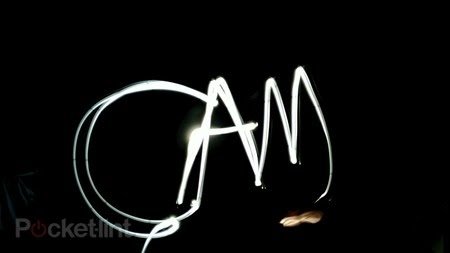
Using the same combination of long exposure and low ISO, you can point a flashlight towards the camera and use it to paint your name in the air. Some phone have a light painting mode optimised for this, but it can be done manually.
The same technique can be applied to busy roads at night time, which will then give you those red and white light trails with "ghost" cars.
Long exposures: Cloudy/frosty water
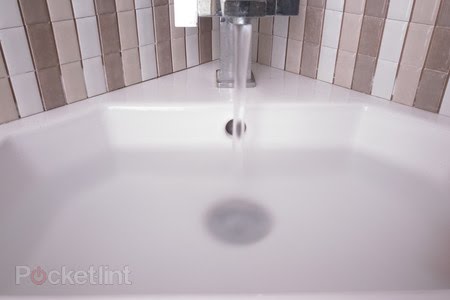
Bodies of water, whether they be lakes, the sea, waterfalls, rivers or just running water from a tap can create a really eerie cloudy effect using a long exposure photo. Since it's transparent, the movement can make the water seem cloudy or milky when a camera shutter is open for a few seconds.
The only tricky part is ensuring light levels aren't too high. With a 2-3 second exposure you can often end up with a completely bleached image if you take it in the day time, even with the ISO set at 50. So your best bet is heading out at sunset or sunrise, when it's not completely dark, but just enough light to capture something.
Site : Pocket-lint
Thank you all....


- Posts
- Following
- Followers
- Energy
-

JackGrim
-
+ Follow

-
- 84 Posts
- 6 Following
- 209 Followers
- 9988 Energy







- Posts
- photo
- video

Long exposures on your smartphone: The method
1. Find your manual mode
A lot of modern Android smartphones now have manual controls built into their camera apps. Head to your default camera app, look through the camera modes and see if there's one named "manual" or "pro".
2. Locate shutter speed
Once manual mode is activated, you'll see a number of options. The most important to take note of are the ISO and Shutter Speed settings. Shutter Speed is normally indicated using a shutter icon (circle formed of interlocking segments), or an "S".
Once you tap on the shutter speed icon you'll get a list of speeds, ranging from fractions of seconds as fast as 1/3200 of a second, all the way up to 30 seconds. Needless to say, the longer the exposure you choose, the more time the sensor is exposed to light.
3. Adjust ISO
This is why it's also important to adjust the ISO, which defines how sensitive the sensor is to light - it's a hangover from the days of film. With a really high ISO, you not only run the risk of over-exposing/having too much light and ending up with a bright white image, with no detail, but also you will increase how much noise appears. For any long exposure, it's good to take the ISO relatively low. For most of ours with the G6 we selected one of the two lowest options: 50 or 100.
4. No manual mode? There's an app for that
If you don't have a manual mode because you have a lower-end Android, there are third party apps available.
Eg: Manual Camera App
Long exposures: Starry Nights
Taking your tripod, pointing it up to a clear night sky and taking a picture without a long exposure normally means a grainy, noisy picture showing no discernible stars. Set the shutter speed to 20 or 30 seconds, tune down the ISO to its lowest settings and then be amazed as it uncovers stars you can't even see with your eyes.
Long exposures: Ghosts
The technique for creating ghostly images (ie. semi transparent people) is the same as taking any other long exposure shot. The only difference being that you have to ask your subject to stand still for a few seconds, then get them to move away really quickly out of shot. If your subject is a child, that latter part can be a challenge.
With the photo above we set up a five second exposure, and got the subject to move away after three seconds. With a slightly slower moving child, as you can see, it creates ghostly, whispie trails which kinda add to the effect.
Long exposures: Light painting and light trails
Using the same combination of long exposure and low ISO, you can point a flashlight towards the camera and use it to paint your name in the air. Some phone have a light painting mode optimised for this, but it can be done manually.
The same technique can be applied to busy roads at night time, which will then give you those red and white light trails with "ghost" cars.
Long exposures: Cloudy/frosty water
Bodies of water, whether they be lakes, the sea, waterfalls, rivers or just running water from a tap can create a really eerie cloudy effect using a long exposure photo. Since it's transparent, the movement can make the water seem cloudy or milky when a camera shutter is open for a few seconds.
The only tricky part is ensuring light levels aren't too high. With a 2-3 second exposure you can often end up with a completely bleached image if you take it in the day time, even with the ISO set at 50. So your best bet is heading out at sunset or sunrise, when it's not completely dark, but just enough light to capture something.
Site : Pocket-lint
Source : https://www.google.com/amp/s/www.pocket-lint.com/phones/news/140699-how-to-take-long-exposure-photos-on-a-smartphone.amphtml
Thank you all....