



 More Products
 Compare


ABOUT HONOR
Events









我的荣耀 开启荣耀之旅



 Disagree Terms
 Log out




[Tutorial] How to make your Smartphone faster? Take a look!


 Last reply :
Dear HONOR Fans,
Who doesn’t want his/her smartphone to get faster? There are many suggestions on the internet on how to make your smartphone faster but, most of the time these suggestions are scams or they do the opposite instead of helping you.
In this post, I will show you how to increase the animation speed of your HONOR Smartphone by only changing some settings on your phone. This would help you have a different experience on your phone and at fast speed.
To shorten the animations in your smartphone, you first have to change the settings in your smartphone. You will find this by scrolling down to “System”.
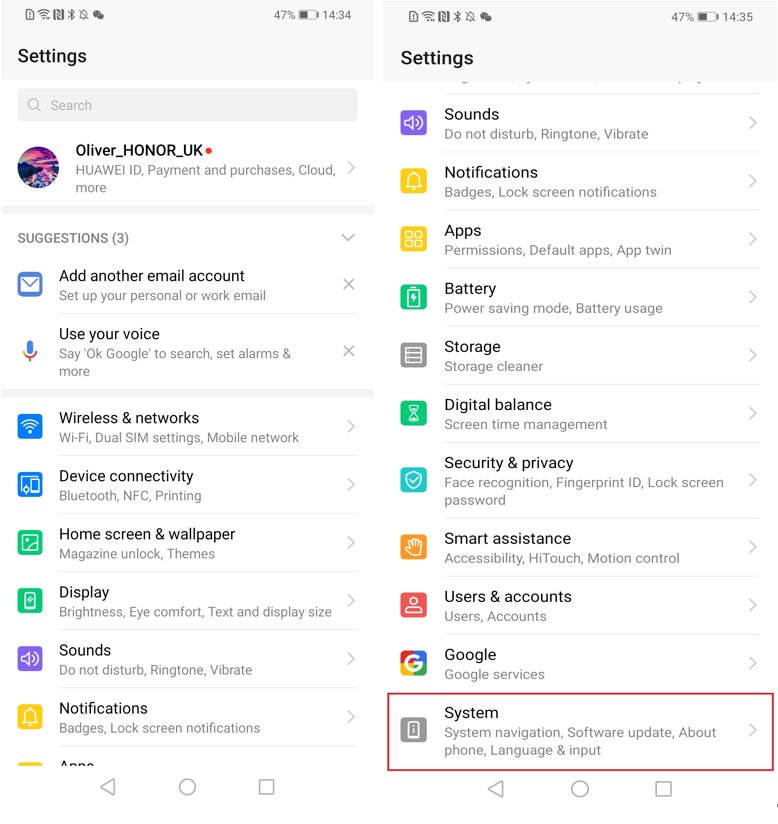
Next, you go to “Over the Phone”.
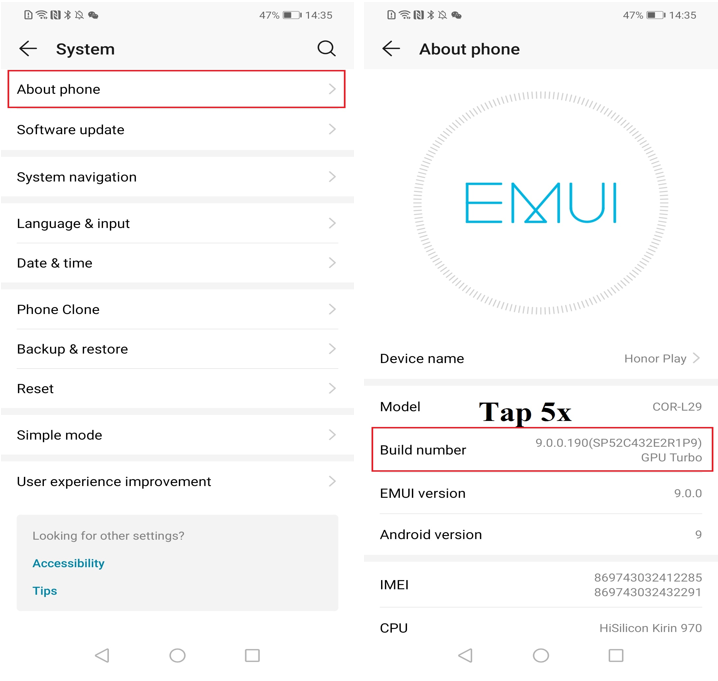
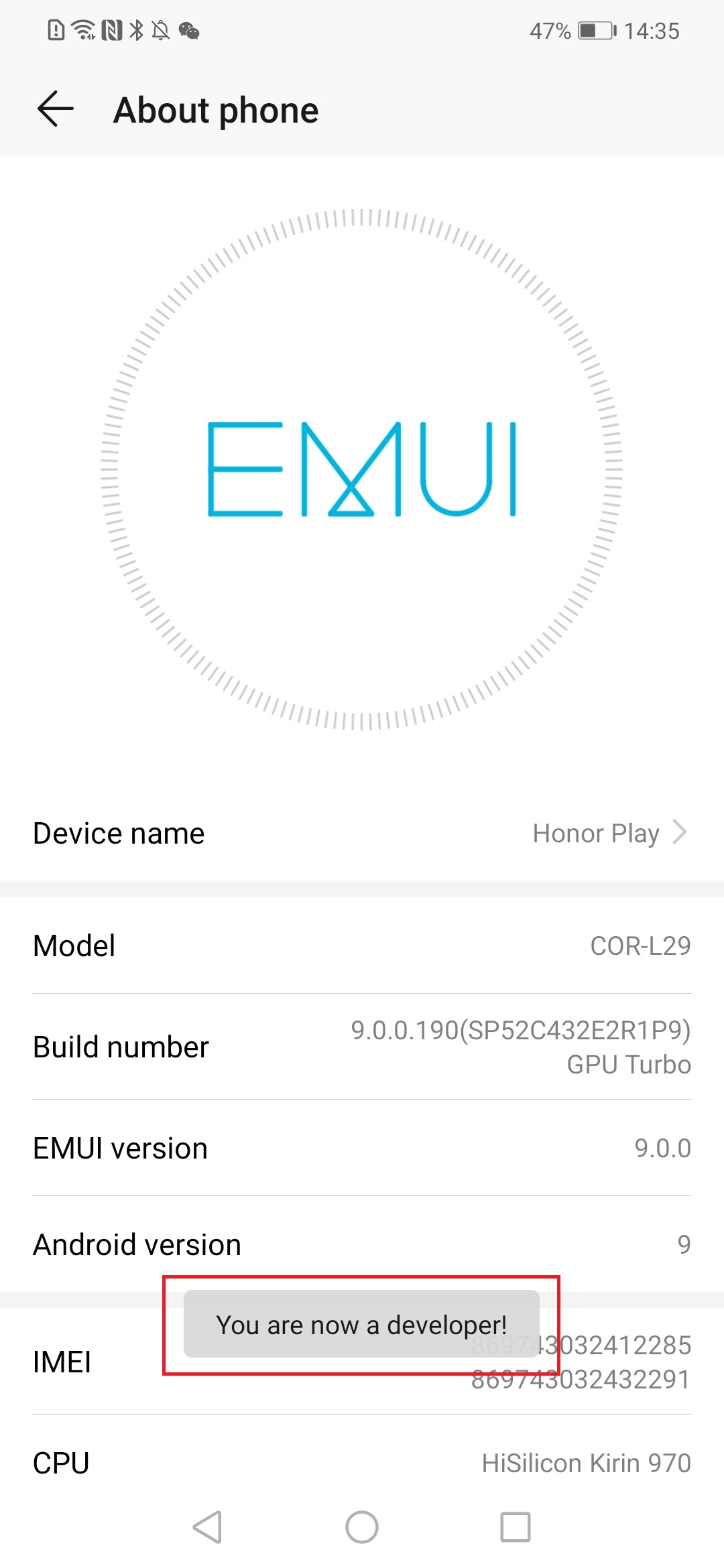
The next step would be to unlock the so-called developer options. For this, you have to tap on the line “Build number” several times. After typing about five times, the message “You are now a developer” appears at the bottom of the screen. If you repeat the procedure, you will get the message “You are already a developer”.
After this step, you can have the respective layout limits of the current screen displayed or, for example, create a secondary display.
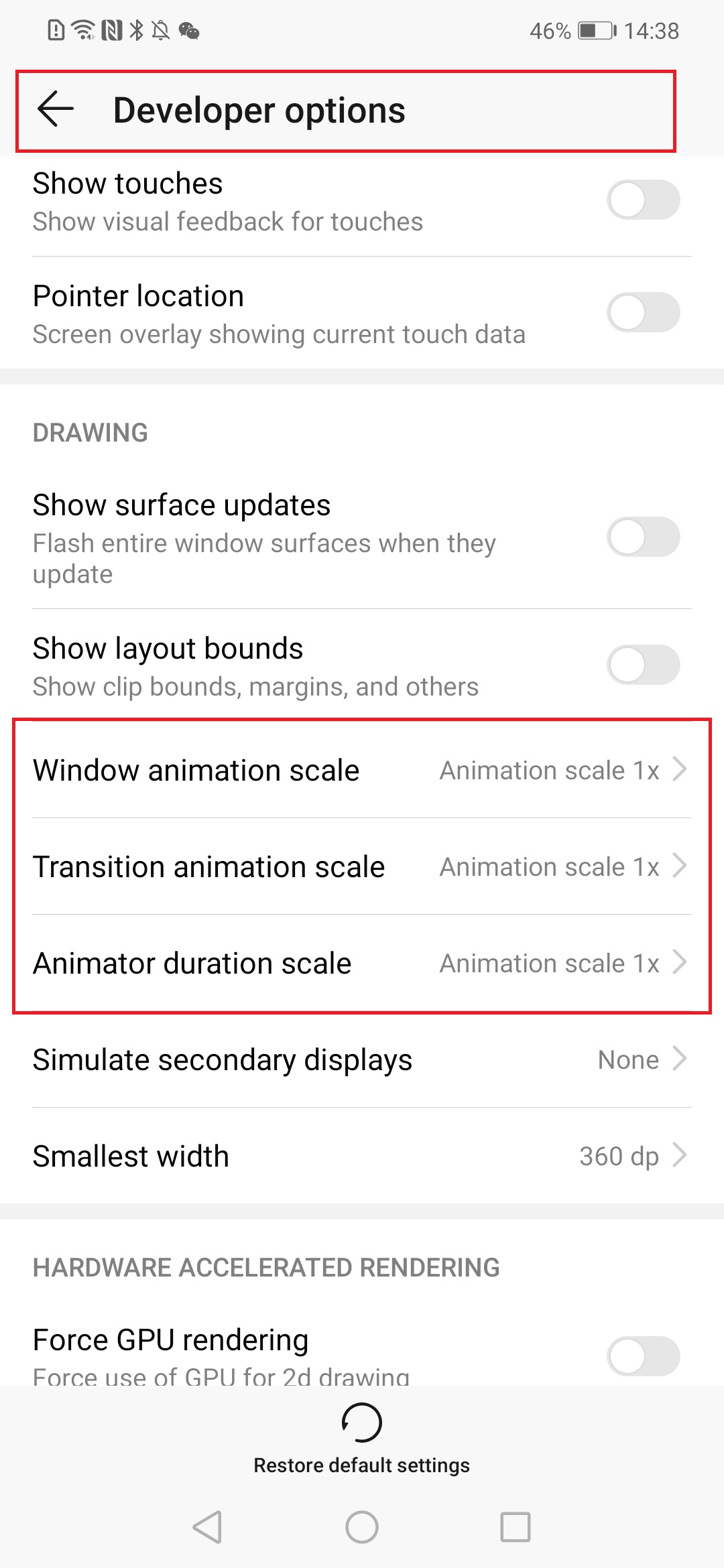
For us, however, the three points are crucial: Scale window animation, scale transition, and scale for animator time.
By default, these are set to 1x speed. In order to change these, you always tap on one of the sub-items and select the desired speed from the menu. The lower the number, the faster the animation. The larger the number, the slower the animation. So if you choose 10x, your smartphone feels like slow motion. Funny to look at, just give it a try and set all three options to 10x. You can always reset these settings.
But since we want to make our smartphones faster, we naturally choose a smaller number than 1x. I recommend you to choose 0.5x
It may sound tempting to have no animations and it is obvious to think that this would shorten the animation even further, but this is only partially the case. The problem with no animations is that it can lead to lags and stuttering of the smartphone, as the smartphone takes time to work between each window. If you do not have animations, the smartphone will logically have less time to work from window to window.
So if you have now selected 0.5x as your speed, you will immediately notice a speed boost of your device!
Don’t forget the following steps: Settings> System> About the Phone> Tap Build Number> System> Developer Options> Scroll to "Drawing"> the three options from 1x to 0.5x
I hope this article was very helpful for all of you. Please don’t forget to give a like on the article and comment on the section below if you have any other questions regarding this process.
Thank you all Fans.


- Posts
- Following
- Followers
- Energy
-

Oliver_HONOR_UK
-
+ Follow

-
- 246 Posts
- 1667 Following
- 945 Followers
- 18383 Energy



- Posts
- photo
- video

Dear HONOR Fans,
Who doesn’t want his/her smartphone to get faster? There are many suggestions on the internet on how to make your smartphone faster but, most of the time these suggestions are scams or they do the opposite instead of helping you.
In this post, I will show you how to increase the animation speed of your HONOR Smartphone by only changing some settings on your phone. This would help you have a different experience on your phone and at fast speed.
To shorten the animations in your smartphone, you first have to change the settings in your smartphone. You will find this by scrolling down to “System”.
Next, you go to “Over the Phone”.
The next step would be to unlock the so-called developer options. For this, you have to tap on the line “Build number” several times. After typing about five times, the message “You are now a developer” appears at the bottom of the screen. If you repeat the procedure, you will get the message “You are already a developer”.
After this step, you can have the respective layout limits of the current screen displayed or, for example, create a secondary display.
For us, however, the three points are crucial: Scale window animation, scale transition, and scale for animator time.
By default, these are set to 1x speed. In order to change these, you always tap on one of the sub-items and select the desired speed from the menu. The lower the number, the faster the animation. The larger the number, the slower the animation. So if you choose 10x, your smartphone feels like slow motion. Funny to look at, just give it a try and set all three options to 10x. You can always reset these settings.
But since we want to make our smartphones faster, we naturally choose a smaller number than 1x. I recommend you to choose 0.5x
It may sound tempting to have no animations and it is obvious to think that this would shorten the animation even further, but this is only partially the case. The problem with no animations is that it can lead to lags and stuttering of the smartphone, as the smartphone takes time to work between each window. If you do not have animations, the smartphone will logically have less time to work from window to window.
So if you have now selected 0.5x as your speed, you will immediately notice a speed boost of your device!
Don’t forget the following steps: Settings> System> About the Phone> Tap Build Number> System> Developer Options> Scroll to "Drawing"> the three options from 1x to 0.5x
I hope this article was very helpful for all of you. Please don’t forget to give a like on the article and comment on the section below if you have any other questions regarding this process.
Thank you all Fans.