



 More Products
 Compare


ABOUT HONOR
Events
















我的荣耀 开启荣耀之旅



 Disagree Terms
 Log out




[Tutorial] How to Enable Grayscale Mode on your HONOR devices!


 Last reply :
Hello Honor Fans' ;)
Am back with another post, "How to enable Grayscale Mode on your HONOR devices".
Let's check out Tutorial below:
What is Grayscale Mode?
Most of the newer devices these days come with a grayscale mode that you can enable to save some battery life. The way it works is by disabling all the full 32 bit color so that your device’s graphics processor has to only render the screen in black and white. As the result, there will be less strain on battery life as the graphics chip will consume less power.
How to enable:
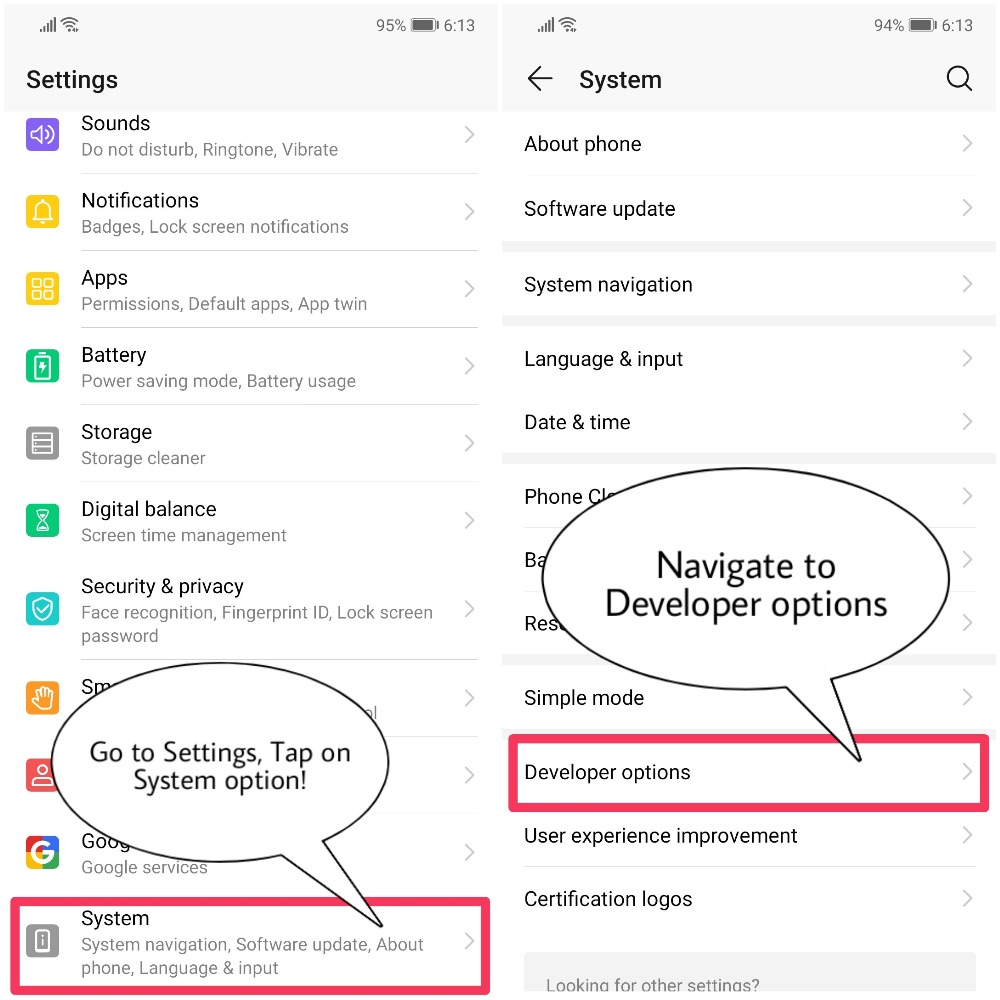
(1) Go to Settings -> Tap on System option
(2) Navigate to Developer Options (To enable Developer options, go to Settings > System > About phone> tap on the Build number 7 times)
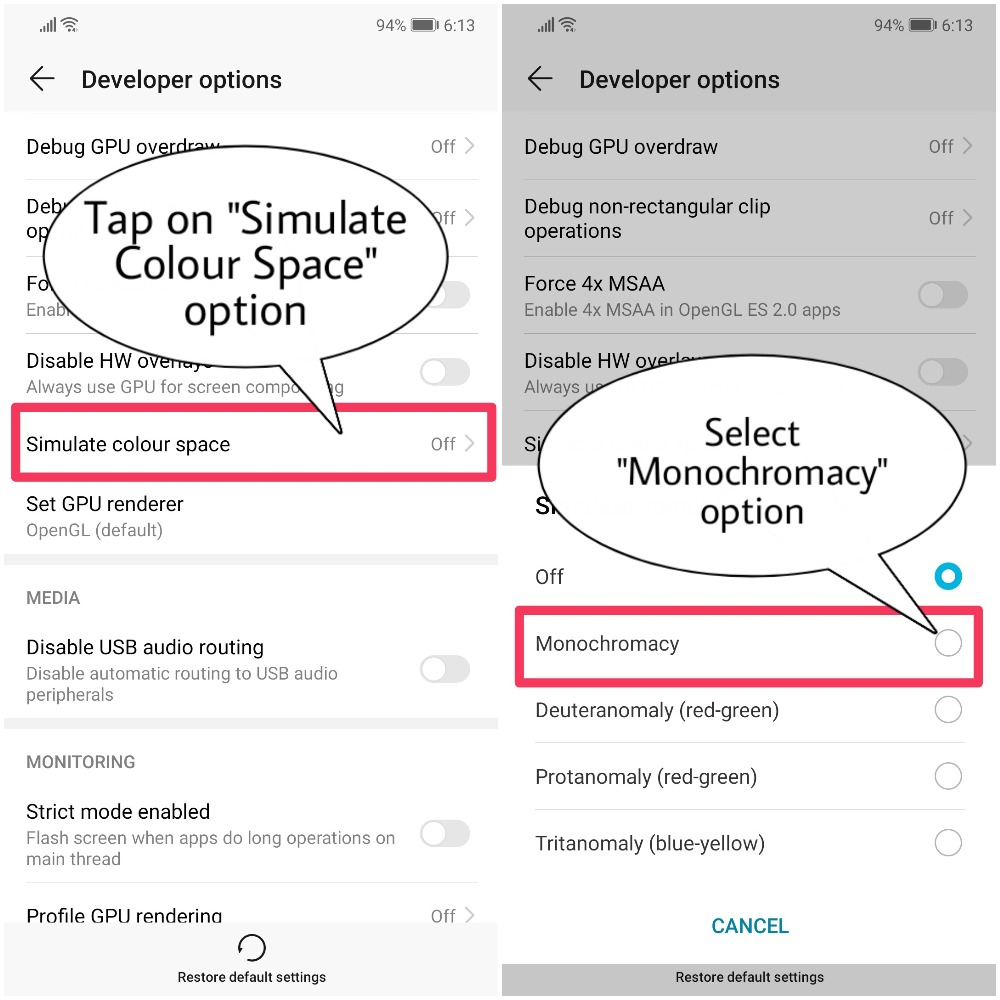
(3) Scroll through the developer options and you will be getting an option called "Simulate Colour Space", enter into it.
(4) Enable the option "Monochromacy", that's it you're done.
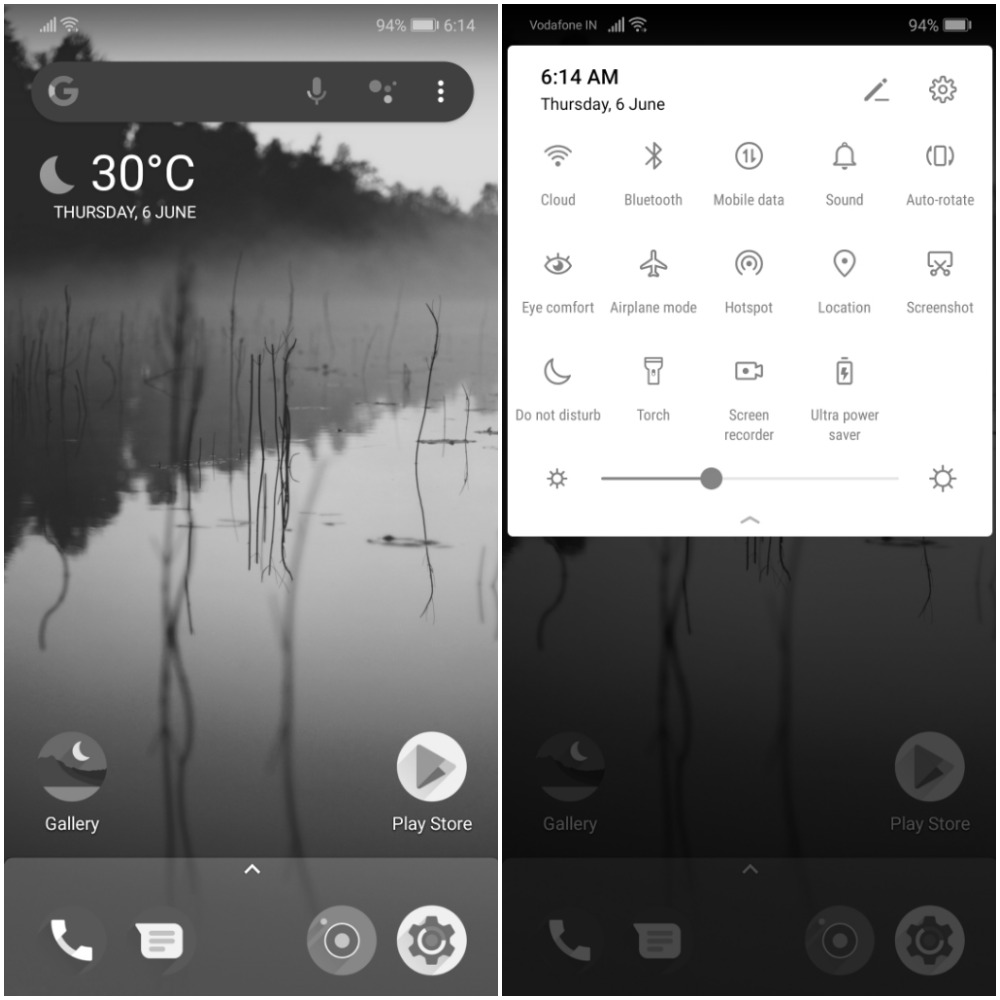
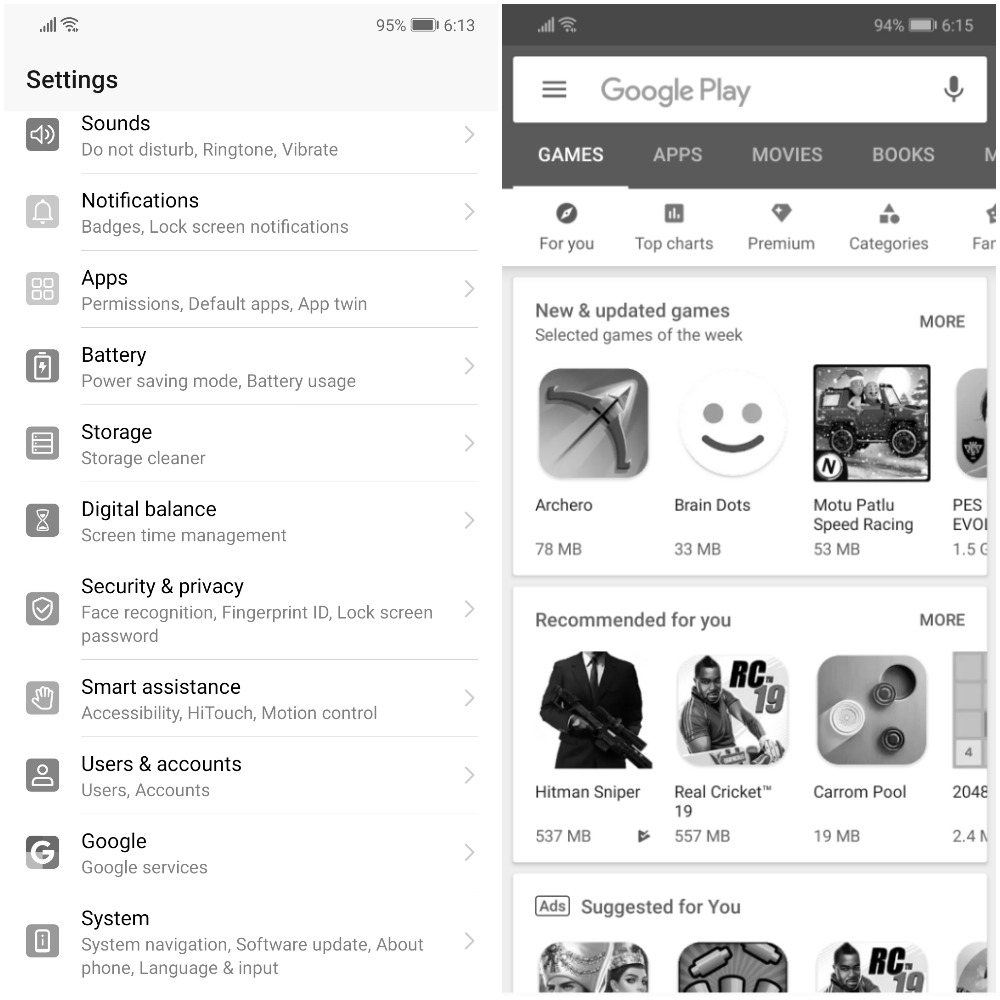
Now everything you seen on your screen will be in black and white. This may or may not affect your battery life but it is worth a try.
Screens:
Why Grayscale Mode?
First, It could help you to save battery life a little, similar to Dark mode (if your device doesn't have). Second, it might be a little easier on your eyes. If you have a visual impairment like color blindness, turning grayscale on could help you read menus and view images better. Third, keeping your phone in grayscale could even help you combat phone addiction, by making the screen less appealing.
NOTE:
Remember though that this is simply an overlay of sorts, which means your GPU is still rendering everything in full 32-bit color. This becomes more evident when you take a screenshot and view that screenshot on another device.
In case if you want to disable the Grayscale mode/Monochromacy go back to the "Simulate Colour Space" setting in Developer options and just select "OFF"
That's it guys, Hope you all find this post useful ;) Thank you for reading


- Posts
- Following
- Followers
- Energy
-
 Tamil G
Moderator Intern
Tamil G
Moderator Intern
-
+ Follow

-
- 542 Posts
- 49 Following
- 887 Followers
- 39811 Energy

-
 New Comer
-
 Followers reach 50
-
 Followers reach 100
-
 Followers reach 200
-
 7 Days Check-in
-
 30 Days Check-in
-
 100 Days Check-in
-
 Moderator
-
 Halloween 2020
-
 HONOR STAR 2020
-
 New Year 2021
-
 Animal Photography
-
 Plant Photography
-
 Red Photography
-
 Survey Medal!
-
 Water Photography
-
 World Cycling & Running Day
-
 Product Photography
-
 Sky Photography
-
 Activity Photography Medal
-
 Autumn Photography
-
 Rain Photography
-
 HONOR 50: Best Shot!
-
 Monthly Photo Sharing #1 Landscape
-
 HONOR Magic4 Pro
-
 Monthly Photo Sharing #2 People
-
 Monthly Photo Sharing #3 Spring
-
 Monthly Photo Sharing #4 Animal



- Posts
- photo
- video

Hello Honor Fans' ;)
Am back with another post, "How to enable Grayscale Mode on your HONOR devices".
Let's check out Tutorial below:
What is Grayscale Mode?
Most of the newer devices these days come with a grayscale mode that you can enable to save some battery life. The way it works is by disabling all the full 32 bit color so that your device’s graphics processor has to only render the screen in black and white. As the result, there will be less strain on battery life as the graphics chip will consume less power.
How to enable:
(1) Go to Settings -> Tap on System option
(2) Navigate to Developer Options (To enable Developer options, go to Settings > System > About phone> tap on the Build number 7 times)
(3) Scroll through the developer options and you will be getting an option called "Simulate Colour Space", enter into it.
(4) Enable the option "Monochromacy", that's it you're done.
Now everything you seen on your screen will be in black and white. This may or may not affect your battery life but it is worth a try.
Screens:
Why Grayscale Mode?
First, It could help you to save battery life a little, similar to Dark mode (if your device doesn't have). Second, it might be a little easier on your eyes. If you have a visual impairment like color blindness, turning grayscale on could help you read menus and view images better. Third, keeping your phone in grayscale could even help you combat phone addiction, by making the screen less appealing.
NOTE:
Remember though that this is simply an overlay of sorts, which means your GPU is still rendering everything in full 32-bit color. This becomes more evident when you take a screenshot and view that screenshot on another device.
In case if you want to disable the Grayscale mode/Monochromacy go back to the "Simulate Colour Space" setting in Developer options and just select "OFF"
That's it guys, Hope you all find this post useful ;) Thank you for reading