



 More Products
 Compare


ABOUT HONOR
Events













我的荣耀 开启荣耀之旅



 Disagree Terms
 Log out




[Tutorial] HONOR View20 - What is Magic Desktop Mode?


 Last reply :
Hello HONOR Fans,
I am back with an exciting post. In this post, I will explain to you how to use the HONOR VIEW 20 as a Computer by connecting with a * (Screen). This is a very special and unique feature of MAGIC UI.
Let's get started:
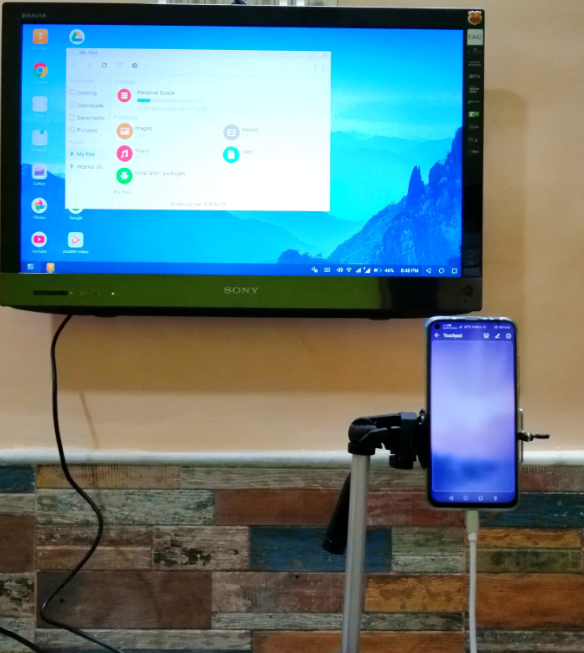
Requirements:
1. You need a Television that supports HDMI port.
2. An HONOR View20.
3. Last, a USB TYPE C to HDMI Converter.
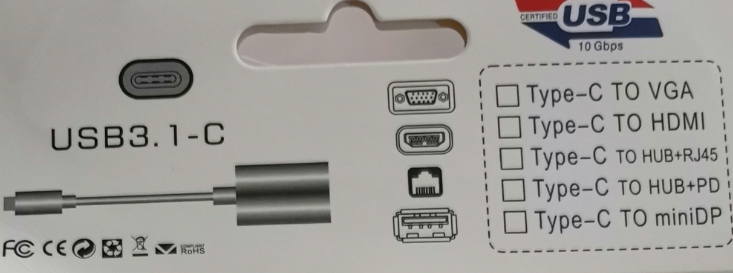
Procedure:
STEP 1. Connect the HDMI Cable of your Television to the USB Type C to HDMI Converter and turn on the *.
STEP 2. Now connect the Type C port of the Converter to the HONOR View20. As soon as you connect a Magic Desktop logo will appear on the screen of your Television.
Take a look:
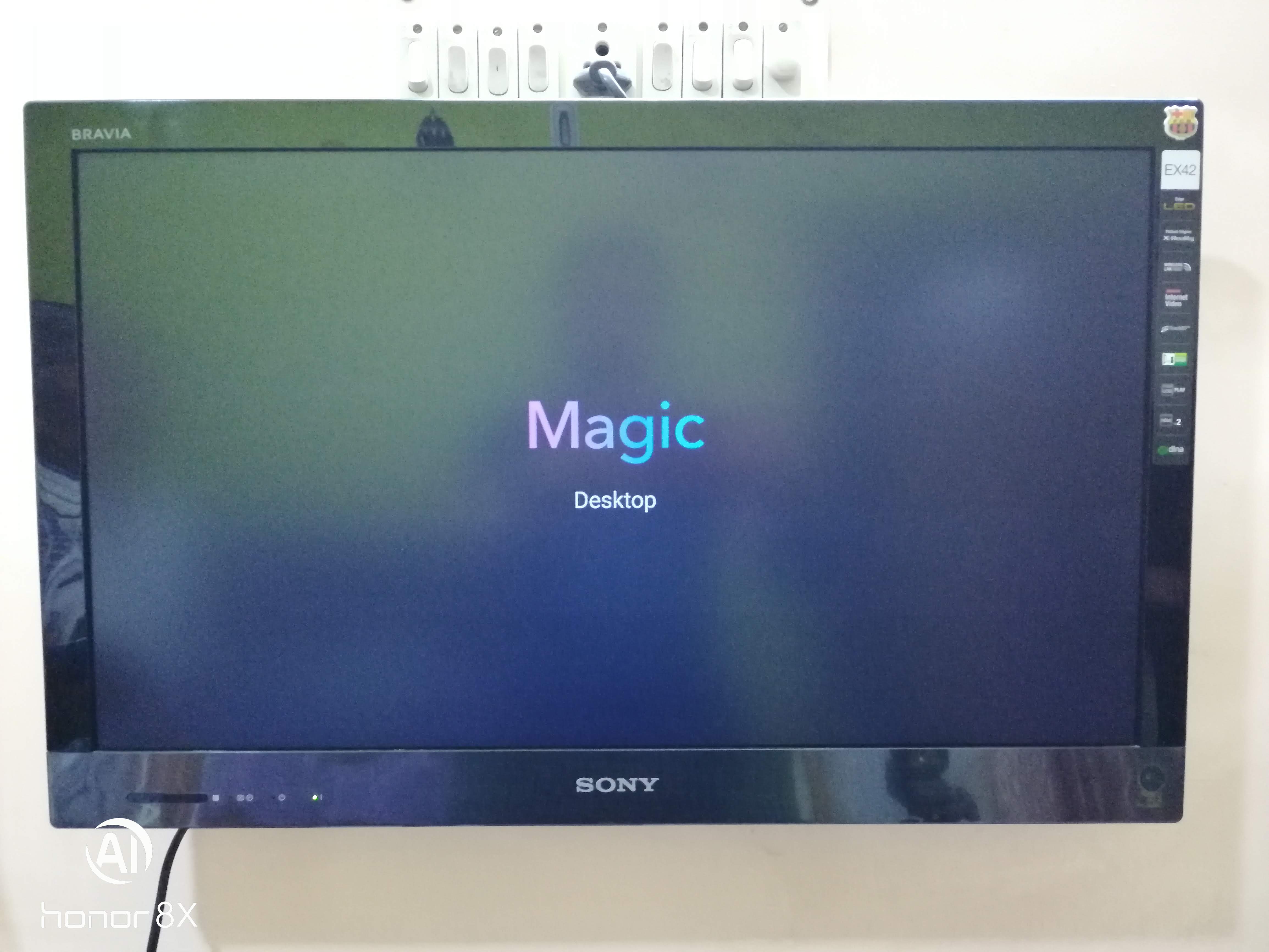
Congratulations, this confirms that you have connected everything properly and nothing else needs to be done. The phone will automatically detect this and enter into the Desktop Mode.
STEP 3. Now head over to your phone and there you can see the Touchpad.
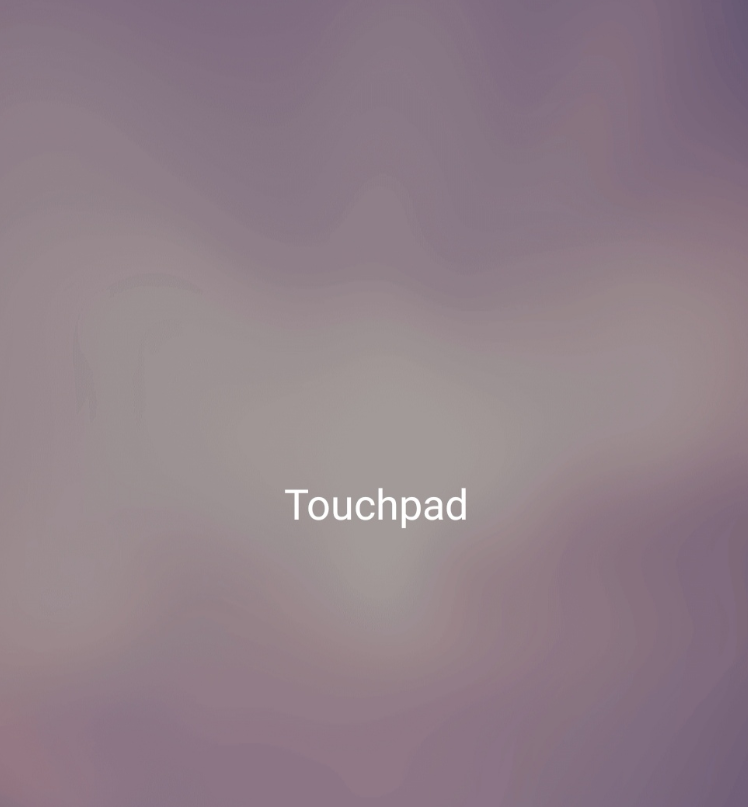
If you don't get the Touchpad don't worry just swipe down the screen and look out for the TOUCHPAD option in the Notification Panel.
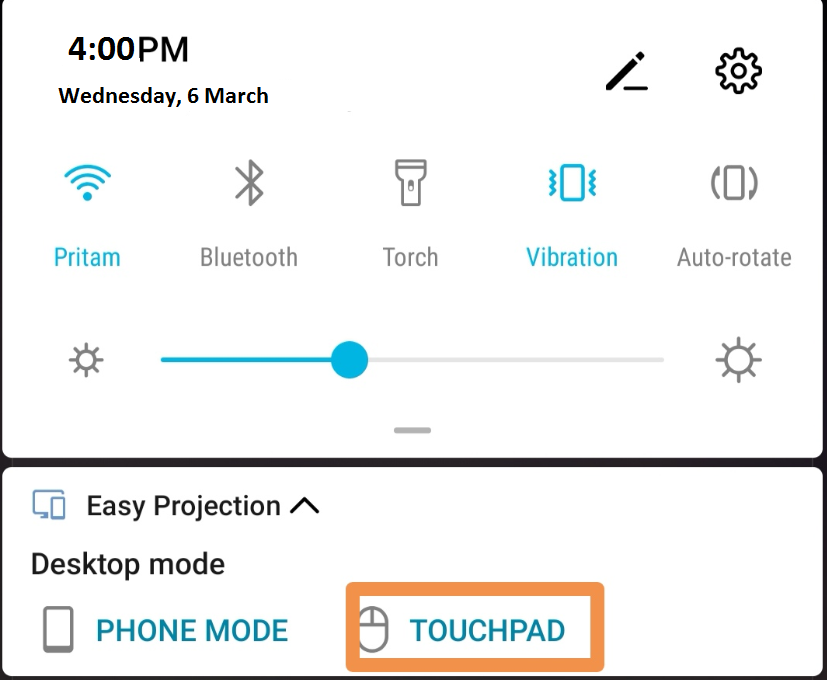
HOW TO USE THE TOUCHPAD?
Using touchpad is very easy. There are 4 Finger Motion patterns given in the instructions to follow. Please take a look, if you have more questions; there is a (i) icon on the right corner. There you can click and find more answers to your questions.
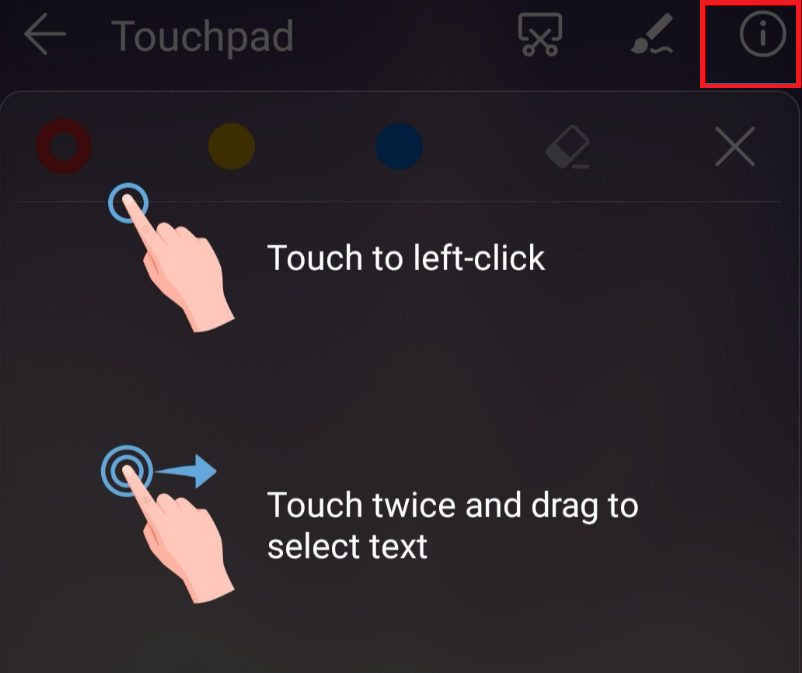

Now the steps are over, and you can finally enjoy your “new computer” Let's see the Homepage of the Desktop.
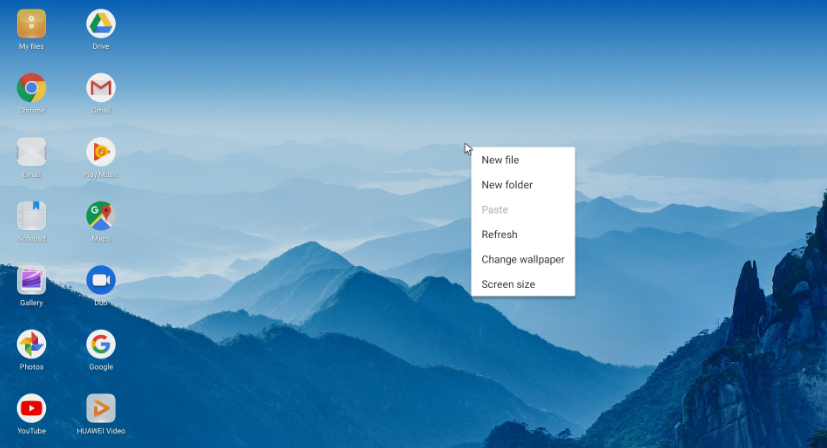
As you can see, it has all the necessary tools and apps, this is very satisfying to get the same look and feel like an actual computer.
I even opened entertainment applications like YouTube and watched a couple of videos over this mode and it was an amazing experience to see the content projected in a bigger screen.
HOW TO GET A SCREENSHOT?
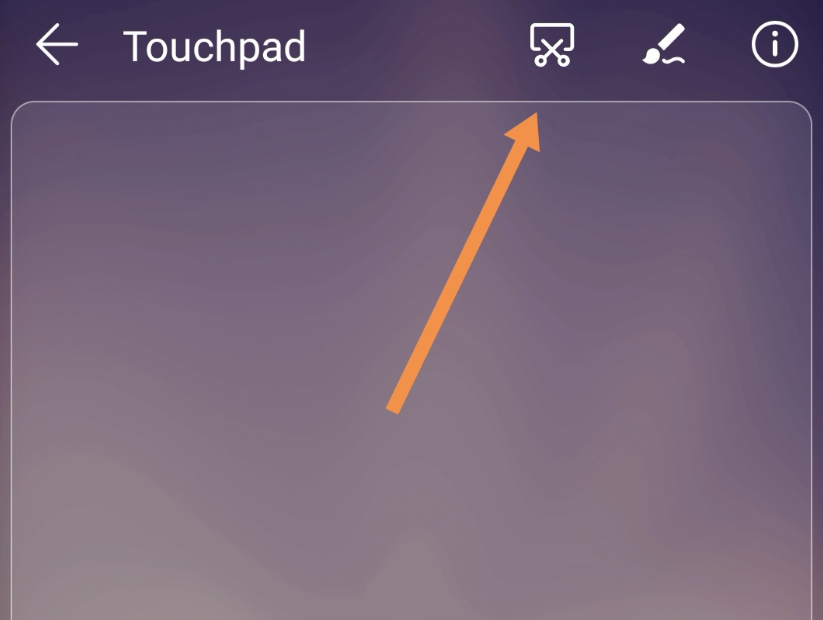
TOUCHPAD has a built-in feature for that. Please take a look.
Advantages of this technology:
1. Turn your phone into a computer and perform all the tasks.
2. Highly Portable since we are using the HONOR View20 and a few cables that can be fitted anywhere.
3. DESKTOP MODE is very easy friendly. The HONOR View20 uses KIRIN 980 chipset that is capable of performing any heavy tasks without a problem.
5. No other components require as you get the inbuilt TOUCHPAD and keyboard when need to type.
I hope you enjoyed this tutorial as I did for the first time trying. Please don’t hesitate to let me know in the comments below; what would you like to learn next or what topics you will like to see in the forum.
Thank you for all the support.


- Posts
- Following
- Followers
- Energy
-

Oliver_HONOR_UK
-
+ Follow

-
- 246 Posts
- 1667 Following
- 945 Followers
- 18383 Energy



- Posts
- photo
- video

Hello HONOR Fans,
I am back with an exciting post. In this post, I will explain to you how to use the HONOR VIEW 20 as a Computer by connecting with a * (Screen). This is a very special and unique feature of MAGIC UI.
Let's get started:
Requirements:
1. You need a Television that supports HDMI port.
2. An HONOR View20.
3. Last, a USB TYPE C to HDMI Converter.
Procedure:
STEP 1. Connect the HDMI Cable of your Television to the USB Type C to HDMI Converter and turn on the *.
STEP 2. Now connect the Type C port of the Converter to the HONOR View20. As soon as you connect a Magic Desktop logo will appear on the screen of your Television.
Take a look:
Congratulations, this confirms that you have connected everything properly and nothing else needs to be done. The phone will automatically detect this and enter into the Desktop Mode.
STEP 3. Now head over to your phone and there you can see the Touchpad.
If you don't get the Touchpad don't worry just swipe down the screen and look out for the TOUCHPAD option in the Notification Panel.
HOW TO USE THE TOUCHPAD?
Using touchpad is very easy. There are 4 Finger Motion patterns given in the instructions to follow. Please take a look, if you have more questions; there is a (i) icon on the right corner. There you can click and find more answers to your questions.
Now the steps are over, and you can finally enjoy your “new computer” Let's see the Homepage of the Desktop.
As you can see, it has all the necessary tools and apps, this is very satisfying to get the same look and feel like an actual computer.
I even opened entertainment applications like YouTube and watched a couple of videos over this mode and it was an amazing experience to see the content projected in a bigger screen.
HOW TO GET A SCREENSHOT?
TOUCHPAD has a built-in feature for that. Please take a look.
Advantages of this technology:
1. Turn your phone into a computer and perform all the tasks.
2. Highly Portable since we are using the HONOR View20 and a few cables that can be fitted anywhere.
3. DESKTOP MODE is very easy friendly. The HONOR View20 uses KIRIN 980 chipset that is capable of performing any heavy tasks without a problem.
5. No other components require as you get the inbuilt TOUCHPAD and keyboard when need to type.
I hope you enjoyed this tutorial as I did for the first time trying. Please don’t hesitate to let me know in the comments below; what would you like to learn next or what topics you will like to see in the forum.
Thank you for all the support.