



 More Products
 Compare














我的荣耀 开启荣耀之旅



 Disagree Terms
 Log out




[Tips&Tricks] Screen Time Management – Make Every Moment Count


 Last reply :
Hello Fans,
EMUI 9.0 provides a detailed Screen Time Management report using Digital Balance Tool on your daily phone use, duration of time spent viewing notifications, and how long you use each application. Achieve a digital balance to help you get back to what is important.
Digital Balance measures how much time you spend on your phone and it shows the usage duration of each individual app. With App usage stats, Screen time, Bedtime and Check the location you are able to control and manage your phone usage.
Digital Balance also includes parental controls for monitoring your child's phone usage.
Usage Stats:
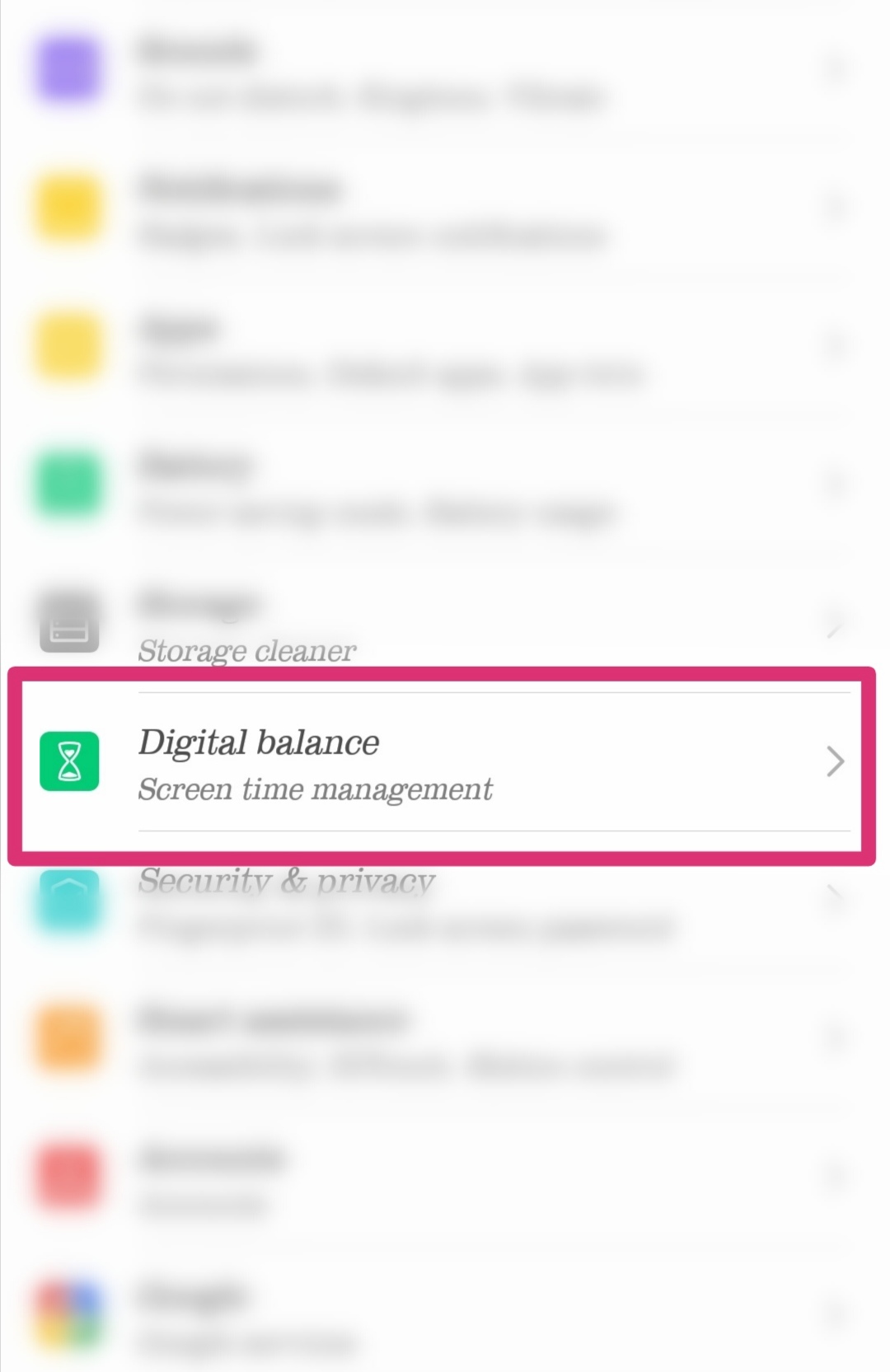
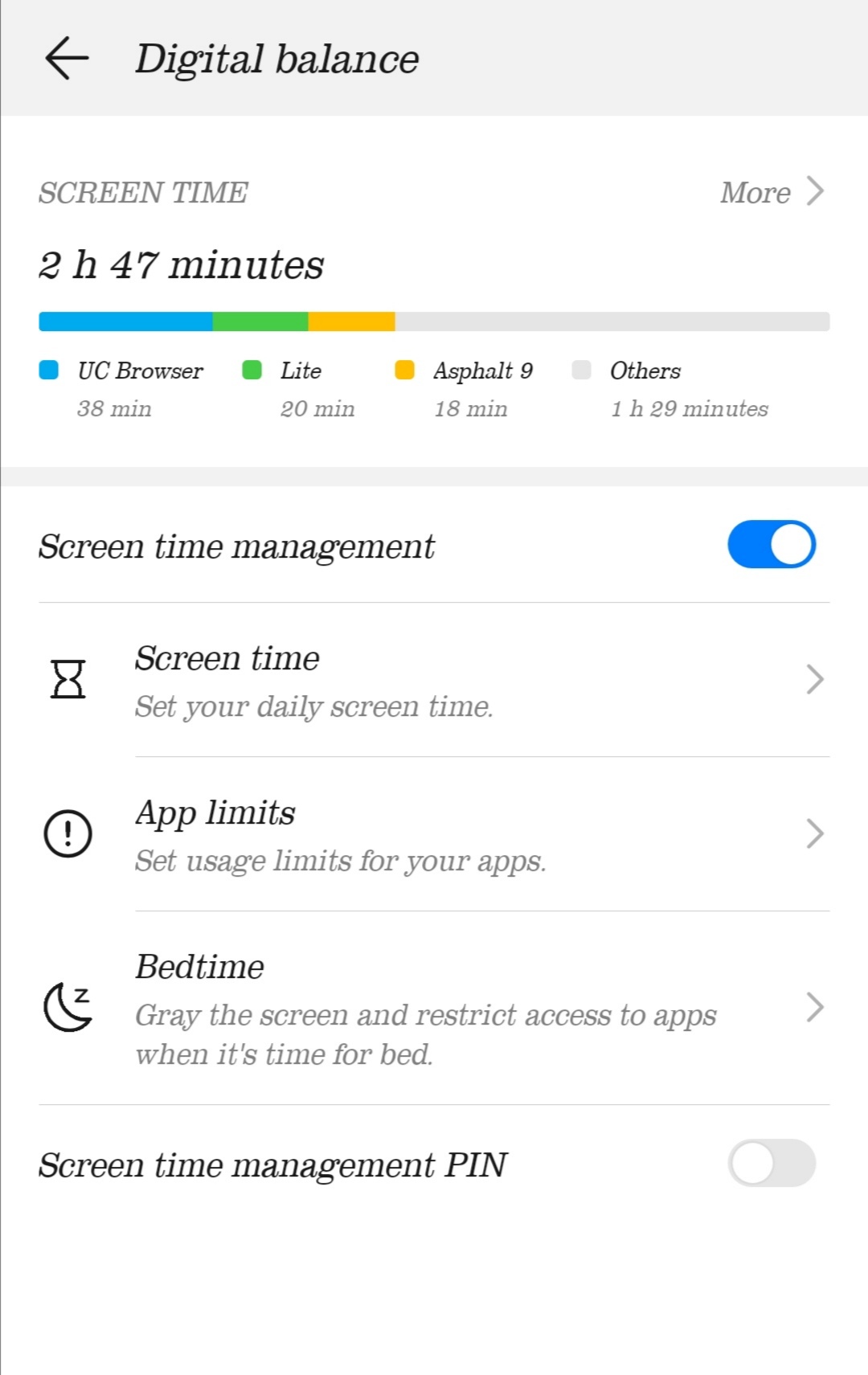
Go to Settings > Tap Digital balance > Usage Stats to check how much time you spend on each App.
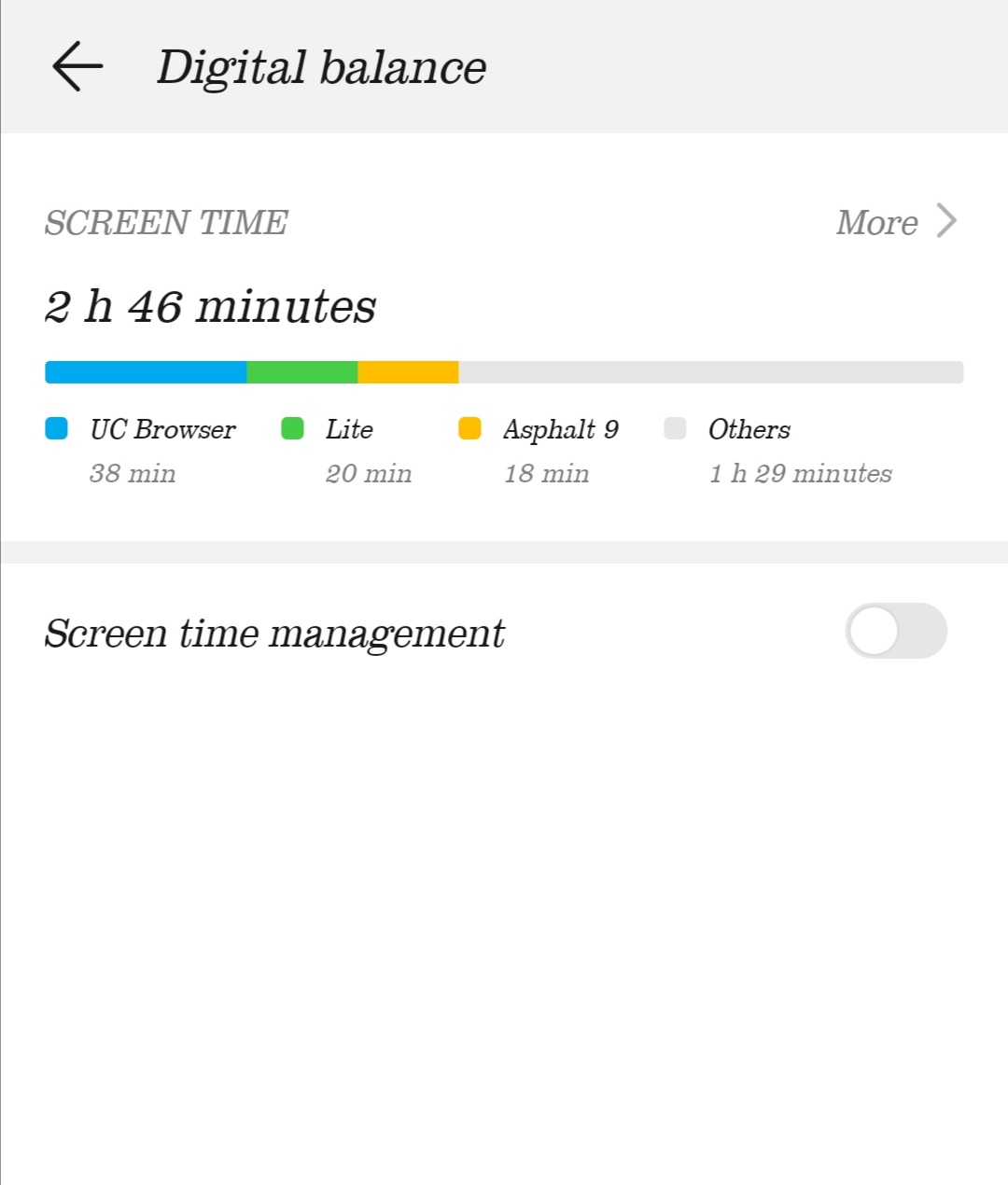
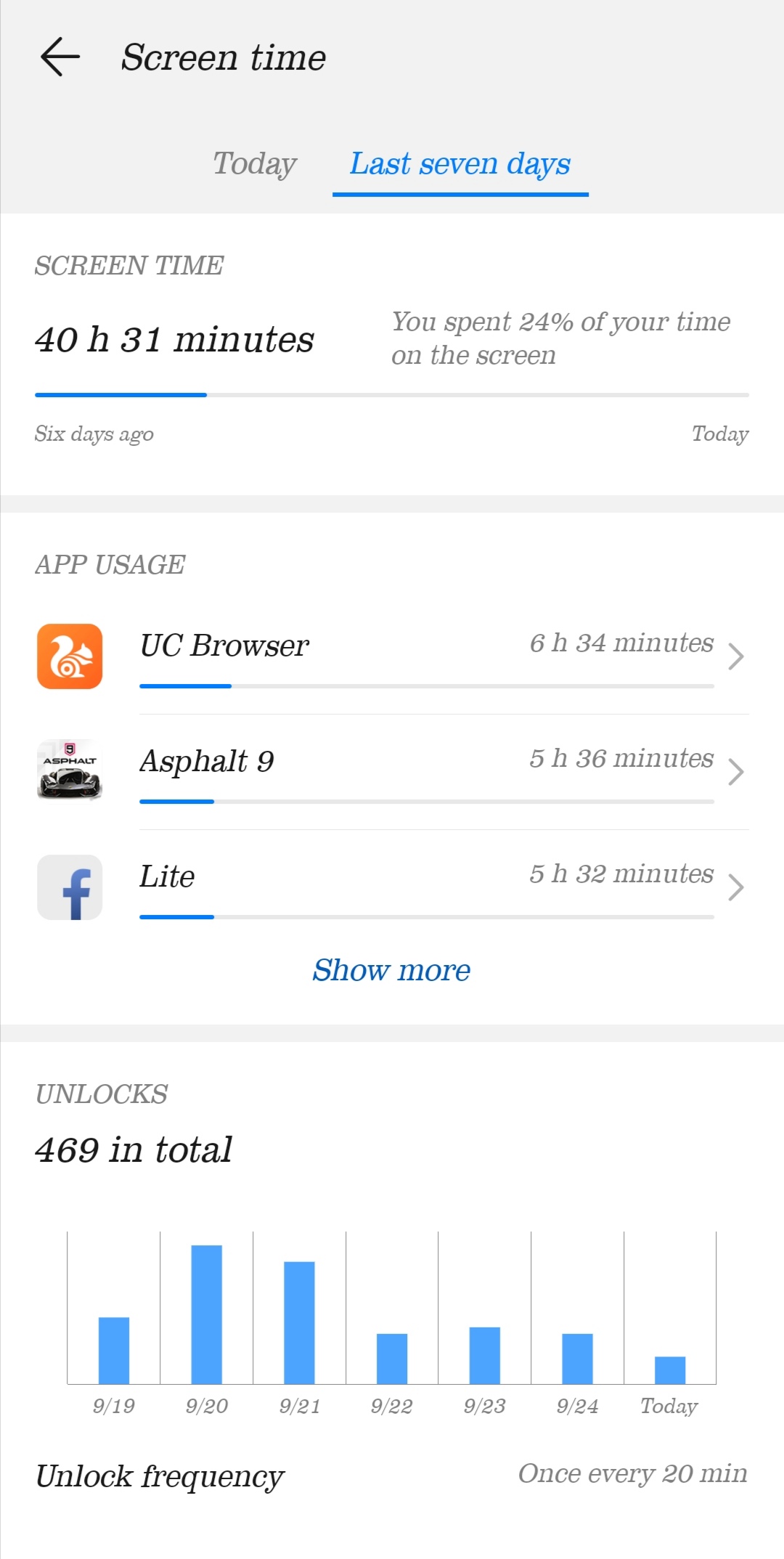
You can click on more to monitor the screen time and the app usage for the last 24 hours or for the last seven days. You can also see the unlock frequency of your device.
Enabling Screen time management will allow you to set daily usage hours, restriction of some apps, daily time limit for apps and bedtime mode.
Bedtime mode restricts access to apps when it’s time to sleep.
You can click on more to monitor the screen time and the app usage for the last 24 hours or for the last seven days. You can also see the unlock frequency of your device.
Screen Time Management for Self-Control:
To keep a track on your device for self-usage, enable Screen time management and select “This is my phone”. You can also set a Screen time management PIN to approve screen time extensions or to change the user settings.
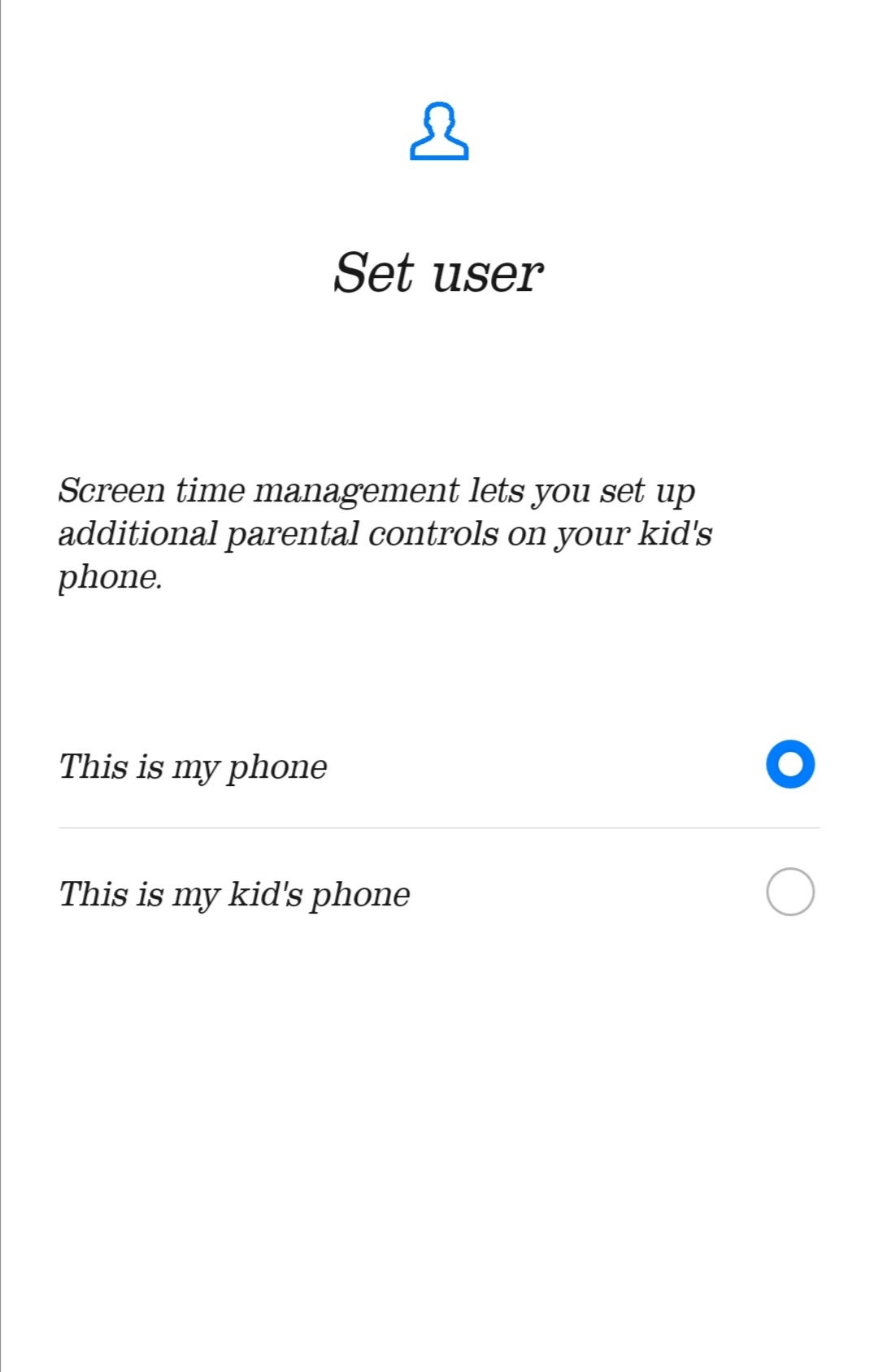
Enabling Screen time management will allow you to set daily usage hours, restriction of some apps, daily time limit for apps and bedtime mode.
Bedtime mode restricts access to apps when it’s time to sleep.
Screen Time Management for Kids:
Screen Time management lets you set up additional parental controls on your kids’ phone. It allows you to manage your children's daily screen time and app usage, guiding them towards healthier technology habits. The time limits can only be extended with your approval.
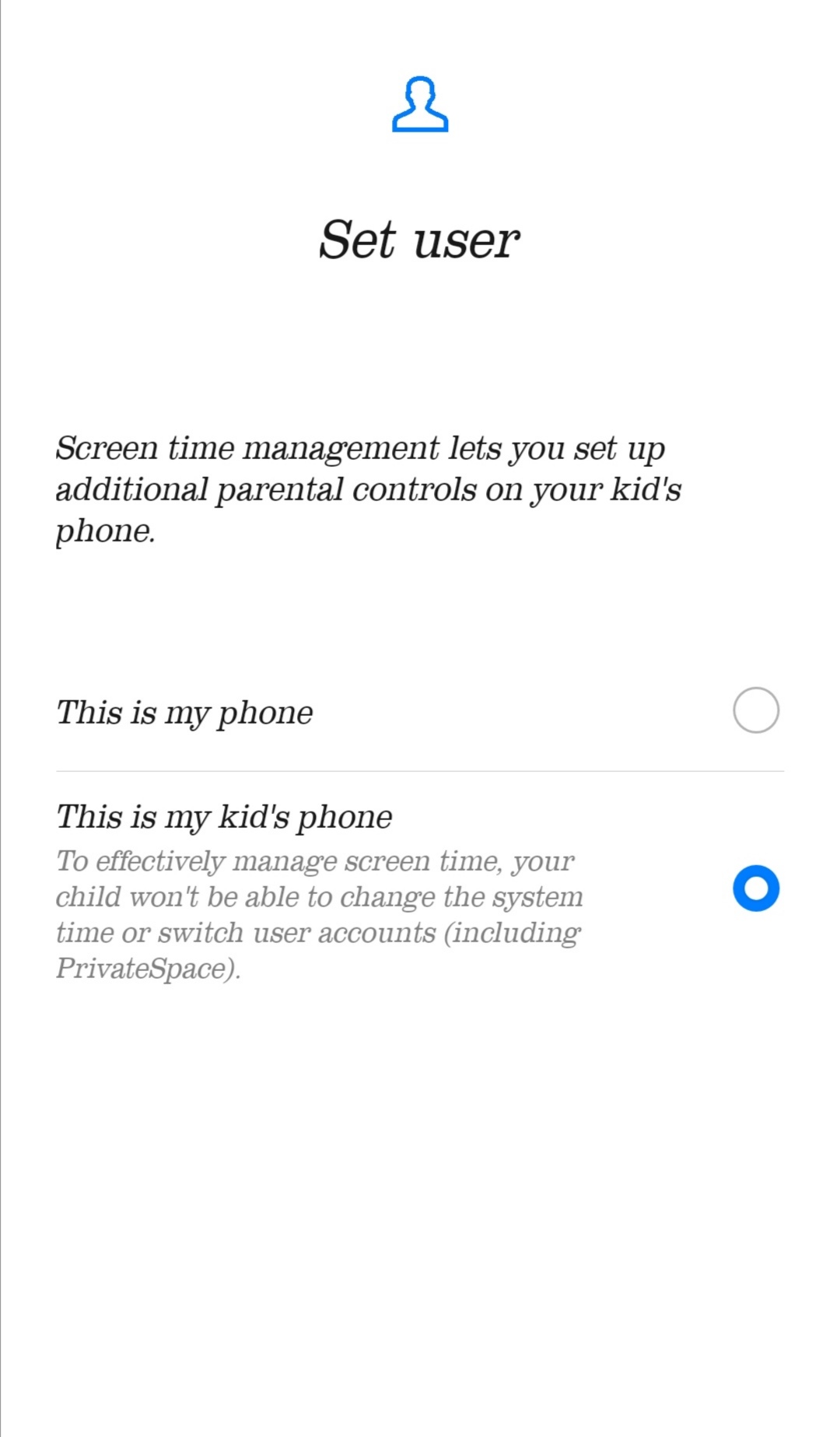
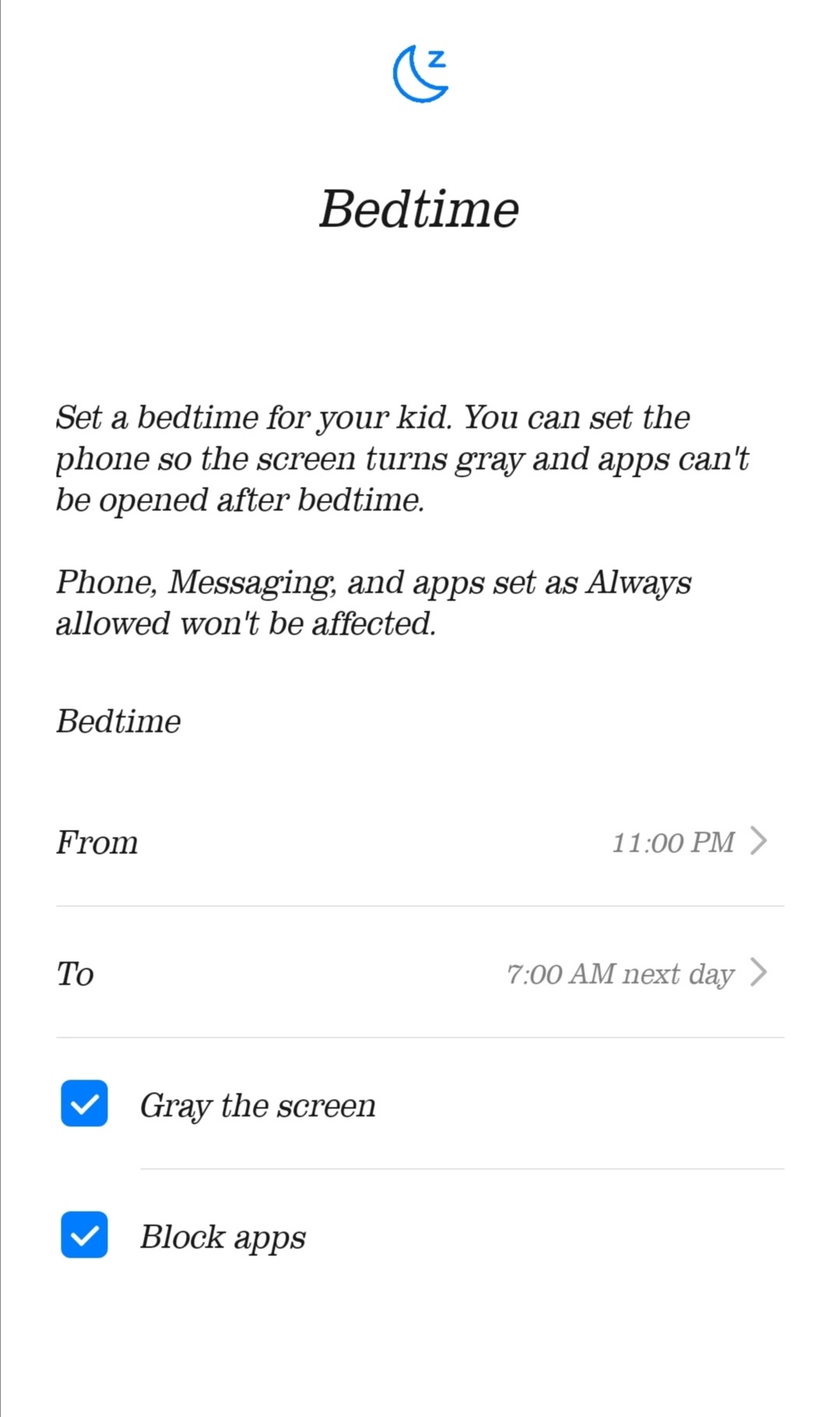
You can also set a daily bedtime for your kid. It turns the screen grey and apps cannot be opened after sleeping hours.
Dialer, Messaging and the apps you add to always allowed are exempted from usage limits.
To use this feature, go to Settings, open Digital Balance and enable Screen time management. Then select “This is my kid's phone” and tap next to configure the Daily Screen time and the Bedtime.
This is all for today! I hope you liked the article don’t forget to like and please, comment below if you have any other questions.
Cheers!


- Posts
- Following
- Followers
- Energy
-

Sebastian
-
+ Follow

-
- 139 Posts
- 390 Following
- 424 Followers
- 10125 Energy



- Posts
- photo
- video

Hello Fans,
EMUI 9.0 provides a detailed Screen Time Management report using Digital Balance Tool on your daily phone use, duration of time spent viewing notifications, and how long you use each application. Achieve a digital balance to help you get back to what is important.
Digital Balance measures how much time you spend on your phone and it shows the usage duration of each individual app. With App usage stats, Screen time, Bedtime and Check the location you are able to control and manage your phone usage.
Digital Balance also includes parental controls for monitoring your child's phone usage.
Usage Stats:
Go to Settings > Tap Digital balance > Usage Stats to check how much time you spend on each App.
You can click on more to monitor the screen time and the app usage for the last 24 hours or for the last seven days. You can also see the unlock frequency of your device.
Enabling Screen time management will allow you to set daily usage hours, restriction of some apps, daily time limit for apps and bedtime mode.
Bedtime mode restricts access to apps when it’s time to sleep.
You can click on more to monitor the screen time and the app usage for the last 24 hours or for the last seven days. You can also see the unlock frequency of your device.
Screen Time Management for Self-Control:
To keep a track on your device for self-usage, enable Screen time management and select “This is my phone”. You can also set a Screen time management PIN to approve screen time extensions or to change the user settings.
Enabling Screen time management will allow you to set daily usage hours, restriction of some apps, daily time limit for apps and bedtime mode.
Bedtime mode restricts access to apps when it’s time to sleep.
Screen Time Management for Kids:
Screen Time management lets you set up additional parental controls on your kids’ phone. It allows you to manage your children's daily screen time and app usage, guiding them towards healthier technology habits. The time limits can only be extended with your approval.
You can also set a daily bedtime for your kid. It turns the screen grey and apps cannot be opened after sleeping hours.
Dialer, Messaging and the apps you add to always allowed are exempted from usage limits.
To use this feature, go to Settings, open Digital Balance and enable Screen time management. Then select “This is my kid's phone” and tap next to configure the Daily Screen time and the Bedtime.
This is all for today! I hope you liked the article don’t forget to like and please, comment below if you have any other questions.
Cheers!