



 More Products
 Compare


ABOUT HONOR
Events















我的荣耀 开启荣耀之旅



 Disagree Terms
 Log out




[Tips&Tricks] EMUI 10 TIPS: How to take screenshots and scrollshot on HONOR 9A


 Last reply :
Hey Girls N' Guys!
I hope you're all keeping safe and well? Today, I'm bringing you a short Tips & Tricks Tutorial on Taking Screenshots and Scrollshots on your HONOR 9A (and any HONOR Device Running EMUI 10 or Above).
Screenshots Let's you capture the Image which is displayed on your phones screen... Which can the be edited, Saved and shared as you please.
A Scrollshot let's you extend a screenshot capture, allowing you to grab, edit and share more than a single screens worth of information...
Scrollshot:

TAKING A SCREENSHOT:
OK, so let's get your Knuckle Screenshot feature Set up!
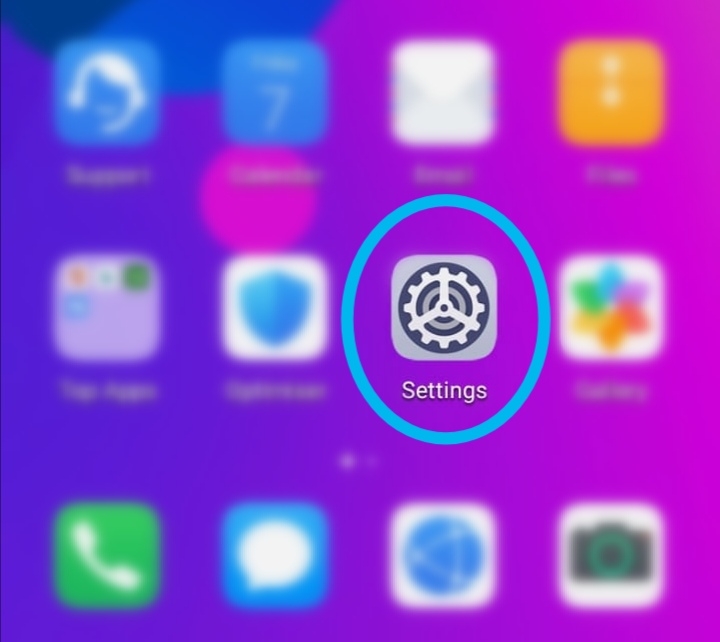
1. Go to Settings
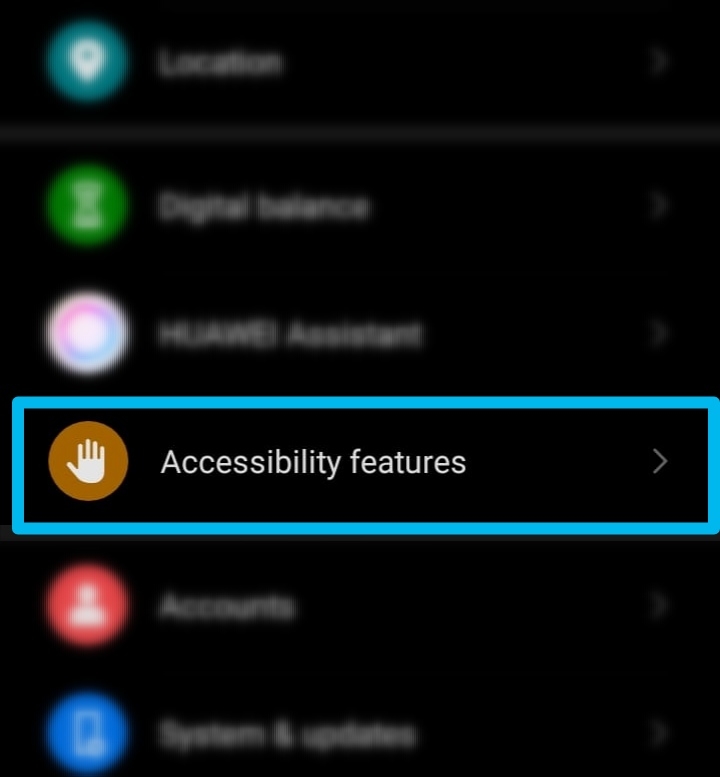
2. Accessibility Features
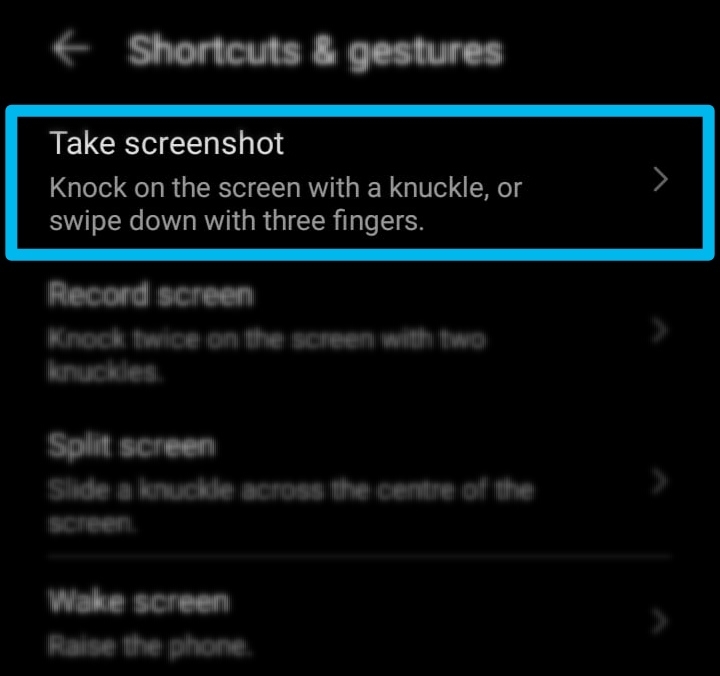
3. Short Cuts And Gestures
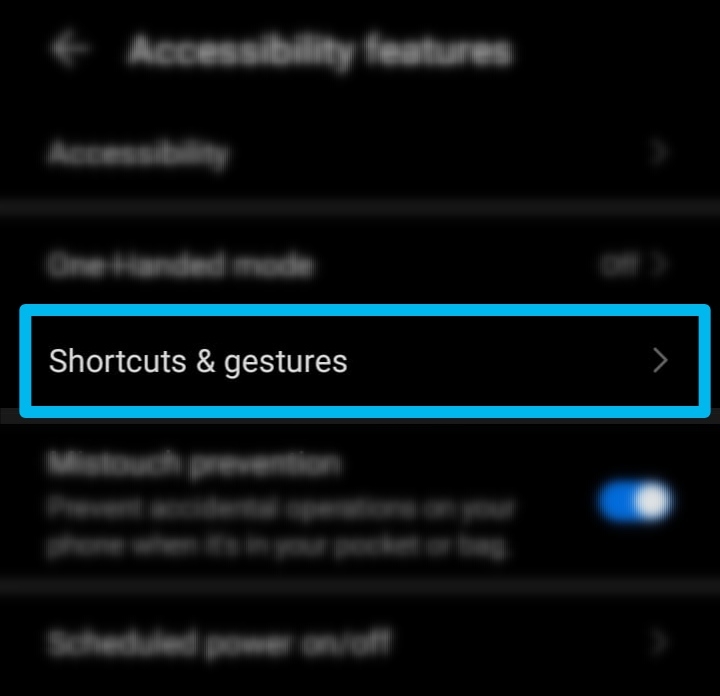
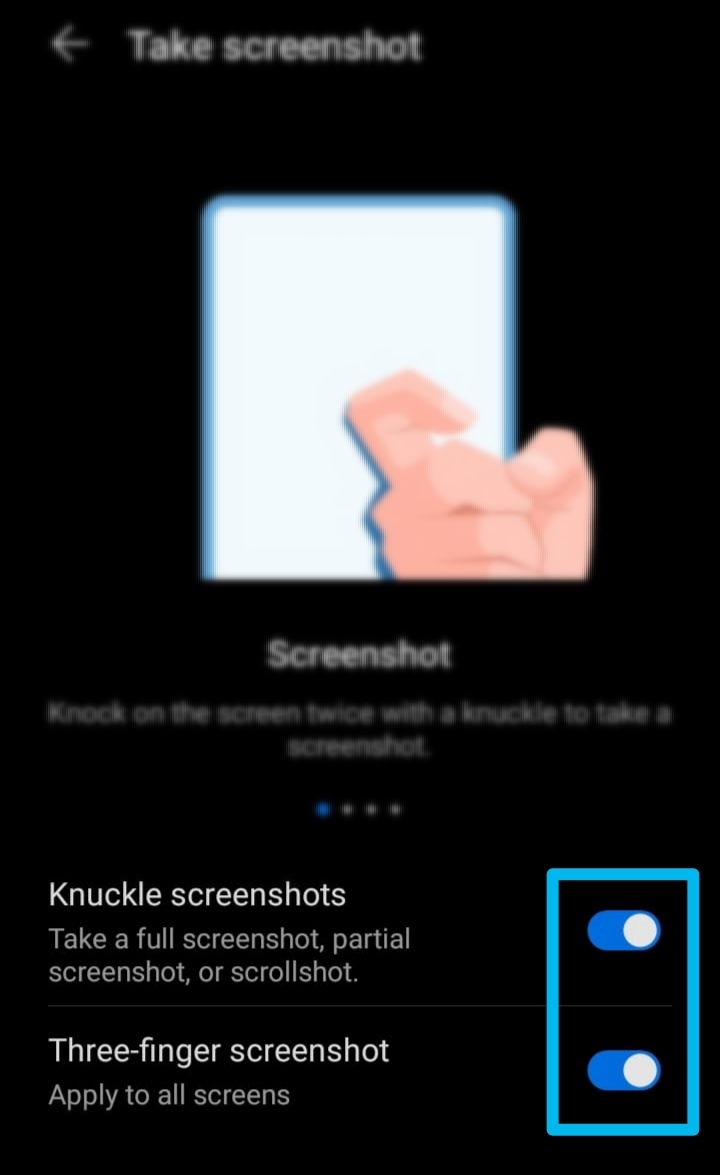
4. Take Screenshot
5. Ensure Knuckle Screen shot is enabled.
Now that's set up, let's have a look at how to capture a screenshot...
You can:
▪️ Use your Knuckle to double tap on your phones screen
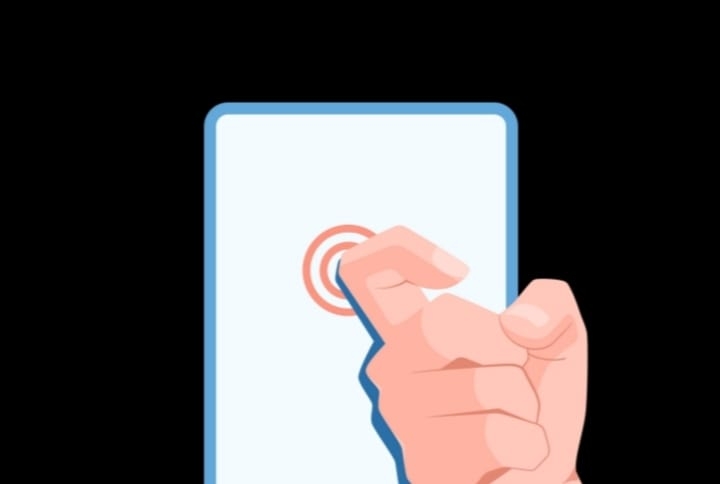
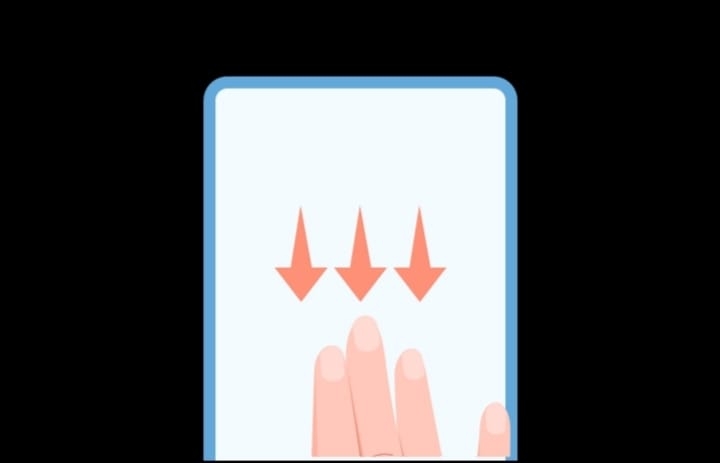
▪️ Swipe down from the top of the screen with 3 fingers.
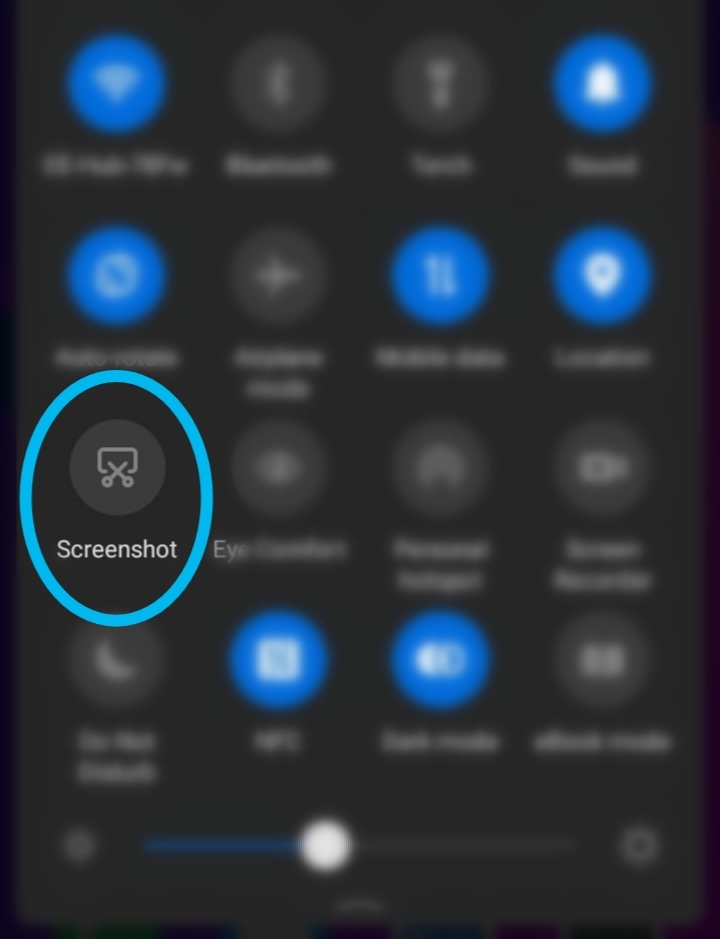
▪️ You can swipe down from the status bar to open the notification panel, then swipe down again to show all shortcuts and tap “Screenshot”
▪️ Or Press the Power and Volume Down button together.
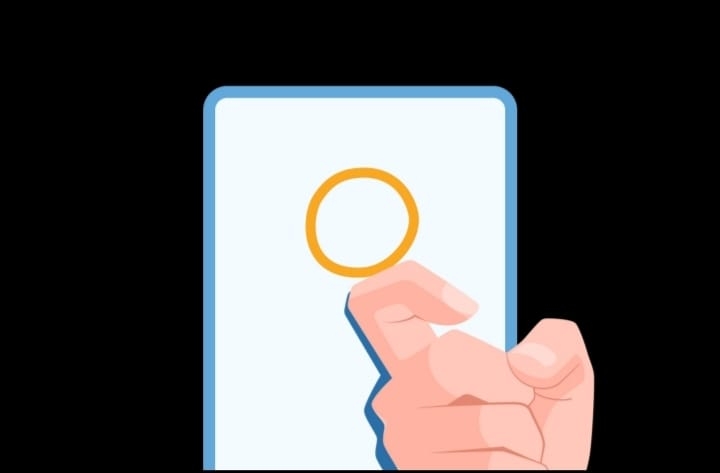
You can also capture a partial screen shot, Simply by using your Knuckle to tap and drag around the desired object...
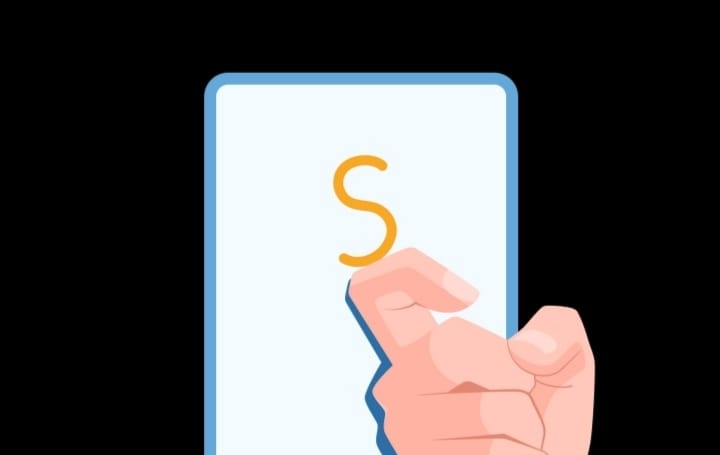
TAKING A SCROLLSHOT:
▪️ Tap your Knuckle on the screen and drag in an S Shape
Once you've taken a screen shot, the capture will turn into a small thumbnail at the bottom of your screen...
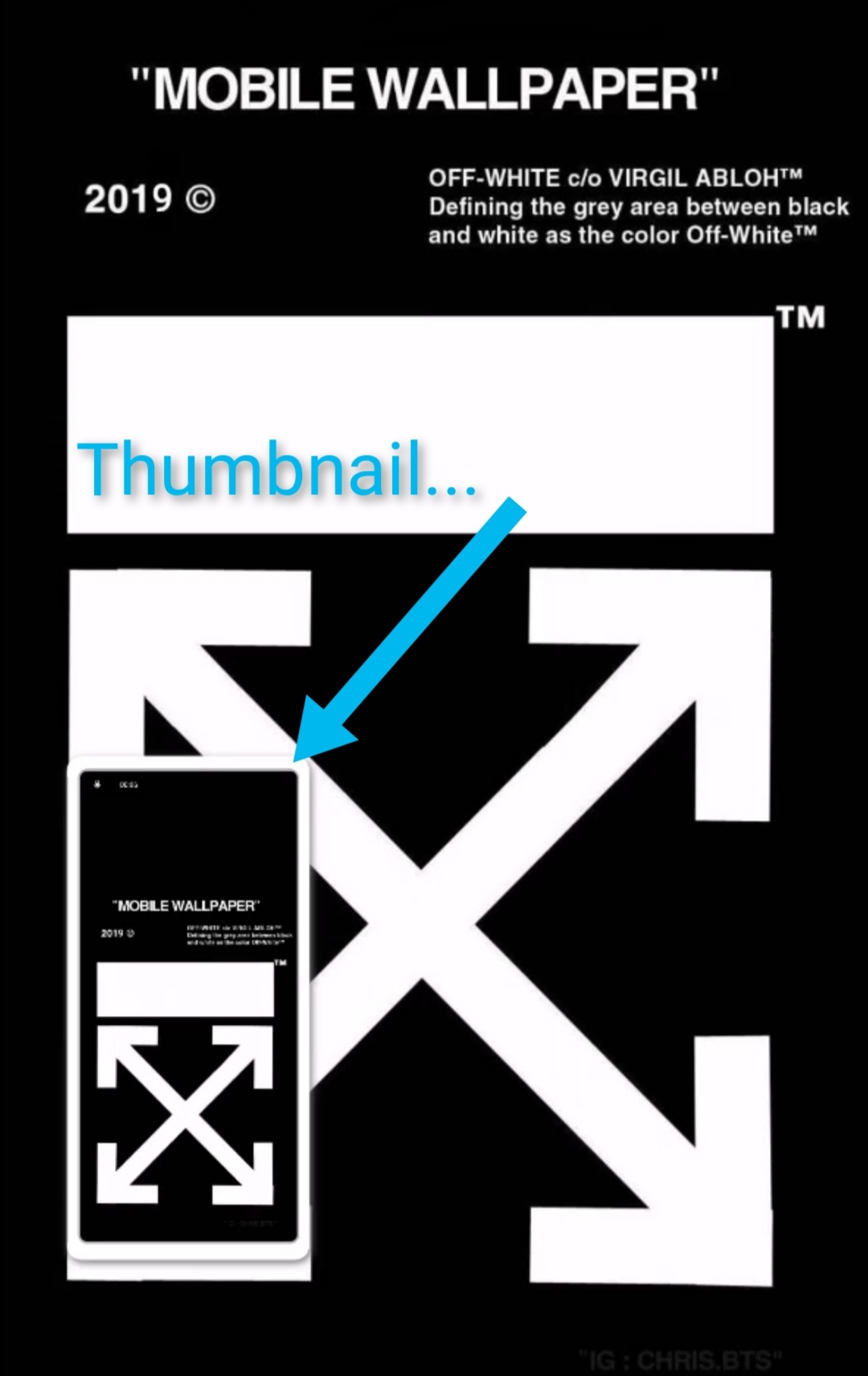
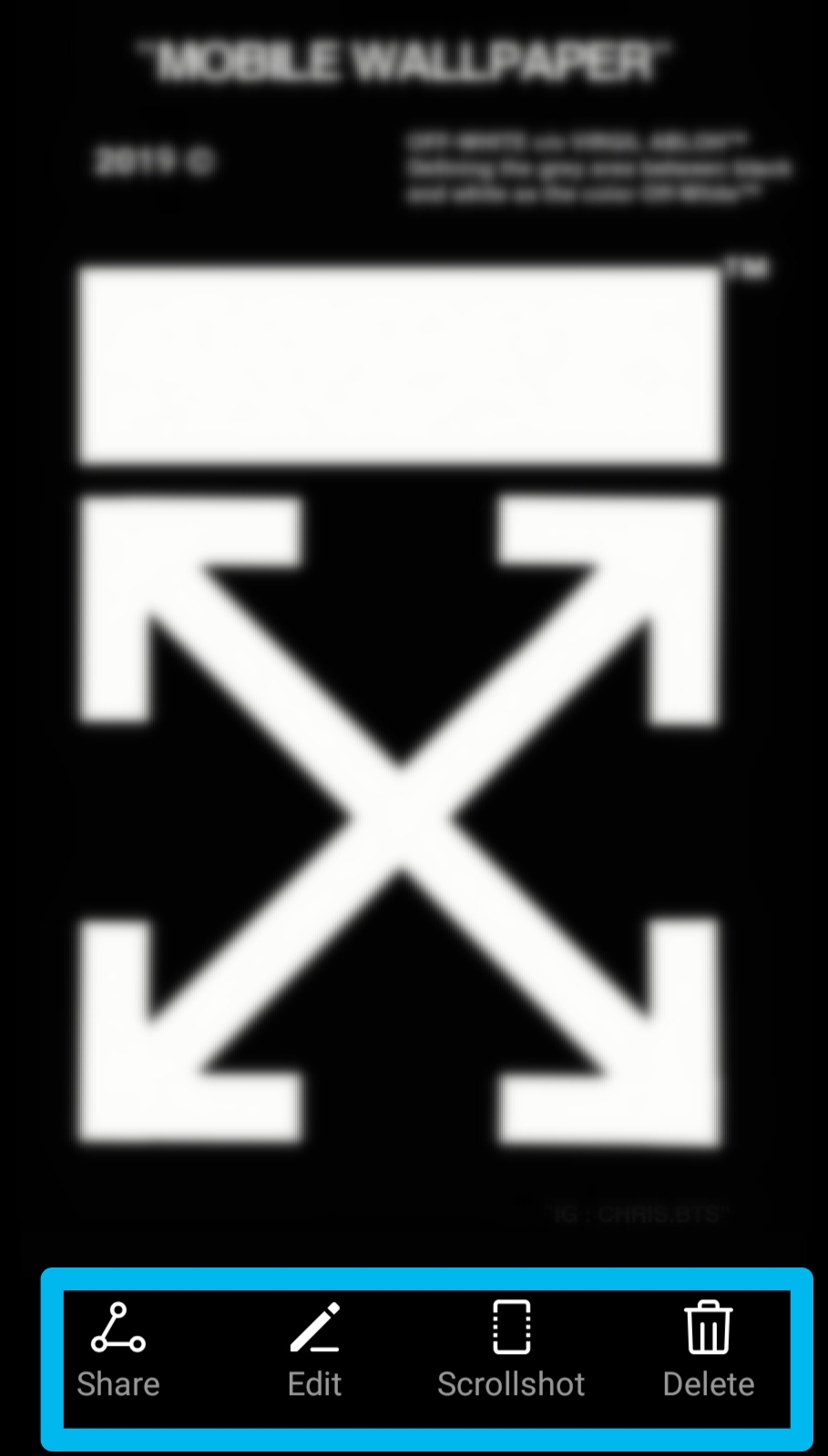
If you tap on the thumbnail, it will pull up a sub menu...
From there you can:
▪️ Select a sharing mode and share the screenshot with your friends.
▪️ Touch the thumbnail to edit or delete it. Screenshots are saved to Gallery by default.
▪️ Take a scrolling screenshot.
Here's a quick video guide for you to take a look at...
Give it a try for yourself and let me know your favourite way to grab a screenshot in the comments!
Links to my previous Tips & Tricks Posts Here:
▪️ How to Participate in the "Beta App Test" Campaign on HONOR Club App!
https://community.hihonor.com/uk/topicdetail/?topicId=20383
▪️How to Enable and Use New "Gesture Navigation" on the HONOR 9A +Others
https://community.hihonor.com/uk/topicdetail/?topicId=20875
▪️ How to Enable and Use New "Gesture Navigation" on the HONOR 9A +Others
https://community.hihonor.com/uk/topicdetail/?topicId=20875
▪️HONOR Magic Earbuds and... Photography?
https://community.hihonor.com/uk/topicdetail/?topicId=20599
Thanks for having a look at my post... And if you made it this far, You're the best!! More tips and tricks.
I'll catch you in the next one!
Marbles666


- Posts
- Following
- Followers
- Energy
-

Marbles666
-
+ Follow

-
- 68 Posts
- 199 Following
- 414 Followers
- 18374 Energy










- Posts
- photo
- video

Hey Girls N' Guys!
I hope you're all keeping safe and well? Today, I'm bringing you a short Tips & Tricks Tutorial on Taking Screenshots and Scrollshots on your HONOR 9A (and any HONOR Device Running EMUI 10 or Above).
Screenshots Let's you capture the Image which is displayed on your phones screen... Which can the be edited, Saved and shared as you please.
A Scrollshot let's you extend a screenshot capture, allowing you to grab, edit and share more than a single screens worth of information...
Scrollshot:
TAKING A SCREENSHOT:
OK, so let's get your Knuckle Screenshot feature Set up!
1. Go to Settings
2. Accessibility Features
3. Short Cuts And Gestures
4. Take Screenshot
5. Ensure Knuckle Screen shot is enabled.
Now that's set up, let's have a look at how to capture a screenshot...
You can:
▪️ Use your Knuckle to double tap on your phones screen
▪️ Swipe down from the top of the screen with 3 fingers.
▪️ You can swipe down from the status bar to open the notification panel, then swipe down again to show all shortcuts and tap “Screenshot”
▪️ Or Press the Power and Volume Down button together.
You can also capture a partial screen shot, Simply by using your Knuckle to tap and drag around the desired object...
TAKING A SCROLLSHOT:
▪️ Tap your Knuckle on the screen and drag in an S Shape
Once you've taken a screen shot, the capture will turn into a small thumbnail at the bottom of your screen...
If you tap on the thumbnail, it will pull up a sub menu...
From there you can:
▪️ Select a sharing mode and share the screenshot with your friends.
▪️ Touch the thumbnail to edit or delete it. Screenshots are saved to Gallery by default.
▪️ Take a scrolling screenshot.
Here's a quick video guide for you to take a look at...
Give it a try for yourself and let me know your favourite way to grab a screenshot in the comments!
Links to my previous Tips & Tricks Posts Here:
▪️ How to Participate in the "Beta App Test" Campaign on HONOR Club App!
https://community.hihonor.com/uk/topicdetail/?topicId=20383
▪️How to Enable and Use New "Gesture Navigation" on the HONOR 9A +Others
https://community.hihonor.com/uk/topicdetail/?topicId=20875
▪️ How to Enable and Use New "Gesture Navigation" on the HONOR 9A +Others
https://community.hihonor.com/uk/topicdetail/?topicId=20875
▪️HONOR Magic Earbuds and... Photography?
https://community.hihonor.com/uk/topicdetail/?topicId=20599
Thanks for having a look at my post... And if you made it this far, You're the best!! More tips and tricks.
I'll catch you in the next one!
Marbles666