



 More Products
 Compare














我的荣耀 开启荣耀之旅



 Disagree Terms
 Log out




[Tips & Tricks] Accessibility Features, very useful!


 Last reply :
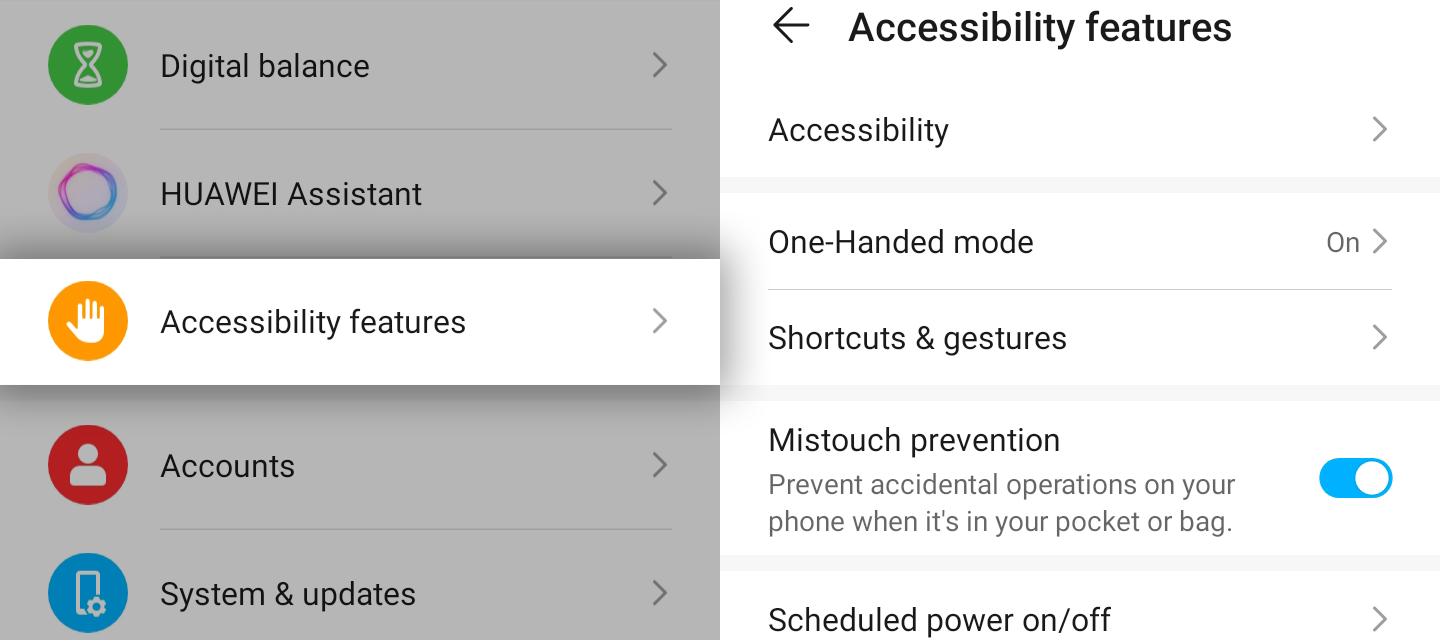
Have you ever, just once, clicked on the ‘Accessibility Features’ option in Settings?
It doesn’t really matter what your answer is,
because in this article we’re going to dive deep into the most useful features!
Accessibility
So, the first tab in the ‘Accessibility Features’ is called ‘Accessibility’.
It mainly covers features for people that have problems with their eye sight or with problems using their hands.
It has options like: ScreenReader, Text-to-speech, Magnification and High contrast text.

One-Handed Mode
I think you can already guess what this feature is meant for. Yes, it is a useful feature to use your phone with a single hand. Why? Well, because phone screens have become very large over the last few years.
It’s great to play games or watch *, but when you have small hands…your phone can become less practical to use. Thanks to the One-Handed Mode, you can control your phone easily by swiping from one of the lower corners to the middle of the screen. If you’re using three-key-navigation, then you have to swipe across the navigation bar to get the smaller screen.
Shortcuts & Gestures
Alrighty! This is the best part of the article. I will devide this topic in five smaller parts!
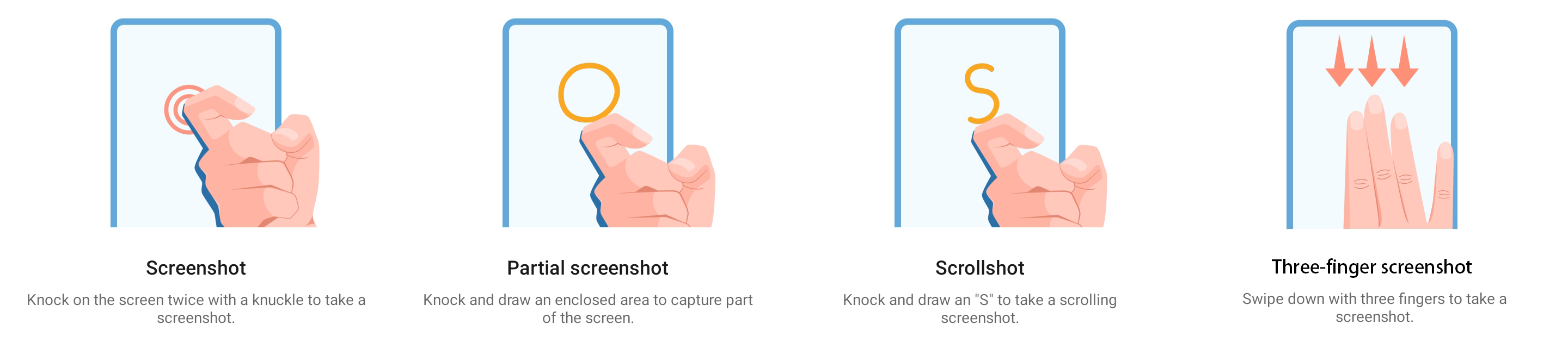
Take Screenshot
If you want to take a screenshot, there are multiple things you can do.
You can use your knuckle or you can use three fingers. I personally recommend ‘Knuckle Screenshots’ since it has more options!
1. Screenshot: Knock twice with your knuckle
2. Partial Screenshot: Knock and draw an enclosed area to capture a specific part of the screen
3. Scrollshot: Knock and draw an ‘S’ to take a scrolling screenshot!
If you want to use the ‘Three-finger Screenshot’, then simply: swipe down with three fingers to take a screenshot.
Record Screen
Alrighty, the second part! So right now I’m going to teach you the easiest way to turn on your screen recording!
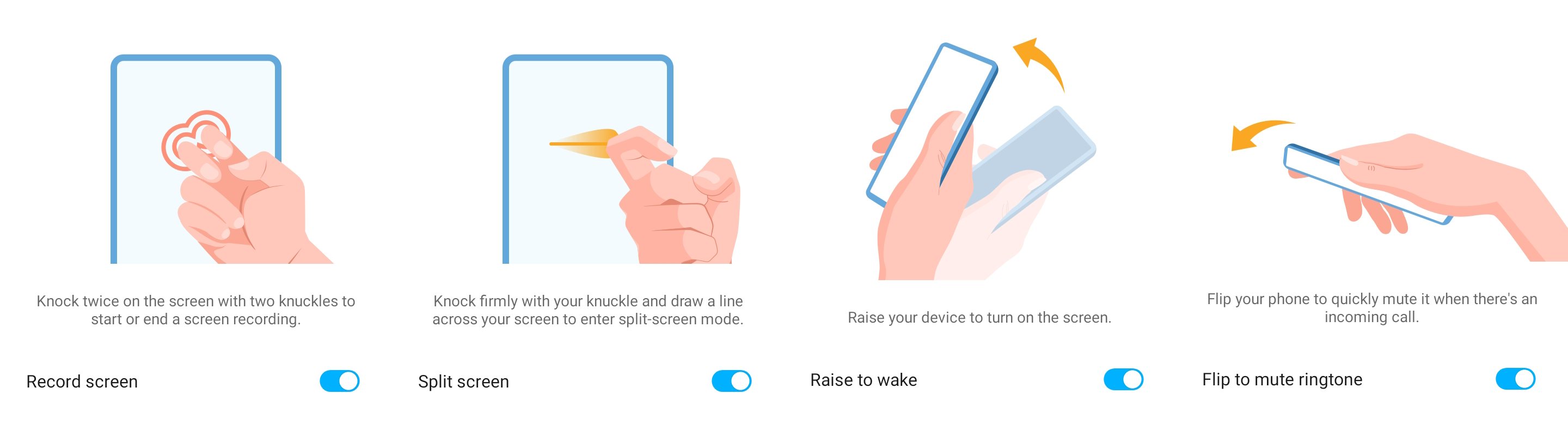
The only thing you have to do: Knock twice on the screen with two knuckles to start or end a screen recording.
That’s all ladies and gentlemen. HONOR really makes your life so much easier with these simple features.
Split Screen
To be honest: This was my first time finding out about this way of triggering Split-Screen.
The only thing you have to do: Knock firmly with your knuckle and draw a line across your screen to enter split-screen mode. How easy is that?!
Wake Screen
This is one of my favourite features.
By enabling this feature you can simply raise your device to turn on the screen.
If you happen to have a Face Unlock option, it makes it even more useful!
Mute Ringtone
Have you ever been in class, while suddenly you got a call from your mother?
Your phone goes wild and throws a party in the Classroom with your favourite ringtone: ‘Barbie Girl’!
Your classmates are all looking at you like: Ehhh…
You’re so stressed that you cannot find a way to turn it off!
I hope I’m not the only one, because otherwise it’s quite embarrassing.
So, how can you prevent this?
Simply flip your phone to quickly mute it when there’s an incoming call.
Or…just change your ringtone, like I did. Or both.
Well, well. These were the ‘Shortcuts & Gestures’ options. So, what’s next?
Mistouch prevention
So, this option will prevent your device from calling people by accident or other accidental operations while your phone it in your pocket or bag.
Scheduled Power On/Off
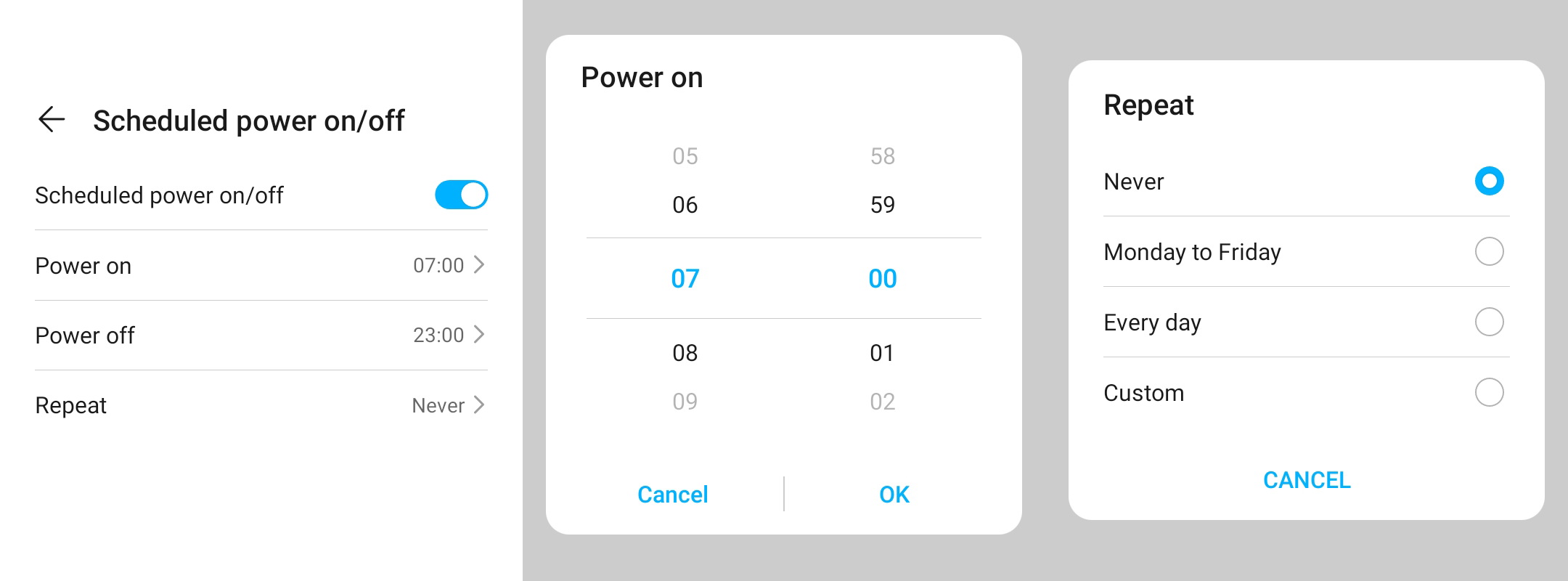
Thanks to this feature, your phone can be turned on or off automatically depending on the time you set.
You can also let it repeat every day or on specific days. Just check it out! Maybe you can use it.
Thanks for reading everyone!
I had a blast writing this for all of you and I really hope you have learnt some new things that are possible with your HONOR device.
If you enjoyed reading this article, please give it a like!
untitleddailyThese features are available on the HONOR 9A, on some phones there are more or less features available!*
What is your favourite feature? Drop it down below in the comments.


- Posts
- Following
- Followers
- Energy
-

Revolt
-
+ Follow

-
- 131 Posts
- 23 Following
- 252 Followers
- 8524 Energy






- Posts
- photo
- video

Have you ever, just once, clicked on the ‘Accessibility Features’ option in Settings?
It doesn’t really matter what your answer is,
because in this article we’re going to dive deep into the most useful features!
Accessibility
So, the first tab in the ‘Accessibility Features’ is called ‘Accessibility’.
It mainly covers features for people that have problems with their eye sight or with problems using their hands.
It has options like: ScreenReader, Text-to-speech, Magnification and High contrast text.
One-Handed Mode
I think you can already guess what this feature is meant for. Yes, it is a useful feature to use your phone with a single hand. Why? Well, because phone screens have become very large over the last few years.
It’s great to play games or watch *, but when you have small hands…your phone can become less practical to use. Thanks to the One-Handed Mode, you can control your phone easily by swiping from one of the lower corners to the middle of the screen. If you’re using three-key-navigation, then you have to swipe across the navigation bar to get the smaller screen.
Shortcuts & Gestures
Alrighty! This is the best part of the article. I will devide this topic in five smaller parts!
Take Screenshot
If you want to take a screenshot, there are multiple things you can do.
You can use your knuckle or you can use three fingers. I personally recommend ‘Knuckle Screenshots’ since it has more options!
1. Screenshot: Knock twice with your knuckle
2. Partial Screenshot: Knock and draw an enclosed area to capture a specific part of the screen
3. Scrollshot: Knock and draw an ‘S’ to take a scrolling screenshot!
If you want to use the ‘Three-finger Screenshot’, then simply: swipe down with three fingers to take a screenshot.
Record Screen
Alrighty, the second part! So right now I’m going to teach you the easiest way to turn on your screen recording!
The only thing you have to do: Knock twice on the screen with two knuckles to start or end a screen recording.
That’s all ladies and gentlemen. HONOR really makes your life so much easier with these simple features.
Split Screen
To be honest: This was my first time finding out about this way of triggering Split-Screen.
The only thing you have to do: Knock firmly with your knuckle and draw a line across your screen to enter split-screen mode. How easy is that?!
Wake Screen
This is one of my favourite features.
By enabling this feature you can simply raise your device to turn on the screen.
If you happen to have a Face Unlock option, it makes it even more useful!
Mute Ringtone
Have you ever been in class, while suddenly you got a call from your mother?
Your phone goes wild and throws a party in the Classroom with your favourite ringtone: ‘Barbie Girl’!
Your classmates are all looking at you like: Ehhh…
You’re so stressed that you cannot find a way to turn it off!
I hope I’m not the only one, because otherwise it’s quite embarrassing.
So, how can you prevent this?
Simply flip your phone to quickly mute it when there’s an incoming call.
Or…just change your ringtone, like I did. Or both.
Well, well. These were the ‘Shortcuts & Gestures’ options. So, what’s next?
Mistouch prevention
So, this option will prevent your device from calling people by accident or other accidental operations while your phone it in your pocket or bag.
Scheduled Power On/Off
Thanks to this feature, your phone can be turned on or off automatically depending on the time you set.
You can also let it repeat every day or on specific days. Just check it out! Maybe you can use it.
Thanks for reading everyone!
I had a blast writing this for all of you and I really hope you have learnt some new things that are possible with your HONOR device.
If you enjoyed reading this article, please give it a like!
untitleddailyThese features are available on the HONOR 9A, on some phones there are more or less features available!*
What is your favourite feature? Drop it down below in the comments.