



 More Products
 Compare














我的荣耀 开启荣耀之旅



 Disagree Terms
 Log out




[Tips and Tricks] How to take a screenshot on HONOR smartphones?


 Last reply :
Hi guys,
There are times when you really need to share what’s on your device’s screen. That’s when screenshots come in handy. Screenshots are captures of whatever is currently showing on your screen saved as an image. In this post we will show you how to take a screenshot on HONOR devices. We have included multiple methods.
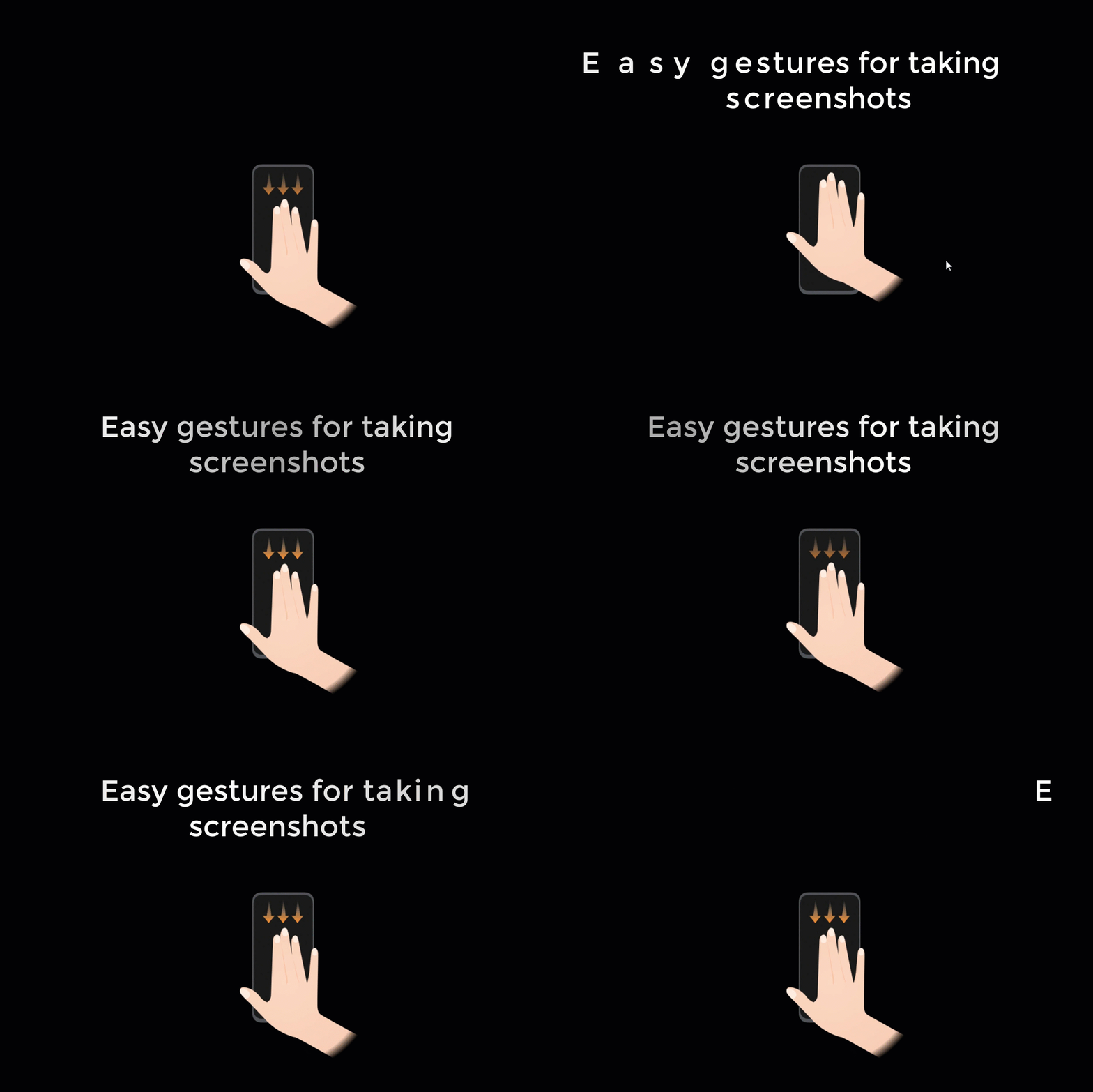
How To Take Screenshots On HONOR Smart Phone:
Capturing a screenshot usually involves simultaneously pressing two buttons on your device; normally the volume down and power buttons. On older devices, you might need to use the home + power button combo. Alternatively, you can press and hold the power button for a few seconds; select Screenshot from the few options that appear.
Except from pressing the Power and Volume down keys simultaneously, The following gestures are also useful for taking screenshots.
How to use gestures to take a full screenshot?
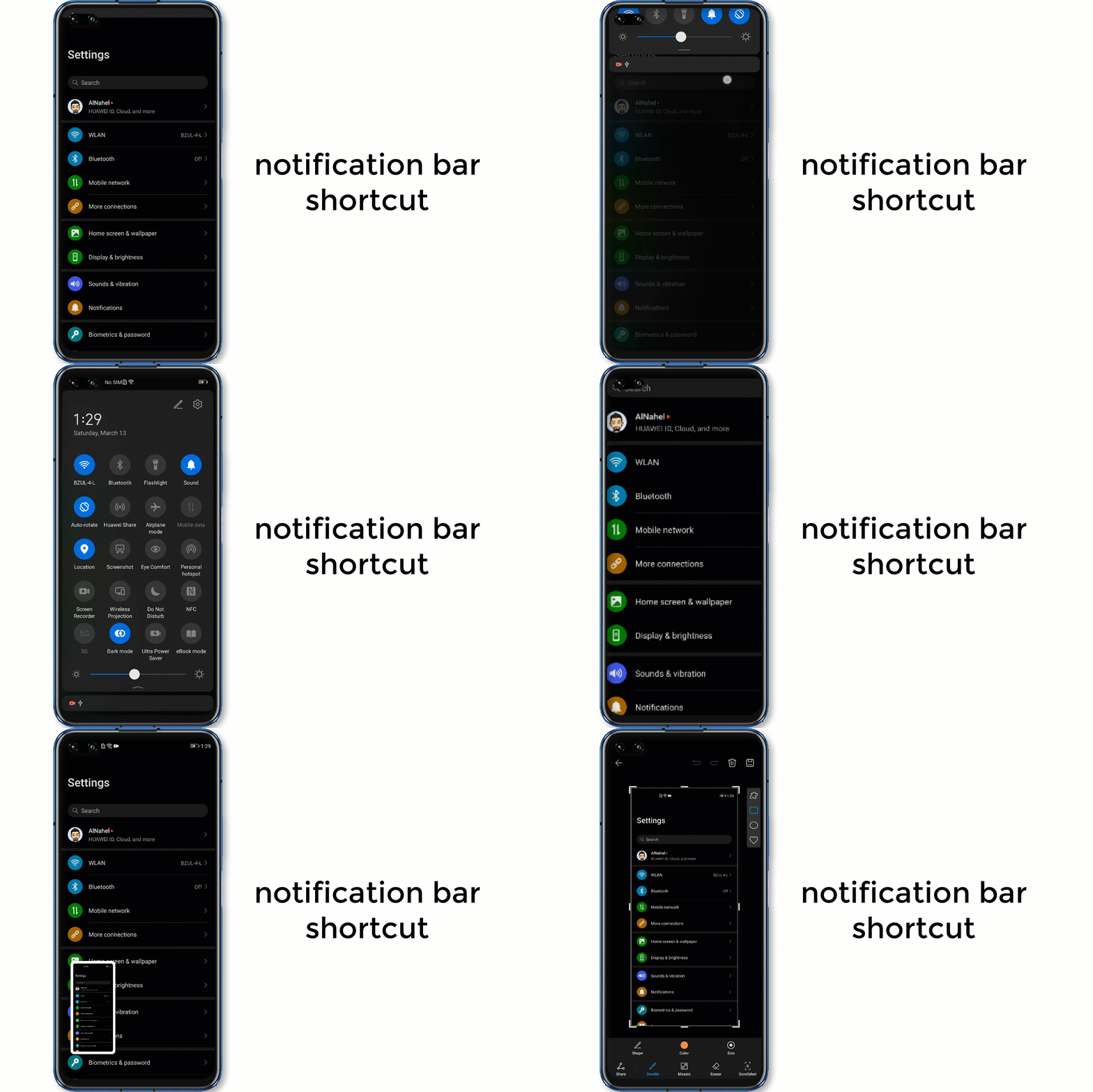
1- notification bar shortcut
HONOR makes it more intuitive to take a screenshot by giving you a shortcut in the notification area. It looks like scissors cutting paper. Select it to get your screenshot.
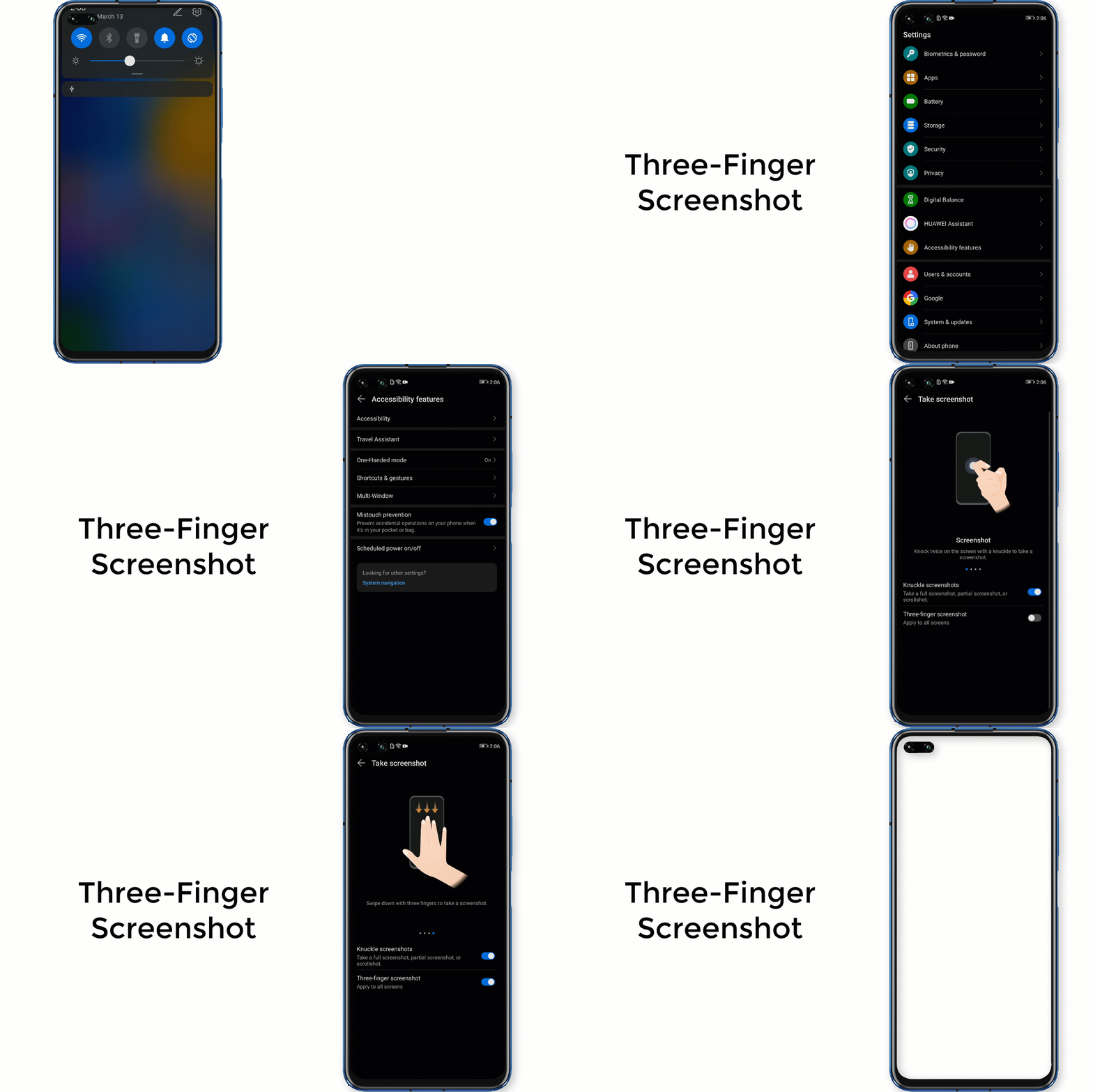
2- Three-Finger Screenshot
By using Three-finger screenshot, you can easily capture a screenshot on your Phone.
Open Settings. Go to Accessibility features > Shortcuts &Gestures > Take Screenshot , and Enable Three-finger screenshot. You can then swipe down on the screen with three fingers to capture a screenshot.
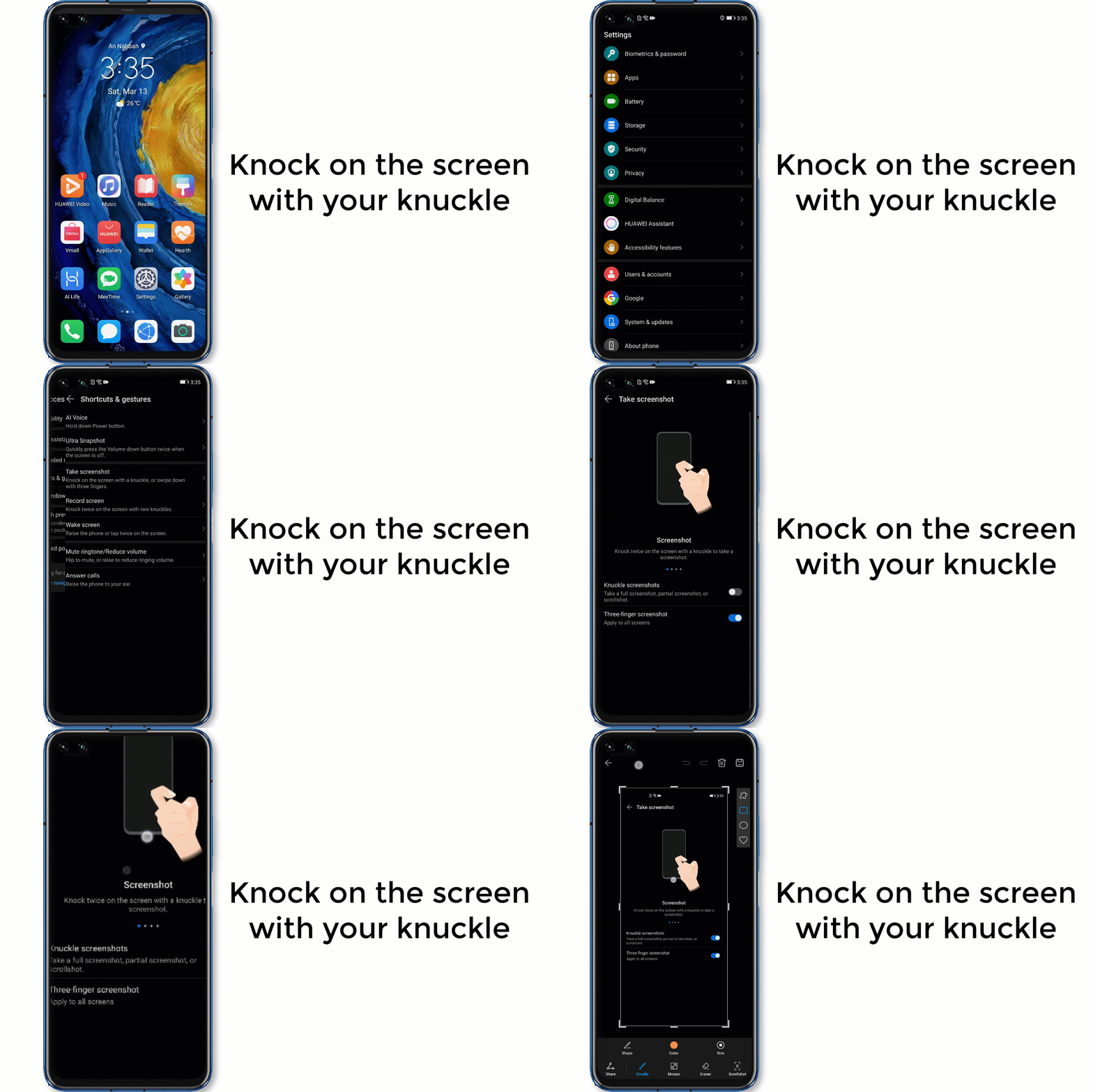
3- Knock on the screen with your knuckle
Certain HONOR phones have a very fun and interactive way to take a screenshot. You can simply knock on your screen twice using your knuckle! This feature needs to be activated first, though. Just go to Settings > Accessibility features > Shortcuts & gestures > Take screenshot and Enable Knuckle screenshots .
How to use gestures to take a partial screenshot?
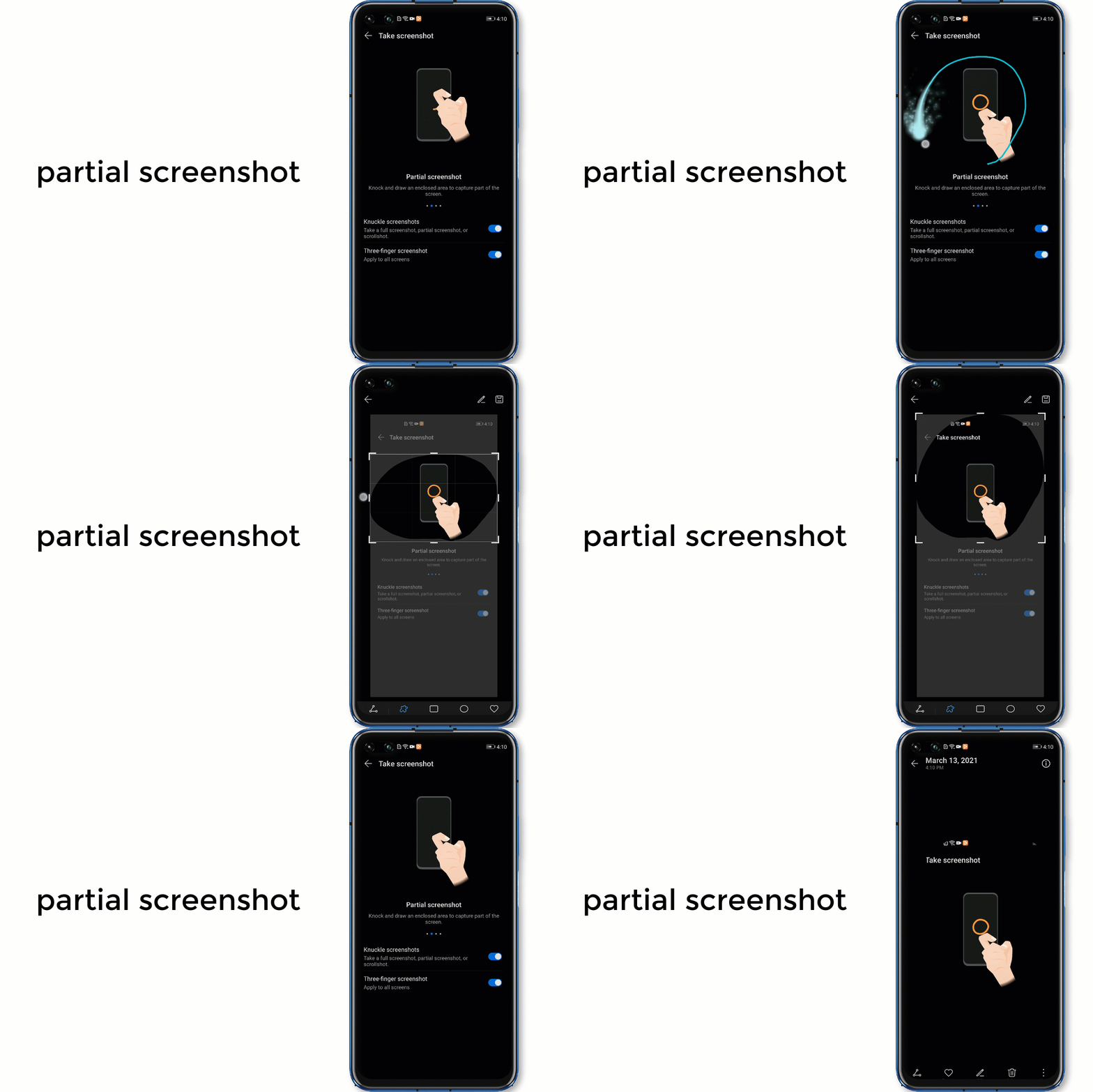
If you only want to capture part of the screen, knock firmly on the screen with your knuckle and draw an enclosed area. Adjust the shape as you like, then tap Save in the upper right corner.
This feature doesn’t require you to turn on any Settings, it is enabled by default
How to take A scrolling screenshot?
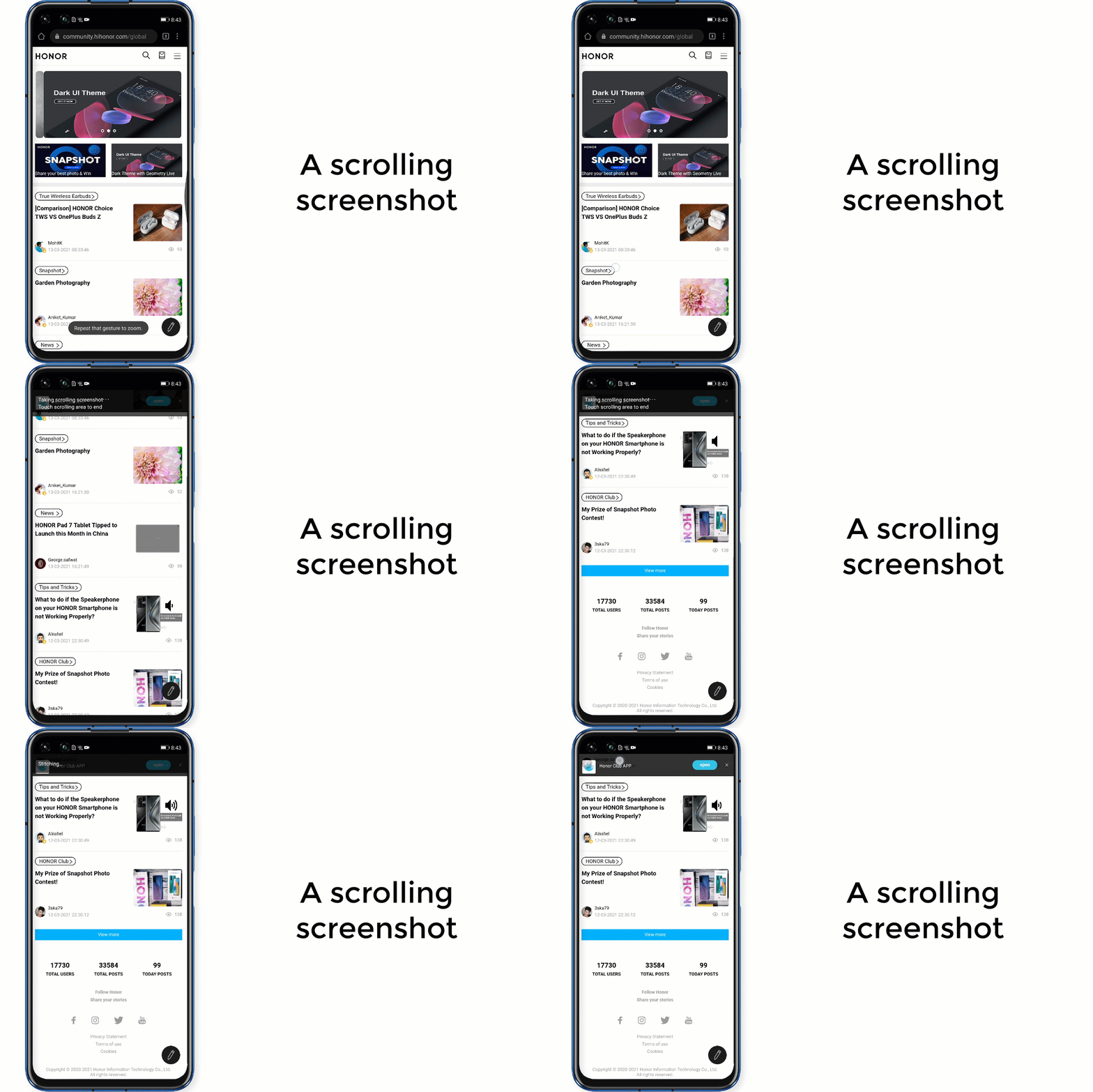
Knock firmly with a knuckle and draw an "S" on the screen, the phone will automatically begin capturing a scrolling screenshot. Then simply touch the scrolling area to stop it.
Alternatively, you could take a regular screenshot first with any gesture, then tap on the thumbnail at the bottom left corner and select Scrollshot to start taking.
How to share the screenshot?
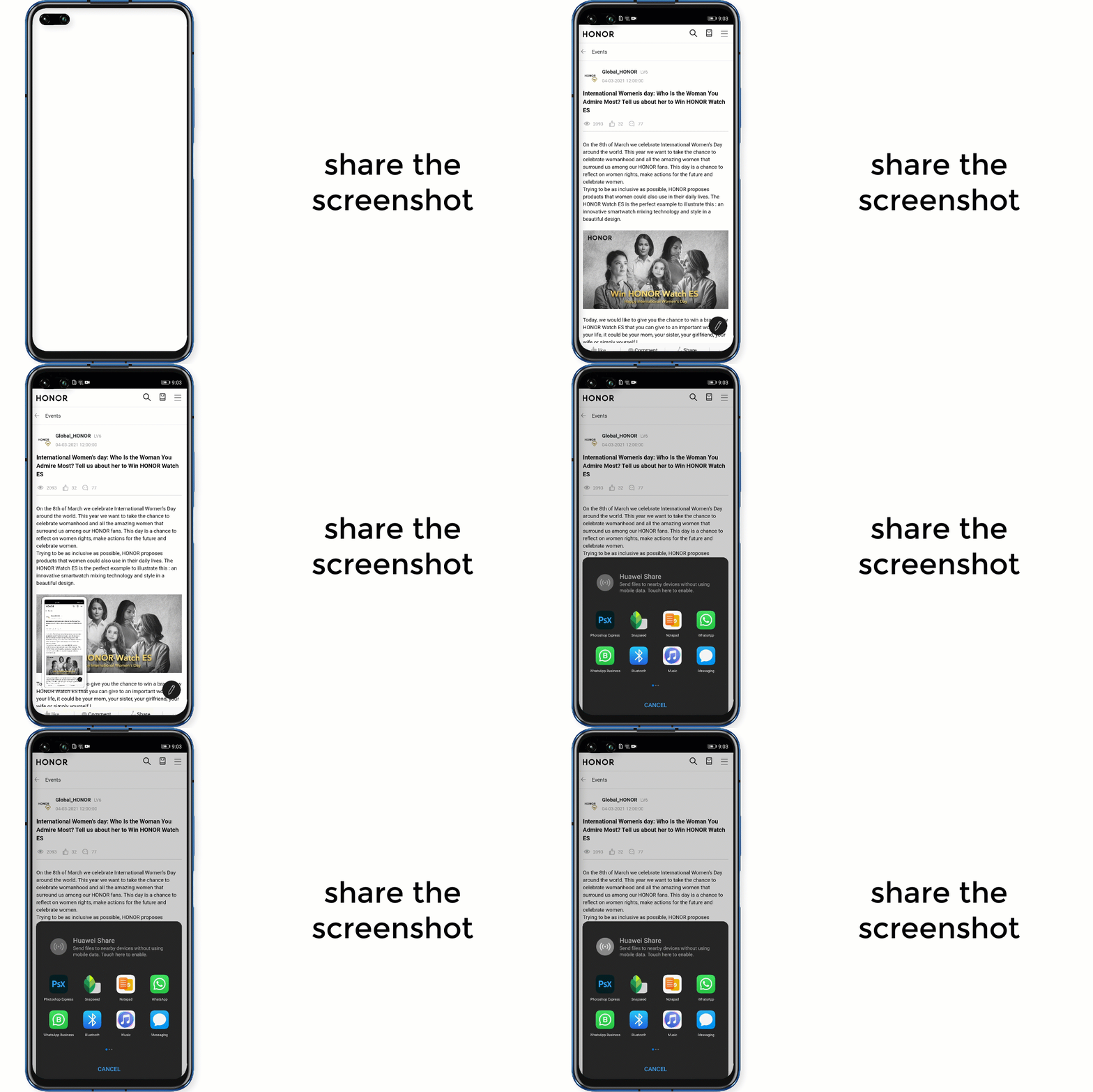
After taking a screenshot, swipe the thumbnail up to share through multiple ways, including Huawei Share, Bluetooth, Messaging and Email, etc.
Note
* The above instructions have been followed on the HONOR V30 PRO 5G Phone with Magic UI 4.0. It might be a little different in the other versions. Please refer to your smartphone model if no screenshot option is found in the phone, this phone model does not support it.
If you've got of your own tips and tricks to share, let us know in the comments below!
Thank you all
Article adapted from HONOR Global Community, Originally created by Alnahel


- Posts
- Following
- Followers
- Energy
-

 SAM_HONOR_UK
Community Team
SAM_HONOR_UK
Community Team
-
+ Follow

-
- 281 Posts
- 0 Following
- 724 Followers
- 10651 Energy








- Posts
- photo
- video

Hi guys,
There are times when you really need to share what’s on your device’s screen. That’s when screenshots come in handy. Screenshots are captures of whatever is currently showing on your screen saved as an image. In this post we will show you how to take a screenshot on HONOR devices. We have included multiple methods.
How To Take Screenshots On HONOR Smart Phone:
Capturing a screenshot usually involves simultaneously pressing two buttons on your device; normally the volume down and power buttons. On older devices, you might need to use the home + power button combo. Alternatively, you can press and hold the power button for a few seconds; select Screenshot from the few options that appear.
Except from pressing the Power and Volume down keys simultaneously, The following gestures are also useful for taking screenshots.
How to use gestures to take a full screenshot?
1- notification bar shortcut
HONOR makes it more intuitive to take a screenshot by giving you a shortcut in the notification area. It looks like scissors cutting paper. Select it to get your screenshot.
2- Three-Finger Screenshot
By using Three-finger screenshot, you can easily capture a screenshot on your Phone.
Open Settings. Go to Accessibility features > Shortcuts &Gestures > Take Screenshot , and Enable Three-finger screenshot. You can then swipe down on the screen with three fingers to capture a screenshot.
3- Knock on the screen with your knuckle
Certain HONOR phones have a very fun and interactive way to take a screenshot. You can simply knock on your screen twice using your knuckle! This feature needs to be activated first, though. Just go to Settings > Accessibility features > Shortcuts & gestures > Take screenshot and Enable Knuckle screenshots .
How to use gestures to take a partial screenshot?
If you only want to capture part of the screen, knock firmly on the screen with your knuckle and draw an enclosed area. Adjust the shape as you like, then tap Save in the upper right corner.
This feature doesn’t require you to turn on any Settings, it is enabled by default
How to take A scrolling screenshot?
Knock firmly with a knuckle and draw an "S" on the screen, the phone will automatically begin capturing a scrolling screenshot. Then simply touch the scrolling area to stop it.
Alternatively, you could take a regular screenshot first with any gesture, then tap on the thumbnail at the bottom left corner and select Scrollshot to start taking.
How to share the screenshot?
After taking a screenshot, swipe the thumbnail up to share through multiple ways, including Huawei Share, Bluetooth, Messaging and Email, etc.
Note
* The above instructions have been followed on the HONOR V30 PRO 5G Phone with Magic UI 4.0. It might be a little different in the other versions. Please refer to your smartphone model if no screenshot option is found in the phone, this phone model does not support it.
If you've got of your own tips and tricks to share, let us know in the comments below!
Thank you all
Article adapted from HONOR Global Community, Originally created by Alnahel