



 More Products
 Compare














我的荣耀 开启荣耀之旅



 Disagree Terms
 Log out




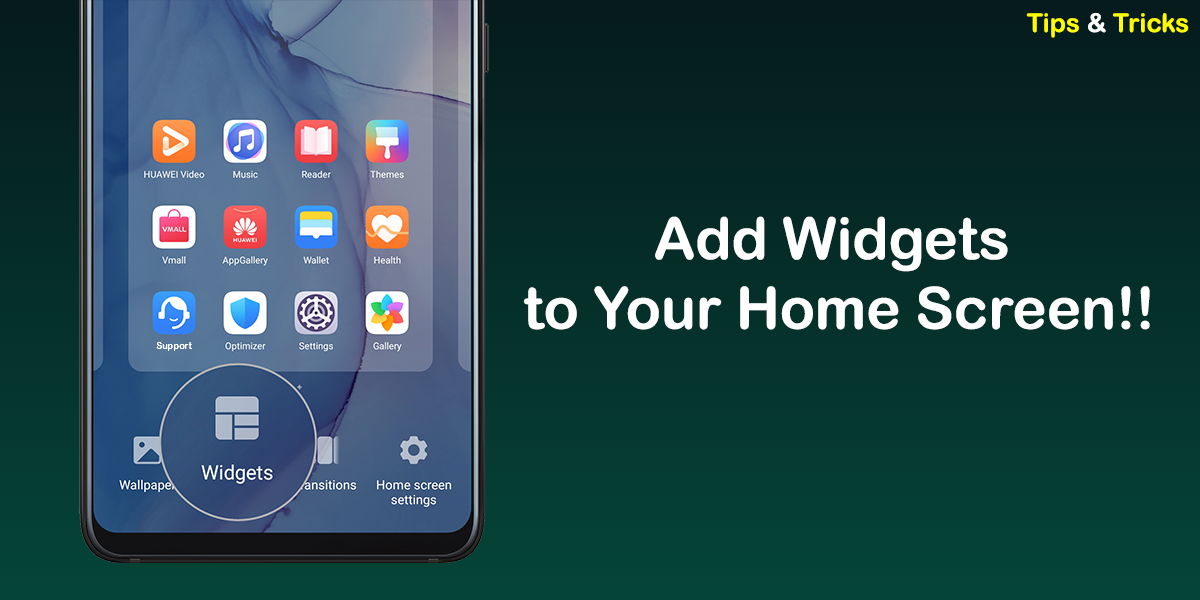
[Tips and Tricks] Add Widgets to Your Home Screen


 Last reply :
Hello HONOR Fans'
I hope all of you are doing well ;)
In today's article - I'm going to share you all about "How to Add Widgets to Your Home Screen" to your HONOR Smartphones!
Try giving your favourite Apps, tools, and features the home screen destination they deserve. Widgets such as Weather, Clock, Music, Screen Lock, Browser, Petal search, Gallery, Contacts, Email, Backup, Boost, Radio , Calendar and much more provide useful information in everyday life, and can best serve you when it's easier to reach.
Add widgets
Step:1
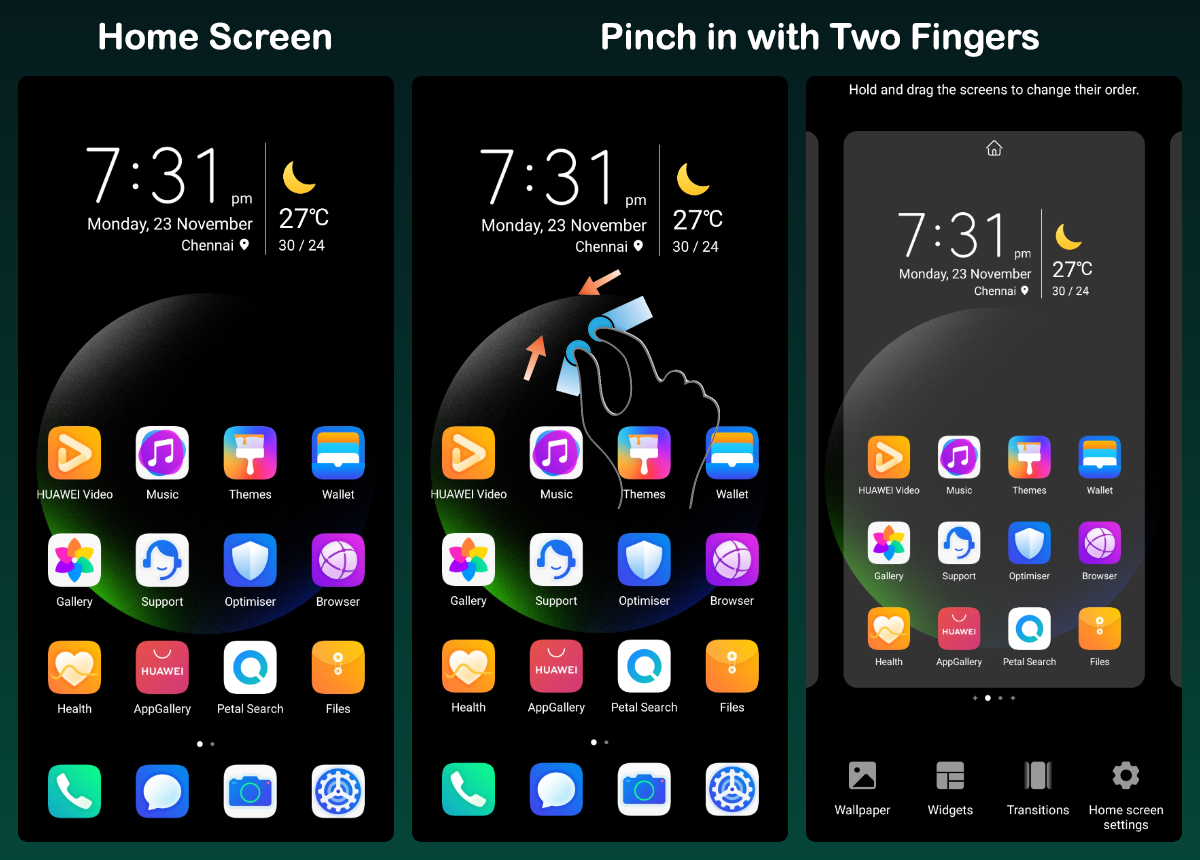
Pinch in with two fingers on your home screen to enter the home screen editing mode.
Step:2
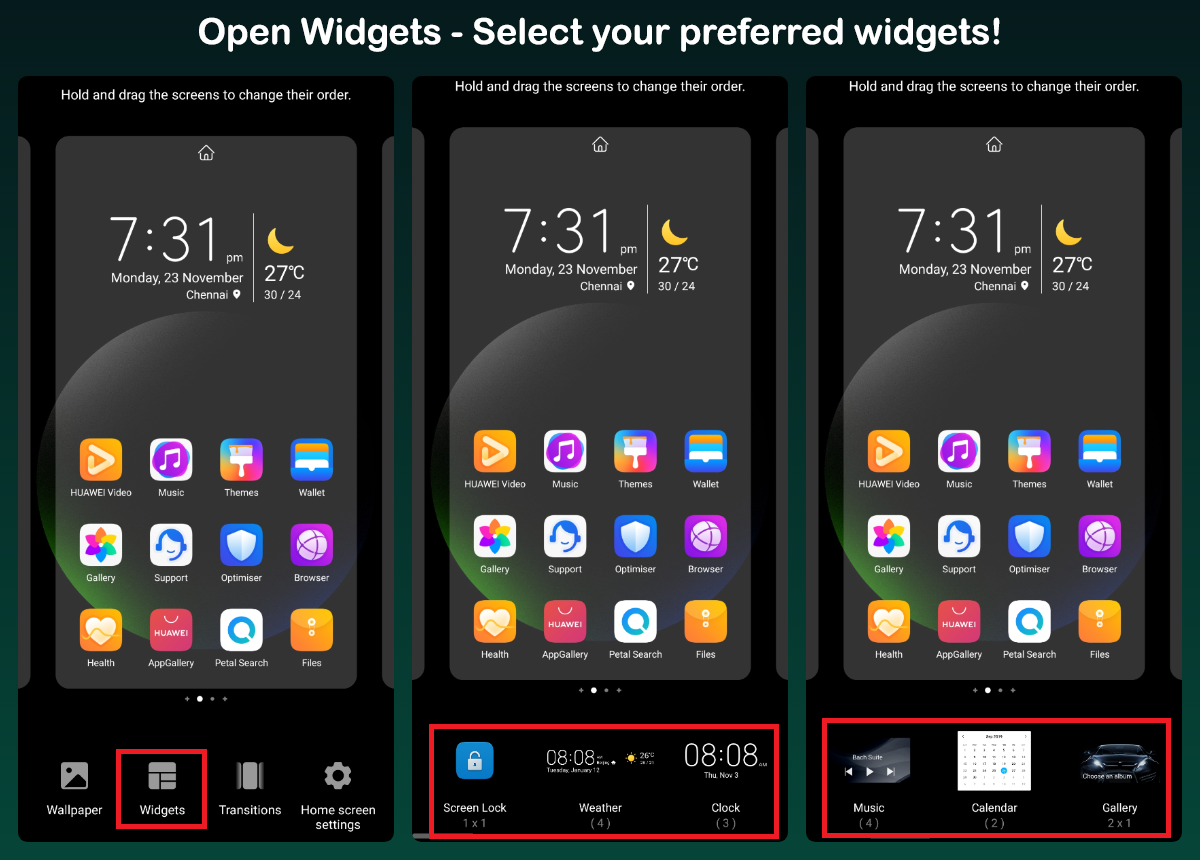
Open the widgets. Then select the widget to add it to your home screen.
Step:3
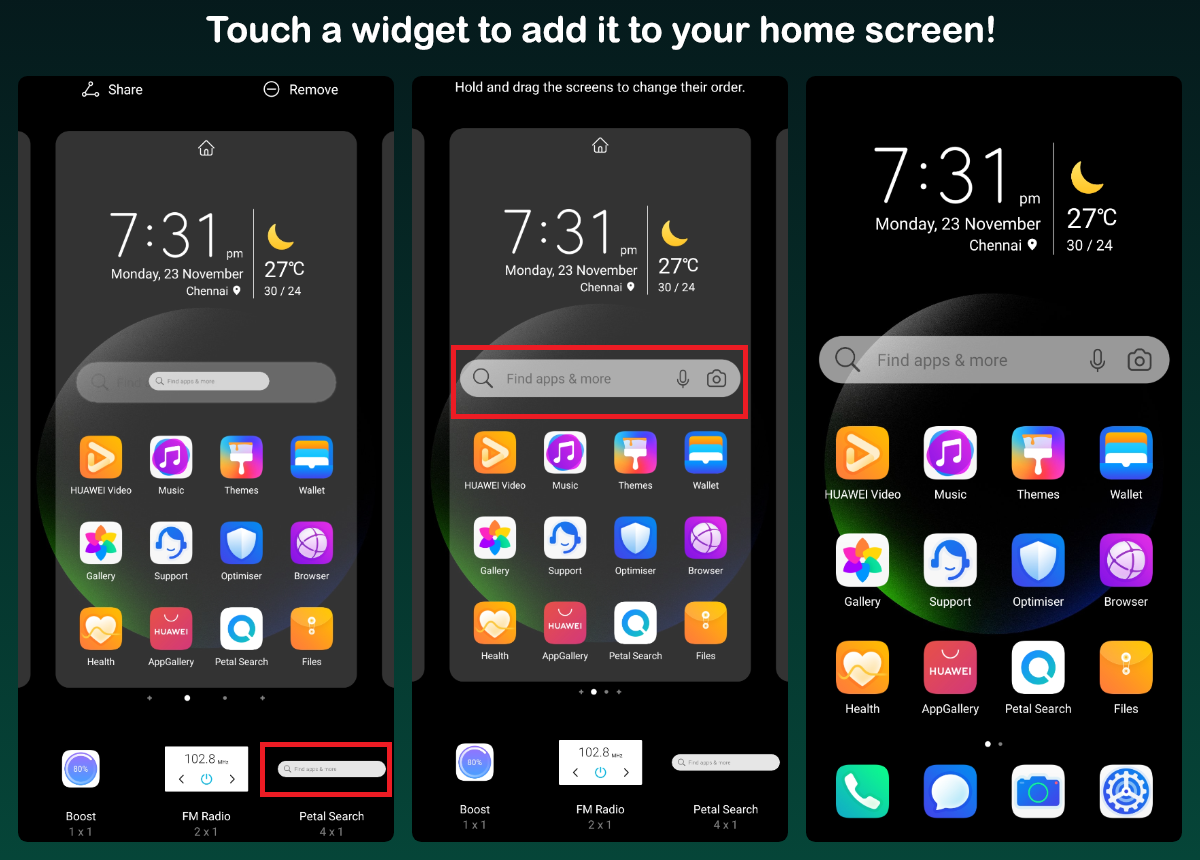
Here - I've selected Petal Search widget to place it to my home screen!
Remove Widgets
You can touch it and hold the widget to move it. You can get rid of the placed widget simply by touching Remove.

For your information:
✓ You can adjust the size of Widgets to (1x1, 2x2, up to 4x3)
✓ Not all of the apps have widgets
✓ You can keep as many widgets on your home screen once you have space on your home screen.

I hope all of you find this post useful | Stay tuned for more!
Thank you so much for reading;)


- Posts
- Following
- Followers
- Energy
-
 Tamil G
Moderator Intern
Tamil G
Moderator Intern
-
+ Follow

-
- 542 Posts
- 49 Following
- 881 Followers
- 39795 Energy

-
 New Comer
-
 Followers reach 50
-
 Followers reach 100
-
 Followers reach 200
-
 7 Days Check-in
-
 30 Days Check-in
-
 100 Days Check-in
-
 Moderator
-
 Halloween 2020
-
 HONOR STAR 2020
-
 New Year 2021
-
 Animal Photography
-
 Plant Photography
-
 Red Photography
-
 Survey Medal!
-
 Water Photography
-
 World Cycling & Running Day
-
 Product Photography
-
 Sky Photography
-
 Activity Photography Medal
-
 Autumn Photography
-
 Rain Photography
-
 HONOR 50: Best Shot!
-
 Monthly Photo Sharing #1 Landscape
-
 HONOR Magic4 Pro
-
 Monthly Photo Sharing #2 People
-
 Monthly Photo Sharing #3 Spring
-
 Monthly Photo Sharing #4 Animal



- Posts
- photo
- video

Hello HONOR Fans'
I hope all of you are doing well ;)
In today's article - I'm going to share you all about "How to Add Widgets to Your Home Screen" to your HONOR Smartphones!
Try giving your favourite Apps, tools, and features the home screen destination they deserve. Widgets such as Weather, Clock, Music, Screen Lock, Browser, Petal search, Gallery, Contacts, Email, Backup, Boost, Radio , Calendar and much more provide useful information in everyday life, and can best serve you when it's easier to reach.
Add widgets
Step:1
Pinch in with two fingers on your home screen to enter the home screen editing mode.
Step:2
Open the widgets. Then select the widget to add it to your home screen.
Step:3
Here - I've selected Petal Search widget to place it to my home screen!
Remove Widgets
You can touch it and hold the widget to move it. You can get rid of the placed widget simply by touching Remove.
For your information:
✓ You can adjust the size of Widgets to (1x1, 2x2, up to 4x3)
✓ Not all of the apps have widgets
✓ You can keep as many widgets on your home screen once you have space on your home screen.
I hope all of you find this post useful | Stay tuned for more!
Thank you so much for reading;)