



 More Products
 Compare














我的荣耀 开启荣耀之旅



 Disagree Terms
 Log out




[Tips & Tricks] How to Convert any Video into a GIF Image


 Last reply :
Hey HONOR Fans,
I believe that most of our Fans don't know how to convert their Popup Video Moments into GIF images.
So let me share with you a simple way. Follow the following steps to make a Popup GIF:
1. Shoot a Video and Save it on your PC.
2. Go to this URL: https://ezgif.com/video-to-gif
3. Make Sure your Video length is not too long, as the website only supports 100 MB Size
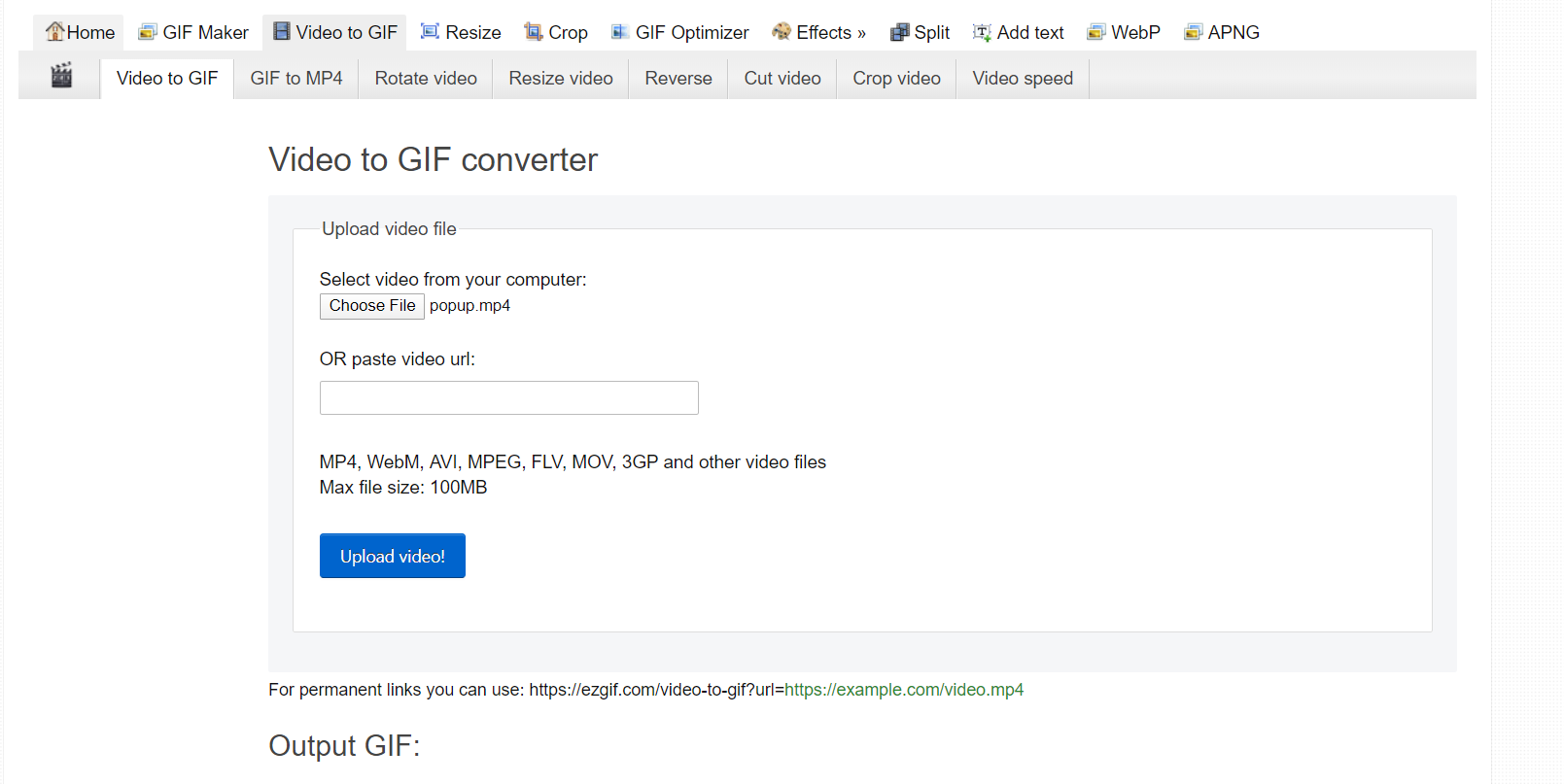
4. Click on the Choose File Button and after Choosing the Video, Click the Blue Button Below to upload the Video
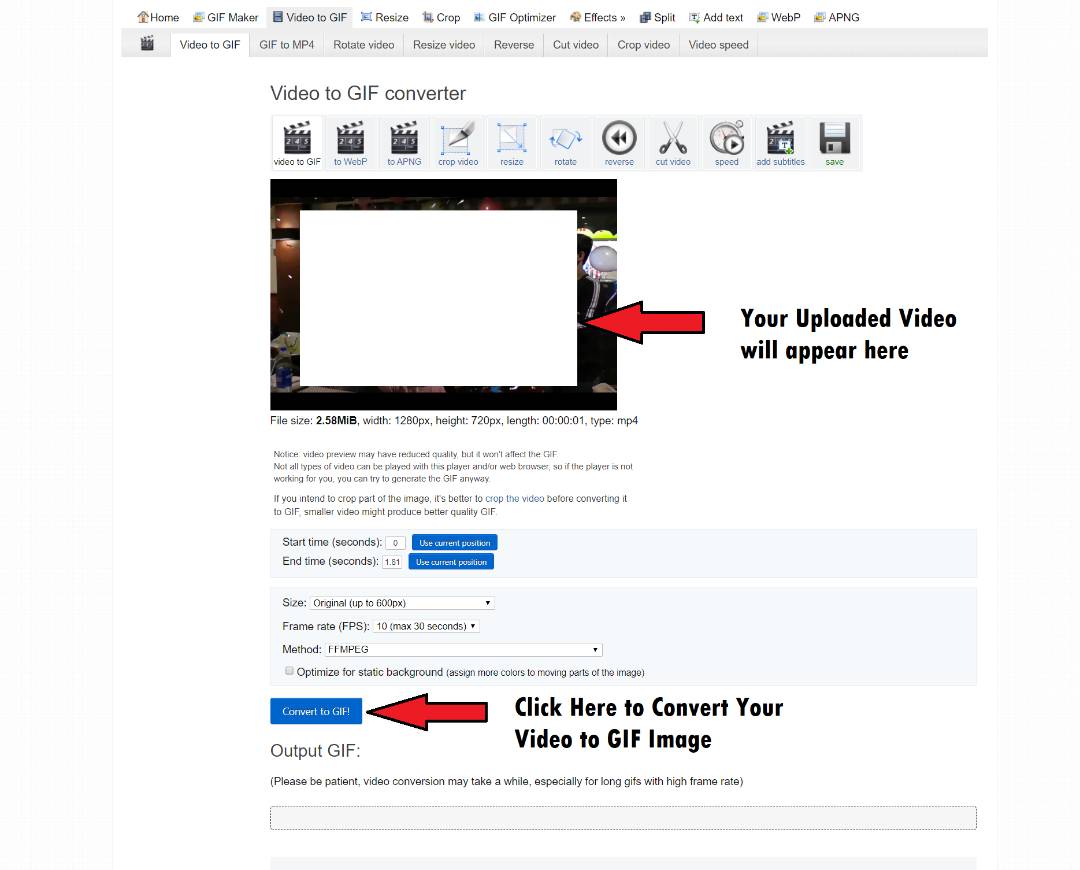
5. After the Video gets uploaded, you will see the video appeared in the Window, you can use different option to enhance your Video or simply convert the Video to Gif by Pressing the Convert to Gif button:
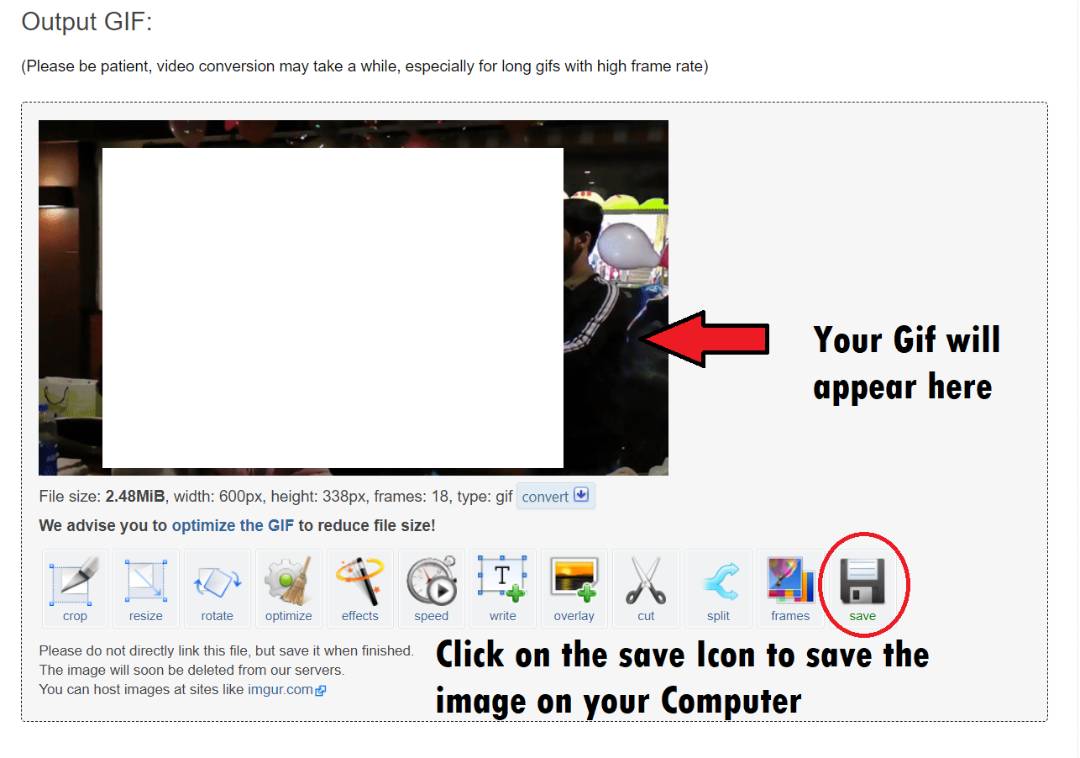
6. After a few seconds (depending on the size of your video) your Video will be converted into a GIF image and now you can download it on your Computer:
That's how we will do it
Thanks....


- Posts
- Following
- Followers
- Energy
-

 Gracy
Moderator Intern
Gracy
Moderator Intern
-
+ Follow

-
- 80 Posts
- 19 Following
- 318 Followers
- 8689 Energy










- Posts
- photo
- video

Hey HONOR Fans,
I believe that most of our Fans don't know how to convert their Popup Video Moments into GIF images.
So let me share with you a simple way. Follow the following steps to make a Popup GIF:
1. Shoot a Video and Save it on your PC.
2. Go to this URL: https://ezgif.com/video-to-gif
3. Make Sure your Video length is not too long, as the website only supports 100 MB Size
4. Click on the Choose File Button and after Choosing the Video, Click the Blue Button Below to upload the Video
5. After the Video gets uploaded, you will see the video appeared in the Window, you can use different option to enhance your Video or simply convert the Video to Gif by Pressing the Convert to Gif button:
6. After a few seconds (depending on the size of your video) your Video will be converted into a GIF image and now you can download it on your Computer:
That's how we will do it
Thanks....