



 More Products
 Compare














我的荣耀 开启荣耀之旅



 Disagree Terms
 Log out




[Magic UI] Shooting Video on the Level in HONOR's Magic UI 3.0


 Last reply :
Hey Friends,
Have you found that the photos were taken on your phone come out well-balanced, while by contrast, videos are more often noticeably crooked, with a lopsided background that looks like it was shot from the swaying deck of a ship on the ocean? Indeed, it can be frustrating to shoot a video — of a magnificent visa, skyline or even just a nice, warm coffee house — only to find that the final product looks skewed due to the slightest presence of hand jitters, or a slightly misjudged view.
You may be familiar with the Horizontal level feature in Camera, which enables you to take pictures that are flawlessly aligned with the horizon. If you're capturing the brilliant sunset on the other side of a canyon, for instance, the Horizontal level has you covered.
But what if you want to shoot a video instead? Given the long duration that the phone needs to be kept stable, videos are most susceptible to a tilted angle of view, but the phone's camera provides no assistance for users… until now!
In Magic UI 3.0, you can apply the Horizontal level when shooting videos also, for professional-level videography on just a whim. It's an essential new capability for any aspiring vlogger!
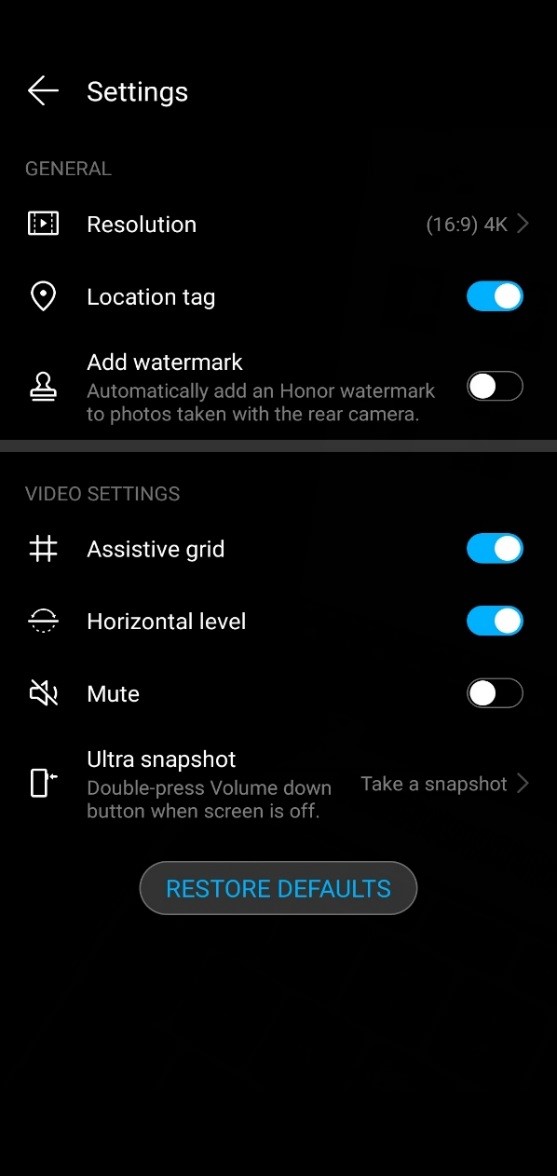
To activate the feature, select Video mode in Camera, touch the Settings icon in the upper right corner of the viewfinder and enable Horizontal Level.
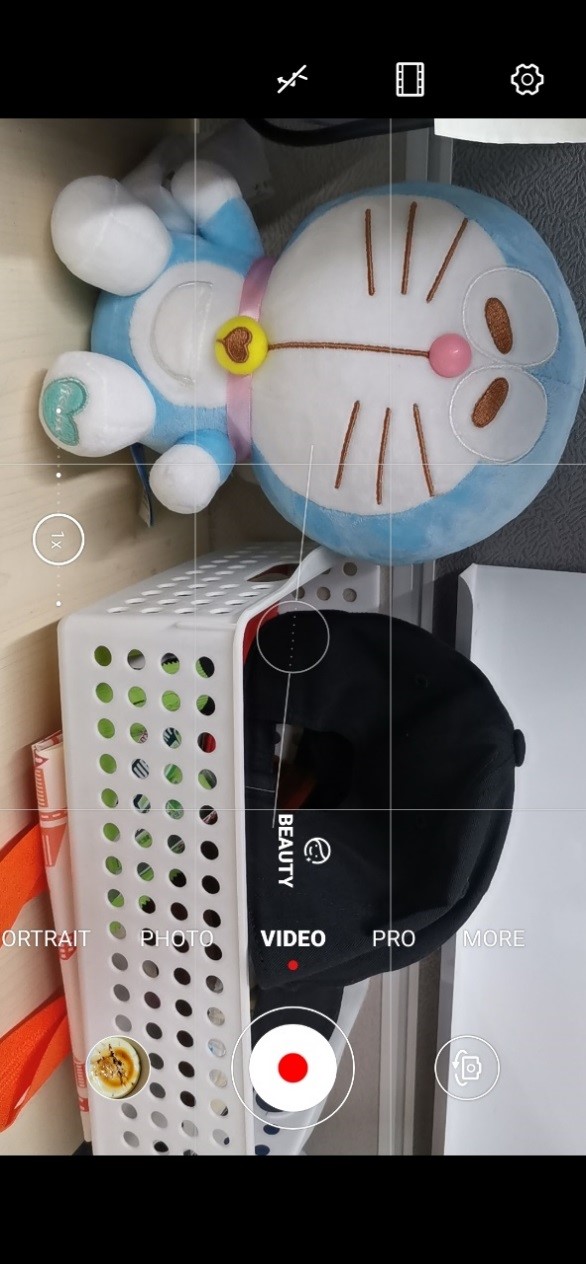
You'll then notice a dotted line in the middle of the circle on the viewfinder (as in
Figure 2). Adjust the phone until it becomes a solid line (as in Figure 3). While shooting, hold the phone as still as possible. If you notice that the dotted line reappears, re-orient the camera until the line is solid once again. This will ensure that the video remains aligned throughout the entire shoot!
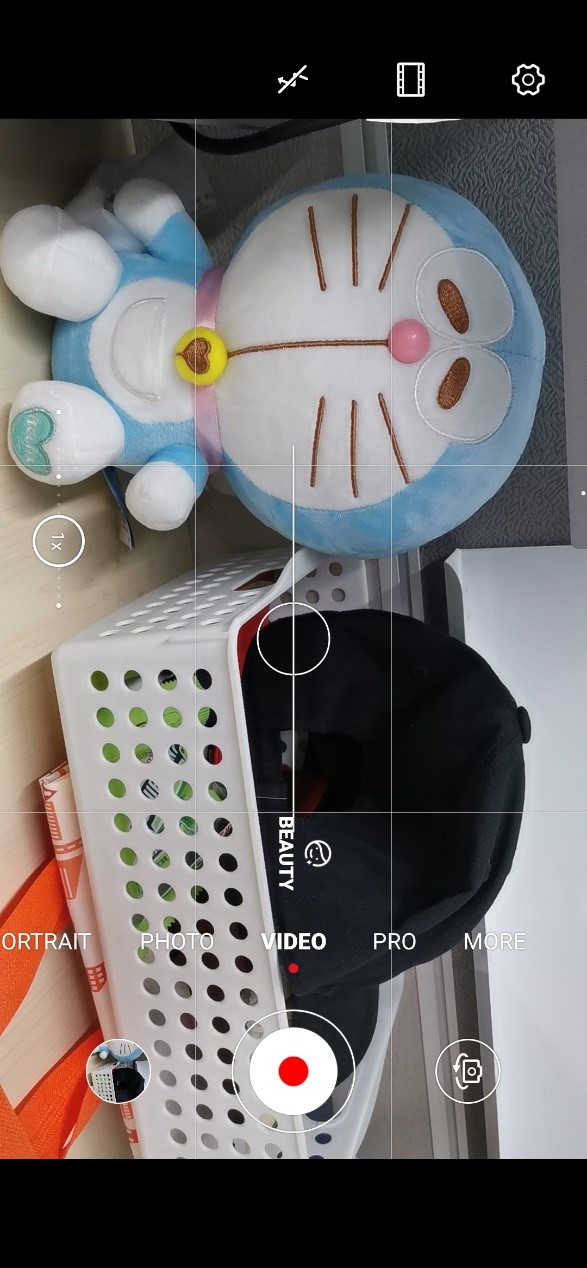
Horizontal level brings extraordinary balance and sophistication to videos taken on a handheld device. You'll be blown away by how pristine landscapes, cityscapes and even ordinary video clips look, when your phone provides them with the support that they deserve!
I hope you liked this tutorial and explanation! Please comment below if you have any other questions on regards this post!
Thanks & Happy Friday!


- Posts
- Following
- Followers
- Energy
-

Sebastian
-
+ Follow

-
- 139 Posts
- 390 Following
- 424 Followers
- 10125 Energy



- Posts
- photo
- video

Hey Friends,
Have you found that the photos were taken on your phone come out well-balanced, while by contrast, videos are more often noticeably crooked, with a lopsided background that looks like it was shot from the swaying deck of a ship on the ocean? Indeed, it can be frustrating to shoot a video — of a magnificent visa, skyline or even just a nice, warm coffee house — only to find that the final product looks skewed due to the slightest presence of hand jitters, or a slightly misjudged view.
You may be familiar with the Horizontal level feature in Camera, which enables you to take pictures that are flawlessly aligned with the horizon. If you're capturing the brilliant sunset on the other side of a canyon, for instance, the Horizontal level has you covered.
But what if you want to shoot a video instead? Given the long duration that the phone needs to be kept stable, videos are most susceptible to a tilted angle of view, but the phone's camera provides no assistance for users… until now!
In Magic UI 3.0, you can apply the Horizontal level when shooting videos also, for professional-level videography on just a whim. It's an essential new capability for any aspiring vlogger!
To activate the feature, select Video mode in Camera, touch the Settings icon in the upper right corner of the viewfinder and enable Horizontal Level.
You'll then notice a dotted line in the middle of the circle on the viewfinder (as in
Figure 2). Adjust the phone until it becomes a solid line (as in Figure 3). While shooting, hold the phone as still as possible. If you notice that the dotted line reappears, re-orient the camera until the line is solid once again. This will ensure that the video remains aligned throughout the entire shoot!
Horizontal level brings extraordinary balance and sophistication to videos taken on a handheld device. You'll be blown away by how pristine landscapes, cityscapes and even ordinary video clips look, when your phone provides them with the support that they deserve!
I hope you liked this tutorial and explanation! Please comment below if you have any other questions on regards this post!
Thanks & Happy Friday!