



 More Products
 Compare














我的荣耀 开启荣耀之旅



 Disagree Terms
 Log out




[HONOR Band 5 Tutorial] How to change HONOR Band 5 watch face?


 Last reply :
[HONOR Band 5 Tutorial] How to change HONOR Band 5 watch face?
There are two options to change HONOR Band 5 watch face for your reference. If there is anything not clear, or you encounter any issues, kindly leave us a comment.
Option one: Change watch face on the screen of HONOR Band 5 directly
This only allows you to install the watch faces that you have downloaded and stored in the HONOR Band 5. And maximum you can store 15 different watch faces.
Step one: touch the power button on the screen to activate the HONOR Band 5.
Step two: long-press the screen of the HONOR Band 5 for around 3 to 5 seconds until you feel the vibration.
Step three: Then you will see up and down arrow on the screen. Swipe down or up the screen to select the watch face that you want. Then press that watch face to apply it.
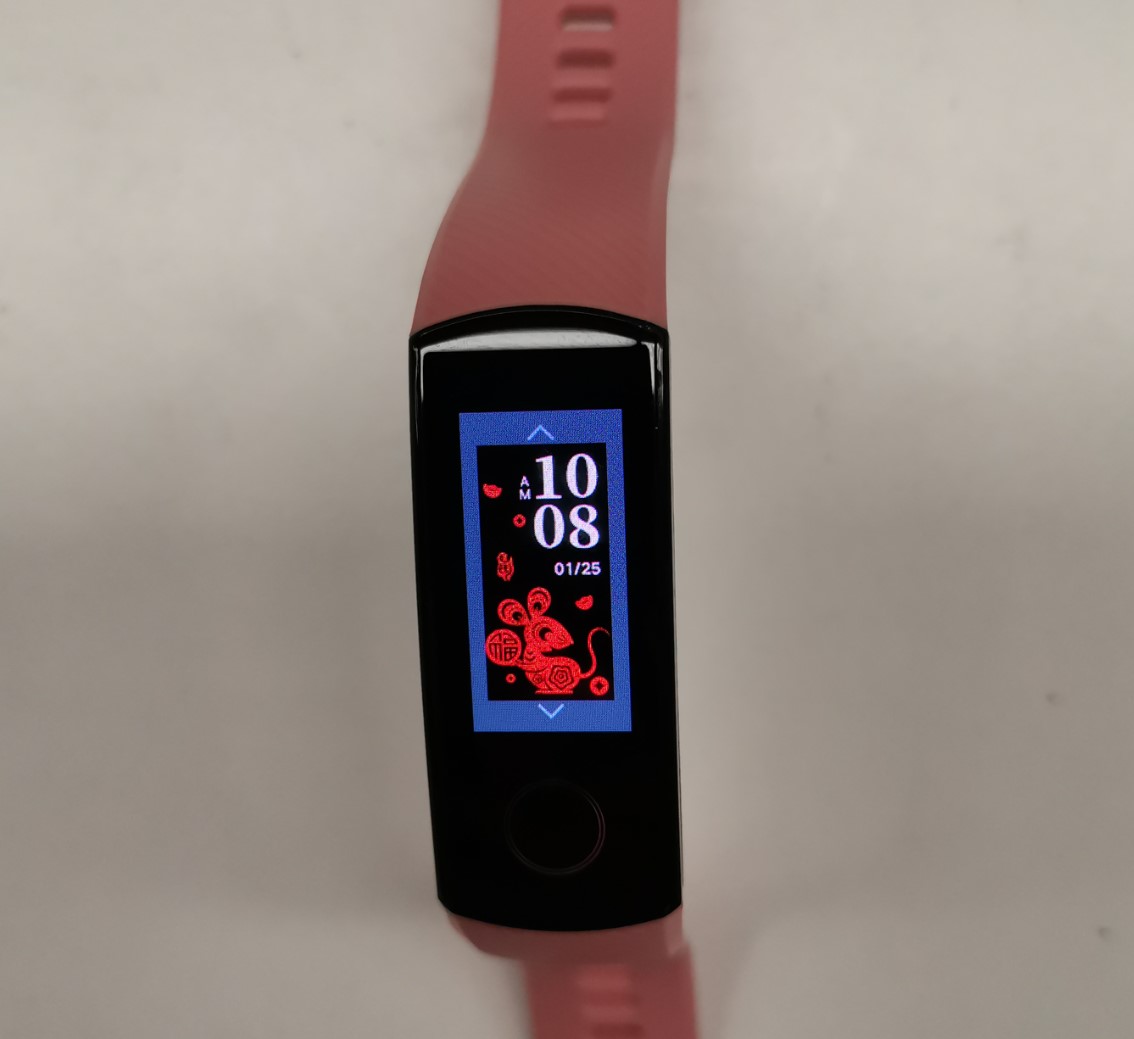
Image 1: long press on the screen of the HONOR Band 5 to change the watch face
Option two: change watch face of the HONOR Band 5 from the Huawei Health app on your smartphone
To do this, it’s recommended to use the smartphone that your HONOR band 5 is paired with.
Step one: Open the Huawei health app on your smartphone. Then go to device and select the HONOR Band 5 from the list of paired devices.
Step two: Click more beside watch faces and you will see three tabs. They are recommended, manager and mine tabs.
From the recommended tab, you can install lots of new watch faces for your HONOR Band 5 from the Huawei Theme store. Under a specific watch face, if you click install, the installation of that watch face will be initiated. After it’s finished, that watch face will appear on the screen of your HONOR Band 5 and you would see that watch face in the Mine tab.
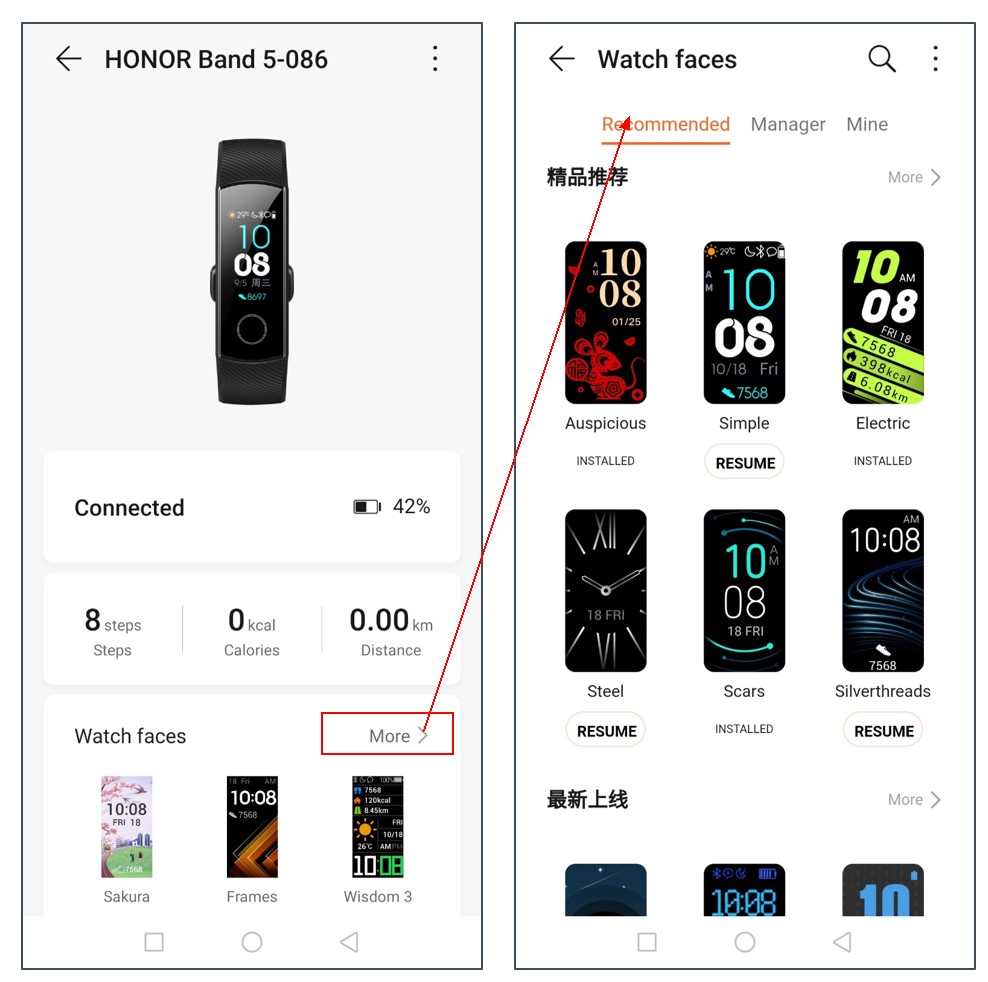
Image 2: click more and then from the recommended tab you can install a new watch face on the HONOR Band 5 from the Huawei health app.
From the mine tab, you could get a view of all the watch faces stored in the HONOR Band 5. The maximum number of watch faces that HONOR Band 5 can store is 15. The watch face that is applied on the HONOR Band 5 will be highlighted in a light pink background.
Click a specific watch face and on the next page, you can delete that, set it as default watch face, or update it if an update of that watch face is available.
A quick video tutorial to show how to change HONOR Band 5 watch face:
What to do when you are not able to install a new watch face on the HONOR Band 5?
If you are not able to install a new watch face from the Huawei Health app, recommended tab, then you can do this:
1. Click mine beside the recommended tab and if you already have 15 watch faces there, then you can delete several to install new ones.
2. If you have less than 15 watch faces in the mine tab, but still not able to install a new watch face, first try to check if there is a firmware update available.
On the Huawei health app, after you touch your HONOR Band 5, on the bottom of the next page, you would see Firmware Update. Press that to check if a firmware is available. Click update if yes.
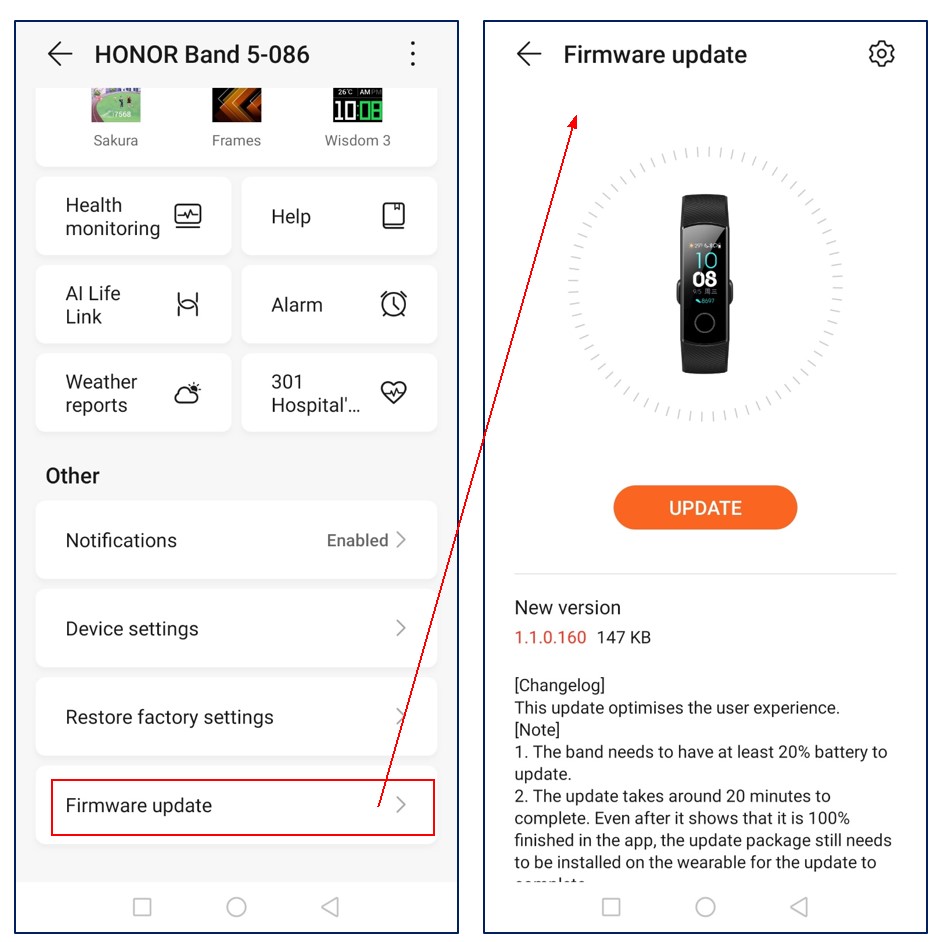
Image 3: check if a firmware update is available for the HONOR Band 5
In case, firmware is not available, you can also try to delete a few watch faces then try to install a new watch face. Or it’s advised to try to restart the HONOR Band 5.
Contact aftersales support if the problem persists.
Do you find this “How to change HONOR Band 5 watch faces” tip helpful? Let us know in the comment section. Questions are welcome!
[HONOR Band 5 Step by Step Tutorial] How to Charge the HONOR Band 5
Huawei HONOR Band 5 User Guide
HONOR Band 5 Manual PDF Download


- Posts
- Following
- Followers
- Energy
-

jennifer lawrence
-
+ Follow

-
- 13 Posts
- 0 Following
- 16 Followers
- 408 Energy



- Posts
- photo
- video

[HONOR Band 5 Tutorial] How to change HONOR Band 5 watch face?
There are two options to change HONOR Band 5 watch face for your reference. If there is anything not clear, or you encounter any issues, kindly leave us a comment.
Option one: Change watch face on the screen of HONOR Band 5 directly
This only allows you to install the watch faces that you have downloaded and stored in the HONOR Band 5. And maximum you can store 15 different watch faces.
Step one: touch the power button on the screen to activate the HONOR Band 5.
Step two: long-press the screen of the HONOR Band 5 for around 3 to 5 seconds until you feel the vibration.
Step three: Then you will see up and down arrow on the screen. Swipe down or up the screen to select the watch face that you want. Then press that watch face to apply it.
Image 1: long press on the screen of the HONOR Band 5 to change the watch face
Option two: change watch face of the HONOR Band 5 from the Huawei Health app on your smartphone

To do this, it’s recommended to use the smartphone that your HONOR band 5 is paired with.
Step one: Open the Huawei health app on your smartphone. Then go to device and select the HONOR Band 5 from the list of paired devices.
Step two: Click more beside watch faces and you will see three tabs. They are recommended, manager and mine tabs.
From the recommended tab, you can install lots of new watch faces for your HONOR Band 5 from the Huawei Theme store. Under a specific watch face, if you click install, the installation of that watch face will be initiated. After it’s finished, that watch face will appear on the screen of your HONOR Band 5 and you would see that watch face in the Mine tab.
Image 2: click more and then from the recommended tab you can install a new watch face on the HONOR Band 5 from the Huawei health app.
From the mine tab, you could get a view of all the watch faces stored in the HONOR Band 5. The maximum number of watch faces that HONOR Band 5 can store is 15. The watch face that is applied on the HONOR Band 5 will be highlighted in a light pink background.
Click a specific watch face and on the next page, you can delete that, set it as default watch face, or update it if an update of that watch face is available.
A quick video tutorial to show how to change HONOR Band 5 watch face:
What to do when you are not able to install a new watch face on the HONOR Band 5?
If you are not able to install a new watch face from the Huawei Health app, recommended tab, then you can do this:
1. Click mine beside the recommended tab and if you already have 15 watch faces there, then you can delete several to install new ones.
2. If you have less than 15 watch faces in the mine tab, but still not able to install a new watch face, first try to check if there is a firmware update available.
On the Huawei health app, after you touch your HONOR Band 5, on the bottom of the next page, you would see Firmware Update. Press that to check if a firmware is available. Click update if yes.
Image 3: check if a firmware update is available for the HONOR Band 5
In case, firmware is not available, you can also try to delete a few watch faces then try to install a new watch face. Or it’s advised to try to restart the HONOR Band 5.
Contact aftersales support if the problem persists.
Do you find this “How to change HONOR Band 5 watch faces” tip helpful? Let us know in the comment section. Questions are welcome!
[HONOR Band 5 Step by Step Tutorial] How to Charge the HONOR Band 5
Huawei HONOR Band 5 User Guide
HONOR Band 5 Manual PDF Download
HONOR Band 5 not charging
HONOR Band 5 FAQs
8 Fixes for HONOR Band 5 not pairing
[Solution offered] HONOR Band 5 notification problem