



 More Products
 Compare














我的荣耀 开启荣耀之旅



 Disagree Terms
 Log out




[EMUI] Exploring the Features of Display settings!


 Last reply :
Hello HONOR Fans'
Today I'm going to share a post on "EMUI Display options and it's Features" in detail, Let's check it out below
EMUI's Display option has variety of features which will make you more comfortable upon usage and also gives you an very rich user experience altogether ;)
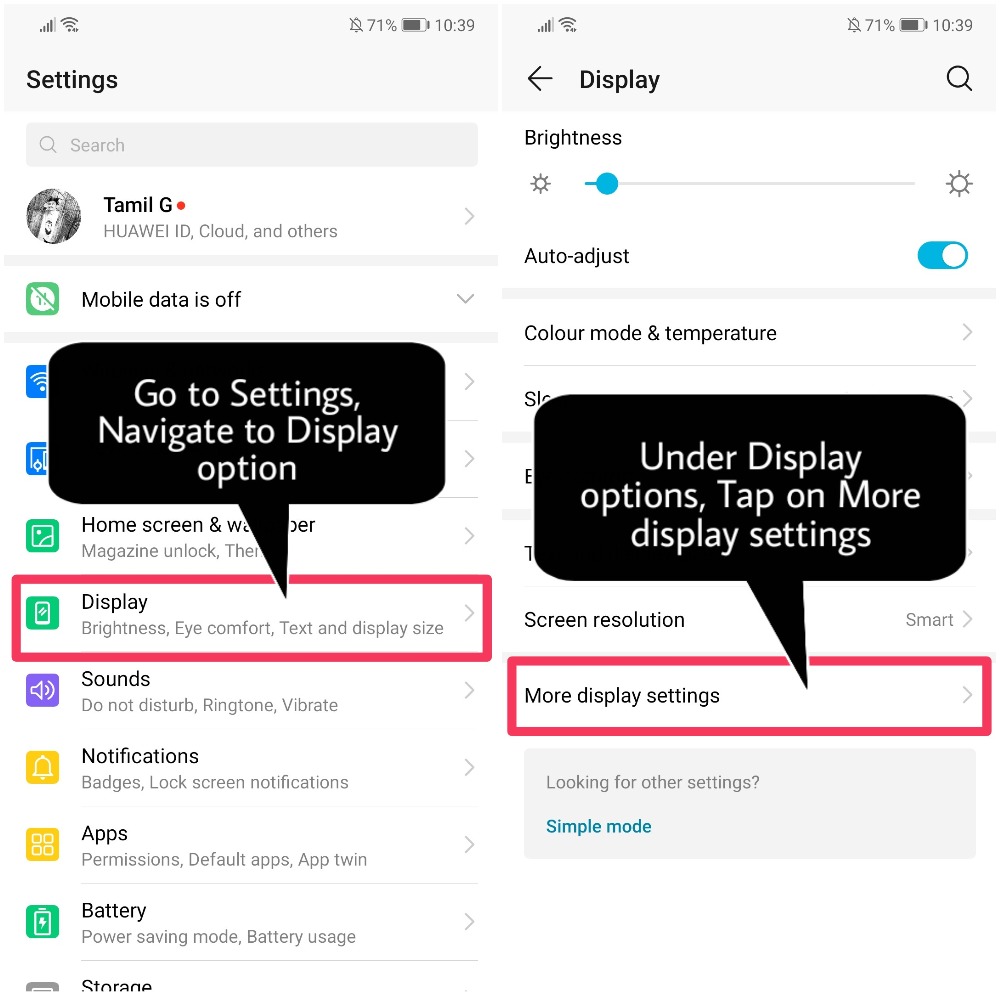
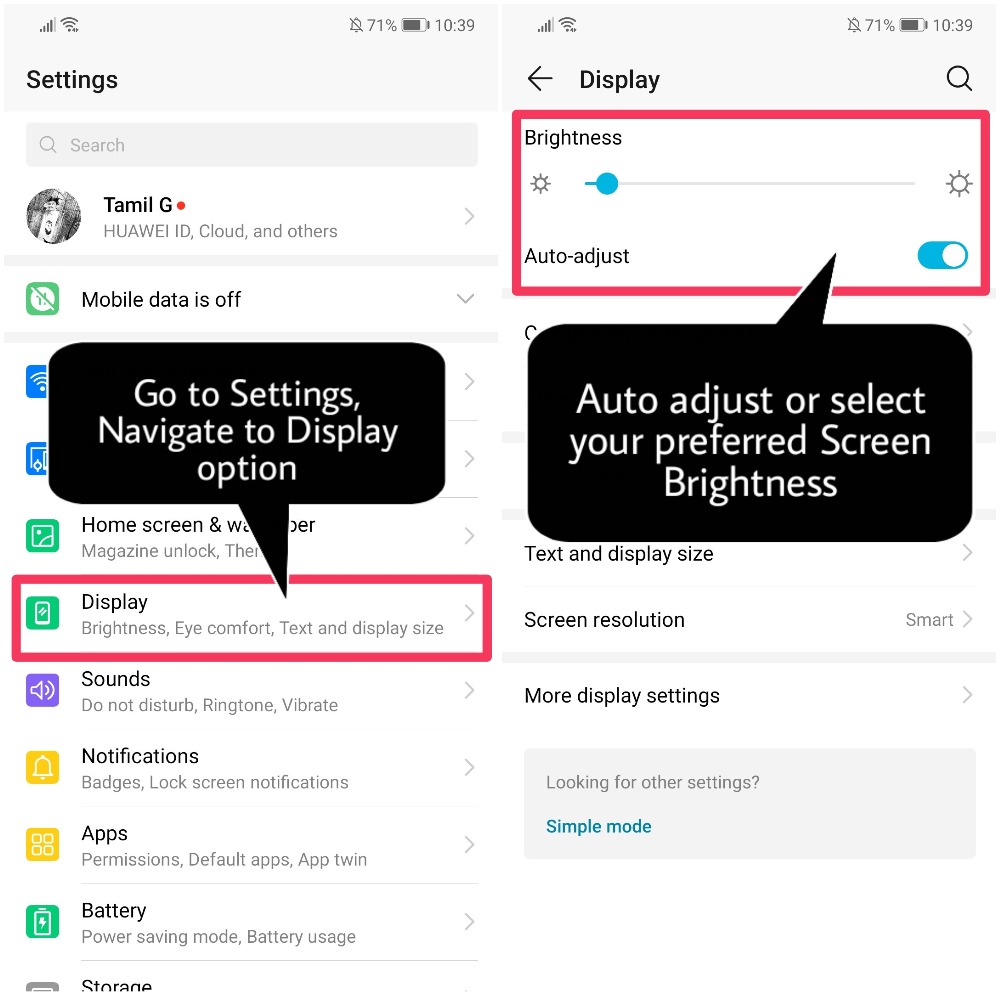
Go to Settings > navigate to Display option and More display settings for more features!
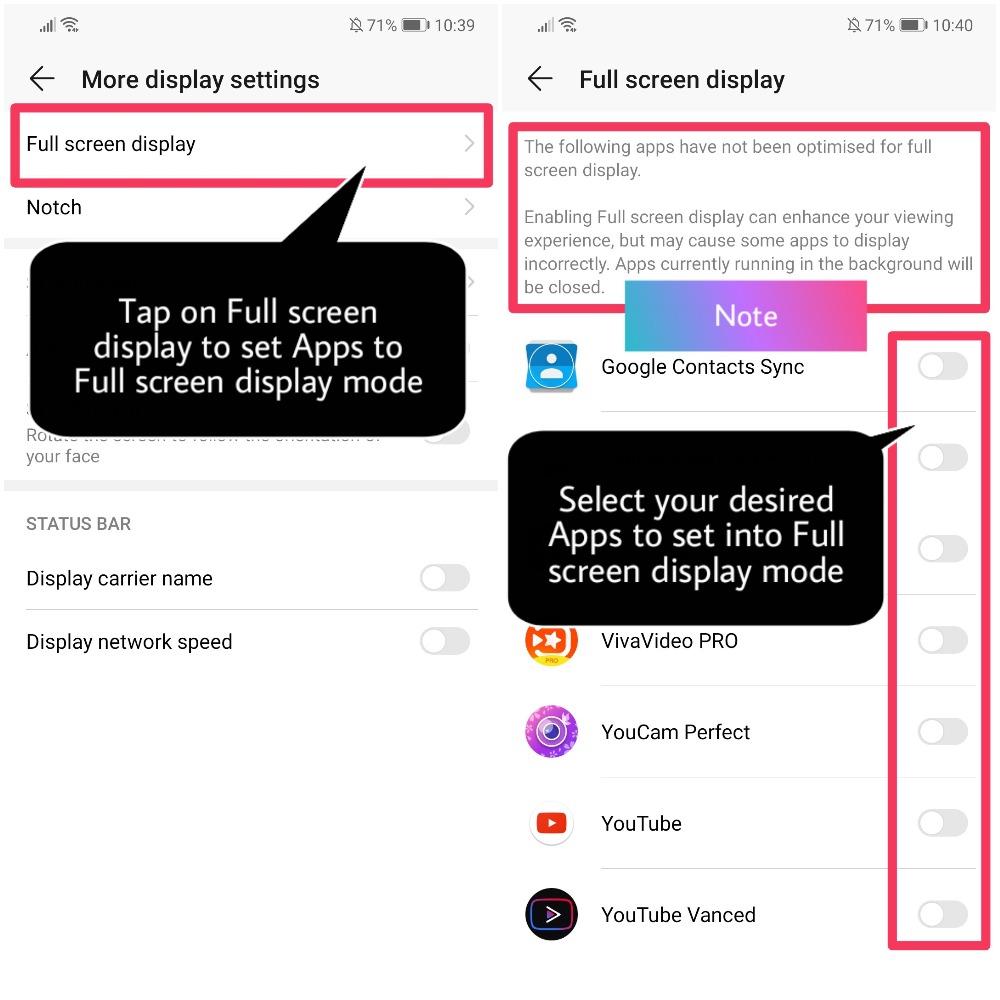
Display Full Screen:
Go to More display settings > Full screen display to set apps to display in full screen mode as required.
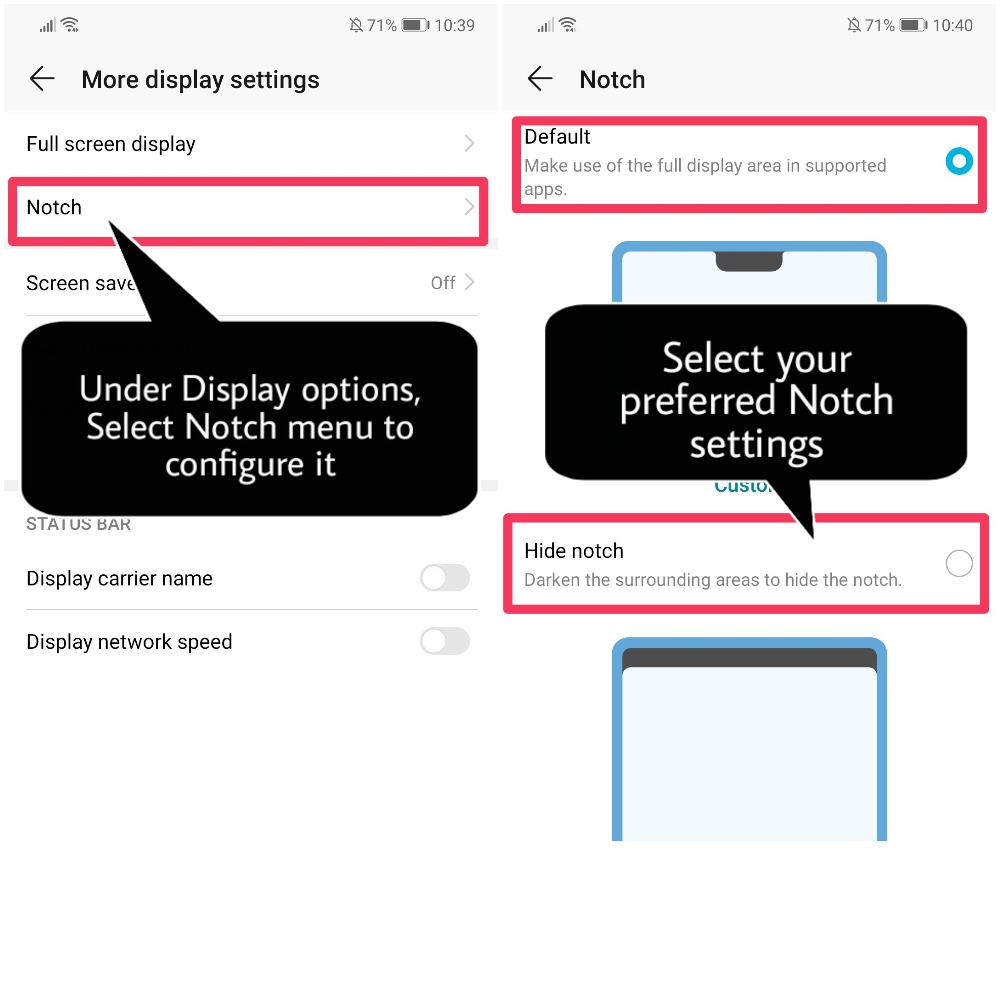
Configure the notch display settings:
Go to More display settings > Notch to configure the notch display settings.
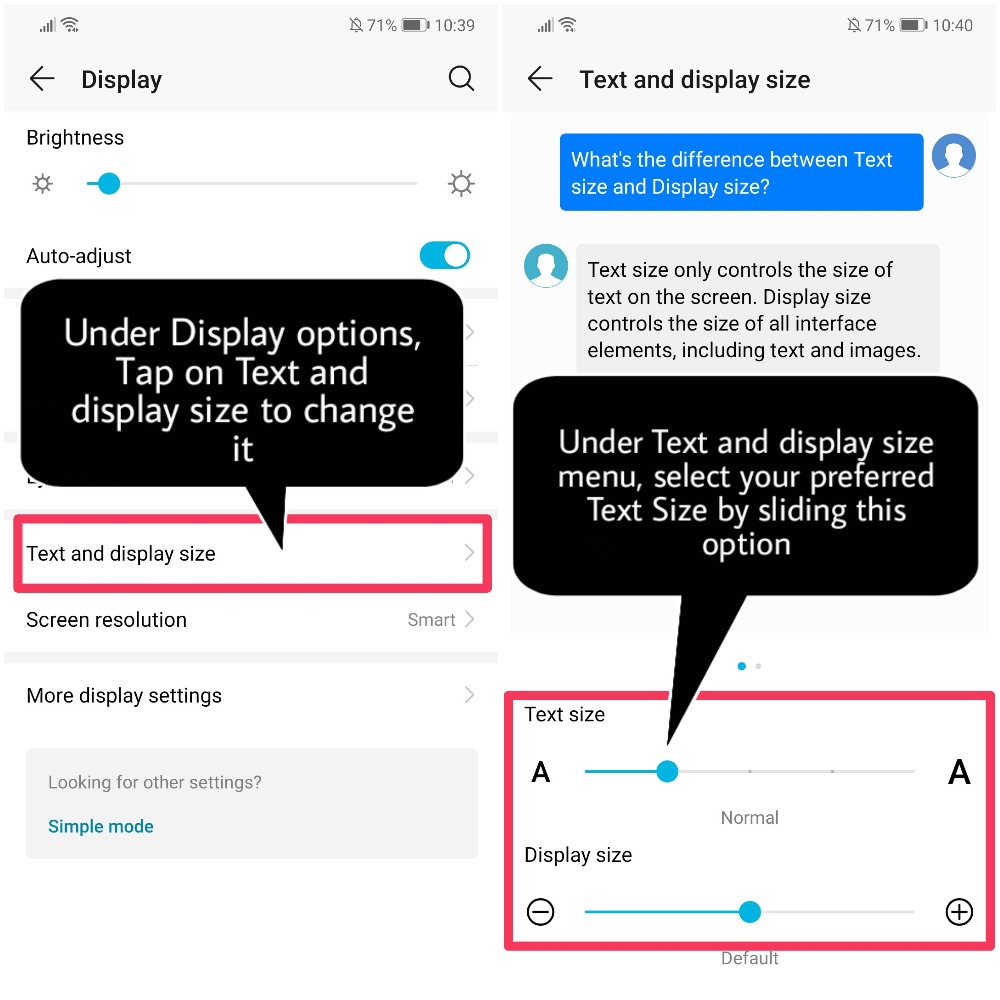
Change the image and font size:
Touch Text and display size and drag the sliders to suit your needs.
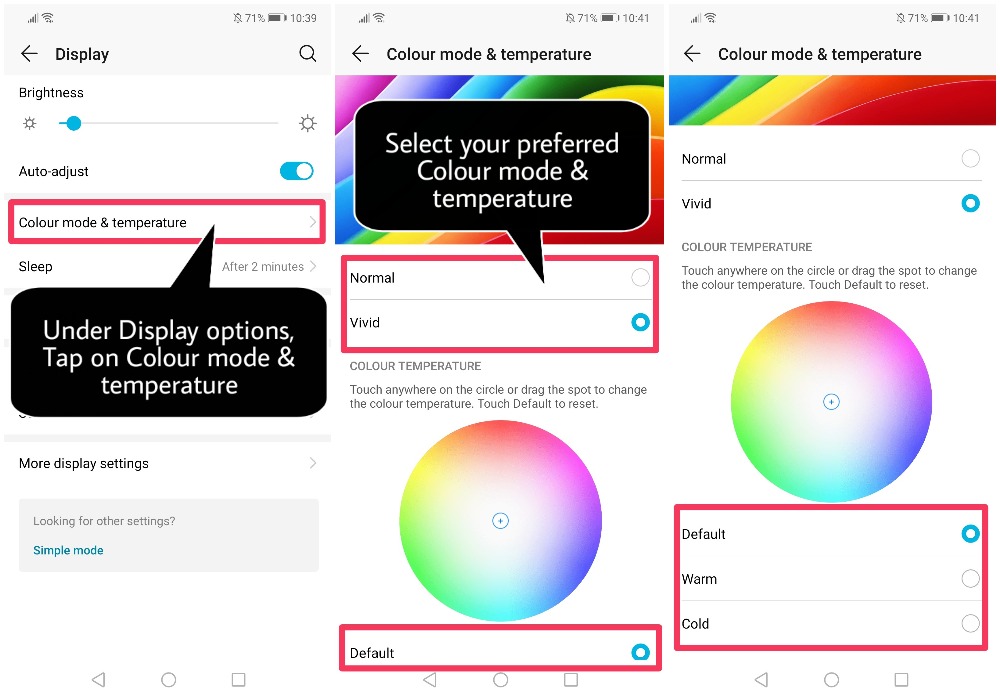
Adjust the color temperature:
Go to Color mode & temperature. You can choose from the pre-set Default, Warm, or Cold options recommended by the system. Alternatively, touch anywhere on the circle or drag the spot to adjust the color temperature manually.
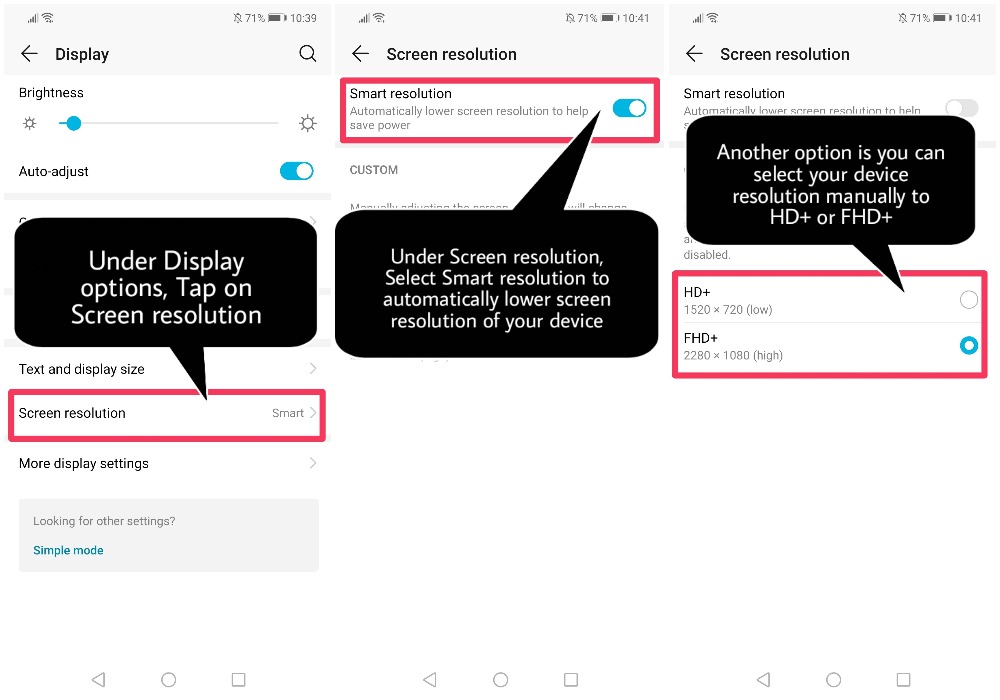
Automatically adjust the screen resolution:
Touch Screen resolution and enable Smart resolution. Your Phone will then automatically adjust the screen resolution to save power.
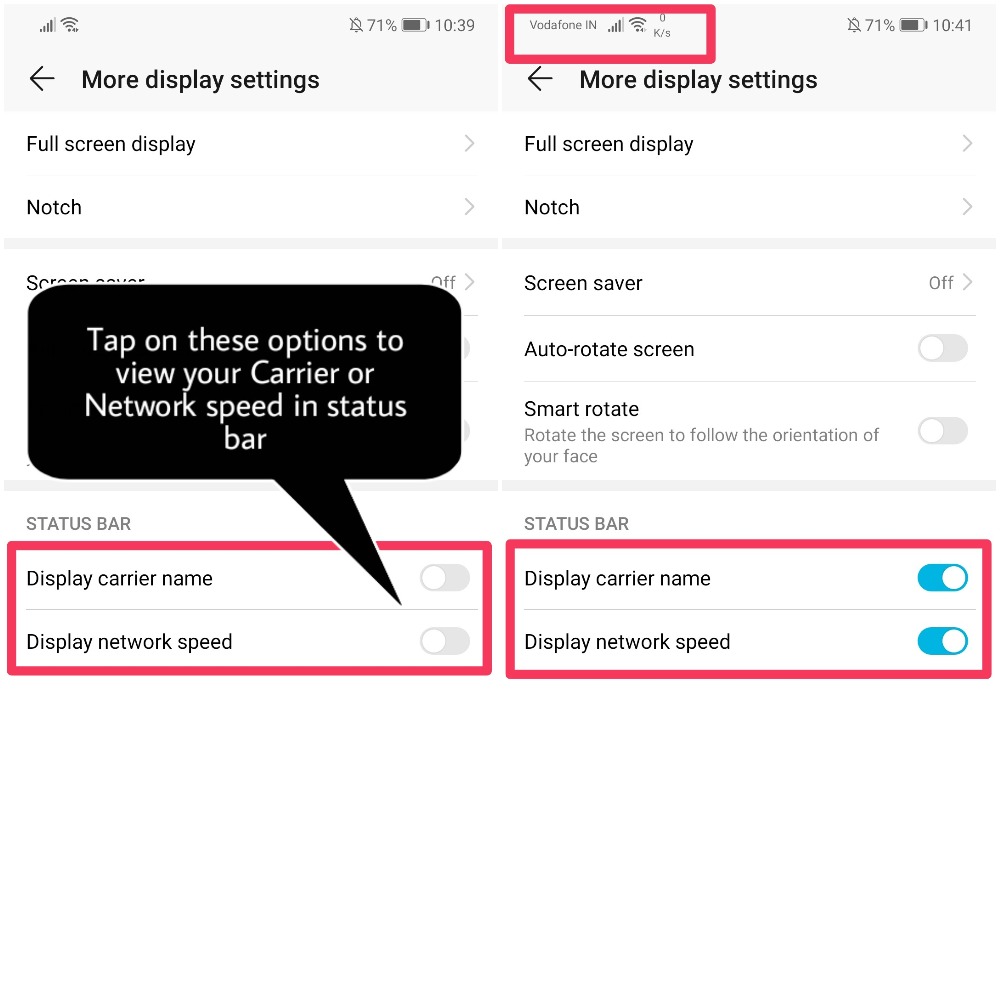
Display more information on the status bar:
Touch More display settings, then enable Display carrier name or Display network speed according to your preference.
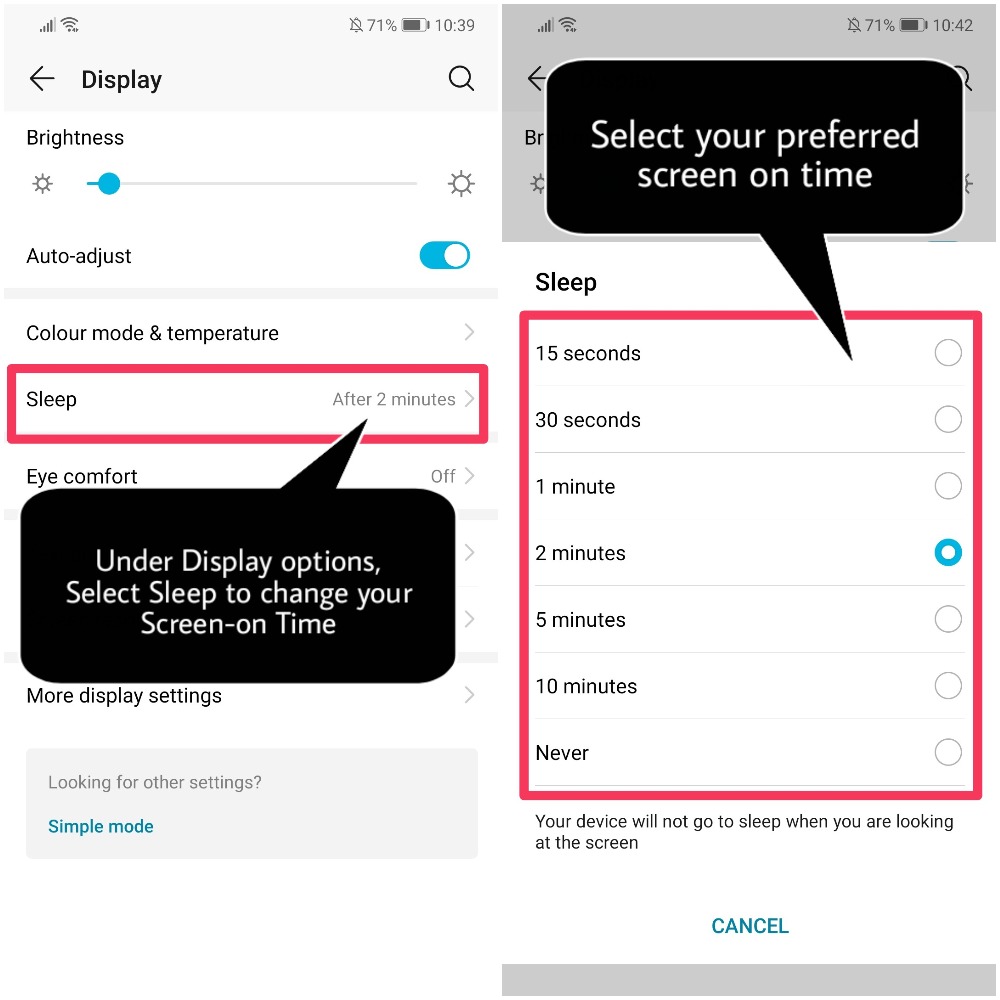
Change the screen-on time:
Touch Sleep and select the desired duration.
Brighness:
Set your display to Auto-adjust brightness or set it manually by sliding it!
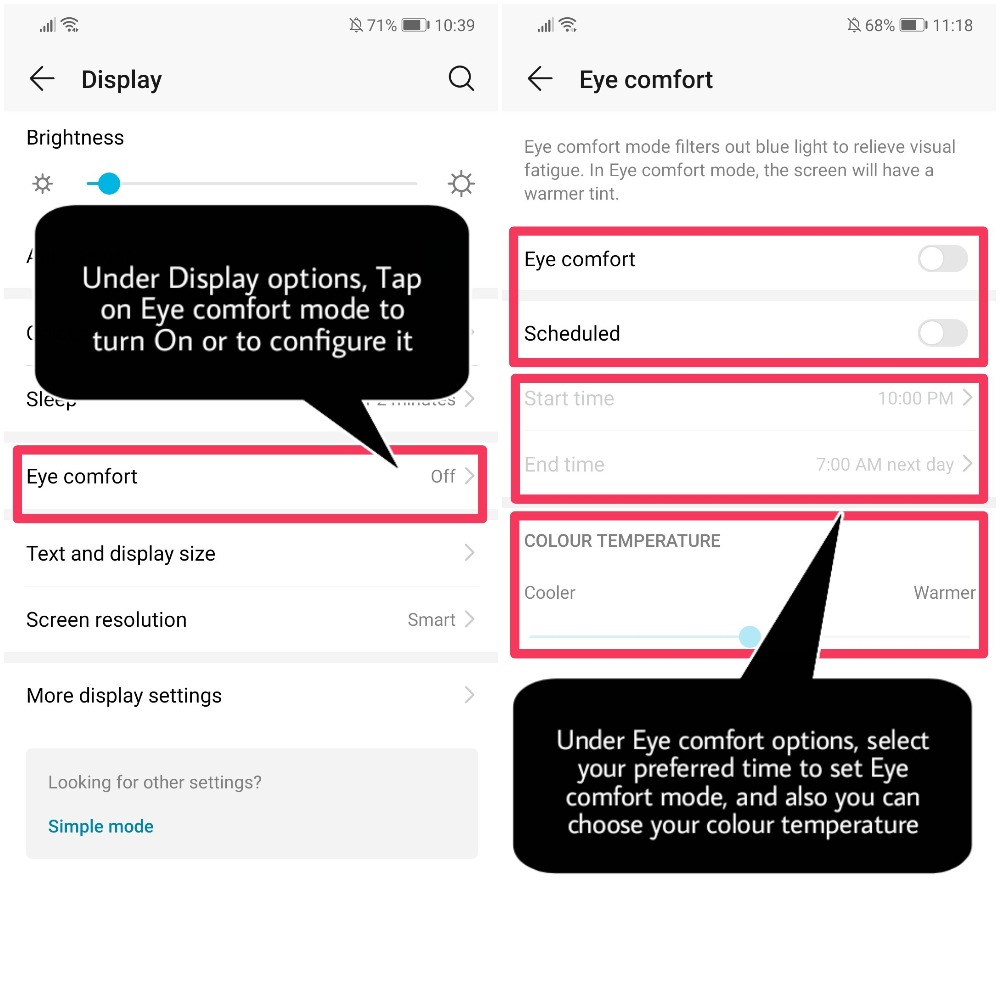
Eye Comfort Mode:
Select your prefered Time to start Eye comfort mode automatically and also your colour mode during Eye comfort mode is turned "ON"
That's it guys, Hope you find this post useful!
Thank you for reading ;)


- Posts
- Following
- Followers
- Energy
-
 Tamil G
Moderator Intern
Tamil G
Moderator Intern
-
+ Follow

-
- 542 Posts
- 49 Following
- 881 Followers
- 39795 Energy

-
 New Comer
-
 Followers reach 50
-
 Followers reach 100
-
 Followers reach 200
-
 7 Days Check-in
-
 30 Days Check-in
-
 100 Days Check-in
-
 Moderator
-
 Halloween 2020
-
 HONOR STAR 2020
-
 New Year 2021
-
 Animal Photography
-
 Plant Photography
-
 Red Photography
-
 Survey Medal!
-
 Water Photography
-
 World Cycling & Running Day
-
 Product Photography
-
 Sky Photography
-
 Activity Photography Medal
-
 Autumn Photography
-
 Rain Photography
-
 HONOR 50: Best Shot!
-
 Monthly Photo Sharing #1 Landscape
-
 HONOR Magic4 Pro
-
 Monthly Photo Sharing #2 People
-
 Monthly Photo Sharing #3 Spring
-
 Monthly Photo Sharing #4 Animal



- Posts
- photo
- video

Hello HONOR Fans'
Today I'm going to share a post on "EMUI Display options and it's Features" in detail, Let's check it out below
EMUI's Display option has variety of features which will make you more comfortable upon usage and also gives you an very rich user experience altogether ;)
Go to Settings > navigate to Display option and More display settings for more features!
Display Full Screen:
Go to More display settings > Full screen display to set apps to display in full screen mode as required.
Configure the notch display settings:
Go to More display settings > Notch to configure the notch display settings.
Change the image and font size:
Touch Text and display size and drag the sliders to suit your needs.
Adjust the color temperature:
Go to Color mode & temperature. You can choose from the pre-set Default, Warm, or Cold options recommended by the system. Alternatively, touch anywhere on the circle or drag the spot to adjust the color temperature manually.
Automatically adjust the screen resolution:
Touch Screen resolution and enable Smart resolution. Your Phone will then automatically adjust the screen resolution to save power.
Display more information on the status bar:
Touch More display settings, then enable Display carrier name or Display network speed according to your preference.
Change the screen-on time:
Touch Sleep and select the desired duration.
Brighness:
Set your display to Auto-adjust brightness or set it manually by sliding it!
Eye Comfort Mode:
Select your prefered Time to start Eye comfort mode automatically and also your colour mode during Eye comfort mode is turned "ON"
That's it guys, Hope you find this post useful!
Thank you for reading ;)