



 More Products
 Compare














我的荣耀 开启荣耀之旅



 Disagree Terms
 Log out




[APP Guide] Best Alternative to Google Keep and How to Use It


 Last reply :
Hey Guys,
In this article I’m going to introduce you the best alternative to Google Keep and how to use it. As you know that there are no G-Apps available in HONOR 9X PRO and some of them like Google Keep can not be used properly even you got it installed by some unofficial ways. So I’d rather quit it and use something else instead.
Let me introduce you, Huawei Notepad, the pre-installed official tool of Huawei for note management. It’s actually very easy and convenient to use, let’s get to know it!
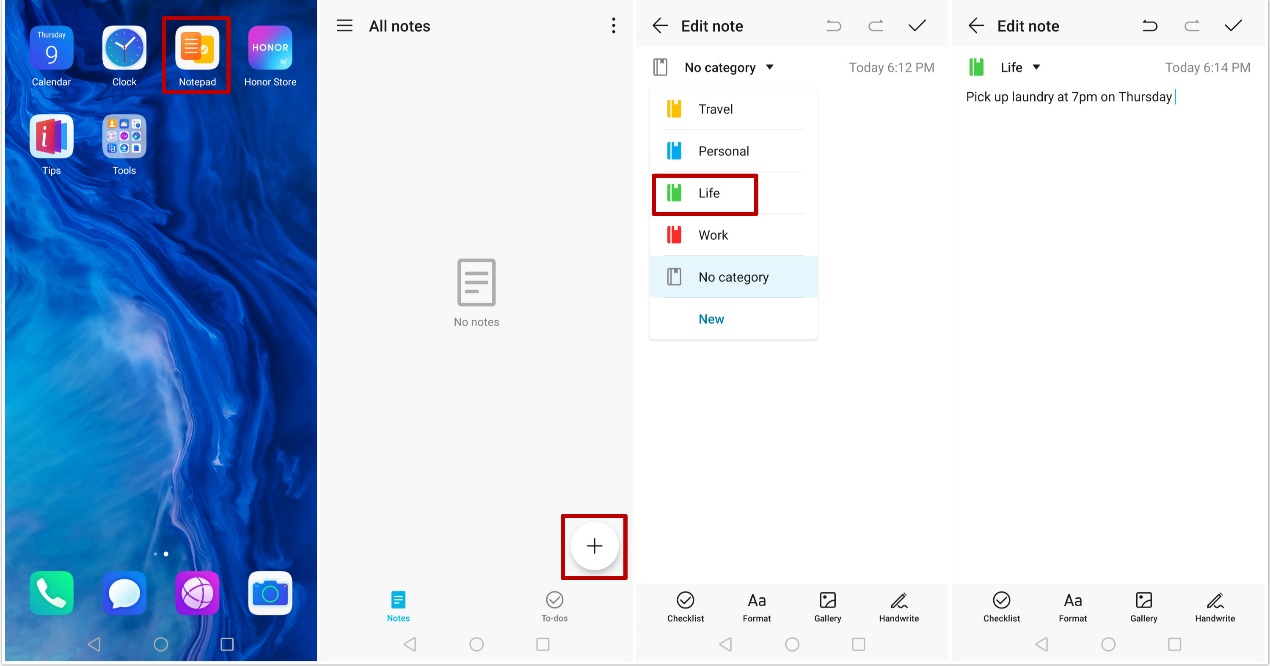
Since it’s pre-installed you can easily find it on the desk of your HONOR 9X PRO, click to open and create a new note or to-dos in seconds. You can select a category before writing, like the screenshots shown in below.
Next let me show you the management of Huawei Notepad.
Sort Notepad Items by Category
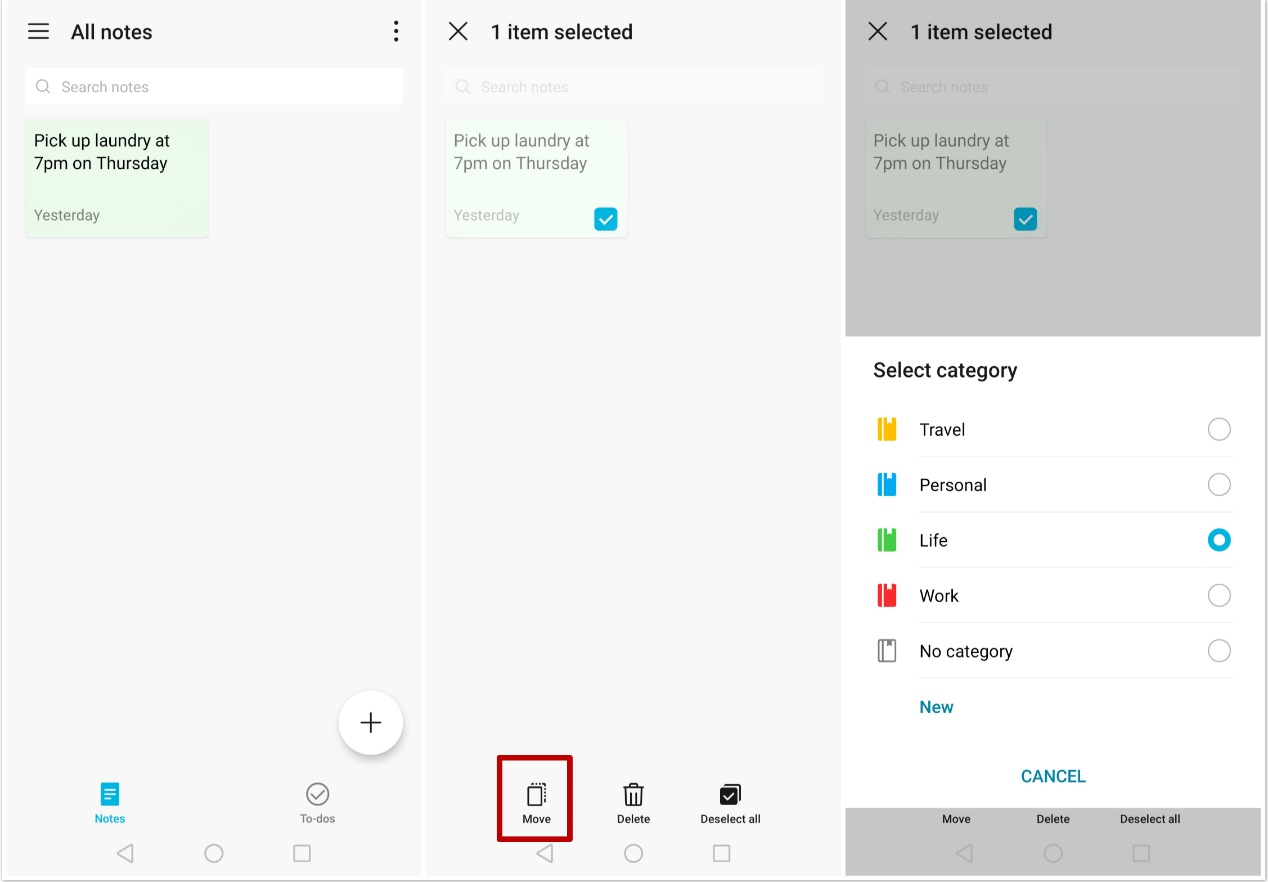
You can sort your notes by category before you start writing a note as shown above. You can also change the category after you’ve written a note. Just hold the note to select it, then touch “Move”, you’ll be able to change it to another category or create your own category.
Share Notepad Items
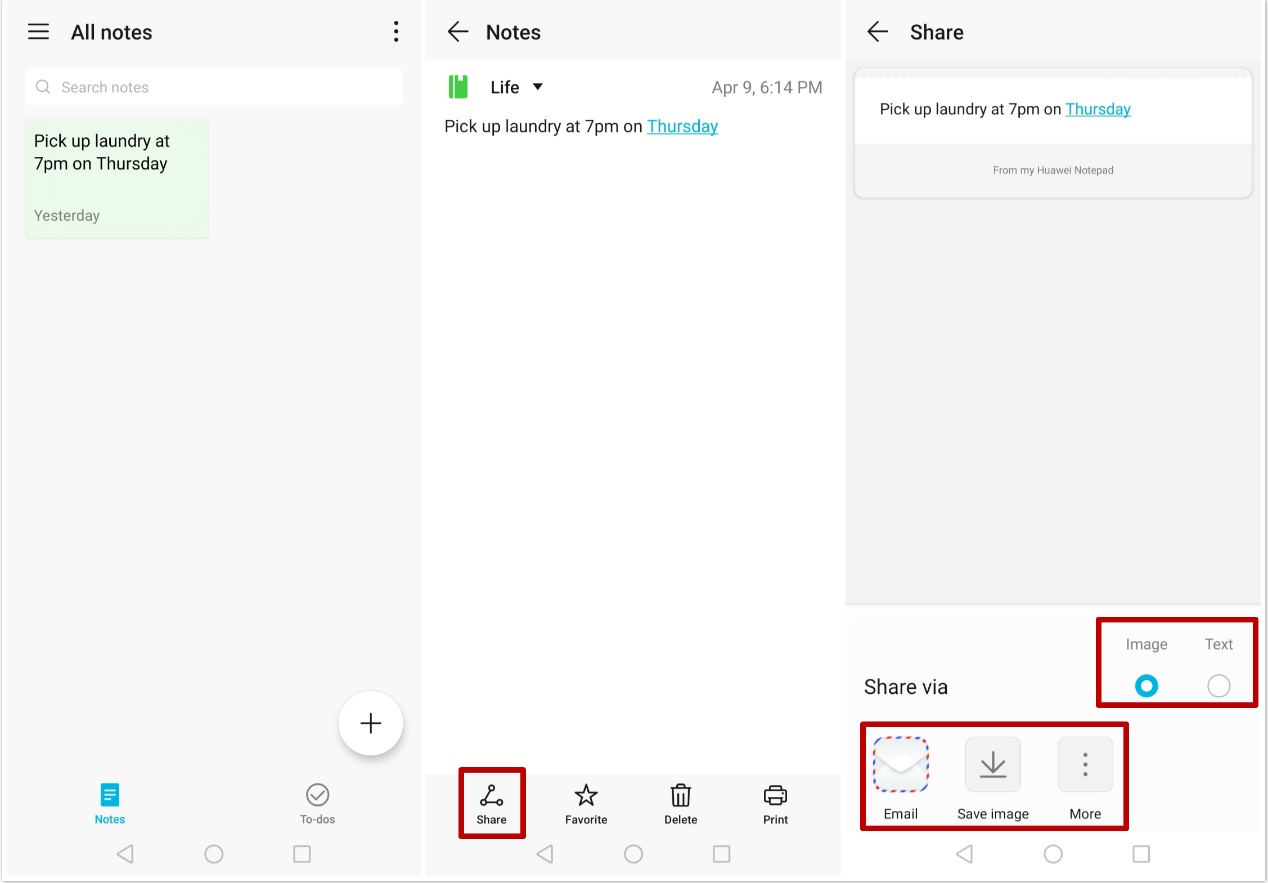
You can share your Notepad items as text files or images.
Touch the item to be shared, touch “Share”, then follow the onscreen instructions to share it.
Delete Notepad Items
You can delete notepad items using either of the following methods:
- Hold the note to select it then touch “Delete” directly
- Touch the note to go inside the edit page and touch “Delete”
To restore a deleted Notepad item, touch All notes or All to-dos, select the item you want to restore in Recently deleted, then touch “Restore”.
That’s all for this guide, thanks for reading and please comment below if you have any questions!
Follow me to get the most updated information of HMS and App Gallery!


- Posts
- Following
- Followers
- Energy
-

ColarHill
-
+ Follow

-
- 66 Posts
- 25 Following
- 209 Followers
- 4075 Energy



- Posts
- photo
- video

Hey Guys,
In this article I’m going to introduce you the best alternative to Google Keep and how to use it. As you know that there are no G-Apps available in HONOR 9X PRO and some of them like Google Keep can not be used properly even you got it installed by some unofficial ways. So I’d rather quit it and use something else instead.
Let me introduce you, Huawei Notepad, the pre-installed official tool of Huawei for note management. It’s actually very easy and convenient to use, let’s get to know it!
Since it’s pre-installed you can easily find it on the desk of your HONOR 9X PRO, click to open and create a new note or to-dos in seconds. You can select a category before writing, like the screenshots shown in below.
Next let me show you the management of Huawei Notepad.
Sort Notepad Items by Category
You can sort your notes by category before you start writing a note as shown above. You can also change the category after you’ve written a note. Just hold the note to select it, then touch “Move”, you’ll be able to change it to another category or create your own category.
Share Notepad Items
You can share your Notepad items as text files or images.
Touch the item to be shared, touch “Share”, then follow the onscreen instructions to share it.
Delete Notepad Items
You can delete notepad items using either of the following methods:
To restore a deleted Notepad item, touch All notes or All to-dos, select the item you want to restore in Recently deleted, then touch “Restore”.
That’s all for this guide, thanks for reading and please comment below if you have any questions!
Follow me to get the most updated information of HMS and App Gallery!