



 More Products
 Compare


ABOUT HONOR
Events















我的荣耀 开启荣耀之旅



 Disagree Terms
 Log out




[Tips & Tricks] How to improve your Location accuracy and Recalibrate your device Compass?


 Last reply :
Hello HONOR Fans'
Today am going to share a tutorial on "How to improve your Location accuracy and Recalibrate your device Compass?"
Almost everyone have experienced it, that when you're trying to find your way on to the destination but the arrow in your Maps doesn't point in the exact right direction and you can see it moves around wayward or stands still it's because your phone's compass needs to be recalibrated to High accuracy which improves your GPS Positioning to give accurate information for your travels!
Let's check out on how to do it,
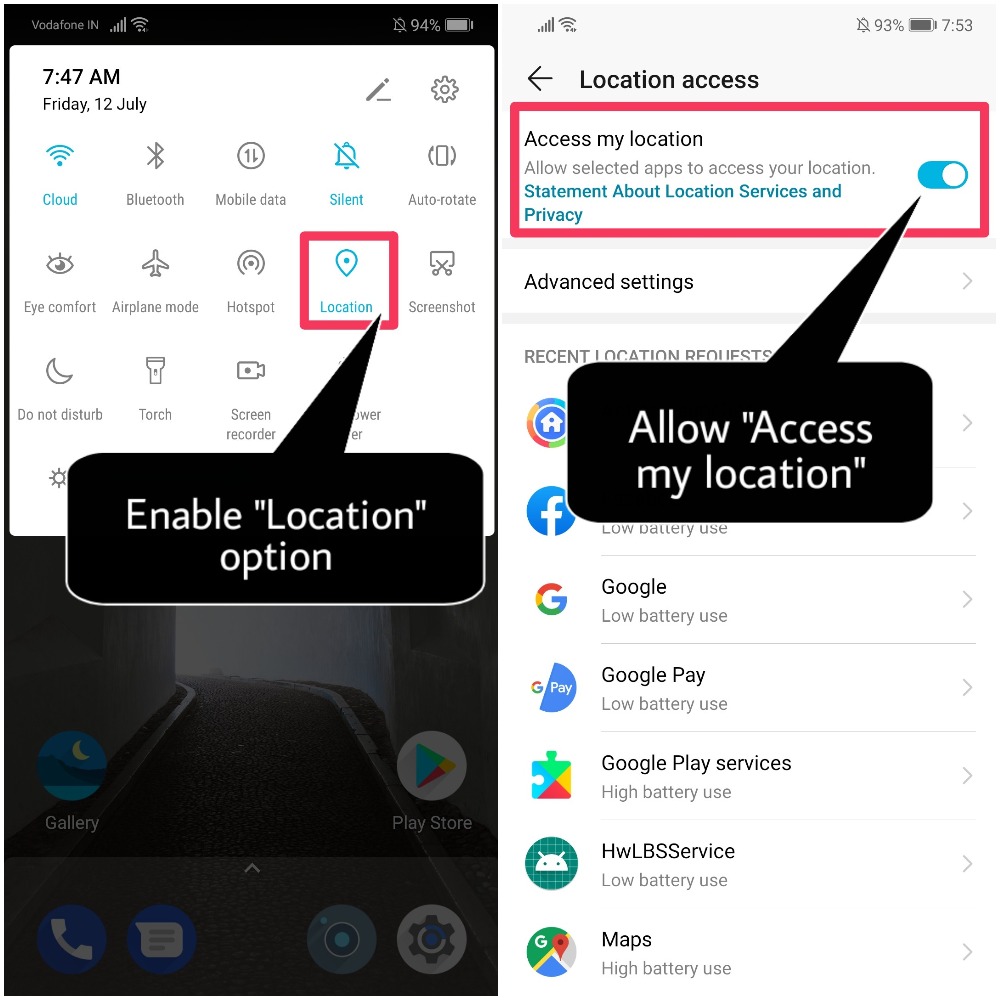
1) Swipe down from the status bar and enable the "Location" function
(OR)
Touch and hold the Location icon or go to Settings > Google > Location and enable Access my location if it's turned OFF!
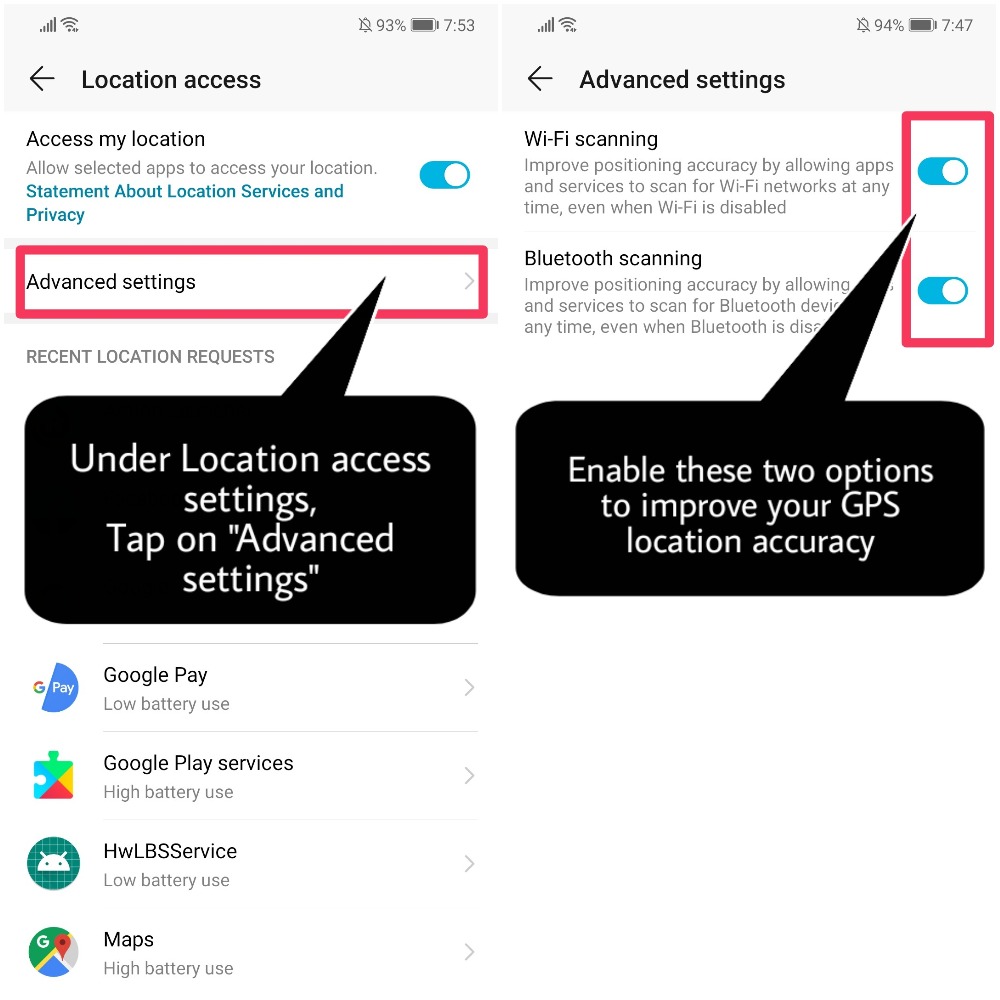
Next under Location access, Navigate to "Advanced settings" and enable Wi-Fi scanning and Bluetooth scanning (For Bluetooth devices even when its OFF)
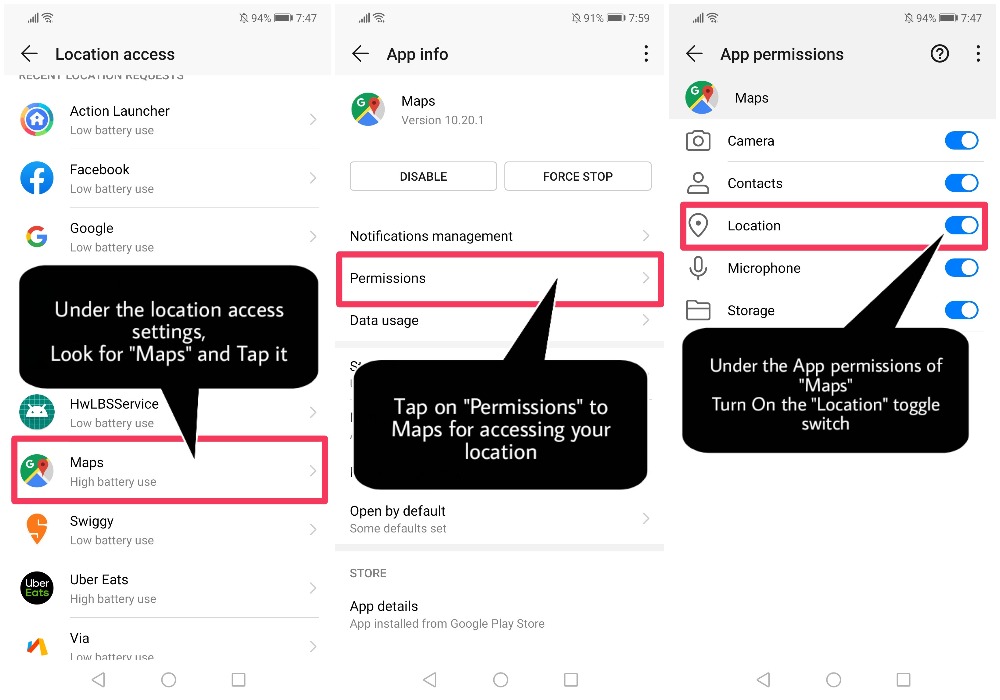
Now we need to check whether the "Maps" App is given permission to access your location or not
2) Under the Location access, navigate to "Maps" and Tap on "Permissions" to allow your device to access your location information
(OR)
Alternatively you can go to Settings > Apps > Apps > Maps > Permissions > enable "Location"
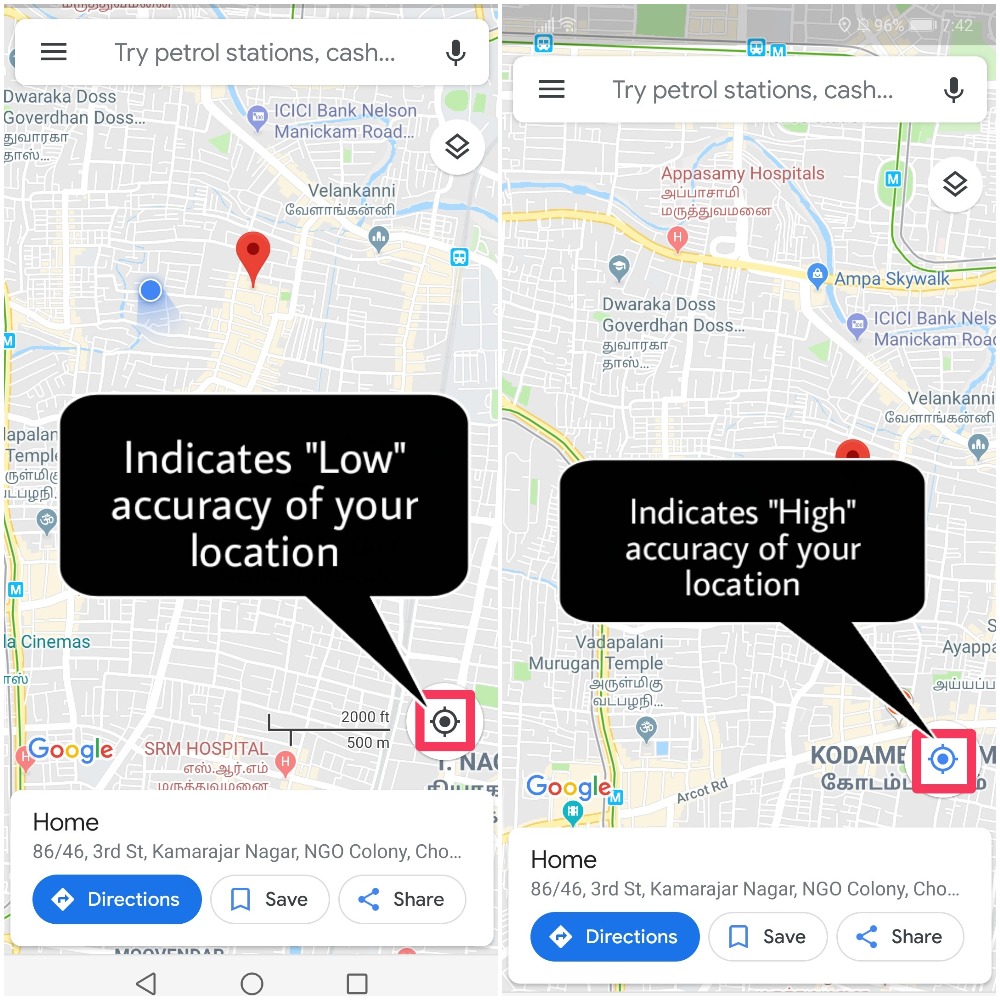
When you are in Google Maps, just tap the GPS location icon to improve your "Location accuracy and positioning"
How to Calibrate your device Compass?
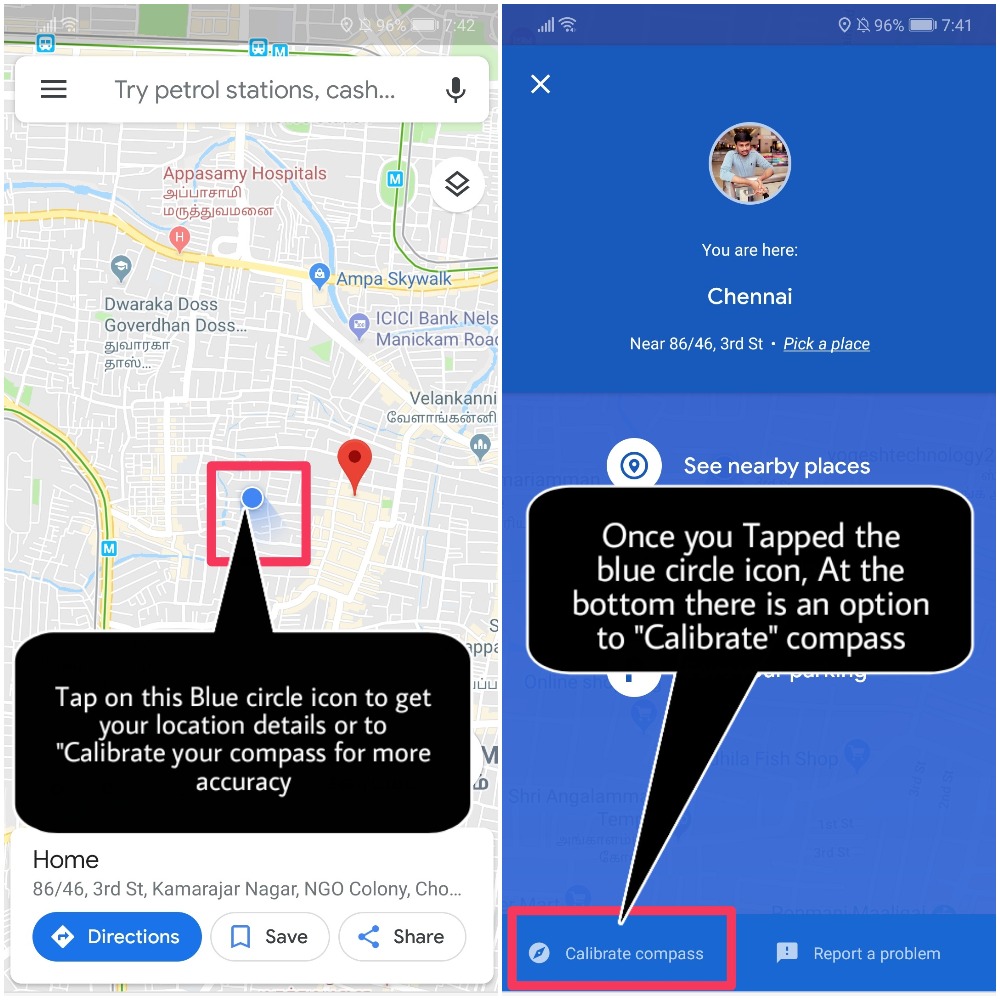
Tap the Blue dot on Google Maps that indicates your location and look for the option "Calibrate Compass"
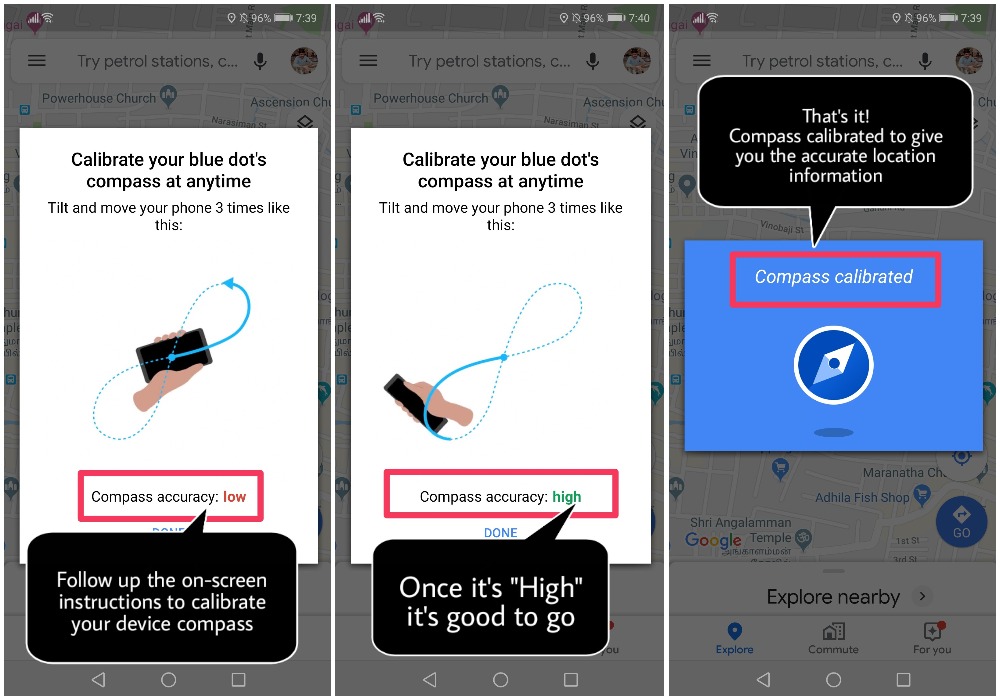
Navigate to that option and follow the On-screen instructions according to the image displayed
That's it! you have calibrated your device compass and by now blue dot should now be facing the right direction with accurate location.
NOTE:
Always UPDATE your Google Maps App to the latest version possible
That's it guys, Hope you all find this post useful
Thank you for reading ;)


- Posts
- Following
- Followers
- Energy
-
 Tamil G
Moderator Intern
Tamil G
Moderator Intern
-
+ Follow

-
- 542 Posts
- 49 Following
- 889 Followers
- 39811 Energy

-
 New Comer
-
 Followers reach 50
-
 Followers reach 100
-
 Followers reach 200
-
 7 Days Check-in
-
 30 Days Check-in
-
 100 Days Check-in
-
 Moderator
-
 Halloween 2020
-
 HONOR STAR 2020
-
 New Year 2021
-
 Animal Photography
-
 Plant Photography
-
 Red Photography
-
 Survey Medal!
-
 Water Photography
-
 World Cycling & Running Day
-
 Product Photography
-
 Sky Photography
-
 Activity Photography Medal
-
 Autumn Photography
-
 Rain Photography
-
 HONOR 50: Best Shot!
-
 Monthly Photo Sharing #1 Landscape
-
 HONOR Magic4 Pro
-
 Monthly Photo Sharing #2 People
-
 Monthly Photo Sharing #3 Spring
-
 Monthly Photo Sharing #4 Animal



- Posts
- photo
- video

Hello HONOR Fans'
Today am going to share a tutorial on "How to improve your Location accuracy and Recalibrate your device Compass?"
Almost everyone have experienced it, that when you're trying to find your way on to the destination but the arrow in your Maps doesn't point in the exact right direction and you can see it moves around wayward or stands still it's because your phone's compass needs to be recalibrated to High accuracy which improves your GPS Positioning to give accurate information for your travels!
Let's check out on how to do it,
1) Swipe down from the status bar and enable the "Location" function
(OR)
Touch and hold the Location icon or go to Settings > Google > Location and enable Access my location if it's turned OFF!
Next under Location access, Navigate to "Advanced settings" and enable Wi-Fi scanning and Bluetooth scanning (For Bluetooth devices even when its OFF)
Now we need to check whether the "Maps" App is given permission to access your location or not
2) Under the Location access, navigate to "Maps" and Tap on "Permissions" to allow your device to access your location information
(OR)
Alternatively you can go to Settings > Apps > Apps > Maps > Permissions > enable "Location"
When you are in Google Maps, just tap the GPS location icon to improve your "Location accuracy and positioning"
How to Calibrate your device Compass?
Tap the Blue dot on Google Maps that indicates your location and look for the option "Calibrate Compass"
Navigate to that option and follow the On-screen instructions according to the image displayed
That's it! you have calibrated your device compass and by now blue dot should now be facing the right direction with accurate location.
NOTE:
Always UPDATE your Google Maps App to the latest version possible
That's it guys, Hope you all find this post useful
Thank you for reading ;)