

 More Products
 Compare













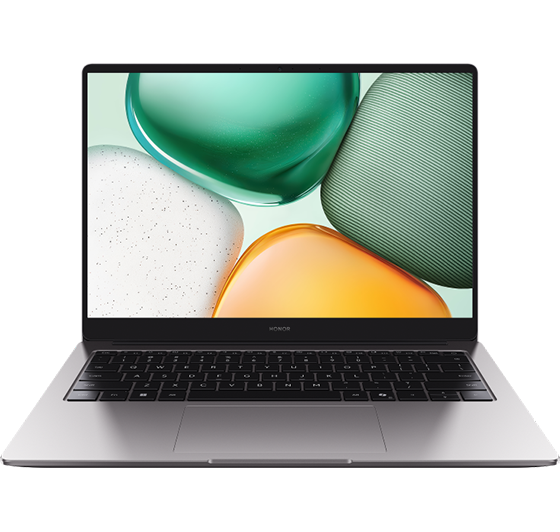
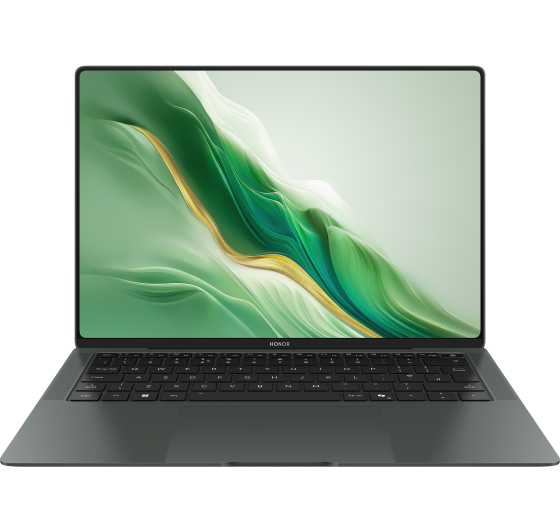






The touchscreen lags, freezes, or responds slowly
| The touchscreen lags, freezes, or responds slowly |
Press the Power button to turn the screen off and wait for 2 or 3 minutes. Turn the screen back on to see if this resolves the issue. Alternatively, enter Sleep mode, wait for 2 or 3 minutes and then wake your computer back up.
Check whether there are many apps running in the background or if memory-intensive apps such as games are running.
Close these apps and check whether this resolves the issue.
Check whether the problem began after a new app was installed.
Some third-party apps are not compatible with your computer. Uninstall and install the app again or use an alternative app.
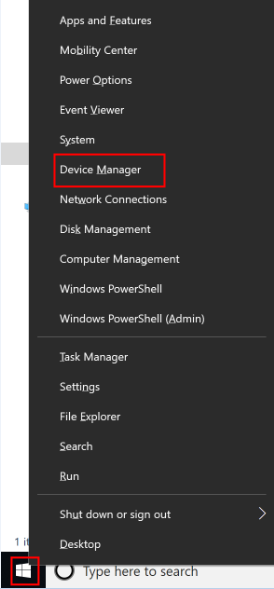
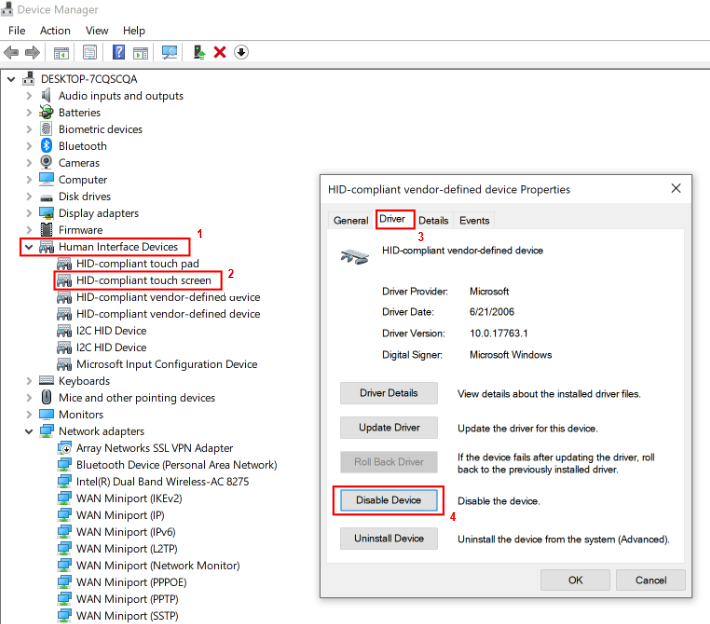
Check whether you have disabled the touchscreen. If so, enable it as follows:
Right-click the Windows icon and then click Device Manager.
Select Human Interface Devices and then double-click HID-compliant touch screen to check the properties of the touchscreen driver. Ensure it is not disabled.
- How to uninstall the driver and install it again?
Open Device Manager: Search for "Device Manager" in the Windows search bar and open it.
Expand Human Interface Devices: Click the arrow next to "Human Interface Devices" to see the list.
Uninstall the driver: Right-click on "HID-compliant touch screen" (or "Intel(R) Precise Touch Device") and select "Uninstall device".
Scan for hardware: In the menu bar at the top, click the "Action" menu and select "Scan for hardware changes". Windows will detect your touch screen and automatically reinstall the driver.
Restart your laptop: A restart may be necessary for the changes to take effect.
Restart your computer. If the issue is still not resolved after you restart your computer several times, bring your computer, proof of purchase, and warranty to an authorized Honor Customer Service Center for assistance.
微信扫描二维码分享文章
More Support