

 More Products
 Compare











The touchpad sometimes does not respond to my touches
| The touchpad sometimes does not respond to my touches |
Check whether the issue was caused by a misoperation. For clicking or swiping operations, use only a fingertip. If a finger touches the area and makes too much contact with it (for example if a whole finger is placed on the touchpad area) or if multiple fingers are used, it will cause the intended operation to fail.
Check whether sliding on the top or left and right sides of the touchpad results in no response. Because of the mistouch prevention design, you are advised to use the middle area of the touchpad to click or begin swiping operations.
Check whether the computer has entered sleep or hibernation. To prevent the system from being woken up by accidental contact with the touchpad, the software is designed so that the touchpad cannot be used to wake up the system when the computer has entered sleep or hibernation. First touch any key on the keyboard or press the Power button to wake up the system, then perform operations on the touchpad.
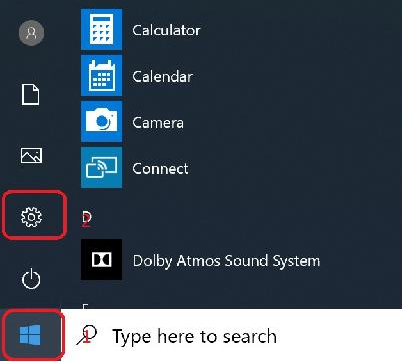
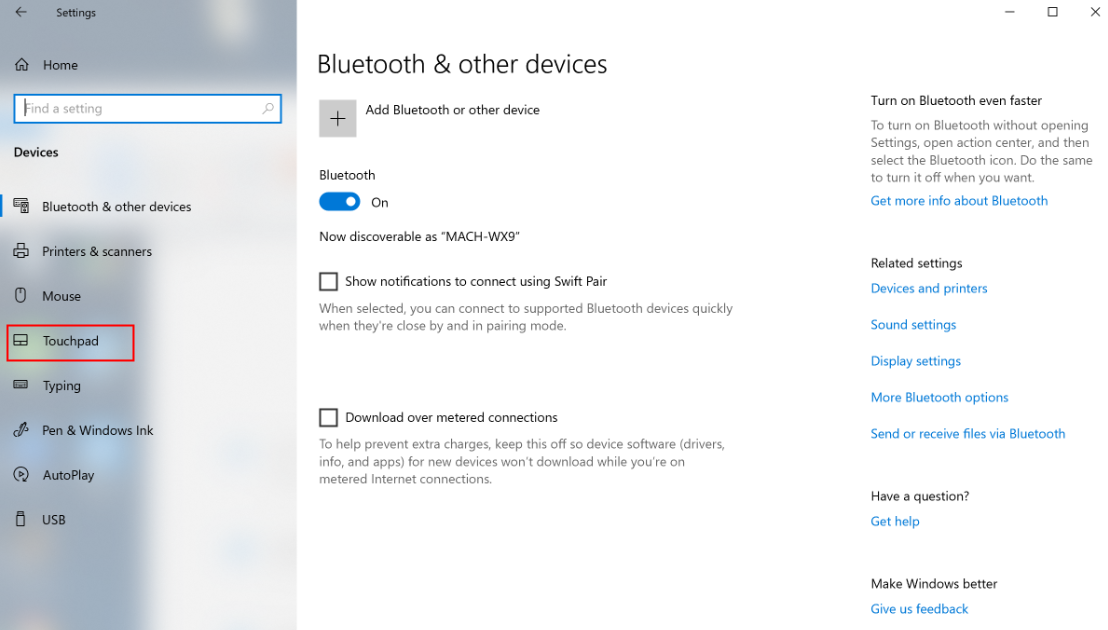
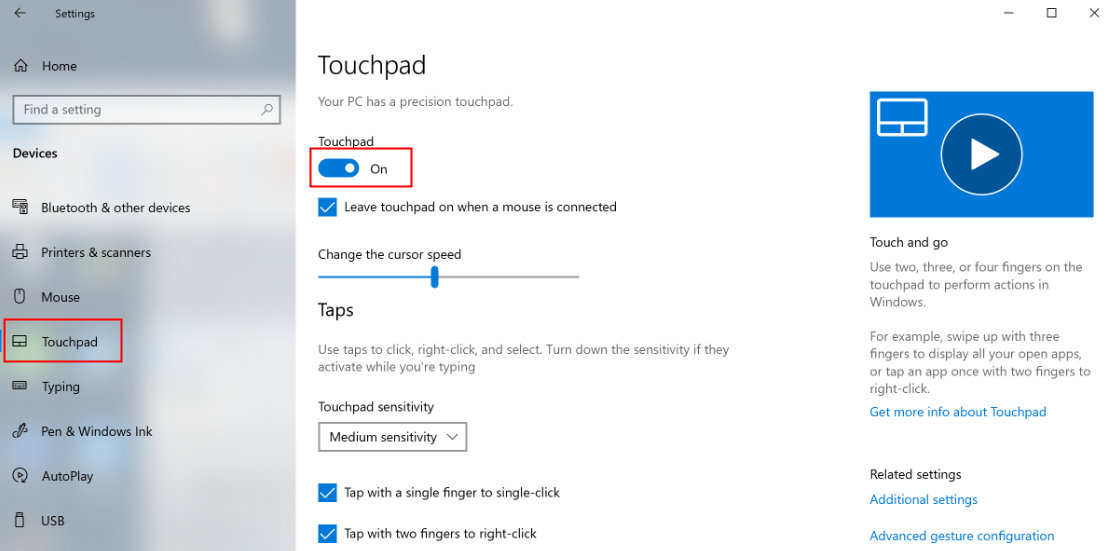
Check whether the touchpad is disabled. Click the Windows icon and then the Settings icon. Go to Devices > Touchpad to check whether the touchpad is turned off. If it is, turn it on.

If the issue still persists, back up important data, connect your computer to the charger, press and hold F10 during startup of your computer to restore it to its factory settings.

System restoration will delete all data in the C drive, and files in other drives will be retained. To avoid data loss, it is recommended that you back up C drive data including desktop files, downloads, documents, and other personal files. Remember the Microsoft account and password that activated the Office components on your computer. Office components do not expire after the computer is restored to factory settings. Enter the Microsoft account and password bound when activating Office components for the first time, and reactivate Office components. Different versions of the F10 function operation interface may be slightly different, operate according to the actual interface prompts.
微信扫描二维码分享文章
More Support


