
 More Products
 Compare








我的荣耀 开启荣耀之旅
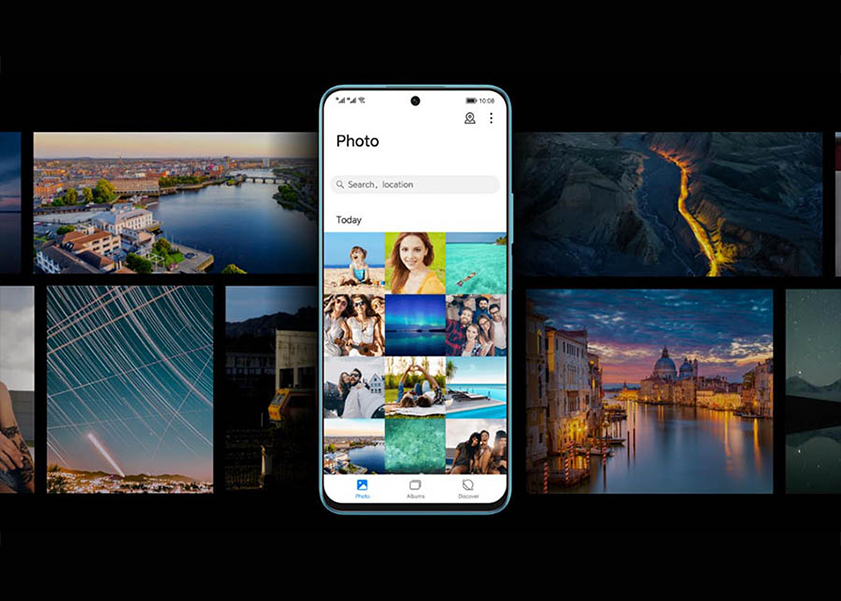
How to Retrieve Deleted Photos on Andriod: A Comprehensive Guide for Beginners
Accidentally deleting photos can be distressing, but fear not! Everything’s got a remedy after all. So, if you want to know how to get back deleted photos, we got you.
In this comprehensive guide, we will explore various methods to recover deleted photos on Android devices. From cloud services to data recovery software, we've got you covered. You will now have an idea how to get recently deleted photos back.
Let's dive in and reclaim your cherished memories.

Identify the Storage Type Used on Your Android Phone
Before delving into the different methods of retrieving deleted photos, it is essential to understand the type of storage used on your phone. Android phones have three types of storage:
First, internal storage refers to the permanent storage space available on your device, which is usually limited.
Second, cloud storage allows you to store your files on remote servers connected to the internet, providing easy accessibility from any device.
Finally, SD card storage is an external option, where data can be stored on a physical card.
Knowing the type of storage used on your Android device is critical as it determines the approach you should take when recovering deleted photos.
Recover Deleted Photos from Internal Storage
If your photos were stored on the internal storage of your Android device, There are two methods you can try.
Check Recycle Bin in Files App:
Depending on your phone's manufacturer, you might find a Recycle Bin feature in your file explorer app, where deleted files are temporarily stored. To check if your phone has this feature, open your file explorer app and look for a Recycle Bin section. If you find it, check if your deleted photos are in this folder. If you do find them, select them and choose the option to restore them to their original location. Let’s take HONOR device as an example:
• Open the Files App: Launch the Files App on your HONOR X9a device.
• Access the Recycle Bin: Look for the "Recycle Bin" or "Trash" folder within the Files App. This folder temporarily stores deleted files.
• Locate and Select Photos: Scroll through the Recycle Bin to find the deleted photos you want to retrieve. Once found, select them.
• Restore the Photos: After selecting the photos, tap the "Restore" or "Recover" option. The files will be returned to their original location in the Gallery or the designated photo folder.
• Prevent Future Loss: To avoid future photo mishaps, regularly back up your photos to cloud storage or an external device.
By following these steps, you can quickly recover deleted photos from the Recycle Bin in the Files App on your device, ensuring your cherished memories stay safe and sound.

Use a Third-Party App:
If your deleted photo is not in the recycle bin, don't worry. There are several third-party apps available that can help you retrieve deleted photos from your Android phone. Some of the popular apps include DiskDigger, Undeleter, and Recuva. These apps scan your device's storage and recover deleted photos that have not been overwritten. However, it's important to note that these apps may not be able to recover all deleted photos, and some of them may require rooting your device.
Recover Deleted Photos from Cloud Storage
With the increasing reliance on cloud storage for preserving our precious memories, accidental photo deletion can be distressing. However, the good news is that many cloud services offer methods to retrieve deleted photos. You can now know how to restore old photos from your cloud in easy steps too.
In this section, we will explore three popular cloud storage platforms—Dropbox, Google Photos, and Google Drive—and learn how to restore the deleted photos from them.
How to Get Back Deleted Photos from Dropbox
Dropbox provides a user-friendly approach to recover deleted photos. For Android photo recovery, adhere to these steps:
• On your Android device, launch the Dropbox application.
• Go to the folder for camera uploads.
• Navigate to the correct folder if you recall moving the images there.
• Choose the images you want to recover.
• Select Save to Device under More (three dots).
How to Retrieve Deleted Photos from Google Photos
Google Photos also offers an intuitive method to recover deleted photos:
• Open the Google Photos app on your device or visit the Google Photos website and sign in to your Google account.
• In the app, tap the "Library" icon and select "Trash" from the menu. On the website, click on the three horizontal lines and choose "Trash" from the sidebar.
• Long-press on each photo you want to recover and tap "Restore" to return them to your Google Photos library.
How to Recover Deleted Photos from Google Drive
If your photos were stored in Google Drive, here's how to retrieve them:
• Go to the Google Drive website or open the Google Drive app and log in to your Google account.
• Select the photos you want to restore.
• Tap More (three dots) and tap Download.
Recover Deleted Photos from SD Card
If your deleted photos were stored on an SD card, you can try using data recovery tools like TenorShare. TenorShare is a reliable and user-friendly data recovery tool that offers a simple solution for recovering deleted, formatted, or inaccessible data from various storage devices, including hard drives, USBs, and memory cards. By employing advanced scanning algorithms, it can dig deep into your storage media to locate and restore the lost files.
Step 1:
Install the TenorShare UltData - Android Data Recovery program on your Mac or Windows computer first. Launch this software as soon as the installation process is finished to begin the photo recovery process, then select the "Recover All Data" feature. Grab your Android device and a USB cable to connect it to the computer now.
Step 2:
Follow the on-screen instructions to enable USB debugging on your Android phone. The 'Allow USB Debugging' popup window should prompt you to press the 'OK' button.
Step 3:
After viewing the list of files, you must first scan them. Then, after reviewing the data, click "Next" to start the scanning process.
Step 4:
Select the file type from the left panel to preview the data after scanning. Select the "Show All" tab, then select "Only display the deleted items" to see the deleted files. 'Photos' should be selected in the left panel.
Step 5:
Select the desired photos that you want to be recovered selectively, and then click the "Recover" button. After this, the pictures will be saved to your computer. Media files keep their original formats, while contacts, messages, and call logs are saved in XML, Text, and Excel formats.
Conclusion
Accidents happen, and photos can get deleted, but with the methods outlined in this article, you can significantly increase your chances of successful photo recovery even know how to recover permanently deleted photos.
Always remember to back up your photos regularly to avoid permanent loss and know the basics as to how to retrieve deleted photos. By following the techniques presented here, you can safeguard your cherished memories and enjoy peace of mind.
Frequently Asked Questions
Why Can’t I Find Deleted Photos from Deleted Items of Files App?
If you can't find deleted photos in the "Deleted Items" folder of the Files App, it's likely that the photos were permanently removed. Some cloud storage platforms have a limited retention period for deleted files in the recycle bin. Once this duration is exceeded, the files are permanently deleted to free up storage space. To avoid losing photos, it's crucial to act quickly and restore them from the recycle bin before they are permanently purged.
Can I Recover Deleted Photos from an SD Card?
Yes, you can recover deleted photos from an SD card. Various data recovery software tools are available that can scan the SD card and retrieve lost images. When you delete photos from an SD card, the data isn't immediately erased; it becomes marked as available space for new data. Using data recovery software promptly improves the chances of successful photo recovery from an SD card.
How to Avoid Losing Your Photos on Android?
To avoid losing photos on Android, follow these steps:
• Regular Backups: Back up your photos to a cloud service or computer regularly.
• Enable Google Photos Backup: Turn on the Google Photos backup feature to automatically sync and save your photos.
• SD Card Precautions: If using an SD card, be cautious when formatting or deleting files and consider backing up the card.
• Check Trash or Recycle Bin: Many Android devices have a Trash or Recycle Bin feature in their gallery apps; check there before permanently deleting photos.
Source: HONOR Club
Products Recommend

Latest Blogs

Subscribe For Updates - Special Offers And More.
By providing your email address, you consent to receive the latest offers and information on Honor products, events and services through email or advertisement on third-party platforms. You can unsubscribe anytime according to Chapter 5 of HONOR Platform Privacy Statement.
Consumer hotline

