

 More Products
 Compare










我的荣耀 开启荣耀之旅
How to Make Laptop Run Faster for Gaming: Common Causes and Easy Fixes
Table of Contents
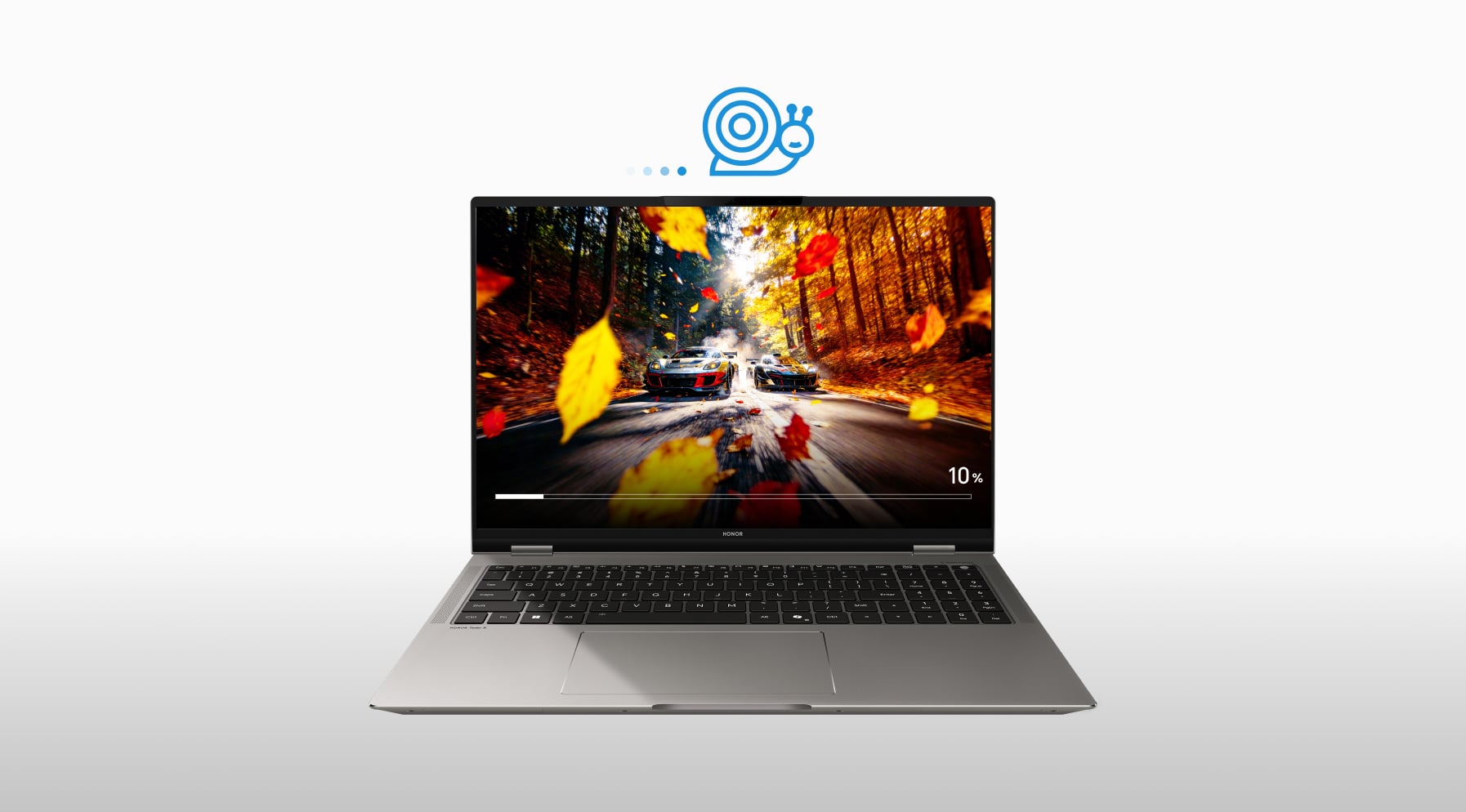
You are deep into an intense gaming session: your fingers fly across the keyboard, your eyes lock onto the screen… and then it happens: your character stutters, the frame rate drops, and a critical moment is lost to lag. The frustration is real; the game you love feels more like a battle against your laptop than the opponent on screen.
So, how to fix it? How to make laptop run faster for gaming? Luckily, with a few smart tweaks and upgrades, you can make your laptop run faster and enjoy smoother, more responsive gameplay. We will break down the main reasons your laptop lags and share practical steps to boost performance. Just read on!
Why Is My Gaming Laptop So Slow?
Before everything else, we need to identify the common culprits that cause the slowdown. So you can diagnose and improve gaming performance laptop effectively.
● Limited RAM or Slow Storage: Insufficient memory or a sluggish, nearly full hard drive can lead to stuttering, long load times, and poor responsiveness during games.
● Outdated Drivers and Operating System: When graphics drivers or the OS are out of date, incompatibilities and bugs can creep in, causing frame drops and unstable performance.
● Overheating and Thermal Throttling: Laptops heat up fast under gaming loads. Once internal temperatures climb past safe limits, the system automatically slows down to prevent damage, which reduces in-game speed.
● Power-Saving Modes: Battery or balanced power plans limit CPU and GPU output to conserve energy, which can make your laptop feel sluggish in the middle of a match.
● Background Apps and Bloatware: Having multiple programs running in the background quietly drains your laptop’s RAM and CPU power. This leaves fewer resources for your game, causing stuttering, longer load times, and even crashes.
● Improper Game Settings: Running games on ultra-high graphics or maximum effects can easily overwhelm mid-range hardware. When the GPU and CPU are pushed beyond their limits, the result is often lag, stuttering, and low FPS.
● Network Bottlenecks: For online games, poor Wi-Fi signals or high latency can look like hardware lag, making gameplay choppy and unresponsive.
● Aging Components: Older CPUs, integrated GPUs, or slower storage devices can struggle to handle the demands of modern games, even at reduced settings. When your laptop consistently underperforms despite tweaks, it’s often a sign that the hardware has reached its limits.
How to Make Your Gaming Laptop Run Better?
Now that you know why lag happens, how to increase laptop speed for gaming? Here are a few practical methods that can help improve gaming performance on a laptop.
1. Fix Hardware Bottlenecks (Low RAM or Storage)
If your laptop is running on less than 16 GB of RAM or an old hard drive, modern games will struggle. Upgrading to at least 16 GB and swapping the HDD for an SSD will give you faster data access, shorter load times, and far less stuttering. If you want to know how to turn your laptop into a gaming laptop, replacing these parts can be one of the most viable methods to make it like a gaming machine.
2. Update Drivers and Your Operating System
Install the latest graphics drivers to fix bugs and improve rendering. Meanwhile, updating your operating system is important for stability and higher FPS. This simple habit directly increases laptop speed for gaming.
3. Control Heat and Prevent Thermal Throttling
How to increase laptop speed for gaming when the machine gets too hot? Use compressed air to clear vents or a cooling pad to keep the temperature under 85 °C. Reapplying thermal paste every so often helps transfer heat more efficiently, so your laptop can maintain peak performance even during long sessions.
4. Disable Power-Saving Limits
Gaming on battery or “balanced” settings holds your CPU and GPU back. Always plug in and switch to High-Performance power mode for Windows (or the equivalent on Mac) to let the CPU and GPU run at full speed.
5. Manage Background Apps/Tasks
Too many programs running in the background chew through RAM and CPU cycles. Close unnecessary apps in Task Manager(Windows) or Activity Monitor(Mac). You may also use debloating tools like PC Decrapifier to free up resources and boost gaming laptop performance.
6. Optimize Game Settings
Lower graphics quality, resolution, and disable features like V-Sync in-game menus. Enable low-latency mode in GPU control panels for the best gaming laptop settings to better balance visuals and speed.
7. Improve Your Connection for Online Play
Sometimes lag is not always hardware. If possible, plug in with Ethernet or move closer to your router, and use network tools to check and reduce latency. A solid connection makes gaming smoother and responsive.
8. Upgrade Aging Components
You can’t rely on an outdated laptop for smooth gameplay. So, how to upgrade a gaming laptop for better performance? Consider replacing upgradable parts (aging CPU/GPU)or using an external GPU over Thunderbolt. It is also a great way to make a normal laptop into a gaming laptop.
If upgrades aren’t possible, investing in a purpose-built gaming laptop is often the smarter choice. HONOR offers a wide range of powerful laptops designed specifically for gamers, combining cutting-edge hardware, advanced cooling, and sleek designs. Explore HONOR’s latest gaming laptops today to find the model that fits you the best.
Conclusion
How to make laptop run faster for gaming? This guide has walked you through the most common causes of lag and the practical ways to fix them. By combining smart hardware upgrades, software tweaks, and optimized settings, you can significantly improve gaming performance on most laptops. If you are ready to upgrade or need a machine built for play from day one, explore HONOR laptops. With powerful specs and optimized designs, they deliver smooth, reliable gameplay right out of the box.
FAQs
How do I make my gaming laptop run faster?
Keep your laptop updated. Make sure the system and graphics drivers are up to date. Updates fix problems and help games run smoother.
Add more RAM if you can. Switch to an SSD if you don’t already have one. Both upgrades make your laptop quicker and games load faster.
Close apps you don’t need while gaming. Extra programs slow things down.
Keep your laptop cool. Good airflow or a cooling pad stops it from overheating. Staying cool helps your laptop keep steady speed for long gaming sessions.
How to get 120 FPS on a gaming laptop?
To get 120 FPS on a gaming laptop, lower the resolution and graphics settings of your games. This reduces the load and lets your laptop push frame rates higher.
Keep everything updated. Install the latest graphics drivers and system updates, and turn on features like low-latency or high-performance mode. These tweaks can improve smoothness.
Control the heat. Use a cooling pad or improve airflow. A cooler laptop runs faster for longer, helping you keep steady 120 FPS in demanding games.
How to increase game FPS on laptop?
Reducing in-game resolution and detail levels is the quickest way to ease the strain on your GPU and raise FPS without extra cost.
You may also turn on Game Mode or similar performance options in your operating system. These settings can prioritize your game and reduce background activity.
Upgrading RAM or improving cooling can also help. More memory and stable temperatures make it easier for your laptop to handle intense scenes.
How to boost PC performance?
First, keep your operating system and drivers updated. Regular maintenance prevents slowdowns and ensures smoother operation for everyday tasks and games alike.
Clear out unnecessary files, apps, and startup programs to free up space and processing power. This improves responsiveness across the board.
When possible, upgrade hardware like RAM or switch to an SSD. Combined with good power settings, these changes can dramatically boost performance.
How to increase RAM on laptop?
Check your laptop’s specifications or manual to see what type and maximum amount of RAM it supports. Tools like CPU-Z can help with this.
Buy compatible modules and install them carefully with the power off. Many laptops have an accessible panel on the underside for this upgrade.
After installation, restart the system and confirm the new capacity in settings. More RAM helps with multitasking and smoother performance in demanding applications.
Source:HONOR Club
Products Recommend
Latest Blogs

Subscribe For Updates - Special Offers And More.
By providing your email address, you consent to receive the latest offers and information on Honor products, events and services through email or advertisement on third-party platforms. You can unsubscribe anytime according to Chapter 5 of HONOR Platform Privacy Statement.
Consumer hotline

