
 More Products
 Compare

HONOR Store










我的荣耀 开启荣耀之旅
Troubleshooting Display Woes: Why Is My Phone Screen So Dark on Full Brightness?
Experiencing a dark screen even when your phone's brightness is set to maximum can be perplexing and inconvenient. This display issue not only affects visibility and usability, especially in outdoor conditions, but it could also indicate deeper underlying hardware or software problems that might compromise the device's overall performance and lifespan. Understanding the root causes and potential fixes for such dimming phone screen issues is crucial for maintaining an optimal user experience. Dive into this article to unravel the reasons behind and solutions for this perplexing screen challenge.
Why is My Phone Dark on Full Brightness?
What are the reasons for a dark phone screen on full brightness? Here are some common reasons:
• Software Brightness Settings
• Auto-Brightness
• Screen Protector
• Ambient Light Sensor
• Software or Hardware Issues
• Battery Saver Mode
• Apps or Themes
• Malware or Viruses
How to Fix Your Phone’s Brightness Settings
Now that we know the reasons behind dark phone screens on full brightness, here are the detailed processes to fix the issue:
Software Brightness Settings
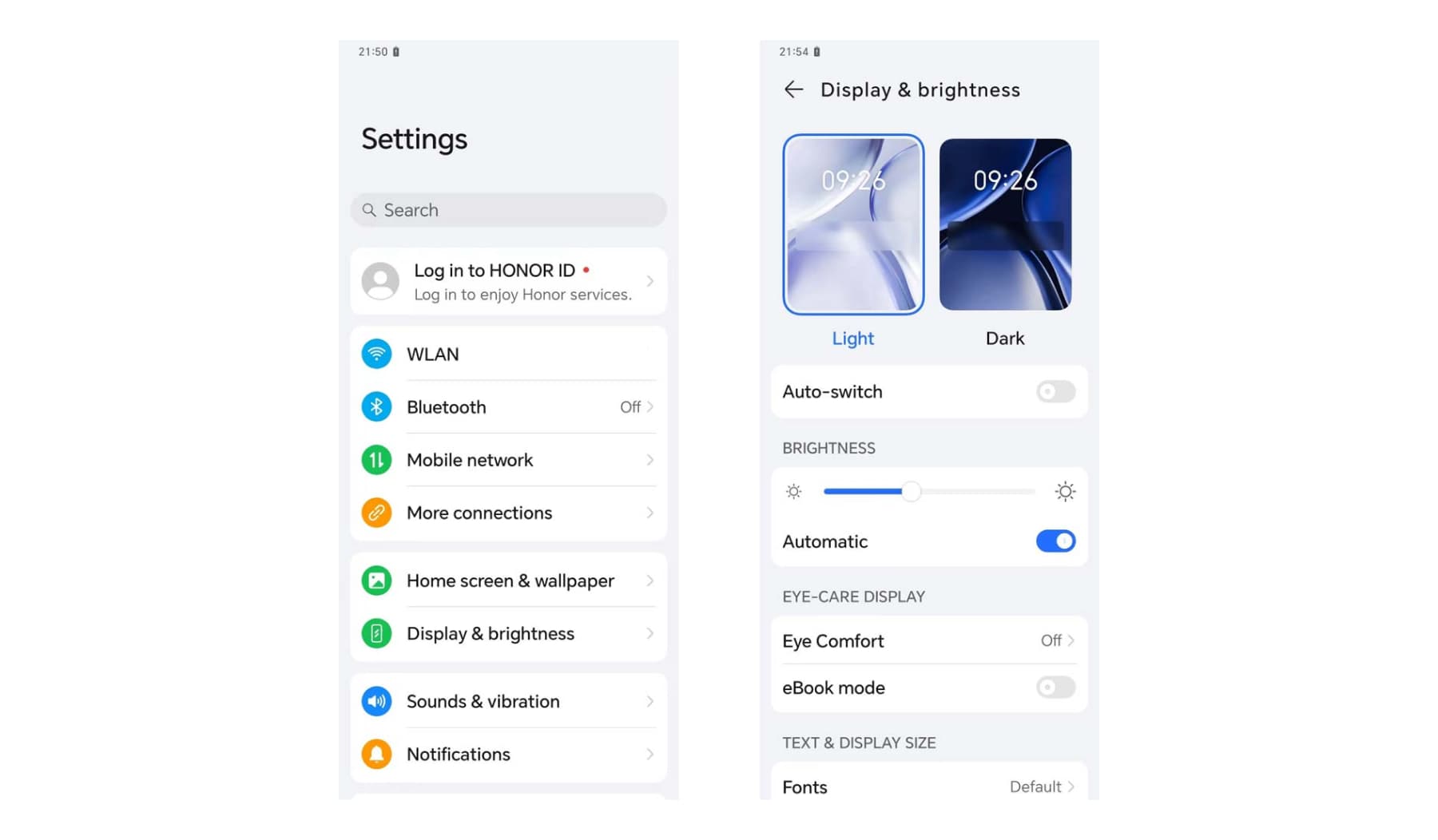
Ensure your phone's brightness settings are at the maximum level. Swipe down from the notification bar, locate the brightness slider, and move it to the far-right position for maximum brightness.
Or you can go to the Settings app on your phone, and select the Display & brightness button. After that, you can adjust the slider under the BRIGHTNESS to the maximum level to get rid of the phone screen so dark on full brightness.
Disable Auto-Brightness
Check if your phone has auto-brightness enabled, which causes the dim phone screen. This setting adjusts screen brightness based on ambient light conditions and might interfere with manual adjustments. Disable it in your settings if needed.
Head to the Settings app and select the Display option. Tap on the switch button next to the Adaptive brightness option to turn the setting off. After that, you can adjust the Brightness slider to achieve the desired level of brightness.
Check Screen Protector
If you have a screen protector, ensure it's clean and properly aligned with your phone's sensors. A misaligned or dirty screen protector can interfere with brightness and dim the screen. Reapply it to fix the phone screen so dark on full brightness.
Ensure it is correctly aligned without obstructing any sensors, especially the ambient light sensor. Clean the screen protector surface for optimal transparency. If issues persist, consider replacing it with a high-quality, compatible protector.
Clean Ambient Light Sensor
Clean the ambient light sensor area on your phone. This sensor detects surrounding light levels and adjusts the screen brightness accordingly. A dirty or obstructed sensor can cause display issues, such as a dim phone screen.
Ensure no obstructions are covering the sensor. Check if the sensor is functioning correctly in different lighting conditions. If problems persist, consider recalibrating the sensor or seeking professional assistance if it's malfunctioning.
Disable Battery Saver Mode
Deactivate battery saver mode if it's enabled. This mode often reduces screen brightness and dims the phone screen to conserve power, even on full brightness. Make sure your phone isn't in this mode or try disabling it temporarily.
Open the Settings menu and scroll down to locate the Battery option. Tap on the option and disable the Battery Saver option by using the switch. Of course, you can also set a schedule if you just need to fix the dark phone screen on full brightness temporarily.
Avoid App or Theme Interference
Certain apps or themes can override display settings, which could dim displays on your Android phone screen. Check if you have already installed any apps or themes that might affect screen brightness.
Just uninstall or disable any apps or themes that may be overriding your brightness settings. Restart your phone and adjust your screen settings to ensure optimal brightness.
Software Updates and Restart
The glitches or hardware problems can affect display brightness. Ensure your phone's operating system is up to date and restart your device. Software glitches causing brightness issues are often resolved by updates and a simple reboot. If the issue persists, consider seeking professional assistance.
Professional Assistance
Consider reaching out to your phone's manufacturer or a professional technician for further diagnosis and repair. Technicians can diagnose hardware problems, screen damage, or deeper software issues that might be causing the problem.
Best Alternative to Fix Phone Screen So Dark on Full Brightness
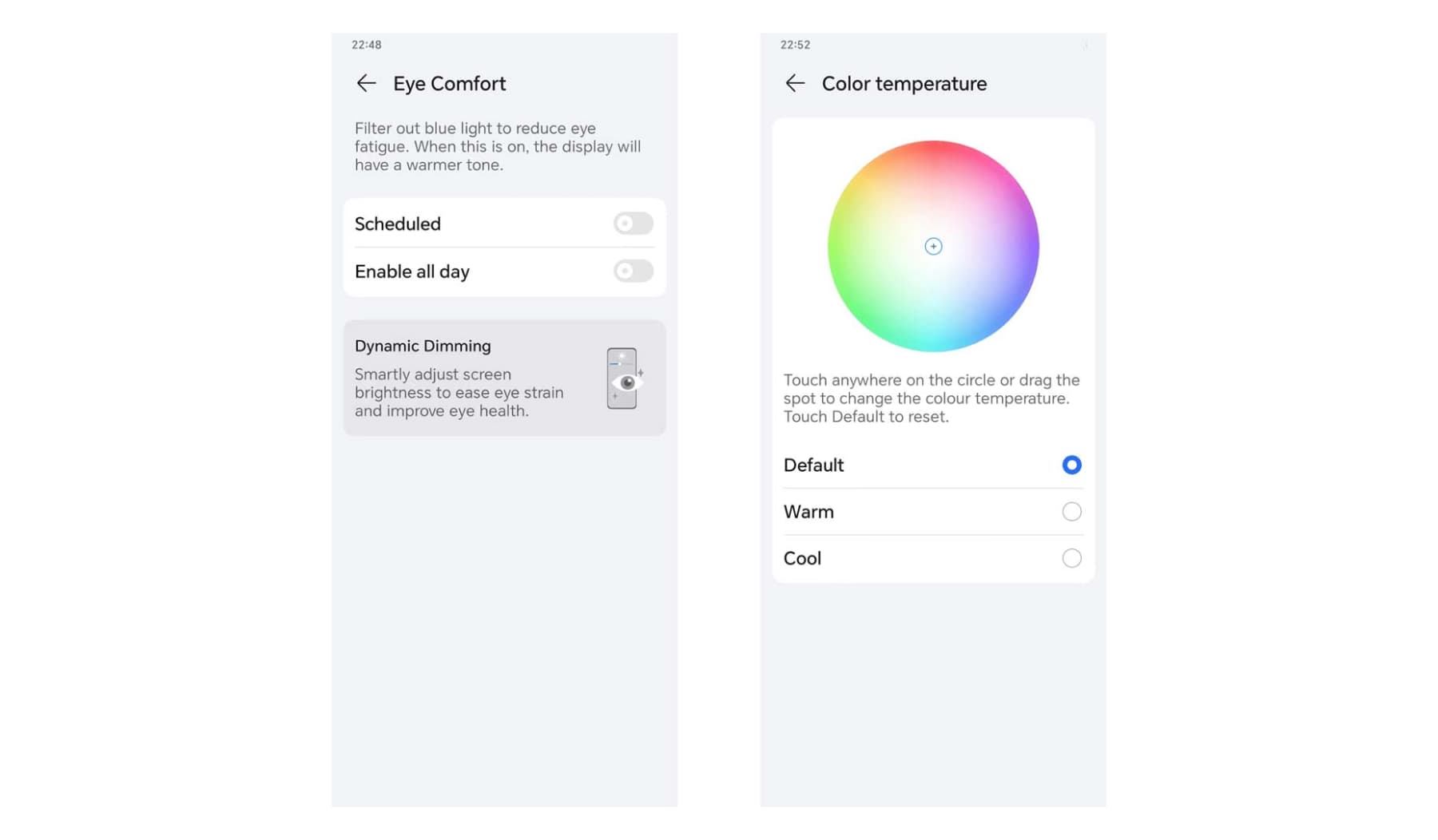
Besides the above methods, there are some special features for some advanced Android phones. Take HONOR 90 as an example, it has the EYE-CARE DISPLAY option, which enables you to filter out blue light to reduce eye fatigue. When you turn on the feature, the screen display will have a warmer tone. It provides the Scheduled option and the Enable all day option to smartly adjust screen brightness to ease eye strain and improve eye health.
Moreover, it provides other features, such as color temperature to fix the phone screen so dark on full brightness. Of course, you can switch between the Light mode and the Dark mode with a single click.
Conclusion
Maintaining an optimal phone display is crucial for an enjoyable and productive user experience. Just learn more about the solutions to fix the dim phone screen on full brightness, including resolving brightness issues by adjusting settings, ensuring proper screen protector installation, and addressing software or app conflicts. A well-functioning display enhances visibility, usability in various conditions, and overall device performance. Timely attention to display problems not only improves user comfort but also prevents potential underlying issues from affecting the phone's longevity and functionality.
FAQ
How Can I Adjust the Color Correction on My Phone?
Open the Settings app and navigate to the Accessibility button. Go to the Color Correction button and toggle the feature on. Select the correction mode that suits your needs, such as grayscale, red-green, or blue-yellow. Adjust intensity or settings as desired to fix the dark phone screen on full brightness.
Can screen damage be fixed?
Minor screen damage like scratches or smudges can often be fixed with screen protectors or cleaning. However, severe damage like cracks or shattered screens usually requires professional repair. It's advisable to consult a technician or the manufacturer for appropriate solutions depending on the extent of the damage.
What is auto-brightness, and could it be causing the screen to appear dark?
Auto-brightness adjusts screen brightness based on ambient light conditions. It might lower the brightness in very bright environments, which could be why the screen appears dark outdoors. You can simply disable auto-brightness or adaptive brightness to find out whether it works accordingly.
Why is my screen so dark on full brightness?
If your screen is still dark even when the brightness is turned all the way up, the issue may be caused by auto-brightness or adaptive brightness, battery saver mode, a blocked ambient light sensor, a screen protector, or a temporary software problem.
First, check that auto-brightness or adaptive brightness is disabled and make sure Battery Saver is turned off. You should also check whether a screen protector is dirty or covering the ambient light sensor. If your phone brightness is still low when the brightness slider is at its maximum, try restarting your phone and updating the system software. Persistent problems may require professional assistance to check for display or hardware issues.
Why is my phone brightness suddenly low, and how can I turn the brightness up on my phone?
Your phone brightness may suddenly become low because of auto-brightness, battery-saving features, overheating, software glitches, or apps and themes that affect display settings.
To turn the brightness up on your phone, swipe down from the top of the screen and move the brightness slider to the right. If the screen remains dim, open Settings > Display & brightness and adjust the brightness manually. You can also try turning off auto-brightness and Battery Saver. If the brightness keeps changing or remains unusually low, restart your phone and check for software updates.
Source: HONOR Club
Products Recommend

Latest Blogs

Subscribe For Updates - Special Offers And More.
By providing your email address, you consent to receive the latest offers and information on Honor products, events and services through email or advertisement on third-party platforms. You can unsubscribe anytime according to Chapter 5 of HONOR Platform Privacy Statement.
Consumer hotline

