

 More Products
 Compare










我的荣耀 开启荣耀之旅
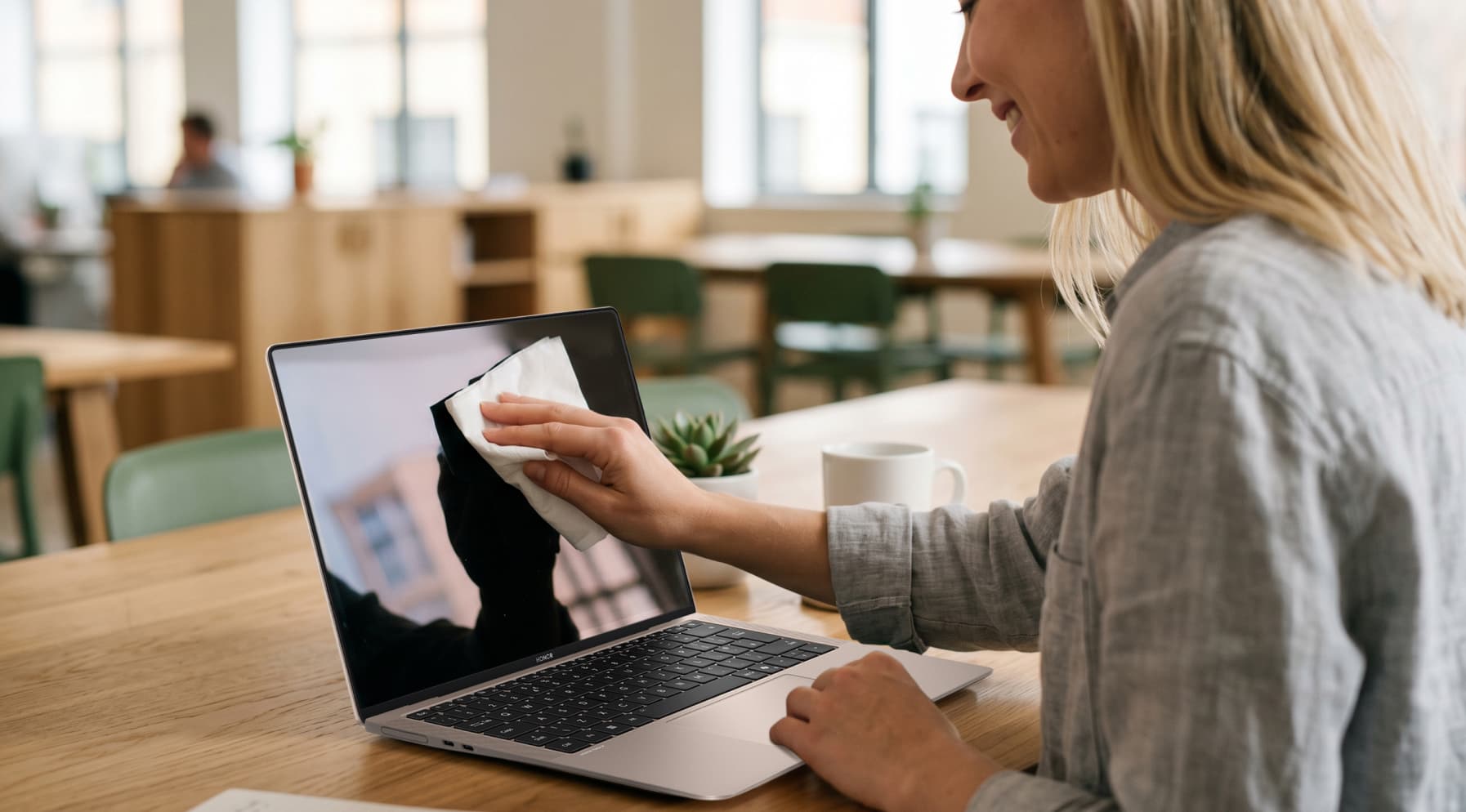
How to Clean Touch Laptop Screen the Right Way: Step-by-Step Tips
Table of Contents
Touchscreen laptops are great until they start showing every fingerprint from the past week. Before you reach for whatever spray is nearby, it’s worth learning how to clean touch laptop screen the right way. A bit of care goes a long way: you protect the sensitive coating, avoid streaks, and keep your device looking fresh. Below, you’ll find clear steps, simple tools, and practical tips you can use any time your screen needs a reset.
What You’ll Need Before Cleaning
Before you start, it’s important to gather the right tools. Touchscreens are sensitive, so knowing what to use to clean touch screen laptop displays is crucial. Using harsh chemicals or the wrong cloth could leave scratches, streaks, or permanent damage.
Here’s a list of what you need to clean laptop touch screens safely:
● Soft microfibre cloths: Use lint-free microfibre cloths designed for glasses or screens. They pick up dust and oils without scratching the surface or leaving fibres behind.
● Distilled water (in a spray bottle if possible): Distilled water leaves fewer marks than tap water because it has fewer minerals. You’ll only use a little, and you’ll spray it onto the cloth, not onto the screen.
● Screen cleaner made for electronics (optional): Wondering “How do I clean my laptop touch screen covered in fingerprints or greasy marks?” A dedicated screen-cleaning solution labelled as safe for LCD or touchscreen displays is a good option. These are usually mild and non-abrasive.
● Isopropyl alcohol solution, 70% or less (only if your manufacturer allows it): If you want to disinfect the screen, many device makers accept a cloth lightly dampened with isopropyl alcohol (IPA) up to 70%. Stronger solutions can damage coatings, so stay at or below that level and use it sparingly. Always check your laptop’s manual first.
How to Clean Your Touchscreen Laptop Screen: Step-by-Step Instructions
These steps work for most touchscreen laptops, whether you’re using a traditional clamshell like the HONOR MagicBook Art 14 2025 or a 2-in-1 convertible. They prioritise gentle handling and minimal moisture, helping you keep the display clean without risking damage.
Here’s how to clean the screen of a touch screen laptop safely:
1. Power down and unplug
Shut down your laptop fully. Don’t just close the lid. Unplug the charger and any accessories. This reduces the risk of short circuits and makes the device easier to handle.
2. Do a dry dust wipe first
The best way to clean touch screen laptop displays is to begin by gently wiping the screen with a clean, dry microfibre cloth. Use light pressure and smooth strokes, moving either side to side or top to bottom.
This usually handles minor fingerprints and dust, and it clears away loose debris, so you won’t risk dragging particles across the glass when you use a damp cloth.
3. Lightly dampen your cloth
Wondering how to clean touch screen on laptop if smudges or fingerprints remain? You can move to a slightly damp clean.
Lightly mist a corner of the microfibre cloth with distilled water or a screen cleaner made for electronics. The cloth should be just damp, not wet. If you squeeze it, no drops should fall. Never spray the screen directly.
4. Wipe away fingerprints and smudges
Start in the centre and move outwards. Use the damp part of the cloth and wipe in straight, gentle strokes. Keep your touch light. Pressing hard doesn’t make the screen cleaner; it only risks damaging the panel or the touchscreen layer.
As you get close to the frame or any openings, switch to a drier part of the cloth to keep moisture to a minimum.
5. For stubborn marks (optional and cautious)
Still see oily patches or stuck-on marks? Check your laptop’s instructions first. Make sure the manufacturer allows alcohol-based cleaning on the screen.
If it’s allowed, lightly dampen a clean section of your cloth with up to 70% isopropyl alcohol or use a wipe labelled safe for screens. Gently work on the problem area. Use small, soft movements over the mark rather than scrubbing a wide area.
6. Dry and check the screen
Now, use a fresh, dry microfibre cloth to remove any leftover moisture and buff out streaks. Leave the laptop open for a minute or two to air-dry, then turn it back on and check your work.
How Often Should You Clean a Touchscreen?
There isn’t one perfect schedule for everyone, but a simple routine keeps your screen clear and responsive.
● If you use it every day: Aim for a quick dry wipe with a microfibre cloth once every few days to clear fingerprints and dust.
● For regular home or office use: Plan a more thorough cleaning about once a week using a slightly damp cloth with distilled water or a dedicated electronics cleaner.
● For lighter or occasional use: Every few weeks or once every month is usually enough, as long as you clean when you notice smudges or haze.
Once you know how to clean touchscreen laptop screen safely, keeping it in good shape becomes a quick habit rather than a big job. Short, regular wipes are better than waiting until the screen looks cloudy and needs a lot of work.
Mistakes to Avoid That Could Damage Your Screen
A touchscreen looks tough, but the surface and coatings are easy to damage. When you clean a touch screen laptop, avoid these common mistakes to protect your display:
Using the wrong cloth
When you think about what to use to clean a touch screen laptop, it’s tempting to grab whatever is nearby, but some materials are too harsh:
● Paper towels, tissues, kitchen roll, or clothing can leave scratches and lint over time.
● Stick with soft, lint-free microfibre cloths only.
Even small scratches can catch light and make the screen look dull, so it’s worth being strict here.
Reaching for everyday household cleaners
Products made for windows, kitchens, or bathrooms are not designed for cleaning touch screen laptop displays:
● Avoid glass cleaner, multipurpose sprays, bleach, ammonia, and strong solvents. These can strip or cloud the protective coating and leave streaks.
● Standard antibacterial wipes, baby wipes, and hand sanitiser can also be too strong or leave residues that are hard to remove.
Use distilled water or a cleaner made for screens instead. That keeps the surface clean without attacking the coating.
Overdoing alcohol-based cleaners
Many modern screens can handle occasional cleaning with up to 70% isopropyl alcohol when used correctly. But there are two common problems:
● Using stronger alcohol or using it too often can wear down the oleophobic (oil-repellent) coating.
● Some displays are more sensitive than others.
The safest approach: Reserve alcohol for stubborn marks or when you need to disinfect, keep it at 70% or less, apply it to the cloth (not the screen), and follow your laptop’s manual.
Using too much liquid or spraying the screen
Too much moisture can seep into the edges and cause problems you can’t see straight away:
● Never spray liquid directly onto the screen.
● Don’t use cloths that are dripping or very wet.
Instead, lightly mist the cloth and keep it just damp. This gives you good cleaning power with far less risk.
Pressing too hard or scrubbing
If a mark won’t move, it’s easy to push harder, but that can backfire:
● Heavy pressure can damage the display layer underneath or affect touch sensitivity.
● Abrasive motions, especially with the wrong cloth, increase the chance of scratches.
Use light, even strokes and go over the same area a few times instead of scrubbing.
Conclusion
Cleaning a touchscreen doesn’t need to be risky or time-consuming. Once you know how to clean touch laptop screen safely, the whole process becomes quick and routine. With a soft microfibre cloth, minimal liquid, and a light touch, you can keep the display clear, responsive, and free from damage. Stick to gentle products, avoid harsh cleaners, and clean little but often. A simple approach like this protects the screen’s coating and helps your laptop stay easy to use for much longer.
FAQs
Are alcohol wipes safe for touch screens?
Alcohol wipes can be safe for some touch screens, but only if your device manufacturer specifically allows them. Many modern phones and laptops have special anti-smudge coatings that strong or frequent alcohol use can wear away. If you do use an alcohol wipe, choose one around 70% isopropyl or ethyl alcohol, wring it out well, and wipe gently with the device switched off. For everyday cleaning, a dry or slightly damp microfiber cloth is safer.
How to clean fingerprints off touch screen?
Turn your device off, then gently wipe the screen with a clean, dry microfiber cloth to lift most fingerprints. For stubborn smudges, very slightly dampen the cloth with distilled water or a screen-safe cleaner and wipe in gentle, overlapping strokes. Avoid paper towels or tissues, which can scratch or shed fibres. Finish by buffing with a dry part of the cloth for a clear, smudge-free finish.
How to clean a touch laptop screen without streaks?
To avoid streaks, always start with the laptop turned off and use a soft microfiber cloth. Lightly moisten a corner of the cloth with distilled water or a screen-specific cleaner, making sure it’s damp, not wet. Wipe the screen in straight, overlapping lines rather than random scrubbing, then immediately buff with a second dry cloth. Avoid glass cleaners, strong chemicals, and excessive liquid, which can cause streaks or damage coatings.
Can I use soap to clean my laptop screen?
No, you shouldn’t use soap directly on a laptop screen. Soap can leave residue, cause streaks, and may damage the delicate coatings on modern displays. If your screen needs more than a simple wipe, use a slightly damp microfiber cloth with distilled water or a cleaner specifically designed for screens.
Can I spray liquid directly onto the screen of my laptop?
No, never spray liquid directly onto your laptop screen. Sprays can drip into the bezel or ports and damage internal components. Instead, turn the laptop off, spray a small amount of cleaner onto a microfiber cloth away from the device, and then wipe the screen gently. The cloth should be slightly damp, not wet. This simple step greatly reduces the risk of streaks, moisture damage, and costly repairs.
Source: HONOR Club
Products Recommend
Latest Blogs

Subscribe For Updates - Special Offers And More.
By providing your email address, you consent to receive the latest offers and information on Honor products, events and services through email or advertisement on third-party platforms. You can unsubscribe anytime according to Chapter 5 of HONOR Platform Privacy Statement.
Consumer hotline

