More Products
 Compare














Take a Screenshot
| Take a Screenshot |
Use Your Knuckle to Take a Screenshot
Go to , and ensure that Knuckle screenshots is enabled.
Knock the screen twice in quick succession with one knuckle to take a screenshot.
Use a Key Combination to Take a Screenshot
Press and hold the Power and Volume down buttons simultaneously to take a screenshot.
Take screenshots with the shortcut button
Swipe down from the top right of the screen to open the Control Center. Tap  to take the full screenshot.
Share and Edit a Screenshot or Switch to Scrollshot
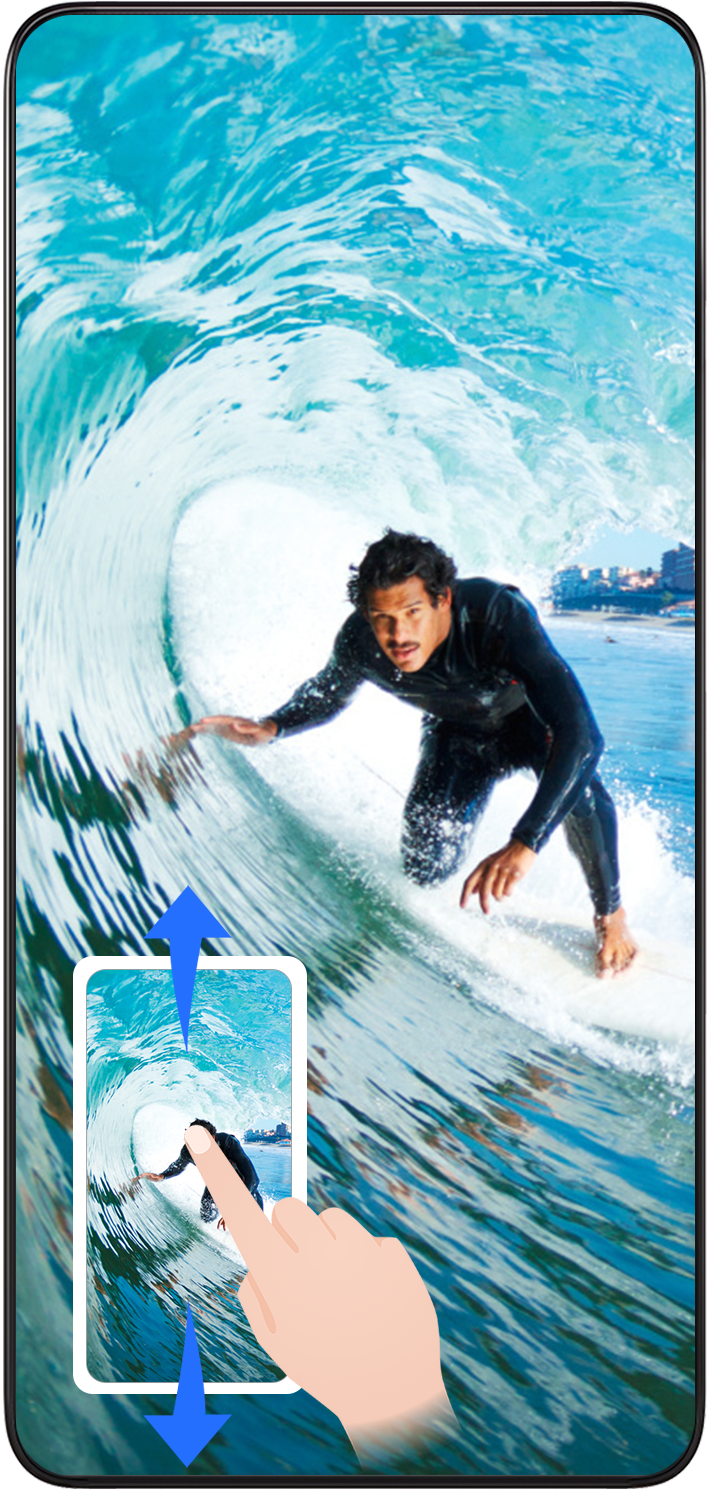
Swipe down on the thumbnail to take a scrolling screenshot.
Swipe up on the thumbnail to select a way to share the screenshot with your friends.
Touch the thumbnail to edit or delete it. You can also touch Scrollshot to take a scrolling screenshot.
Screenshots are saved to Gallery by default.
Take scrolling screenshots with knuckle gestures
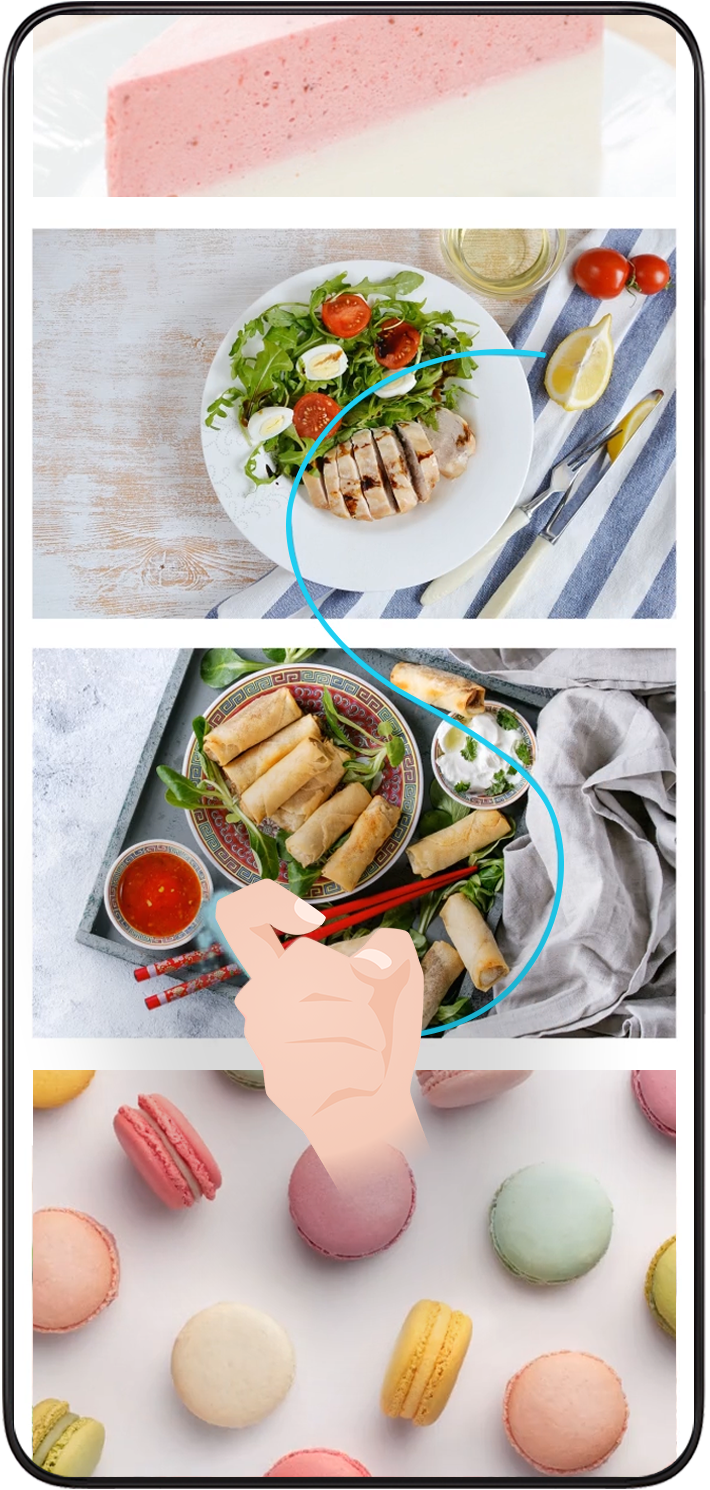
Tap the screen with one knuckle and keep your knuckle on the screen, apply a little force to draw an "S" shape, and the screen will automatically scroll down to take a screenshot.

When using this function for the first time, please follow the system instructions to enable Scrollshot.
During scrolling, tap on the scrolling area to stop taking the screenshot.