

 More Products
 Compare







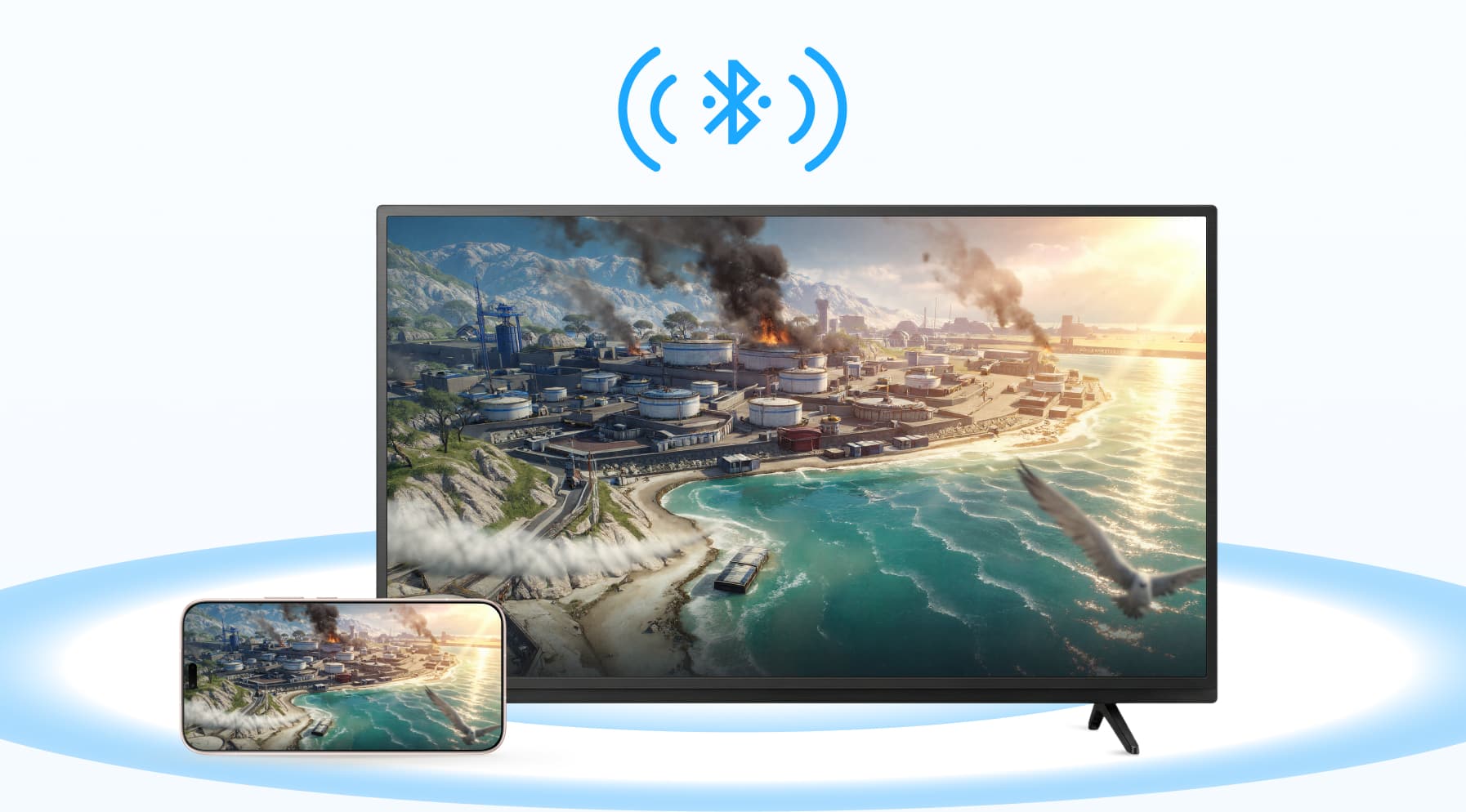
How to Connect Phone to TV Using Bluetooth: Clear Steps & Tips
Table of Contents
Want to play music or podcasts from your phone through your TV speakers? Learning how to connect phone to TV using Bluetooth can save you some hassle. Most smart TVs support Bluetooth these days, but the steps aren’t always obvious. This guide walks you through the quick way to pair your devices and what to try if your TV won’t cooperate. And if you’re hoping to mirror your phone screen, Bluetooth won’t get you there, so we’ll also show you the best screen-casting options that actually work.
How to Connect Your Phone to Your TV Using Bluetooth
Bluetooth pairing is straightforward once you know where to look in your settings. When you connect phone to TV over Bluetooth, you can play music or podcasts through the TV speakers, or in some cases, use your phone as a Bluetooth remote. Follow the steps below to get your devices paired.
Step 1: Put your TV into Bluetooth pairing mode
The first step on how to connect phone to smart TV Bluetooth is to put your TV into pairing mode.
On your TV:
1. Open Settings.
2. Go to Bluetooth, Sound > Bluetooth, or Remotes & Accessories (names vary by brand).
3. Make sure Bluetooth is On.
4. Choose something like Add accessory, Pair new device, or Search for devices.
Your TV is now “discoverable” and waiting for your phone.
Step 2: Turn on Bluetooth on your Android phone
On your Android phone:
1. Open the Settings app.
2. Tap Bluetooth (sometimes under Connections, Connected devices, or similar).
3. Turn Bluetooth On.
Leave this screen open so you can see the list of available devices.
Step 3: Pair your phone with the TV
With the TV in pairing mode and Bluetooth on:
● On your phone, tap Pair new device or look under Available devices in the Bluetooth menu.
● Wait for your TV’s name to appear in the list.
● Tap the TV’s name to pair phone to TV Bluetooth.
● If a code pops up on the TV and phone, check it matches, then confirm on both.
Once paired, your TV should show the phone as a connected Bluetooth device.
Step 4: Set the TV as the audio output (if needed)
On some TVs, pairing isn’t the final step. You may need to tell the TV to actually use that Bluetooth connection:
● On the TV, go to Settings > Sound / Audio.
● Look for Sound output, Speaker, or Audio output.
● Choose your paired Bluetooth device (it may show as your phone’s name or a generic “Bluetooth audio” option).
On your phone, make sure Media audio is enabled for that Bluetooth connection in the Bluetooth settings if there’s a toggle.
Step 5: Test and adjust
Now test it:
● Play a song or podcast on your phone.
● You should hear the sound through your TV speakers.
● Adjust volume on both the TV and your phone. Both can affect the final level.
Troubleshooting Bluetooth Connection Issues
Bluetooth can be fussy. Even when you follow the proper steps on how to connect TV to phone via Bluetooth, it might not work as expected. But don’t worry – these common issues are usually easy to resolve. Below are simple solutions to the most frequent Bluetooth problems during setup or usage.
Your phone can’t find the TV
Trying to connect TV to phone Bluetooth but it’s not showing up in the list?
1. Check Bluetooth is on
● On the TV: Bluetooth set to On, and the TV is in pairing mode (Add accessory / Search for devices).
● On the phone: Bluetooth turned On and the Bluetooth settings screen is open.
2. Confirm your TV can pair with phones: Some TVs only use Bluetooth to send audio to headphones or speakers, not to receive audio from a phone. If the TV Bluetooth menu only mentions “Headphones” or “Speakers”, that’s a sign it might not accept a phone as an input.
3. Move the phone closer: Stand within a few metres of the TV, with no big obstacles in between. Most Bluetooth phones and home devices use Class 2 Bluetooth, which is designed for about 10 metres in ideal conditions, and less indoors with walls or interference.
4. Toggle Bluetooth off and on again: Turn Bluetooth off and back on, first on your phone, then on the TV. This clears minor connection glitches.
5. Restart both devices: A full restart of the TV and phone can reset the Bluetooth stack and fix discovery issues.
Pairing keeps failing
Sometimes you see the TV on the list, but pairing won’t complete or times out.
Try this:
● Forget old entries on your phone: In the phone’s Bluetooth list, tap the gear or info icon next to the TV (if it’s there). Choose Forget or Unpair, then try pairing again from scratch.
● Clear the TV’s Bluetooth list: Many TVs only remember a limited number of devices. In the TV’s Bluetooth or Devices menu, remove old or unused devices, then try pairing again.
● Disconnect competing devices: Make sure your phone isn’t already connected to another Bluetooth speaker, car system, or headset, and that the TV isn’t currently connected to something else. Bluetooth audio is usually one-to-one.
● Check for software updates: Smart TV and Android system updates often include Bluetooth fixes. Keeping TV firmware and phone software up to date can resolve pairing bugs and compatibility issues.
Connection drops or audio stutters
If the Bluetooth phone to TV connection keeps cutting out or the sound crackles:
● Reduce distance and obstacles: Keep the phone and TV within a short range and in the same room where possible. Solid walls, metal furniture, and other electronics can weaken the signal.
● Limit interference: Wi-Fi routers, microwaves, and other Bluetooth devices share the same 2.4 GHz band. Heavy traffic in that band can cause dropouts. Turning off unused wireless devices or moving them slightly can help.
● Re-pair the devices: Remove the TV from your phone’s Bluetooth list, delete the phone from the TV’s list, then pair again. This often clears corrupted pairing data.
What You Can and Can’t Do with Bluetooth on a TV
Bluetooth on a TV is useful, but it’s not magic. It’s designed for low-bandwidth, short-range connections, not heavy video streaming. Here’s what that means for you in practice.
What you can do with Bluetooth
You can usually rely on Bluetooth for audio and basic control, not for sending your whole screen.
1. Play audio through your TV
On many smart TVs, Bluetooth lets you:
● Send audio from the TV to Bluetooth headphones or speakers.
● Send audio from your phone to the TV, so your TV acts like a wireless speaker.
That’s ideal when you:
● Want louder sound for music or podcasts.
● Don’t want extra cables around the TV unit.
● Prefer private listening on Bluetooth headphones.
2. Pair accessories and remotes
Many smart TVs now come with Bluetooth remotes rather than old infrared-only ones.
Depending on the model, your TV may also pair with:
● Wireless keyboards or touchpads.
● Game controllers.
● Certain apps that turn your phone into a Bluetooth-style remote, if the TV supports phones as input devices.
What you can’t do with Bluetooth
This is the part that trips people up. Bluetooth sounds like it should handle everything, but it has some hard limits: you can’t cast phone screen to TV over Bluetooth.
Technically, Bluetooth can carry small video data, but it’s too slow and too limited for smooth, real-time screen mirroring. Typical rates of a few megabits per second are fine for audio and small files, but not HD video with sound.
So, in day-to-day use:
● You can’t mirror your Android phone’s full screen to the TV over Bluetooth.
● You shouldn’t expect apps, films, or games to stream on the TV over Bluetooth.
For proper screen mirroring, TVs rely on Wi-Fi, Wi-Fi Direct, or other high-bandwidth wireless standards — not Bluetooth.
Alternatives for Casting Phone Screen on TV
If you want to mirror your Android phone’s screen or cast apps and videos to your TV, Bluetooth isn’t the answer. You’ll need Wi-Fi or a cable. Here are the clearest options, step by step.
Use Android’s built-in Cast / Screen Mirroring with a smart TV
Most modern Android phones have built-in screen mirroring or “casting” features that allow you to wirelessly display your phone’s screen on a compatible smart TV or external display. The name for this feature can vary by manufacturer.
Many smart TVs support this screen mirroring feature directly, often via Miracast or a similar Wi-Fi Direct feature.
Look for terms like:
● Screen Mirroring
● Wireless Display
● Miracast
A. Turn on mirroring on the TV
1. Open the TV Settings or Input / Source menu.
2. Enable Screen Mirroring / Wireless Display, or choose it as an input.
Your TV is now ready and waiting for a wireless connection.
B. Connect from your Android phone
1. On your phone, pull down the Quick Settings shade.
2. Look for a tile called Cast, Screen Cast, Smart View, or Screen Mirroring (name varies by device). On HONOR phones, it’s called Wireless Projection.
3. If you don’t see it, open Settings and check under Connected devices or Display for a Cast / Screen Mirroring option.
4. Make sure your phone and TV are on the same Wi-Fi network, unless the TV specifically uses Wi-Fi Direct.
5. Tap your TV’s name in the list and confirm on the TV if prompted.
Your screen should appear on the TV within a few seconds. To disconnect, tap the Cast / Screen Mirroring tile again and choose Disconnect.
Cast with Google Chromecast or a TV with Chromecast built in
If your TV has Chromecast built in or you’ve plugged in a Google Chromecast / Google TV device, casting from Android is usually smooth.
A. Set things up
1. Connect the device to the TV: Plug Chromecast into an HDMI port and power it from the mains.
2. Install the Google Home app on your Android phone and follow the on-screen steps to add the Chromecast or Google TV.
3. Join the same Wi-Fi network on both your phone and the Chromecast / TV. This is essential for casting to work.
B. Cast from an app (best for video)
Once setup is done:
1. Open a cast-enabled app on your phone (like YouTube, Netflix, Spotify, or Google Photos).
2. Tap the Cast icon (a small screen with Wi-Fi waves).
3. Choose your TV or Chromecast from the list.
4. Play the content. It should appear on the TV while your phone acts as a remote.
To stop, tap the Cast icon again and select Stop casting.
C. Mirror your whole screen
If you want everything on your screen (menus, games, home screen):
1. Open the Google Home app.
2. Long-press your TV / Chromecast tile.
3. Tap Cast my screen and confirm.
Your entire screen is now mirrored on the TV. Use the same menu or the notification on your phone to stop mirroring.
Use a cable or adapter: USB-C to HDMI
If your Wi-Fi is weak, or you prefer something simple and rock-solid, a cable still works well. Many modern Android phones can send video out over USB-C if they support features like DisplayPort Alt Mode.
What you need
● An Android phone with a USB-C port that supports video output.
● A USB-C to HDMI adapter or cable.
● An HDMI port on your TV.
How to connect
1. Plug the USB-C end of the adapter or cable into your phone.
2. Connect the HDMI end to the TV.
3. On the TV, switch to the correct HDMI input.
4. Your phone should either mirror the screen automatically or offer display options in Settings > Display.
This method is great for long films, presentations, and games because it doesn’t rely on Wi-Fi and avoids the lag you can see with wireless options.
Conclusion
Bluetooth is handy for quick audio pairing, but it won’t mirror your screen. Once you know how to connect phone to TV using Bluetooth, you can use it for music, podcasts, or simple controls. For anything visual, you’ll get better results with casting tools like Chromecast, built-in screen mirroring, or a USB-C to HDMI cable. Each option has its strengths, so choose the one that fits how you watch, play, or share content on your TV.
FAQs
Can I connect my phone to TV by Bluetooth?
You can connect your phone via Bluetooth, but usually only for streaming audio, like playing music from Spotify through your TV’s speakers. It is also used for using your phone as a remote control. However, Bluetooth generally isn't used for sending video or screen mirroring because it’s not fast enough for high-quality pictures. For video, you will need to use a Wi-Fi connection instead.
How can I display my phone screen on my TV?
To display your screen (often called “casting” or “mirroring”), first ensure both your Android phone and TV are connected to the same Wi-Fi network. Pull down the Quick Settings panel from the top of your phone screen and look for a button labelled Screen Cast, Smart View, Mirroring, or Wireless Projection. Tap it and select your TV from the list. If you don’t see this option, you can download the Google Home app to connect easily.
How do I activate Bluetooth on my TV?
Activating Bluetooth is usually done through your TV’s main settings menu. Press the Settings or Menu button on your remote and navigate to Sound or Audio settings. Look for an option called Sound Output or Bluetooth Speaker List. Alternatively, check under Network or Remotes & Accessories. Once you select the Bluetooth option, your TV will start searching for nearby devices to pair with.
Does every smart TV have Bluetooth?
Not every smart TV has Bluetooth, although it is a very common feature in most modern models produced in the last few years. Older smart TVs or budget-friendly models might skip this hardware to keep costs down. If your TV doesn’t have it built-in, you can often add it by purchasing a low-cost Bluetooth transmitter that plugs into the TV’s headphone jack or audio port.
How do I know if my TV has Bluetooth?
The easiest way to check is to look through your TV’s settings menu. Go to Settings > Sound and see if there is a “Bluetooth Speaker” or “Sound Share” option. You can also look under Remotes & Accessories for an “Add accessory” button. Physically, you can check your remote control or the TV’s original box for the official Bluetooth logo. If you are still unsure, typing your model number into a search engine will give you the full specifications.
Source: HONOR Club
Products Recommend

Latest Blogs
Consumer hotline
