
 More Products
 Compare








September 10, 2026
blog
Why Does My Phone Keep Saying Call Failed? Troubleshooting Tips
Table of Contents
You try to make a call, but instead of hearing the ring, your phone flashes a short message: “Call failed.” It happens again the next time you dial. At that point, it's fair to wonder: why does my phone keep saying call failed?
This problem shows up more often than you might think. In many cases, the cause is simple. Your signal might be weak, the network may be having a moment, or a small setting on your phone could be getting in the way.
The good news is that most call issues are easy to sort out once you know where to look. Below, you'll find the common reasons this message appears and the steps you can try to fix it.
8 Common Reasons Why Your Phone Keeps Saying Call Failed
When your phone shows a “Call failed” message, it usually means the call could not connect to the network or reach the other device. This can happen for several reasons, ranging from a weak signal to simple settings issues.
If you're wondering, “Why does my phone say call failed?” the causes below are some of the most common ones.
1. Weak or Unstable Signal
A poor signal is one of the main reasons calls fail. Your phone needs a stable connection to the mobile network to start and maintain a call.
If you are in places such as lifts, underground areas, rural locations, or buildings with thick walls, the signal may not be strong enough. Even when you see one or two signal bars, the connection might still be unstable.
2. Temporary Network Problems
Sometimes, when you ask, “Why does it keep saying call failed?” the issue is not your phone at all. Mobile networks occasionally experience outages, maintenance work, or heavy traffic in busy areas. When this happens, your phone may attempt to start a call but fail to connect.
3. Incorrect or Corrupted Phone Settings
Certain phone settings can stop calls from going through. For example, if Airplane mode is turned on, your phone will not connect to mobile networks at all.
Other settings can also interfere with calls. Call Barring, which blocks certain types of outgoing or incoming calls, may be enabled by accident. If this feature is active, some calls may fail automatically.
Carrier settings can also play a role. These settings allow your phone to communicate properly with your mobile network. If they become outdated or corrupted, your device may struggle to place calls.
4. SIM Card or eSIM Issues
Your SIM card or eSIM connects your phone to your mobile carrier. If something goes wrong with that connection, calls may fail.
For physical SIM cards, the card might be loose, damaged, or not properly detected by the phone. If you use an eSIM, the problem could be related to the network profile or activation settings.
5. Billing or Account Issues
In some cases, calls may fail because of an issue with your mobile account. If your plan has expired, your balance is too low, or a payment is overdue, your carrier may temporarily restrict outgoing calls.
6. Outdated Software
Outdated software can also lead to call problems. Phone updates often include fixes for network connectivity and calling features. If your device is running an older version of the operating system, it may not communicate properly with newer network configurations.
7. Problems With the Number You're Calling
If you're asking, “Why is my phone saying call failed?” sometimes the problem is linked to the number you are trying to reach rather than your own device.
The number may be entered incorrectly, the other person might not have network coverage, or their line may be unavailable. It is also possible that the person has blocked your number, which can prevent the call from connecting.
8. Temporary Software Glitches
Like any device, smartphones can experience small software hiccups. Background services that manage network connections may occasionally stop responding or behave unexpectedly. When this happens, your phone may struggle to place calls until the connection resets.
How to Troubleshoot Call Failing Issues: 10 Steps to Try
If your phone keeps showing “Call failed”, you do not need to jump straight to the worst-case scenario. In many cases, the fix is simple. The key is to start with the easy checks first, then move on to the more specific ones.
1. Check Your Signal
Start by looking at your signal strength. If your phone has a very low signal or keeps dropping between network bars, that alone may be enough to stop calls from going through.
Try moving to a different spot, such as near a window or outside. If you are indoors, underground, or in a remote area, your connection may simply be too weak for calls.
2. Turn Airplane Mode On and Off
A quick network reset often helps. Switch Airplane mode on, wait a few seconds, then turn it off again.
This forces your phone to reconnect to the mobile network. It is a simple step, but it can fix temporary connection glitches surprisingly often.
3. Restart Your Phone
If the problem continues, restart your phone. A reboot clears minor software hiccups and resets the phone's network services. This can help if the calling function has frozen in the background or if your device is stuck on an unstable connection.
4. Check for Call Barring or Other Call Settings
Look through your phone's call settings to make sure nothing is blocking outgoing calls. If Call Barring is turned on, some calls may fail automatically without much explanation.
On many Android smartphones, you can check this by opening the Phone app, tapping the three-dot menu, then going to Settings > Calling accounts or Supplementary services > Call barring. The exact path can vary a little by brand and Android version, but it is usually somewhere in the Phone app settings.
You should also check settings related to call forwarding, Wi-Fi calling, or preferred network type, as these can sometimes affect how calls connect.
5. Inspect Your SIM Card or eSIM
If you use a physical SIM card, make sure it is inserted properly and not damaged.
Use a pin to pop open your SIM tray. Take the card out, wipe it with a soft, dry cloth, and put it back in firmly. If the card looks bent or heavily scratched, visit your local provider for a replacement.
If your phone uses an eSIM, check that the mobile plan is still active and correctly set up in your network settings. If needed, you may have to reconnect or refresh the eSIM profile through your carrier.
6. Install the Latest Software Update
Outdated software can affect network performance and calling features. If your phone has a pending update, install it. Software updates often fix bugs that may be interfering with calls, especially after network changes or system issues.
7. Try Calling a Different Number
To narrow down the problem, try calling someone else. If one number keeps failing but others work, the issue may not be on your side.
The contact could have network issues, an inactive line, or they may have blocked your number. Testing another call helps you work out whether the problem is general or limited to one contact.
8. Check Your Account or Billing Status
It is also worth checking your mobile account. If your plan has expired, your credit has run out, or there is an unpaid bill, your carrier may block outgoing calls.
This is easy to miss, especially if your phone still shows a signal. A quick look at your carrier app or account page can rule this out.
9. Reset Network Settings
If nothing else has worked, resetting your network settings may help. This clears saved mobile network data, Wi-Fi settings, and Bluetooth connections, then restores the default network setup.
On most Android phones, you can find this under Settings > System > Reset options > Reset network settings or Reset Wi-Fi, mobile & Bluetooth. On some devices, it may appear under General management or a similar menu instead of System.
It is a more advanced step, but it can solve stubborn calling issues caused by corrupted settings.
10. Contact Your Carrier
If you have tried all of the steps above and your calls are still failing, the next step is to contact your carrier. They can check for account restrictions, local outages, and network issues that you cannot see from your phone.
When It Might Be Time to Upgrade Your Phone
If your carrier cannot find a network or account problem and call failures continue alongside other issues, such as sluggish performance, ageing software or poor battery life, the phone itself may be worth considering.
Upgrading will not fix weak network coverage, but a newer device can provide a more responsive and dependable experience for calls and other everyday tasks.
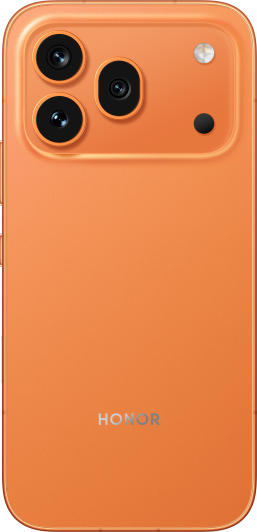
For users looking for a more performance-focused option, the HONOR 600 Pro combines the Snapdragon® 8 Elite Mobile Platform with a 6400mAh long-life battery, giving it plenty of power for calling, messaging, multitasking and heavier daily use. It also supports 80W HONOR Wired SuperCharge and 50W HONOR Wireless SuperCharge, making it easier to top up when your day involves long periods away from a charger.
The HONOR 600 takes a more everyday-focused approach, pairing a Snapdragon 7 series performance platform with the same 6400mAh battery. It is a practical alternative for users who want smooth day-to-day performance and long battery life without necessarily needing the higher-end performance of the Pro model.
Conclusion
In most cases, seeing a “Call failed” message does not mean your phone is broken. Weak signal, network hiccups, incorrect settings, or SIM and account issues can all interrupt a call. If you're asking, “Why does my phone keep saying call failed?” the solution is often as simple as checking your signal, reviewing your call settings, or refreshing your network connection. By working through a few basic troubleshooting steps, you can usually identify the cause and get your calls working normally again.
FAQs
Does call failed mean blocked?
Not usually. A “Call Failed” message does not automatically mean someone has blocked your number. It can also happen because of a weak signal, network problems, incorrect call settings, software glitches, or the other person's phone being out of coverage. If it only happens with one contact every time, being blocked is one possibility, but it is not the only explanation.
How can I check my call settings?
To check your call settings, open the Phone or Dialler app, then tap the three-dot menu in the top-right corner and select “Settings” or “Call settings”. From there, you can review options such as call forwarding, caller ID, call waiting, voicemail, blocked numbers, and ringtone settings. The exact menu names may vary slightly depending on your device and software version.
What causes a phone to lose its network?
A phone often loses its network due to physical barriers like thick walls, underground basements, or remote rural locations. Weather conditions and network congestion also play a role. Internally, a loose SIM card or an outdated smartphone operating system can cause the antenna to stop communicating with local masts. In some cases, your mobile provider might be experiencing a temporary outage or performing maintenance in your area.
Why does my phone say call failed for one person?
If your phone shows “Call Failed” for one specific person, it usually means the connection to that number can't be established. This may happen if the person blocked your number, their phone is off or out of service, the number is incorrect, or there's a temporary network or carrier issue between the two phones. It doesn't always mean you're blocked; network or device problems can also cause it.
How to resolve call failed issue?
Start with the basics: check signal strength, toggle Airplane mode on and off, restart the phone, and make sure your software is updated. Then review network and calling settings, reinsert the SIM if needed, and check whether your carrier is reporting an outage in your area. If the problem continues, contact your network provider for further support.
Source: HONOR Club
Products Recommend

Latest Blogs