
 More Products
 Compare






May 29, 2026
blog
Touch Screen or Non Touch Screen Laptop: Which Works Better for You?
Table of Contents
If you’re weighing up a touch screen or non touch screen laptop, you’re in good company. Lots of people pause on this choice because the benefits aren’t always obvious at first. Touch feels fun and flexible, but battery life and cost matter too. Non-touch keeps things simple and often cheaper, but you might miss a few handy gestures. Here, we break things down in plain language so you can see what’s useful, what’s not, and which type fits the way you work, browse, or unwind.
Comparing Touch Screen Laptop vs Non-Touch Screen – Feature by Feature
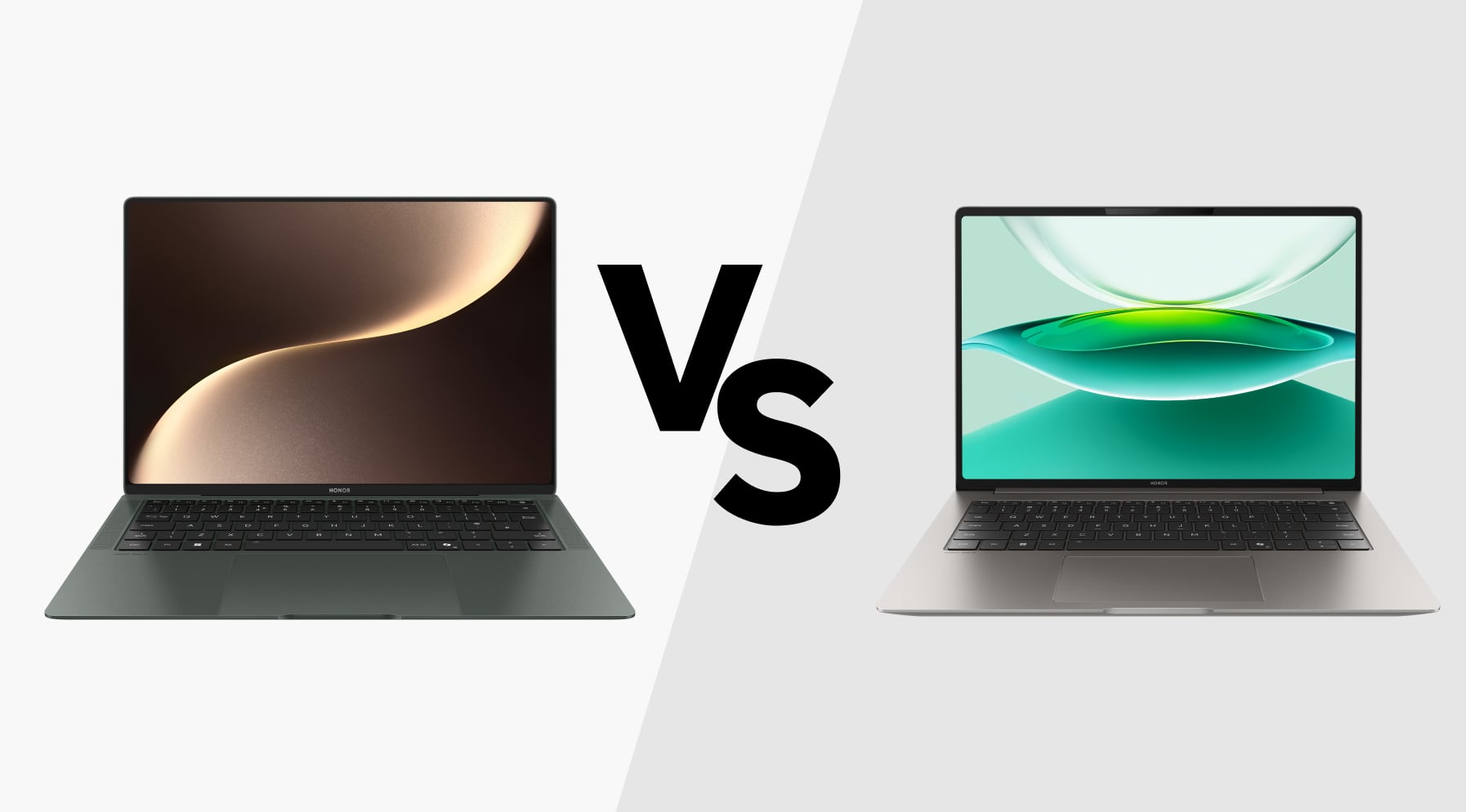
When you compare a laptop touchscreen vs non touch screen, the real differences show up when you look at one feature at a time. Below you’ll see how each option behaves in daily use, from how you control the screen to how long the battery lasts.
How you interact with the laptop
● Touch screen laptops: One of the biggest benefits of a touchscreen laptop is that it gives you more ways to control what’s on the display. You can tap, swipe and pinch to move through apps, scroll pages or adjust on-screen tools. Many touch models also fold or flip, so you can angle the screen or hold it like a tablet when that feels easier.
● Non-touch laptops: A non-touch laptop keeps your hands on the keyboard, touchpad, or a separate mouse, which creates a steady, predictable workflow. This suits heavy typing, shortcuts and precise pointer control. The screen itself stays passive, which many people prefer because it avoids accidental taps and keeps your focus in one place.
Stylus and pen input
Stylus support is where you can further expand touch screen laptop uses, and it makes a clear difference in how you can work.
● Touch screen laptops: Many touch models include an active digitiser under the glass, which lets the screen read fine pressure and movement from an active stylus (digital pen). This gives you controlled strokes, smooth handwriting and reliable palm rejection, so you can rest your hand on the screen while you write or sketch. It’s useful if you often take notes, mark up documents, or think through ideas with quick diagrams.
● Non-touch laptops: A non-touch laptop doesn’t support pen input on the display, so writing or drawing becomes a keyboard-and-mouse task instead.
Display quality and screen finish
● Touch screen laptops: Touch models often ship with brighter panels and higher resolutions, because the touch layer tends to appear on more premium displays. Most touch screens use a glossy finish, which can boost contrast but also show reflections and fingerprints more easily.
● Non-touch laptops: Non-touch laptops are more likely to offer matte displays, which reduce glare and can be easier to see under office lights or near a window. Resolution and colour quality vary by model, but you’re not forced into a glossy finish to get a good screen.
Battery life and power use
● Touch screen laptops: When you look at the advantages and disadvantages of touch screen laptops, power use stands out straight away. The touch layer (digitizer) stays powered so it can detect taps and swipes. That extra hardware draws more power, so like-for-like touch models usually have shorter battery life than non-touch versions.
● Non-touch laptops: No digitizer means fewer components using power in the background. As a result, non-touch laptops typically last longer on a charge, all else being equal.
Weight, thickness and durability
● Touch screen laptops: The glass and touch layer add material to the lid, which makes the device slightly heavier and sometimes thicker. Glass touch panels are also more exposed, so they can be more prone to scratches or cracks if dropped.
● Non-touch laptops: Without the extra glass and sensors, non-touch models can be lighter and a bit more robust. The simpler screen construction can also make repairs cheaper and more straightforward in some cases.
Performance and smoothness
● Touch screen laptops: The touch feature itself doesn’t normally slow the machine down. Processor, memory and storage still matter far more for everyday speed than the presence of a touch panel.
● Non-touch laptops: With the same internal hardware, performance is usually very similar to a touch model. The main difference is where your budget goes: if you skip touch, more of your spend can go into faster components.
Price and value over time
● Touch screen laptops: Are touch screen laptops more expensive? Well, adding a touch layer and glass panel increases manufacturing cost, so touch models often sit at a higher price than basic non-touch versions. The price gap has been shrinking as touch becomes more common, and you can now find touch at a range of price points.
● Non-touch laptops: Non-touch laptops are generally more affordable for similar core specs, because there’s no touch hardware to pay for. The money you save can go into a better processor, more RAM, or larger storage instead.
So, is laptop touch screen worth it? Below is a simpler side-by-side comparison:
Feature |
Touch screen laptop |
Non-touch laptop |
Main input |
Screen + keyboard + touchpad (tap, swipe, gestures) |
Keyboard + touchpad or mouse |
Stylus / pen support |
Available on models with active digitiser; good for notes and sketching |
Not supported on the screen |
Display finish |
Usually glossy glass; vivid but more prone to reflections and fingerprints |
Often matte; less glare, easier to see under strong light |
Battery life |
Slightly shorter on average due to active touch hardware |
Typically longer for similar specs |
Weight and thickness |
Can be slightly heavier and thicker |
Can be lighter and slimmer |
Durability (screen area) |
More exposed glass; can scratch or crack more easily |
Fewer fragile screen parts; often more robust day to day |
Performance (like-for-like) |
Similar speed; touch does not change CPU or RAM performance |
Similar speed; budget can lean more towards performance parts |
Typical price |
Often higher than a basic non-touch model |
Usually more affordable for the same core hardware |
Touch Screen or Non-Touch Screen Laptop: Which Should You Choose?
Once you know the differences on paper, the real question is simple: do I need a touch screen laptop or non-touch screen laptop? Both can do the job, but they shine in different routines.
You can think about it in three angles:
● How you like to work
● Where you use your laptop
● What you want to prioritise in your budget
Choose a touch screen laptop if…
A touch screen laptop tends to suit you if you like hands-on interaction and a more flexible setup. You might lean towards touch if you:
Take a lot of visual or handwritten notes
● You annotate PDFs, slides, or documents.
● You prefer quick sketches, arrows and circles over long typed comments.
Work in apps that feel better with touch
● Whiteboard tools, drawing apps, layout tools or timelines.
● Drag-and-drop work where tapping and swiping is faster than using a trackpad.
Often use your laptop in different positions
● You read on the sofa or in bed and like to scroll with a finger.
● You present to others by propping the laptop up and tapping through content.
Touch is less about raw performance and more about a different way of handling the screen.
Choose a non-touch laptop if…
A non-touch model tends to suit you if you want longer battery life, less glare, and a straightforward typing setup. You might be better off with non-touch if you:
Spend most of your time typing
● You live in documents, spreadsheets, code editors or email.
● Keyboard shortcuts and a precise pointer matter more than swipes and taps.
Need strong battery life away from plugs
● You commute by train or work in cafés and shared spaces.
● You prefer not to think about charging during the working day.
Care about a light, glare-free screen
● You work under bright office lighting or near windows.
● You find glossy, reflective screens tiring over long sessions.
Want to stretch your budget on core specs
● You’d rather pay for more memory, faster storage, or a better processor.
● Touch and stylus support feel like extras, not essentials, for your work.
If your laptop is mainly a portable typewriter and work hub, a non-touch screen gives you fewer distractions, often better battery life, and more value for the same spend.
Top Choices for HONOR Touchscreen Laptops
If you’ve decided a touchscreen is the way to go, HONOR’s latest 14-inch models are excellent choices. Both combine high-end OLED touch displays and new-generation Intel Core Ultra chips. Let’s take a closer look:
HONOR MagicBook Art 14 2025
The MagicBook Art 14 2025 is the ultra-portable option. It’s built around a 14.6-inch 3.1K OLED HONOR Eye Comfort display in a 3:2 aspect ratio, so text, images and timelines look sharp, and you see more of a page without constant scrolling. The touchscreen supports smooth 120Hz refresh, and with precise 10-point touch, you can pinch, swipe and zoom with the same responsiveness you expect from a tablet.
The chassis comes in at just about 1 kg and roughly 1 cm thick, thanks to a slim magnesium-titanium design, so it’s easy to carry between home, office and campus. Inside, you get an Intel Core Ultra 7 processor with Intel Arc graphics, 32 GB of memory and a fast 1 TB SSD in typical configs, giving you plenty of headroom for creative apps, browser tabs and calls running together.
A detachable 1080p magnetic webcam, six-speaker spatial audio and three microphones are built in for video calls and content, and you get up to around 10 hours of light office work from a full charge, depending on how hard you push it.
Best for: You’ll like the Art 14 2025 if you want a genuinely light, touch-enabled laptop that still has serious power for creative work and multitasking on the move.
What’s good:
● Ultra-light 1 kg, ~1 cm chassis makes it easy to slip into a backpack and carry all day without feeling weighed down.
● 14.6-inch 3.1K OLED touchscreen (3:2, 120 Hz)
● HONOR Eye Comfort screen tech: high-frequency PWM dimming and low-blue-light tuning aim to reduce eye strain during late-night work or long reading sessions.
● Detachable 1080p magnetic webcam
● Six speakers with spatial audio + 3 mics
● Intel Core Ultra CPU, Intel Arc GPU, 32 GB RAM, 1 TB SSD
● HONOR WorkStation features (like HONOR Connect and HONOR Share) make it easier to move files, screens and clipboard content between your phone, tablet and laptop.
HONOR MagicBook Pro 14
The MagicBook Pro 14 takes the same 14.6-inch 3.1K OLED HONOR Eye Comfort touchscreen and pairs it with a bigger 92 Wh battery and a higher thermal envelope.
In practice, that means you still get the tall 3:2 display, 120 Hz refresh and slim bezels, but with a chassis that’s built to sustain heavier workloads and stay away from the plug for longer. It offers up to around 12 hours of typical office-style use from that battery, backed by 100W fast charging.
Inside, you’ll find the latest Intel Core Ultra 9 processor, 32 GB of LPDDR5x memory and a 1 TB PCIe 4.0 SSD in common configurations, giving you plenty of performance for editing, compiling, and juggling large projects.
Ports are generous too: two USB-C, two USB-A, HDMI and a 3.5 mm jack, so you can hook up monitors, drives and audio gear without a dock.
Best for: Pick the MagicBook Pro 14 if you spend a lot of time in heavier creative or technical apps and want a touchscreen OLED laptop that can act as your main machine, with more battery depth and cooling headroom.
What’s good:
● 14.6-inch 3.1K OLED HONOR Eye Comfort touchscreen (3:2, 120 Hz)
● 92 Wh battery with HONOR Turbo X tuning for up to around 12 hours of “real-world” office-type use
● Intel Core Ultra platform + 32 GB RAM + 1 TB SSD
● 80W performance mode (boosting up to 115W)
● Good port mix (2× USB-C, 2× USB-A, HDMI, audio jack)
So, are touchscreen laptops worth it? With the HONOR MagicBook Pro 14 and HONOR MagicBook Art 14 2025, the answer is yes. They’re powerful, portable, and packed with smart features that make everyday tasks faster and more enjoyable.
Top Choice for HONOR Non-Touchscreen Laptop
After evaluating the pros and cons of a touch screen laptop, if you’d rather skip it, you’re probably looking for a more robust display and stronger value. The HONOR MagicBook X 16 2024 stands out as the straightforward, non-touch workhorse.
HONOR MagicBook X 16 2024
The MagicBook X 16 2024 is a 16-inch clamshell laptop with a non-touch IPS display at 1920 × 1200 and a 16:10 aspect ratio, so you get more vertical space than a standard 16:9 panel. HONOR’s Eye Protection FullView display includes TÜV Rheinland low-blue-light and flicker-free certifications, plus an E-book mode, which helps during long reading or spreadsheet sessions.
Under the hood, it uses a 12th Gen Intel Core i5-12450H processor with integrated Intel UHD graphics, paired with 8GB of RAM and a fast NVMe SSD (512 GB). That’s plenty for everyday office tools, multi-tab browsing, light creative work and streaming.
Despite the 16-inch screen, the metal chassis stays reasonably portable at around 1.68 kg and 17.9 mm thick. You get up to roughly 7.5 hours of “daily office” use from the 42 Wh battery, with a 65W USB-C charger in the box.
A full-size, backlit keyboard with an independent numeric keypad rounds things out, which is very handy if you live in spreadsheets or enter figures often.
Best for: Choose the MagicBook X 16 2024 if you prefer a traditional non-touch laptop with a big screen for documents and data, and you want a comfortable keyboard and sensible performance at a more accessible price.
What’s good:
● 16-inch non-touch IPS FullView display (16:10, 1920 × 1200)
● TÜV Rheinland-certified eye-comfort features built in
● 12th Gen Intel Core i5-12450H with Intel UHD graphics
● Slim metal body at about 1.68 kg and 17.9 mm
● Full-size backlit keyboard with 1.5 mm travel and numeric keypad
● 42 Wh battery with up to ~7.5 hours of office use and 65W fast charging
Conclusion
Choosing between a touch screen or non touch screen laptop comes down to how you work best. Touchscreens shine when you want flexibility, on-screen notes or a more hands-on feel. Non-touch models keep things simple, often lighter, and usually deliver better value and battery life. Once you match the laptop to your habits, whether that’s typing, sketching, travelling or multitasking, the right choice becomes obvious. Pick the setup that supports how you think, create and stay productive day to day.
FAQs
Is it worth getting a laptop with a touchscreen?
It can be worth it, depending on how you work. If you like sketching, annotating PDFs, editing photos, or quickly tapping and scrolling through apps, a touchscreen (especially a 2-in-1) can feel more natural and productive than using a trackpad alone. However, touch models usually cost more and may be a bit heavier with slightly shorter battery life, so they’re best if you’ll genuinely use those touch and pen features regularly.
Is a touch screen laptop better than a non-touch screen laptop?
Neither is outright “better”; it’s about the right fit. Touchscreen laptops shine for drawing, handwriting notes, browsing by touch and using tablet or tent modes, giving you more ways to interact. Non-touch laptops are typically cheaper, lighter and offer longer battery life, making them ideal if you mostly type, browse and work on documents for long stretches or travel a lot.
What are the disadvantages of a touch screen laptop?
Touchscreen laptops usually cost more than similar non-touch models and can be slightly heavier because of the extra layers in the display. They also tend to have shorter battery life, as the touch digitiser is always powered, and many use glossy screens that reflect light and show fingerprints easily. In the long run, there’s also one more component that could fail, and repairs to touch panels can be pricier than standard screens.
Do touchscreen laptops drain battery faster?
Yes, most touchscreen laptops do drain battery a bit faster than non-touch versions. The touch layer (digitiser) has to stay active to detect input, which adds extra power draw on top of the backlight. Estimates vary, but some testing suggests a reduction of roughly 10–25% in battery life compared with an otherwise identical non-touch model. Modern designs have improved efficiency, but non-touch is still the better pick if battery life is your top priority.
What is the lifespan of a touchscreen laptop?
A touchscreen laptop’s overall lifespan is broadly similar to any other laptop: typically around 3–5 years of solid performance, with higher-end models often lasting 6–7 years if well cared for. The touch layer itself doesn’t usually fail first; batteries, fans and general wear are bigger factors. With careful handling, updates and occasional maintenance, touchscreen laptops can comfortably reach the upper end of that range.
Source: HONOR Club
Products Recommend

Latest Blogs