
 More Products
 Compare




May 9, 2026
blog
How to Connect Phone to Car Bluetooth: Quick Setup and Easy Fixes
Table of Contents
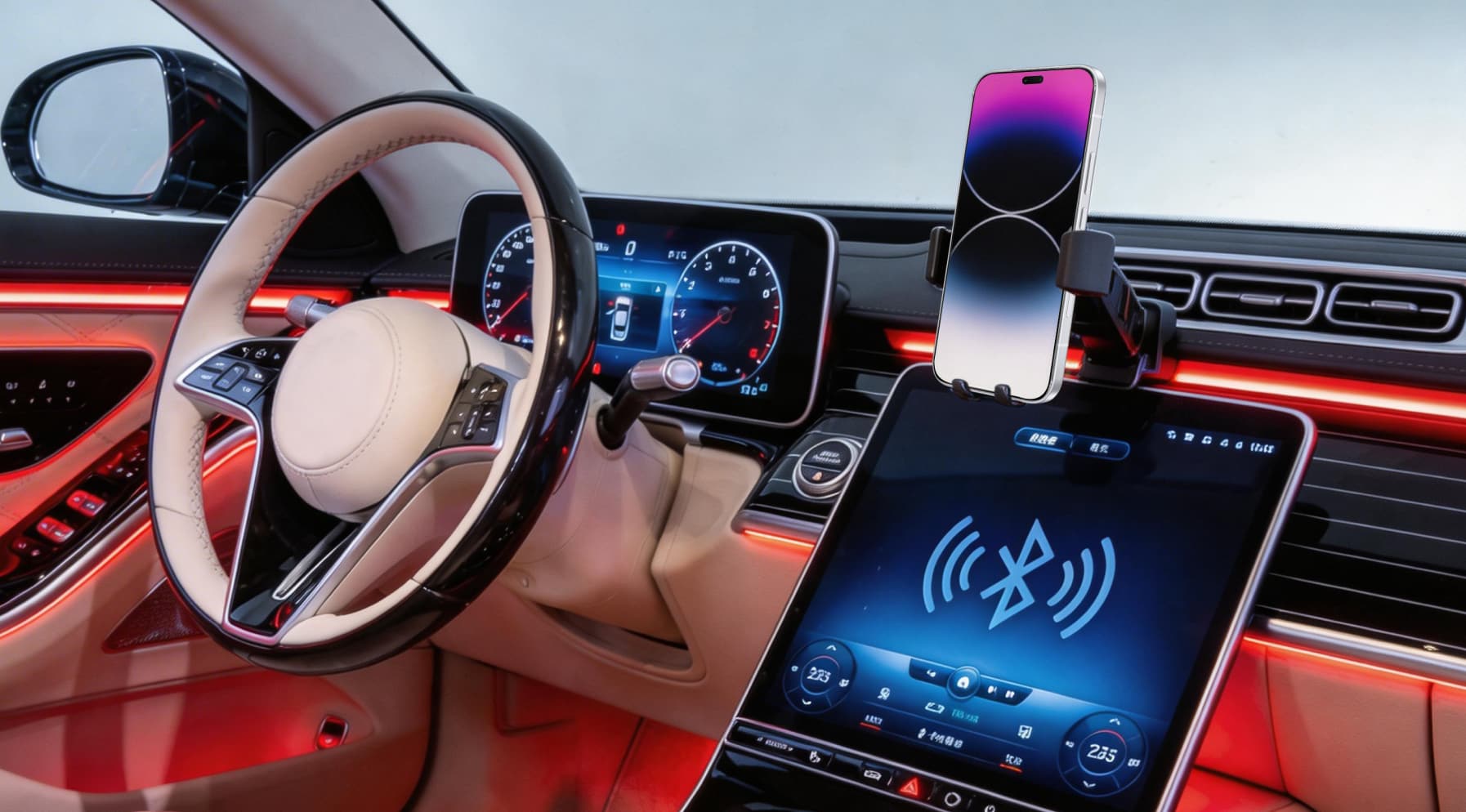
Trying to figure out how to connect phone to car Bluetooth can feel harder than it should be. Every car has its own menu, and your phone may not play along on the first try. This guide breaks the steps down in a clear, simple way. You’ll see what to tap, what to check, and what to do when the connection keeps dropping. And if your car doesn’t support Bluetooth at all, don’t worry — there are easy workarounds you can try. By the end, you’ll know exactly how to get your music, calls, and maps going without the fuss.
How to Connect Phone to Car Bluetooth
The exact steps for connecting phone to car Bluetooth may vary slightly depending on your phone model and car make. However, the basic process is almost always the same.
Just make sure you’re parked safely before you start. Here’s a clear walkthrough on how to connect phone to car with Bluetooth:
Step 1: Put your car into Bluetooth pairing mode
On your car’s infotainment screen:
1. Open Settings (or Phone / Connections).
2. Find Bluetooth or Add device / Add phone / Pair new device.
3. Select the option to add or pair.
Your car is now “discoverable” and ready for your phone to find it.
Step 2: Find your car from your Android Bluetooth menu
On your Android device, you can reach Bluetooth settings in a few quick ways:
Option A: Through the Settings app
1. Open Settings → Bluetooth.
2. If Bluetooth is organised differently on your phone, use the search bar at the top and type “Bluetooth”. This helps if it’s stored under names like Connections, Connected devices, or Device connection.
Option B: Through Quick Settings
1. Unlock your phone andswipe down from the top of the screen.
2. Touch and hold the Bluetooth icon to jump straight into the full Bluetooth menu.
Once you’re there:
● Make sure Bluetooth is switched on.
● Tap Pair new device, Add device, or Available devices.
● Wait a moment for the list to refresh.
You should now see your car appear, often under the car’s make or model, or a generic name like Car Audio, Car Multimedia, or Hands-Free. Tap it to start pairing.
Step 3: Confirm the PIN or passkey
A confirmation pop-up should appear on both your phone and the car screen.
● Check that the numbers on both screens match.
● If they do, tap Pair / OK on your phone and confirm on the car.
Some older systems use a fixed code like 0000 or 1234, shown on the car screen or in the manual. Enter that on your phone if asked.
When the pairing completes, your car should show the phone as “connected” or “paired”.
Step 4: Allow access to contacts and audio
Your phone may ask if the car can access:
● Contacts and call history (for caller ID and the in-car phonebook)
● Audio (for music, podcasts, navigation instructions)
If you want full hands-free use, allow these. You can always adjust them later in your Bluetooth settings.
Step 5: Test the connection
Before you drive off, do a quick test:
● Make a short hands-free call using the car’s phone menu.
● Or play a song/podcast and check the sound comes from the car speakers.
If you can hear audio through the car and control it with the car’s buttons, the connection is working.
Setting up the Bluetooth phone connection for car is usually a one-time job. Once you’ve paired them, they should reconnect automatically every time you start the engine, as long as Bluetooth is on.
Use Android Auto with Bluetooth plus Wi-Fi
If your car supports wireless Android Auto, you can take things further than a basic Bluetooth pairing. Android Auto lets you use compatible apps from your phone on the car’s display, with voice control for maps, messages, and music.
To use wireless Android Auto, your phone needs to support 5 GHz Wi-Fi and run Android 11 or higher. Most HONOR Bluetooth phones today, like the ultra-slim foldable HONOR Magic V5 or the HONOR 400 series, are already equipped for this.
Wireless Android Auto relies on both connections:
● Bluetooth handles the initial handshake and call functions.
● Wi-Fi carries higher-bandwidth data such as navigation and audio.
Here’s how to connect phone to car Bluetooth and Android Auto wirelessly:
1. Switch on Bluetooth, Wi-Fi, and location on your phone for the initial setup.
2. In your car’s menu, open Android Auto, choose Connect phone, and put the system into pairing mode.
3. On your Android phone, go to Settings → Bluetooth, find your car in the list, and pair.
4. Follow the prompts on the screens of your car and phone. You should see options like Enable wireless Android Auto or Wireless projection.
After the first setup, wireless Android Auto usually connects on its own a short time after you start the engine, as long as Bluetooth and Wi-Fi are enabled on your phone .
Troubleshooting Common Bluetooth Connection Problems
Even when you follow every step on how to connect your phone to your car using Bluetooth, things don’t always go to plan. The good news is that most issues are simple to fix. Here’s how to troubleshoot:
Start with a quick reset
Before you dive into menus, try the basics:
● Turn Bluetooth off and on again on your phone.
● Restart your phone and your car’s system (switch car off fully, wait a moment, then restart).
● Make sure Airplane mode is off and Wi-Fi tethering or hotspot features aren’t getting in the way.
These simple resets clear small glitches that often cause pairing failures or random disconnections.
Problem 1: Your phone can’t find the car
If your Android phone doesn’t see the car at all:
1. Check the car is in pairing mode: Open the car’s Bluetooth / Phone / Connections menu. Confirm it’s in “Add device” / “Pair new device” mode so it’s discoverable.
2. Clear old devices from the car: Many systems only remember 5–10 paired devices. When they’re full, new phones may not show up. So, if you’re failing to add Bluetooth phone to car, delete phones you no longer use from the car’s Bluetooth list.
3. Reduce interference: Keep the phone in the front of the car, near the centre console. Switch off other Bluetooth devices nearby (earbuds, wearables) during pairing.
If the car still never appears on your Android Bluetooth list, double-check your car’s manual for any brand-specific pairing steps.
Problem 2: It says “connected” but you get no sound
Sometimes when you connect Android phone to car Bluetooth, the connection looks fine, but you can’t hear calls or music.
Try this:
● Check the source on the car: On the audio screen, make sure the source is set to Bluetooth and not Radio, USB, or AUX.
● Turn the volume up in two places: Turn up the car stereo volume. On your phone, raise media volume as well as call volume.
● Check Bluetooth permissions on your phone: In Settings → Bluetooth, tap your car’s name. Make sure options like Use for audio / Media audio / Phone calls are turned on.
● Re-pair if needed: If calls work but music doesn’t (or the other way round), remove the car from your phone’s Bluetooth list and pair again. In Settings → Bluetooth, tap the gear / info icon next to the car name (if it’s there). Choose Forget or Remove, and then try pairing again from scratch.
Problem 3: The connection keeps dropping
If Bluetooth connects but cuts out or disconnects mid-journey:
● Move the phone: Keep the phone away from thick metal objects, other electronics, or deep storage bins that may weaken the signal.
● Turn off unused Bluetooth devices: If your phone is also connected to earbuds, watches, or another car, disconnect those and leave only your current car paired.
● Update software: Check for Android system updates on your phone. Look for infotainment or firmware updates for your car’s system on the manufacturer’s website or via a dealer. Outdated software can cause compatibility problems.
● Reset the car’s Bluetooth: Many cars have an option to clear all devices or reset Bluetooth in the settings. After that, set up the pairing again as if it were new.
Alternative Ways to Connect Your Phone to Your Car
If you’re unable to connect phone with car Bluetooth, the connection keeps dropping, or your car simply doesn’t support Bluetooth, you still have several reliable ways to link your phone to your audio system. These options work well with most Android phones:
Option 1: USB cable to your car’s port
If your car has a USB port on the dashboard or centre console, that’s often the simplest alternative:
1. Plug your phone in using a USB data cable (not just a charge-only lead).
2. Switch the car’s audio source to USB, Media, or a similar setting.
Depending on the car:
● You may only get charging and basic audio.
● Newer systems may let you control tracks from the steering wheel and show track info on screen.
● If your car supports Android Auto through USB, you’ll also see prompts to set it up on the first connection.
Option 2: AUX (3.5mm) audio cable
If your stereo has a 3.5mm AUX input, you can connect your phone for simple audio playback.
1. Use a standard 3.5mm-to-3.5mm cable, or a USB-C audio adapter plus AUX cable if your phone lacks a headphone jack.
2. Plug one end into your phone and the other into the car’s AUX port.
3. Switch your car stereo to AUX.
4. Play audio from your phone as normal.
This method sends sound directly into the stereo but doesn’t provide on-screen controls in the car.
Option 3: Bluetooth AUX adapters
If your car has an AUX port but no Bluetooth, a Bluetooth-to-AUX adapter gives you wireless audio.
1. Plug the adapter into the car’s AUX input.
2. Power it through the 12V socket or a USB port, depending on the device.
3. Put the adapter in pairing mode.
4. Pair your phone with the adapter through Bluetooth.
5. Set the car stereo to AUX.
Your phone connects to the adapter instead of the car, but the experience feels almost the same as built-in Bluetooth.
Option 4: FM Transmitters
For cars without AUX or USB, an FM transmitter is a simple workaround.
1. Plug the transmitter into the 12V (cigarette lighter) socket.
2. Pair your phone with the transmitter over Bluetooth.
3. Set the transmitter to an unused FM frequency.
4. Tune your car radio to the same frequency.
Your phone’s audio plays through your car speakers via the FM signal.
Conclusion
Learning how to connect phone to car Bluetooth doesn’t need to feel complicated. Once you know where the settings live on both your phone and your car, pairing becomes quick and repeatable. And if Bluetooth refuses to cooperate, you still have solid alternatives like USB, AUX, or adapters. Set everything up while parked, keep your phone’s Bluetooth on, and your car should connect smoothly every time you drive.
FAQs
How do I pair my phone to my car Bluetooth?
To pair phone to car Bluetooth, first ensure Bluetooth is enabled on your smartphone settings. Then navigate to the ‘Phone’ or ‘Bluetooth’ menu on your car’s infotainment screen and select the option to add or search for a new device. Your car’s system should now appear in the available devices list on your mobile. Simply tap it to connect. You may need to confirm a PIN code displayed on both screens to finalise the pairing. Once confirmed, your device will automatically connect for calls and media.
Why is my mobile not connecting to car Bluetooth?
There are a few common reasons for connection issues. First, check that Bluetooth is switched on and your phone is not in ‘Flight Mode’. Often, a car’s system has reached its limit for stored Bluetooth devices, so you may need to delete old profiles from the vehicle’s settings. It is also worth toggling your Bluetooth off and on again or restarting your mobile to clear any temporary glitches. Ensure your vehicle is stationary, as many systems block pairing while driving for safety.
How do I put my phone in pairing mode?
Putting your smartphone into pairing mode is usually quite straightforward. Open your mobile’s ‘Settings’ app and tap on the ‘Bluetooth’ section. Ensure the toggle is switched to the ‘On’ position. On most Android smartphones, simply staying on this specific settings screen makes your device visible to other equipment. Your phone will automatically scan for nearby signals, allowing your car’s system or other devices to discover it.
How do I activate pairing mode?
To activate pairing mode on your vehicle, navigate to the main menu on your dashboard screen and look for the ‘Phone’, ‘Communications’, or ‘Bluetooth’ section. Select the option to ‘Add New Device’ or ‘Pair Device’, which effectively makes your car discoverable to your smartphone. On some older vehicle models without a screen, you might need to hold down a specific phone button on the stereo unit or steering wheel for a few seconds until you hear a tone or voice prompt.
Why is my Bluetooth not pairing?
Bluetooth may fail to pair when one device isn’t in pairing mode, the connection list is full, or the phones and car remember old pairing data. It can also happen if Bluetooth is off, another device is already connected, or there’s signal interference from nearby electronics. Restarting your phone and car system, turning Bluetooth off and on, and removing old pairings usually clears the problem.
Source: HONOR Club
Products Recommend
